A Hyper-V virtual machine that refuses to leave the Saved state is one of those problems that looks small in Hyper-V Manager and turns into an outage in practice. The VM sits there with a paused-clock icon, the Start action does nothing useful, and the error usually reads Failed to restore virtual machine state or Virtual machine could not be started because the hypervisor is not running. The fix is almost always to discard the saved memory image and boot the VM cold, but a few different things can block that simple step.
Quick answer: In Hyper-V Manager, right-click the stuck VM and choose Delete Saved State, then click Start. If that option fails or the VM still won’t boot, fix NTFS permissions on the VM folder, confirm the host has free RAM and disk space, and verify the storage path holding the .bin and .vsv (or .vmrs) files is online.
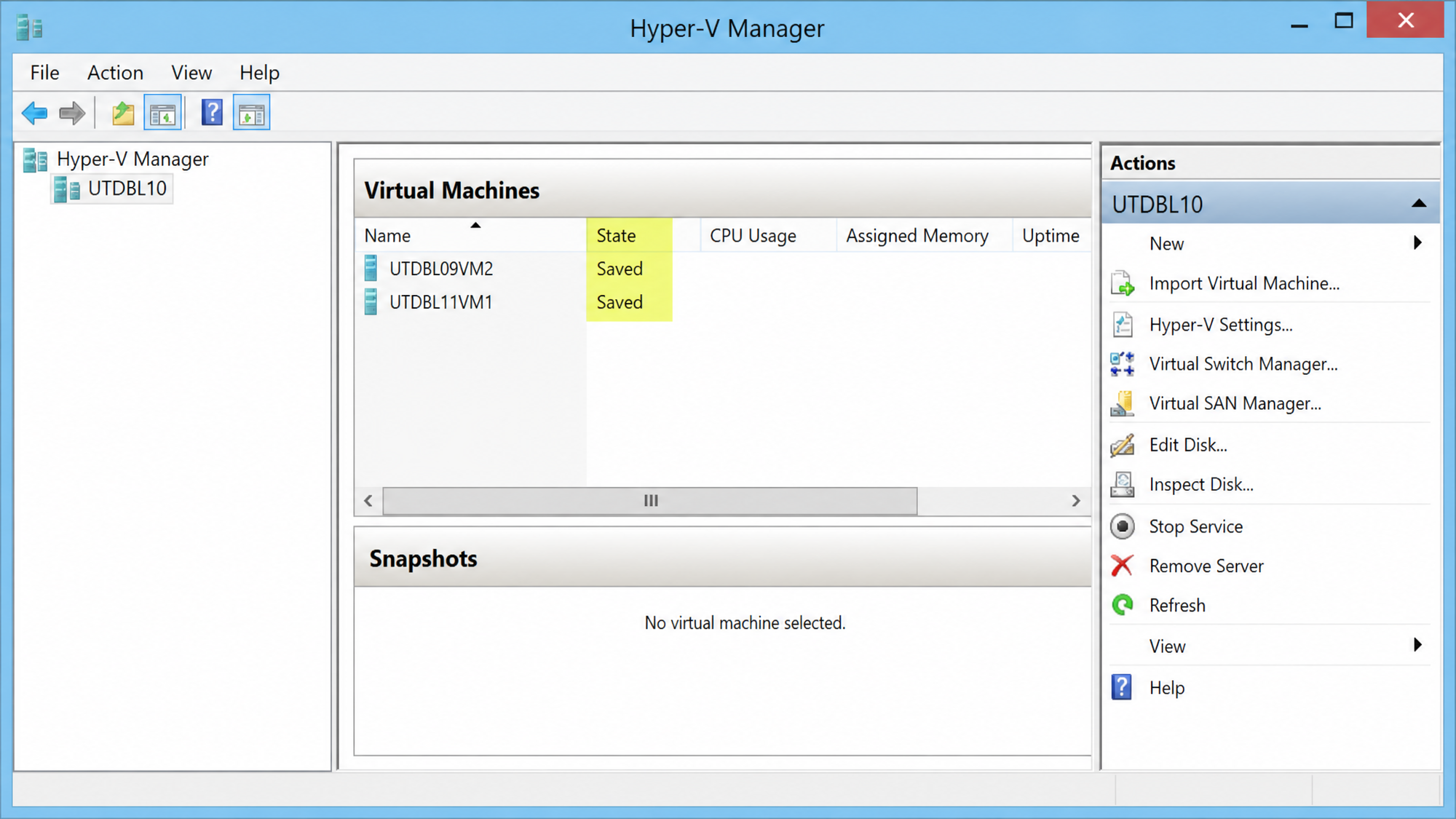
What the Saved state actually is
When you pick Save instead of Shut Down, Hyper-V freezes the guest by writing its RAM and device context to disk and releasing host resources. On older configuration versions, you get a .bin file for memory contents and a .vsv file for device state, such as CPU registers and network adapter buffers. Newer VM configuration versions consolidate this into .vmrs.
On Start, Hyper-V reads those files back into memory and resumes execution. If anything between save and resume changes — the files get corrupted, the host hardware changes, a drive letter shifts, permissions are stripped — the resume fails, and the VM cannot transition out of Saved. That is the entire problem in one paragraph.
Saved state is not the same as a checkpoint. Checkpoints capture disk plus memory and live alongside the VHDX as .avhdx differencing disks. Deleting a saved state never touches the virtual disks, only the memory image.
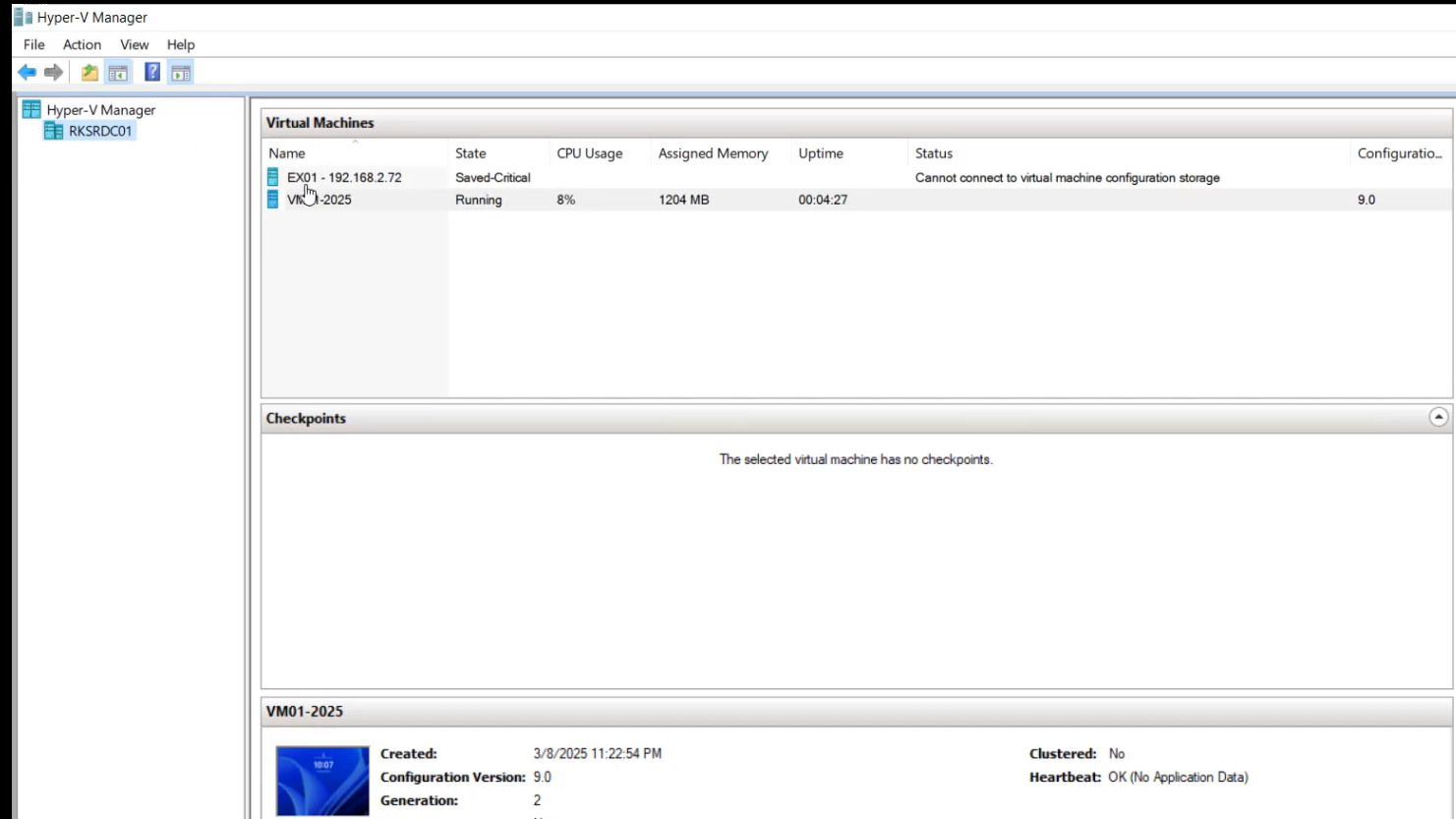
Common reasons it fails to resume
| Cause | What you’ll see |
|---|---|
Corrupted memory image (.bin/.vsv/.vmrs) | “Failed to restore virtual machine state” after a crash or power loss |
| Host hardware or CPU change after the save | “The virtual machine is not compatible with the physical computer” |
| Storage gone offline or drive letter changed | VM can’t find its files; status flips to Saved-Critical |
| Broken NTFS permissions on the VM folder | Start-VM returns AccessDenied / PermissionDenied |
| Insufficient host RAM or disk space | Resume hangs at a low percentage, then errors out |
| Interrupted backup job | VM left in Saved by the VSS writer mid-snapshot |
| Configuration version mismatch after host upgrade | VM saved on an older host won’t resume on a newer one |
Delete the saved state from Hyper-V Manager
This is the safe default. It discards anything held only in the guest’s RAM at the moment of save (unsaved app data, in-memory caches), but it does not modify the VHDX, so the file system and installed software are untouched. Treat it as the equivalent of pulling the cord on the VM and booting fresh.
Fix it from PowerShell
The PowerShell equivalents are useful when the GUI fails, when you’re scripting recovery, or when you’re working over a remote session without a graphical Hyper-V Manager.
Remove-VMSavedState -Name "VMname"
Start-VM -Name "VMname"
Discard saved state and start the VM
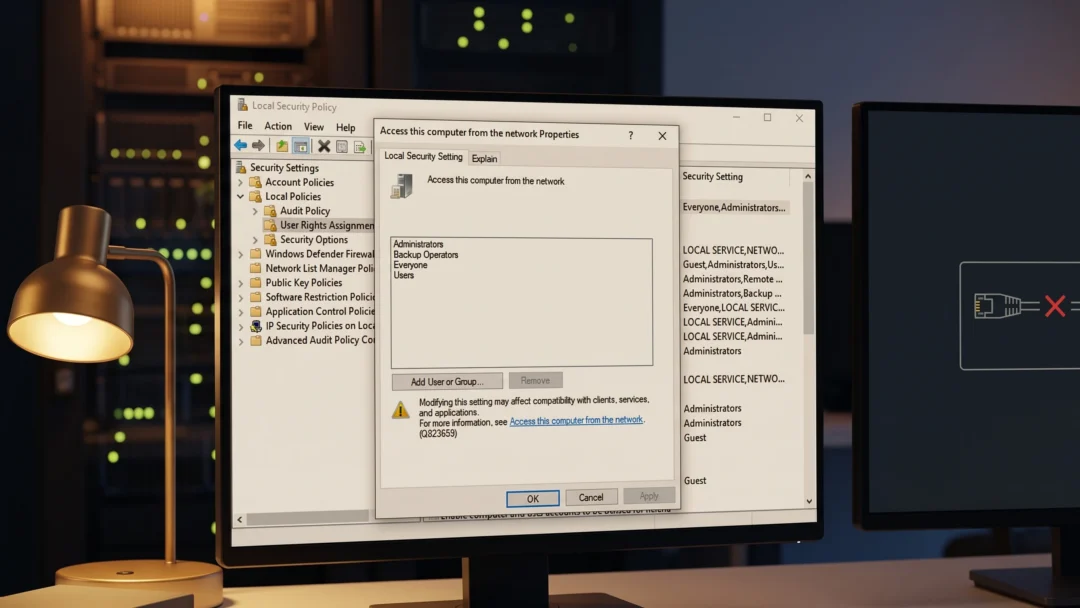
If Start-VM comes back with AccessDenied and a VirtualizationException, the saved-state file is gone but NTFS permissions on the VM folder are wrong. Each VM runs under a virtual account named NT VIRTUAL MACHINE\<VM-GUID>, and that account must have Full Control on the configuration and disk files.
Get the VM’s ID first:
Get-VM | Select-Object Name, Id, State
Find the VM GUID
Then grant permissions to the matching virtual account. Run the icacls commands from an elevated Command Prompt, not PowerShell, so the parser doesn’t trip on the colons:
icacls "C:\Path\To\VM\{VM-GUID}.vhdx" /grant "NT VIRTUAL MACHINE\{VM-GUID}:(F)"
icacls "C:\Path\To\VM\{VM-GUID}.vmrs" /grant "NT VIRTUAL MACHINE\{VM-GUID}:(F)"
icacls "C:\Path\To\VM\" /reset /T
Restore NTFS permissions on the VM folder
Confirm the inheritance is back, then try Start-VM again.
Check host resources and storage paths
Resume needs to read the memory image off disk and allocate the same amount of RAM the guest had when it was saved. A host that’s tight on either will fail the operation without offering much detail in the error.
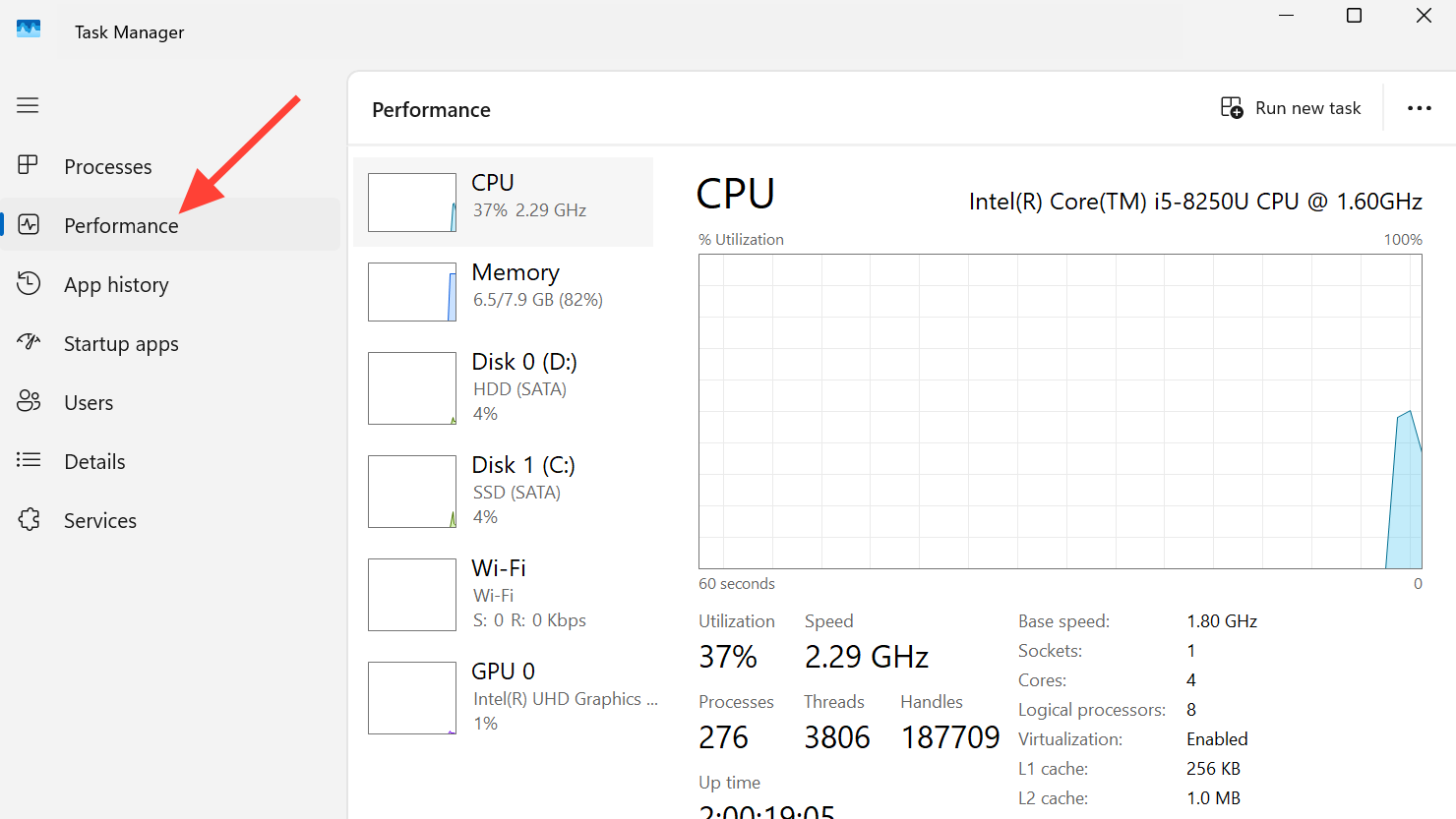
Open Task Manager on the host and check the Performance tab for free physical memory. Compare that to the VM’s assigned memory. For a VM with 16 GB assigned, the host needs roughly that much free, plus headroom for the hypervisor itself.
Check disk space on the volume holding the VM configuration. If it’s near full, the VM can flip into Saved-Critical and refuse to start. Free space, then retry.
For VMs stored on iSCSI, SMB shares, or external drives, verify the storage is mounted with the same path it had at save time. A drive letter that changed from E: to F: after a reboot will break the resume even though the files are intact. Reassign the original letter or update the VM configuration to point at the new path.
In failover clusters, open Failover Cluster Manager and confirm all nodes see the Cluster Shared Volume at the same mount point. A node that lost its CSV link will report the role as failed and the guest as Saved-Critical.
Manually delete the saved-state files
When neither the GUI nor PowerShell can clear the state — usually because the files are locked or the configuration is partially corrupt — remove them by hand.
services.msc, find Hyper-V Virtual Machine Management (VMMS), right-click it, and choose Stop.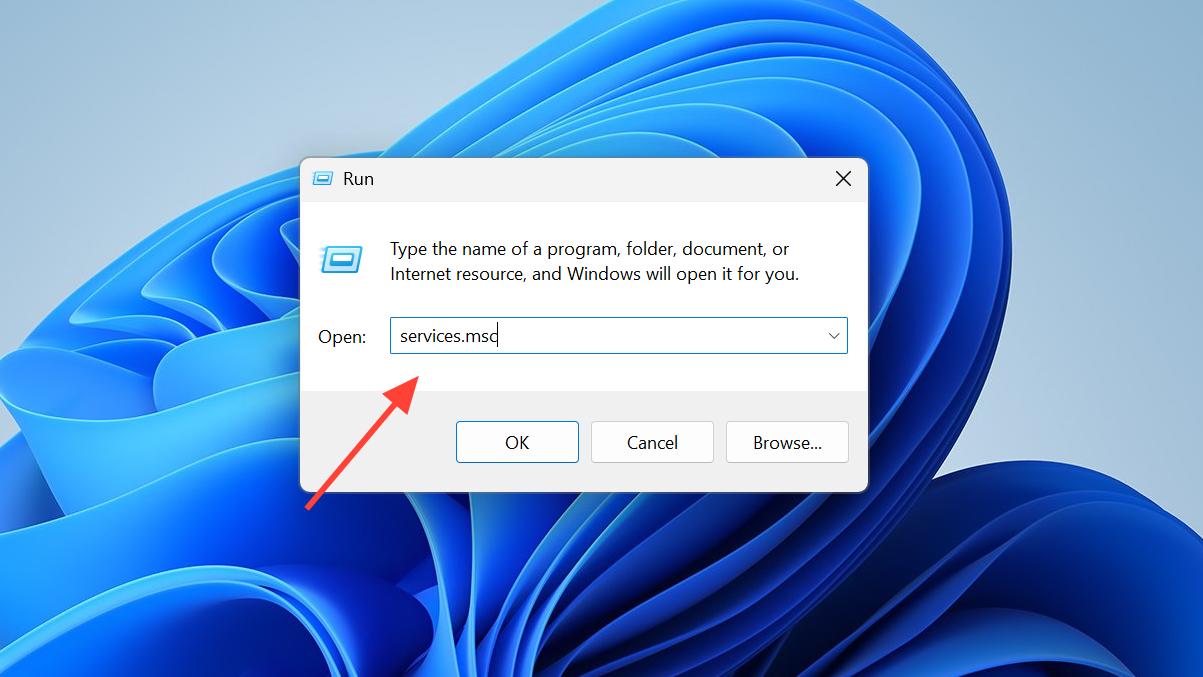
C:\ProgramData\Microsoft\Windows\Hyper-V\Virtual Machines, or to the custom path used for your VMs. Delete the .bin and .vsv files (or the .vmrs on newer configuration versions) whose GUID matches the stuck VM.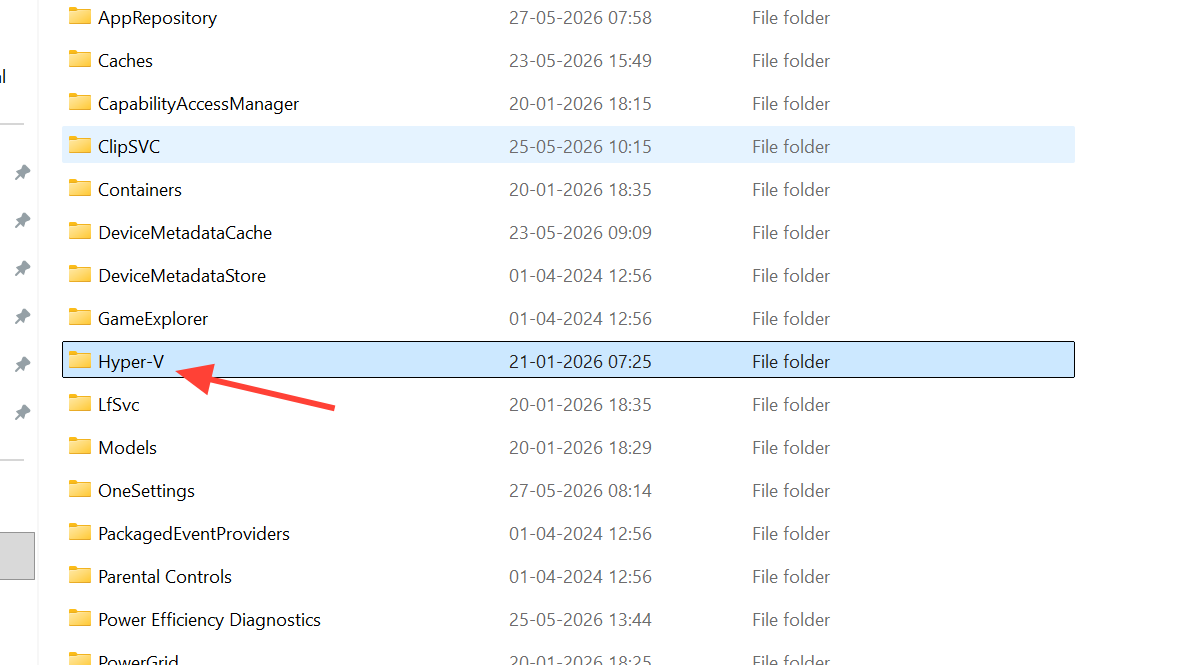
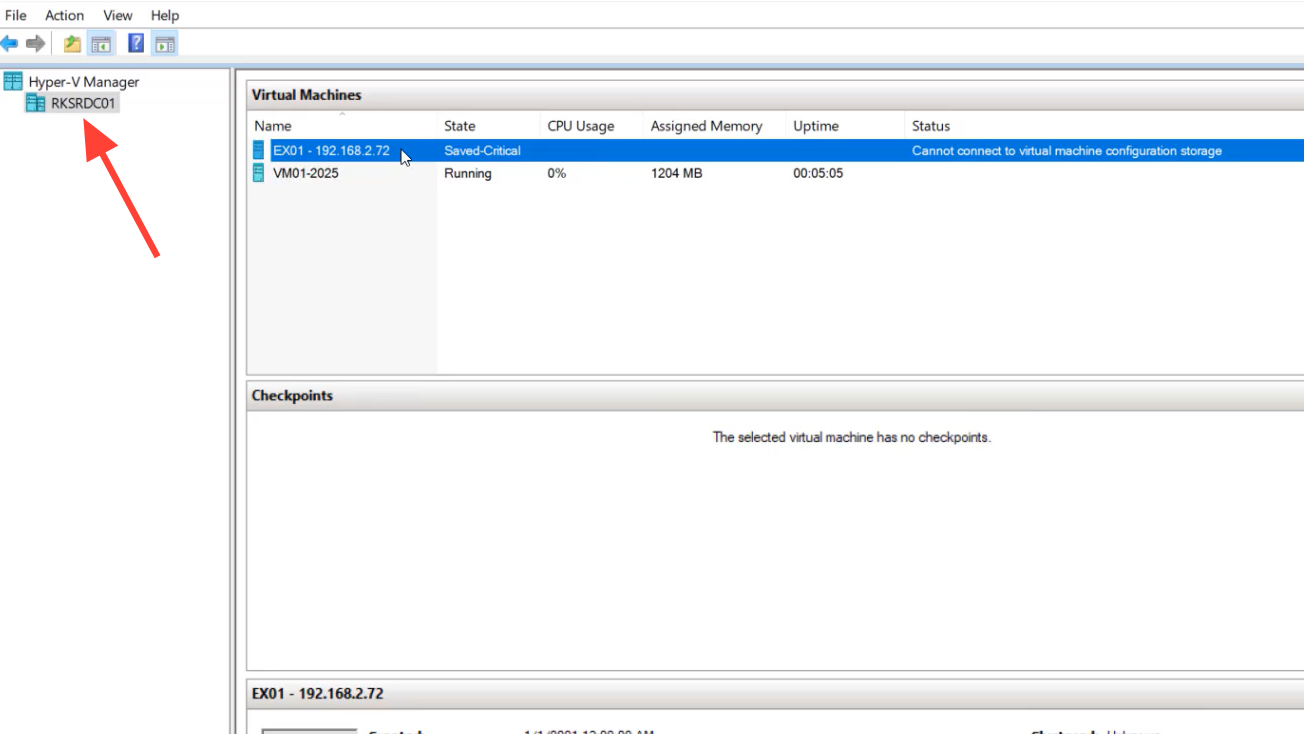
When the VM is in Saved-Critical
Saved-Critical means Hyper-V cannot reach the storage backing the VM at all. It looks similar to Saved but blocks almost every management action, including delete and rename. This typically follows a RAID failure, a missing iSCSI LUN, or a CSV that went offline.
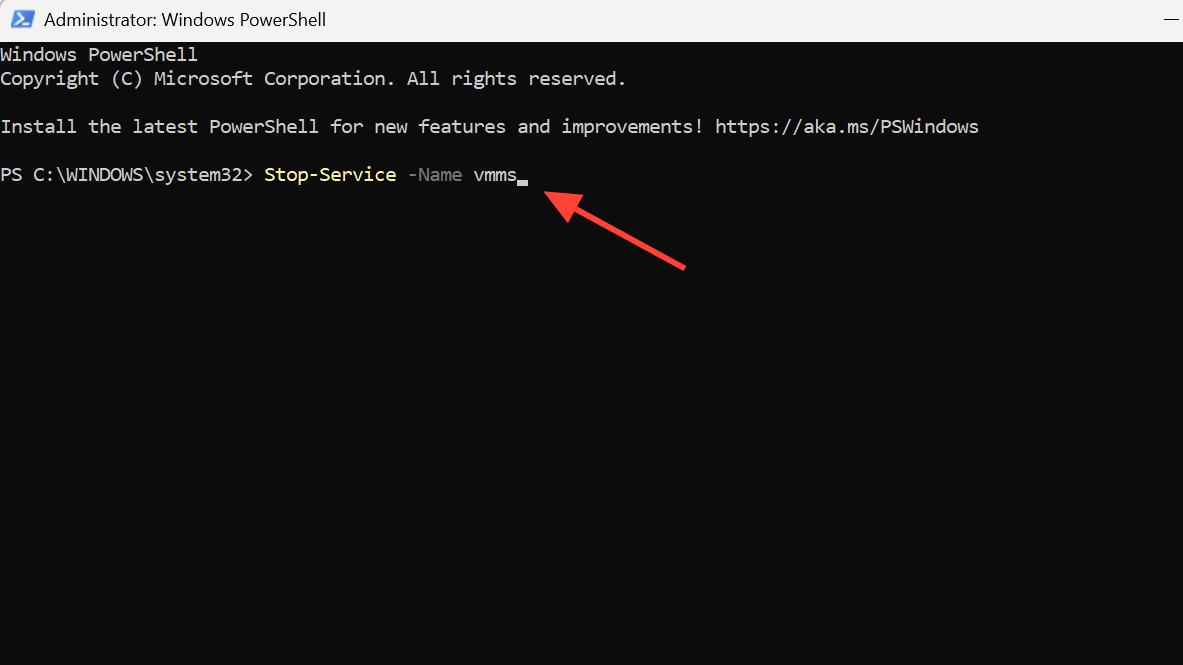
First, bring the storage back online. If the underlying volume is permanently lost and you only want to remove the orphan entries, stop VMMS, delete the matching configuration file, and restart the service:
Stop-Service -Name vmms
Remove-Item -Path "C:\ProgramData\Microsoft\Windows\Hyper-V\Virtual Machines\<GUID>.vmcx" -Force
Start-Service -Name vmms
Remove an orphaned VM whose storage is gone
If the VHDX files survived on backup or on a different volume, create a new VM shell with the same generation and specs, then attach the existing virtual hard disks during the wizard. The guest OS will boot the moment the disk is attached to a valid configuration.
Upgrade the configuration version after a host upgrade
VMs created on older Windows Server builds carry an older configuration version. After you upgrade the host (for example, from Server 2016 to 2019 or 2022), a VM saved on the older host may refuse to resume because the save-state format isn’t compatible with the new hypervisor.
Shut the VM down fully, not Save. In Hyper-V Manager, select it and click Upgrade Configuration Version in the Actions pane. Then start it normally. The previous saved state will no longer be valid, but the disks remain intact and the guest boots cold.
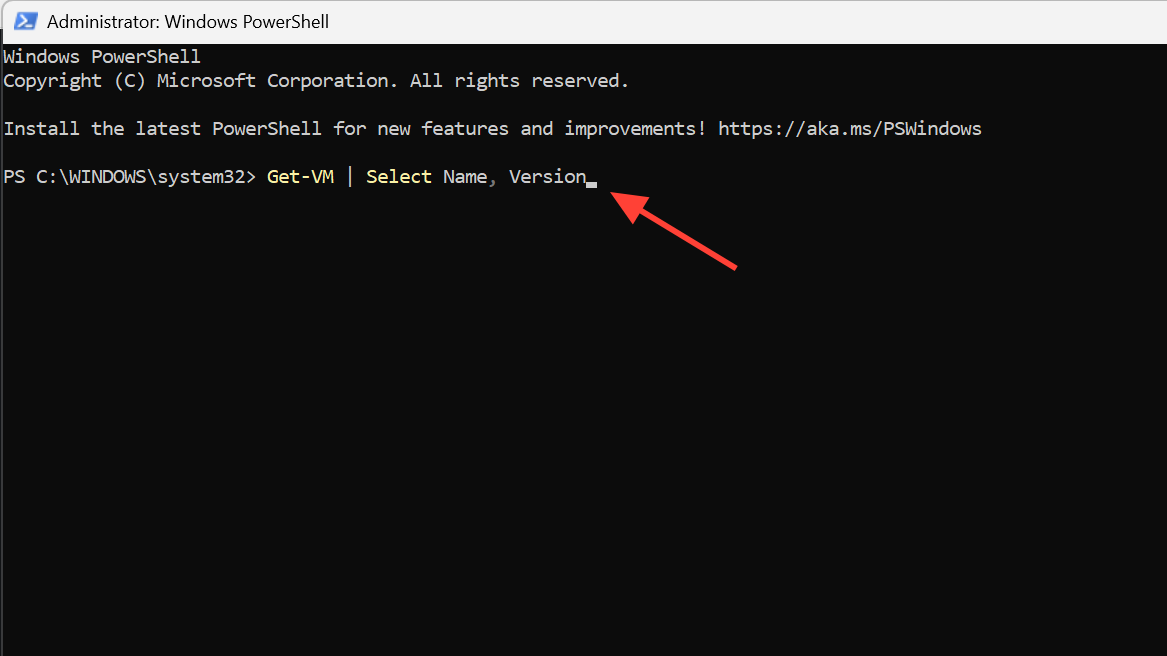
Get-VM | Select Name, Version
Update-VMVersion -Name "VMname"
Check and upgrade configuration version
Export and re-import as a last resort
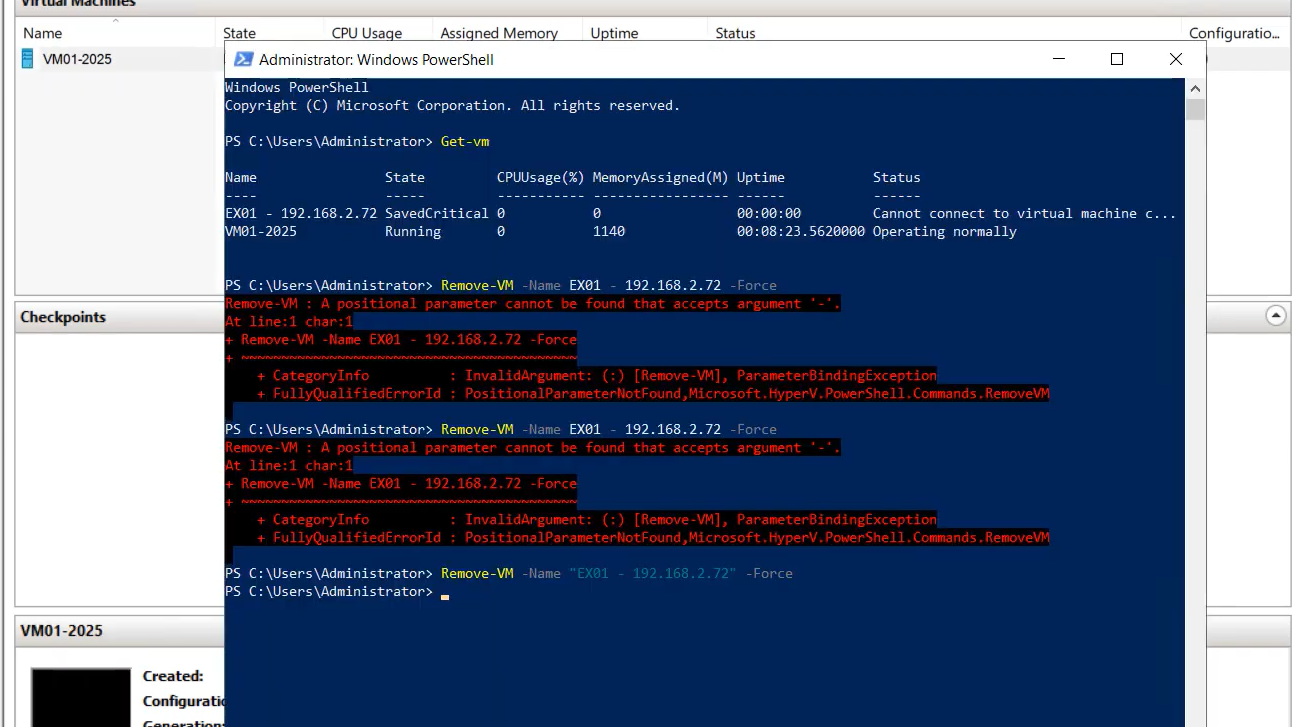
If the configuration itself is corrupt and none of the cleanup steps work, export the VM’s metadata to a fresh path, remove it from the inventory without deleting the disks, then import it back. This rebuilds the internal references without touching the VHDX contents.
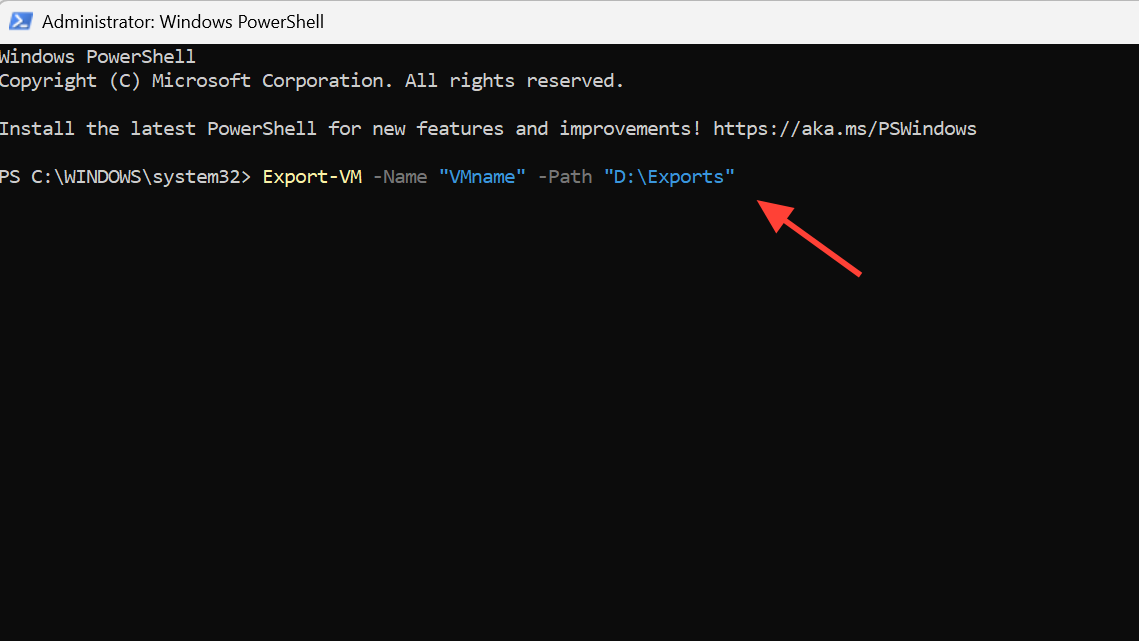
Export-VM -Name "VMname" -Path "D:\Exports"
Remove-VM -Name "VMname" -Force
Import-VM -Path "D:\Exports\VMname\Virtual Machines\<GUID>.vmcx"
Refresh a VM by export and import
During import, attach the original virtual hard disks when prompted. The guest will start as if nothing happened.
How to know the fix worked
The VM should change state from Saved to Off, then to Running, and the heartbeat in Hyper-V Manager should report OK within a minute. Inside the guest, the uptime counter will reset because the resume was replaced by a cold boot. Event Viewer on the host, under Applications and Services Logs > Microsoft > Windows > Hyper-V-Worker, will log a clean start instead of a restore failure.
If the same VM keeps falling back into Saved or Saved-Critical after every host reboot, the underlying cause is almost always storage. Move the VM to a volume that stays online through reboots, verify your RAID controller has battery-backed write cache enabled, and make sure backup software is configured to use checkpoints or production checkpoints instead of the legacy saved-state method.