

Outlook may sometimes experience persistent issues such as frequent crashes, slow performance, or unexpected errors. Repairing Outlook by clearing local settings and unsaved data can resolve these problems by resetting the application to a clean state. Keep in mind that this process will remove any local customizations and unsaved drafts, but your emails, contacts, and calendar items stored on the server will remain unaffected.
Method 1: Repair Outlook via Control Panel
Close Outlook completely. Ensure that Outlook is not running in the background by checking the system tray (near the clock) and the Task Manager. Press
Ctrl + Shift + Esc to open Task Manager, locate “Microsoft Outlook” under the Processes tab, right-click it, and select “End Task.”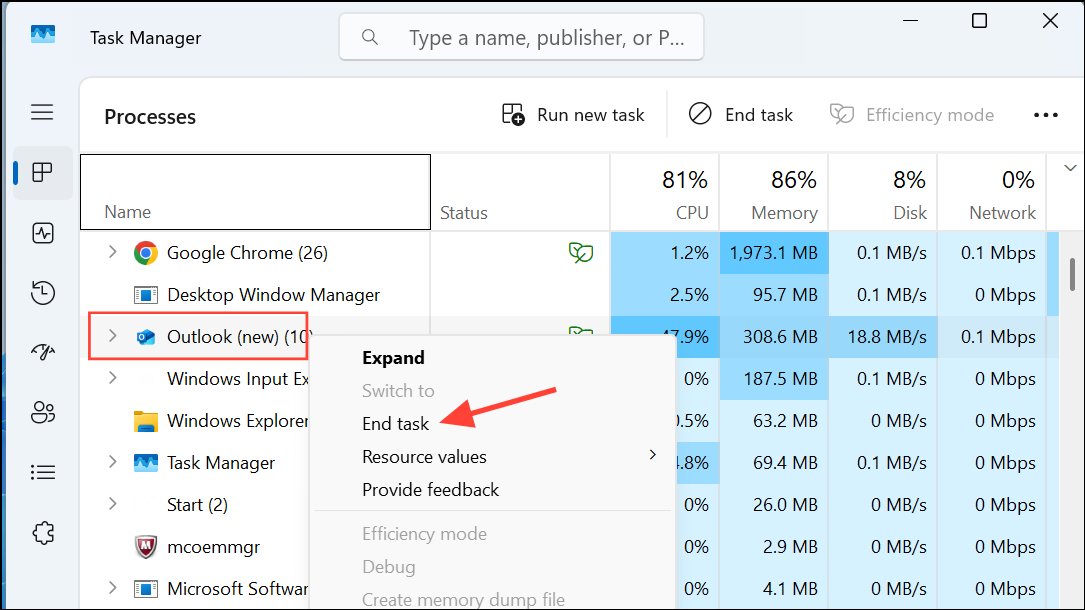
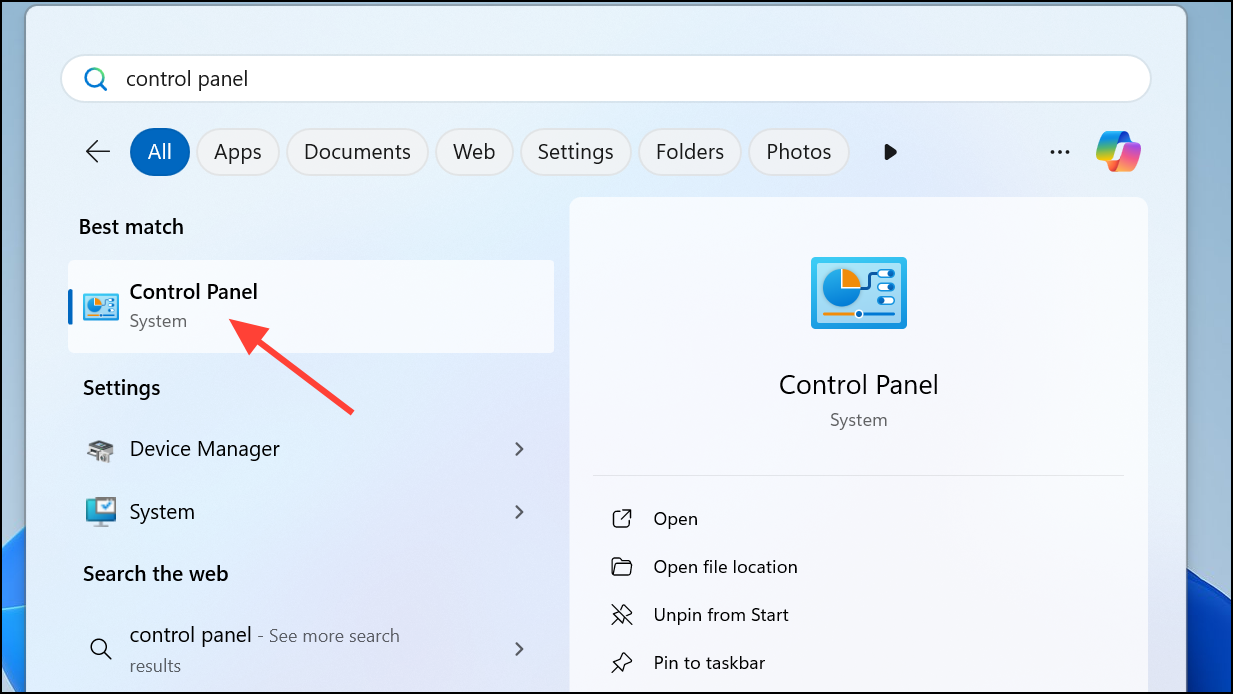
Open the Control Panel by typing “Control Panel” in the Windows search bar and selecting it from the results.
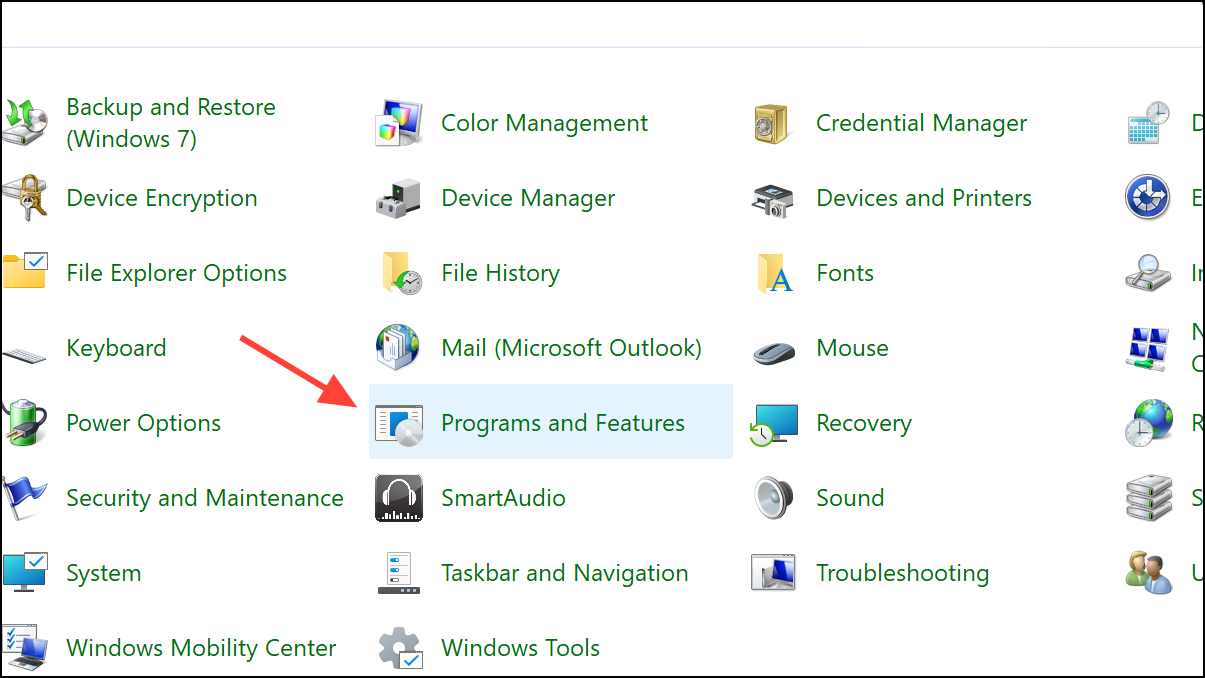
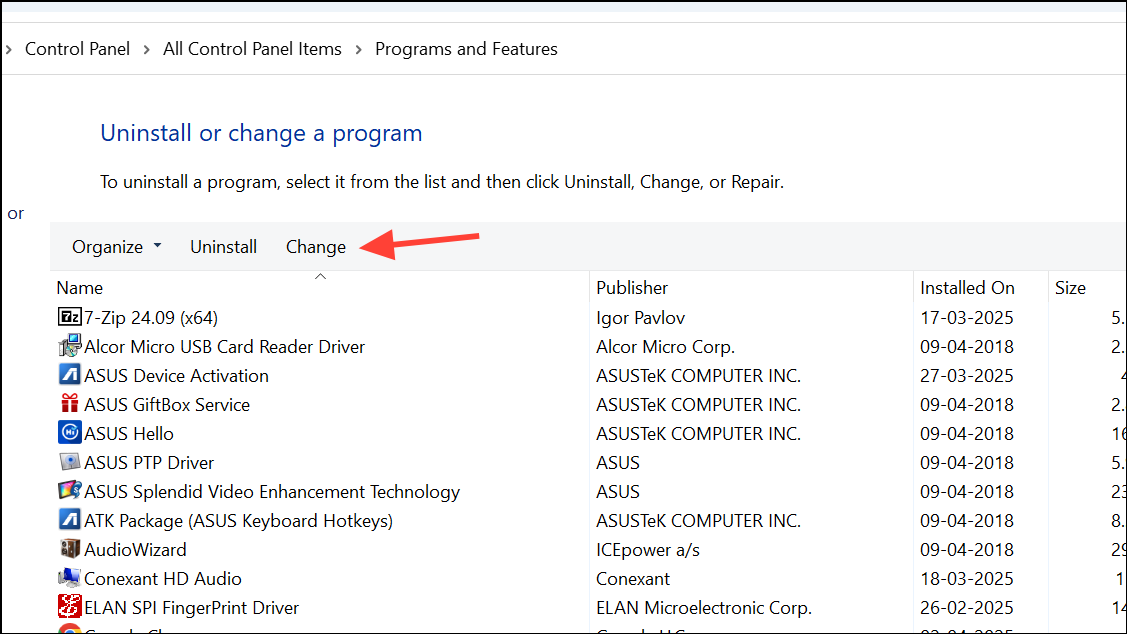
Locate “Microsoft Office” or “Microsoft 365” in the list of installed applications. Click once to highlight it, and then select “Change” from the top menu bar.
In the repair window, select “Quick Repair” to fix common issues without an internet connection or “Online Repair” for a more thorough repair process requiring an internet connection. The Online Repair option will reset Outlook settings more deeply and clear local data more effectively. Click “Repair” to begin the process.
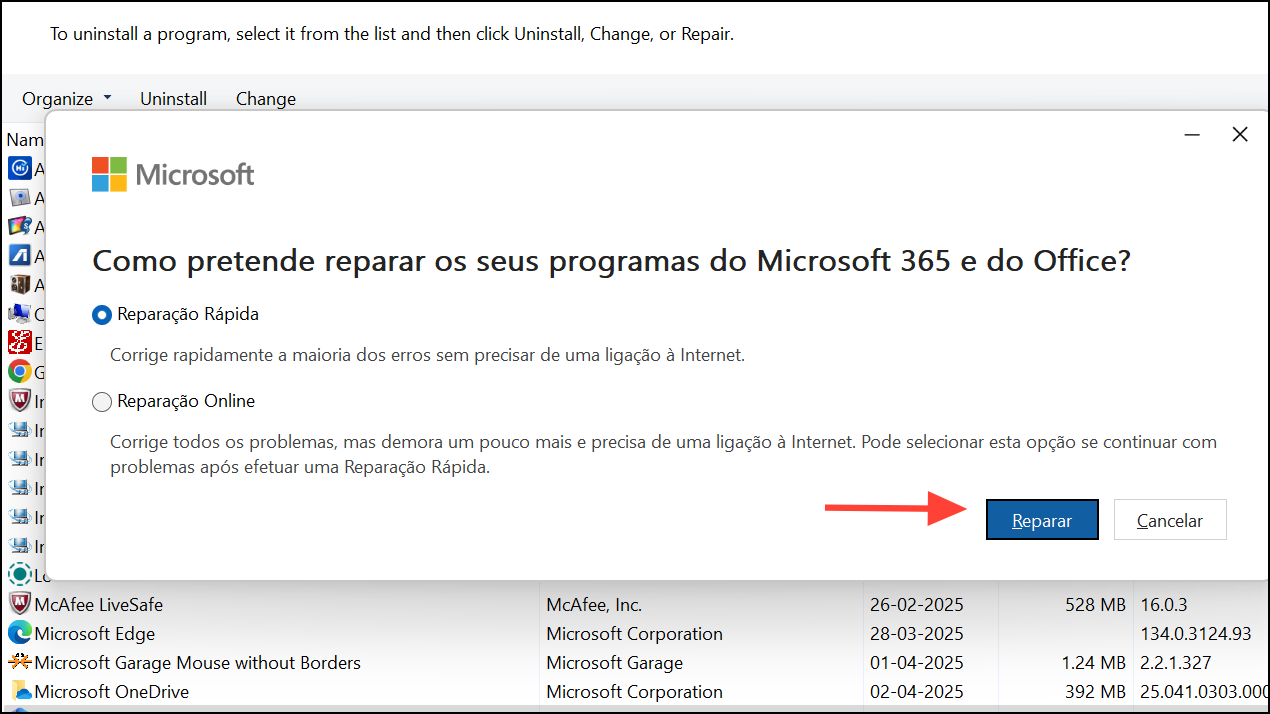
Follow the on-screen prompts to complete the repair process. Once finished, restart your computer to ensure that all changes take effect.
Launch Outlook again. You will notice that local settings such as custom views, signatures, and unsaved drafts have been reset. You may need to reconfigure certain preferences manually.
Method 2: Reset Outlook by Deleting Local Data Manually
%localappdata%\Microsoft\Outlook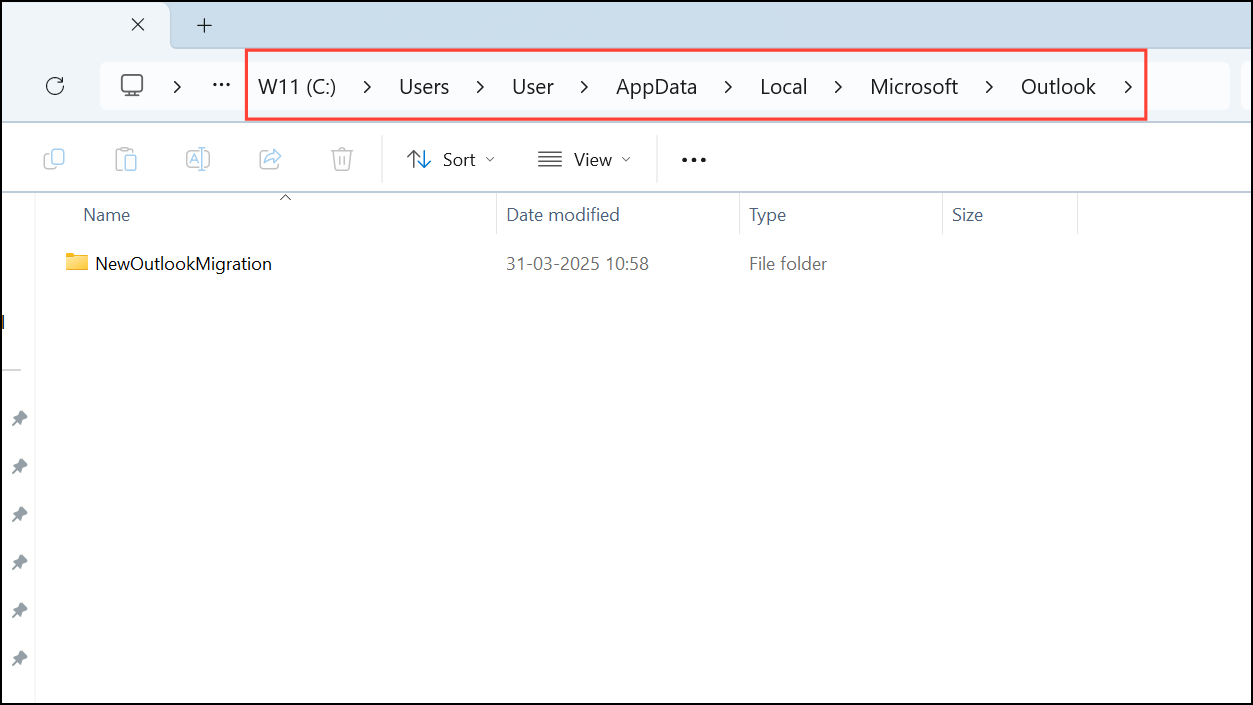
Within this folder, select all files and folders (such as RoamCache, data files, and XML files) and delete them. This action removes cached data, temporary files, and local settings that might be causing issues.
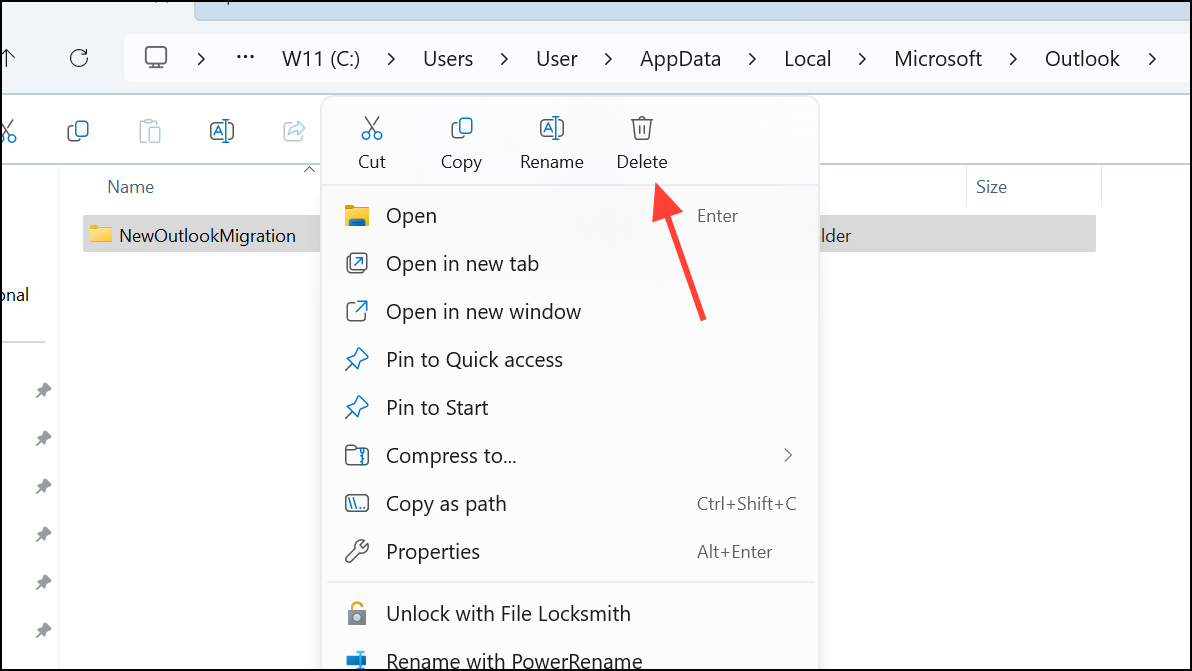
%appdata%\Microsoft\OutlookDelete contents such as XML files, NK2 files, and other cached settings. Be cautious not to remove any PST or OST files unless you specifically want to delete locally stored emails.
Restart your computer and launch Outlook again. The application will recreate necessary default files and settings upon the first startup. You will need to reconfigure your preferences and reconnect your email accounts if required.
Important Considerations
- Ensure that important emails, contacts, and calendar entries are synchronized and backed up to your email server or cloud service before performing these steps.
- If you use POP email accounts, confirm you have backed up your PST files separately, as deleting local data could permanently remove emails stored locally.
- Always perform the Quick Repair first, as it resolves most issues without removing extensive data. Opt for Online Repair or manual deletion only if Quick Repair is unsuccessful.
After completing these steps, Outlook should function smoothly without previous issues. Regularly updating Outlook and periodically clearing unnecessary cached data can help maintain optimal performance.





