Finder, the default file management application on macOS, does not include a built-in “New File” option in the right-click context menu. This can be particularly inconvenient for users accustomed to creating new files directly within folders, especially those transitioning from Windows. Fortunately, there are several practical ways to add this functionality to Finder on macOS Sequoia. We’ll explore four effective methods you can use to streamline your workflow.
Method 1: Using Shortcuts and AppleScript
The most effective and integrated method involves using the Shortcuts app combined with AppleScript. This method allows you to add a convenient “New File” action directly into Finder’s context menu or menu bar.
Command + Space and type “Shortcuts”).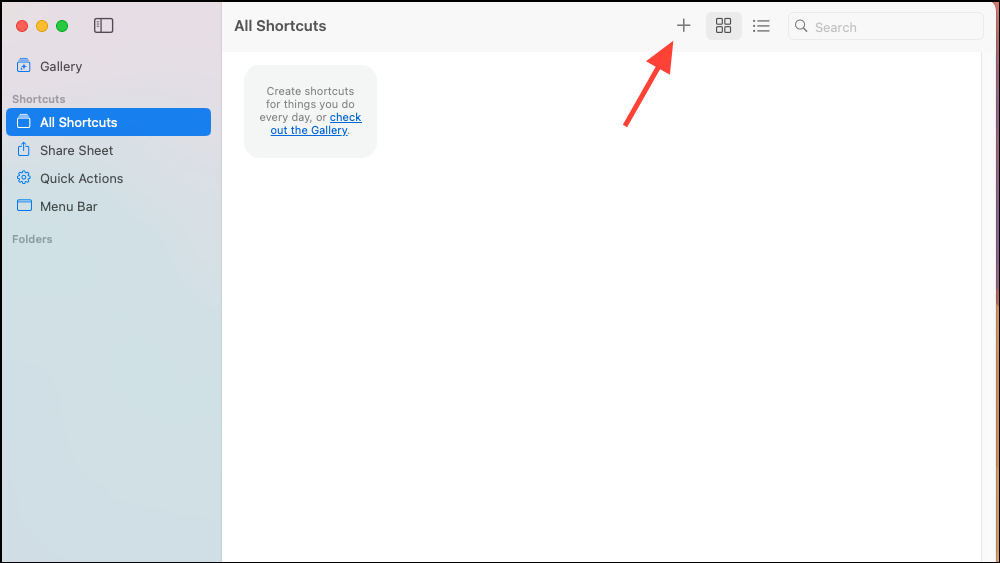
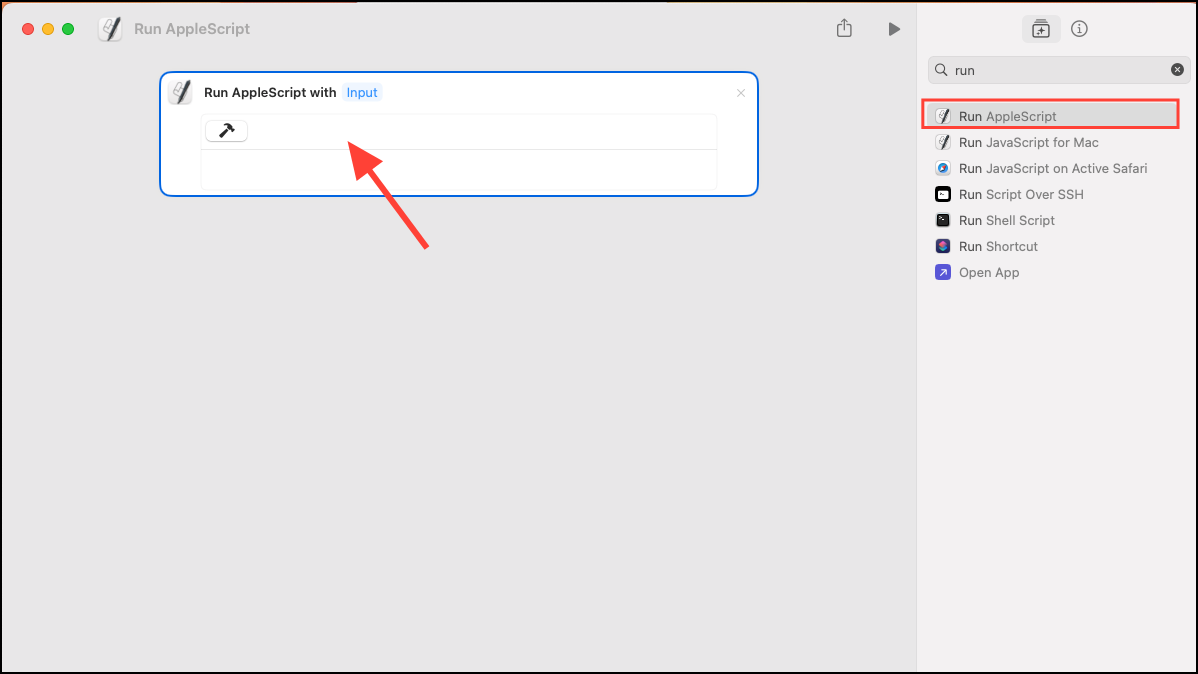
tell application "Finder"
    set newFile to make new file at (the target of the front window) as alias with properties {name:"Untitled.txt"}
    select newFile
end tell
This script creates a new text file named “Untitled.txt” in the currently open Finder window and selects it for immediate renaming.
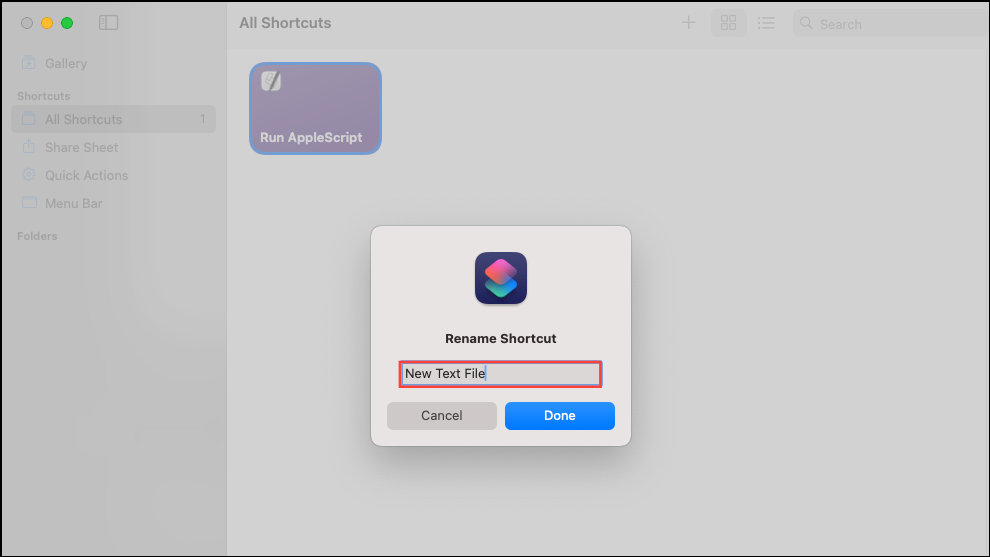
i), then select “Pin in Menu Bar”.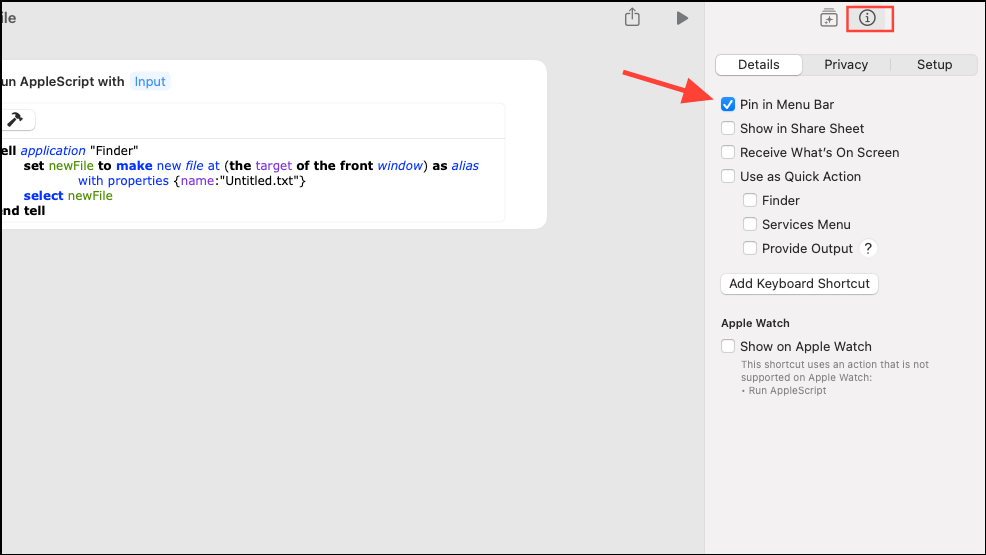
You can now create a new file directly from Finder by clicking the Shortcuts icon in the menu bar and selecting your shortcut.
Method 2: Using Automator Quick Action
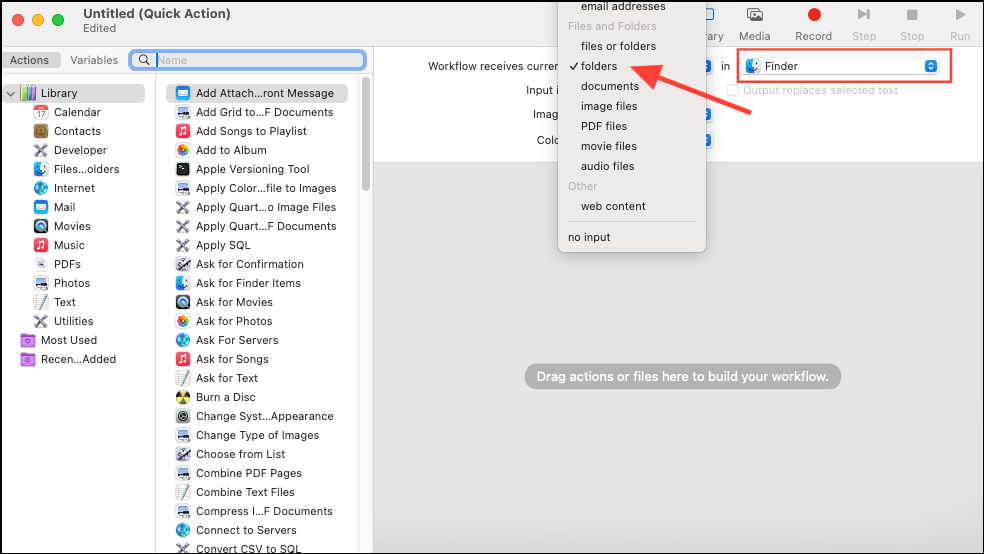
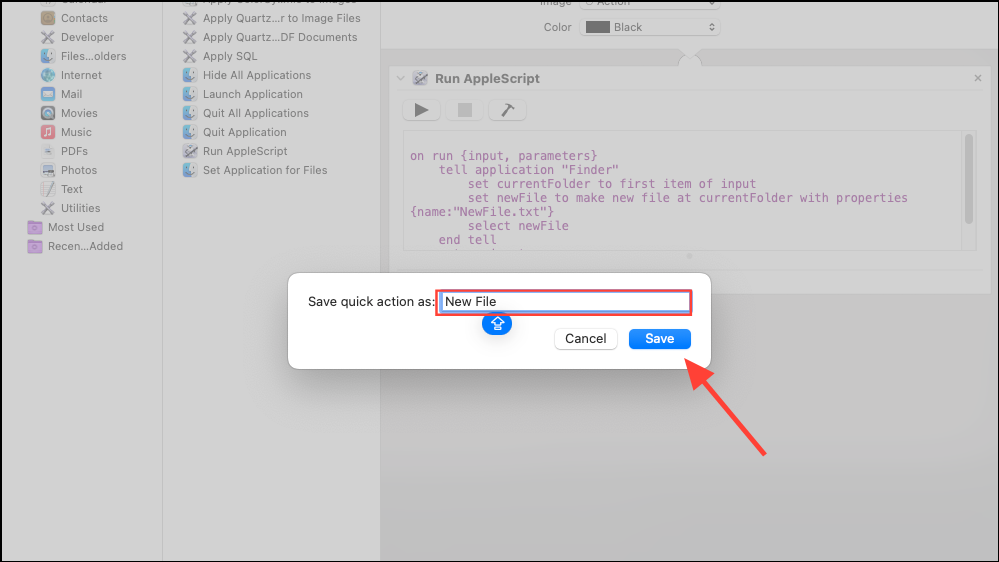
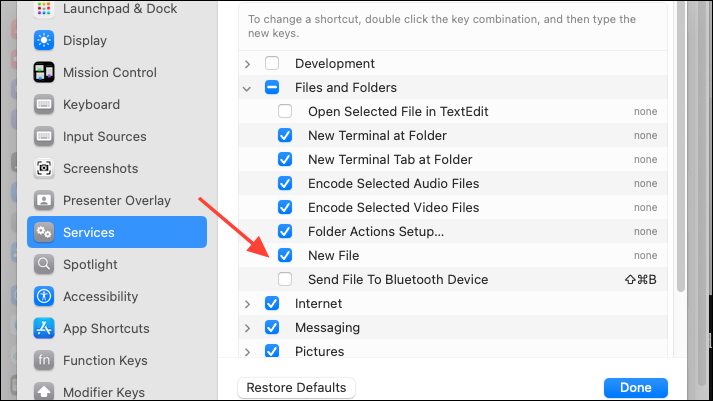
Another effective way to add a “New File” option is by using Automator, a built-in macOS automation tool.
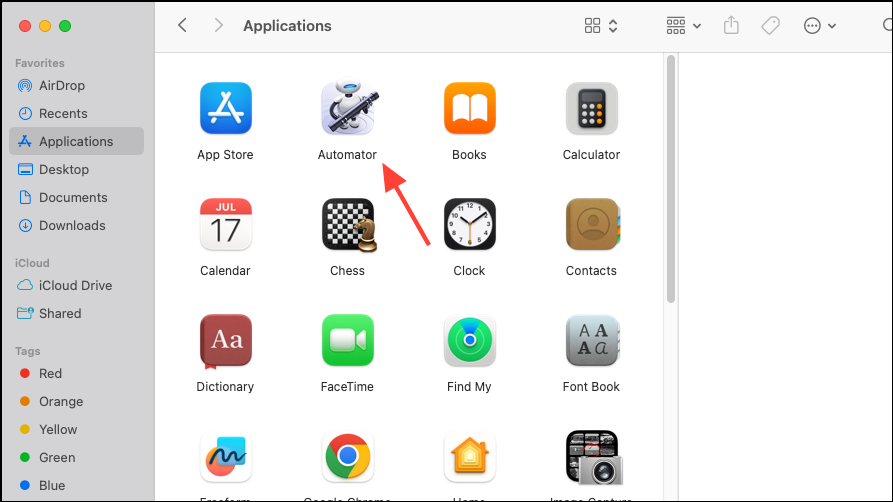
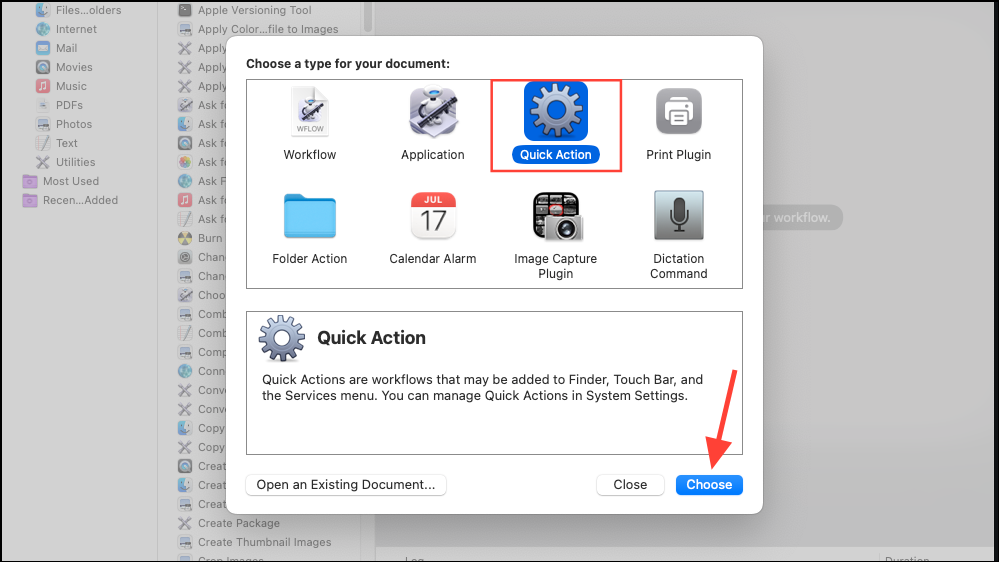
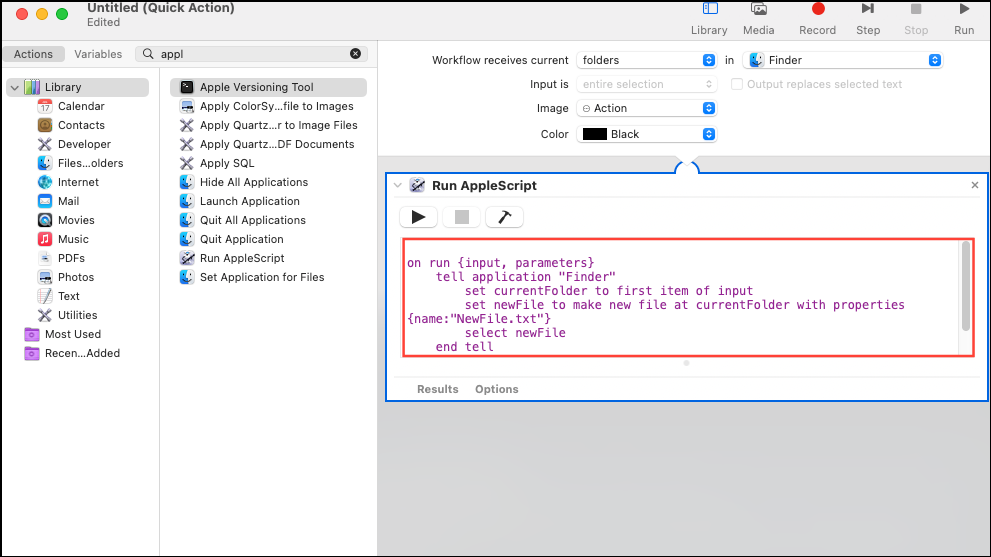
on run {input, parameters}
    tell application "Finder"
        set currentFolder to first item of input
        set newFile to make new file at currentFolder with properties {name:"NewFile.txt"}
        select newFile
    end tell
    return input
end run
Method 3: Terminal Command
If you prefer using Terminal, you can quickly create a new file using the command line.
cd command. For example, cd ~/Documents navigates to your Documents folder.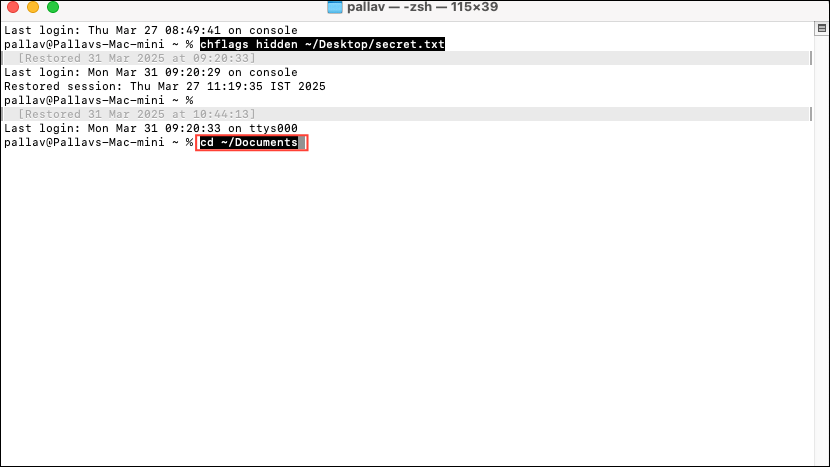
touch filename.txt, replacing “filename.txt” with your desired file name.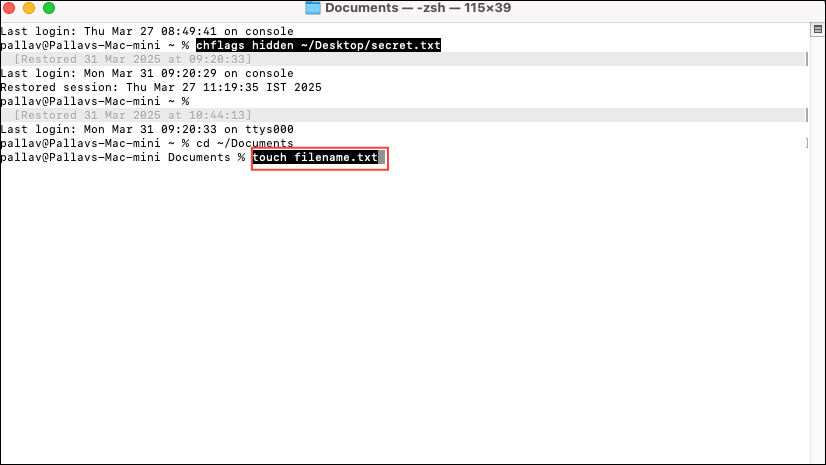
This method is quick for those comfortable with Terminal but requires manual navigation to the folder.
Method 4: Using a Third-Party Finder Extension
For users who prefer a straightforward graphical solution, third-party apps like “New File Menu” can add a convenient right-click option directly in Finder.
This method is simple and user-friendly but may limit file type options in the free version.
By implementing any of these methods, you can significantly simplify your workflow on macOS Sequoia. Choose the one that best fits your comfort level and use case, and you’ll no longer miss the convenience of a built-in “New File” option.