

OneDrive is Microsoft’s built-in cloud storage solution, pre-installed on Windows devices. While convenient, some users prefer not to use it or might want to temporarily pause syncing activities due to bandwidth constraints or privacy concerns. Fortunately, Windows provides several straightforward options to pause, disable, or completely remove OneDrive from your system.
How to Pause OneDrive Syncing Temporarily
Pausing OneDrive syncing temporarily stops the application from uploading or downloading files for a set amount of time, ideal for situations when you’re performing tasks that require high bandwidth or uninterrupted system performance.

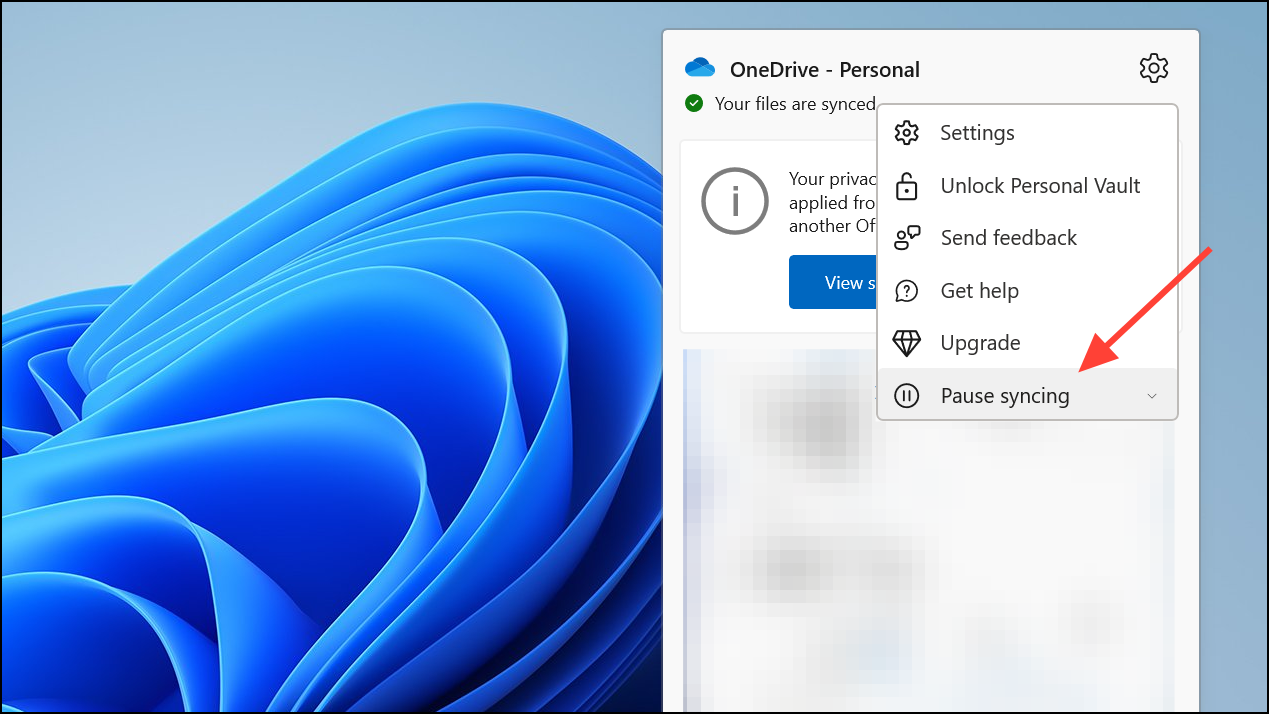
How to Disable OneDrive Temporarily
If you’re seeking a more definitive but reversible solution, you can disable OneDrive entirely until you manually restart the application or reboot your computer.
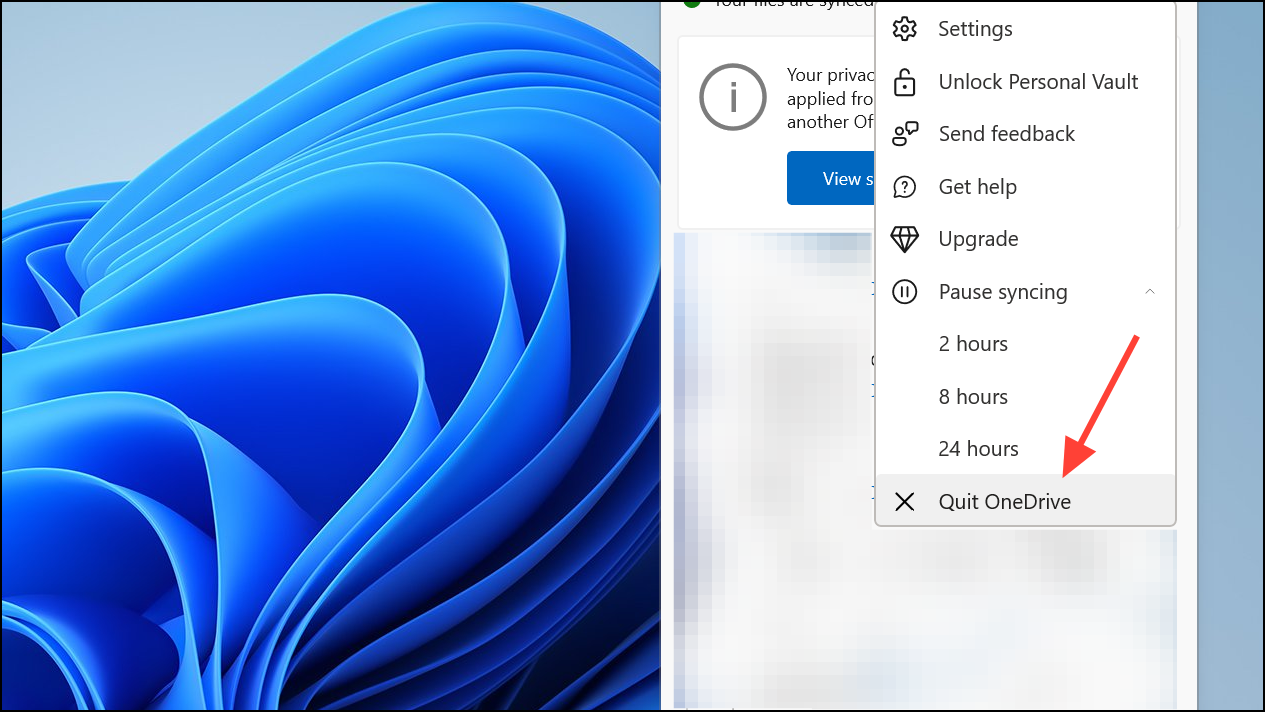
How to Completely Uninstall OneDrive from Windows
If you have no intention of using OneDrive and prefer to remove it entirely from your system, Windows 11 allows you to uninstall the application permanently. This method stops all OneDrive activities and removes the app from your device.
Windows key + I or by selecting the Settings icon from the Start menu.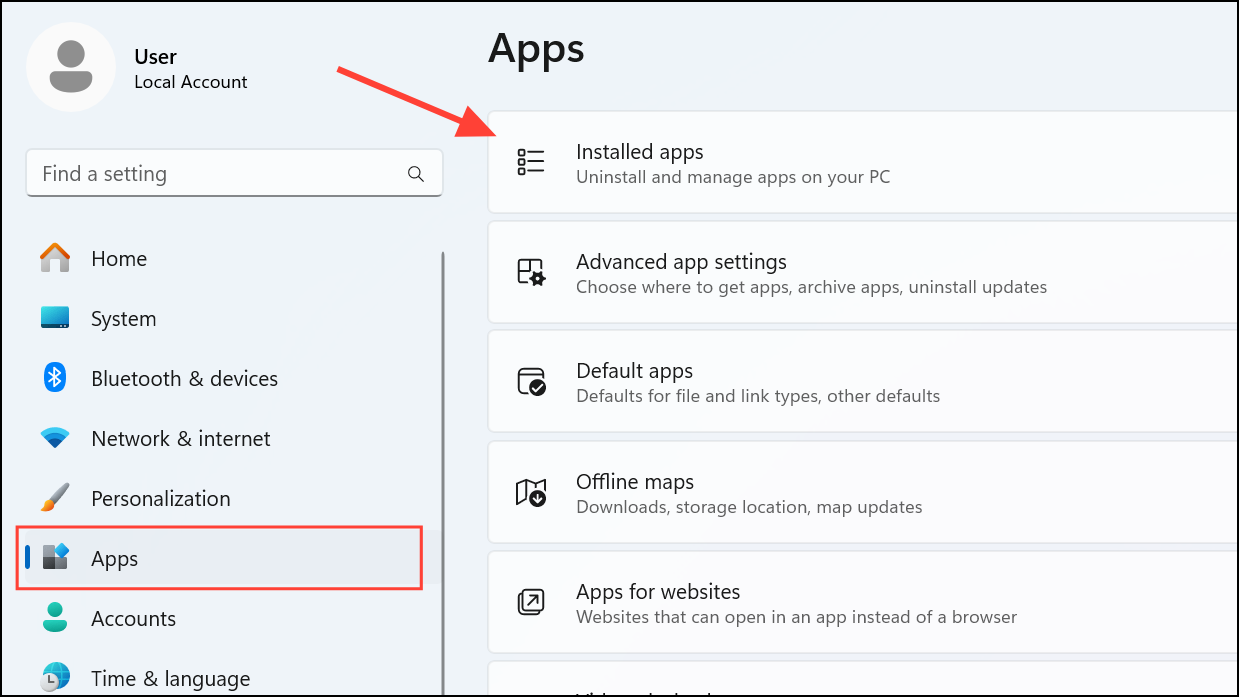
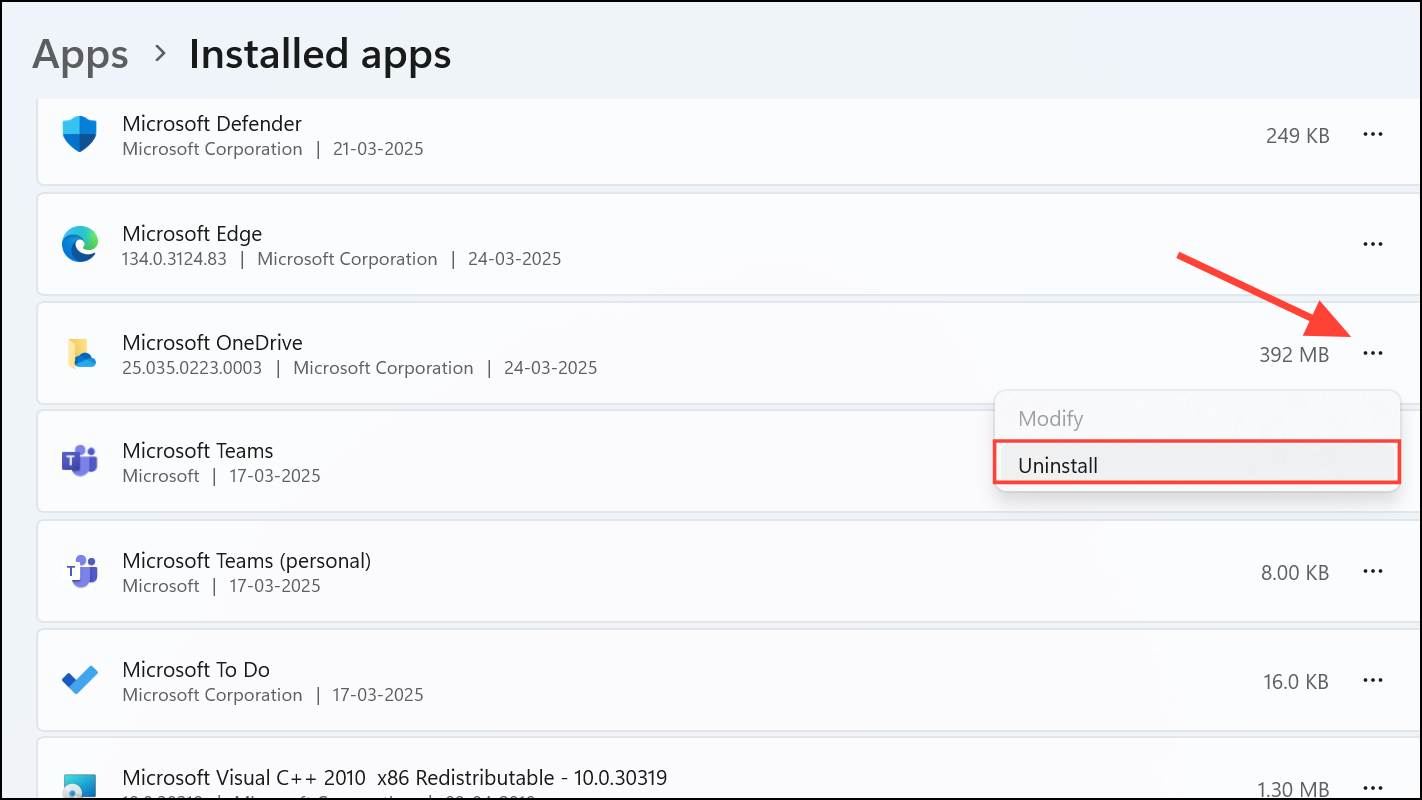
By following these steps, you can easily control how OneDrive interacts with your Windows device, whether you prefer a temporary pause or a permanent removal. Remember, uninstalling OneDrive does not delete your files stored in the cloud—you can still access them anytime by logging into your account on OneDrive.com.





