
The Photos app in macOS Sequoia introduces the Collections feature, which automatically organizes your photos and videos into helpful categories like Days, Trips, People & Pets, and Featured Photos. If you’ve recently updated to macOS Sequoia and your Collections aren’t updating or showing your trips correctly, you can follow these detailed steps to prompt the Photos app to properly index and display your content.
Method 1: Allow Photos to Index Automatically
mediaanalysisd, photoanalysisd, and photolibraryd to analyze your library. Click the Apple logo at the top left and then click on “System Settings”.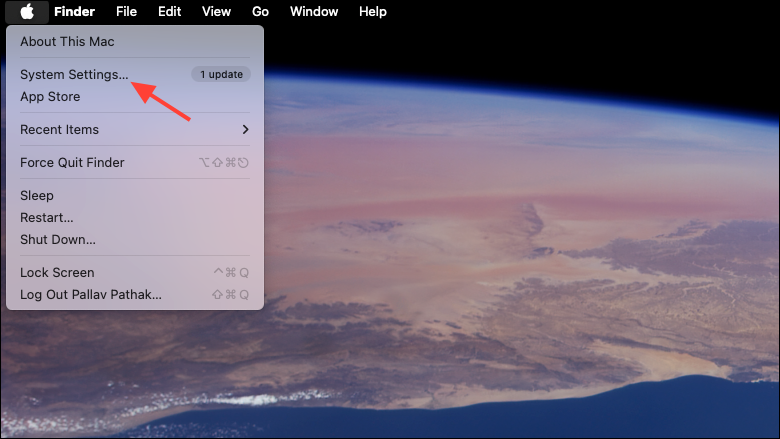

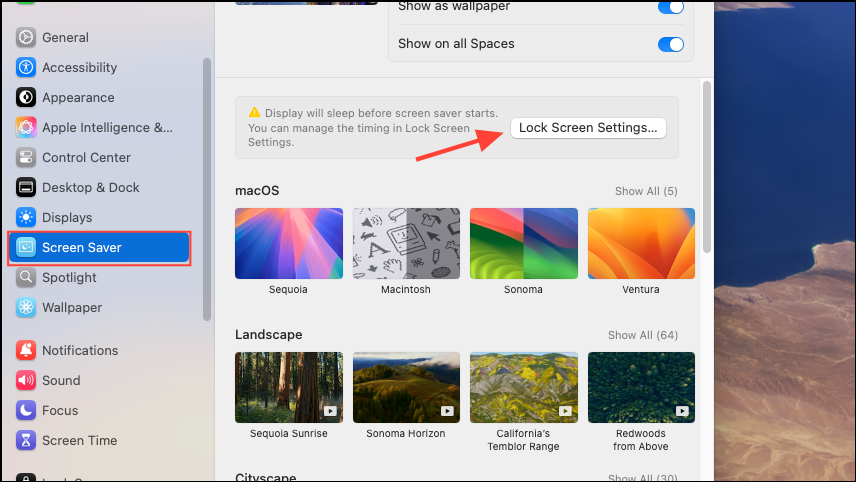
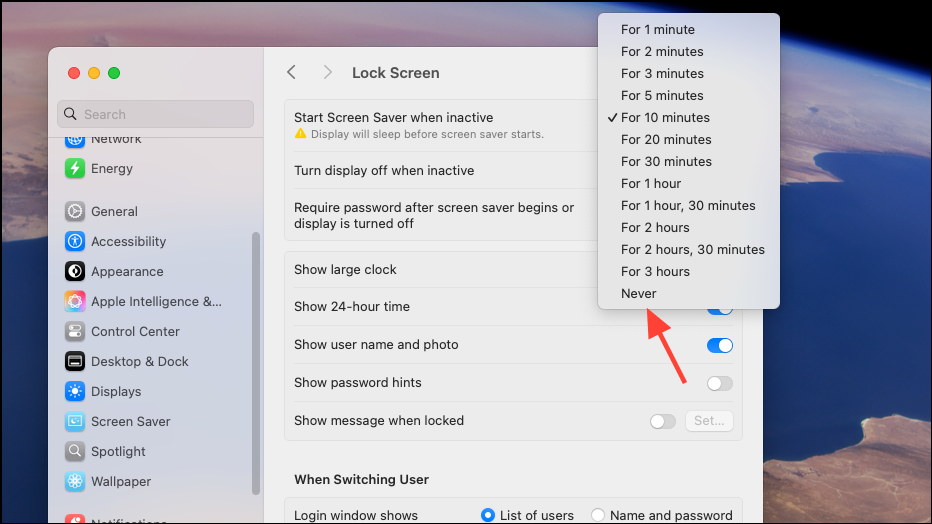
Once indexing completes, your Collections will populate automatically, including Trips, Memories, and People & Pets. Patience is key, as large libraries can take significant time to fully process.
Method 2: Optimize External Storage Setup
If your Photos library resides on an external drive, ensure the drive is properly connected and formatted correctly. macOS Photos requires external drives to be formatted as APFS or Mac OS Extended (Journaled).
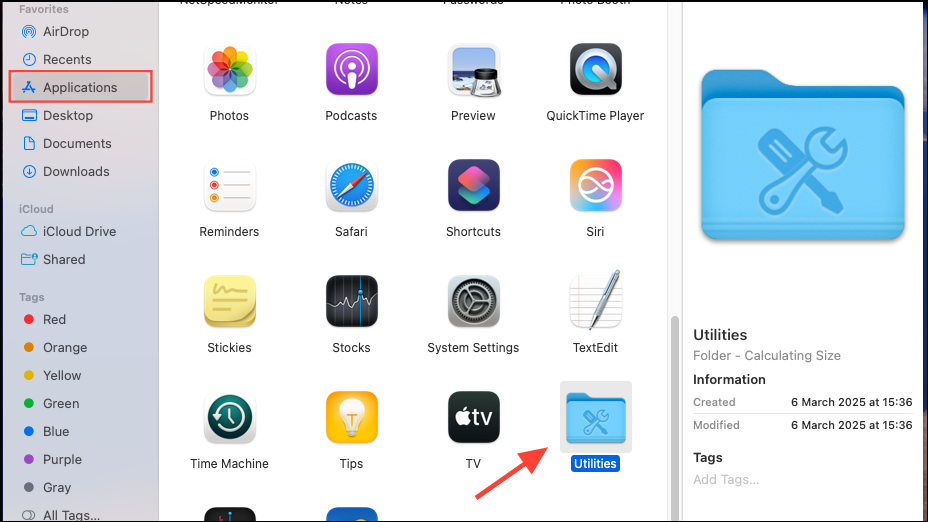
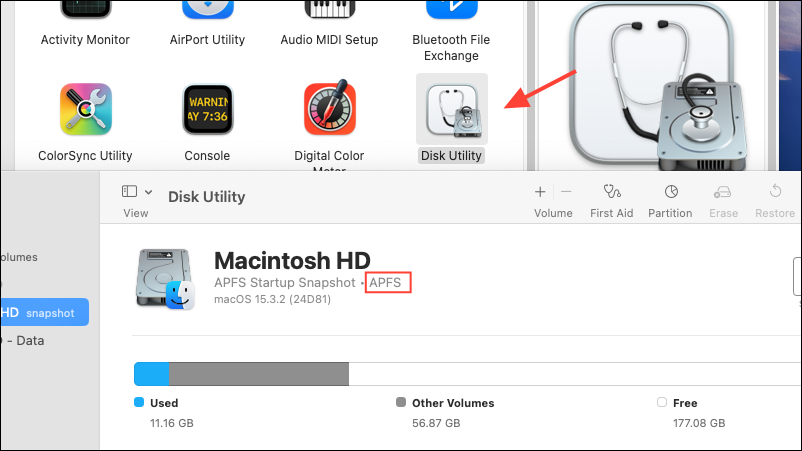
Proper formatting ensures the Photos app can efficiently access and index your library, resolving issues with Collections not updating.
Method 3: Remove Conflicting Third-Party Software
Third-party software designed to optimize or clean your Mac, such as CleanMyMac or similar tools, can interfere with Photos’ indexing processes and damage your library.
Removing problematic software helps Photos function correctly and reliably update your Collections.
Additional Tips for Managing Collections
- If you experience persistent issues, consider creating a new Photos library and re-importing your photos and videos. This can resolve database corruption issues.
- Ensure your macOS is updated regularly, as Apple frequently releases updates addressing Photos app issues and improving performance. Check for updates in System Settings > General > Software Update.
- For better organization, manually favorite or pin collections within Photos to keep your most important albums easily accessible.
With these steps, your Photos Collections in macOS Sequoia should update and display correctly, allowing you to enjoy organized memories without hassle. Keep your Mac awake, ensure proper drive formatting, and avoid conflicting software to maintain a healthy Photos library.