Sometimes DeepSeek AI Assistant stops responding or fails to load, causing interruptions in routine tasks and research. Common reasons range from network issues and high server traffic to misconfigured browser settings. Below are practical methods to help you fix the problem and resume normal usage.
Method 1: Check Your Internet Connection
A stable connection is often the quickest fix and can help solve the problem without needing to rely on more complicated solutions.
speedtest.net is a common option).Method 2: Check the DeepSeek Server Status
At times, high traffic or scheduled maintenance makes the service temporarily unavailable. You can confirm whether the service is down before trying other steps.
status.deepseek.com or a similar status page. If there is an outage, consider waiting until the service is restored.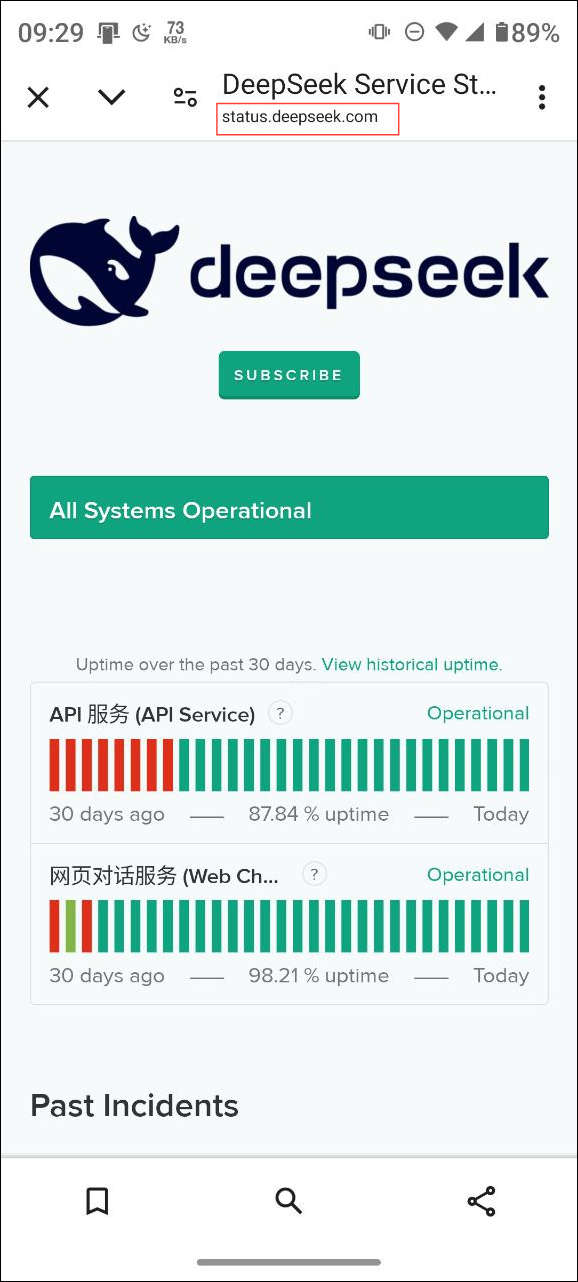
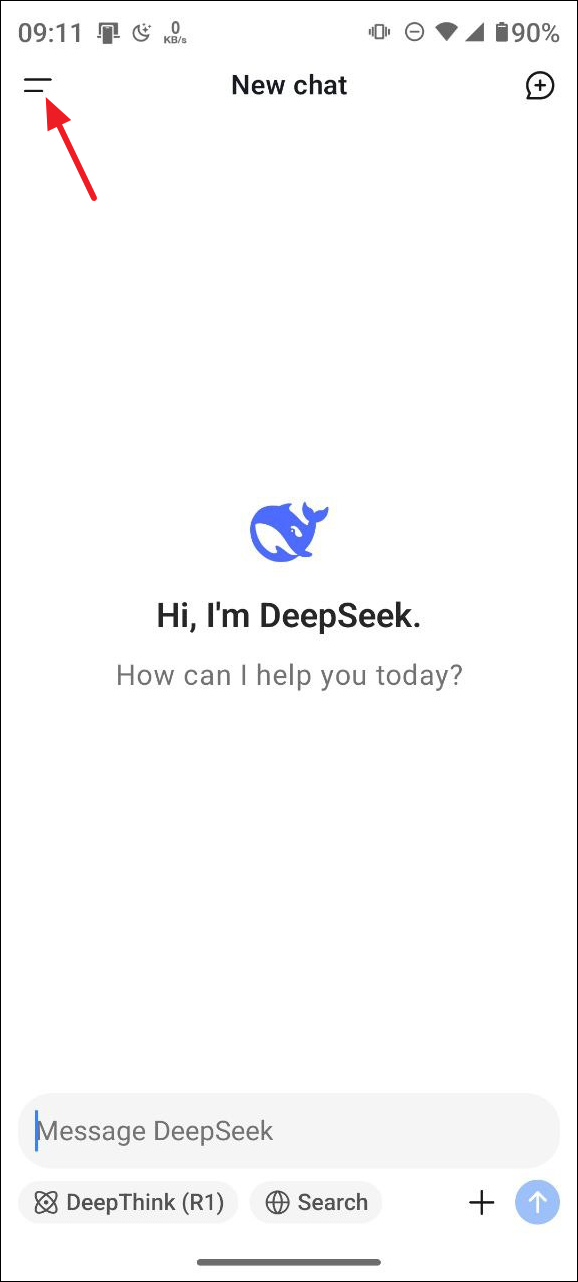
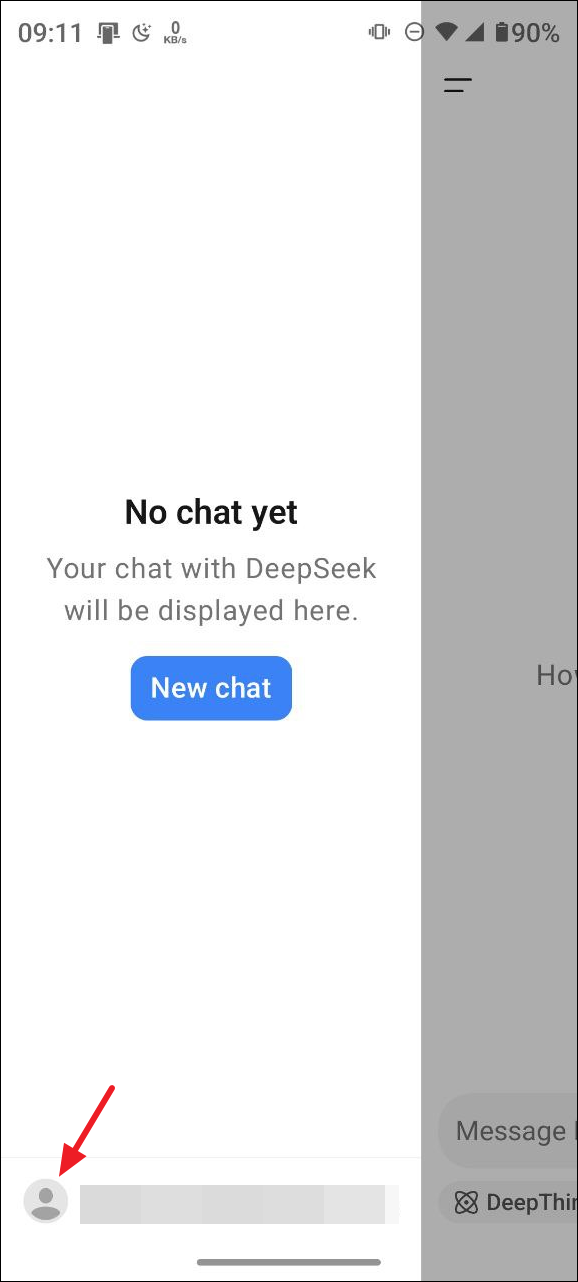
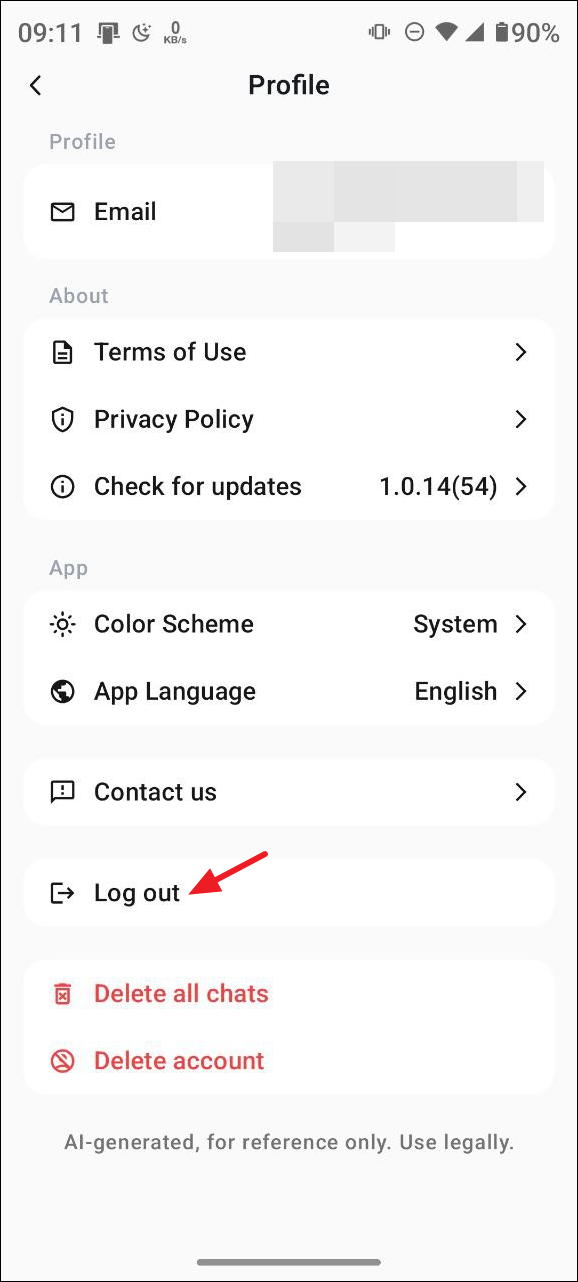
Method 3: Log Out and Log In
Minor account glitches sometimes block the assistant. A quick sign-out and sign-in can resolve these issues.
Method 4: Clear Your Browser Cache
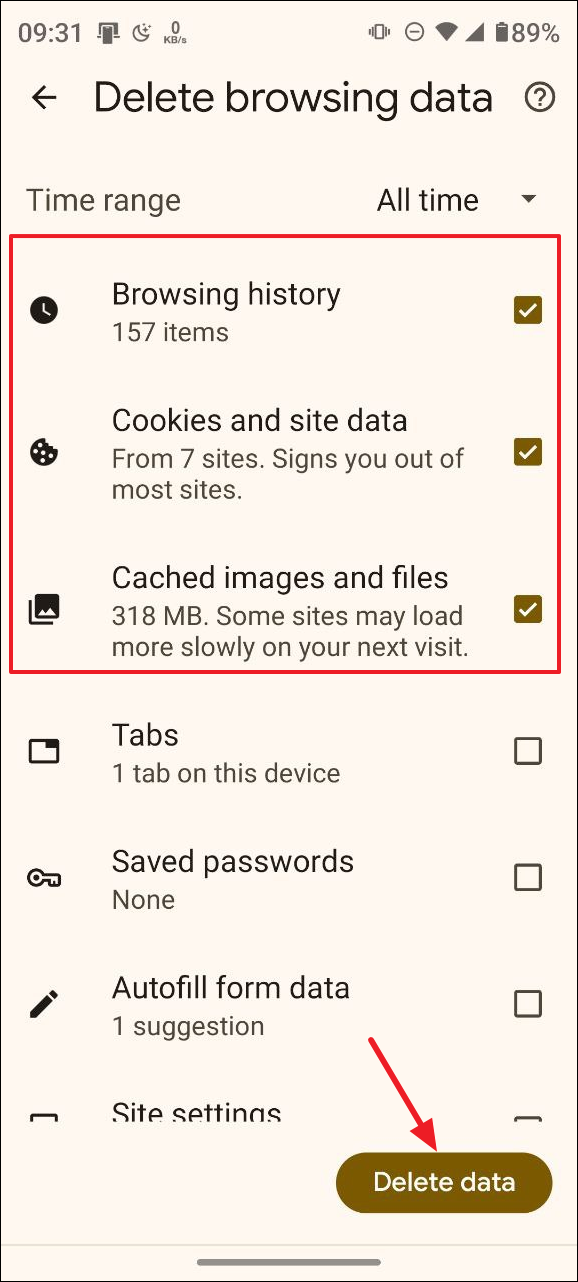
Conflicts caused by outdated or corrupted cached files can stop DeepSeek from functioning. Several troubleshooting resources, including this WPS Office Blog article, suggest cleaning cache data to restore normal activity.
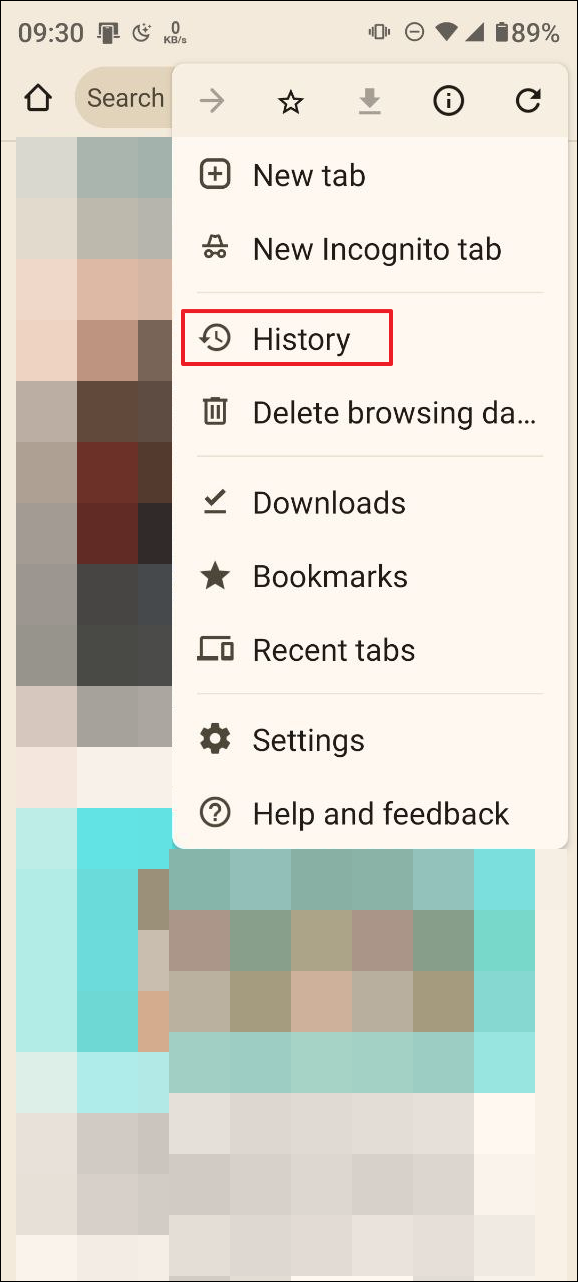
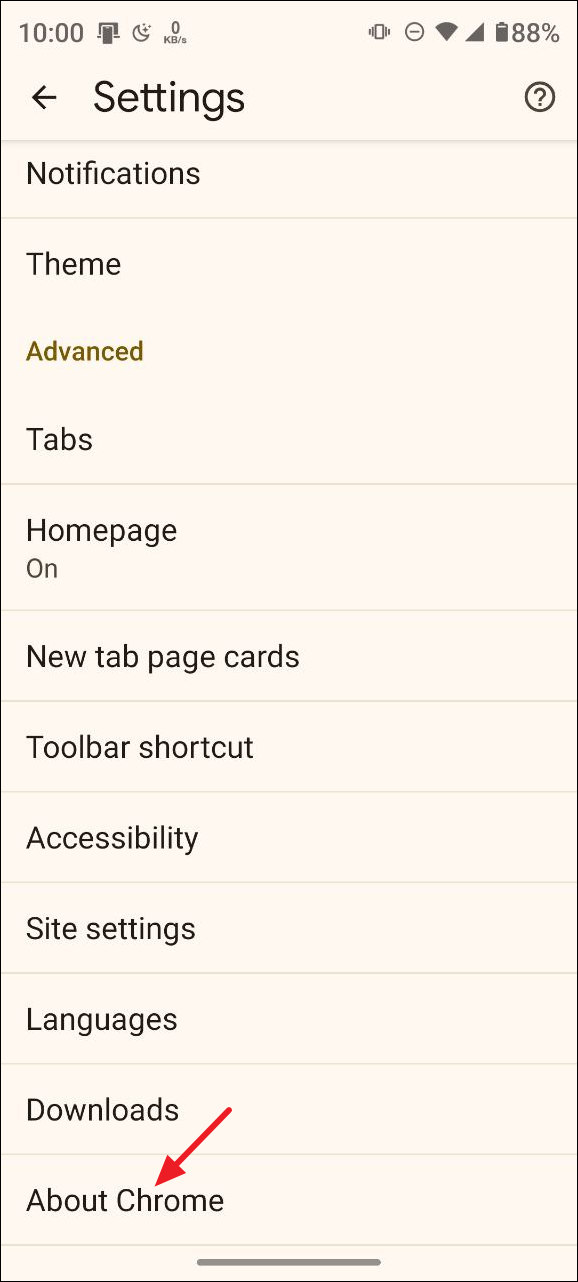
History or Privacy & Security. If you’re using Chrome, tap the three dots on the top right.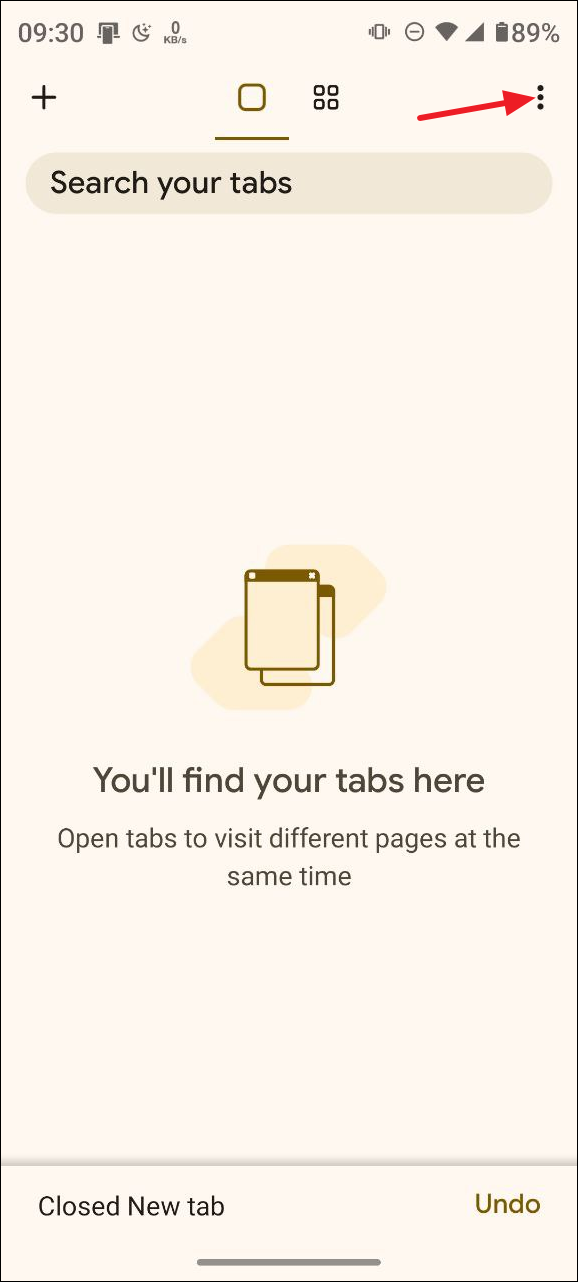

Method 5: Update or Reinstall the App or Browser
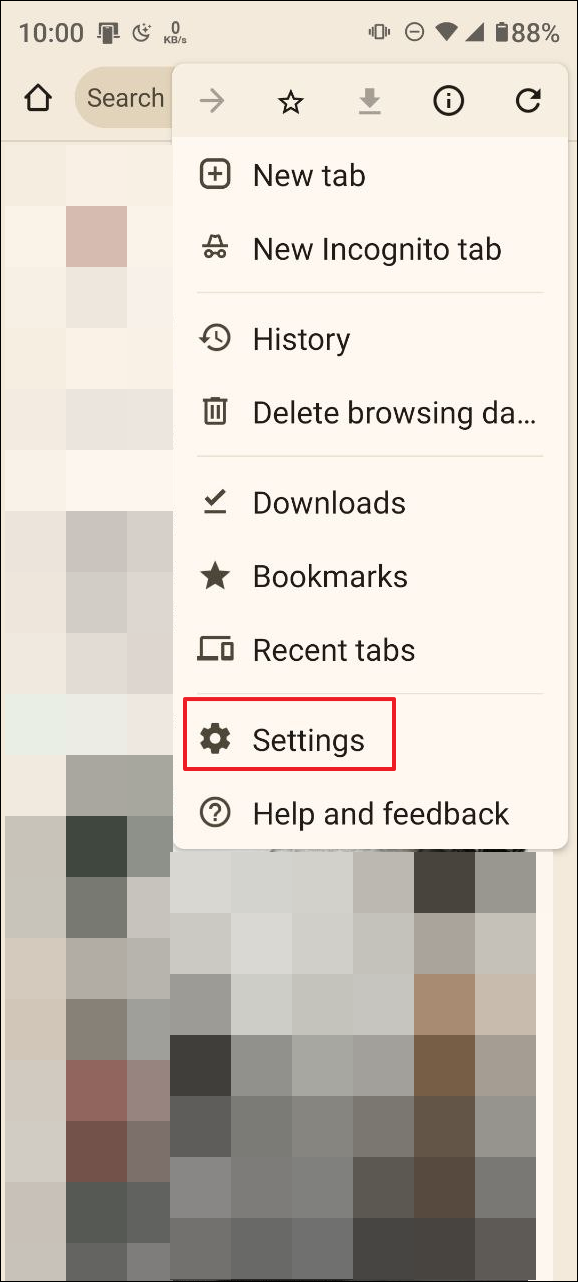
Inconsistent app versions or browsers might fail to support DeepSeek properly. Keeping them current can fix response issues.
Method 6: Disable VPN or Proxy
A VPN or proxy service might conflict with DeepSeek’s servers. WPS Office Blog explains that some AI platforms restrict VPN connections for security reasons.
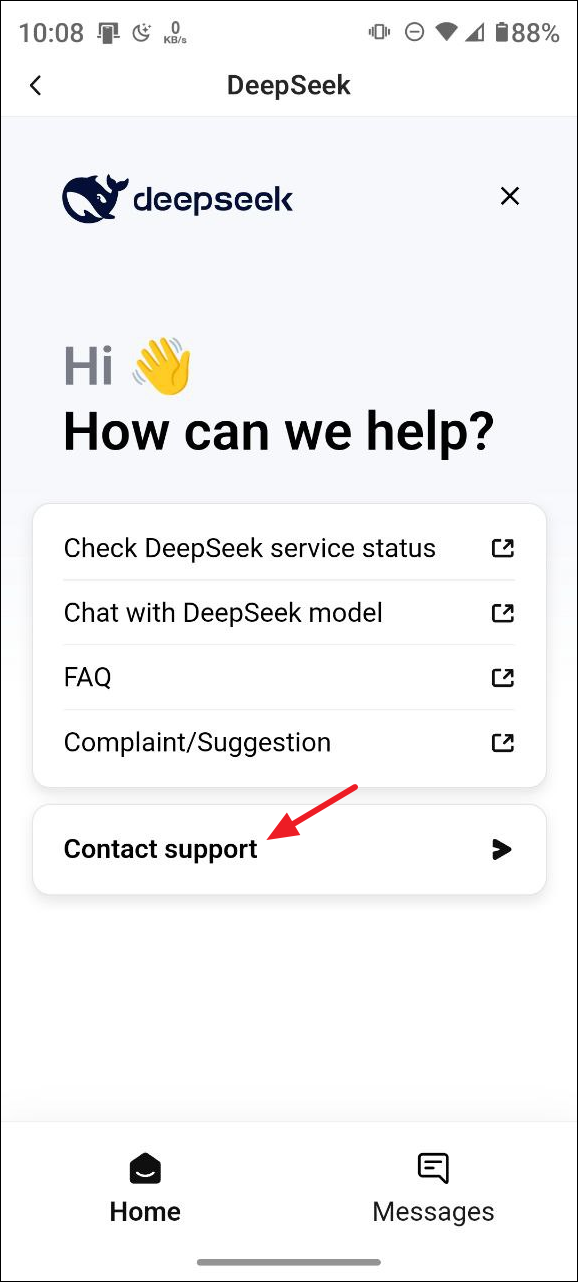
Method 7: Contact DeepSeek Support
If none of these methods help, consider contacting DeepSeek’s support team for more customized assistance. Resources like HIX.AI recommend this approach when deeper account or region-specific problems arise.
Contact support button and send a detailed message describing the issue and mentioning any error messages you see.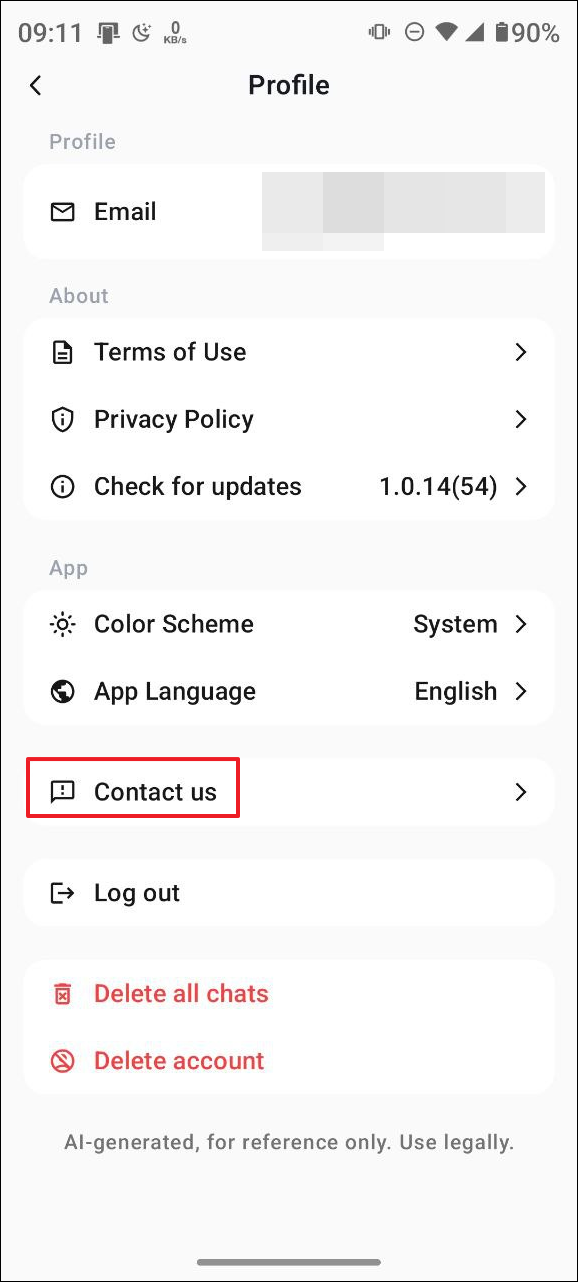
Once you identify and address the underlying cause, DeepSeek AI Assistant typically runs smoothly again. Regularly checking your connection and clearing cache data can help to keep everything working as intended.