A step-by-step guide to resolving the Outlook data file access issue preventing you from sending or receiving emails.
A step-by-step guide to resolving the Outlook data file access issue preventing you from sending or receiving emails.
by Pallav Pathak
Encountering the 0x8004010F error in Microsoft Outlook can be frustrating, especially when it disrupts your email communication. This error typically appears with the message “Outlook data file cannot be accessed” or “The operation failed. An object could not be found.” Fortunately, there are effective methods to resolve this issue and get your Outlook back to normal. In this guide, we’ll walk you through the steps to fix the error.
Before diving into the solutions, it’s helpful to understand why this error occurs:
Corrupted Outlook Profile
Damaged Outlook Data File (.pst or .ost)
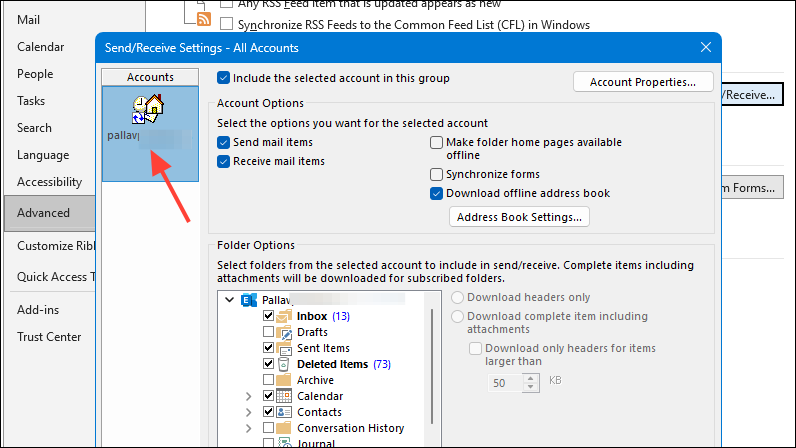
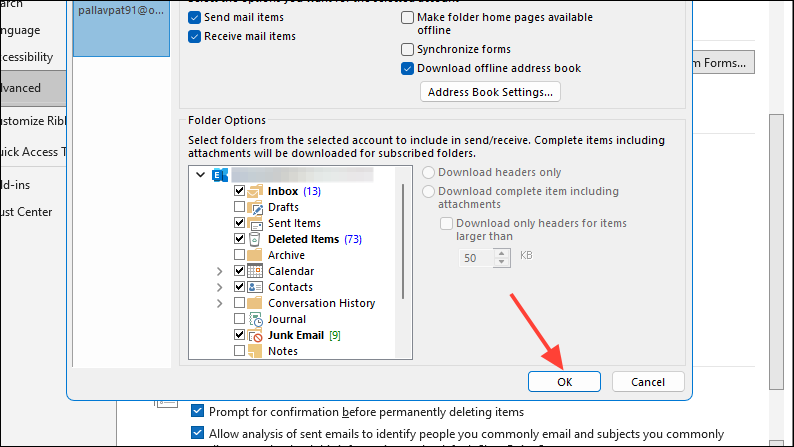
Incorrect Send/Receive Settings
Security Software Interference
Issues with the Offline Address Book
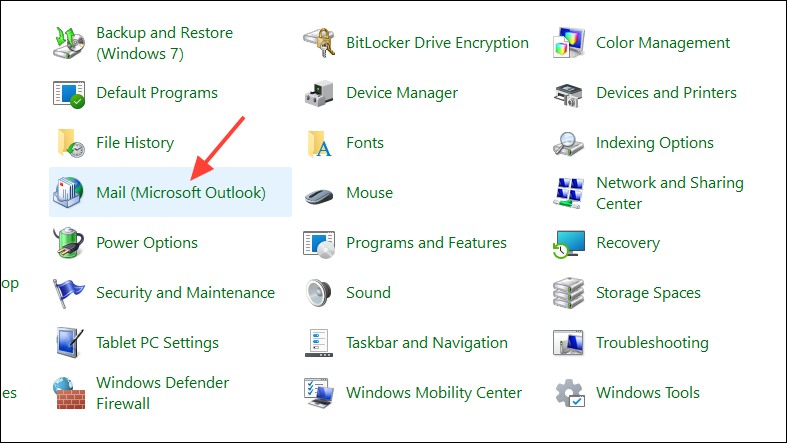
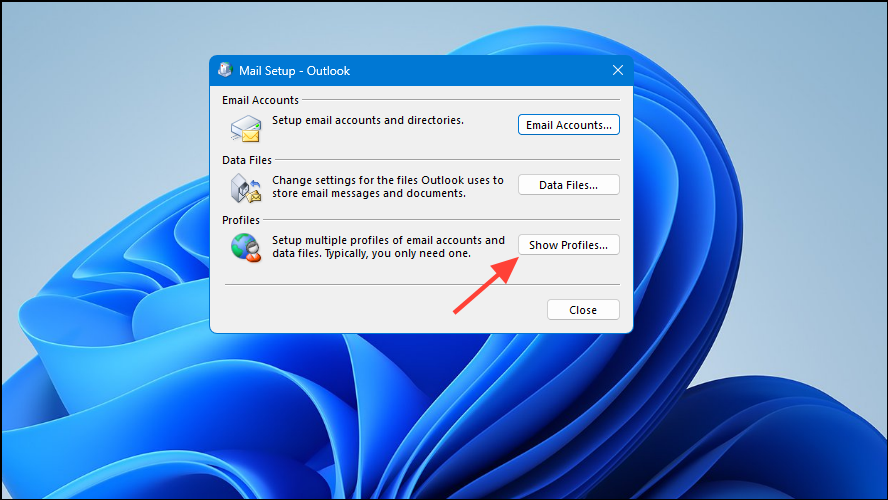
Method 1: Create a New Outlook Profile
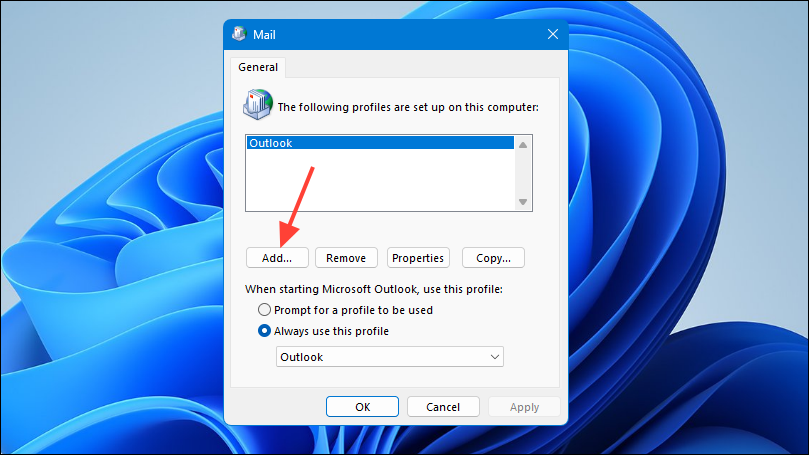
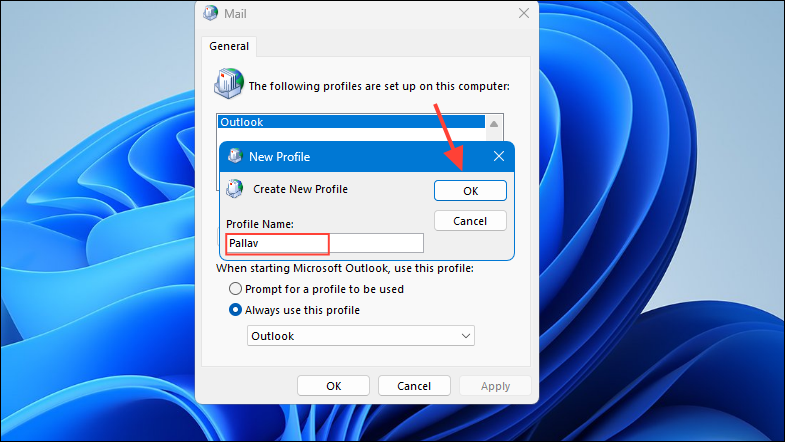
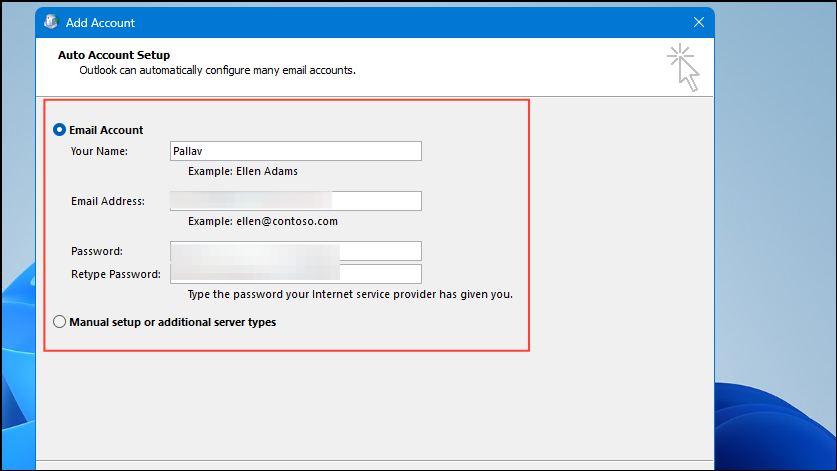
A corrupted Outlook profile is a common cause of the 0x8004010F error. Creating a new profile can often resolve the issue.
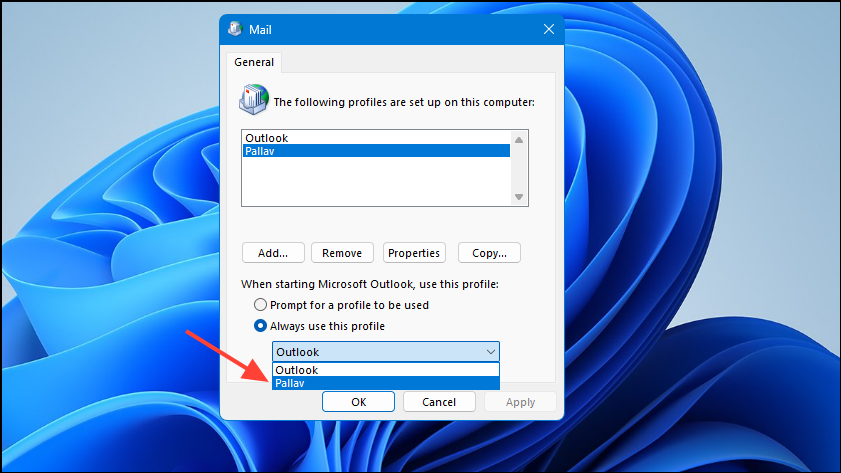
After adding your account, return to the Mail window. Under When starting Microsoft Outlook, use this profile, select your new profile from the dropdown menu.
Try sending and receiving emails to check if the error is resolved.
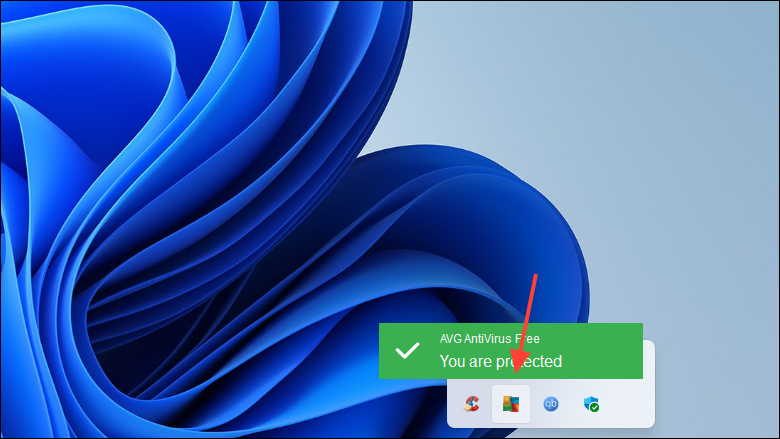
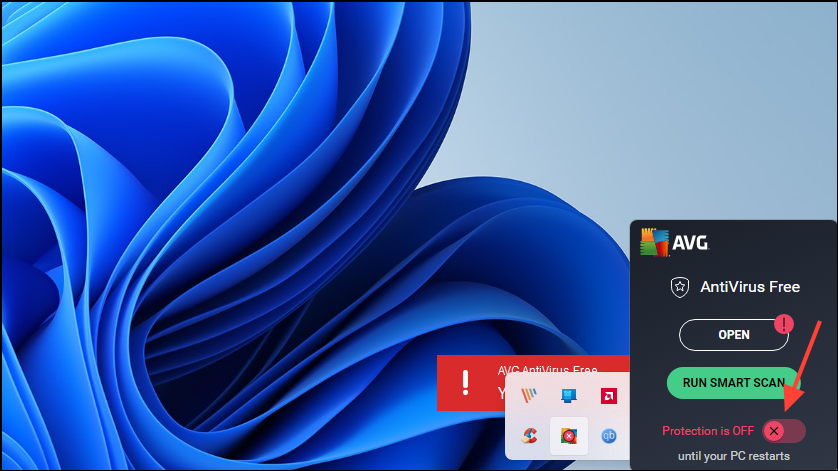
Method 4: Disable Antivirus and Firewall Temporarily
Sometimes, security software can interfere with Outlook’s ability to access data files. Disabling them temporarily can help identify if they’re causing the issue.
Open Outlook, set up your email account, and check if the issue persists.
By following these methods, you should be able to resolve the 0x8004010F error in Outlook and restore your email functionality. If the problem continues, consider reaching out to Microsoft Support for further assistance.