How to Install Extensions in Edge Browser for Android
Tired of a basic browsing experience on your Android phone? Try extensions with the Microsoft Edge browser!
Tired of a basic browsing experience on your Android phone? Try extensions with the Microsoft Edge browser!
by Pallav Pathak
Extensions can significantly enhance your browsing experience by adding functionalities like ad-blocking, password management, and grammar checking directly into your web browser. While most browsers limit extension support to desktop versions, Microsoft Edge extends this feature to Android devices through the Edge Canary browser. This guide provides detailed steps to enable and install extensions in Edge on Android.
Enabling Extensions on Edge for Android
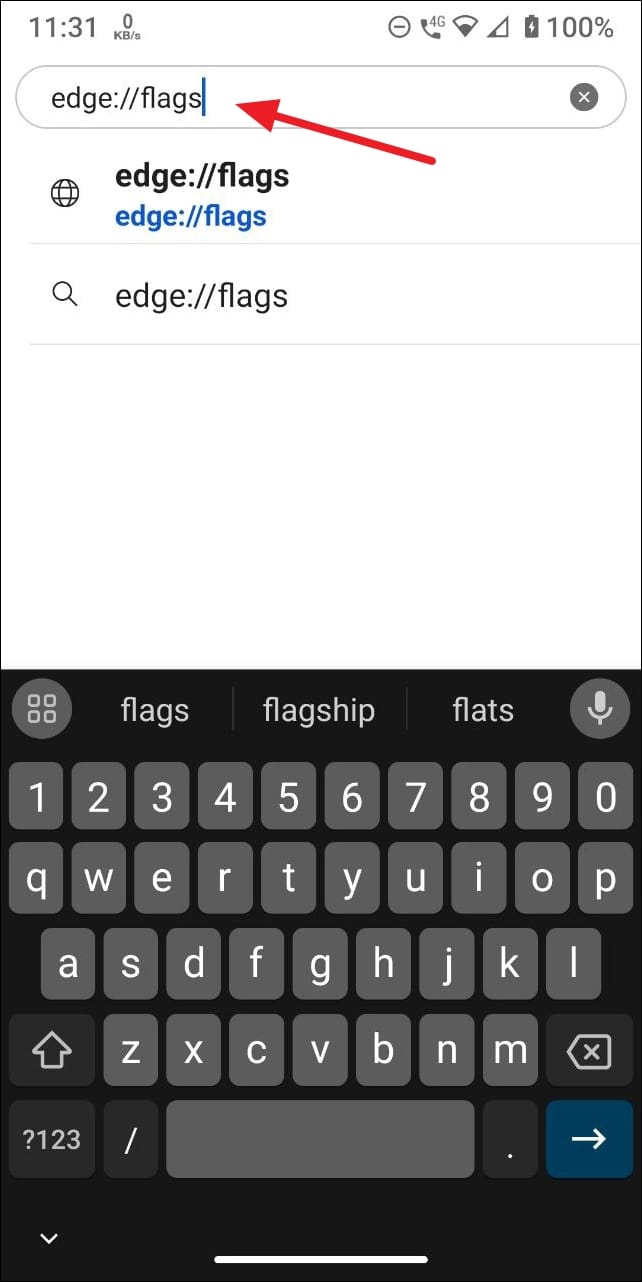
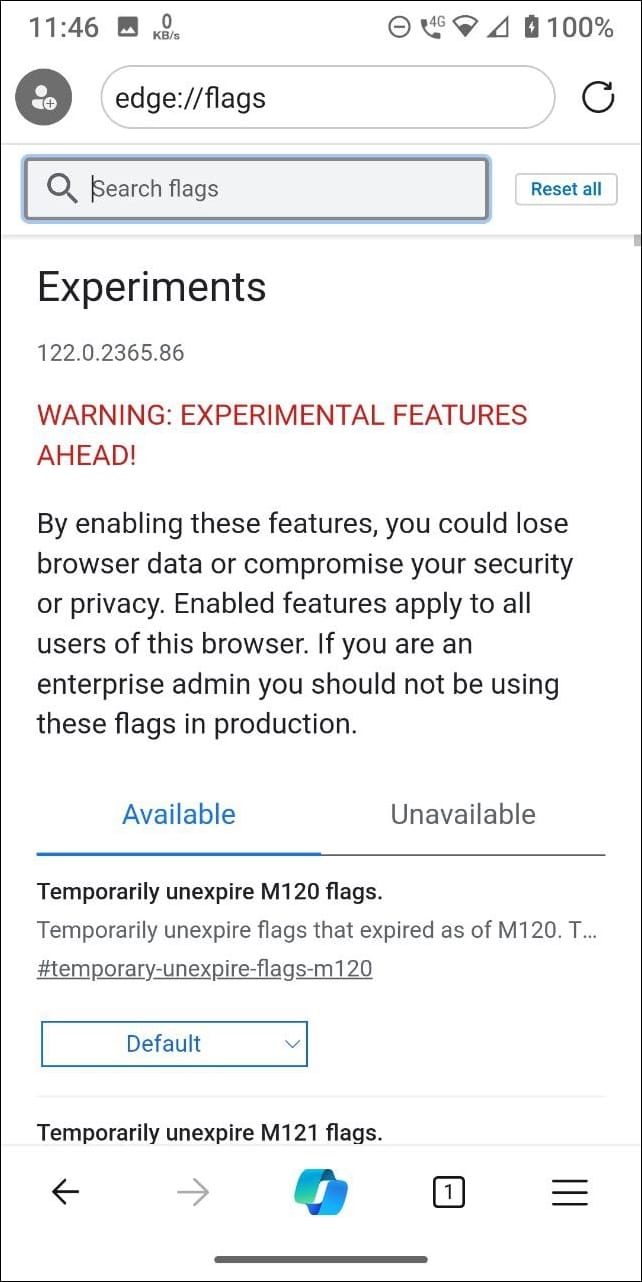
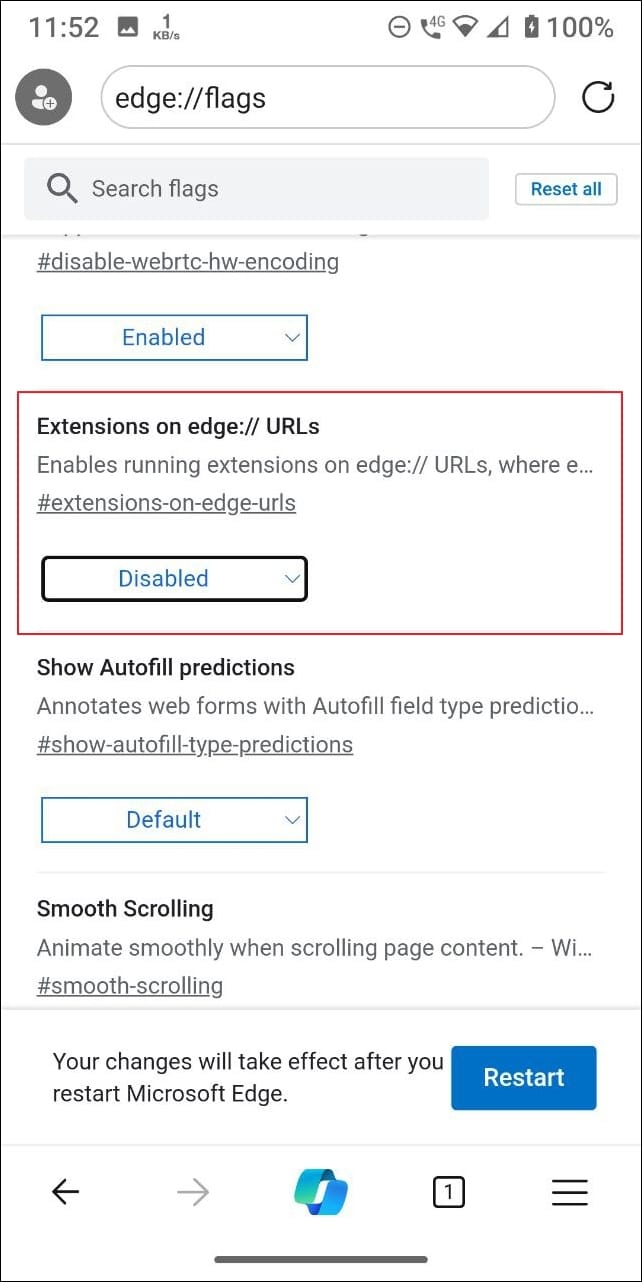
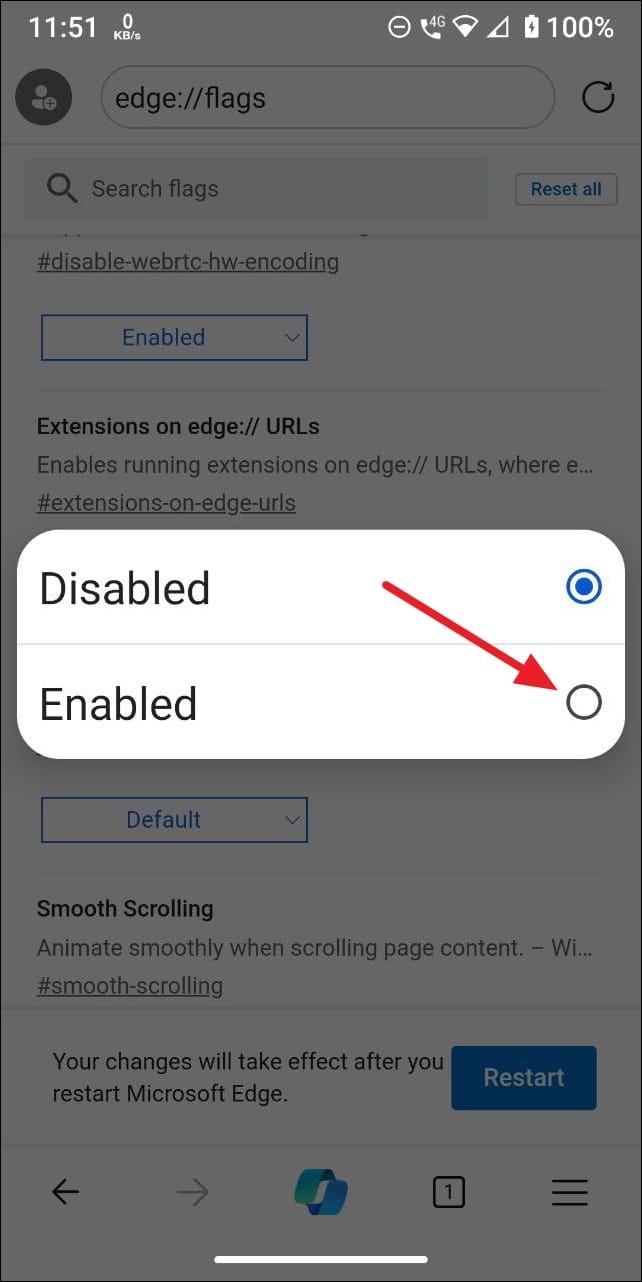
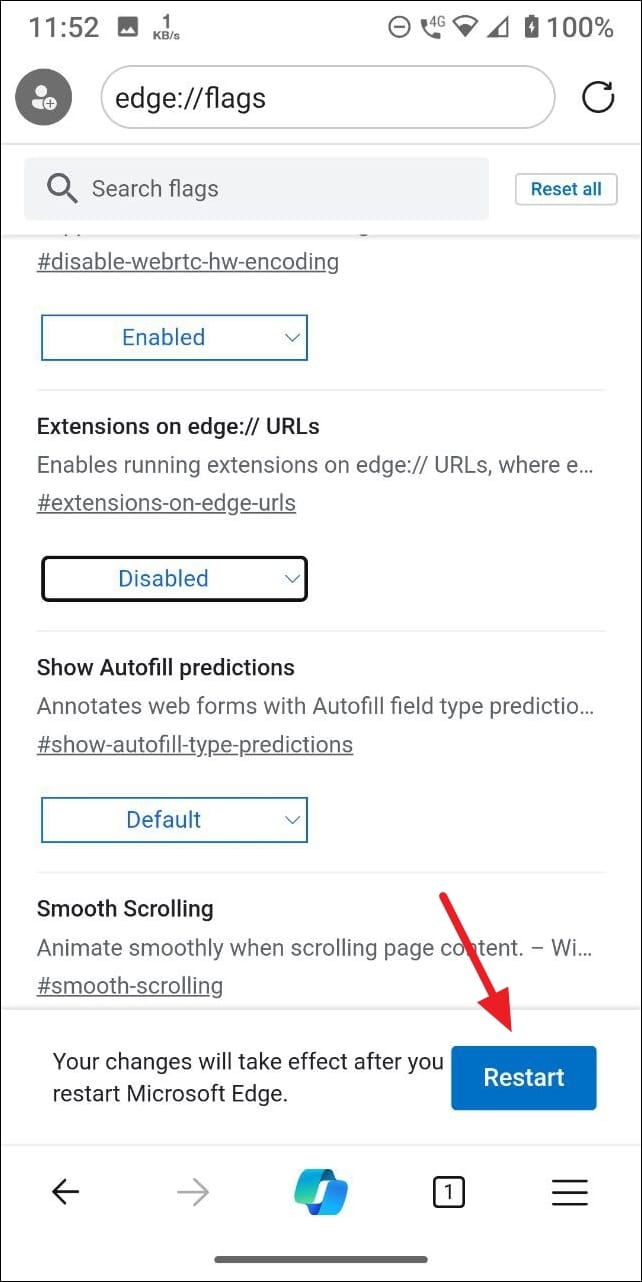
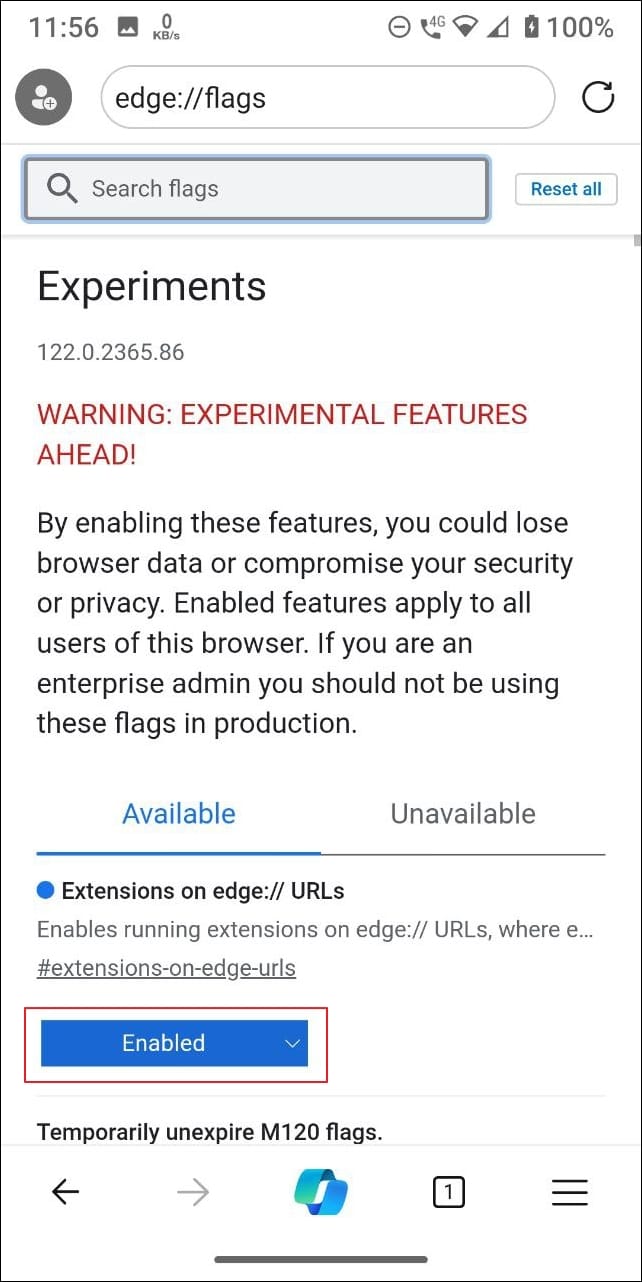
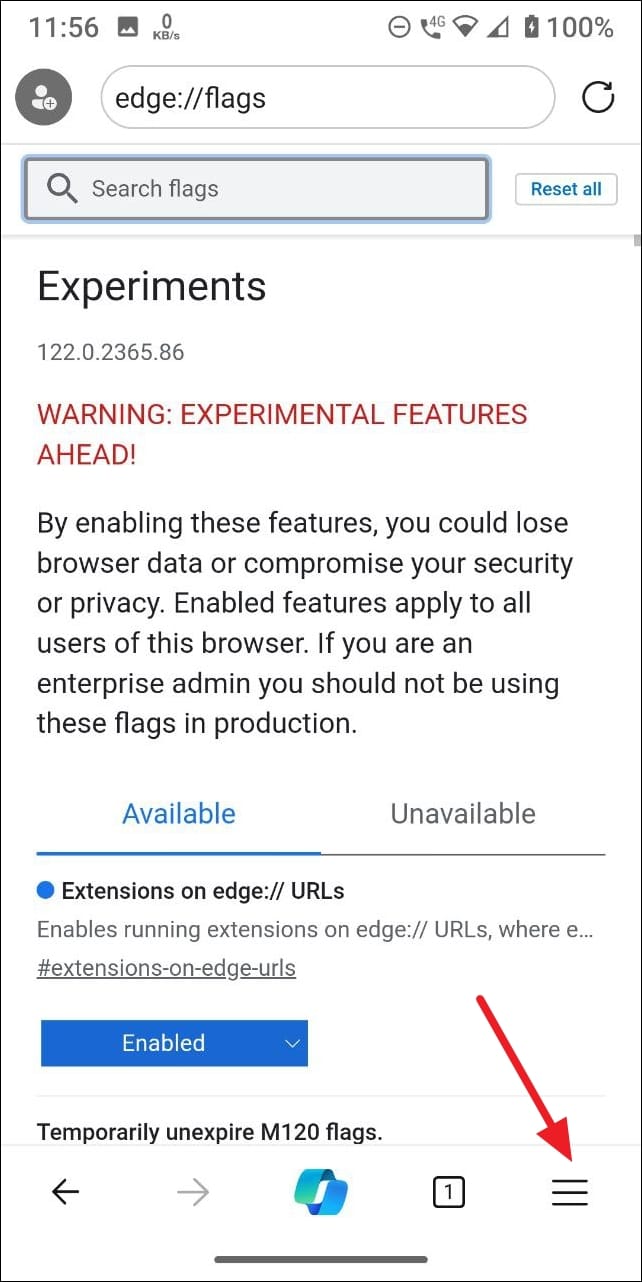
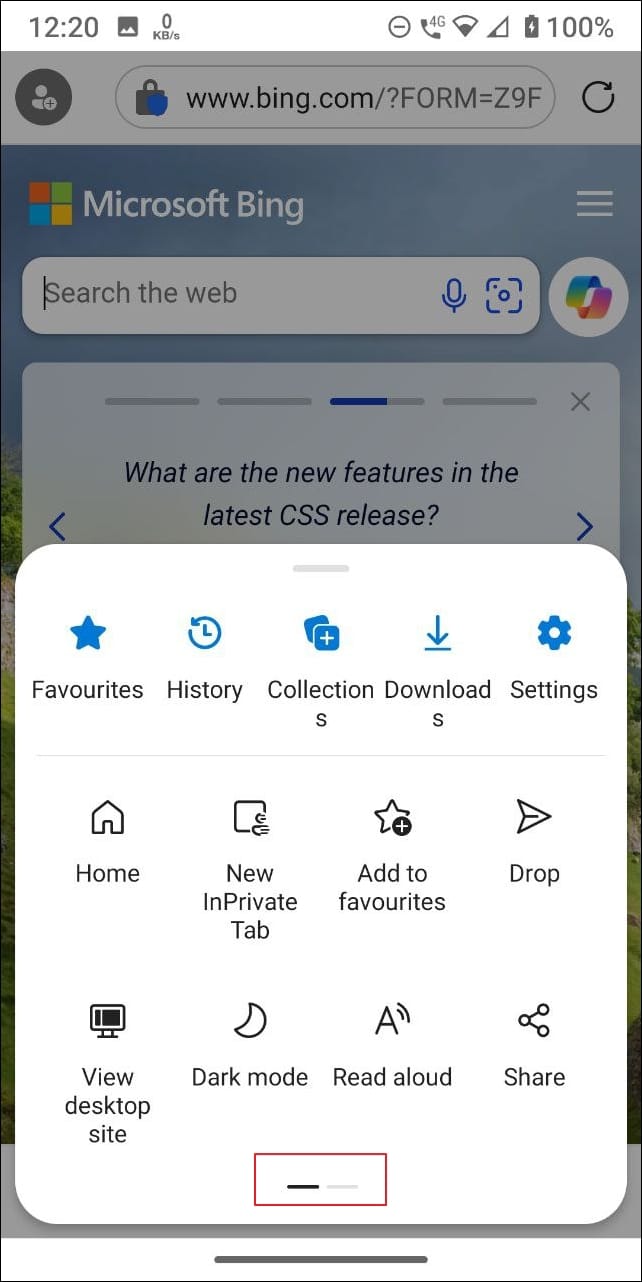
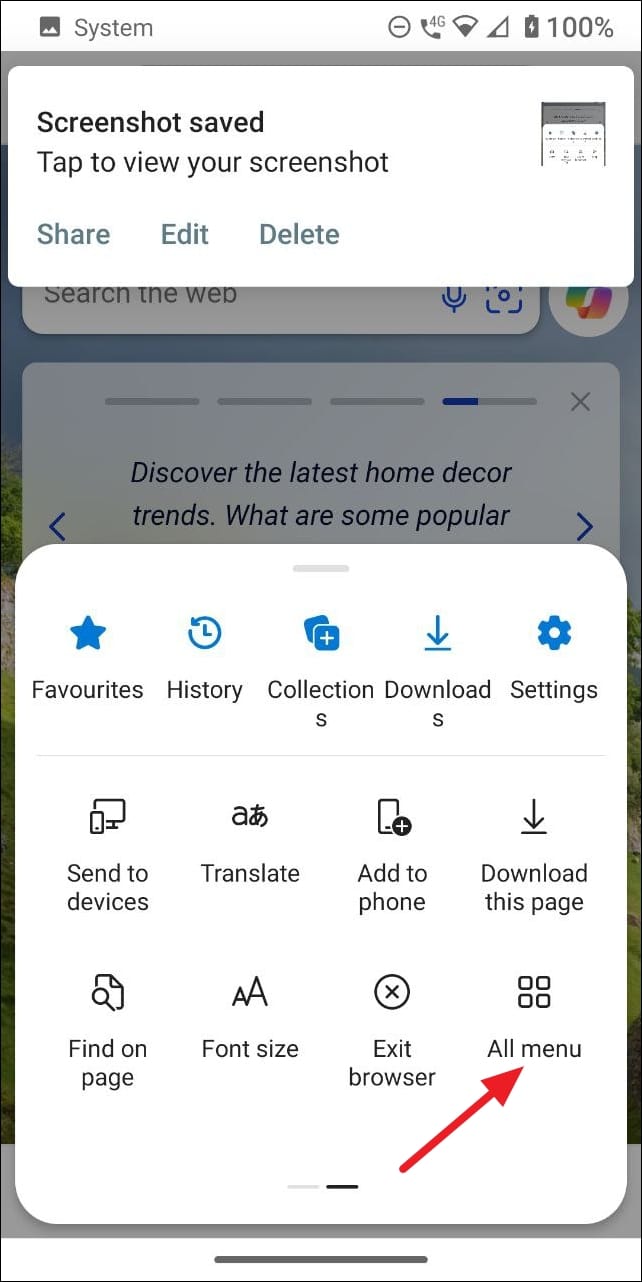
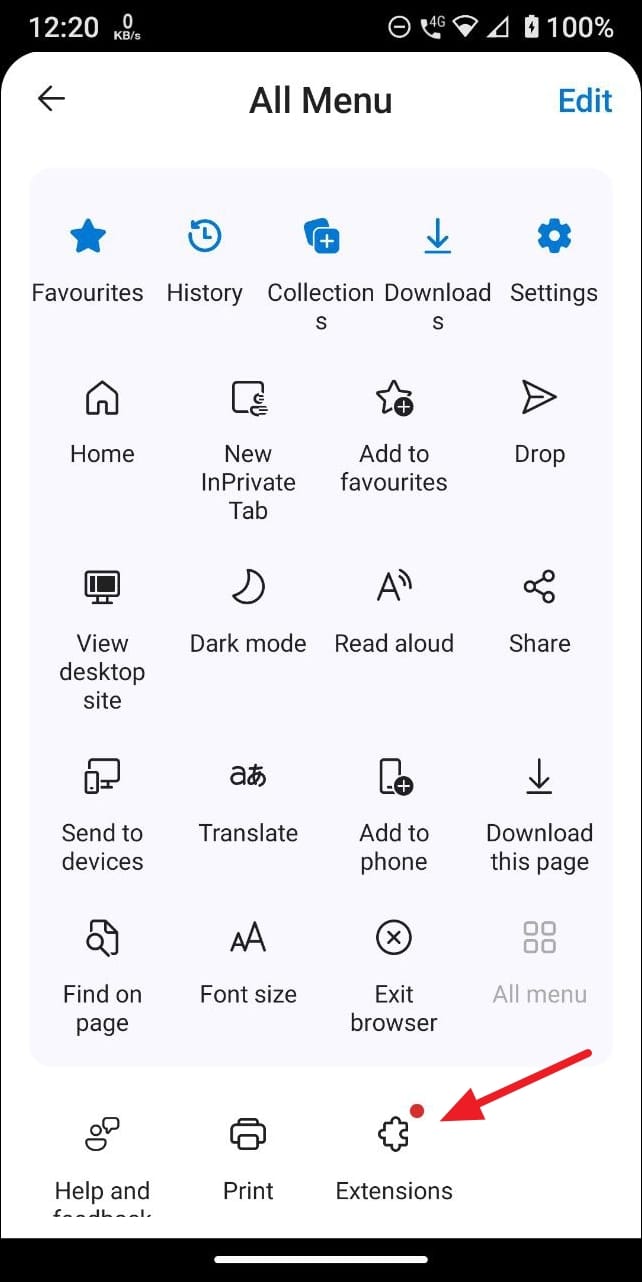
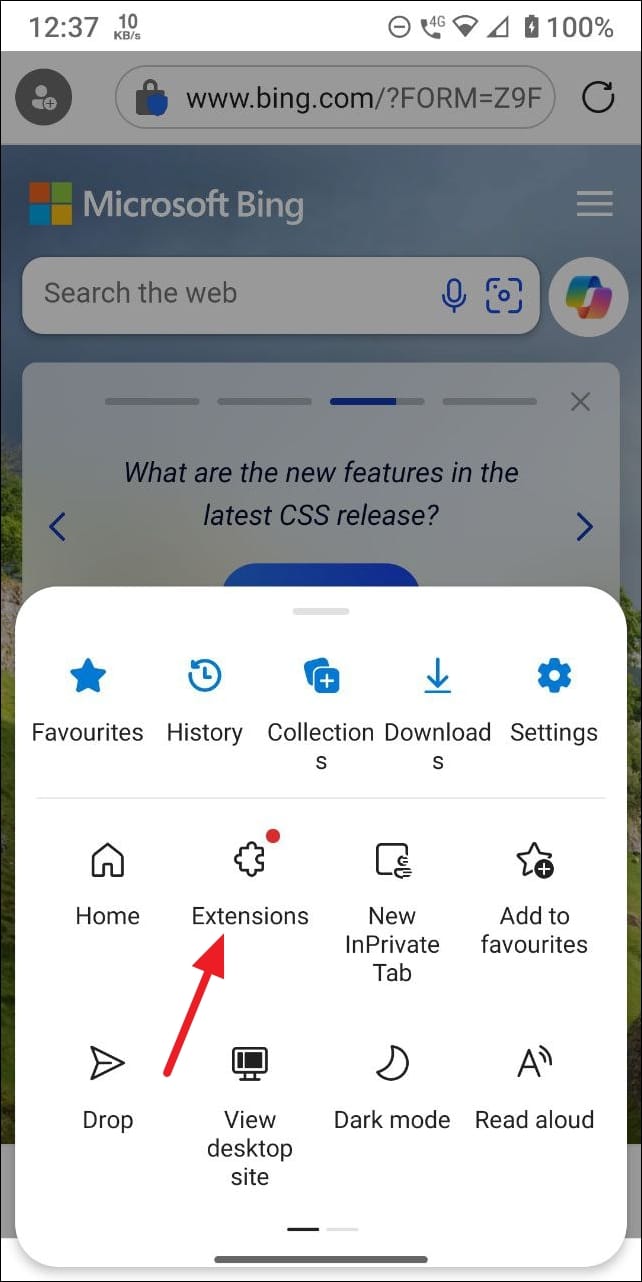
Since the standard version of Edge on Android doesn’t support extensions yet, you’ll need to use the Edge Canary browser. Download and install Edge Canary from the Google Play Store on your Android device. Once installed, you’ll need to enable extensions within the browser settings.
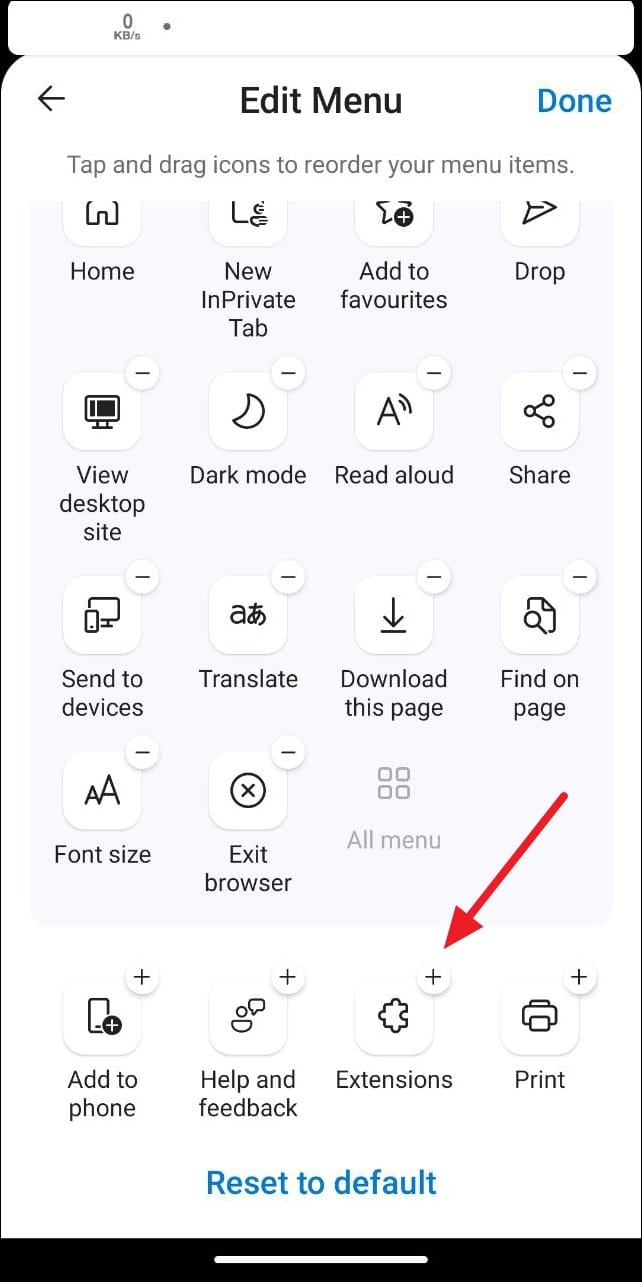
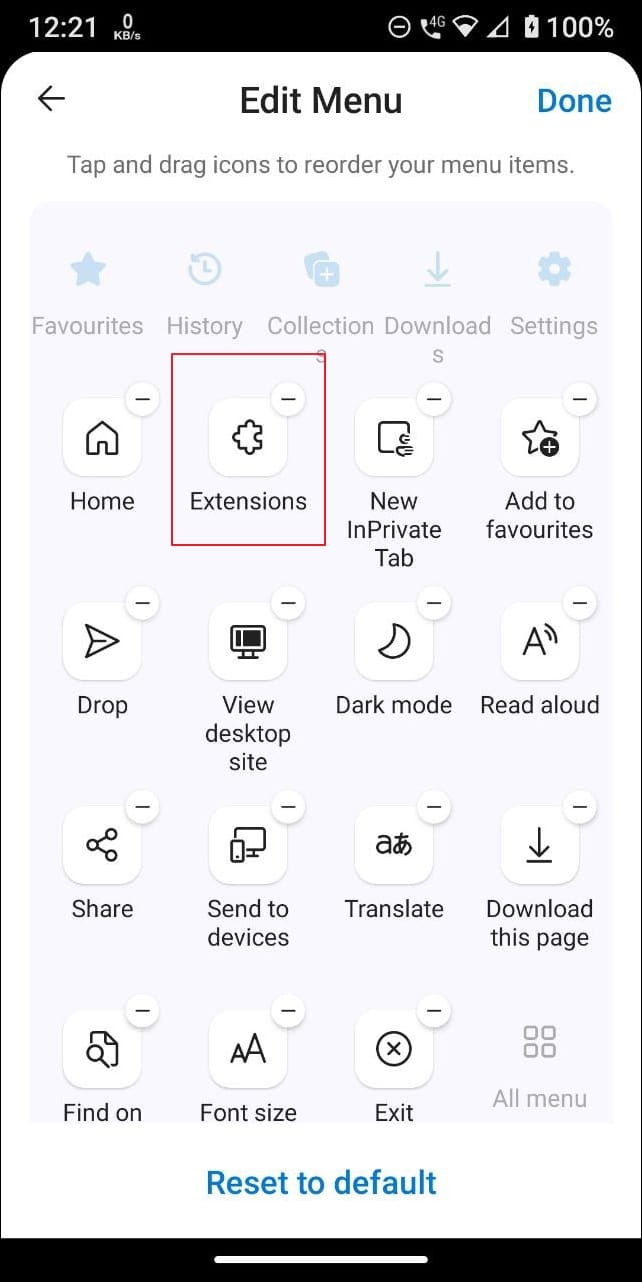
Drag the ‘Extensions’ option to the top of the menu for easier future access.
Downloading and Installing Extensions
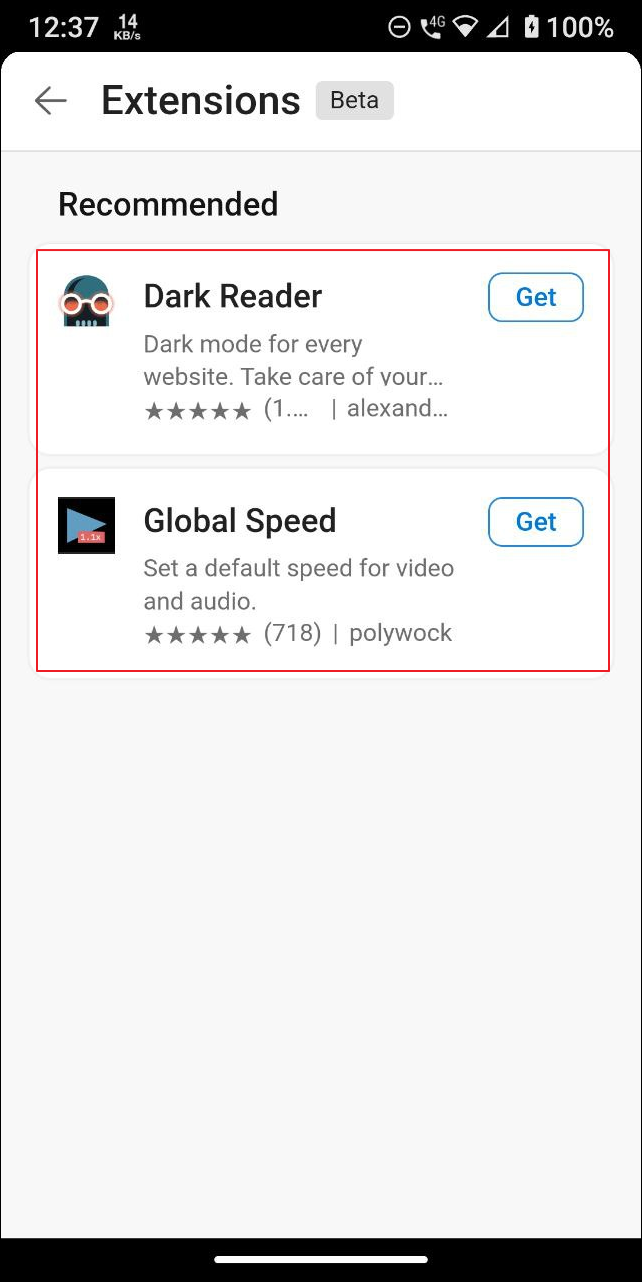
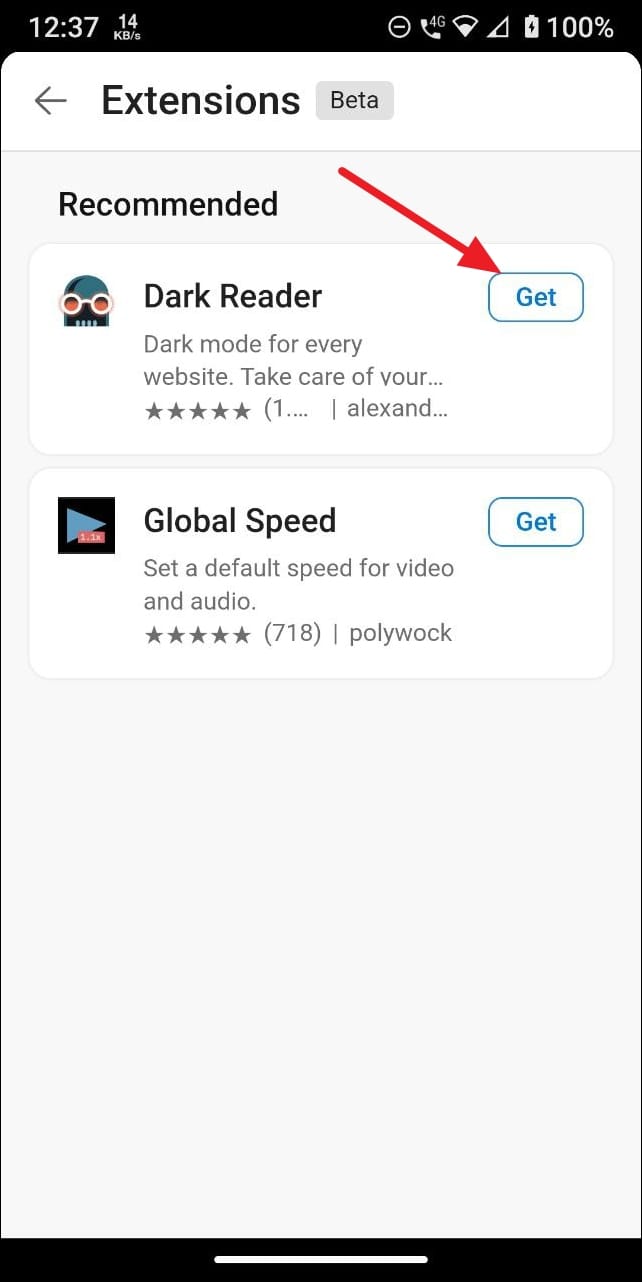
With extensions enabled, you can now download and install them on Edge Canary for Android.
Note: Currently, only a few extensions are available for Edge on Android. Microsoft is expected to add more extensions over time as this feature gains popularity.
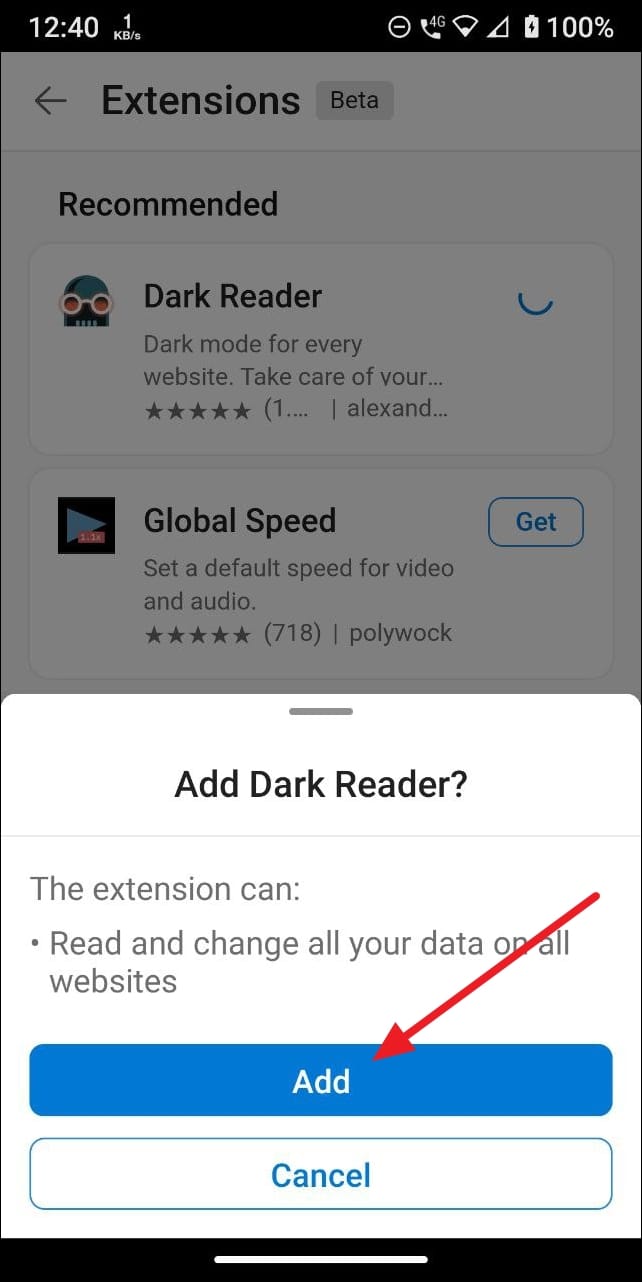
A confirmation pop-up will appear. Tap ‘Add’ to confirm and install the extension.
Once the extension is installed, it becomes active immediately. You can manage your installed extensions by accessing the ‘Extensions’ option in the browser menu.
By following these steps, you can enhance your browsing experience on Edge for Android with the added functionalities of extensions. Although the selection is currently limited, Microsoft is expected to expand the range of available extensions as more users begin to utilize this feature.