How to Fix Google Maps Loading Slowly in Chrome, Edge, and Firefox
Targeted solutions to resolve slow Google Maps performance in major browsers and improve map loading speed on your computer.
Targeted solutions to resolve slow Google Maps performance in major browsers and improve map loading speed on your computer.
by Pallav Pathak
Google Maps can become sluggish or unresponsive in Chrome, Edge, and Firefox when browser settings, system requirements, or network issues aren’t properly addressed. Slow map tiles, blank areas, or laggy zooming often point to browser or system bottlenecks that can be fixed with targeted troubleshooting.
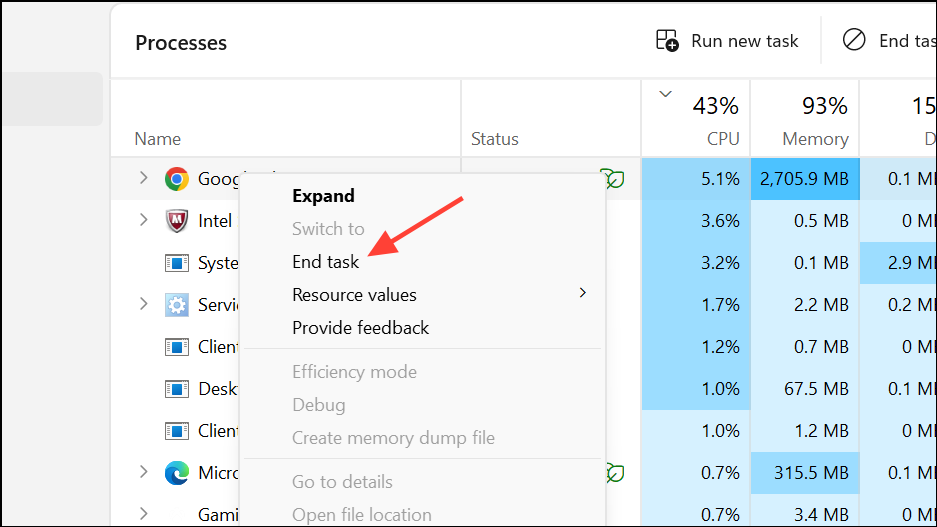
Save any open work and fully close your browser. On Windows, use Ctrl + Shift + Esc to open Task Manager, then end all processes related to Chrome, Edge, or Firefox. This ensures the browser shuts down completely and clears any temporary glitches.
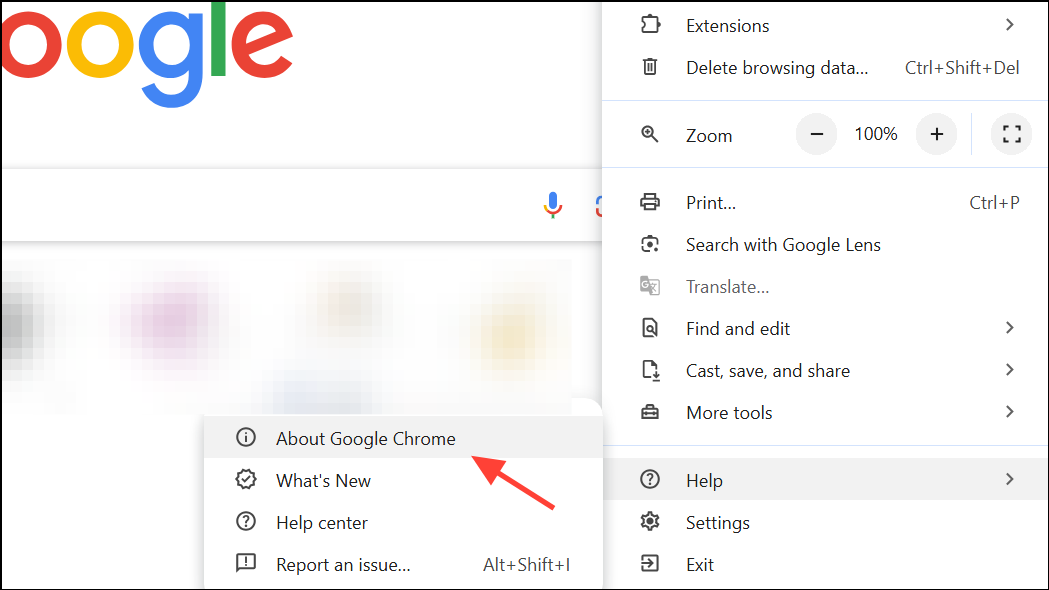
Check for browser updates. In Chrome, click the three dots in the top-right corner, select Help > About Google Chrome, and apply any available updates. For Firefox, go to the menu, select Help > About Firefox. In Edge, open the menu, select Help and feedback > About Microsoft Edge. Updated browsers include the latest performance fixes and compatibility improvements for web apps like Google Maps.
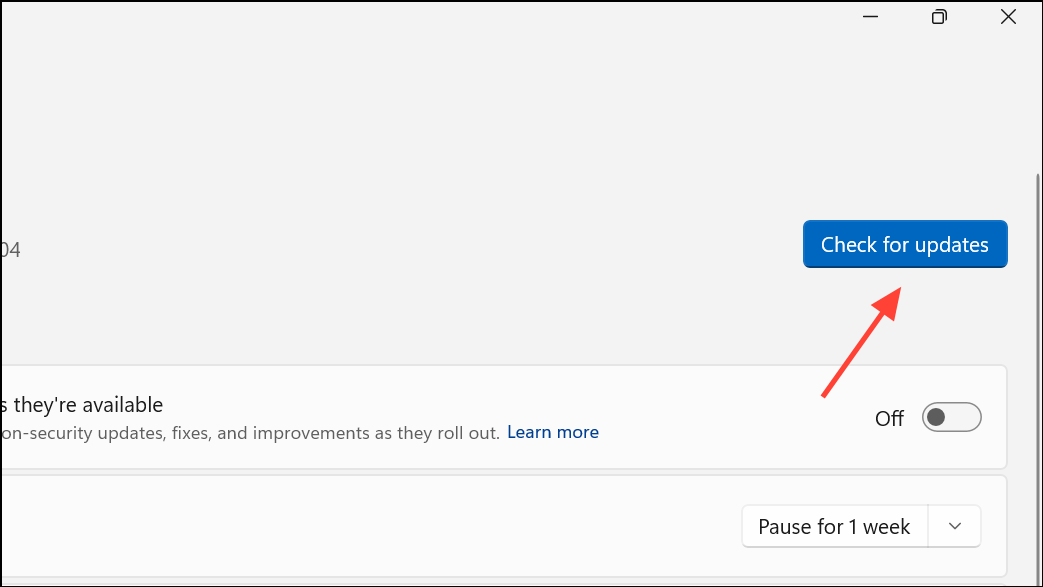
Update your operating system. On Windows, open Settings > Update & Security > Windows Update and check for updates. For Mac, use System Preferences > Software Update. Running outdated system software can cause compatibility issues and slower map rendering.
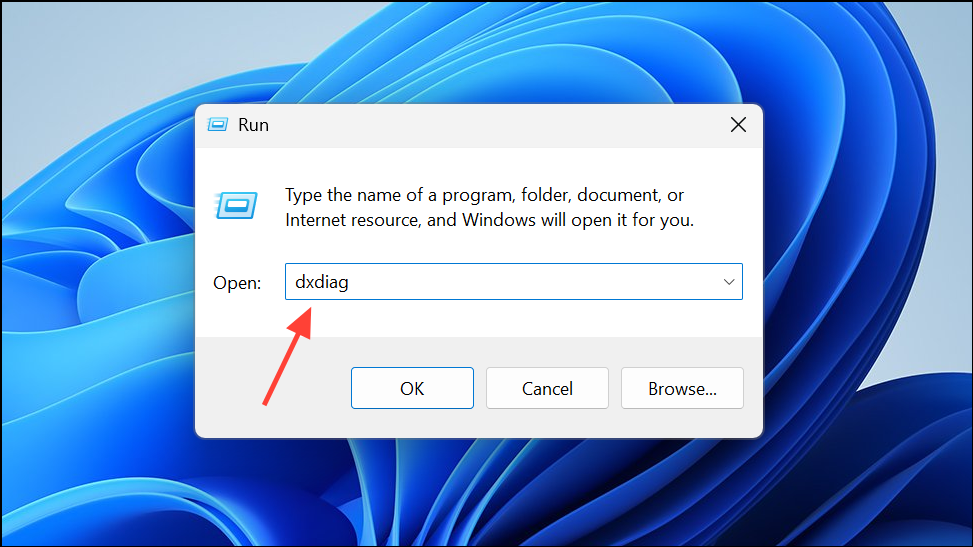
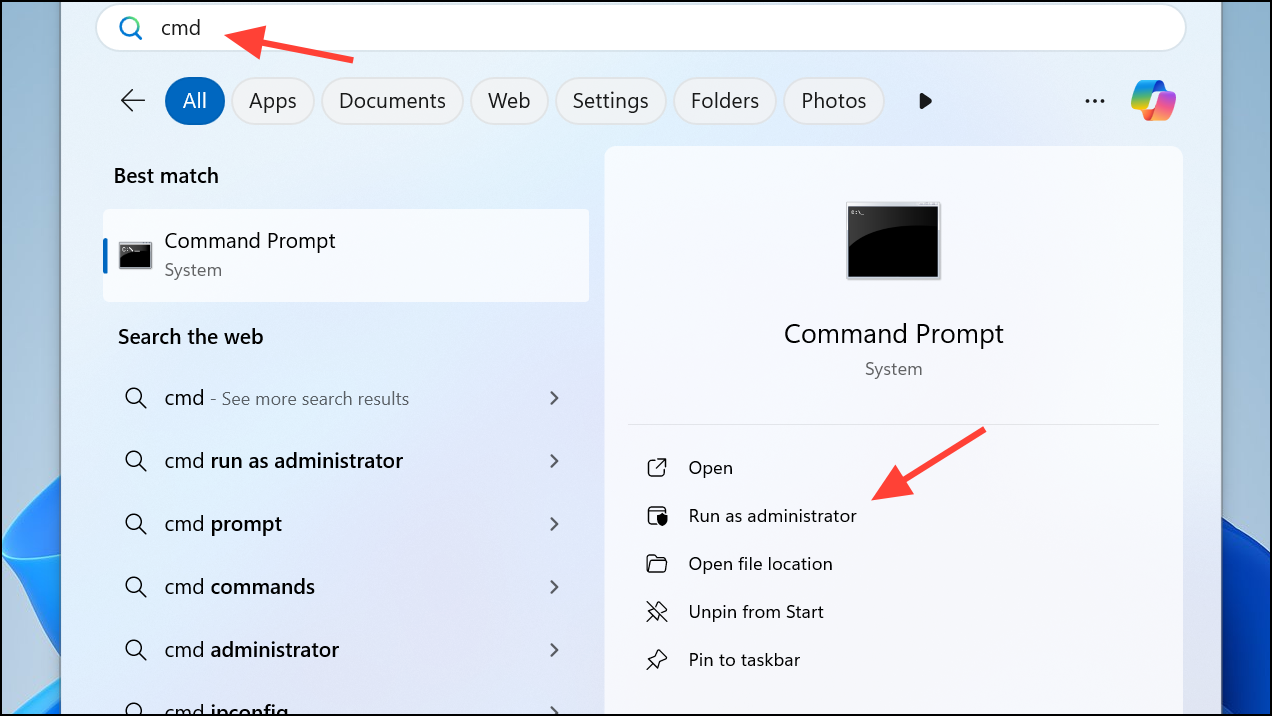
Press Windows key + R to open the Run dialog, type dxdiag, and press Enter. In the DirectX Diagnostic Tool, check the DirectX version listed at the bottom.
If you see a version lower than DirectX 12, download the latest installer from Microsoft’s official site. Follow the on-screen instructions to complete the installation. DirectX upgrades graphics processing, which helps Google Maps render complex map data more quickly.
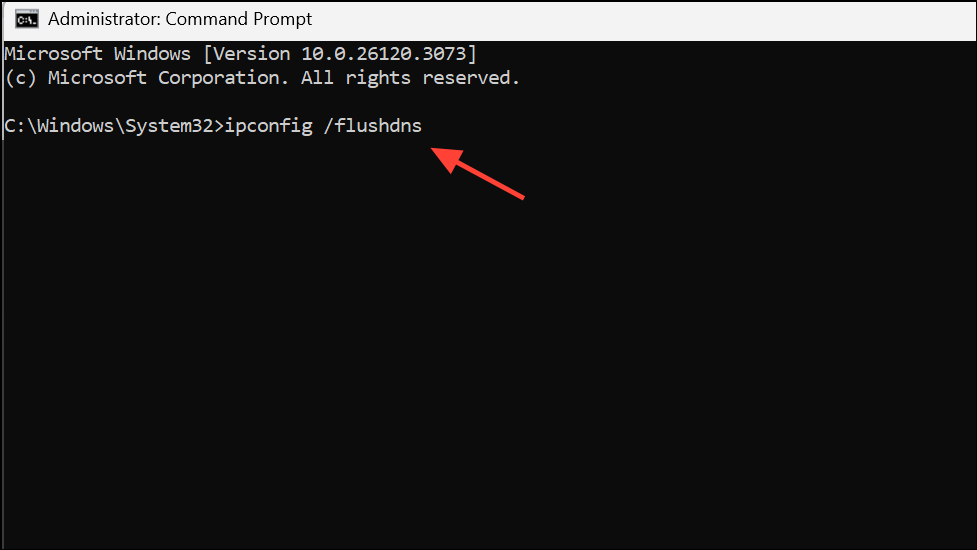
Type ipconfig /flushdns and press Enter. This command clears outdated network information that can interfere with loading web content, including map tiles and images.
If possible, connect to a different Wi-Fi or wired network to rule out local connectivity issues. Slow internet or ISP routing problems often lead to laggy map loading.
Alternatively, change your DNS servers to Google Public DNS (8.8.8.8 and 8.8.4.4) or Cloudflare DNS (1.1.1.1). This can result in faster address resolution and speed up access to Google Maps servers.
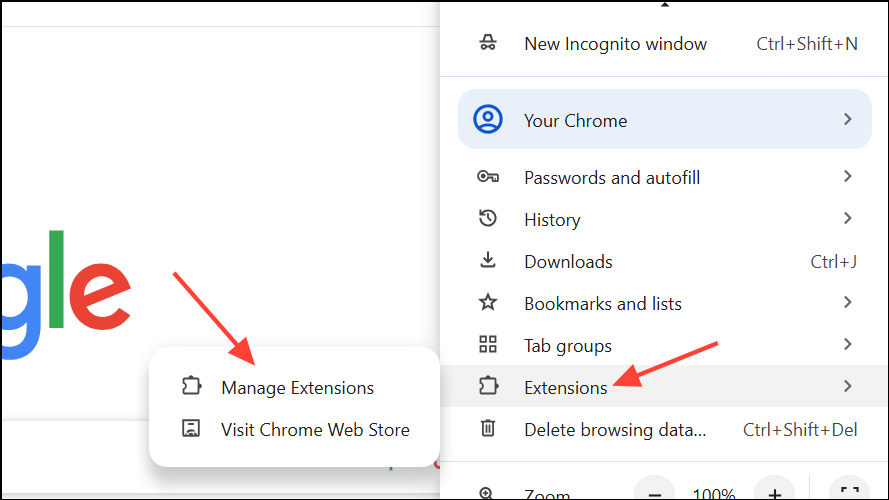
Open your browser’s extensions or add-ons manager. In Chrome, go to Extensions > Manage Extensions. In Firefox, open Add-ons and Themes. In Edge, use Extensions from the menu.
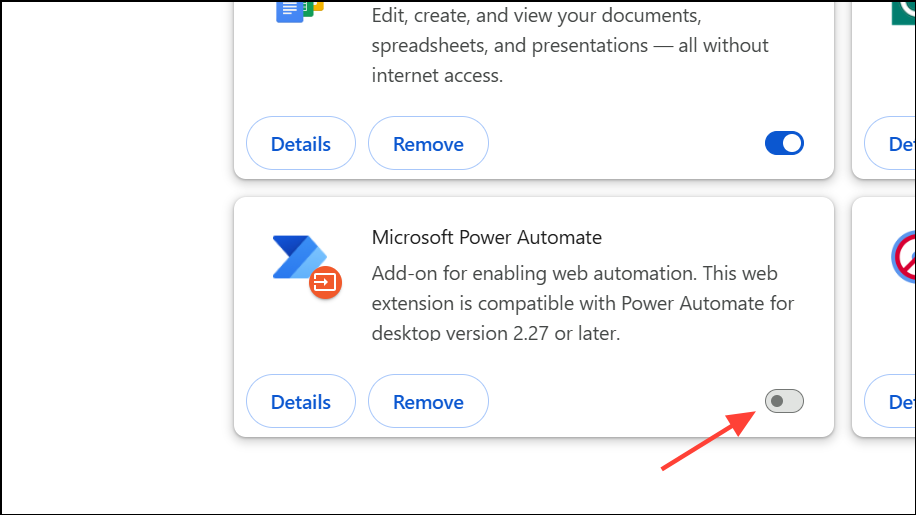
Temporarily disable all extensions, especially ad blockers. Some extensions, particularly those that block scripts or ads, can interfere with map rendering and data loading.
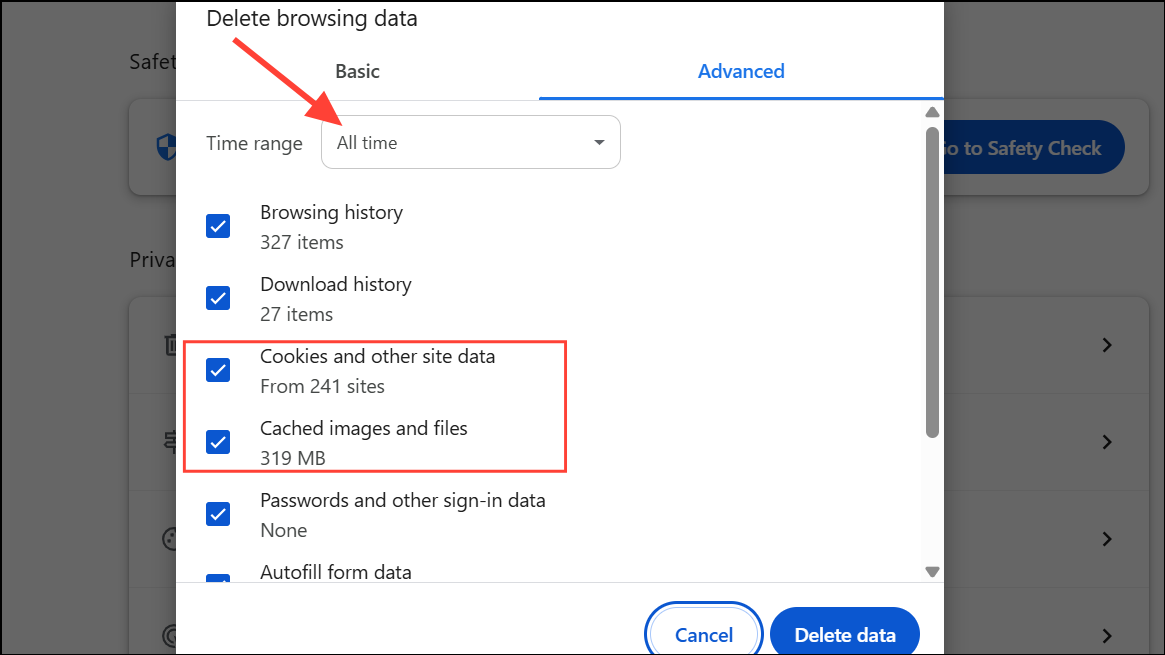
In Chrome, click the three dots, select More tools > Clear browsing data, choose All time for the time range, and check Browsing history, Cookies and other site data, and Cached images and files. Click Clear data.
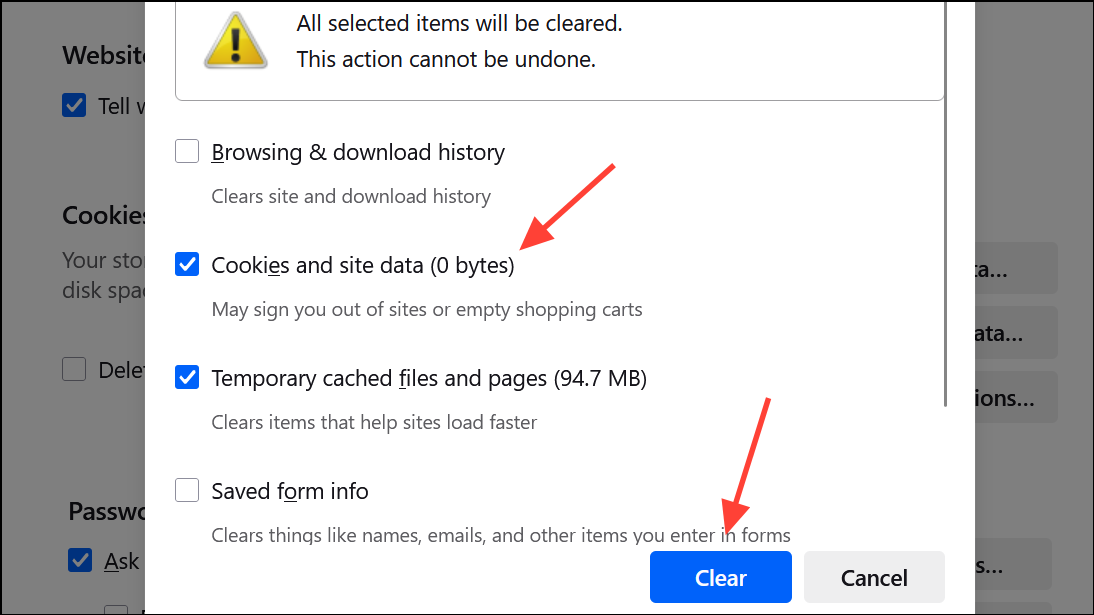
In Firefox, open the menu, select Options > Privacy & Security, scroll to Cookies and Site Data, and click Clear Data. Select both options and confirm.
Clearing cache and cookies removes outdated or corrupted files that can cause slow map loading or glitches.
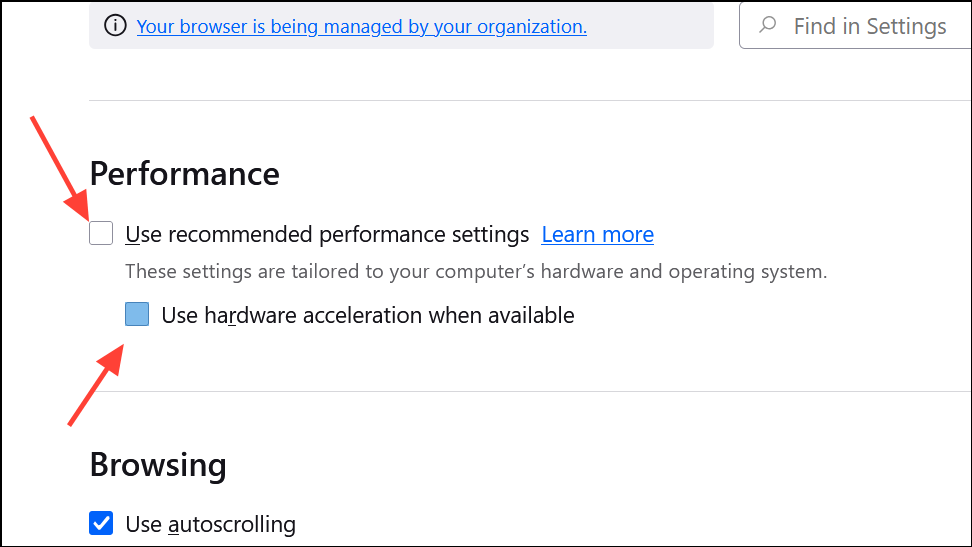
In Firefox, go to Preferences > General > Performance and uncheck Use recommended performance settings, then uncheck Use hardware acceleration when available. Restart Firefox.
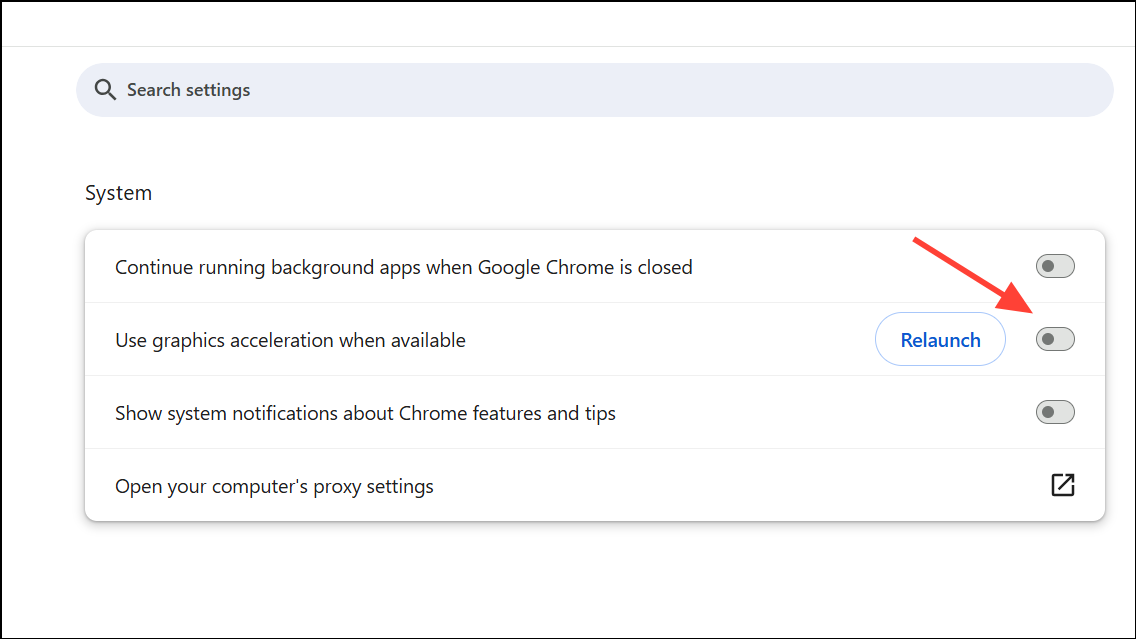
Disabling hardware acceleration can resolve rendering slowdowns on systems with older or incompatible graphics hardware.
Open a new Incognito window in Chrome or a Private window in Firefox. This mode loads Google Maps without cached data, cookies, or most extensions, which can resolve persistent performance issues.
Navigate to https://www.google.com/maps and check if the map loading speed improves. If so, the problem likely relates to your regular browsing data or extensions.
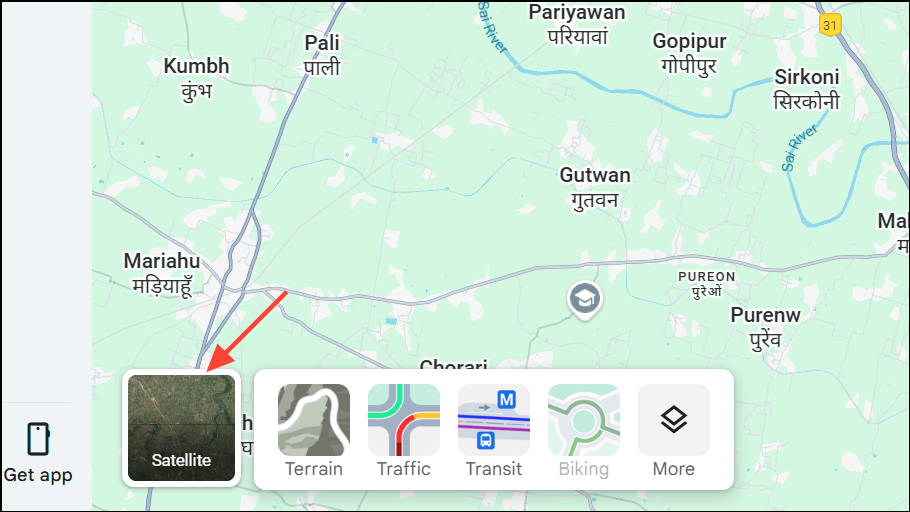
In Google Maps, click the Layers button in the bottom-left and select Default instead of Satellite. The Default view uses less data and loads faster, especially on slower connections.
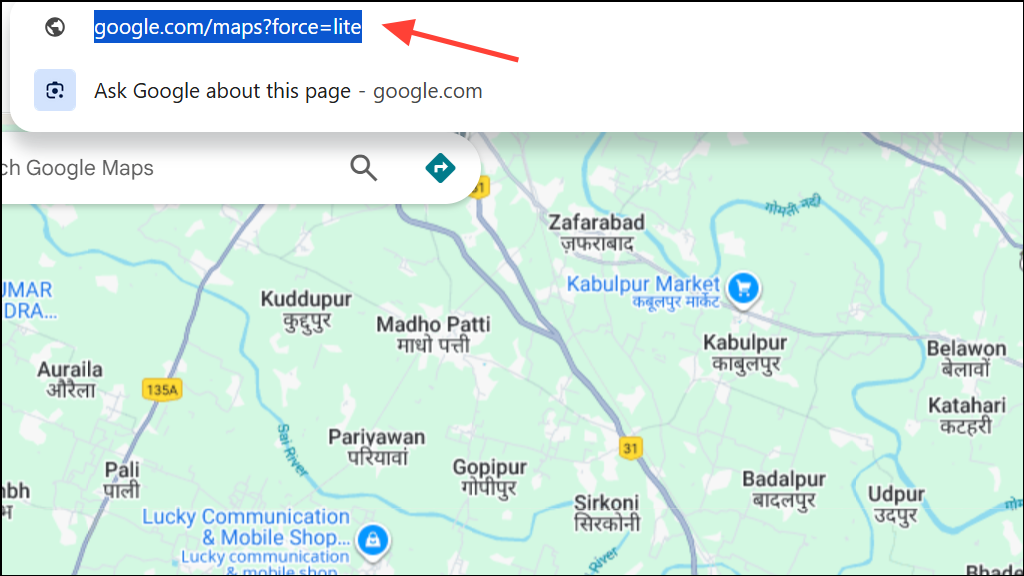
Try Google Maps Lite by adding ?force=canvas to the end of the URL, or use ?force=lite for an even more simplified version. For example: https://www.google.com/maps?force=lite.
The Lite version skips advanced features and 3D graphics, which can significantly speed up loading on older computers or slow networks.
Applying these fixes can result in quicker map loads and smoother navigation in Chrome, Edge, and Firefox. Regularly updating your system and managing browser add-ons keeps Google Maps running fast and reliable.