The Extensions menu button in Microsoft Edge appears by default on the browser toolbar, providing quick access to manage installed extensions. However, some users prefer a cleaner interface or need to remove this button for security or usability reasons. Depending on your Edge configuration and how extensions were installed, there are several ways to remove or hide the Extensions menu button, especially if it’s locked by policy or part of an unwanted extension.
Remove Extensions Menu Button via Edge Settings
Hide from toolbar. This immediately removes the button from the toolbar. You can restore it later by managing toolbar settings.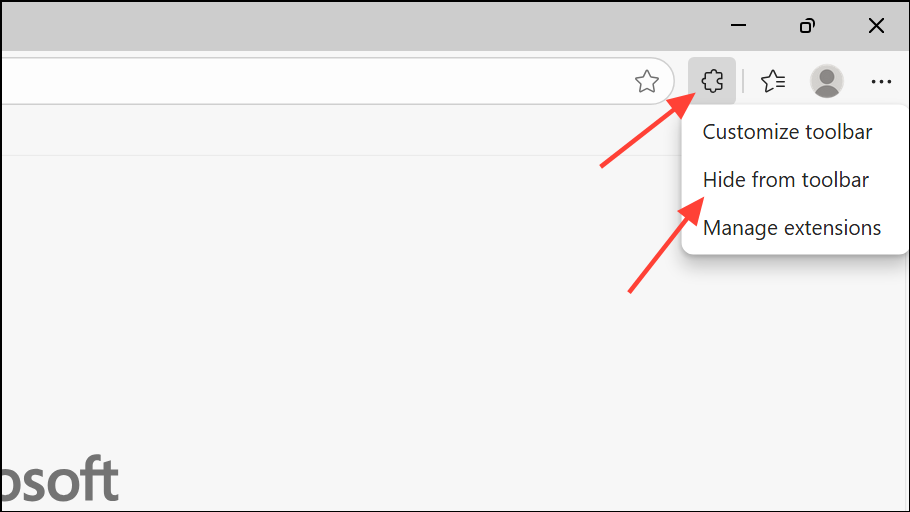
Settings and more) in the upper-right corner. Select Settings, then choose Appearance.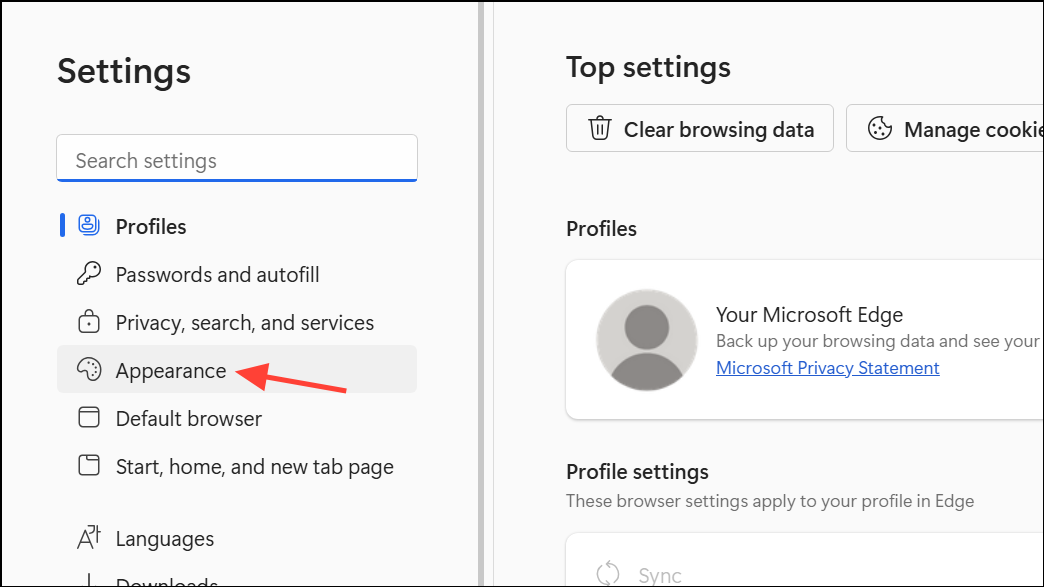
Toolbar option. Within, click the dropdown next to the Extensions option and select Never Show. This action removes the Extensions menu button from your Edge toolbar.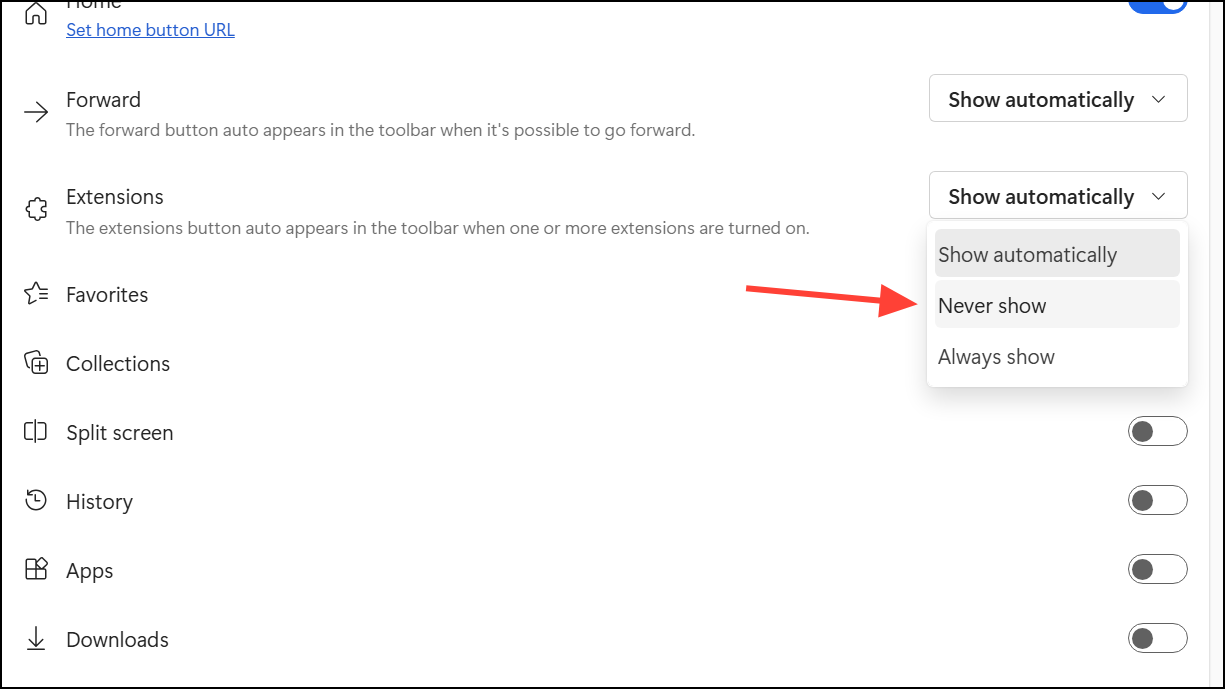
Remove Extensions Menu Button by Deleting Extensions
Extensions, then Manage extensions.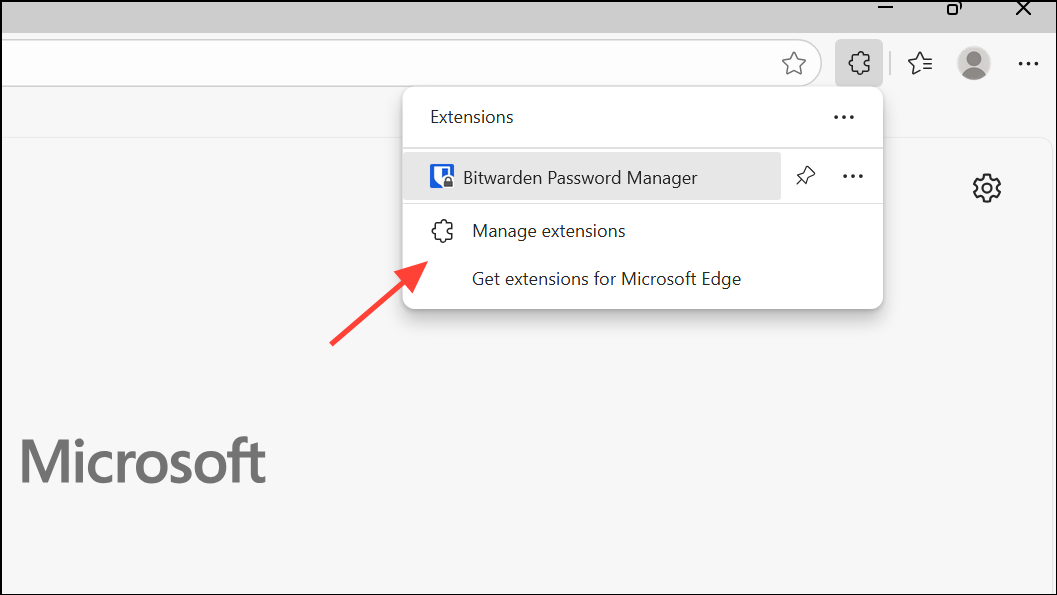
Remove and confirm the removal. Once all extensions are removed, the Extensions menu button may disappear automatically, depending on your Edge version.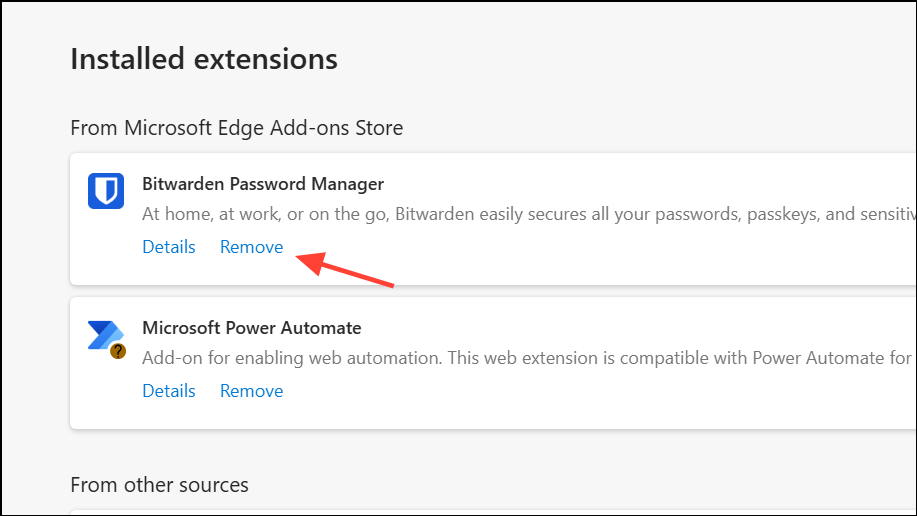
Remove Extensions Menu Button When Extensions Are Managed by Organization or Policy
Some extensions, especially those installed by malware or via group policies, prevent removal through standard menus and keep the Extensions button visible. In these cases, manual intervention is required.
regedit in the Start menu and pressing Enter. If prompted by User Account Control, click Yes to allow changes.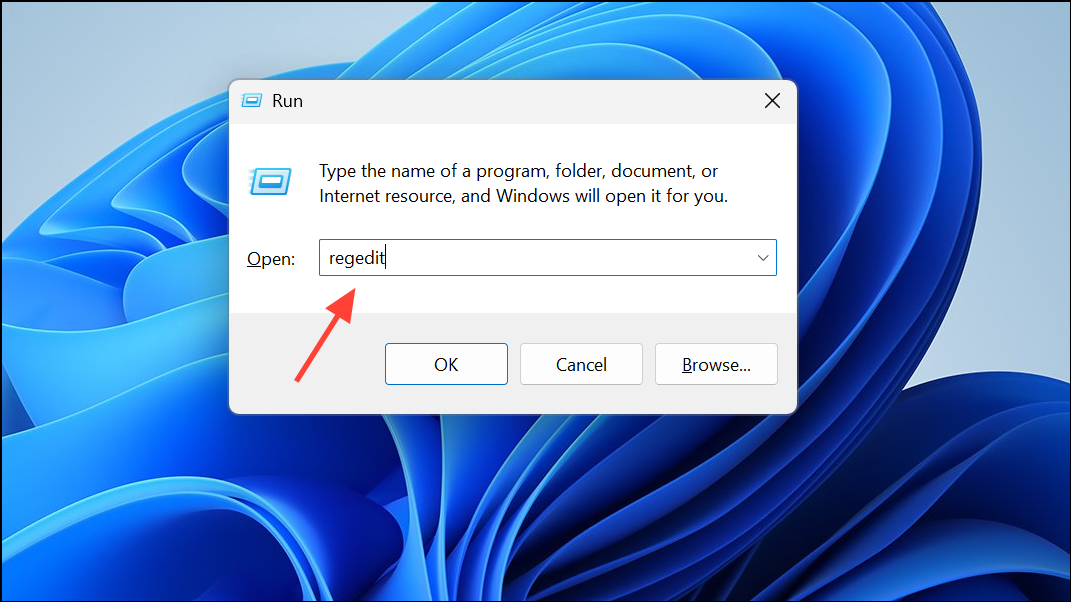
HKEY_LOCAL_MACHINE\SOFTWARE\Policies\Microsoft\Edge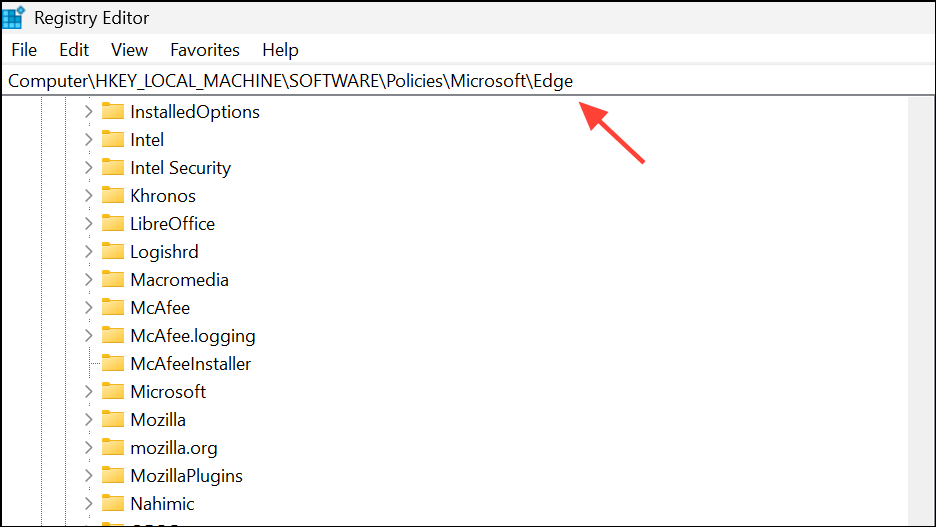
or, if you do not see the extension listed there, check:
HKEY_CURRENT_USER\SOFTWARE\Policies\Microsoft\EdgeExtensionInstallForcelist. If it exists, right-click on this key and select Delete. This removes the policy that forces certain extensions (and the Extensions menu button) to remain enabled.cmd in the Start menu, then right-click and run as administrator.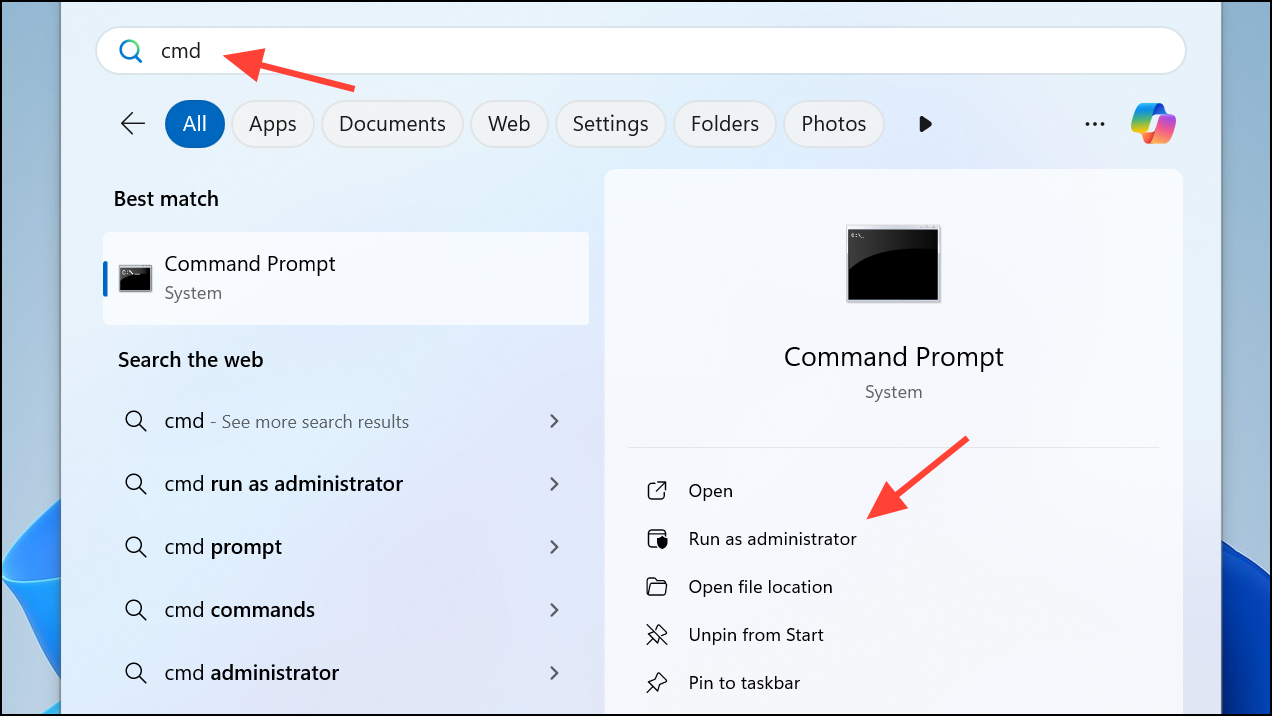
taskkill /F /IM msedge.exe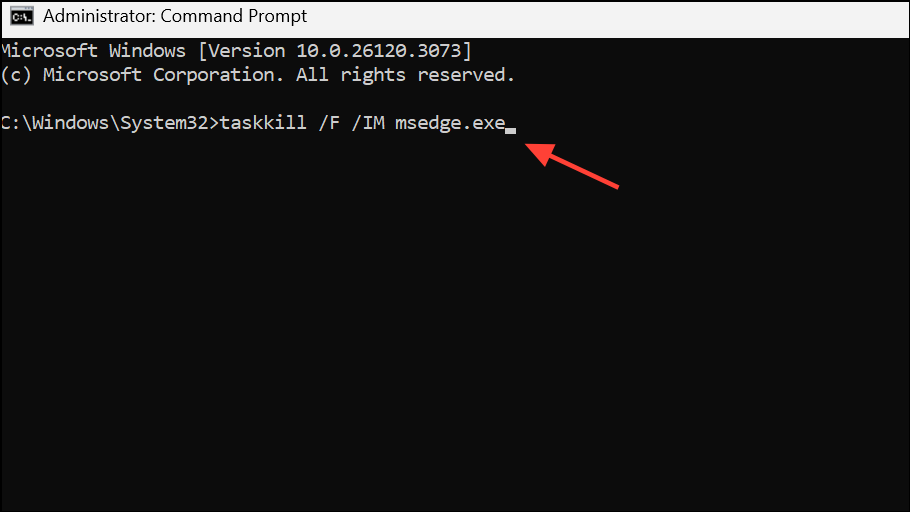
C:\Users\[YourName]\AppData\Local\Microsoft\Edge\User Data\Default\Extensions\), you can manually delete its folder to remove traces of the extension. Make sure Edge is closed before deleting these files.Remove Extensions Menu Button via Group Policy Editor (For Administrators)
On managed devices or when Edge is controlled by organizational policies, administrators can use the Group Policy Editor to control the visibility of the Extensions menu button.
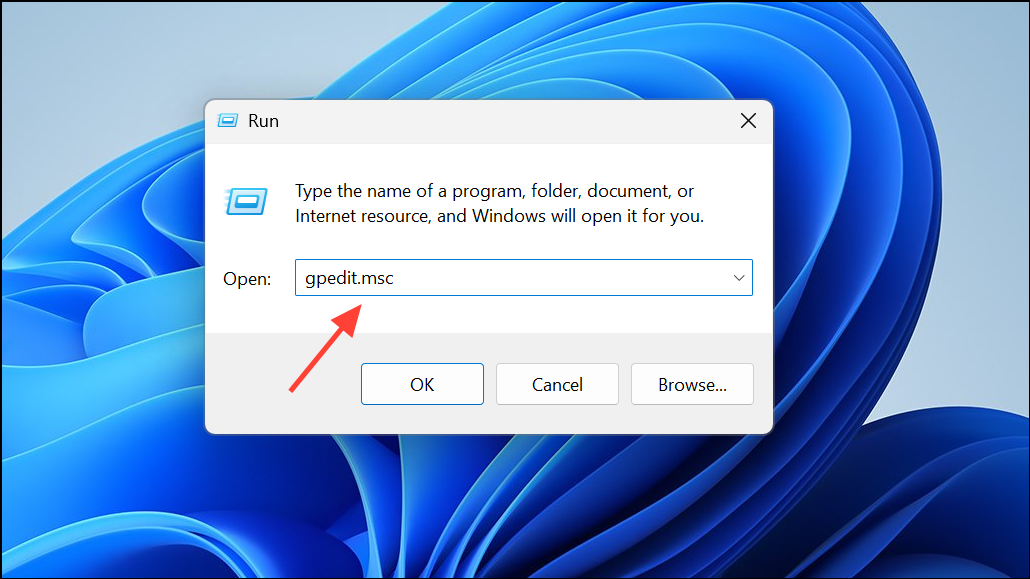
Control which extensions are installed silently or Configure extension management settings). Set these to Not Configured or adjust as needed to allow users to manage extensions themselves.gpupdate /force in Command Prompt to refresh policy settings, then restart Edge.Removing the Extensions menu button from Microsoft Edge can streamline your browser interface and eliminate access to unwanted or policy-managed extensions. If the standard settings do not work, editing the registry or group policy provides a more robust solution, but always back up your system before making changes.