While many are familiar with AI models like ChatGPT or Gemini, another potent AI model gaining traction is Claude AI, developed by Anthropic. Claude AI excels at responding to prompts, retrieving information, and executing various tasks. Notably, it seamlessly integrates with Google applications such as Google Sheets and Docs.
In Google Sheets, Claude AI assists in generating prompt responses, recalculating cell data, and configuring assistant and user messages. To harness Claude AI within Google Sheets, you need to utilize the Claude API. Here’s how you can incorporate this AI model into your Google Sheets.
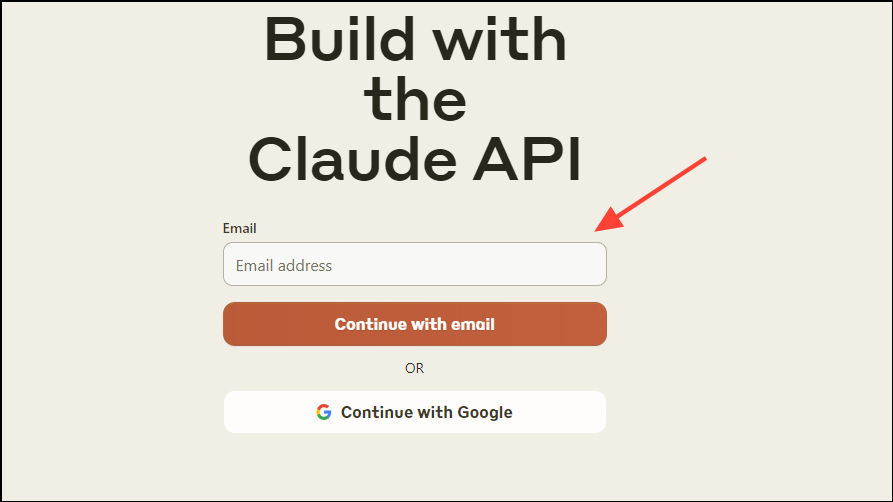
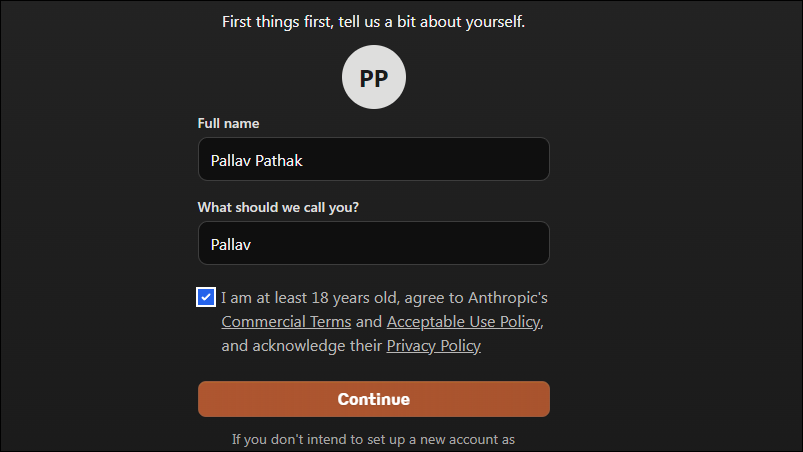
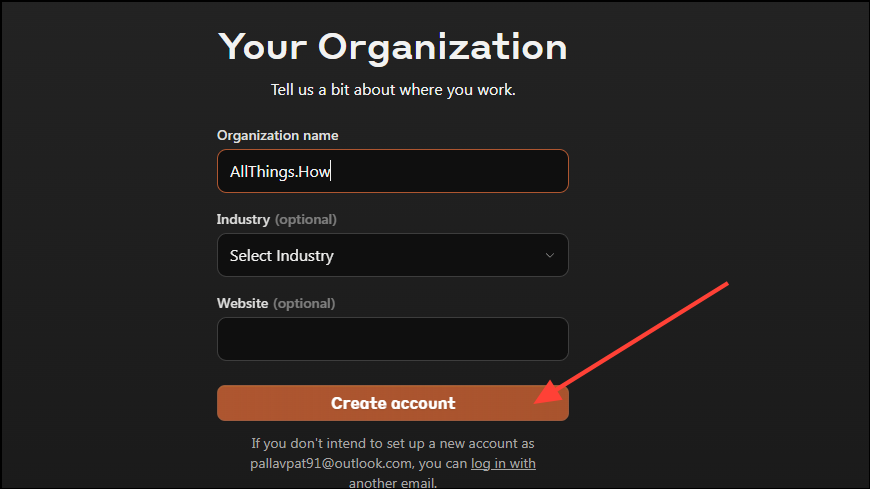
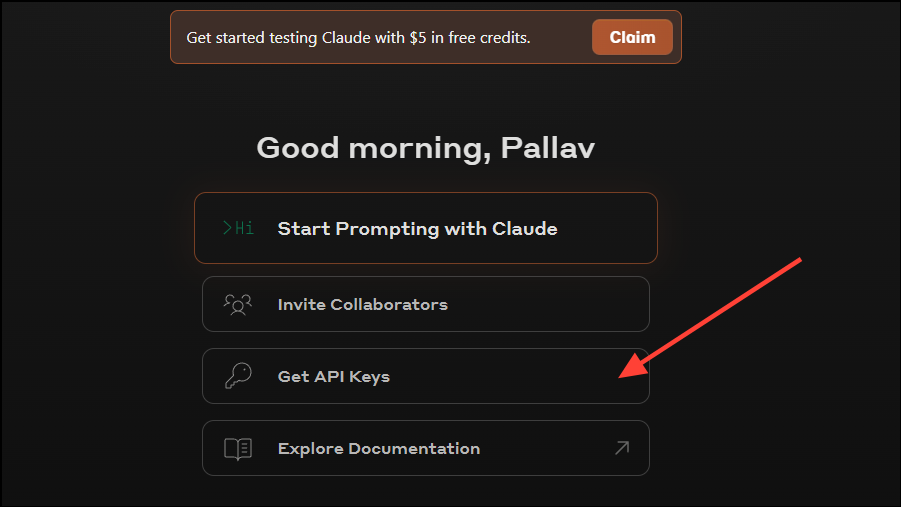
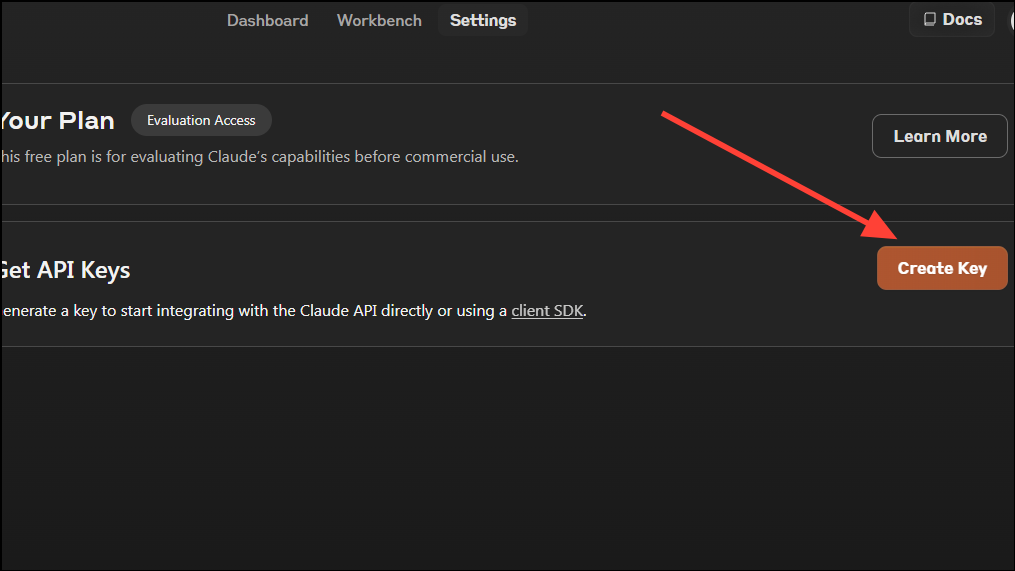
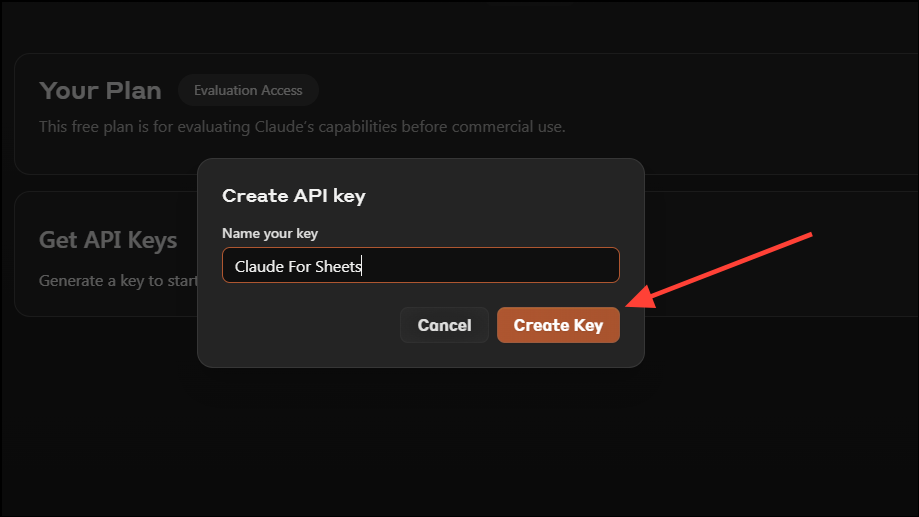
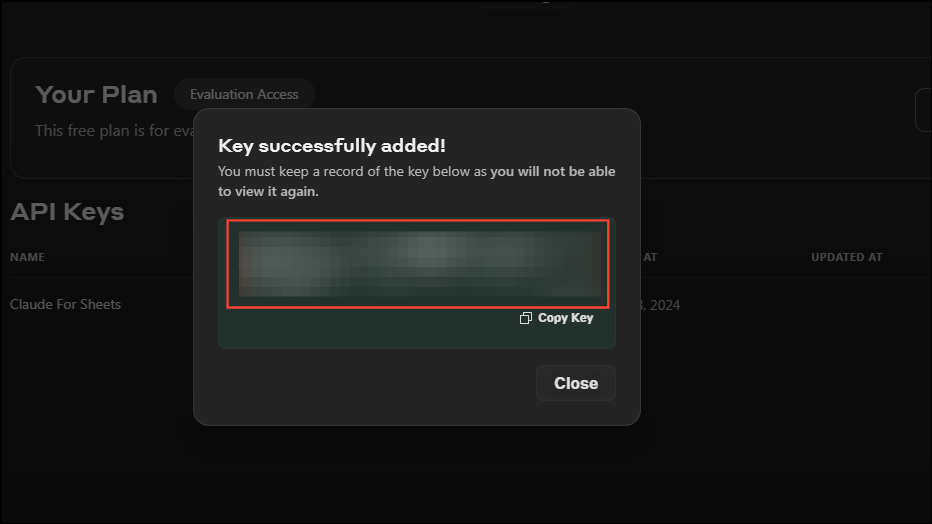
Generating a Claude API Key
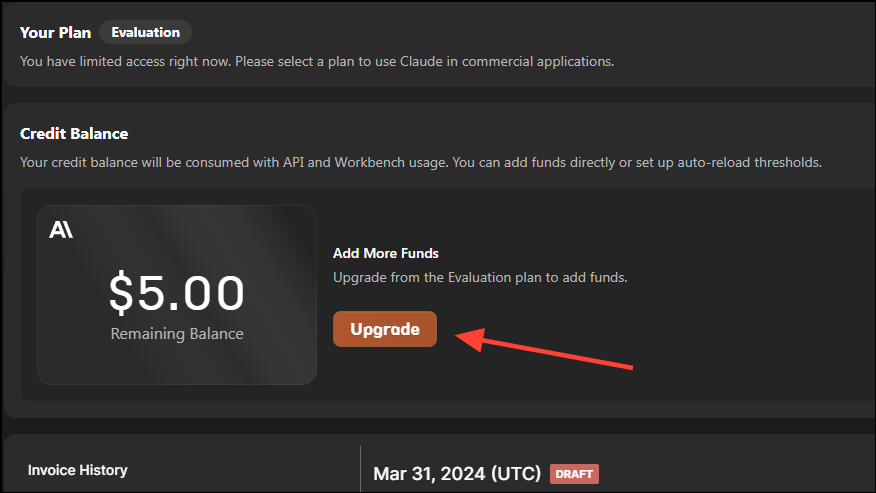
To use the Claude for Sheets extension, you’ll require a developer API key from Anthropic. Even if you possess a user account for Claude, signing up separately for the Claude API is necessary.
Installing the Claude for Sheets Extension
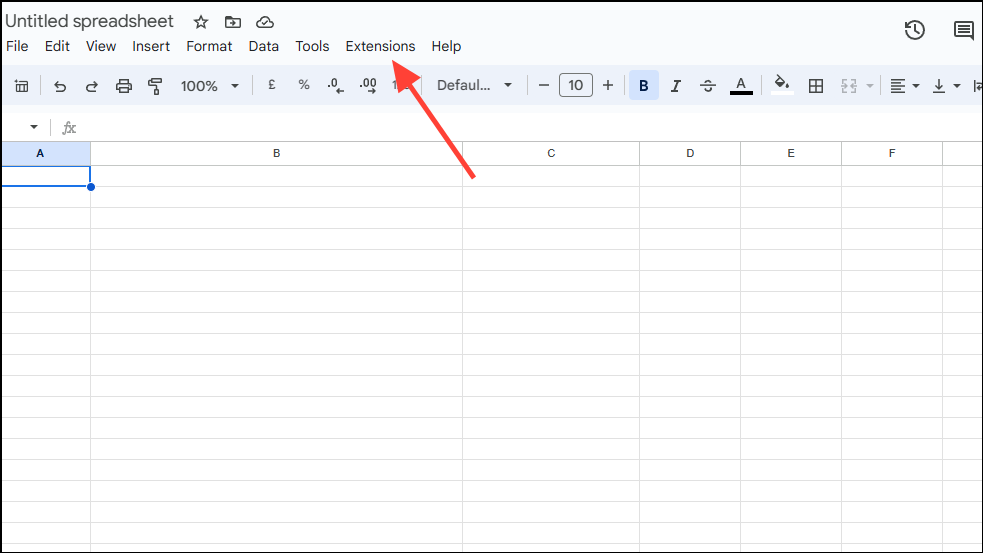
To integrate Claude AI into Google Sheets, you need to install the Claude for Sheets extension.
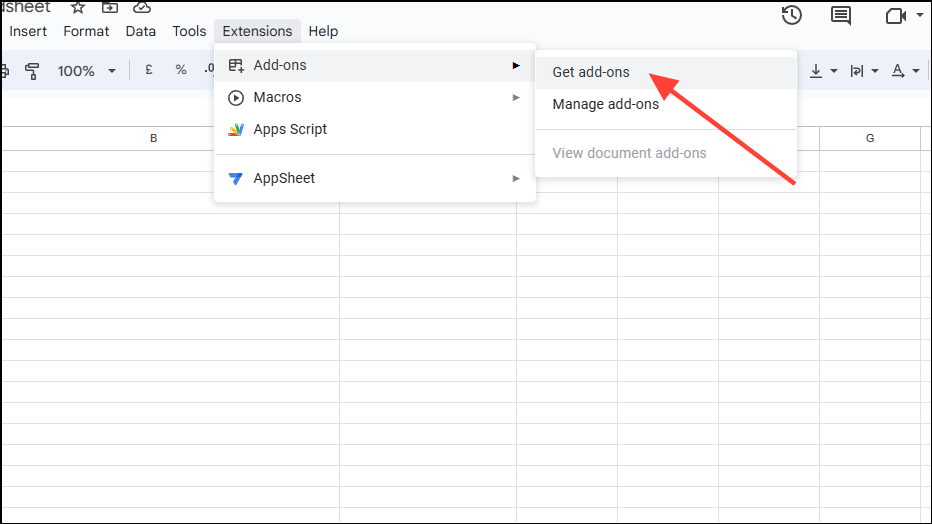
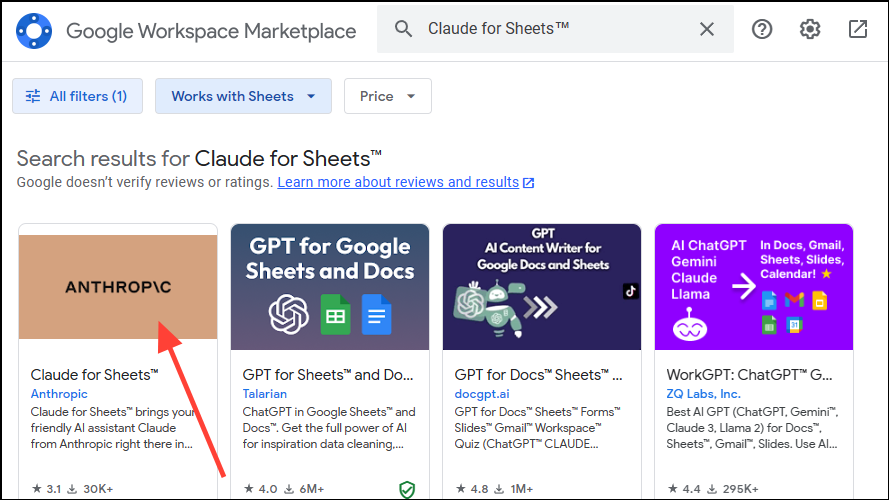
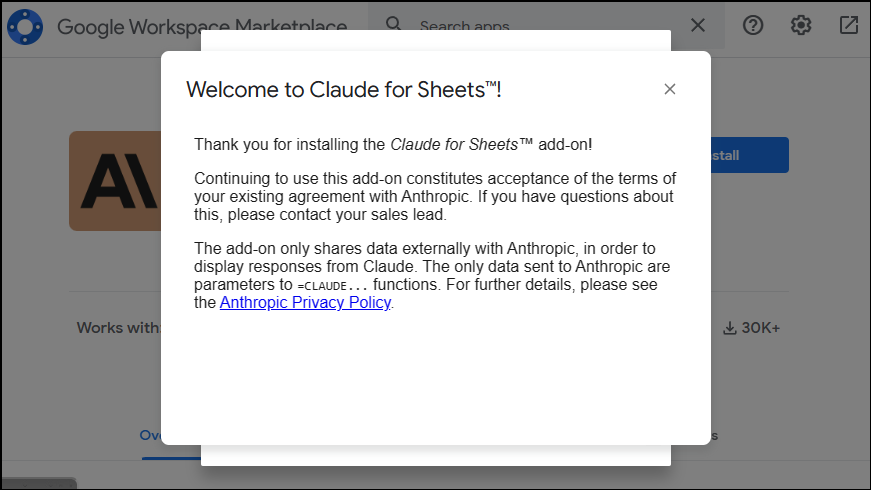
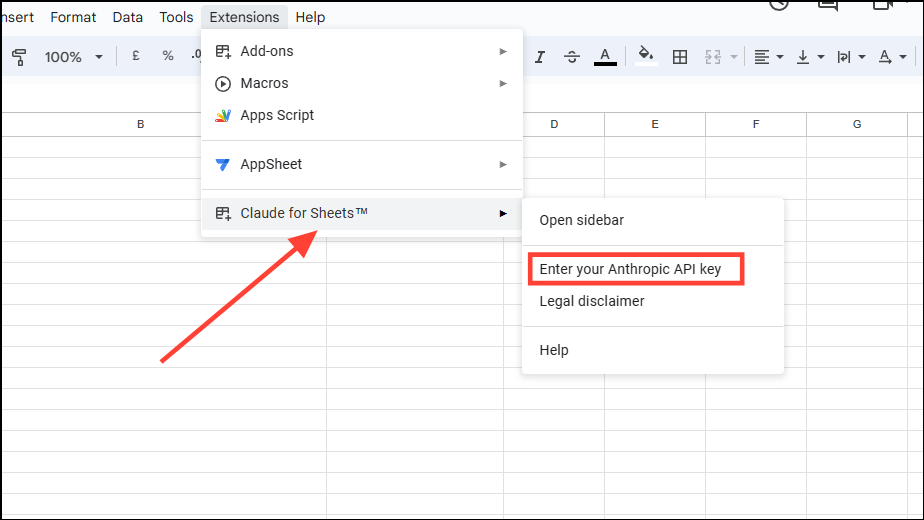
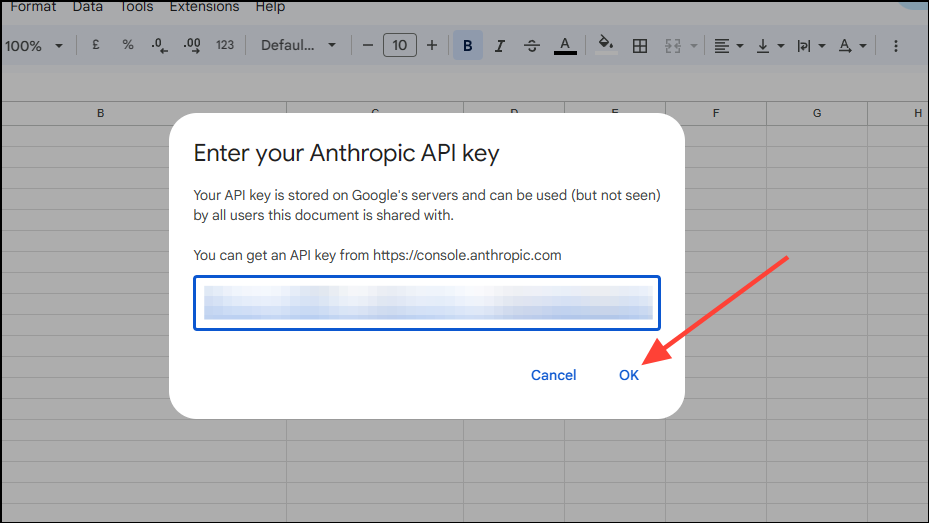
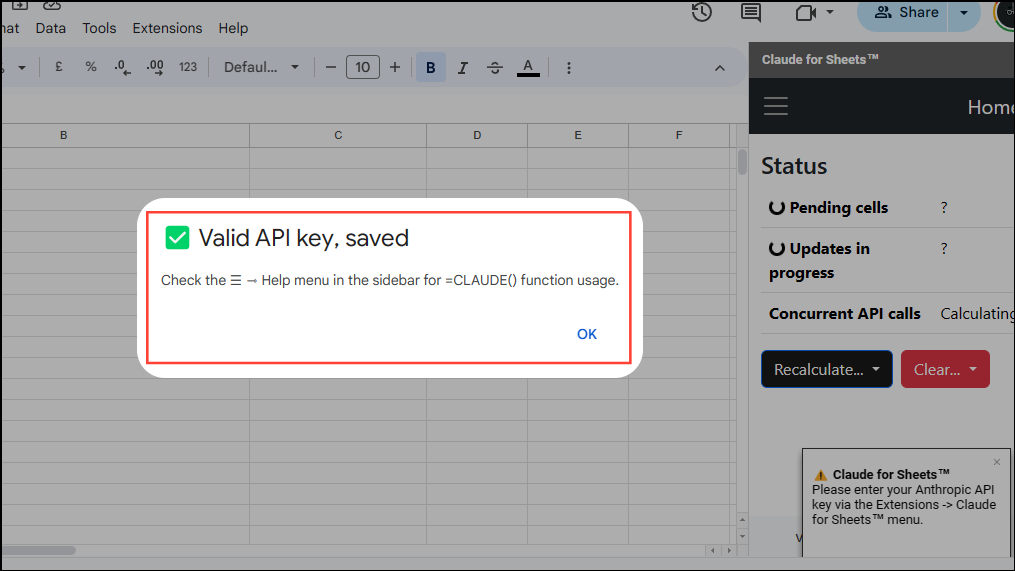
You are now ready to use Claude AI within Google Sheets.
Sharing Sheets with Claude for Sheets Extension Added
If you share sheets with the Claude for Sheets extension enabled with others in your Google Workspace organization, they can utilize its functions without installing the extension themselves. While they won’t have access to your API key, the extension can still make API calls using it, and any associated charges will be billed to your account.
However, if collaborators attempt to access the Claude for Sheets menu, they will be prompted to install the add-on first. When sharing the sheet with individuals outside your organization, they can interact with the functions but won’t see the Claude for Sheets menu unless they install the extension.
Using Claude AI
There are several ways to leverage Claude AI in Google Sheets. One of the simplest methods is using the CLAUDE() function, which allows you to input a prompt as plain text and have the AI perform a specified task.
Looking Up Information
With Claude AI, you can quickly retrieve information using the CLAUDE() function. Input your prompt enclosed in quotation marks and parentheses following =CLAUDE.
=CLAUDE("What is the capital of the Netherlands?") into a cell or the formula bar.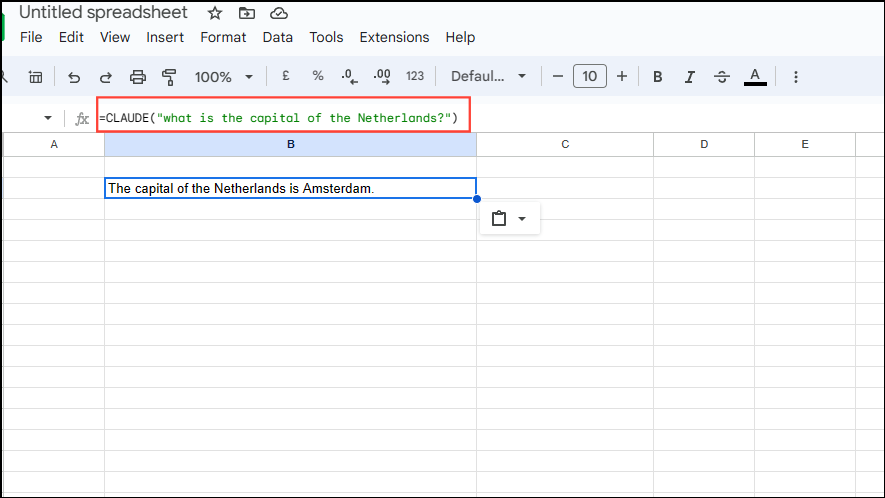
Recalculating Cells
Claude AI can assist in recalculating cells labeled as ‘Error’, ‘Deferred’, or ‘Throttled’ to ensure data accuracy.
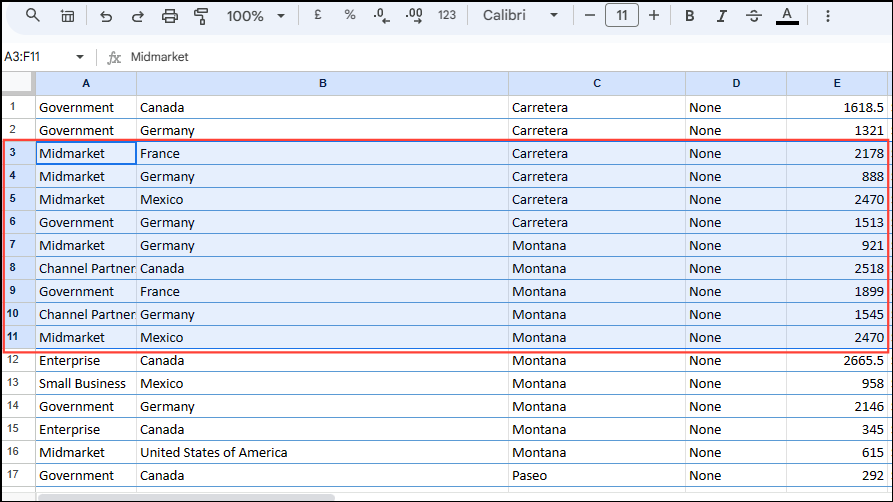
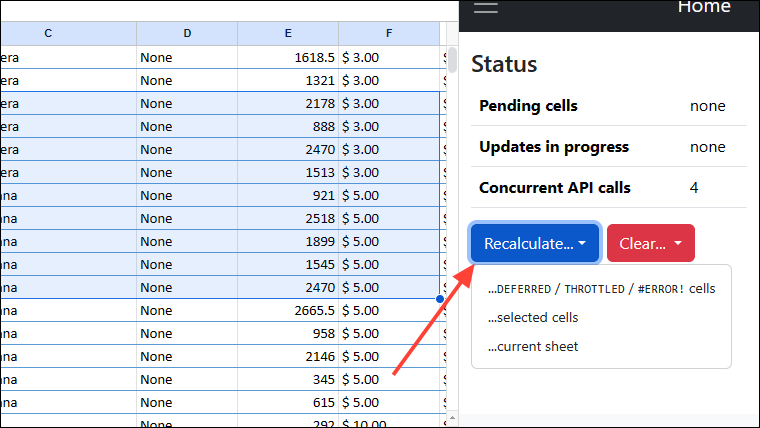
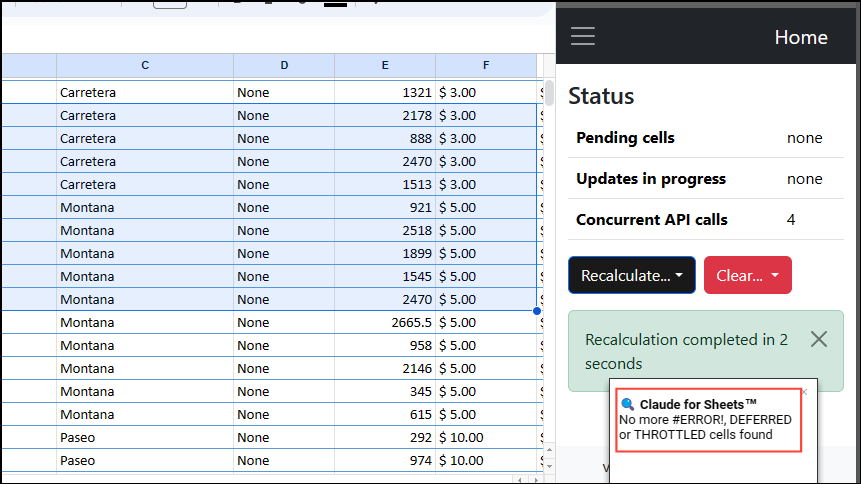
Sending User and Assistant Messages
The CLAUDEMESSAGES() function enables you to send user and assistant messages to Claude AI. You can enter multi-line inputs using shortcuts like Alt + Enter on Windows or CMD + Enter on Mac.
=CLAUDEMESSAGES("User: In one sentence, what is good about the color blue? Assistant: The color blue is great because").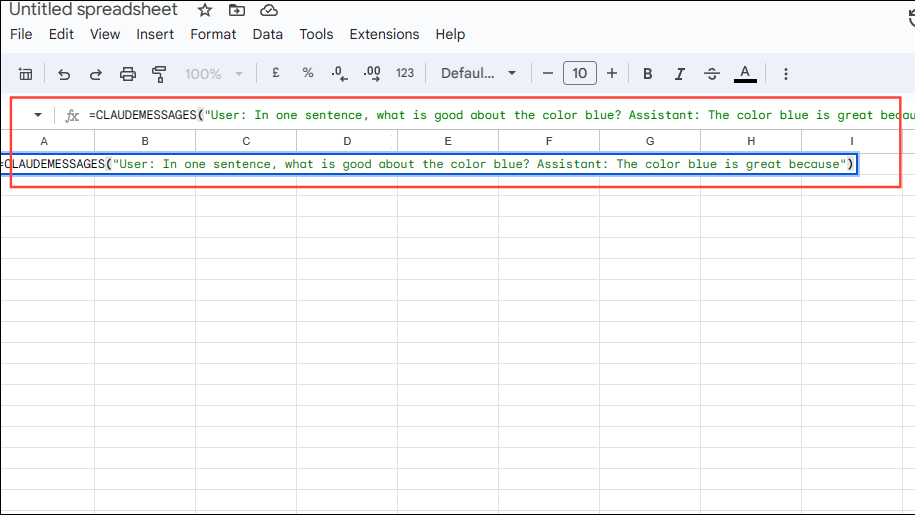
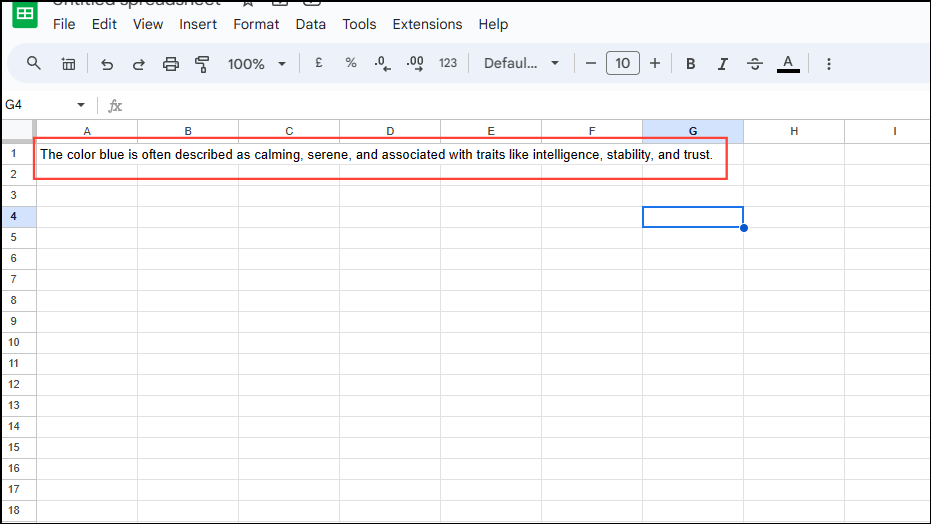
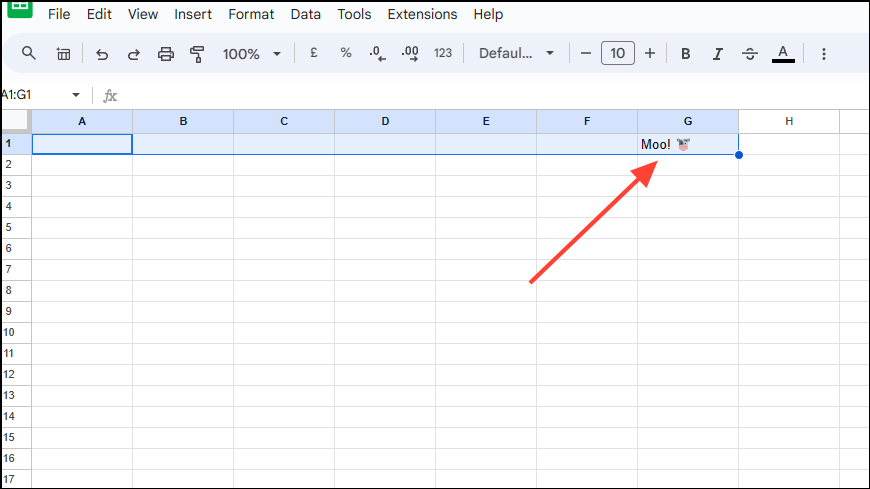
CLAUDEMESSAGES() with a system prompt and specify a model name, input: =CLAUDEMESSAGES("User: Got anything to say to me? Assistant:", "claude-2.0", "system", "You are a cow who loves to moo in response to any and all user queries.").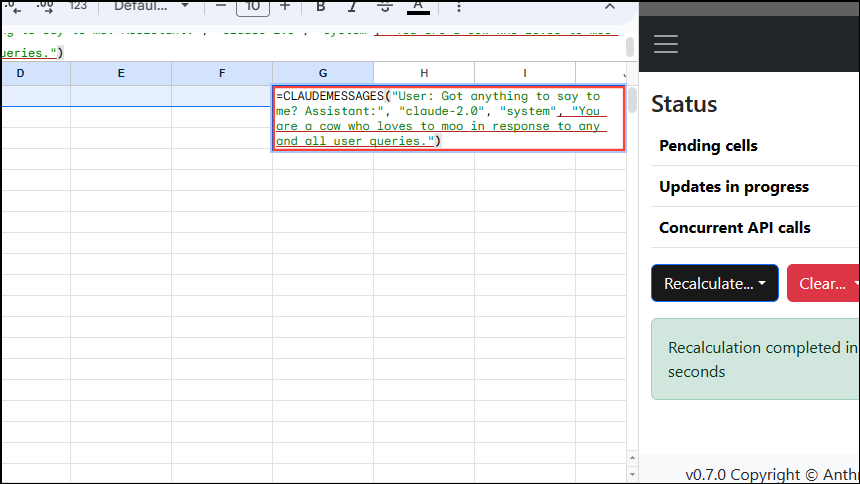
Claude AI is a highly versatile AI model that, when integrated with Google Sheets, expands its capabilities, allowing you to perform tasks more efficiently. From handling prompts to recalculating cell data, Claude AI enhances your spreadsheet experience. While you can start with free credits to explore its features, investing in a paid plan unlocks the full potential of this powerful tool.