Grim Dawn started refusing to launch for a wave of players right after the v1.3.0.1 hotfix, throwing either “Grim Dawn requires Steam. Please launch the application from the Steam interface!” or a “Steamworks Error! No SteamMatchMakingServers003” / “No SteamUtils011” message before the main menu ever appears. Nothing on your end changed, and the game most likely ran fine hours earlier. The cause is a Steamworks library update baked into the hotfix, and the fix depends on which platform you are on.
Quick answer: On Windows, fully close Steam, reopen it, let it finish updating, then launch the game. On Steam Deck, Linux, or older Windows, pick the “Play Grim Dawn (x64) – Compatibility Mode (SteamOS/Linux)” launch option added in hotfix 1.3.0.3, or force GE-Proton 11-3 as the compatibility tool.
Why the Steamworks error appears
The hotfix moved Grim Dawn onto a newer Steamworks SDK so the game could use the latest Steam controller technology. That newer library needs an up-to-date Steam client, and it broke compatibility with the Proton versions that Valve ships by default. In practice the game’s executable can no longer complete its handshake with the Steam API, so it stops at launch.
This is not a problem with your save files, your hardware, or your install. Verifying game files does not resolve it. The GoG build of Grim Dawn, which does not depend on the Steam client, is unaffected.
The official fix: use the SteamOS/Linux compatibility launch option
Crate Entertainment shipped a follow-up hotfix (1.3.0.3) that adds a dedicated launch option built to sidestep the broken Steamworks handshake. This is the cleanest fix and it also works for players on older versions of Windows.
Fix the error on Windows PC
For most Windows players, the error clears once the Steam client itself finishes updating. Steam often has a pending update queued after the PC has been on for days, and that stale client is what breaks the new Steamworks handshake.
Steam (32 bit).exe or steamwebhelper, and end those tasks so no ghost process is left running in the background.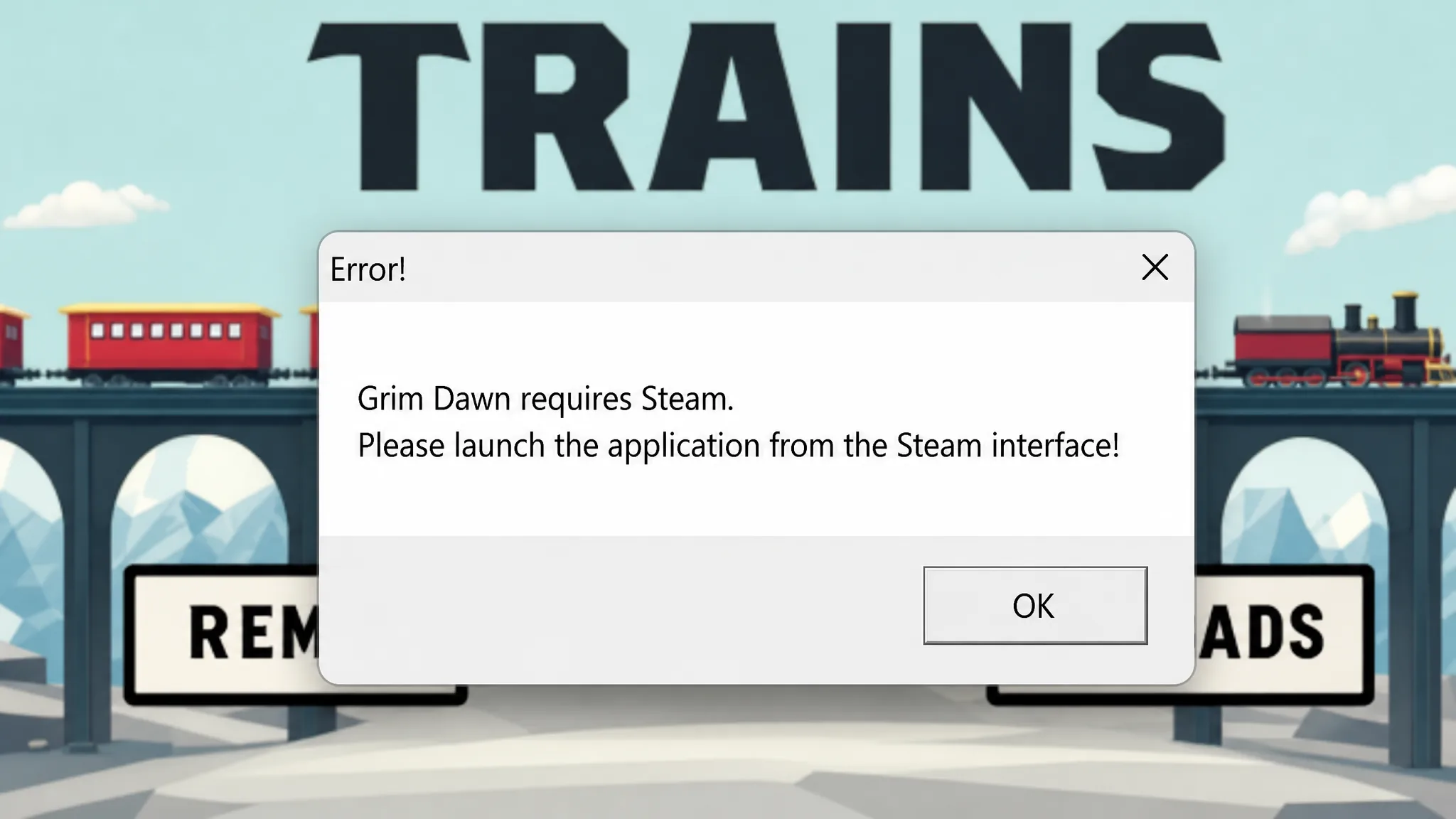
Note: If the game briefly ran and then vanished from the library, or the executable reports “already running”, exit Steam entirely and relaunch to reset the process state.
Check antivirus if a DLL is missing
Aggressive antivirus tools sometimes flag steam_api.dll or steam_api64.dll inside the Grim Dawn folder as a false positive and quarantine it, which produces the same launch failure. Open Windows Defender or your antivirus, restore the file if it was quarantined, and add the Grim Dawn install folder as an exclusion.
Fix the error on Steam Deck and Linux
Deck and Linux setups are hit hardest because Valve has not yet updated the default Proton builds to match the newer Steamworks version. The 1.3.0.3 compatibility launch option above is the first thing to try. If you prefer running Proton, you need a build with Steamworks 1.65 support, and GE-Proton 11-3 is the version confirmed to work. Older GE-Proton builds (8-25, 8-26, 8-32), stock Proton 9, 11, Experimental, and Hotfix all still throw the error or crash.
| Compatibility layer | Result |
|---|---|
| GE-Proton 11-3 | Works, saves and DLC intact |
| Proton 10.0-4 | Launches, but DLC and characters not detected |
| Proton 11.0 / Experimental / Hotfix | Error or crash |
| GE-Proton 8-25 / 8-26 / 8-32 | “Requires Steam” error |
compatibilitytools.d folder manually.You know it worked when the game reaches the main menu and your existing characters and DLC show up. If Proton 10.0-4 loads the game but your DLC and characters are missing, do not keep playing on it, switch to GE-Proton 11-3 instead so your data is recognized correctly.
GeForce NOW players are still locked out
Streaming Grim Dawn through GeForce NOW, including on Chromebooks, currently has no workaround. You cannot control the backend operating system, so you cannot update Steam manually or change the compatibility layer. Playing this way means waiting for the issue to be resolved on the service’s end.
If nothing works
A small number of setups still fail even on the compatibility launch option or GE-Proton 11-3, sometimes reporting a “couldn’t initialize graphics” message on the x64 build instead. If you have updated Steam, updated the game to 1.3.0.3, tried the SteamOS/Linux launch option, and forced GE-Proton 11-3 without success, report your exact platform and a DxDiag file on the Crate Entertainment bug reporting forum so the developers can track your configuration.