

If your sticker collection on iOS 17 has become unwieldy or includes stickers you no longer need, removing them can help declutter your messaging experience. This guide explains how to delete live stickers created from photos and how to remove sticker apps from your iPhone.
Deleting Live Stickers Created from Photos
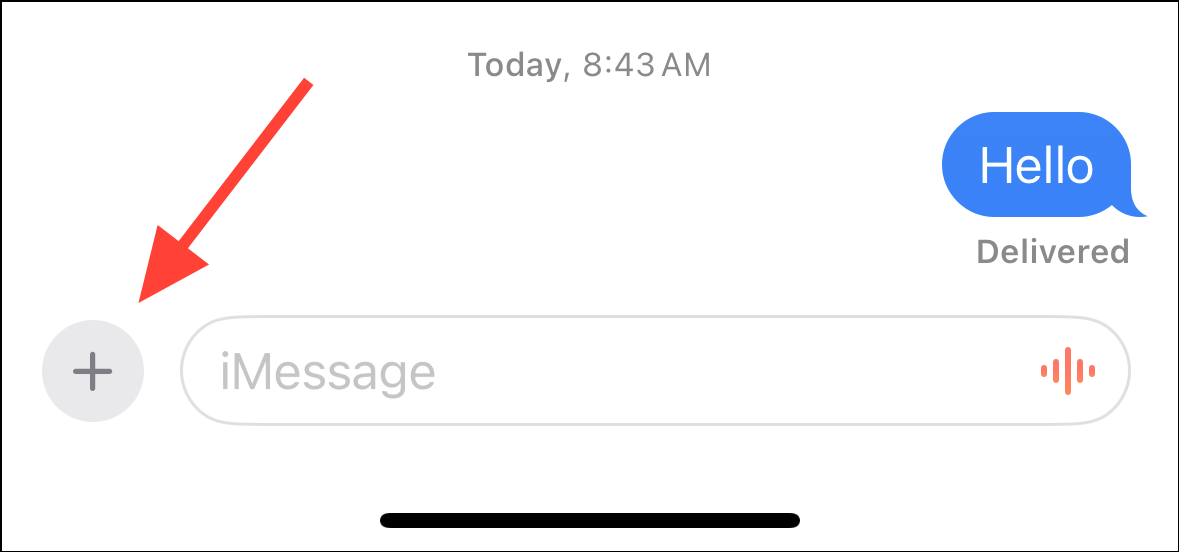
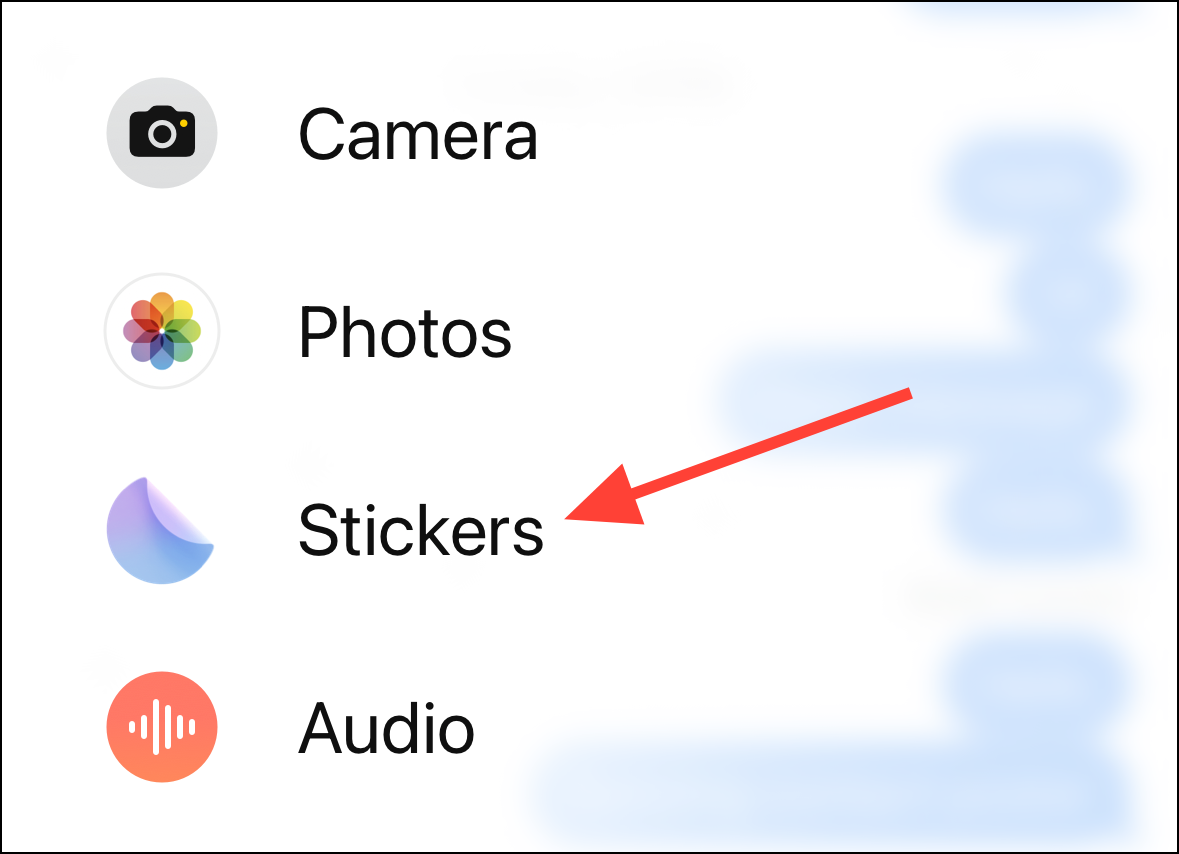
To remove a live sticker, open the Messages app, start or open a conversation, tap the ‘+’ icon next to the text field, select ‘Stickers’, then long-press the sticker you wish to delete and choose ‘Delete’ from the menu.
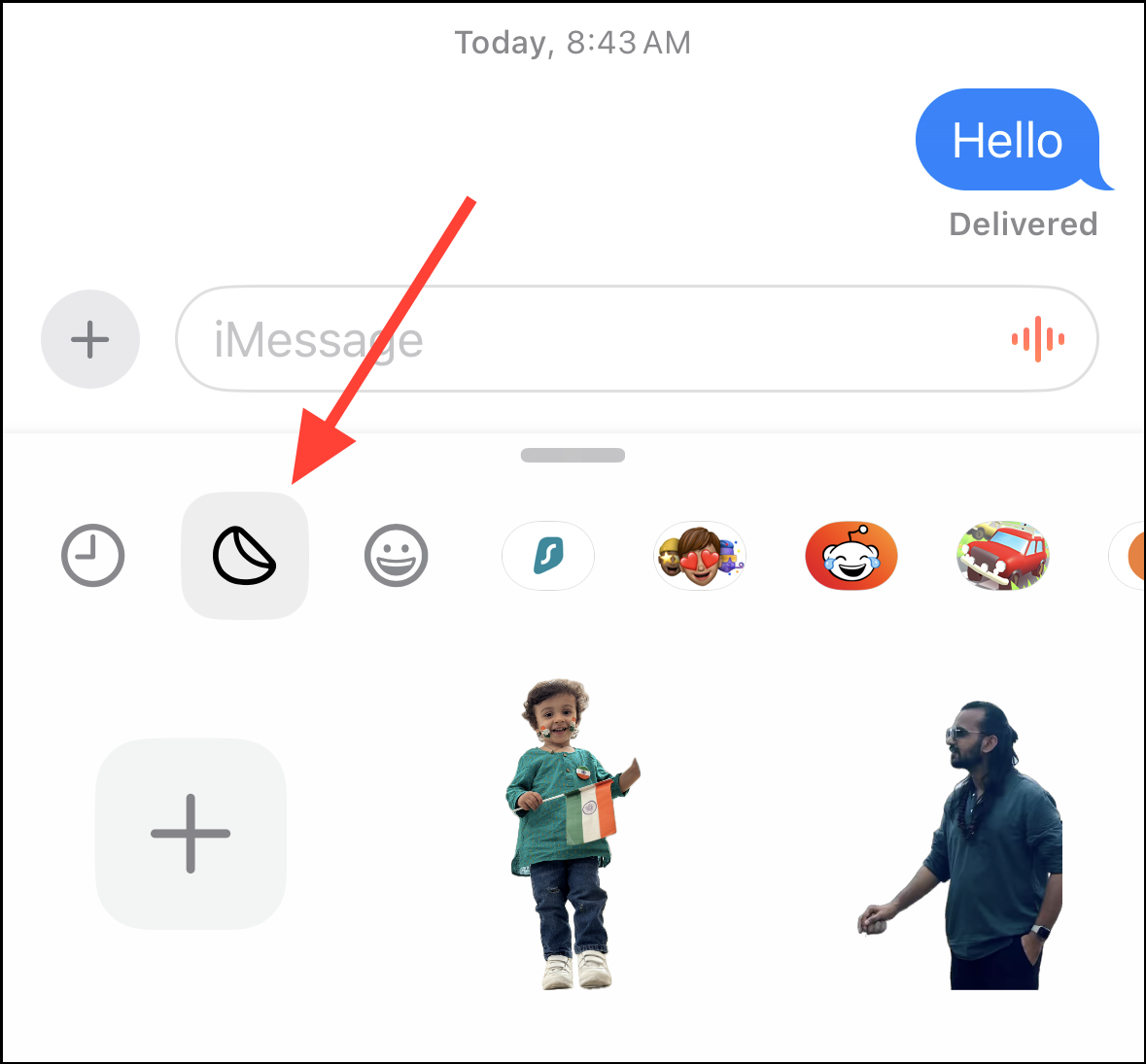
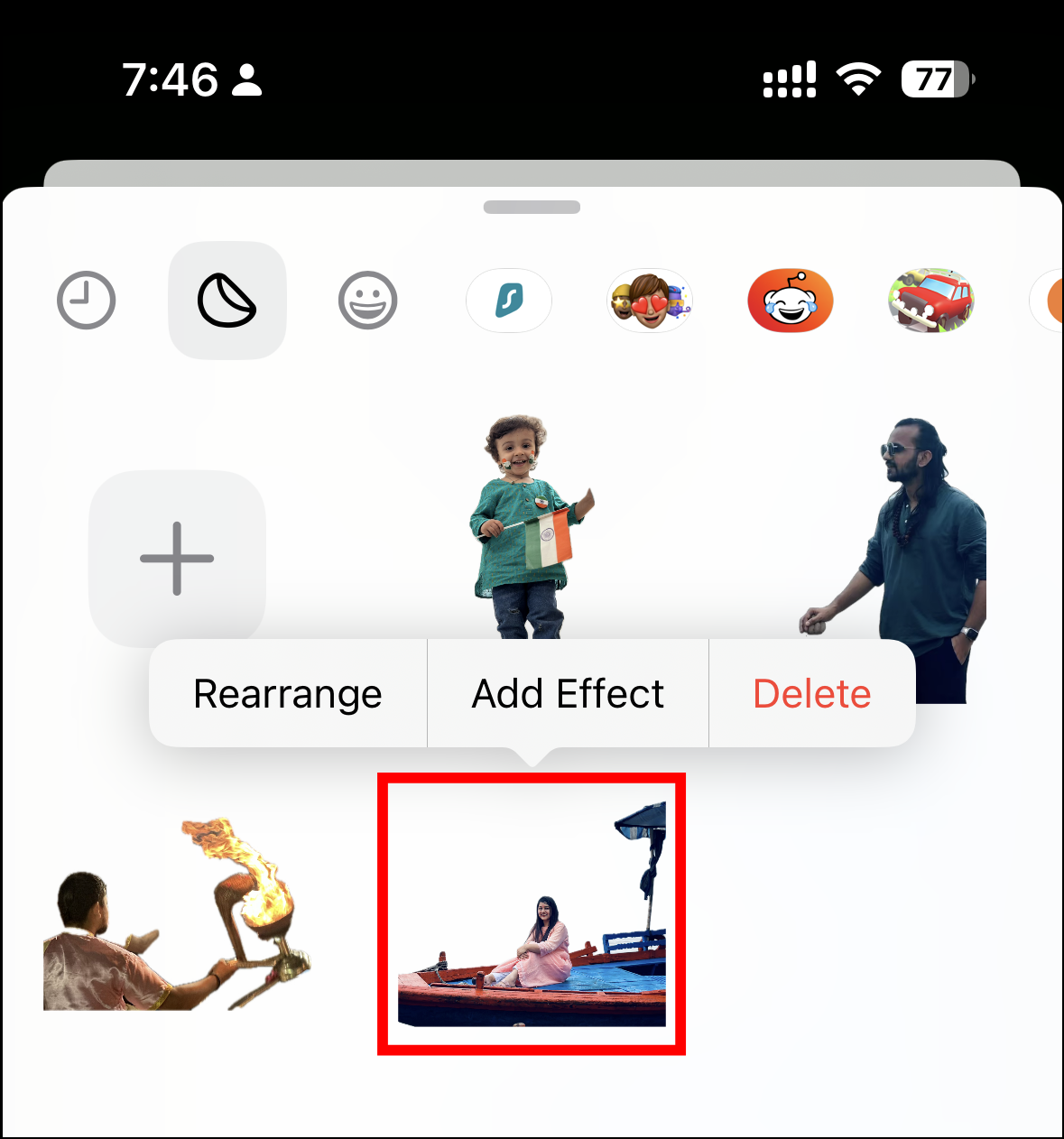
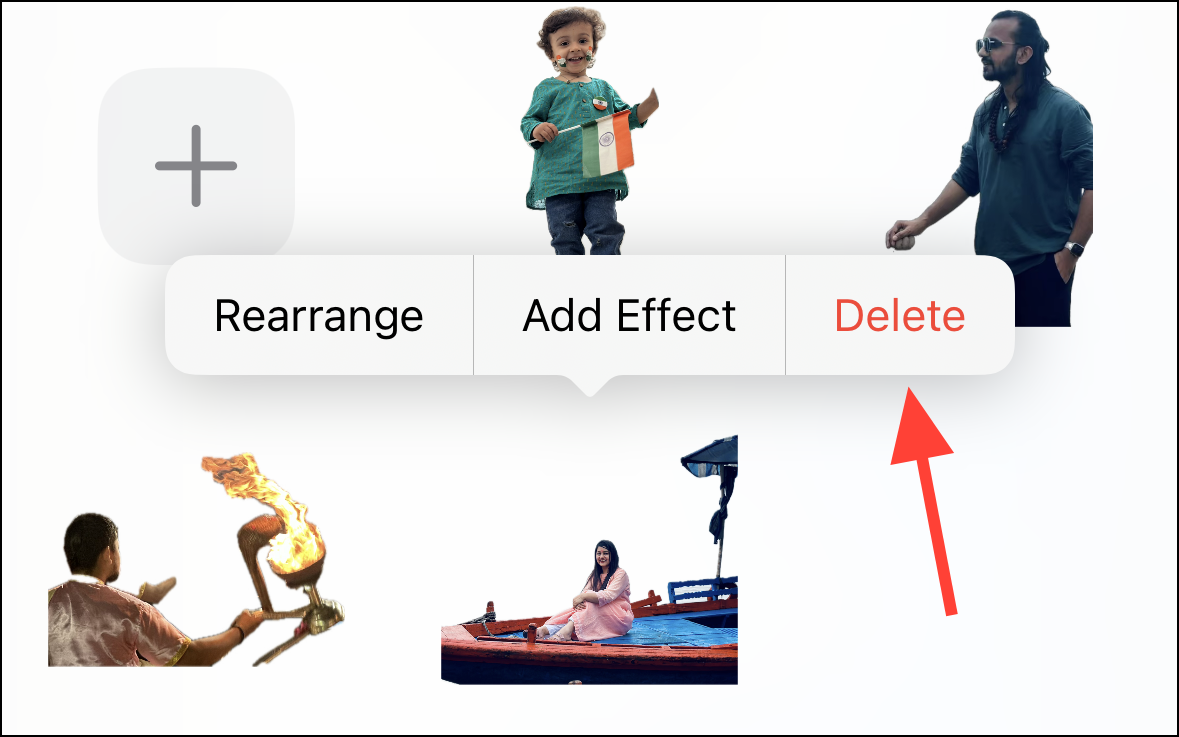
The sticker will disappear with a ‘poof’ animation. Remember, once deleted, you cannot recover the sticker.
Deleting Sticker Apps
Some apps on your iPhone come with sticker packs that automatically appear in your sticker drawer. If you wish to remove stickers from certain apps, you’ll need to delete the associated app entirely. Here’s how to do it:
Edit button.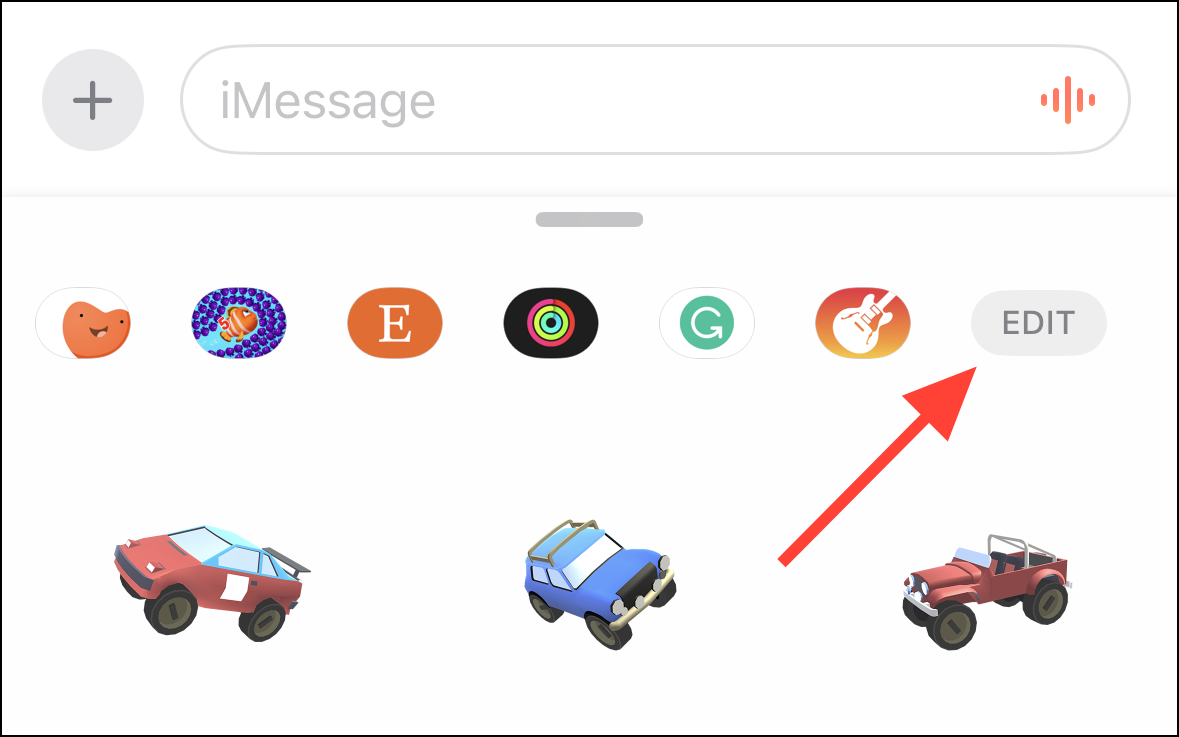
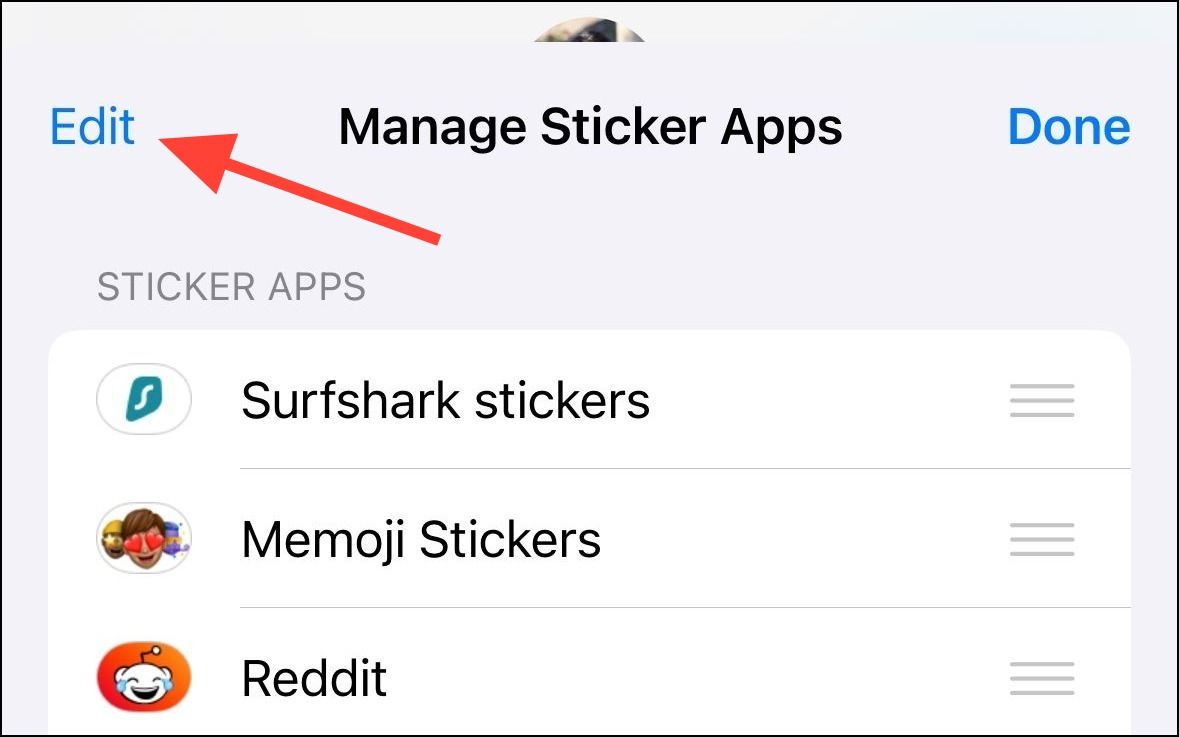
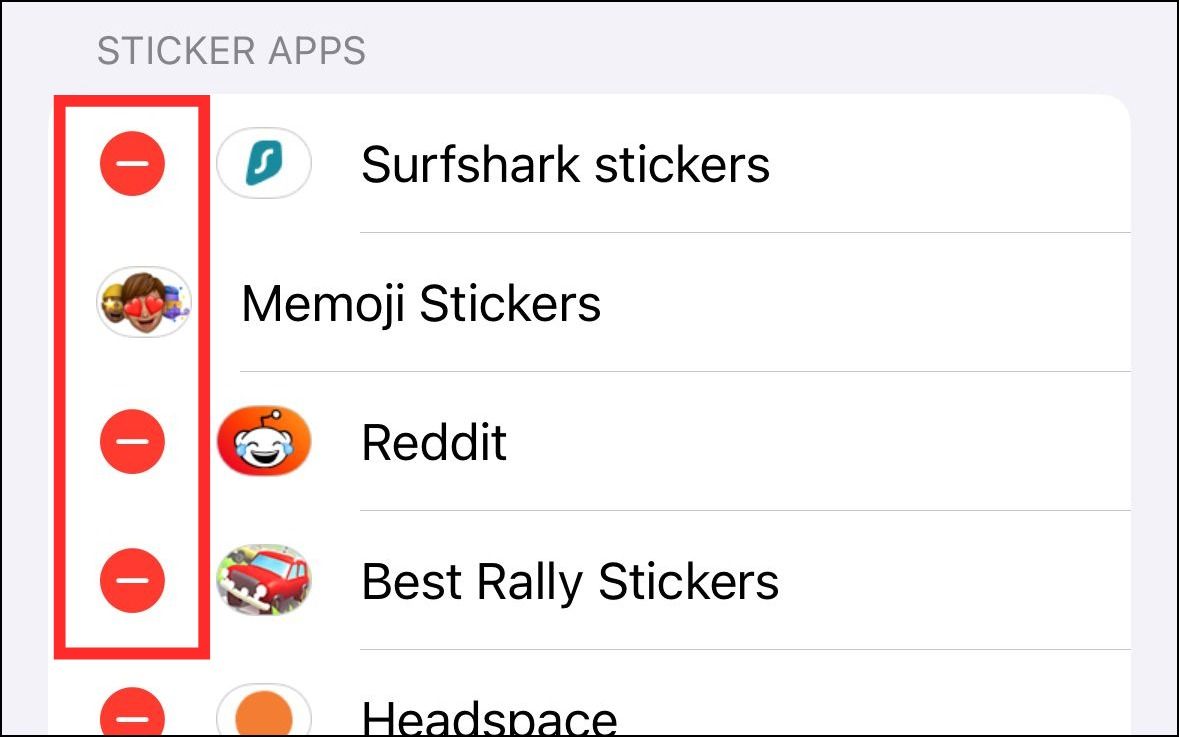
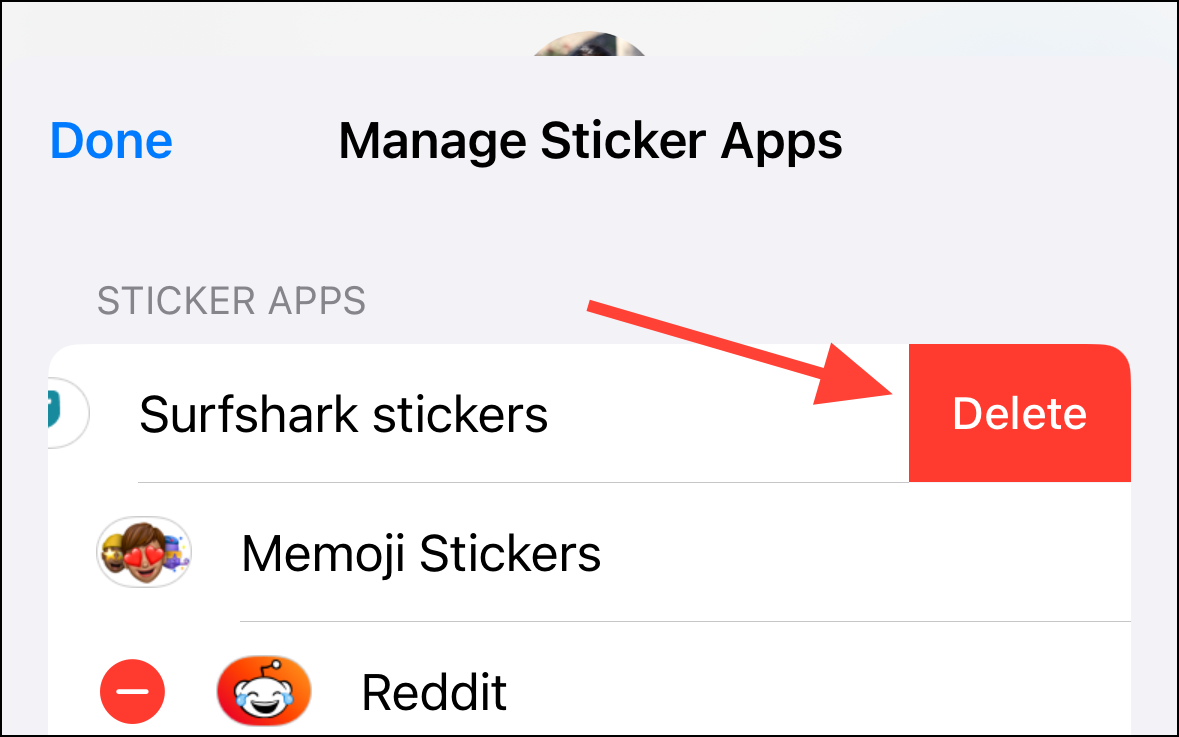
Delete to confirm or Cancel if you change your mind.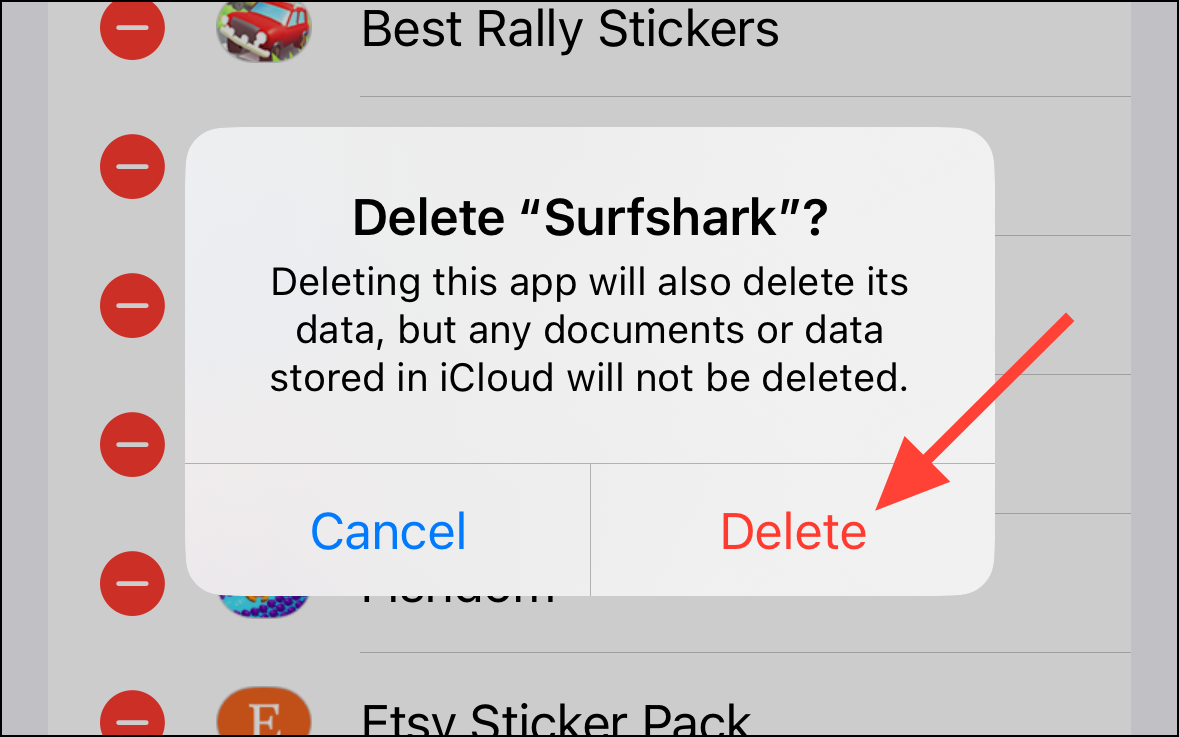
The app and its associated stickers will be uninstalled from your iPhone.
Unfortunately, you cannot hide stickers from an app without deleting the entire app, which might not be ideal if you want to keep the app for other purposes.
By following these steps, you can manage your stickers effectively, ensuring your Messages app remains organized and free of unwanted stickers.





