When attempting to open an app downloaded from the internet on your Mac, you might encounter the warning message: “macOS Cannot Verify That This App is Free from Malware”. This security measure, known as Gatekeeper, is designed by Apple to protect your Mac from potentially harmful software. However, if you’re certain that the app is safe, this warning can prevent you from accessing the software you need.
Use the context menu to open the app
By using the context menu, you can bypass the security warning and open the app.
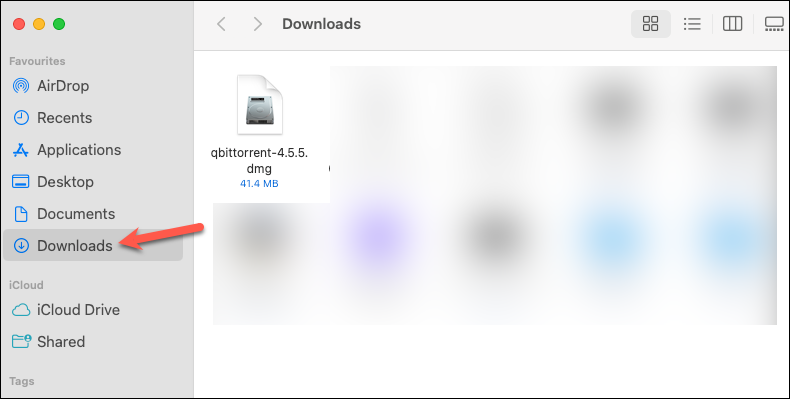
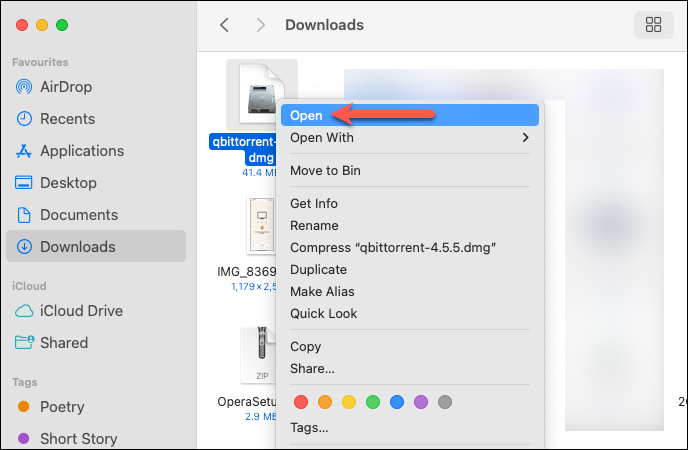
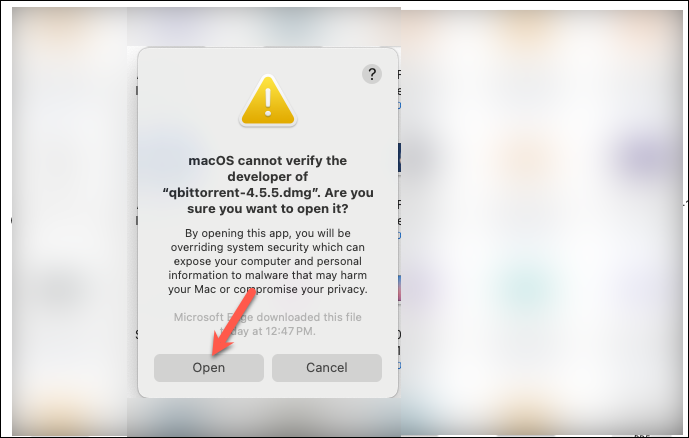
The app should now open, bypassing the Gatekeeper warning.
Use the Privacy & Security settings
Alternatively, you can allow the app to open from your Mac’s security settings.
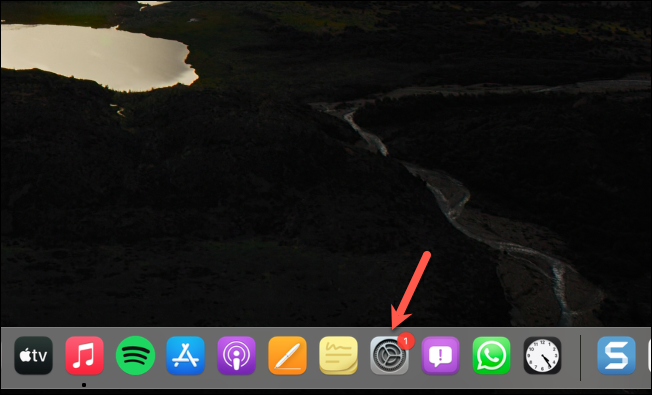
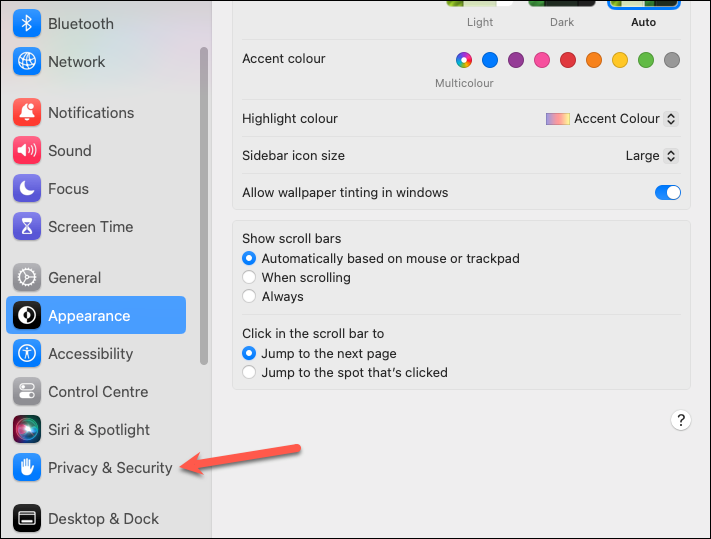
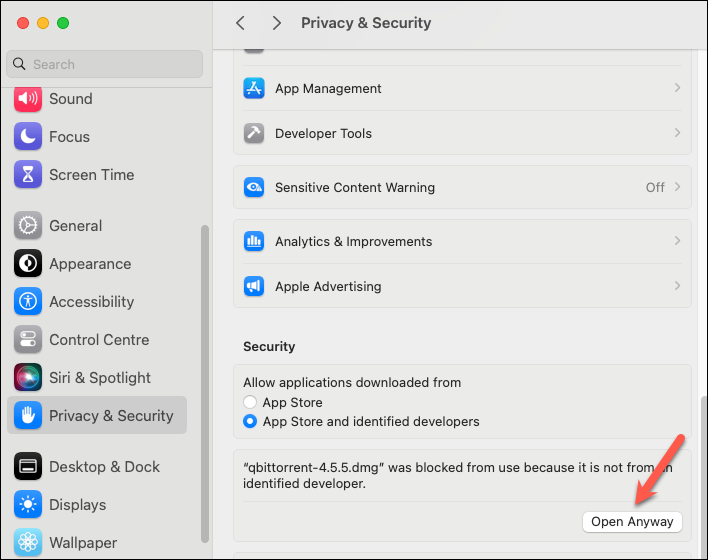
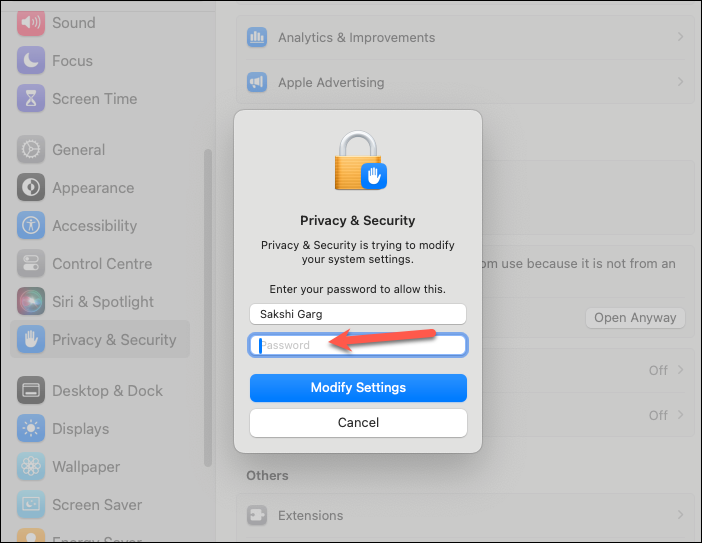
The app should now be allowed to open.
Re-download the app
If the above methods do not work, it’s possible that the app file is corrupted or its signature has changed.
Disable Gatekeeper entirely with Terminal (not recommended)
If you frequently install apps from unidentified developers and wish to disable Gatekeeper altogether, you can do so using the Terminal. However, this is not recommended as it reduces your Mac’s security.
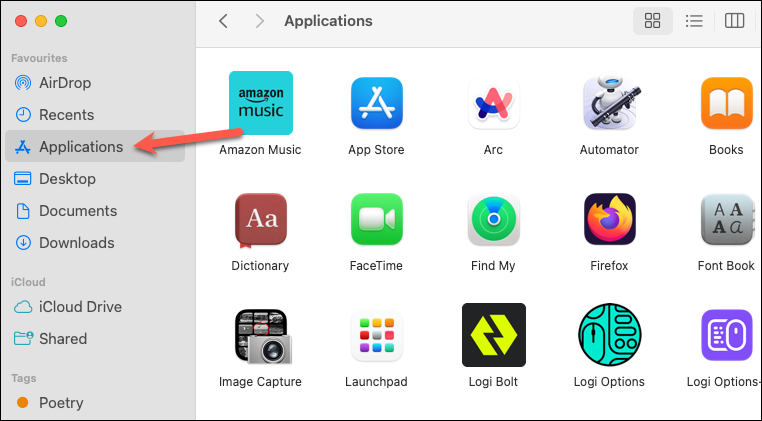

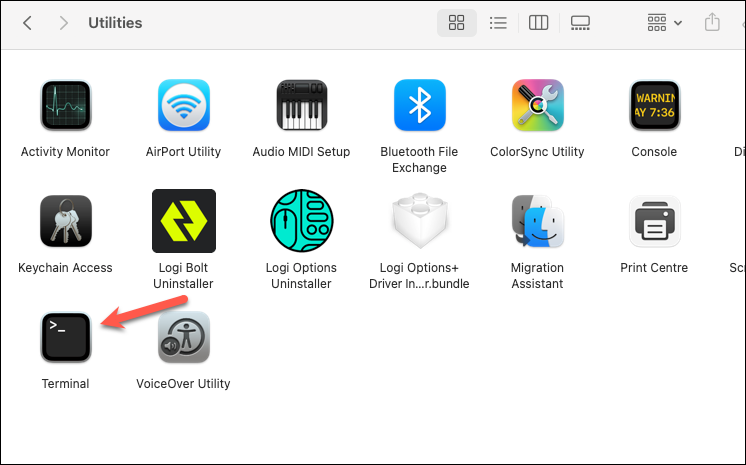
sudo spctl --master-disable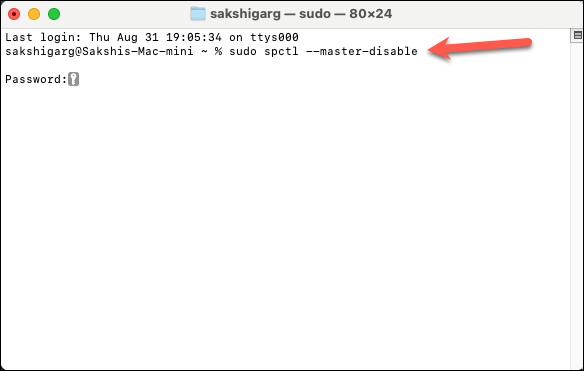
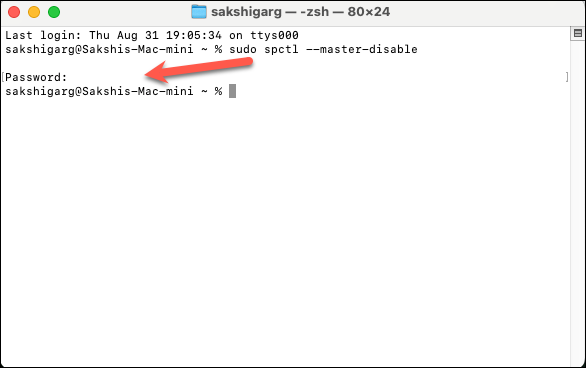
This command disables Gatekeeper, and an additional option ‘Anywhere’ will appear in your security settings under ‘Allow apps downloaded from’.
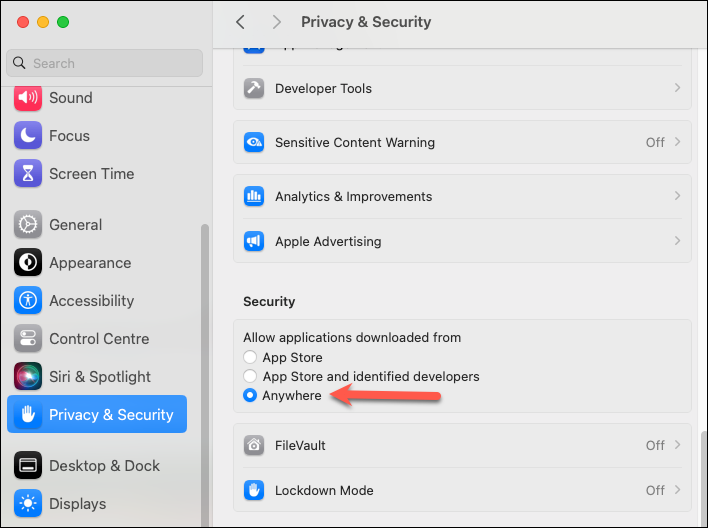
To re-enable Gatekeeper, use the following command in Terminal:
sudo spctl --master-enable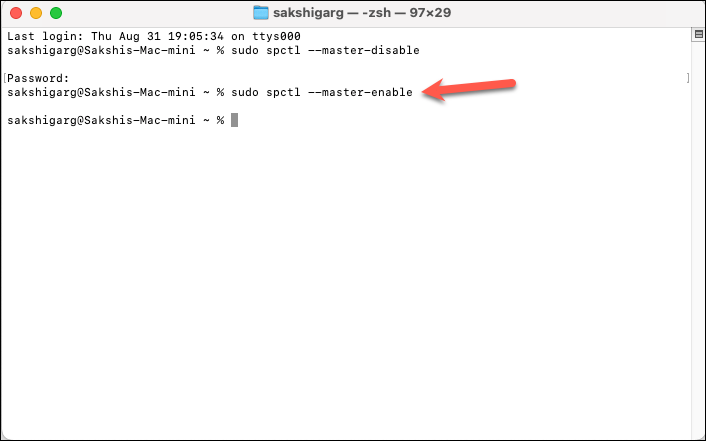
This will re-enable Gatekeeper, and the ‘Anywhere’ option will disappear from your settings.
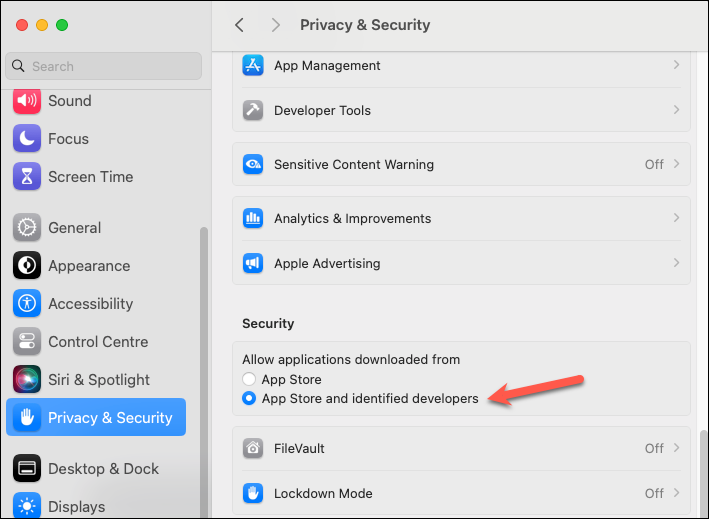
Gatekeeper plays a vital role in keeping your Mac secure by preventing unverified apps from running. While the methods above allow you to bypass this feature for apps you trust, it’s important to proceed with caution to maintain your system’s security.