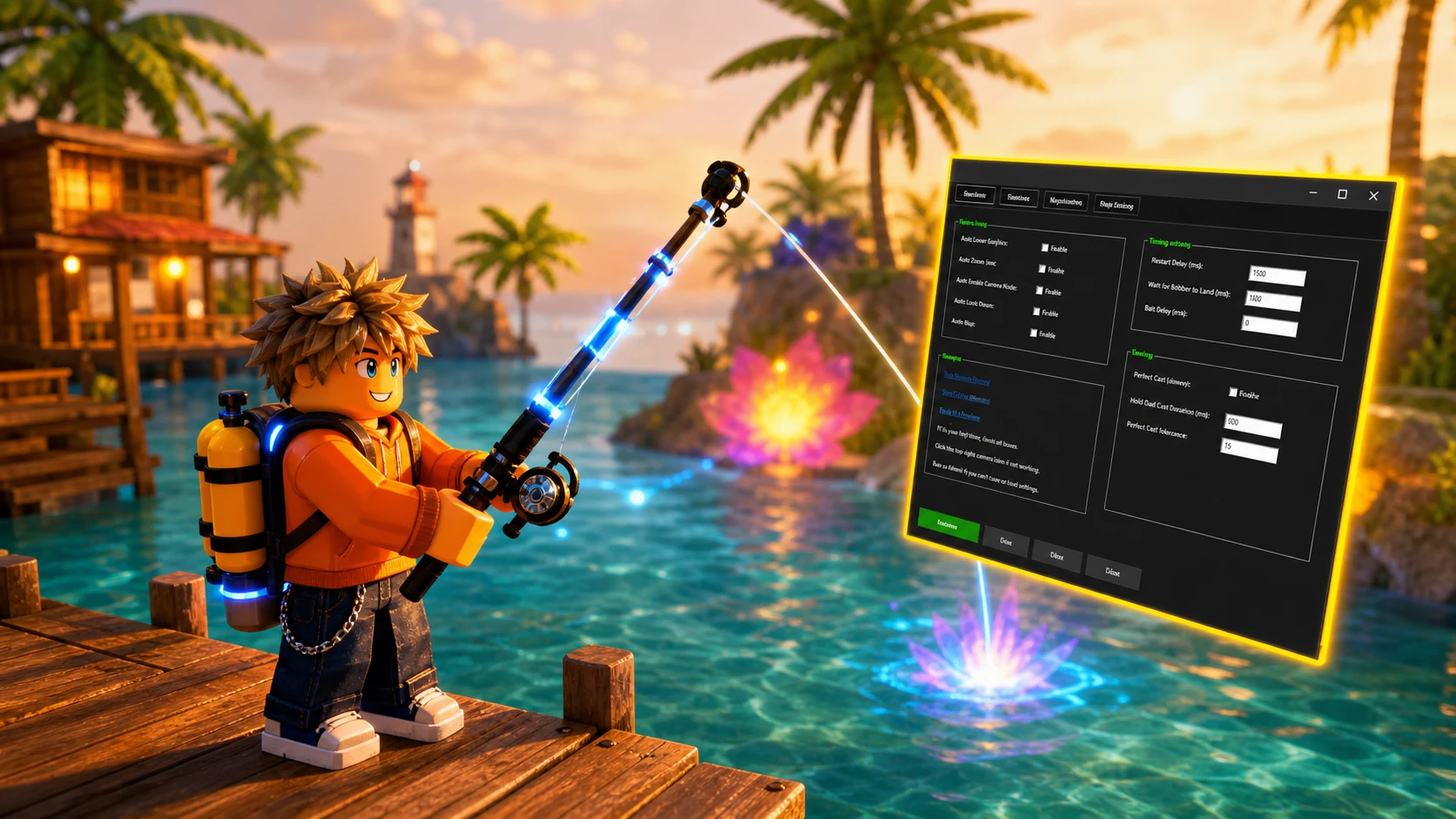
An AFK macro turns the repetitive parts of Fisch into an automatic loop. Instead of casting, shaking, and playing the reel minigame by hand, a small AutoHotkey script watches the screen and sends the inputs for you. The setup is short, but a few settings have to line up exactly, or the script will sit still.
Quick answer: Install AutoHotkey v1.1, enable UI Navigation Toggle in Roblox, run the macro script, set its Navigation Key to match your Roblox toggle key (usually # or \), equip a rod in-game, then press P to start.
What you need before starting
The macro is Windows-only and runs on top of the Roblox player version, not the Microsoft Store build. There is no verified native version for Android, iOS, or macOS, so mobile tutorials that promise one are not reliable.
- Windows 10 or 11.
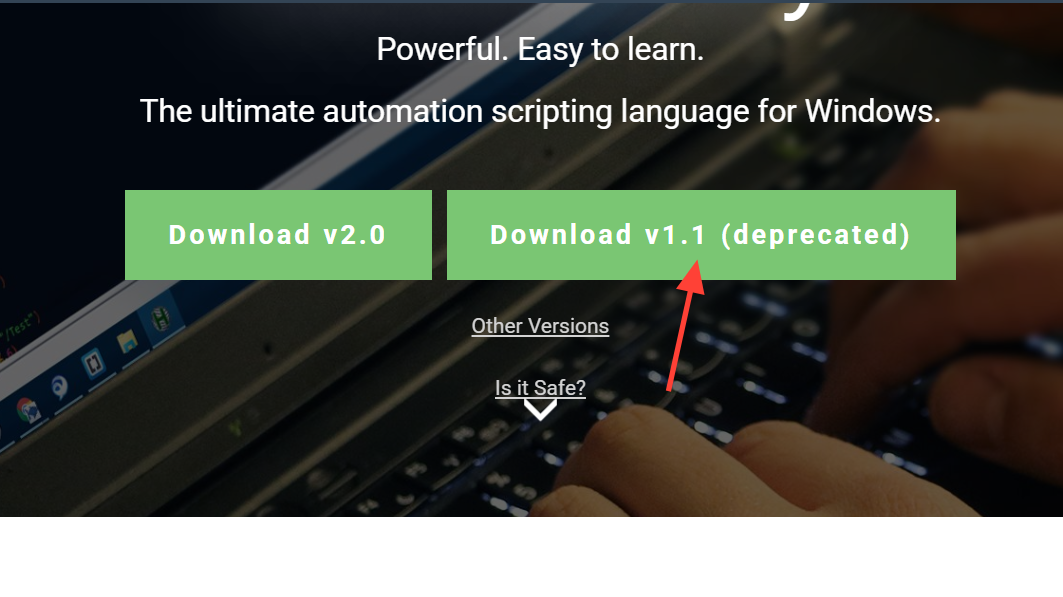
- AutoHotkey v1.1 (the deprecated build, which stays the most stable for these scripts).
- A Fisch macro script such as V11, V12, V13, or a Bloom build.
- The Roblox player app with the Fisch experience open.
Macros are permitted inside Fisch itself, but the official Discord bans sharing, streaming, or asking for macros, which can lead to a ban. Keep any macro activity outside that server.
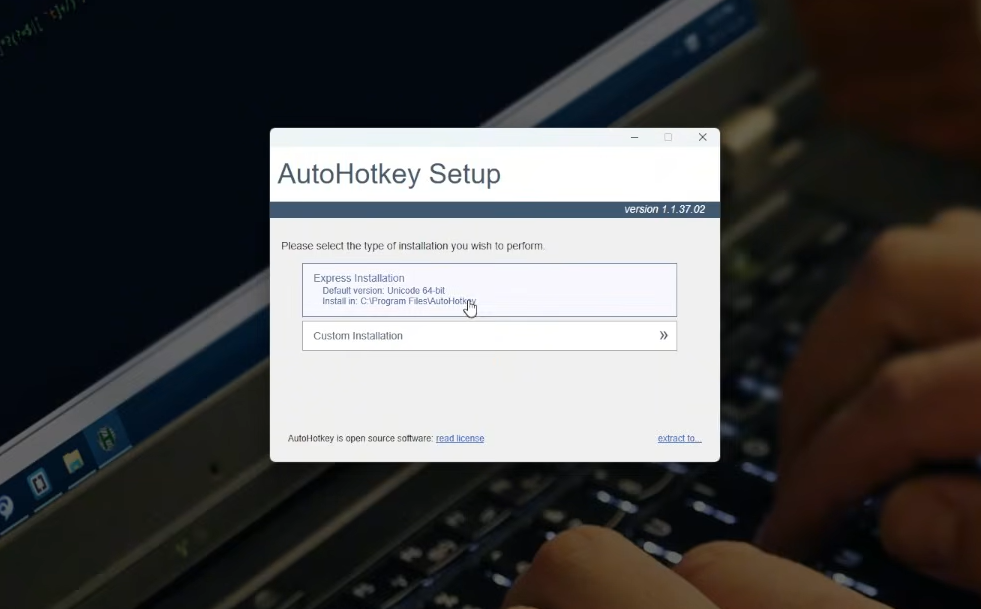
Install AutoHotkey and the macro
Turn on UI Navigation Toggle in Roblox
The macro drives menus through Roblox’s UI navigation, so this setting has to be on or nothing happens. Open Fisch, go to the in-game settings menu, and find UI Navigation Toggle. It will read something like “Use the # key to enter and exit UI navigation mode.”
Note which key it lists. On many setups, it is the hashtag #, on others it is the backslash \. That exact key has to match the value you enter in the macro’s Shake Settings later, or the shake and menu steps fail.
Configure the macro settings
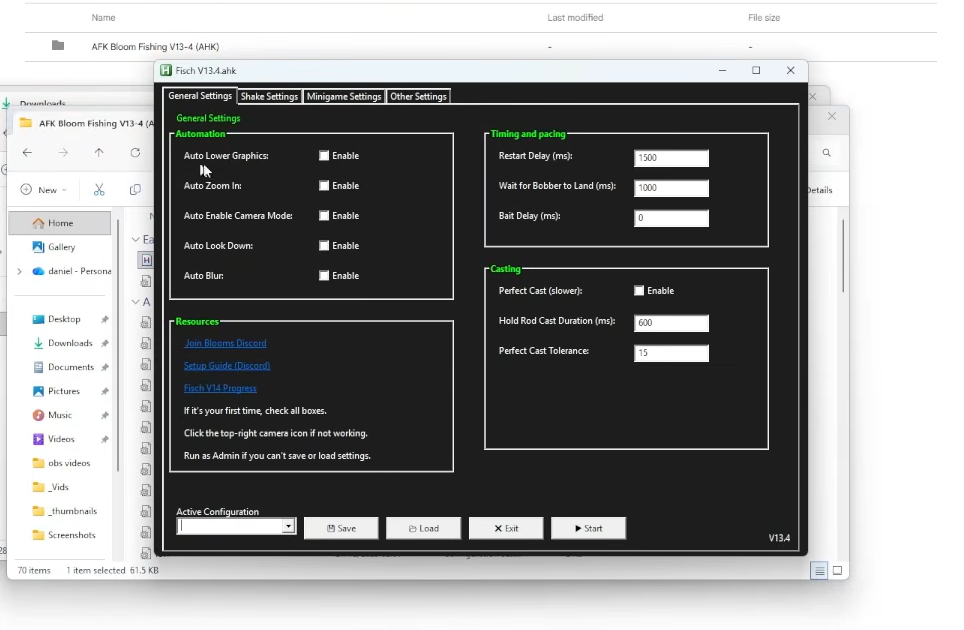
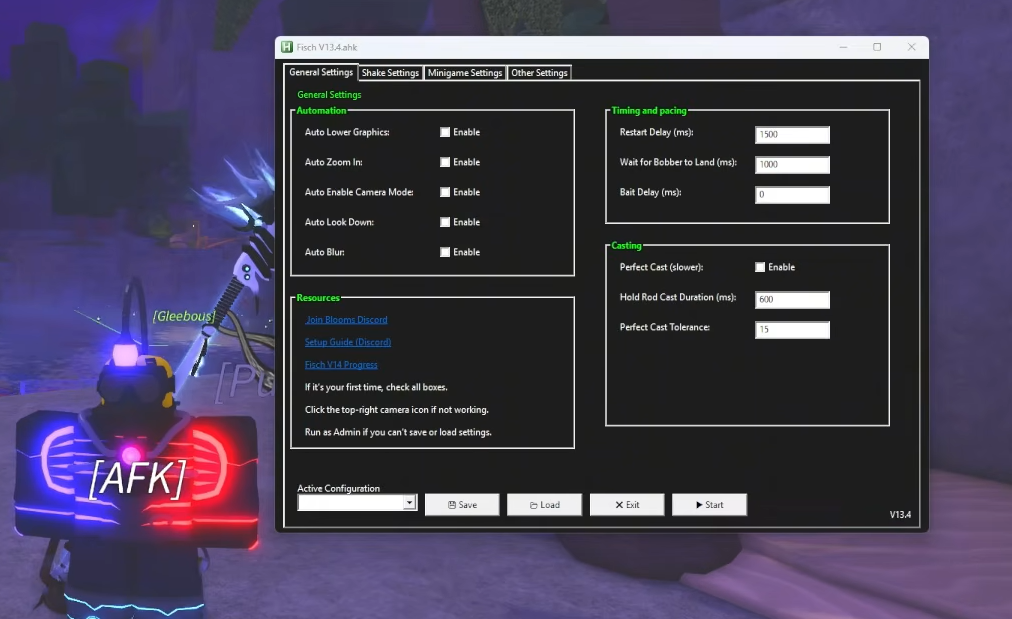
Double-click the script, or right-click it and choose Open with AutoHotkey, to open the settings window. It usually has General, Shake, and Minigame tabs.
General settings
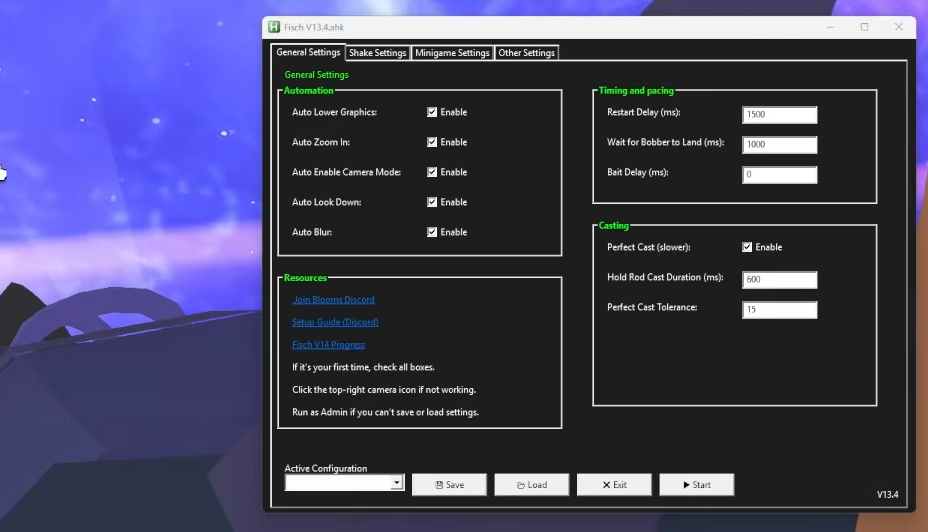
Enable all of the automation checkboxes. They force the game into a state the script can read reliably, so expect your graphics to drop and the camera to zoom into your character’s head once it runs. That is normal.
| Option | What it does |
|---|---|
| Auto Lower Graphics | Drops quality so screen reading stays consistent |
| Auto Zoom In | Pulls the camera close to your character |
| Auto Enable Camera Mode | Switches into camera/screenshot mode |
| Auto Look Down | Angles the view down toward the water |
| Auto Blur | Stabilizes the frame for detection |
| Perfect Cast (slower) | Aims for a perfect cast at the cost of speed |
Shake settings and modes
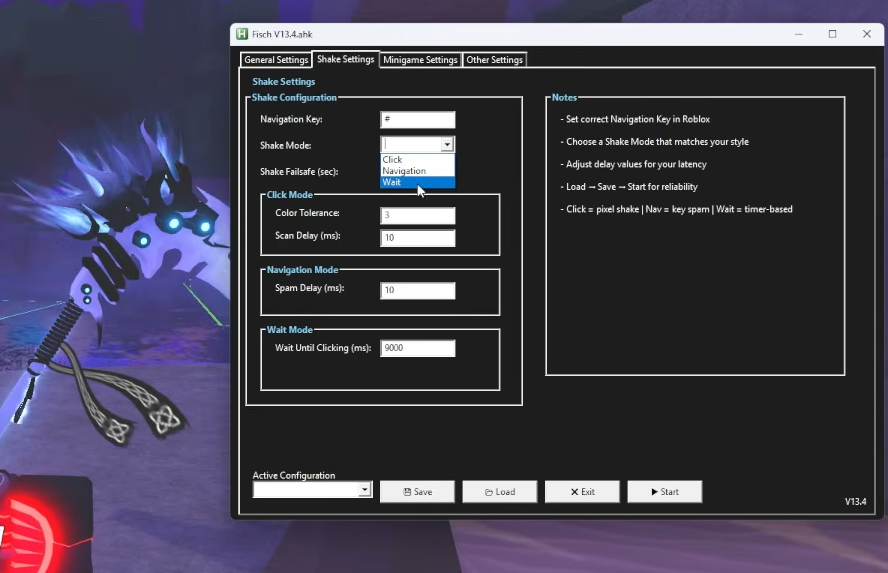
Set the Navigation Key field to the same key you saw in Roblox (# or \). Then pick a shake mode. Click mode is the fastest, Wait mode is the most reliable, and Navigation mode sits in between.
| Shake mode | Best for |
|---|---|
| Click | Fastest catches |
| Navigation | Balanced speed and stability |
| Wait | Most reliable, fewest misses |
Leave the Minigame and other advanced fields at their defaults unless you already know what they change. Save the configuration when the settings window offers it, and confirm the “Settings saved successfully” prompt.
Start the macro and control it
P to start. The macro lowers graphics, zooms in, casts the line, and takes over the shake and reel minigame on its own.These three keys stay active while the script runs, so you cannot use them for anything else until you exit.
| Key | Action |
|---|---|
| P | Start the macro |
| O | Reload the macro |
| M | Exit the macro |
How to confirm it is working
A working macro shows an overlay on the left side of the screen with a runtime counter and the current task, cycling through states like “Shaking” and “Playing Bar Minigame.” When you see the runtime climbing and catches landing on their own, the loop is running correctly. If the macro breaks mid-session, press O to reload it or M to exit and restart cleanly.
Fixing common macro problems
Most failures trace back to the navigation key, the rod, or bait. The fixes below cover the issues that stop the script most often.
| Problem | Fix |
|---|---|
| Macro won’t open or trigger | Confirm UI Navigation Toggle is on and the macro’s Navigation Key matches it |
| Rod won’t cast | Switch to a more compatible rod |
| Macro keeps opening the menu | Enable Camera/Screenshot Mode before starting |
| Shake minigame not working | Increase Click Shake Color Tolerance one step at a time, or reload the script |
| Progress bar disappears or won’t move | Unequip bait and turn off higher brightness and saturation |
| Macro stops randomly | Reload with O and test different rods before long sessions |
Rods with high Resilience and Control work best, and the script tends to struggle with Mythical, Exotic, or Limited fish. For unattended runs, keep your PC awake, make sure you have inventory space, and stick to safe areas where your character can’t die. With the key settings matched and a compatible rod equipped, the loop will keep fishing on its own until you press M to stop.