Here's everything you need to know to send voice messages on an iPhone seamlessly.
Here’s everything you need to know to send voice messages on an iPhone seamlessly.
by Sakshi Garg
In iOS 17, Apple has enhanced the iMessage app to make sending voice messages more intuitive and user-friendly. The interface has seen significant improvements, streamlining the process of recording and sending audio messages.
Previously, recording longer voice messages required you to continuously hold down the voice message icon, which could be inconvenient and often resulted in accidental stops or multiple fragmented recordings. With the latest updates, these issues have been addressed, making the experience much smoother.
Locating the audio message button in iMessage on iOS 17
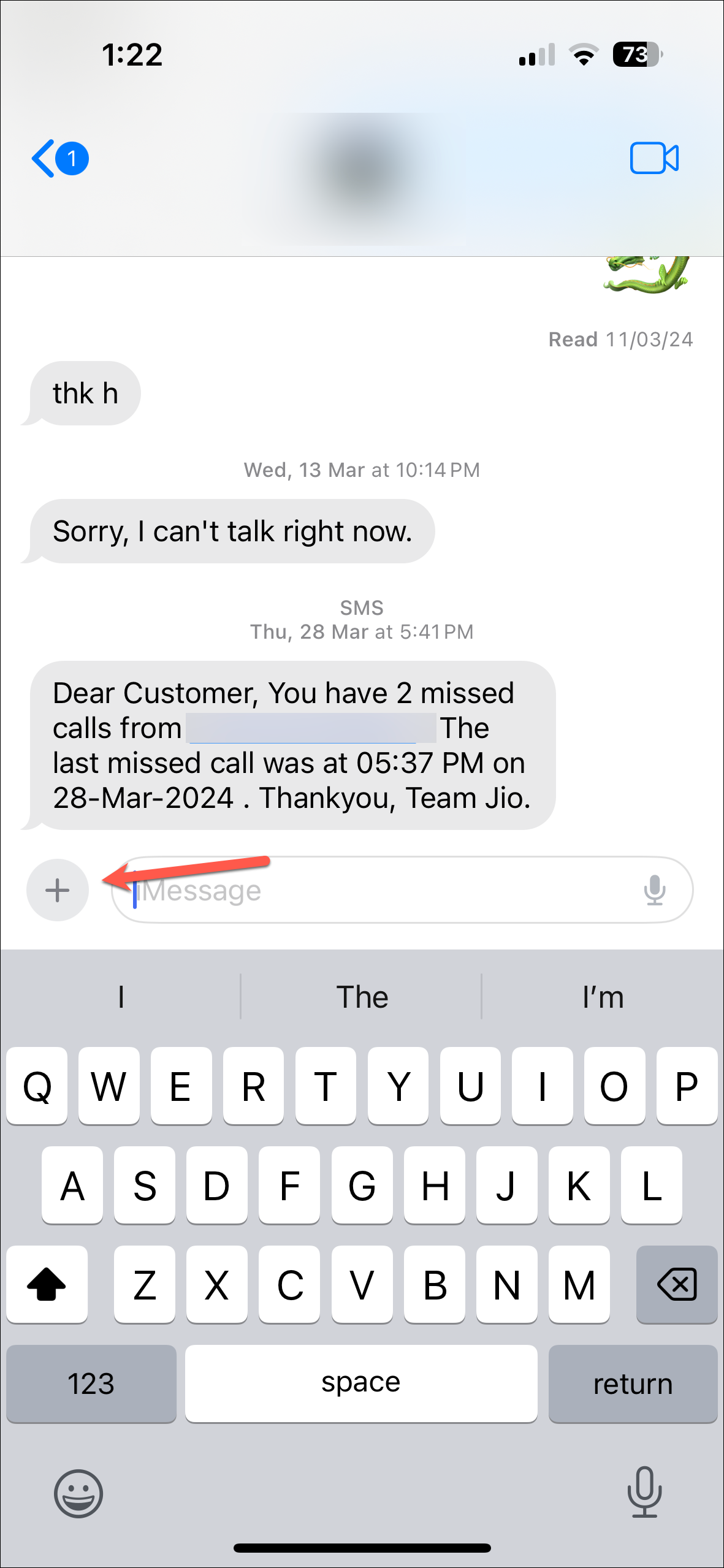
With the introduction of iOS 16 and continuing in iOS 17, the voice message button has been moved from its traditional spot. While a ‘Microphone’ icon still appears next to the message field, tapping it now activates Voice Typing instead of recording a voice message. This change aligns with the enhancements made to the dictation feature in recent updates.
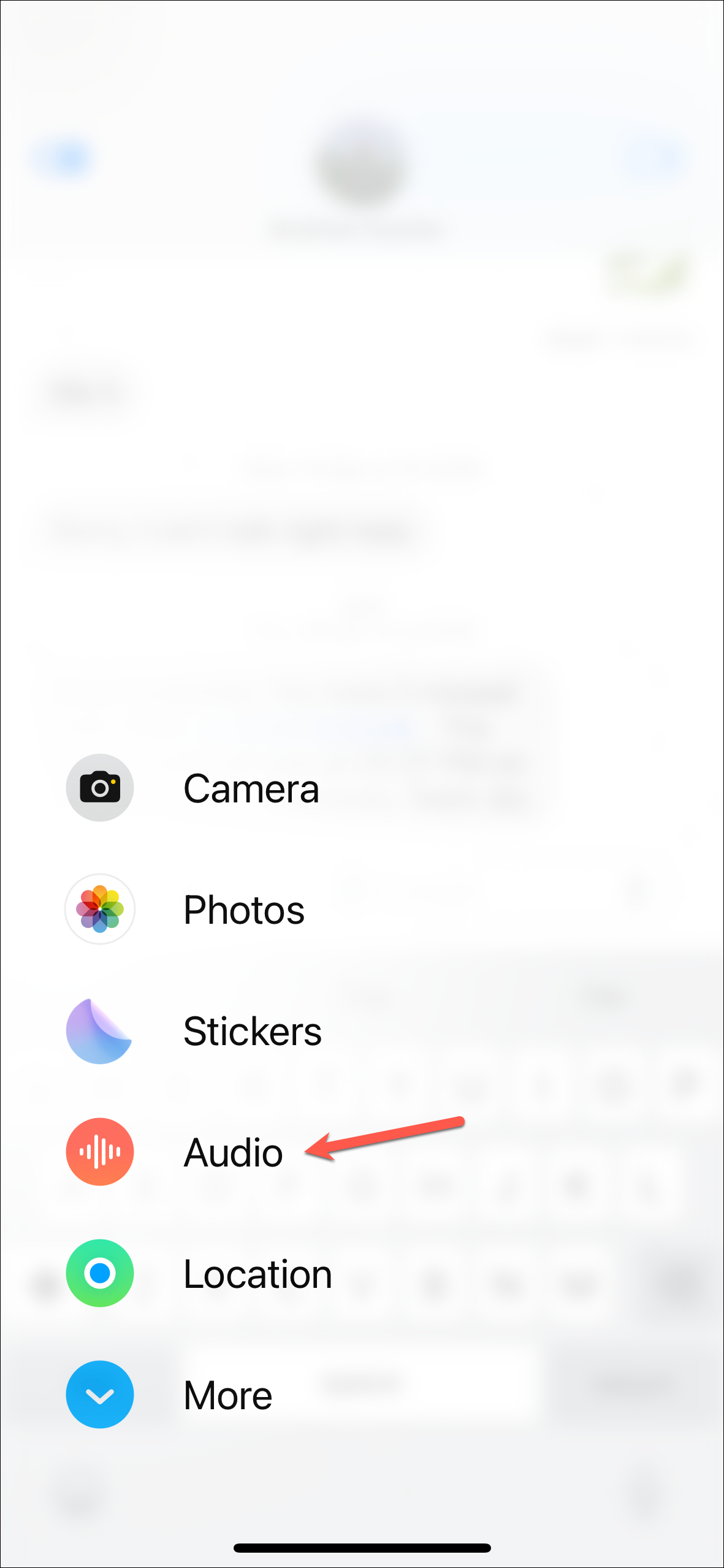
To access the voice message option, you need to use the iMessage app drawer, which received its own overhaul in iOS 17. Unlike other apps in the app drawer that may require adding from the App Store, the audio messages app is readily available for direct access.
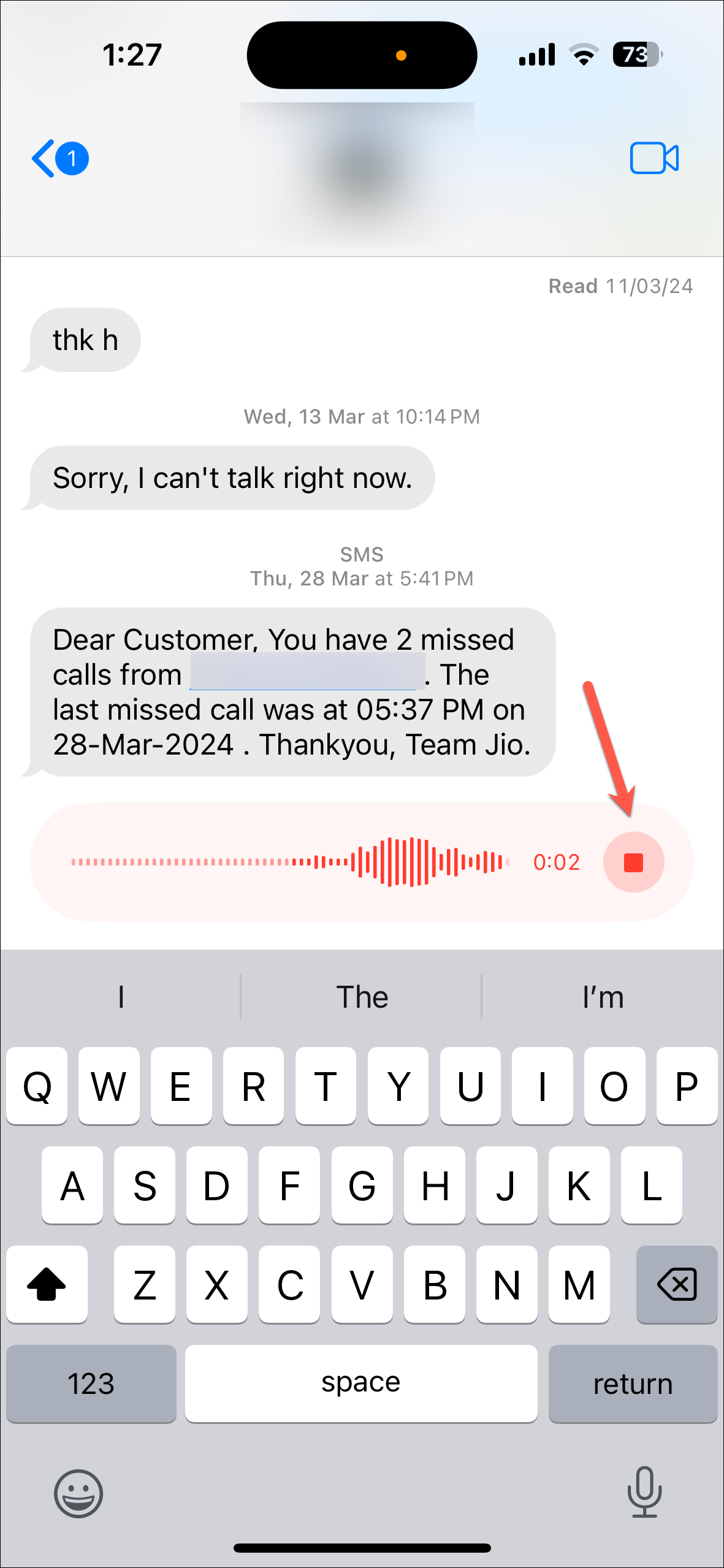
Sending a voice message using the audio messages app
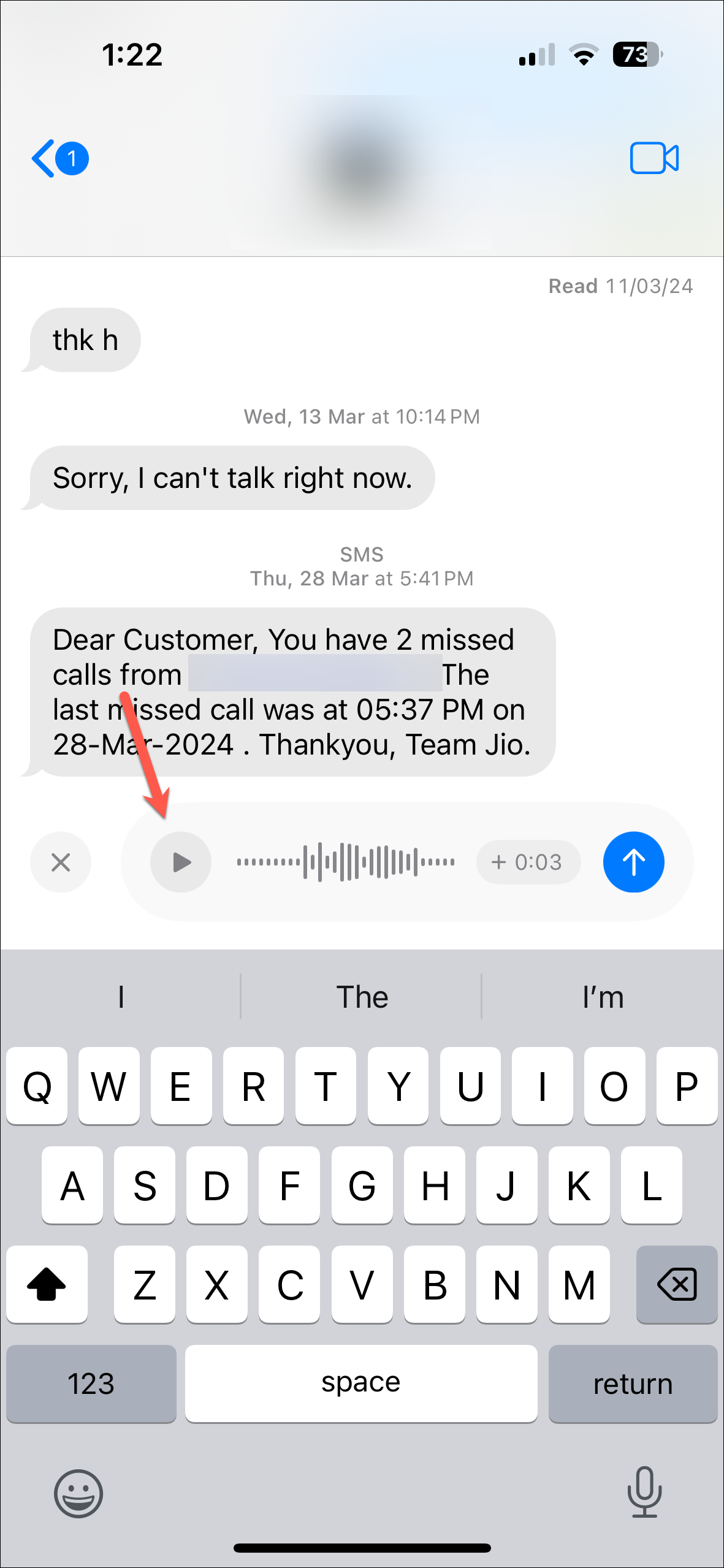
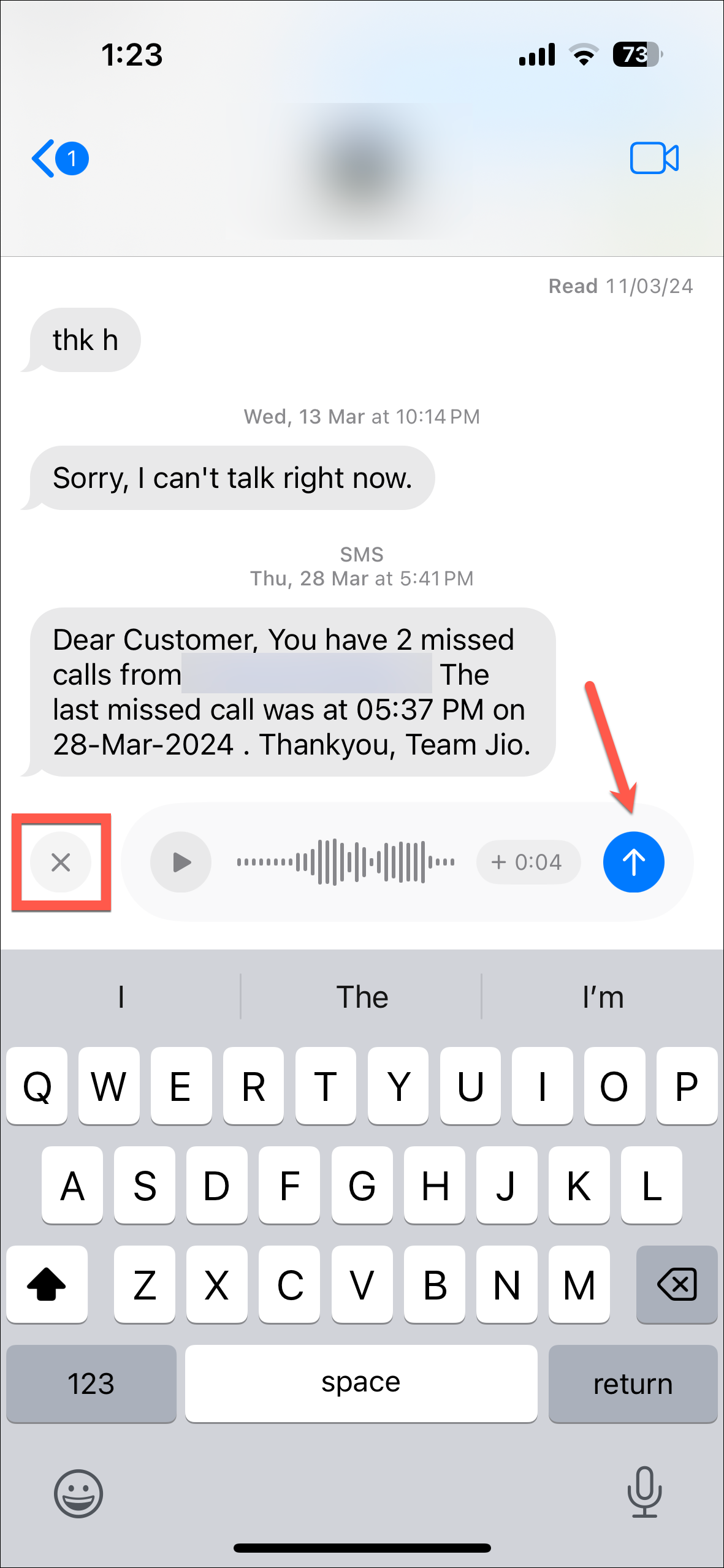
Once you are satisfied with the recording, tap the ‘Send’ button (the blue arrow) to send the voice message. If you want to discard it, tap the ‘X’ button to the left of the message field.
After sending a voice message, the option to record a new voice message will appear to the right of the text message field for easier access. However, if you use the dictation feature again, the microphone icon will switch back to dictation. Essentially, the icon next to the message field reflects the feature you last used in a particular chat.
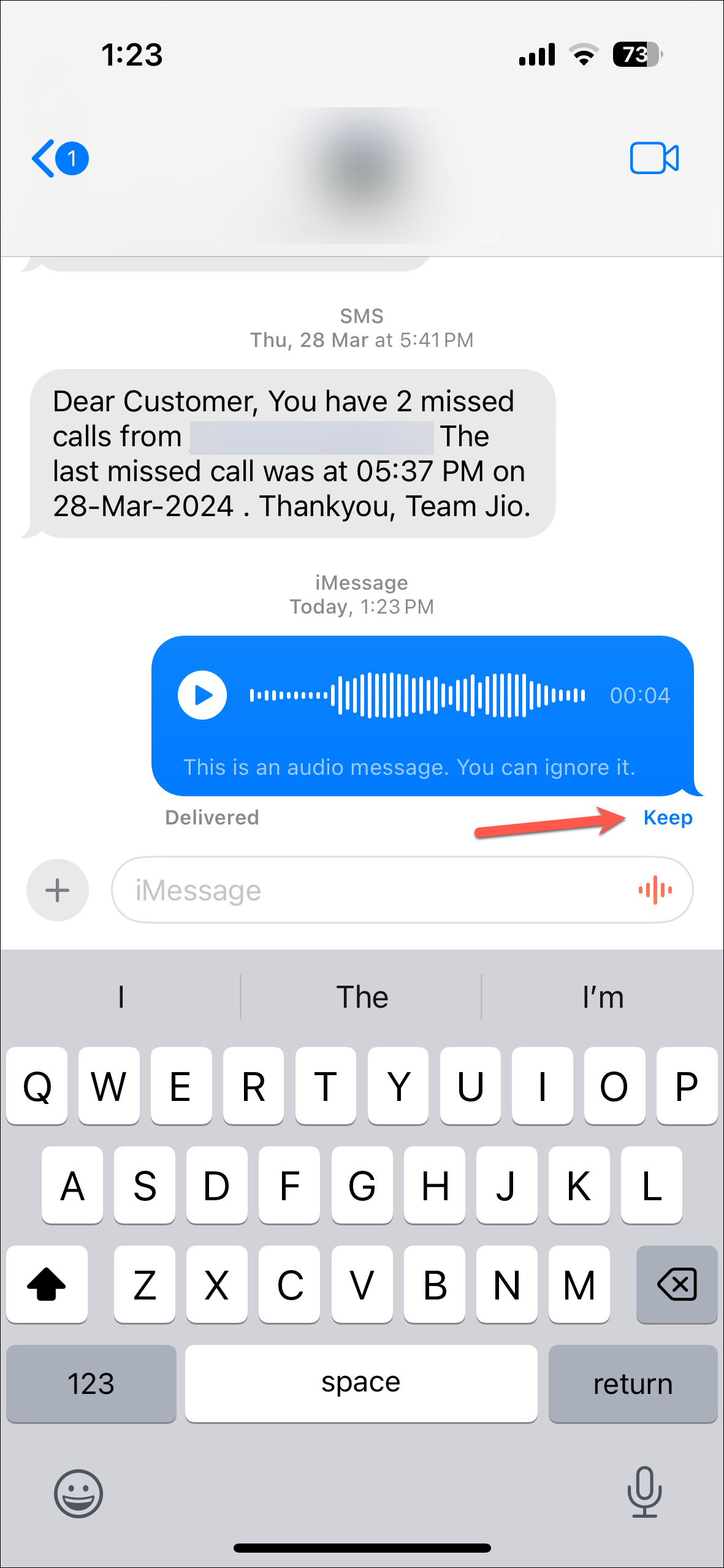
Be aware that voice messages you send are automatically deleted from your device after two minutes unless you choose to keep them. To save an audio message from being deleted, tap the ‘Keep’ button beneath the message.
For the recipient, the audio message remains available to listen at any time. However, once they have listened to the message, it will be deleted after two minutes unless they also select ‘Keep’ to save it.
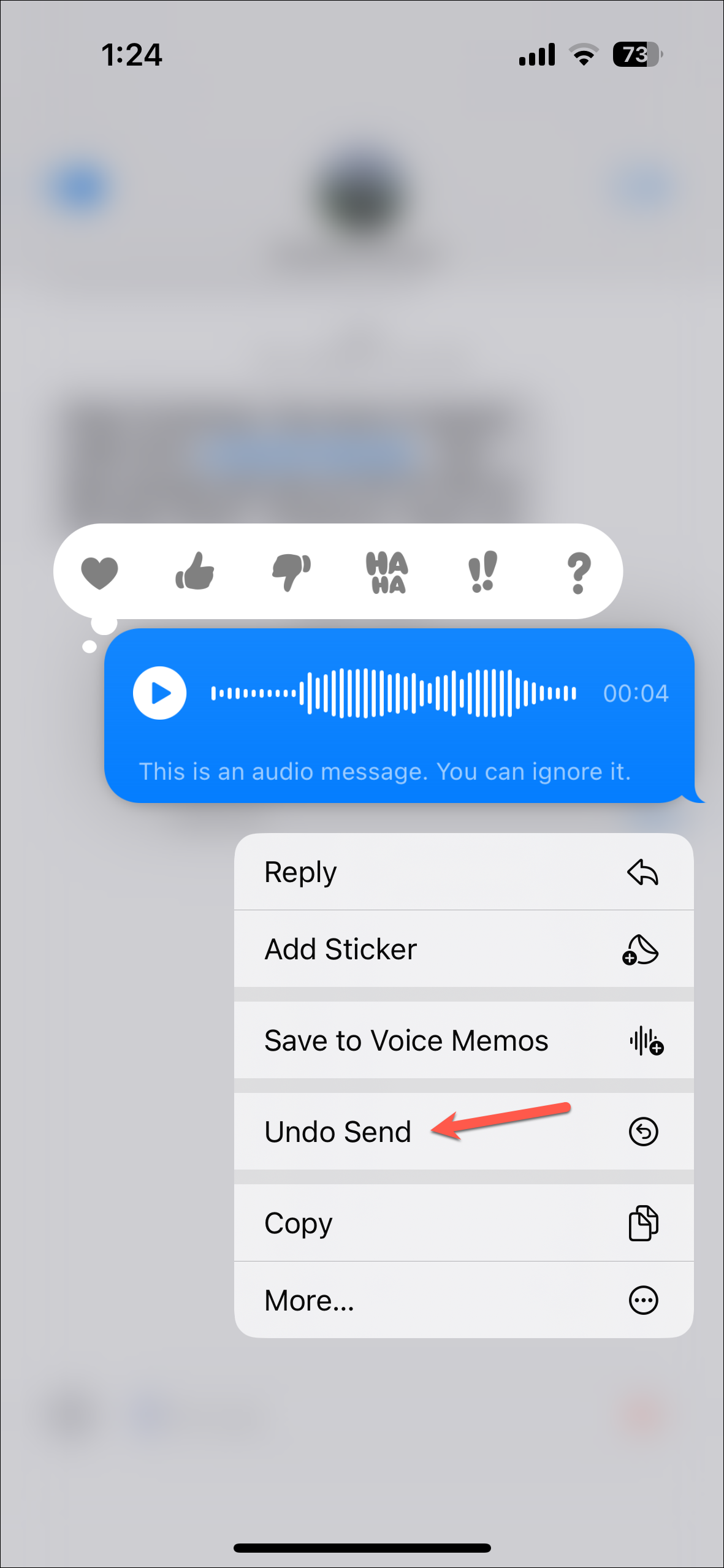
If you change your mind after sending a voice message, you can use the ‘Undo Send’ option. Simply press and hold the sent message and select ‘Undo Send’. Additionally, you can save both sent and received audio messages to the Voice Memos app on your iPhone.
Sending voice messages in iMessage on iOS 17 is now a seamless experience thanks to the revamped interface. While the automatic deletion of voice messages after two minutes remains, you have the option to keep important messages in your chat history.