macOS 26 introduces built-in real-time text and voice translation, letting users communicate across languages directly within the system’s core apps. This update brings on-device translation to Messages, FaceTime, and the new Phone app for Mac, powered by Apple Intelligence. All processing happens locally, so conversations remain private and fast, whether you’re typing, speaking, or on a video call.
Enable Real-Time Translation in macOS 26 System Settings
System Settings from the Apple menu. Select General, then choose Language & Region. Here, set your primary language and add any preferred languages you want to use for translation. Setting these ensures the system knows which languages to translate between in supported apps.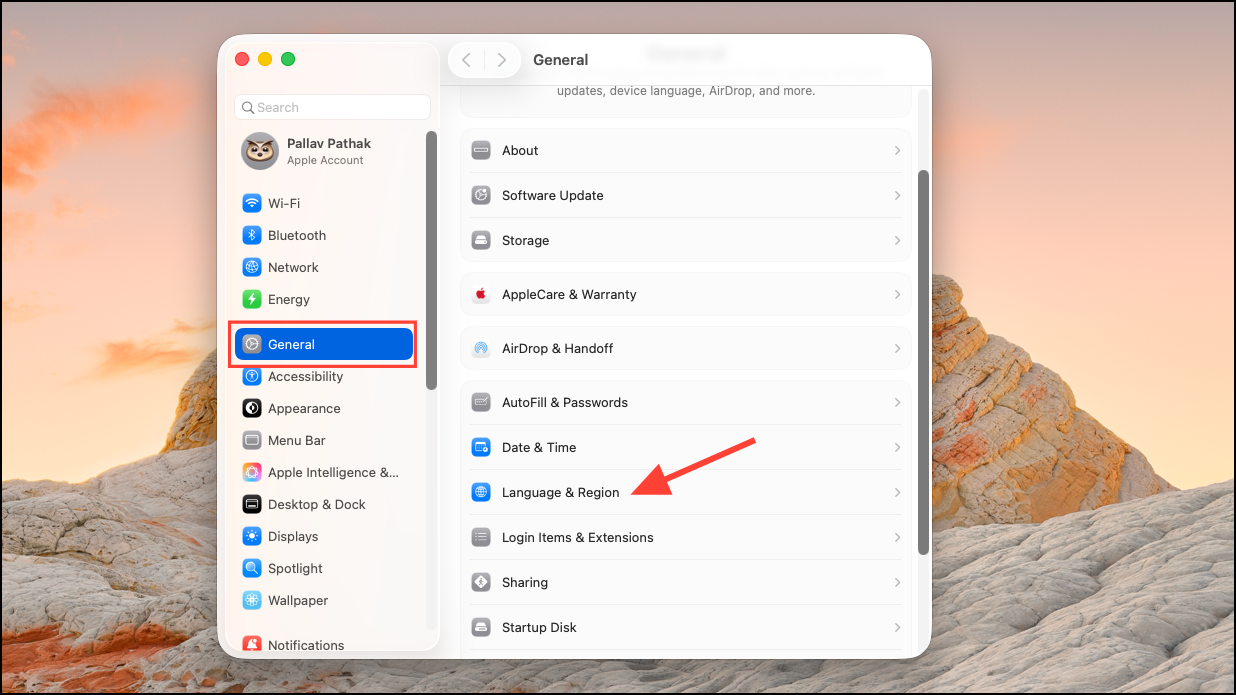
Accessibility section in System Settings. If you plan to use Real-Time Text (RTT) features for accessibility, select RTT and enable the relevant options. While RTT is primarily for text communication over calls, it sits alongside the new translation features and may appear as an additional option if your iPhone and Mac are set up for Wi-Fi calling.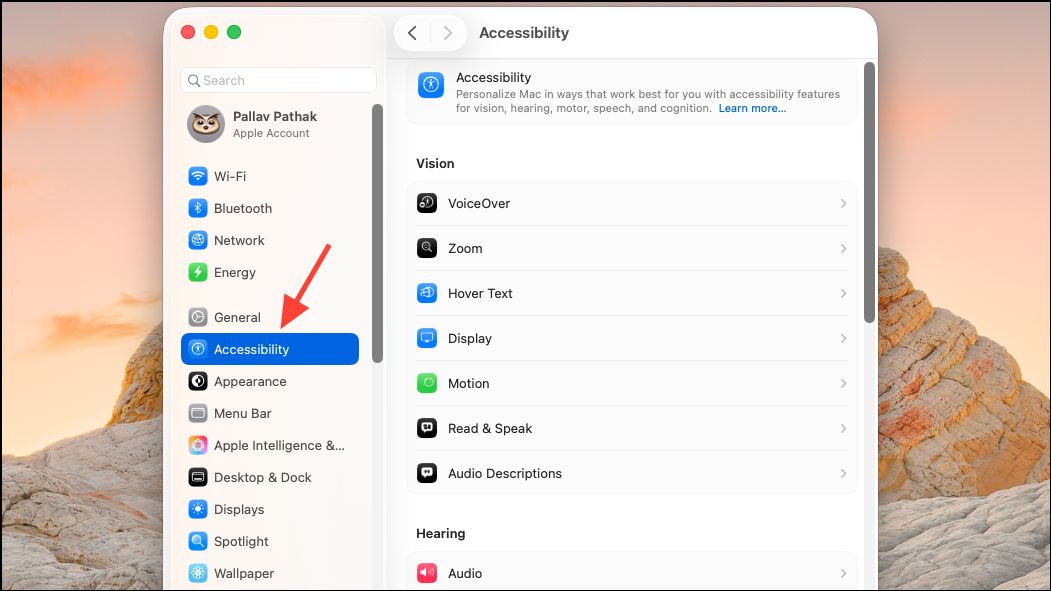
Translation Languages. Download the languages you’ll need, which allows the system to perform translation even without an internet connection. This step ensures the fastest, most private translation experience, as all processing stays on your Mac.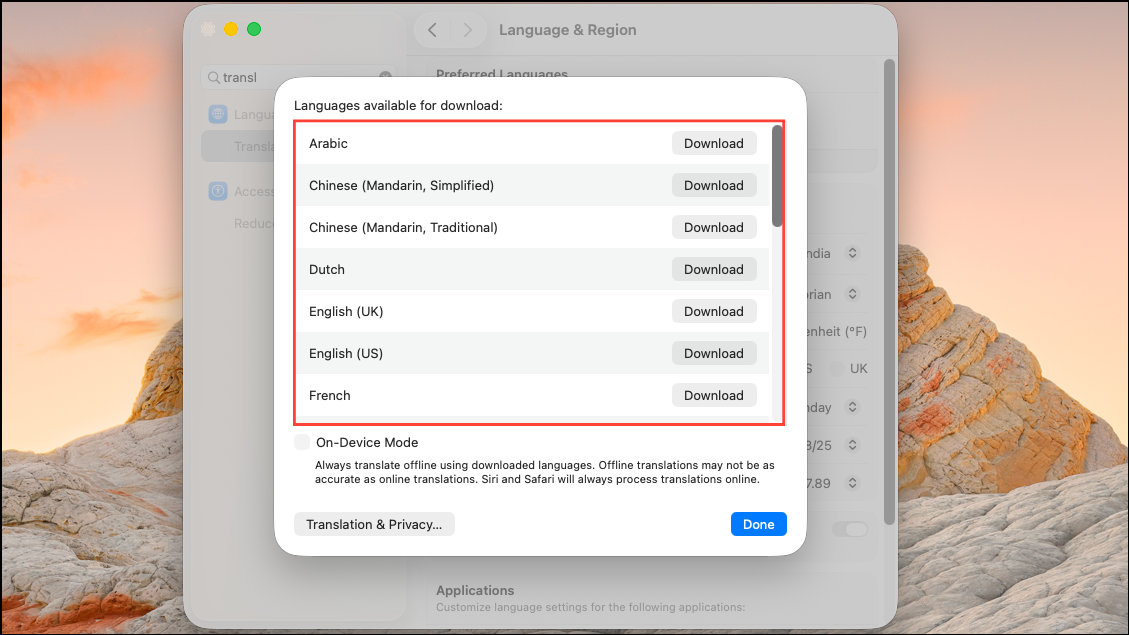
Use Live Translation in Messages, FaceTime, and Phone Apps


All these translation features currently support English (U.S. and UK), French (France), German, Portuguese (Brazil), Spanish (Spain), Italian, Japanese, Korean, and Simplified Chinese. More languages will be added in future updates.
Third-Party Apps and Advanced Use Cases
Apple provides a Call Translation API in macOS 26, allowing developers to integrate live translation into their own apps. This means tools like WhatsApp, Zoom, or Google Meet can adopt the same on-device translation for calls and messages. Check with individual app developers for compatibility and updates.
For users who need live translation outside Apple’s native apps, third-party utilities like Subtitle Me leverage the new Translation framework in macOS 26. These apps listen to system audio or microphone input and display real-time translated subtitles. For example, Subtitle Me can translate live presentations, classroom discussions, or even audio from streaming services by routing audio through a virtual input (using tools like Loopback or Blackhole). This setup allows translation of any spoken content, not just calls or messages.
To use such a tool:
- Download and install the app (e.g., Subtitle Me from the Mac App Store or developer’s site).
- Configure your audio input: For translating system or app audio, use a virtual audio routing tool to send the output to the translation app.
- Select your input and output languages in the translation app’s settings.
- Start the translation session. Translated subtitles will appear in a floating window, which can be resized or customized for classroom, meeting, or accessibility use.
Some third-party apps provide features like translation history, adjustable font size, and support for additional languages via external models (such as Whisper for languages not yet supported by Apple’s built-in translation). Always check for updates, as both Apple’s framework and third-party apps are evolving rapidly.
Troubleshooting and Tips
If translation features do not appear or function as expected:
- Ensure your Mac is updated to macOS 26 and meets hardware requirements (M1 chip or newer for Apple Intelligence features).
- Verify that language packs are downloaded and your preferred languages are set in System Settings.
- Restart your Mac after installing new language packs or system updates.
- For third-party translation apps, make sure microphone permissions are granted and any required virtual audio devices are configured correctly.
- If using accessibility features like RTT, confirm that Wi-Fi calling is enabled on both your iPhone and Mac, and that your carrier supports RTT.
For the best experience, keep both macOS and your translation apps up to date, as compatibility and language support will expand with future releases.
macOS 26’s on-device translation streamlines cross-language communication in Messages, FaceTime, and calls, while third-party tools fill in gaps for broader audio and subtitle needs. With a few setup steps, you can break language barriers on your Mac faster and more privately than ever.