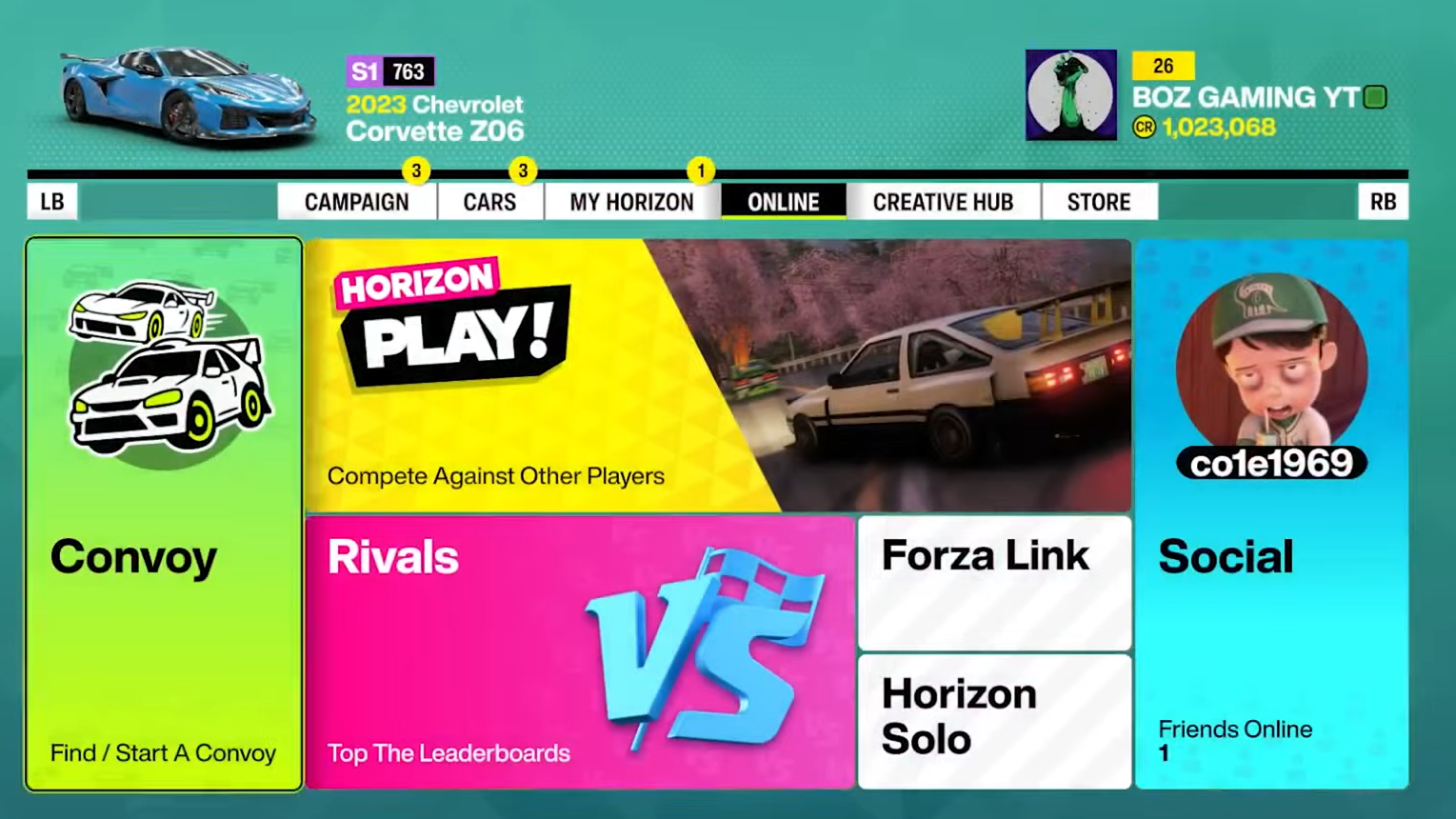
Forza Horizon 6 routes its entire social layer through Microsoft accounts, even on PlayStation 5 and Steam. That means adding a friend is less about your platform’s native friends list and more about connecting Xbox/Microsoft identities, then pulling players into a Convoy once they appear in your in-game social tab.
Requirements before you invite anyone
Two prerequisites trip up most failed invites. Both players need to satisfy them before the Convoy system will work reliably across platforms.
- An active internet connection and the game running in the shared online mode (Horizon Life), not a solo session.
- A linked Microsoft account. Steam and PS5 players link their account the first time they launch the game, and the link is tied to that platform profile.
- Crossplay enabled on both sides if you’re mixing Xbox, PC, and PS5.
Crossplay is on by default. To verify, open the pause menu, go to the Campaign tab, then Settings, then HUD & Gameplay, and confirm Online Crossplay is set to Enabled.
Adding a friend by Xbox Gamertag
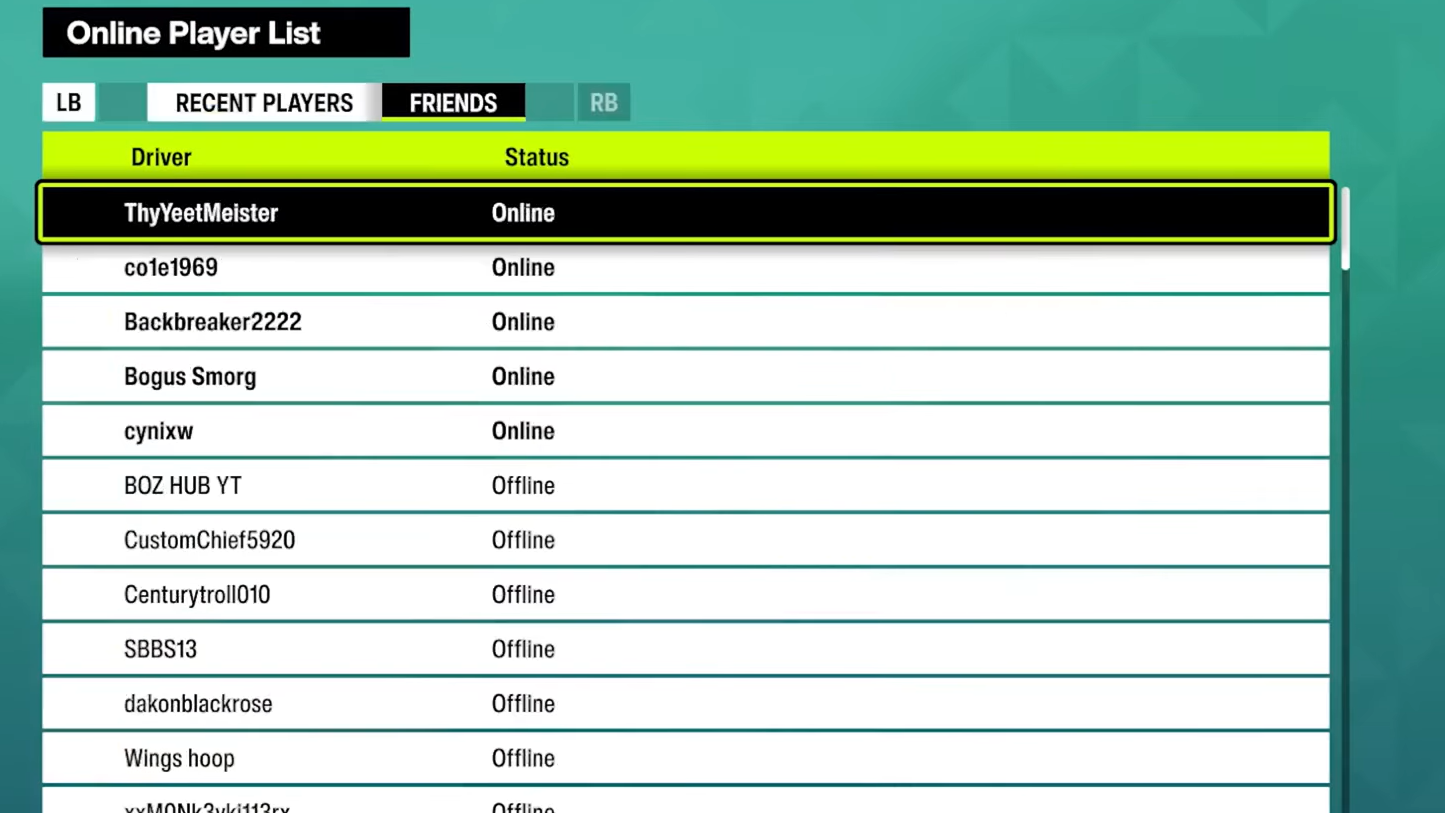
Friend connections in Forza Horizon 6 live on the Xbox network regardless of where you bought the game. If a player isn’t already in your Xbox social graph, they won’t appear inside the game’s friends list.
Creating a Convoy and sending the invite
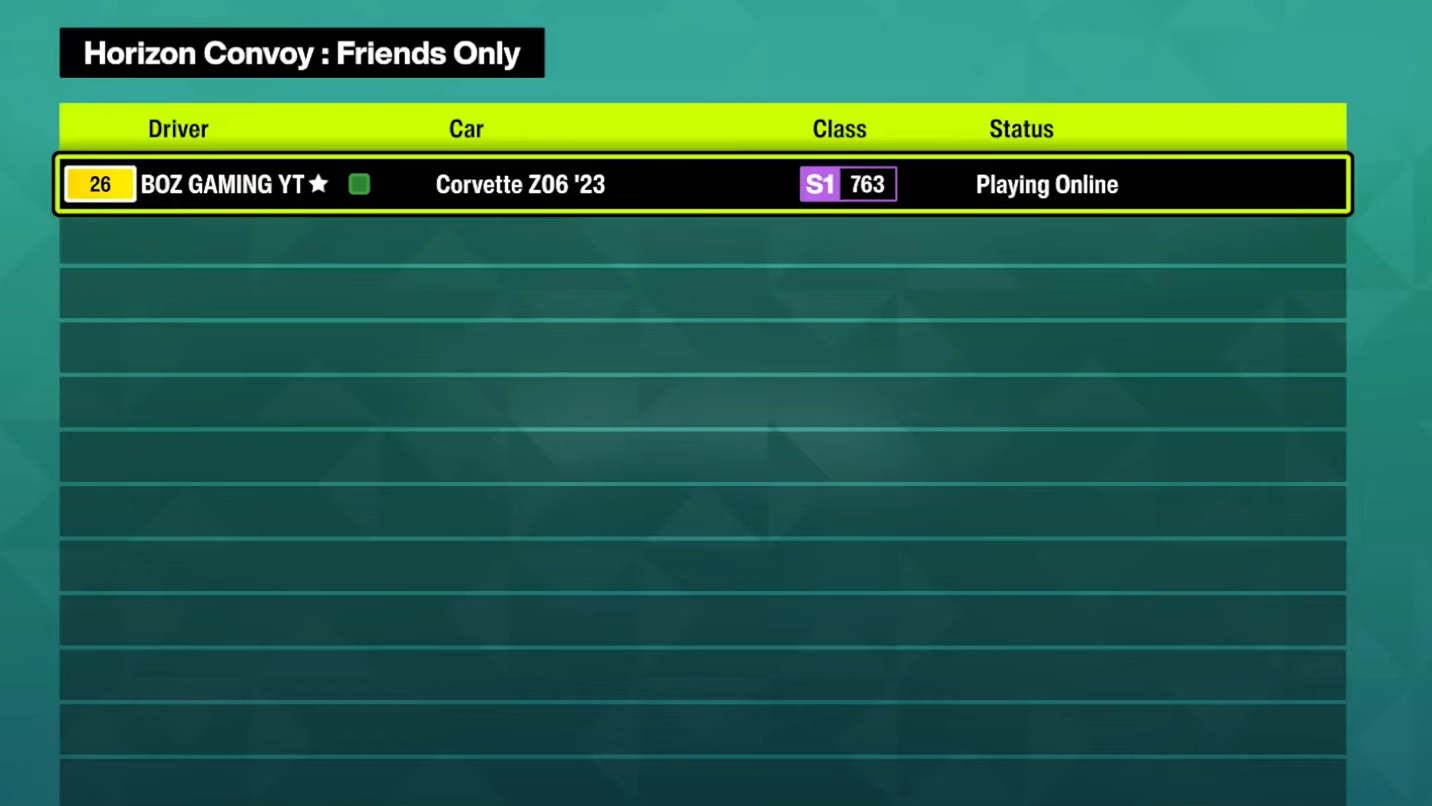
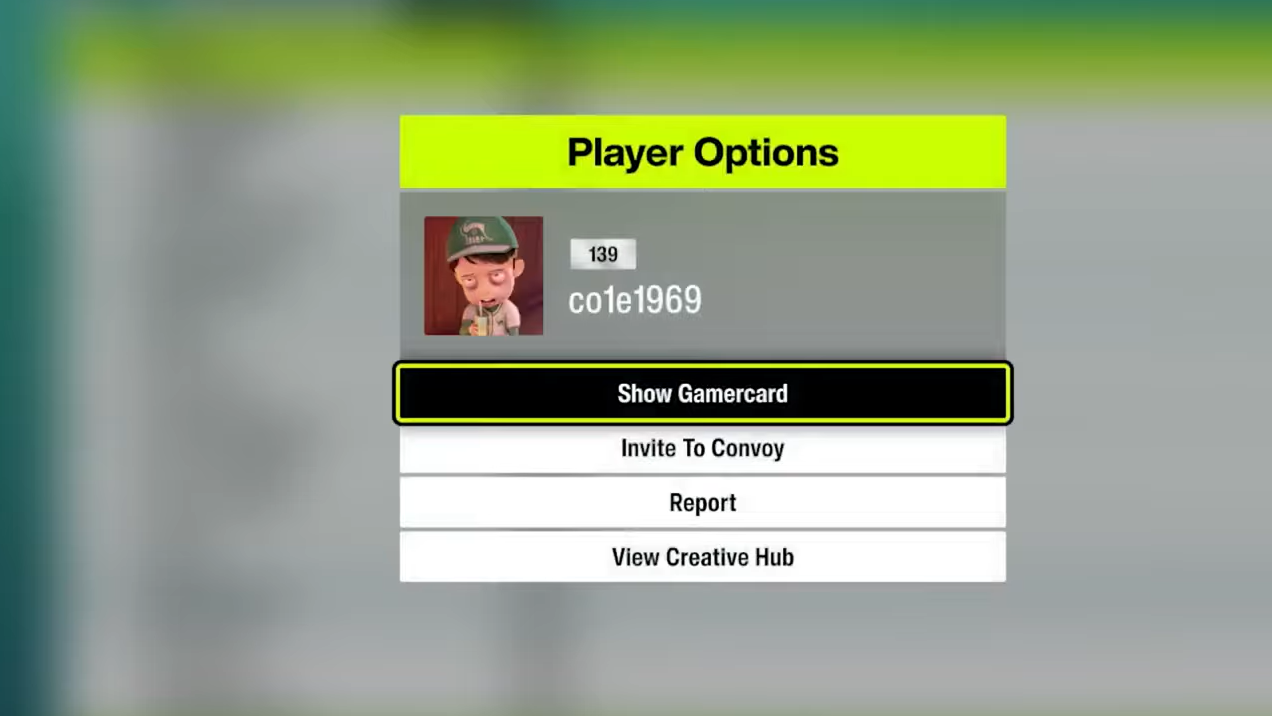
The Convoy is the actual multiplayer container. Adding someone as a friend doesn’t put you in the same world, it just makes them invitable.
Verifying the connection
You’ll know the invite worked when the other player’s name and platform icon appear in your Convoy roster on the HUD. PS5 players show a PlayStation icon, Xbox/PC players show the Xbox logo. Their car will also appear on your minimap with a Convoy marker, and you can fast-travel to their location through the Convoy menu.
Why invites fail and how to fix it
When invites silently disappear, the cause is almost always one of a small set of issues. Work through them in order before assuming the system is broken.
| Symptom | Likely cause | Fix |
|---|---|---|
| Friend doesn’t appear in Social menu | Not added on Xbox network yet, or PS5 player hasn’t linked Microsoft account | Add via Xbox Gamertag; have PS5 player complete Microsoft account linking |
| Invite sent but never arrives | Recipient not in Horizon Life, or on a loading/menu screen | Both players load into the open world, then resend |
| Cross-platform invite blocked | Crossplay disabled on one side | Enable Online Crossplay in Settings > HUD & Gameplay |
| Search returns no results | Wrong identifier used (PSN name vs Xbox Gamertag) | Search by the Microsoft/Xbox Gamertag only |
| Friend visible but Join Game greyed out | Their Convoy privacy is set to Closed or Invite Only | Have them change Convoy privacy to Friends Only |
| Multiplayer features locked entirely | Xbox privacy settings restricting communication or multiplayer | Adjust Xbox account privacy at account.xbox.com |
A common workaround when invites refuse to deliver is the proximity invite. If you can find the other player in the shared open world (sometimes they appear naturally as ghost cars on Time Attack circuits or at Car Meets), park next to them and use the contextual invite prompt. It’s not elegant, but it bypasses the menu-based invite path when that path is broken.
PlayStation 5 specifics
PS5 players have an extra layer to manage. The first launch of Forza Horizon 6 walks through linking a Microsoft account to the PSN account. That link is title-specific and effectively permanent, so use the Microsoft account you actually want associated with your Forza progress and friend graph.
Once linked, PS5 players appear searchable to Xbox and PC users via their Microsoft Gamertag, not their PSN ID. Cross-save also runs through this linked account, which means your garage and progression follow you between PS5, Xbox Series X|S, Xbox on PC, and Steam.
Same-platform friends
If everyone is on the same platform, you can also use the in-game Player Actions menu. Pull up another player’s profile from the Social tab, choose Show Player Profile, and add them through the platform’s native friend system (PSN, Xbox, or Steam). For cross-platform adds, use the Add MSA Friend option in Player Actions instead, which routes the request through the Microsoft account layer.
Once you’re in a Convoy together, the entire campaign, Horizon Rush events, Time Attack Circuits, Drag Meets, Car Meets, and the Eliminator are available as a group. Members can leave and rejoin freely without breaking the session, and the lead player can adjust privacy or kick disruptive members from the Manage Convoy screen at any time.