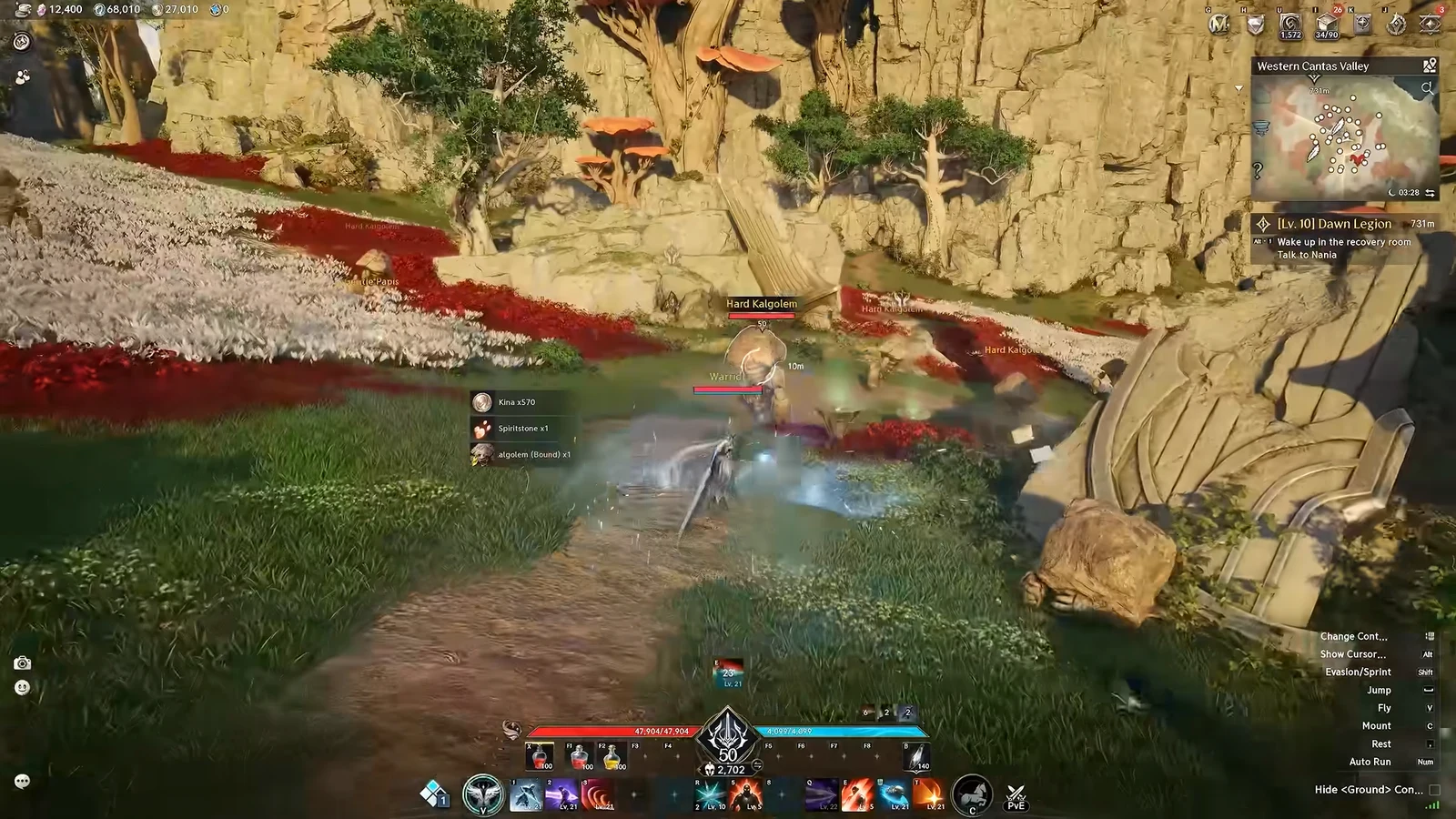
Atreia is big, and most of the time you spend in it early on is spent getting somewhere. AION 2 gives you four different ways to hand the walking over to the game, from a simple straight-line sprint to a full map warp that drops you next to the NPC you actually need.
Quick answer: Press Num Lock to auto-run forward, click the quest tracker or the world map’s Travel button to auto-path to an objective, and pick a Kibelisk on the map to teleport.
Every hands-free movement option in AION 2
These four systems overlap, and picking the right one saves the most time. Auto-run is manual steering without holding a key. Auto-pathing walks a route for you. Kibelisk teleports skip the route entirely.
| Method | Input | Best for |
|---|---|---|
| Auto Run | Num Lock | Open ground, no fixed target |
| Quest tracker path | Click tracker entry | Current quest objective |
| Map Travel | Map icon + Travel | Any marked point in the zone |
| Kibelisk warp | Map + Return Scroll Bound | Crossing the whole map |
Auto run in a straight line with Num Lock
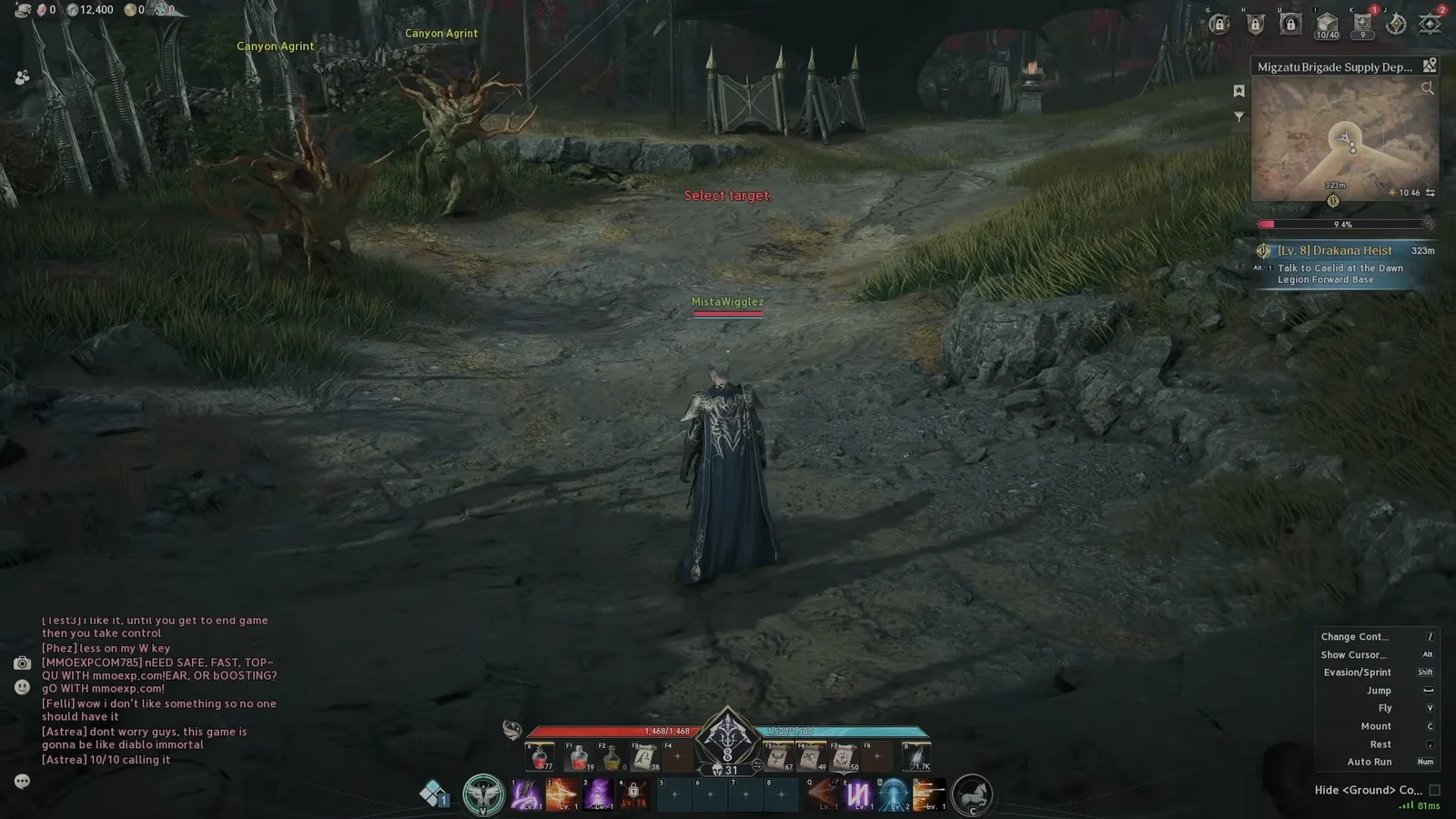
This is the only method that ignores terrain and objectives. It is useful for exploring or for covering a stretch of road you already know, but it will not route around obstacles for you.
Auto-path to a quest objective
From the quest tracker
The quest tracker on the right side of the screen doubles as a navigation button. Click the tracked quest and your character starts moving on its own, following a trail of guided path dots toward the objective. You know it worked the moment the dots appear on the ground ahead of you and your character starts walking without any input.
From the world map Travel button
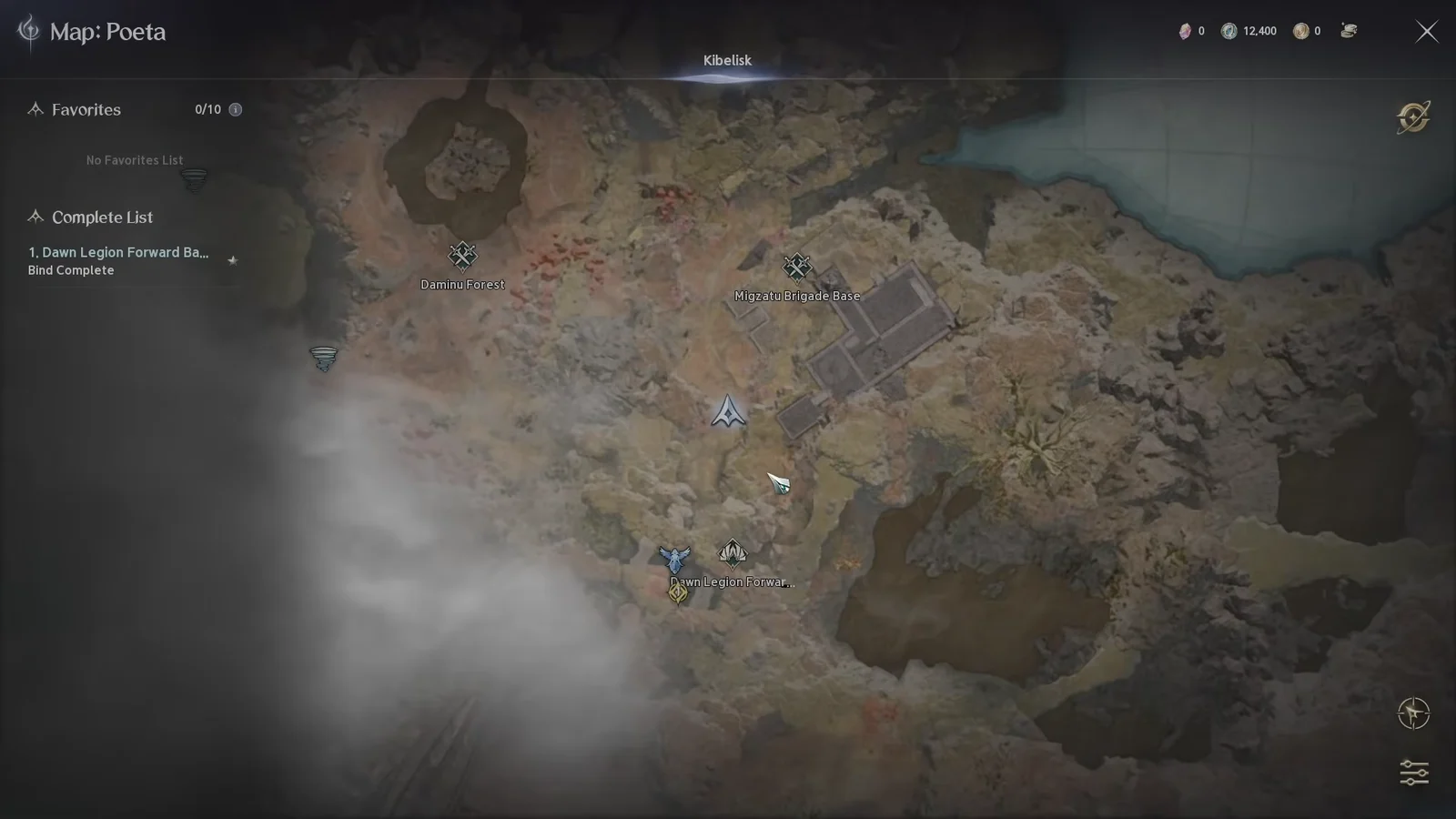
Map icons worth setting as a travel target
Not every marker on the map is a main quest. Yellow markers are Main Story Quests, green markers are Side Story Quests, and question marks flag Sealed Dungeons and Strongholds. All of them are valid Travel destinations, so you can queue up side content the same way you path to the campaign.
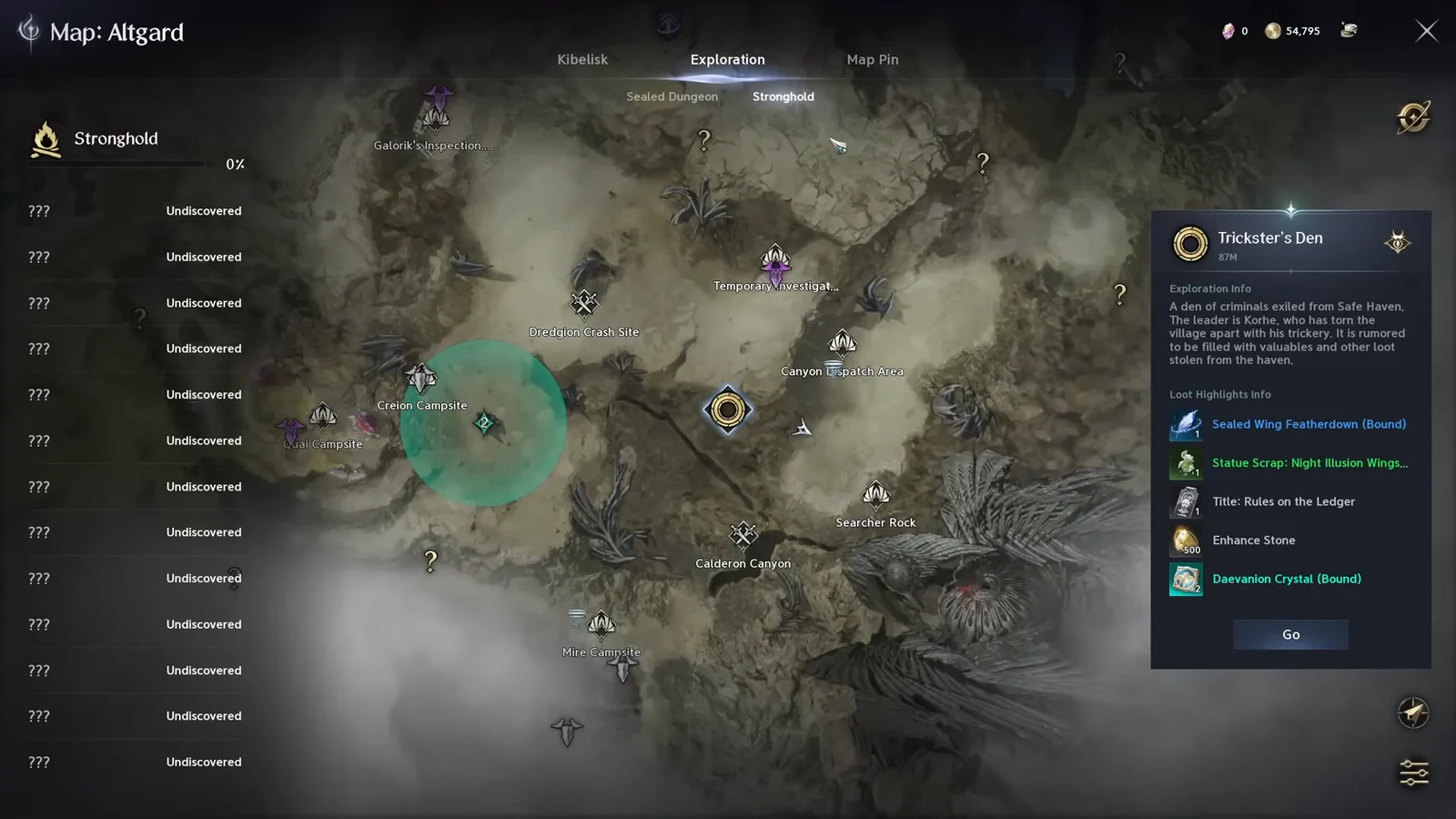
Side content scales with your level and pays out Daevanion points and gear, so a short detour to a question mark on the way to a quest marker is rarely wasted travel.
Fast travel with Kibelisks and a Return Scroll Bound
From there, the two systems chain together. After arriving at Dawn Legion Forward Base, clicking the quest tracker auto-paths you straight to the NPC you need, such as Caelid for the Lv. 8 Drakana Heist, and you only take manual control again when the dialogue opens.
Teleport instantly after a Sealed Dungeon or instance
There is a timing trick worth knowing. The moment you finish a Sealed Dungeon or an instance, open the world map for the zone you are heading to next, such as Altgard, and teleport directly to the next objective. Doing it right at the completion screen skips the run back out and the travel leg that would normally follow.
Carry momentum while flying with Shift
Flight has its own efficiency trick. Holding Shift during a flight carries your existing momentum forward without draining flight stamina, so you glide further on the same bar instead of burning it and dropping early.
Plan the route and use the travel time
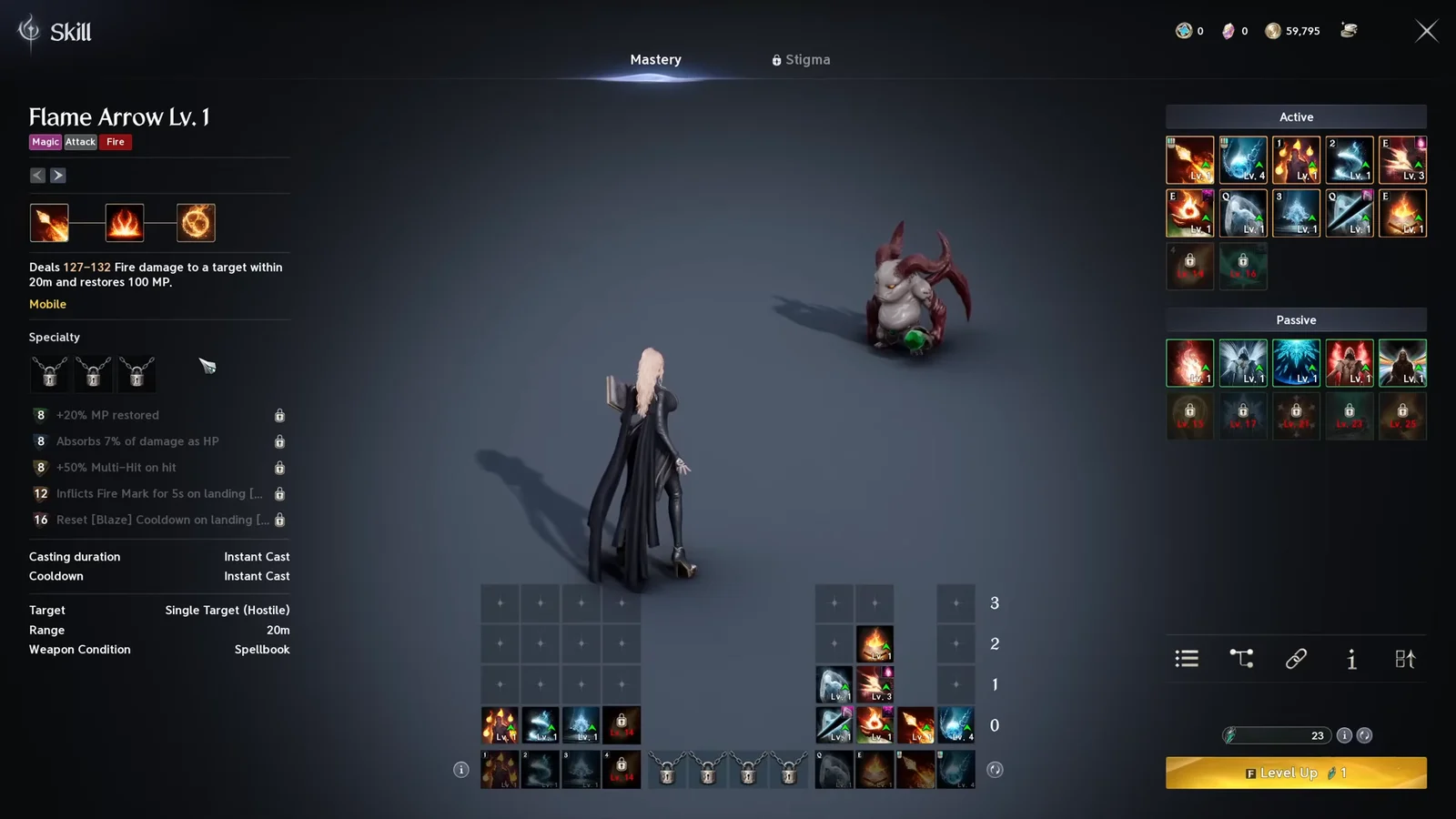
Auto-pathing hands you dead time, and that time is the best window for menu work. While your character walks itself somewhere, and during loading screens, enhance weapons, spend skill points, and slot stigmas. None of it requires you to be steering.
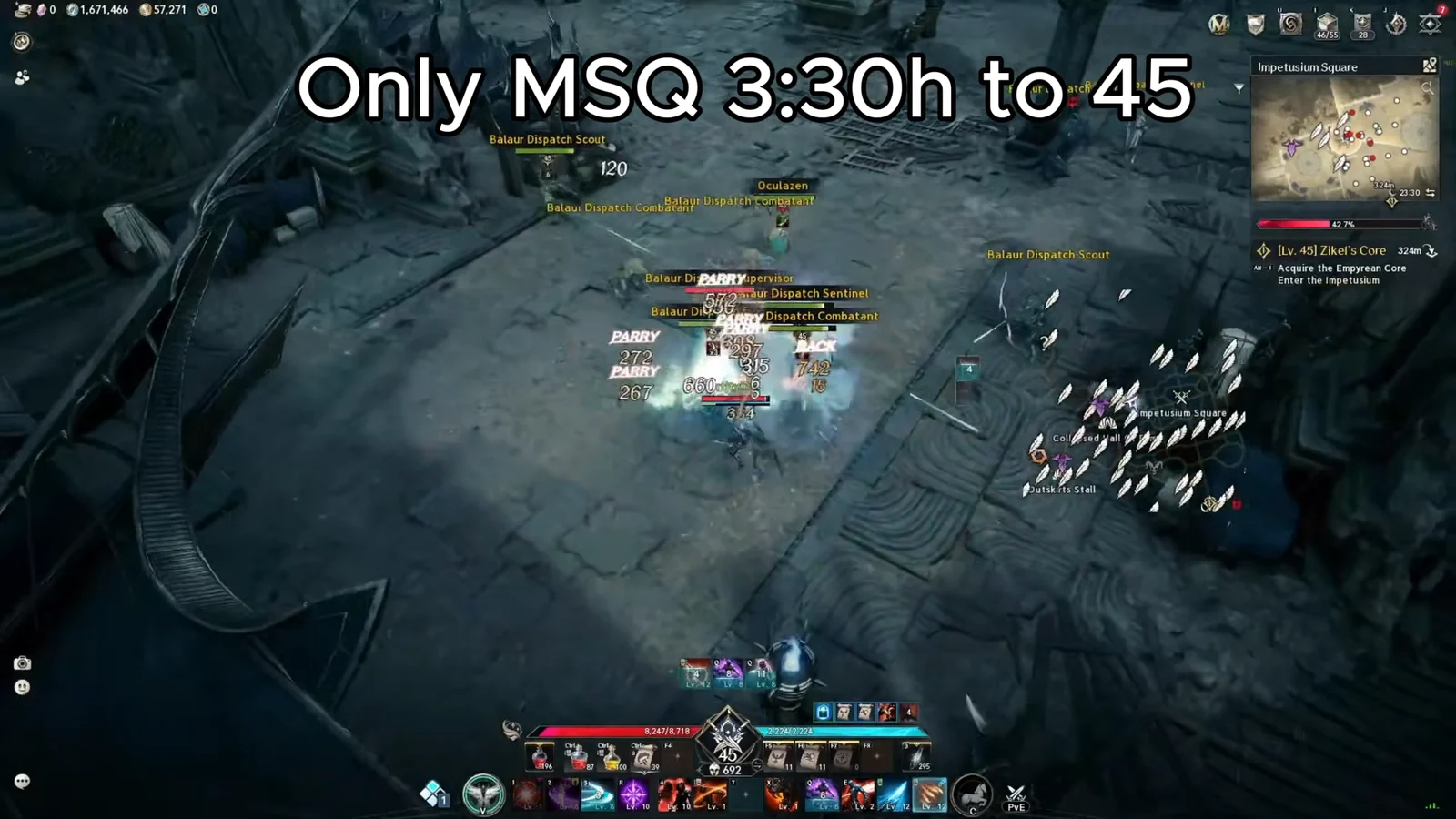
Routing matters too. Travelling only between main story markers is the shortest path on paper, but it leaves your gear behind the curve against mobs that scale once you approach the cap. A route that folds side content into the same trip lands at level 45 in a similar amount of time with a stronger character.
If you would rather not decide each hop yourself, phase-by-phase route documents and real-time overlays exist that feed you the next navigation prompt as you finish each objective, so the map stays closed more often.
Once the Num Lock key, the quest tracker, the Travel button and your nearest Kibelisk are all part of the same habit, almost none of your playtime goes into holding W. Set the destination, let the game walk it, and spend the trip on your build instead.
Return Scroll (Bound) and Altgard Teleport Reference
The Return Scroll (Bound) is a Common, tier 1 Usable item with a required level of 1. Its in-game text reads: “Use to teleport to the nearest activated Kibelisk.” That means the scroll only takes you to a Kibelisk you have already activated, so unlock the ones along your route before you rely on it.
| Detail | Return Scroll (Bound) |
|---|---|
| Grade | Common |
| Shop price | 1000 Kina |
| Sell price | 10 Kina |
| Trade | Cannot be traded |
| Sources | Shop, sold by merchants, quest reward, reward box |
| Reward boxes | Daeva’s Campaign Supply Chest (Bound), Advance: Wishlist Chest, Pre-registration: Supply Chest |
Stock comes early. The Dawn Legion episode quest in Verteron (recommended level 10) pays out Return Scroll (Bound) x20, along with Kina (Bound) x4,500, Life Serum (Bound) x20 and Healing Potion (Bound) x10. The Pre-registration: Supply Chest holds Return Scroll (Bound) x5 alongside Life Potion (Bound) x30, Courage Scroll (Bound) x10, Speed Scroll (Bound) x10 and Tailwind Scroll (Bound) x10.
Do not confuse it with the Hall Return Scroll (Bound). It shares the 1000 Kina shop price and is also bound, but its text reads “A scroll used to teleport to the Legion Hall,” so it sends you to the Legion Hall rather than a Kibelisk.
Altgard, the zone mentioned for post-dungeon teleports, has 61 teleport statues, 15 rifts, 2 monoliths and 85 dungeon entrances to plan around.