Aion 2 does not list a slider called “mouse sensitivity” anywhere in its menus. The view speed is handled by two separate controls, Camera Horizontal Movement Speed and Camera Vertical Movement Speed, which is why the option is easy to miss when you go hunting for it.
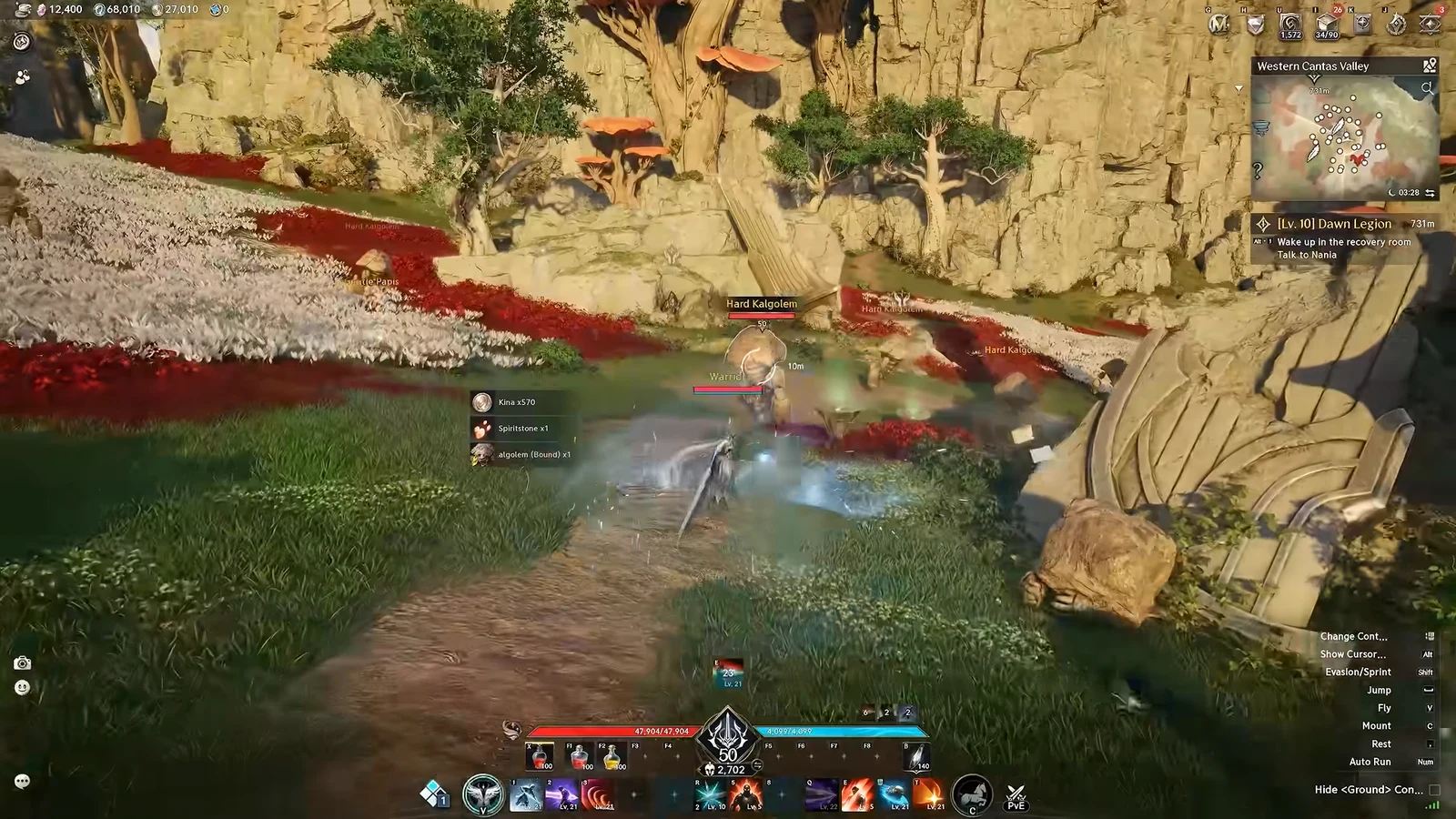
Quick answer: Hold Alt to show your cursor, click the camera icon in the bottom-left corner, then raise or lower Camera Horizontal/Vertical Movement Speed under the Movement Speed section.
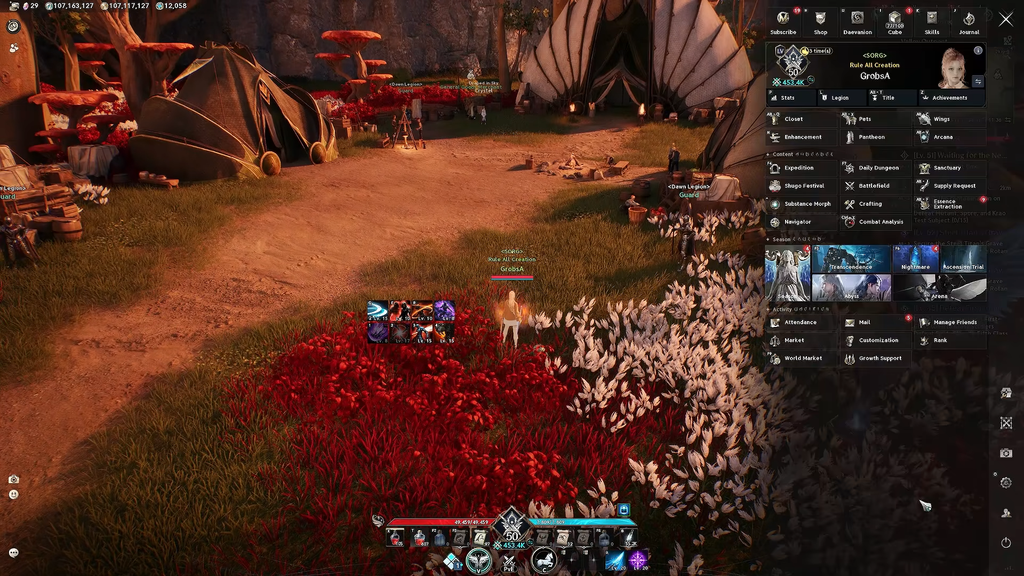
Change mouse sensitivity from the camera icon
The fastest route is the on-screen camera menu, which you can open without leaving the game world. The camera icon sits in the bottom-left corner of the screen, just above the emote icon, and it often gets buried behind global chat text, so look carefully.
Adjust these only when you are out of combat, and test the result on a training dummy before committing to a value.
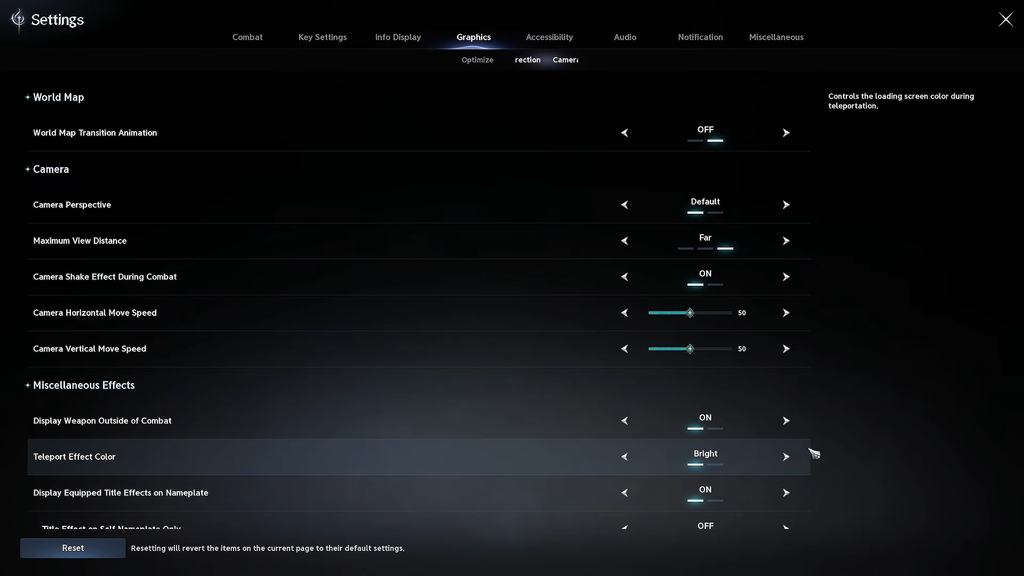
The Graphics menu path
The same sliders also live in the full settings menu if you prefer to adjust them there. Press Escape, open Settings, and go to the Graphics tab. Inside Graphics, select the Camera / Direction sub-tab to find the Camera Horizontal Move Speed and Camera Vertical Move Speed sliders alongside a few other options.
Both paths change the exact same setting. The on-screen camera icon is simply more convenient because you can tweak the value on the go without stopping to open the main menu.
What horizontal and vertical speed each do
You can set the two speeds to different values. Horizontal speed governs left-to-right camera turns, and you’ll notice it most in combat while tracking enemies or changing position. Vertical speed governs camera movement up and down.
| Symptom | Adjustment |
|---|---|
| Keep turning farther than intended | Lower Horizontal Movement Speed |
| Turning around requires more mouse travel than you want | Raise Horizontal Movement Speed |
| Up-and-down camera motion feels overly sharp | Lower Vertical Movement Speed |
| Vertical camera feels sluggish | Raise Vertical Movement Speed |
A lower value makes the camera feel stiffer, and you will drag the mouse around more to turn. A higher value lets you flick quickly, but it can cause target-lock problems when several enemies are grouped together. Make small changes one slider at a time rather than moving both at once.
If the camera still feels too fast or too slow
A single ideal setting doesn’t exist; your mouse DPI also affects the result. Aion 2’s in-game sliders control how strongly the game responds to your movement, while DPI sets how much movement your mouse reports. If you’re happy with your DPI in other games, keep it and adjust the Camera Movement Speed sliders instead, since changing DPI affects cursor movement throughout your PC.
Treat sensitivity and input delay as separate issues. If the camera rotates too far or too little, adjust sensitivity. If it responds late to mouse movement, the cause is more likely performance or network trouble, which slider changes cannot resolve.
Some players report a bug where sensitivity randomly drops to the lowest setting even though nothing in the menu has changed. Restarting the game restores it. Camera problems have also been linked to having the Steam overlay active.
After settling on a value, face a fixed landmark and stop precisely on it, then keep tracking it as you move. The setting is right if you can turn toward a target behind you without exhausting your mouse space and make fine adjustments without overshooting.