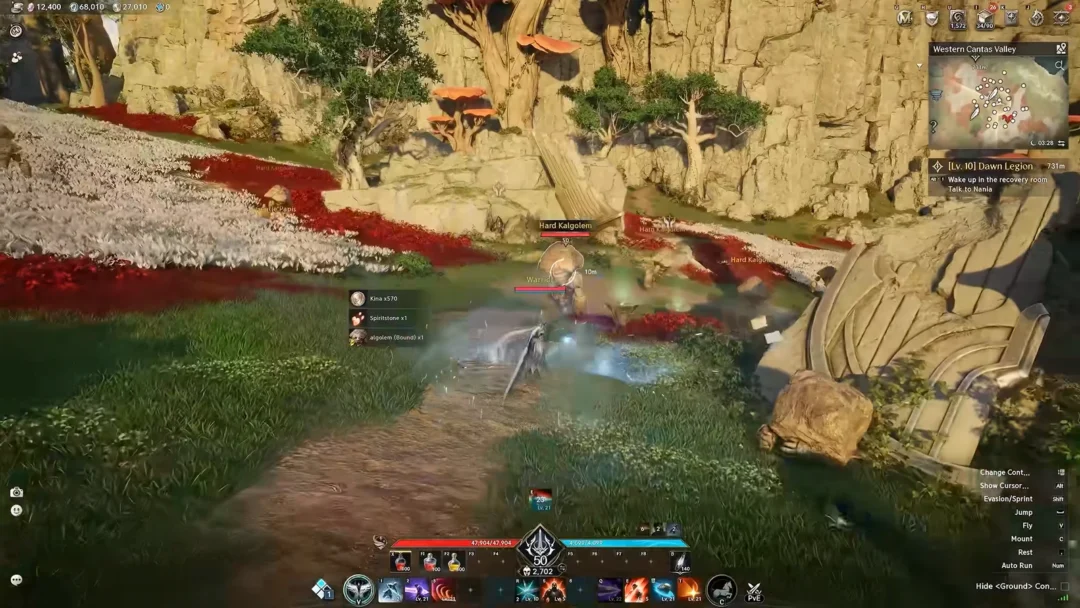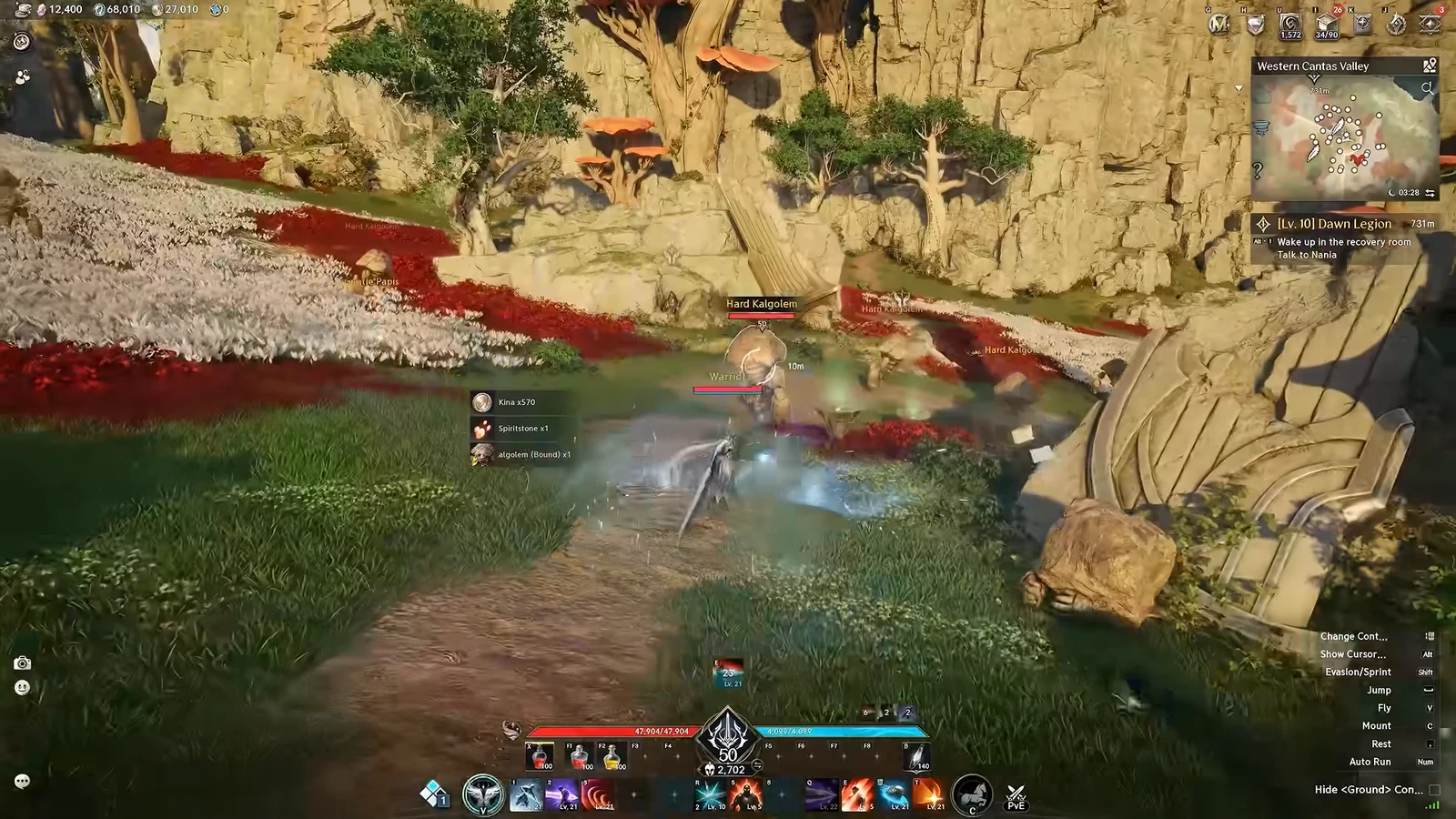
A blank screen in AION 2 with no hotbars, quest tracker, map, or chat usually is not a bug. The game ships with a single key that clears the entire interface at once, and it is easy to hit by accident. Pressing the same key again brings everything straight back.
Quick answer: Press F12 in the game world to show the HUD again. The same key toggles the full interface off and on.
Restore the HUD with F12
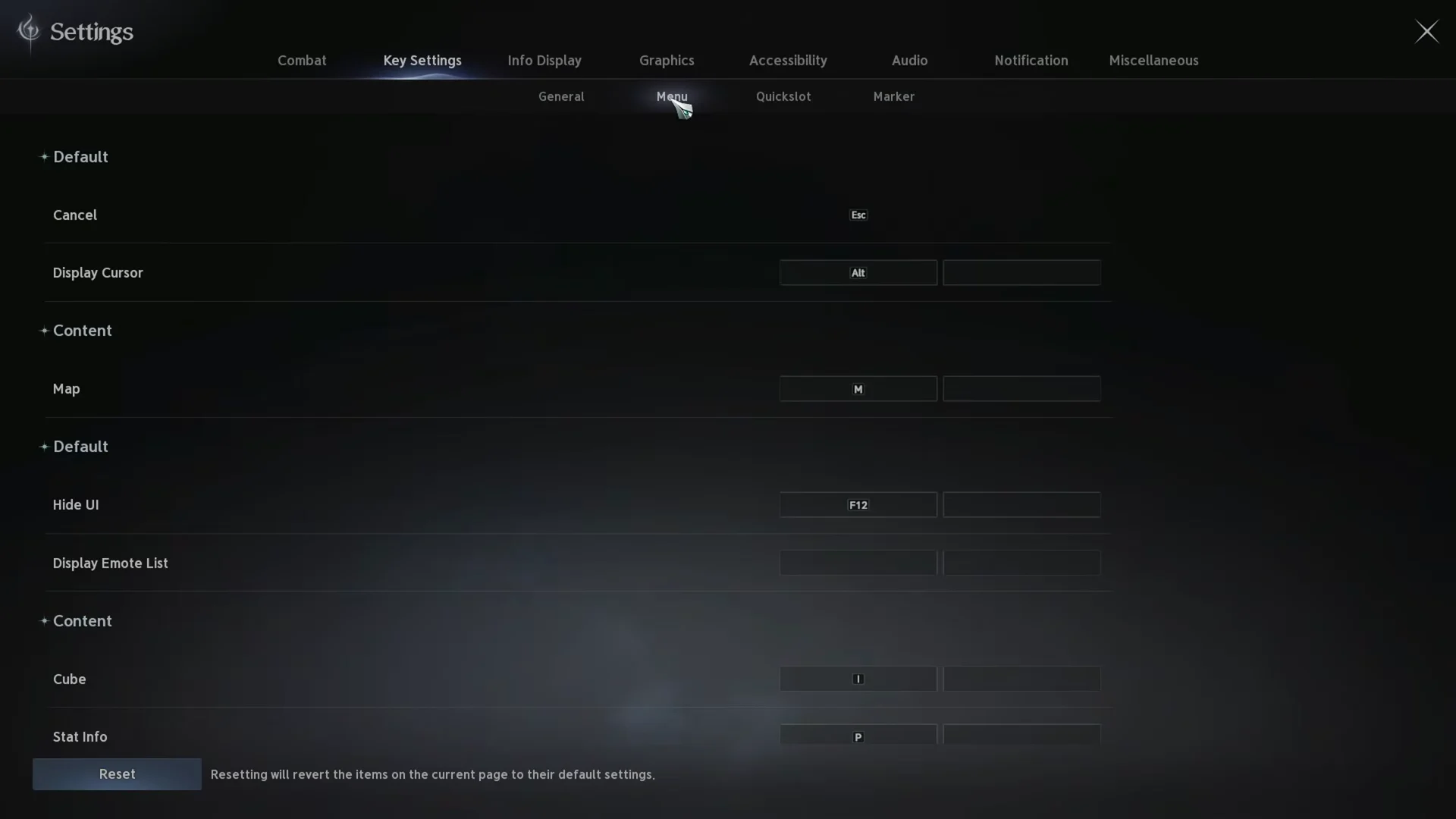
Hide UI is mapped to F12 by default, and it is a toggle rather than a hold. One press clears hotbars, health and mana bars, the minimap, quest tracker, chat, and every other on-screen element. A second press puts all of it back exactly where it was.
Click the game window first so it has focus, then press F12 on your keyboard. The interface reappears immediately, which is also how you confirm the fix worked. If nothing changes, the key may have been remapped, so follow the keybind steps below to check what it is bound to.
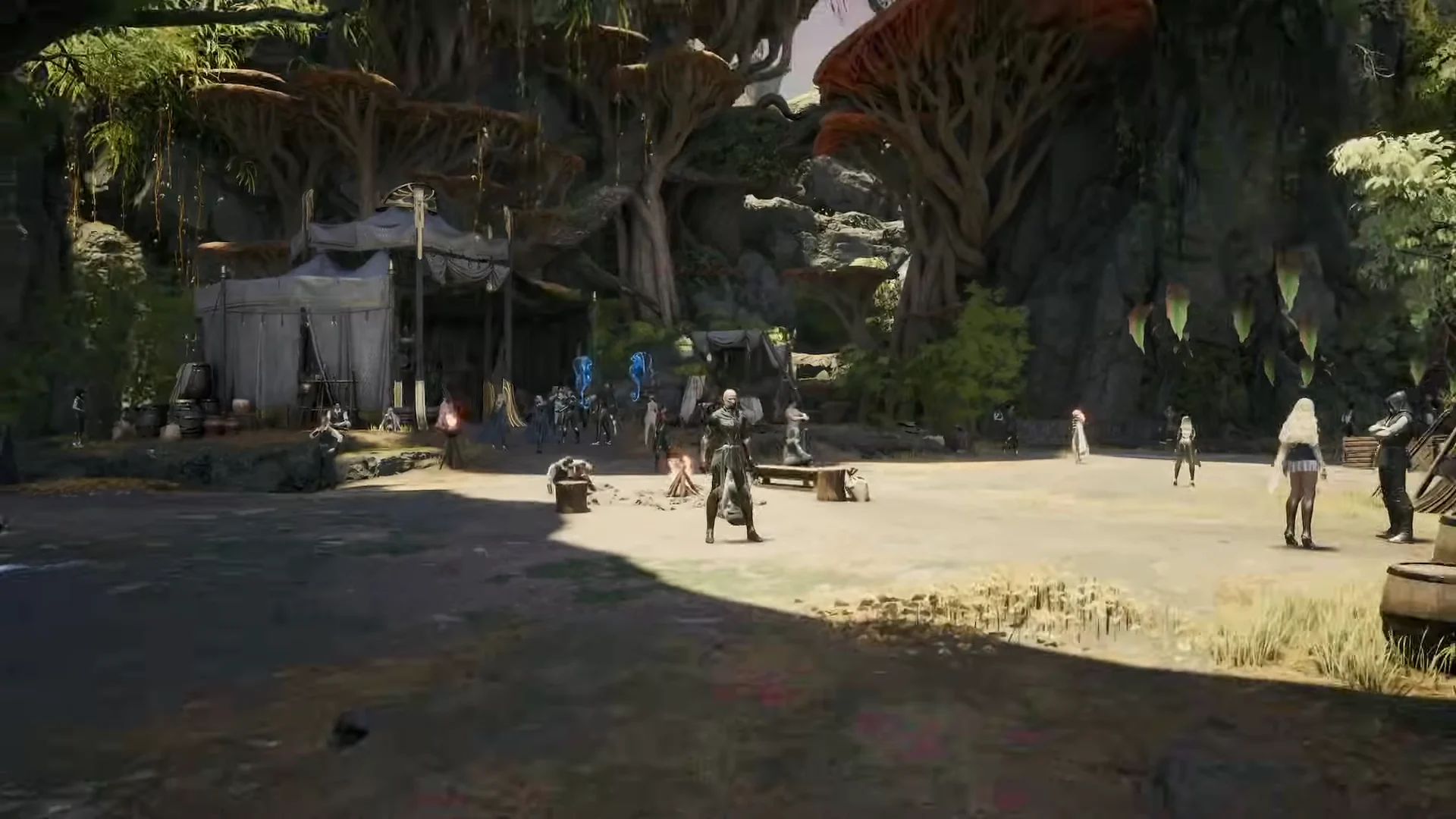
Each F12 press also saves a screenshot. Flipping the HUD on and off repeatedly fills your screenshot folder with files, so avoid tapping the key more than you need to.
Confirm or change the Hide UI keybind
When F12 fails to respond, or you keep hitting it unintentionally and would rather use another key, inspect its binding through Settings. You can assign Hide UI to whichever key or key combination suits you.
Hide only the floating damage numbers
If your HUD is fine but the combat numbers flying over enemies are the problem, you do not need the full F12 toggle. Those readouts live in their own menu, so you can keep hotbars and the map while dropping the numbers.
In Settings, choose Info Display and then the Floater tab. You can disable readouts one by one there instead of hiding the entire interface. The Floater tab includes:
- Combat Floater Display
- Damage on Me and Heal on Me
- Damage on Target and Heal on Target
- Damage on My Spirit and Heal on My Spirit
Related overhead text options sit under the Combat and Common tabs in the same Info Display area, so you can thin out nameplates and range readouts there too.
Hide your account and character name for streaming
For streaming, Streamer Mode conceals account status and character name from viewers. In Settings, select the far-right Miscellaneous tab and ensure Account is the active sub-tab.
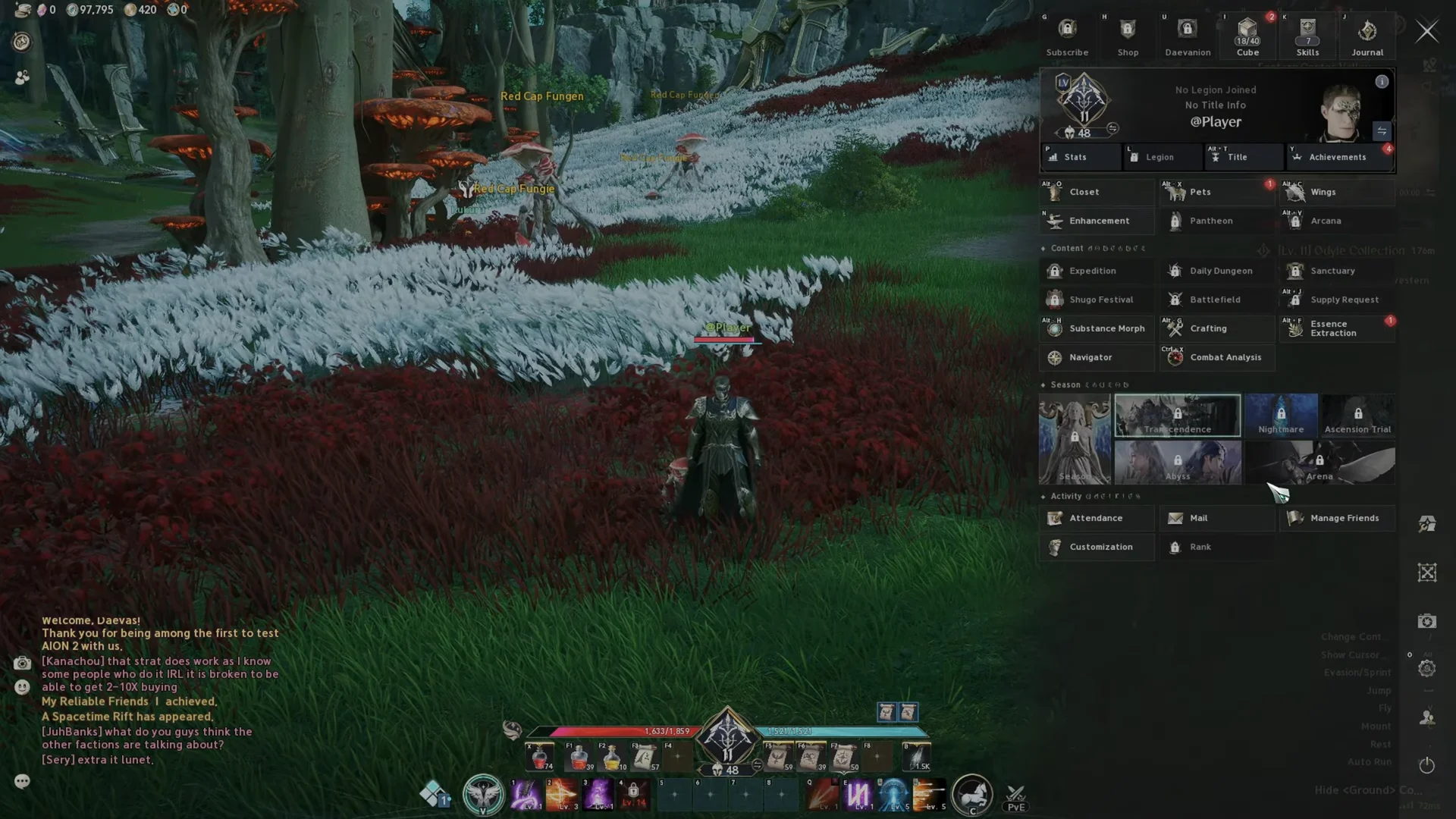
Streamer Mode has two switches. Enable Hide Account Info to make your Current Account Private. When Hide Character Name – Display as ‘Player’ is enabled, @Player appears in menus and above your character instead of your username. Return to the world and verify that your name shows as @Player to confirm the change worked.
Use F12 when you want the screen completely clear, the Floater tab to remove combat numbers, or Streamer Mode to conceal personal details. These options let you hide only the interface elements you choose, and one key press can restore them all.