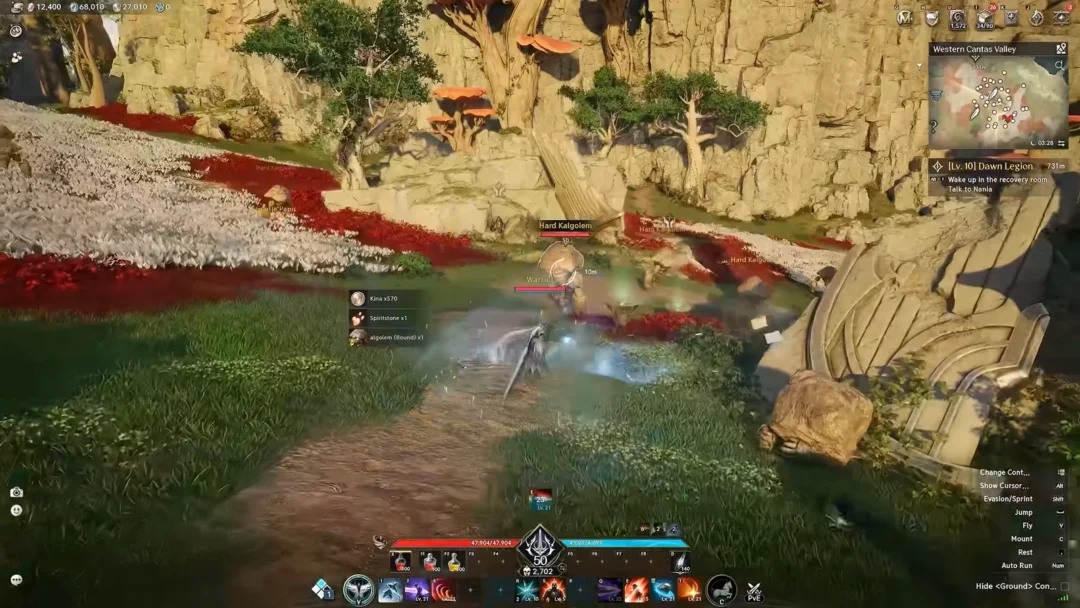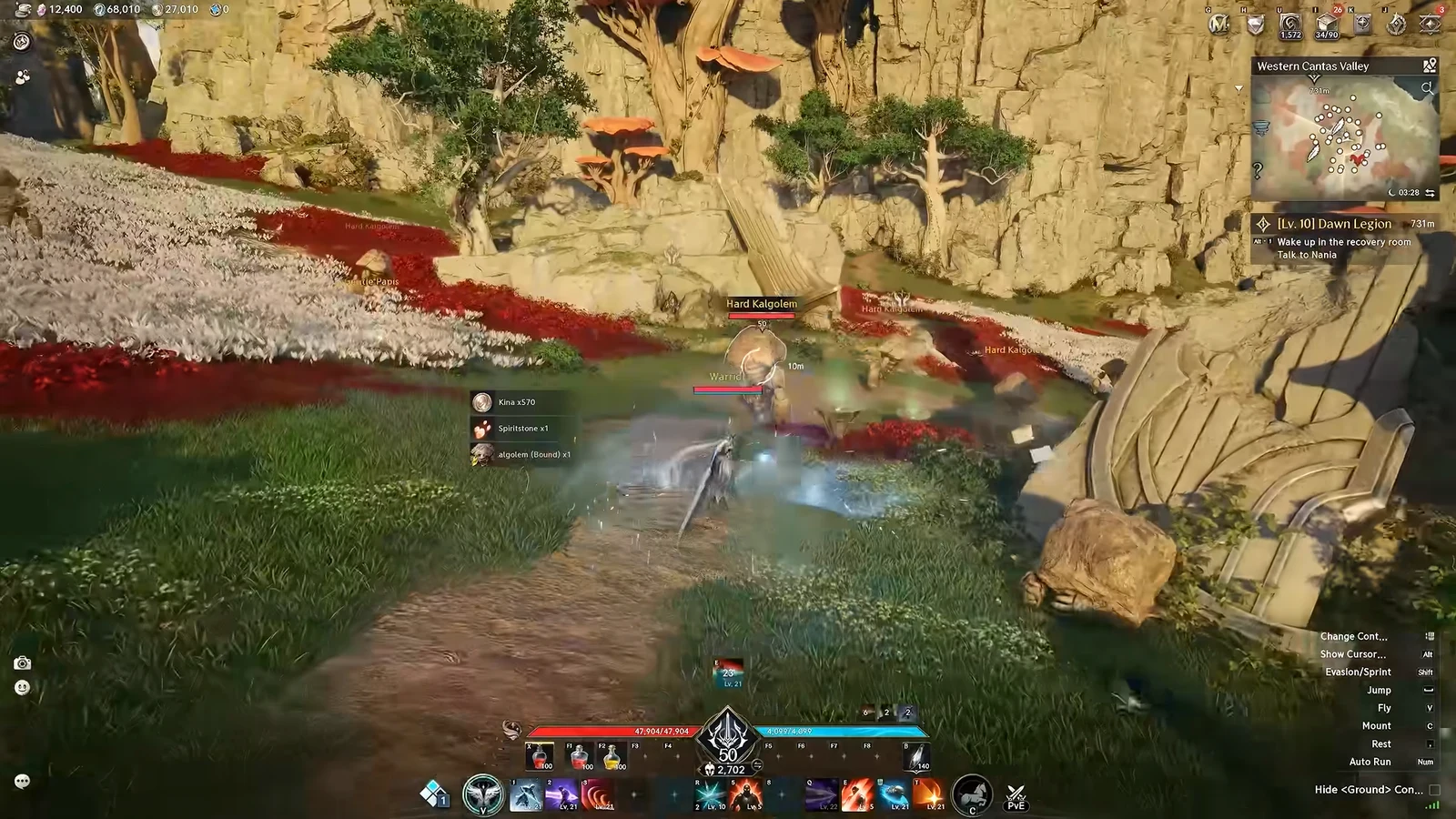
Aion 2 ships with a lot of default options that fight you rather than help you. Weapons disappear the moment combat ends, flight and mount sit on awkward letter keys, crowded boss fights tank your framerate, and the targeting system loves to lock you onto the wrong enemy. A handful of changes under the settings menu fix all of that, and the skill menu lets you fold repetitive rotations onto a single button. Here is exactly what to change and where to find each option.
Quick answer: In Combat > Controls set Auto Target Upon Skill Use to ON and Set Main Target Upon Attack to OFF; in Graphics > Optimize set Player Particle Effect Display to Self Only; rebind flight and mount in Key Settings > General; and build skill macros from the Skill menu.
Combat targeting settings (Combat > Controls)
Most targeting frustration comes from the default lock-on: your attacks stick to whatever you click or hit, which causes trouble when enemies cluster together. To adjust it, open Settings, choose the Combat tab, and select Controls.
Set Auto Target Upon Skill Use to ON so your skills land on the enemy you are aiming at instead of fishing for a target. Then set Set Main Target Upon Attack to OFF so a stray click or attack on a nearby mob does not glue your camera to it. These two changes keep your aim responsive and stop the camera from sticking during busy fights.
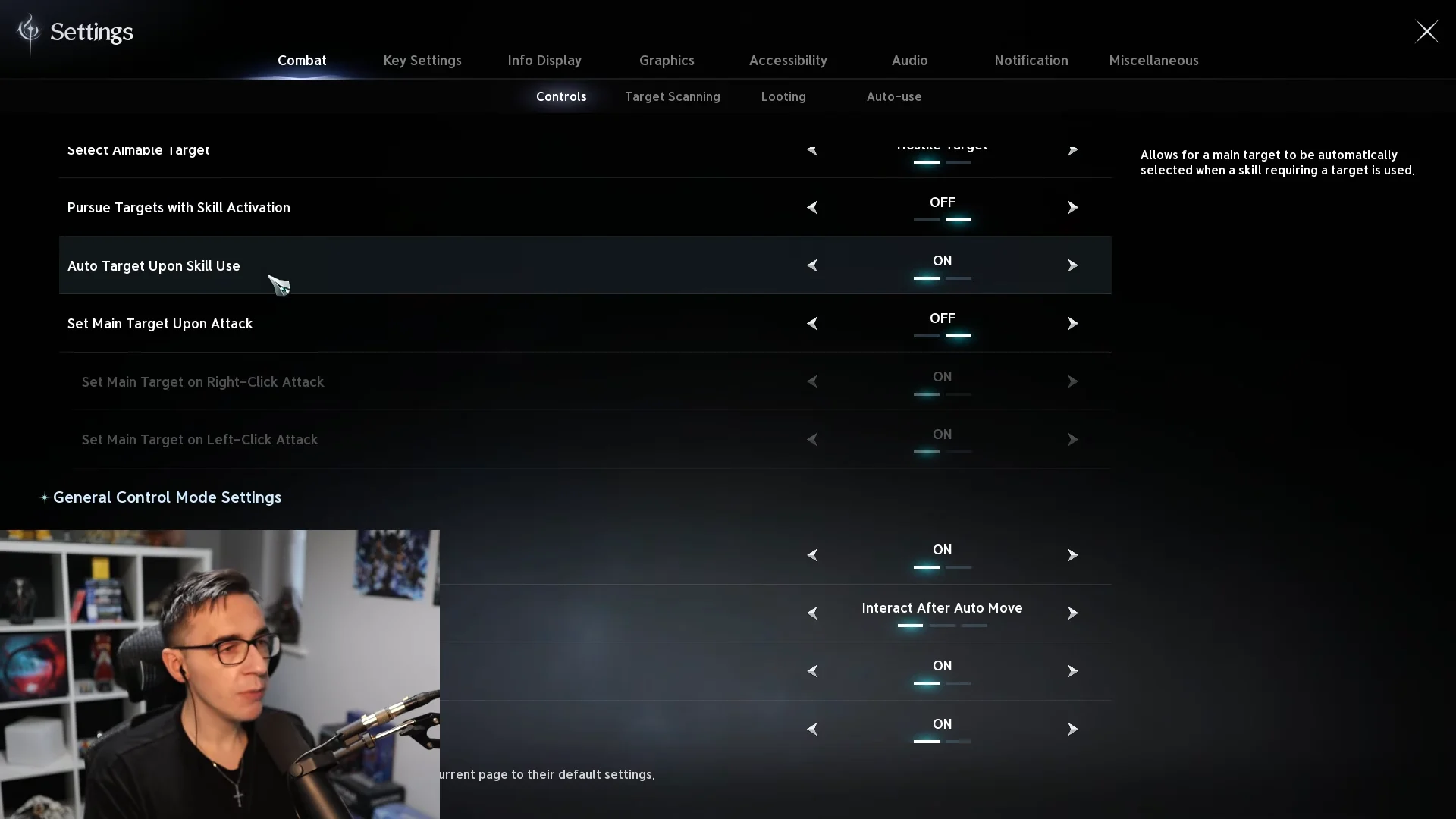
While you are on this page, the rest of the targeting block is worth matching. These are the values that keep aiming predictable:
| Setting | Value |
|---|---|
| Control Mode | AION 2 |
| Display Distance to Aimed Target | ON |
| Adjust Aim Position | 120px |
| Maintain Aimed Target After Long-Pressing Quick Slot | ON |
| Select Aimable Target | Hostile Target |
| Pursue Targets with Skill Activation | OFF |
| Set Main Target on Right-Click Attack | OFF |
| Set Main Target on Left-Click Attack | ON |
Turning off Pursue Targets with Skill Activation stops your character from sliding toward enemies on its own, which matters when a skill would otherwise drag you out of position.
Stop framerate drops in world bosses (Graphics > Optimize)
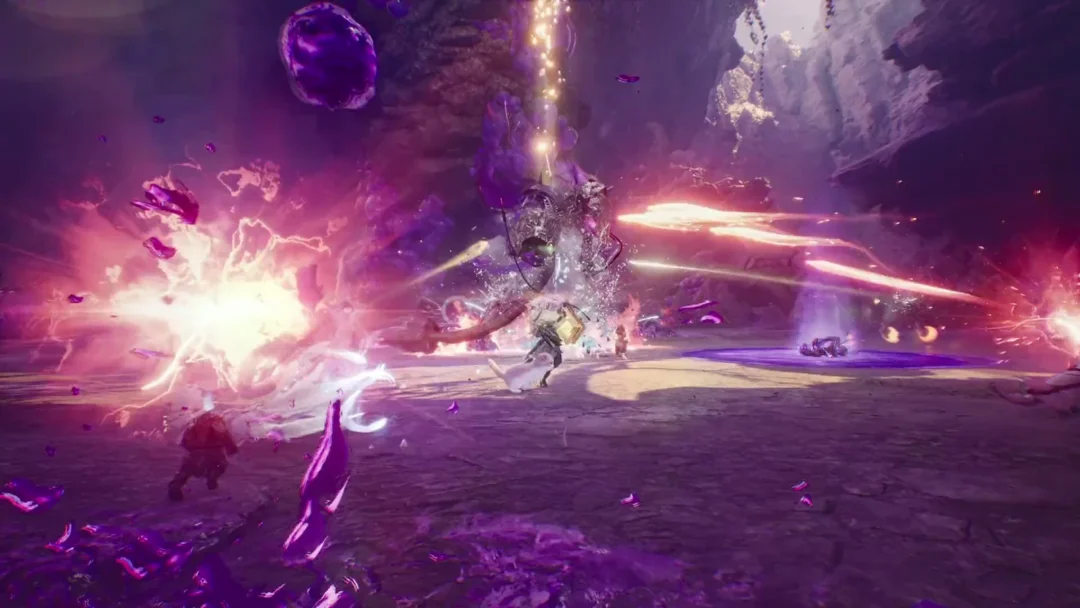
Large-scale encounters like a World Boss can bury the screen in particle effects from every player around you, and the framerate falls hard. There is a single option that cuts most of that load without touching the rest of your graphics quality.
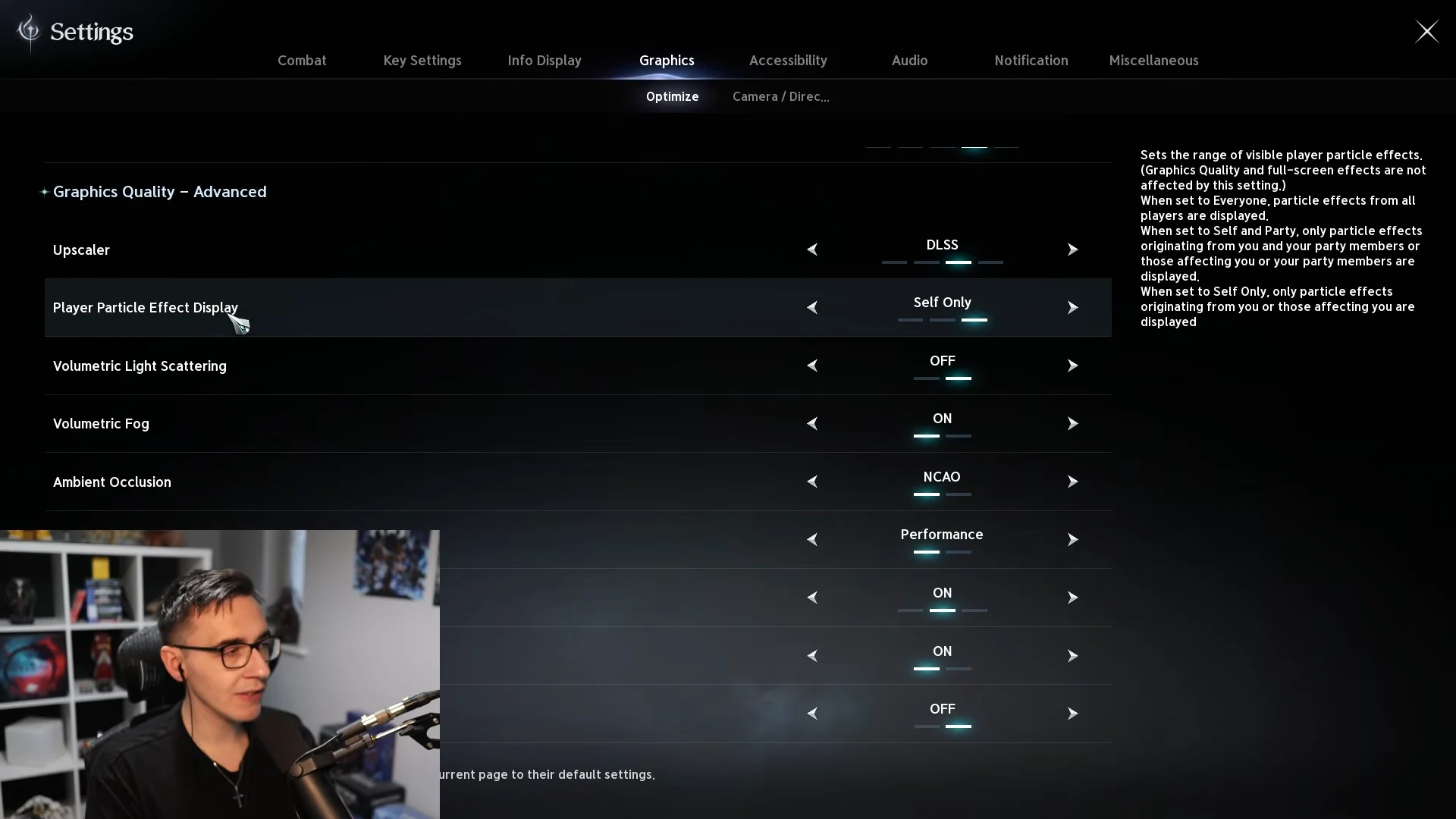
Open Settings, click Graphics, and select the Optimize sub-tab. Scroll down to Graphics Quality – Advanced, find Player Particle Effect Display, and change it to Self Only. This limits visible particle effects to your own character and anything directly affecting you, which clears the clutter in crowded raids and recovers a lot of frames.
Rebind flight and mount (Key Settings > General)
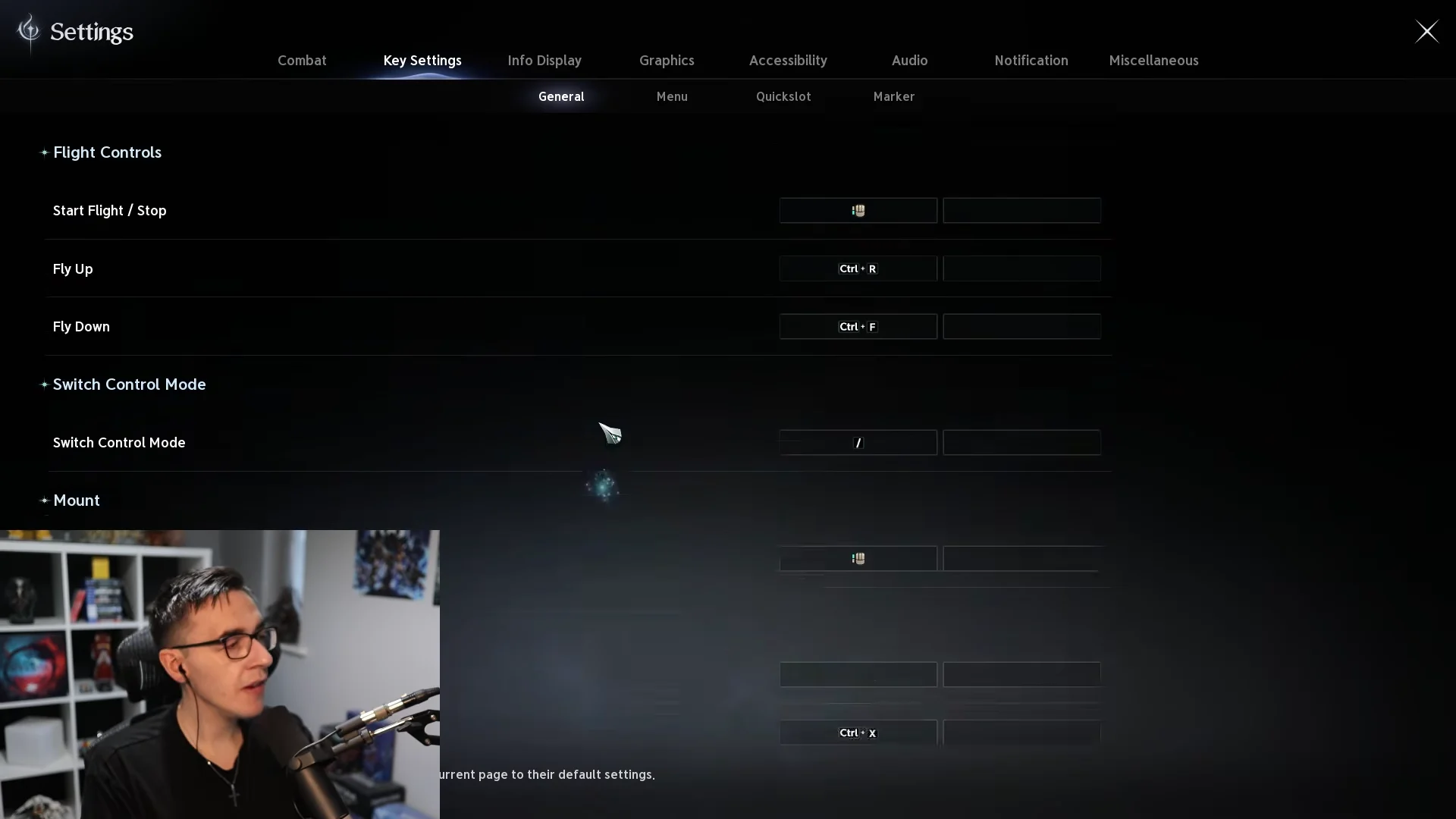
Flight and mount default to C and V, which are clumsy to reach mid-movement. Moving them to side mouse buttons makes taking off and mounting feel instant.
Keep your weapon drawn outside combat (Graphics > Camera / Direction)
By default your weapon sheathes the moment a fight ends. If you want it visible while you run around, there is one toggle for it.
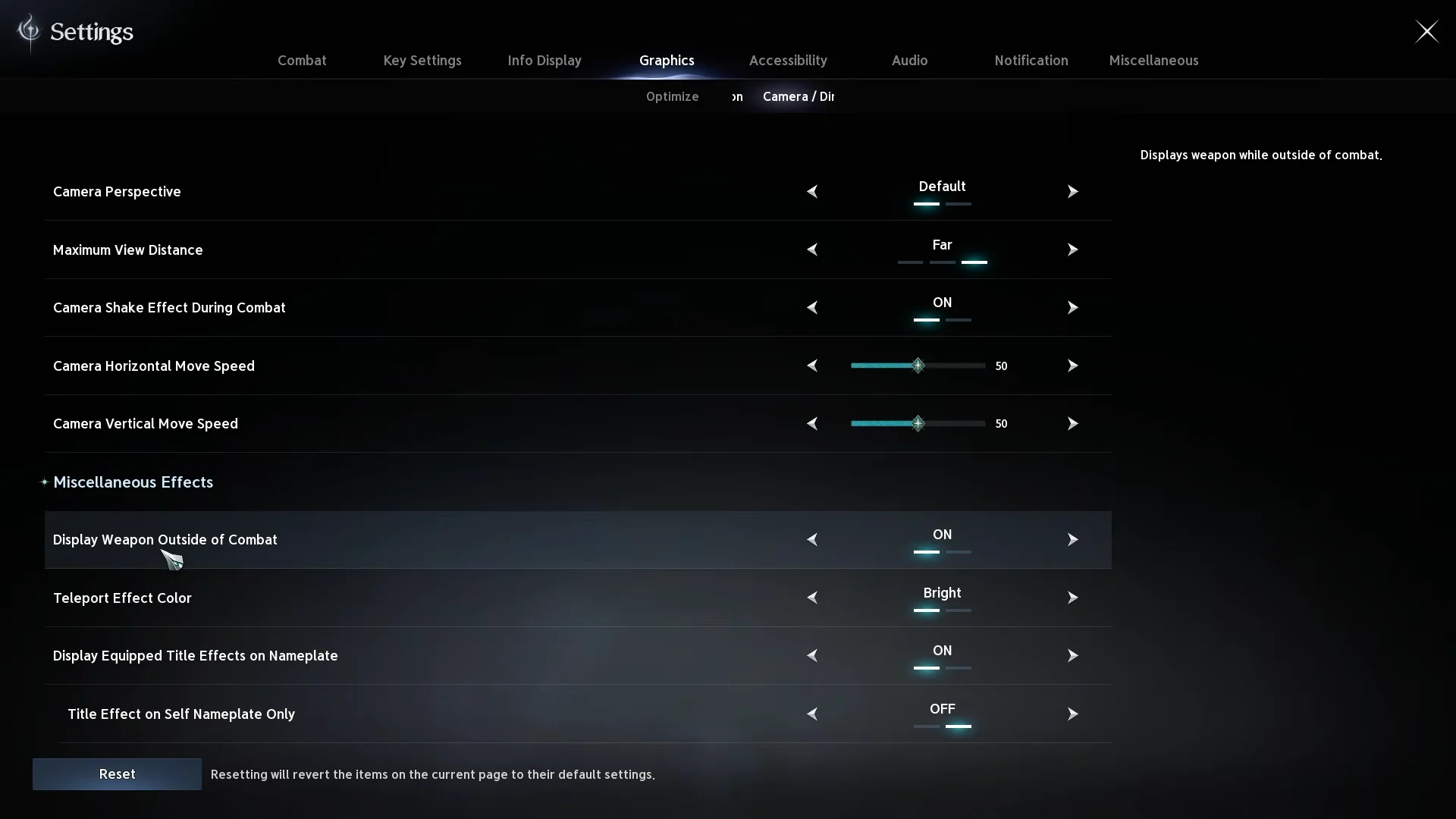
Open the menu, click Settings, select the Graphics category, and open the Camera / Direction sub-tab. Scroll down to the Miscellaneous Effects section and set Display Weapon Outside of Combat to ON. This is purely cosmetic and does not affect combat, so it comes down to whether you want to see gear like an unsheathed spellbook at all times.
Clean up the HUD (Edit HUD)
The default screen carries a lot of redundant widgets. You can hide and rearrange almost all of it from one editor.
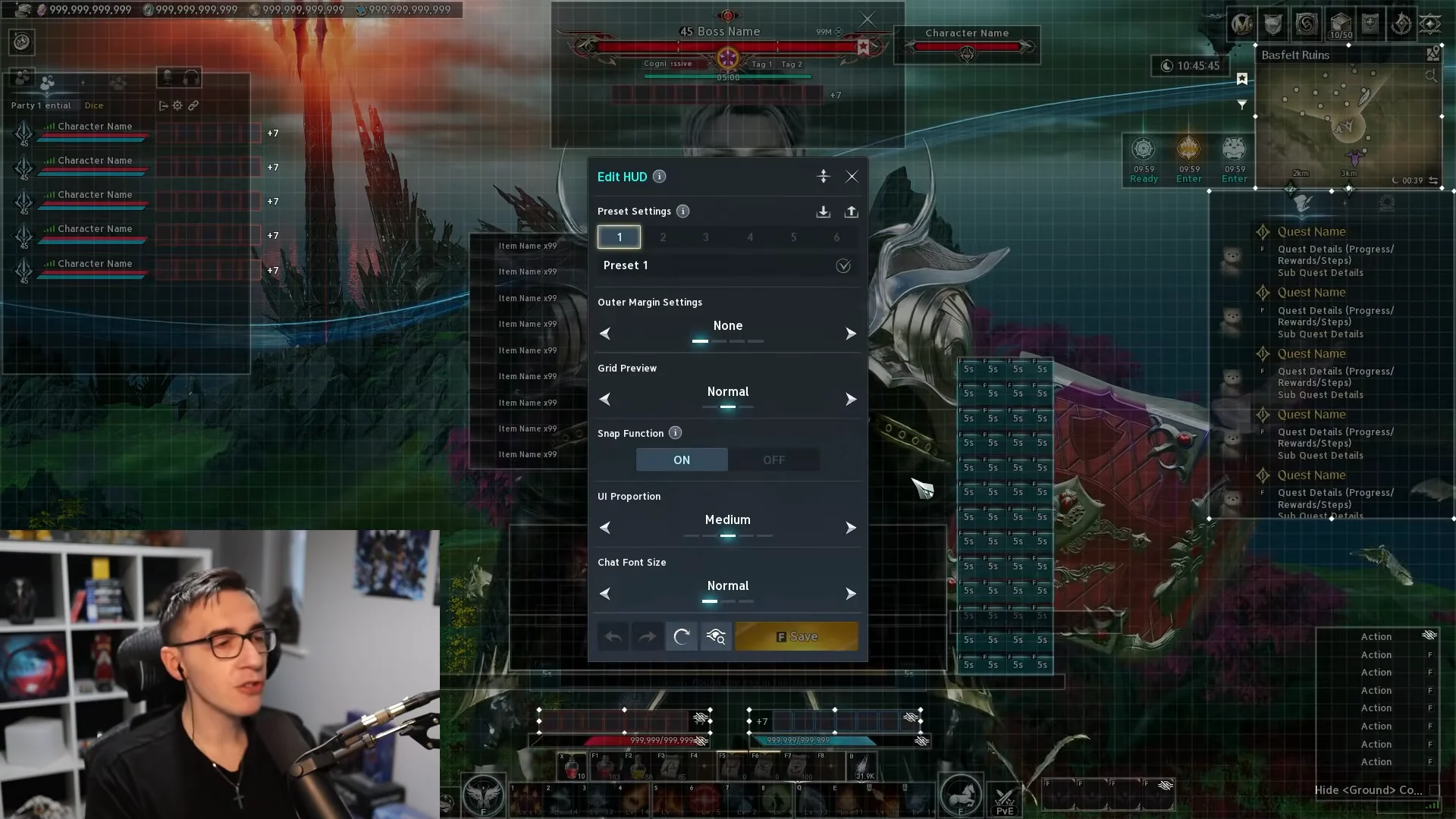
Open the main menu with Escape, then choose Edit HUD. Select any components you don’t need, including repeated health and mana displays or oversized information panels, and choose Hide to clear them. You can reposition and resize items such as the mini-map. To adjust the layout further, use the preset slots, grid preview, snap function, UI proportion, and chat font size.
Quick-slot stacking and skill macros
Combat in Aion 2 asks for fast, repeated skill use, and two features cut down the button-mashing. You can stack several skills on one quick slot, and you can chain a full sequence onto a single macro key.
Stacking skills on one quick slot
Multiple skills with different cooldowns can share a single quick-slot button. When you press that slot, it casts the first available skill, and while that one is on cooldown, pressing again advances to the next skill in the stack. Skills lower in the stack take priority, so arrange them by cooldown and importance. A poorly ordered stack makes an otherwise good setup feel inconsistent.
Building a macro chain
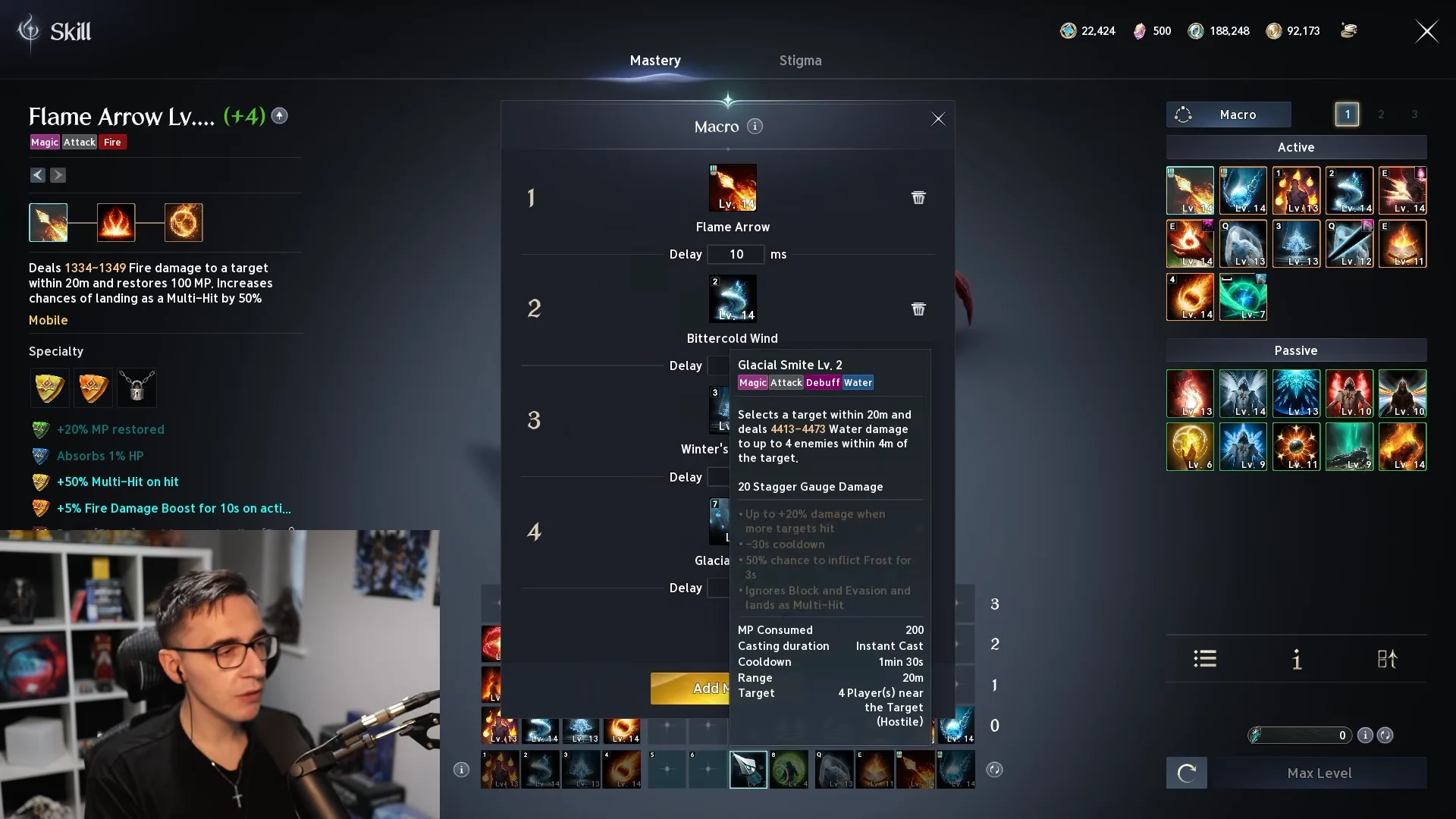
To run it in combat, just hold the assigned key and let the sequence play out; the macro casts each skill based on slot priority and cooldowns.
Keep long-cooldown abilities, Stigma skills, movement skills, charged attacks, and defensive moves off your macro and on their own keys. Macros are best for the short-cooldown skills you spam, and leaving the big ones manual stops you from wasting a key cooldown on a weak enemy. Stigma skills also tend to come online around level 27 to 30, so that is a natural point to start folding a rotation into a macro.
Once these are in place, the differences show up immediately. Your skills land where you aim, framerate holds up in a pack of players, flight and mount are a thumb press away, and your core rotation runs off one held button. Test any macro on a target dummy and adjust the delay if a skill fires too early or too late, then refine it as you unlock new skills and builds.