Cosmetics in Anime Expeditions change how a unit looks without touching its stats. Each unit carries dedicated skin and accessory slots, separate from the equipment and relic slots that affect combat. Applying a cosmetic is done from the same character screen you use to manage gear, so once you know where the slots sit, the process takes a few clicks.
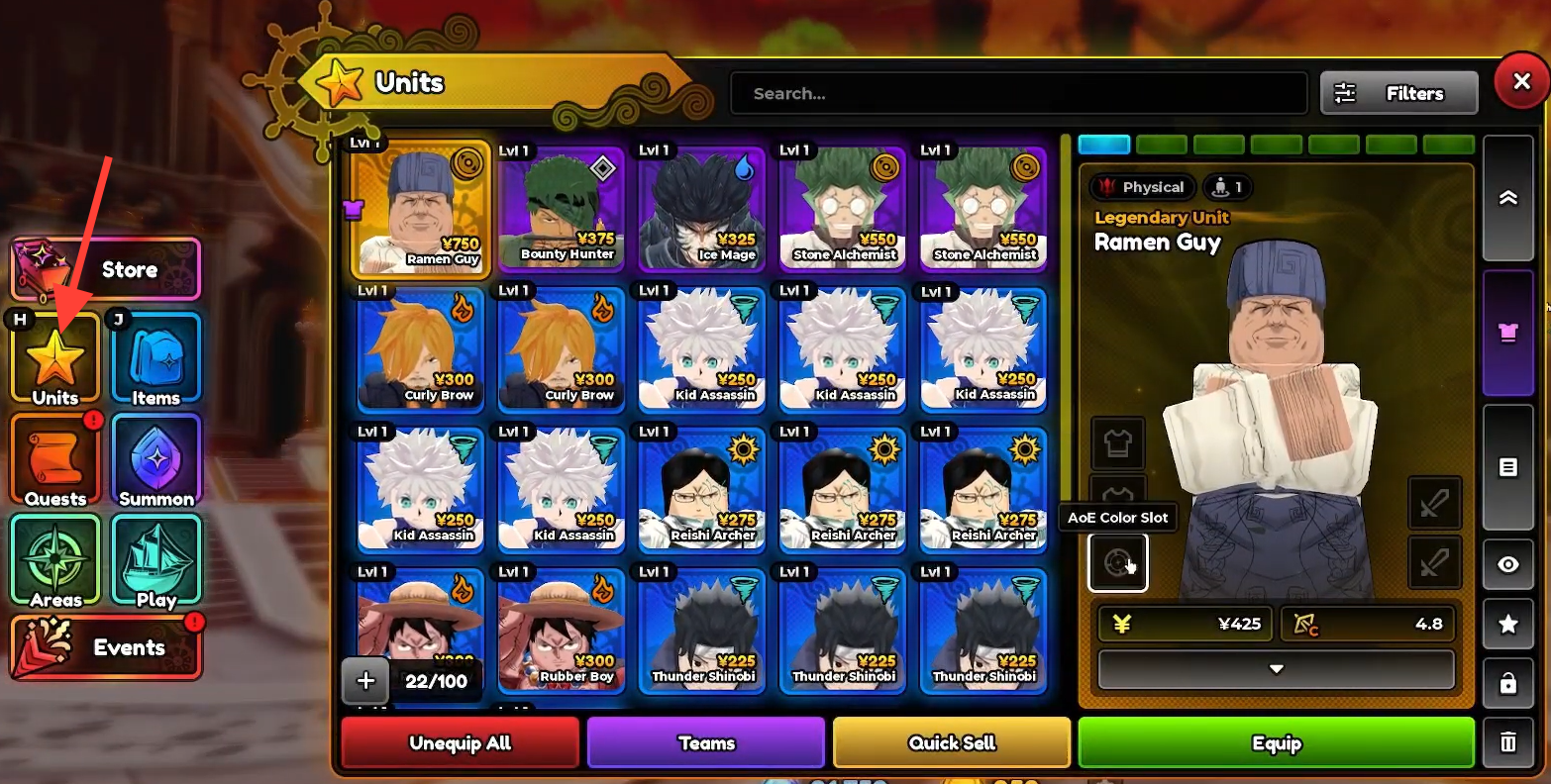
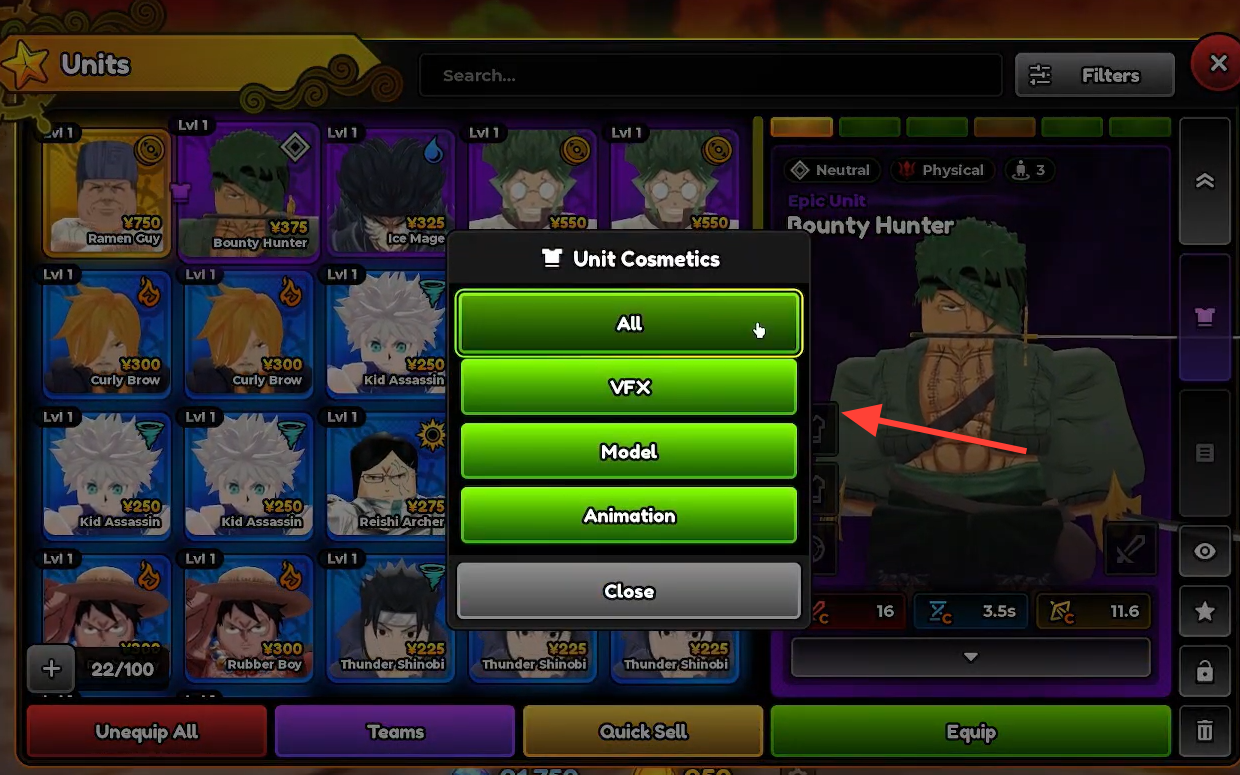
Quick answer: Open the Units menu from the lobby, select the unit you want to change, then apply a skin in its cosmetic skin slot and any extra items in the accessory slot. The unit’s appearance updates immediately in the roster preview.
Where unit cosmetics live in the menus
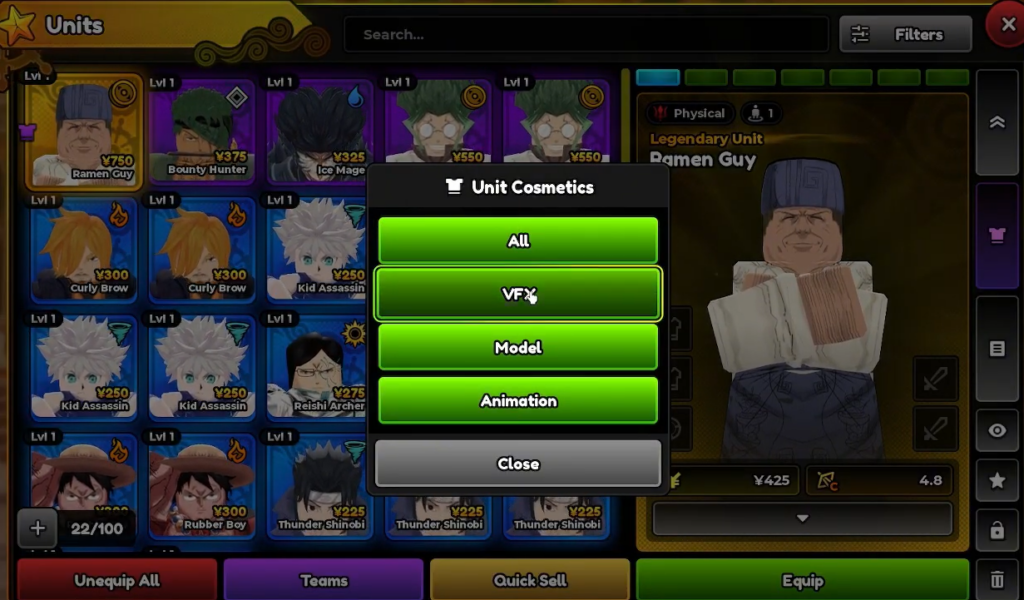
Every unit has more slots than just weapons and relics. Alongside the combat gear, each character panel includes a cosmetic skin slot and an accessory slot. These are visual only. A skin does not raise damage, attack speed, or range, so equipping one never changes how the unit performs on the field.
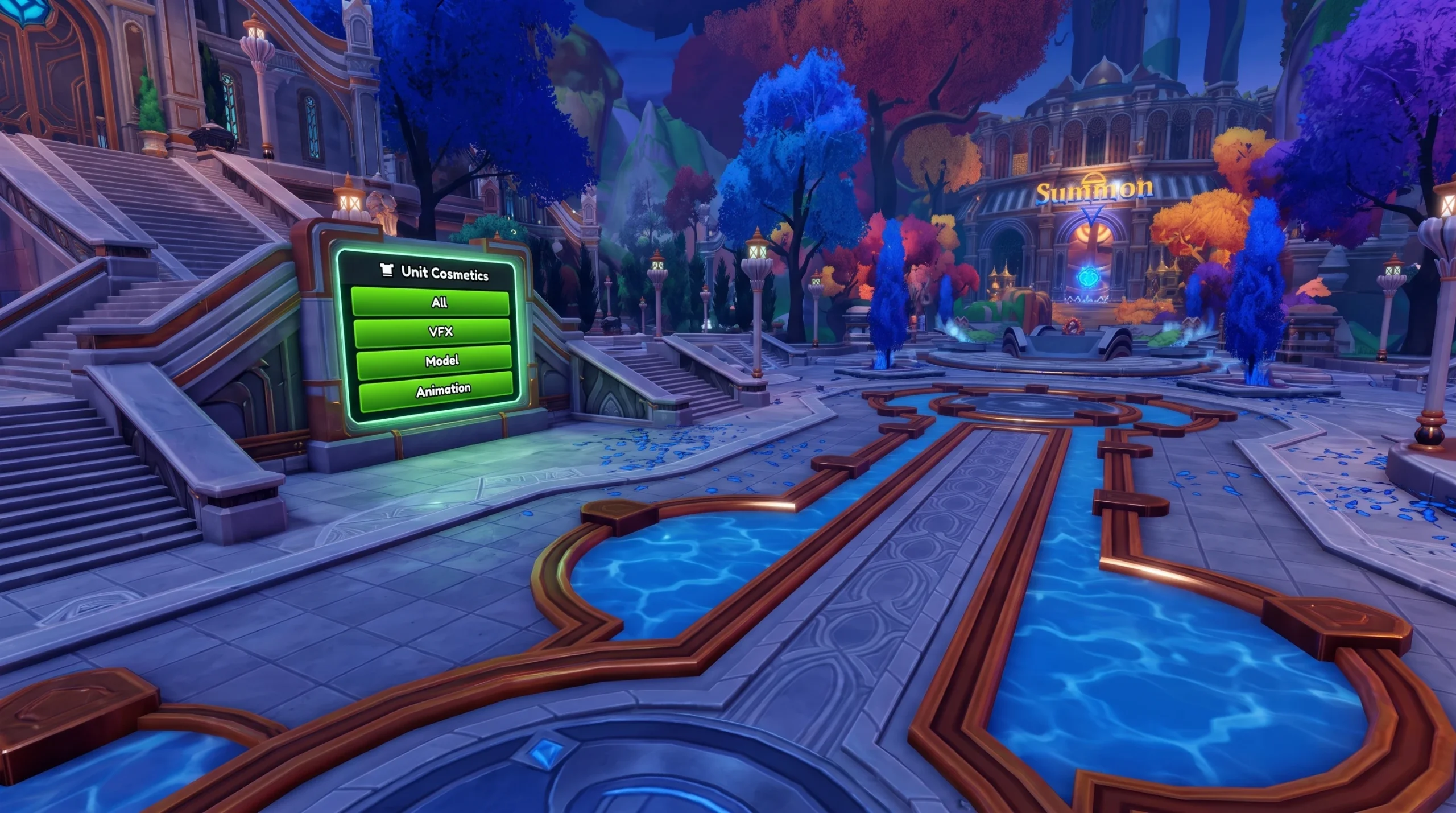
The lobby is where all of this happens. The hub city holds portals for Summon, Showcase, and Upgrades, plus menu buttons for Store, Units, Items, Quests, Areas, and Events. Skins and accessories are managed through the Units menu, while cosmetic items you have unlocked are stored in your inventory.
| Cosmetic type | What it changes |
|---|---|
| Unit skin | The unit’s full appearance on the field and in the roster |
| Accessory | An extra visual item layered on top of the unit |
| Equipment visual | The look of the weapon in a gear slot |
| Player skin | Your own lobby character model |
| Mount | A lobby ride such as Expedition’s Bike, Tailed Beast, or Cloud |
| Emote | A lobby animation from the store or events |
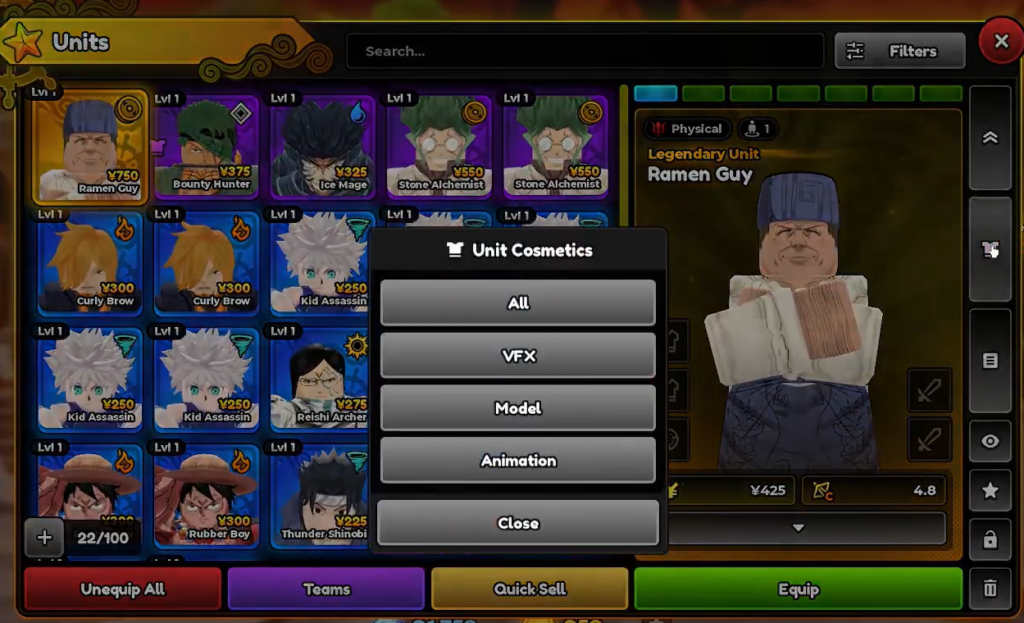
Equip a unit skin from the Units menu
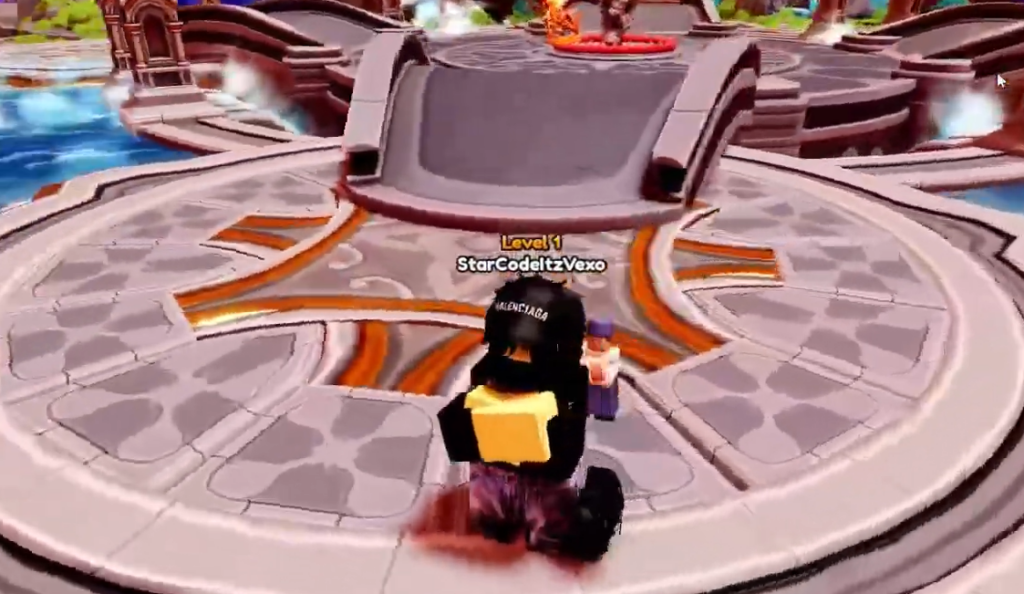
Use the Showcase Circle in the lobby to preview a unit’s model, range, and attack animation before you commit resources. It is a quick way to see how a new skin looks in motion.
Skins and evolution compatibility
Evolving a unit does not strip its cosmetic. Evolution forms keep skin compatibility, so a skin you applied to a base unit carries over once that character reaches its evolved state. That matters for carries like Cursed Student and Flame Emperor, which move into stronger forms as you invest in them.
Because skins are purely visual, none of this interacts with Traits, Stat Potential, or Ascension. You can reroll stats, ascend duplicates, or evolve a unit freely, and its equipped cosmetic stays in place.
Cosmetics available at public launch
The public launch shipped with a full cosmetic layer. That includes nine unit skins, three lobby mounts, and Mythic-linked skin variants for Megumi, Yuta, Frieren, and Ichigo, alongside equipment visuals, player character skins, and lobby emotes.
The store also lists a Release Bundle that includes the Elf Mage Maid skin, a Ranni variant, and bundled Gems. If you are redeeming codes, some grant overlapping cosmetics, so check your inventory before buying a bundle to avoid paying for something you already own. You can open the game directly from the official Roblox game page.
Confirm the cosmetic is applied
Once a skin is equipped, the unit’s model updates right away in the roster preview and carries into a match when you place that unit on the field. If a skin will not attach, you are trying to use it on a unit it was not made for, since cosmetic variants are locked to their intended character.
Mounts, player skins, and emotes work separately from the Units menu because they apply to your lobby character rather than a specific unit. Equip those from their own inventory categories, and your lobby avatar or ride changes on the spot. Keeping cosmetics separate from combat gear means you can style a roster however you like without affecting clear times.