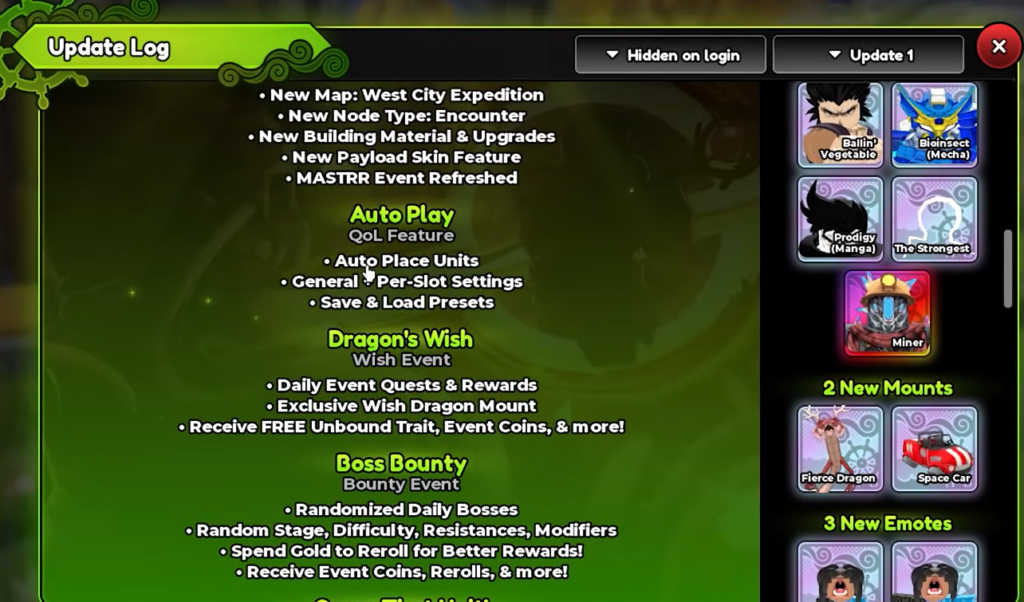
Auto Play is the in-match automation system in Anime Expeditions that places your units, upgrades them, and can trigger their abilities without you tapping through every wave. It arrived with the Warriors Saga update and is built for repeat farming, since it separates damage units from money units and lets you save the whole layout as a preset you can reload later.
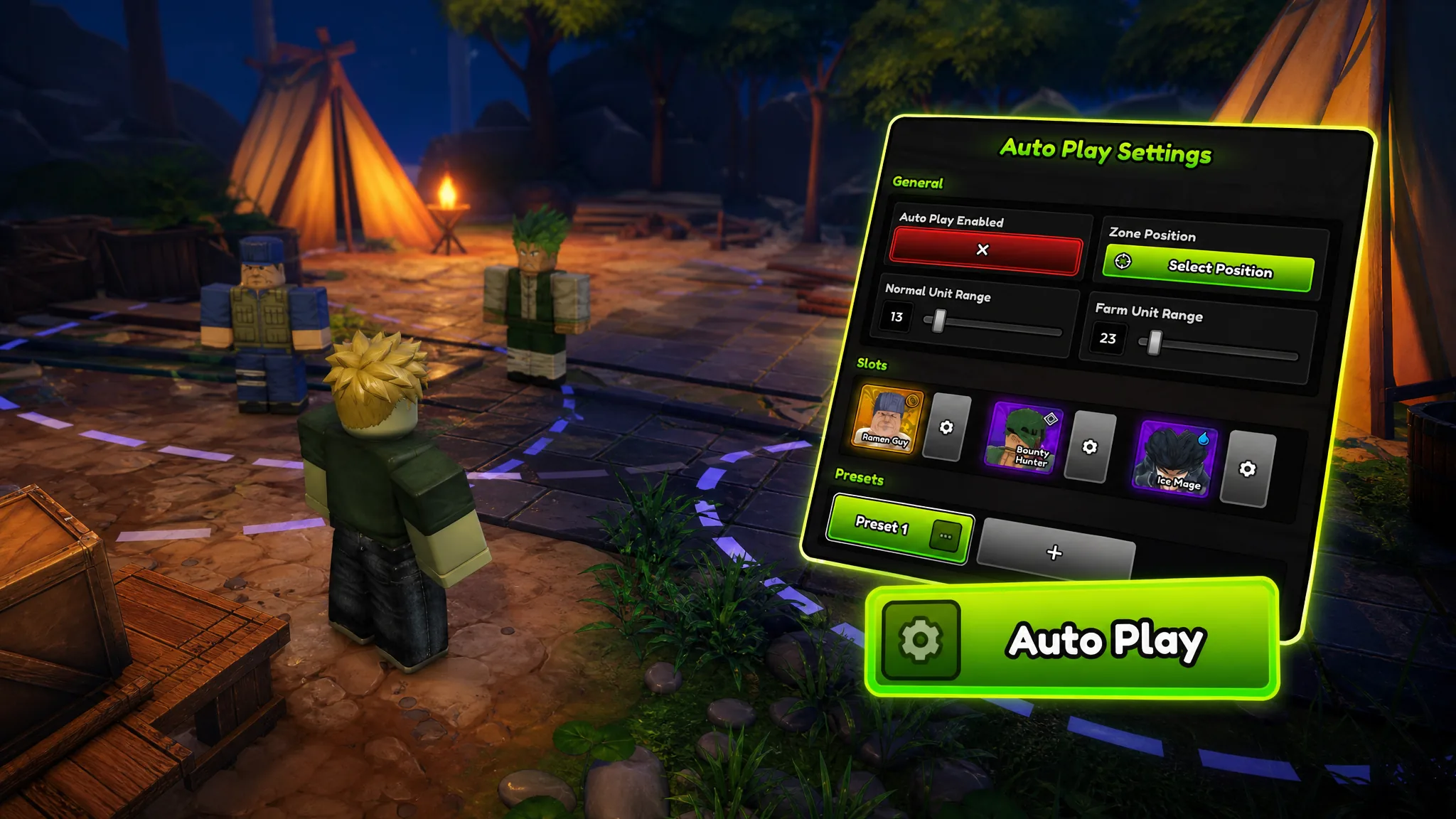
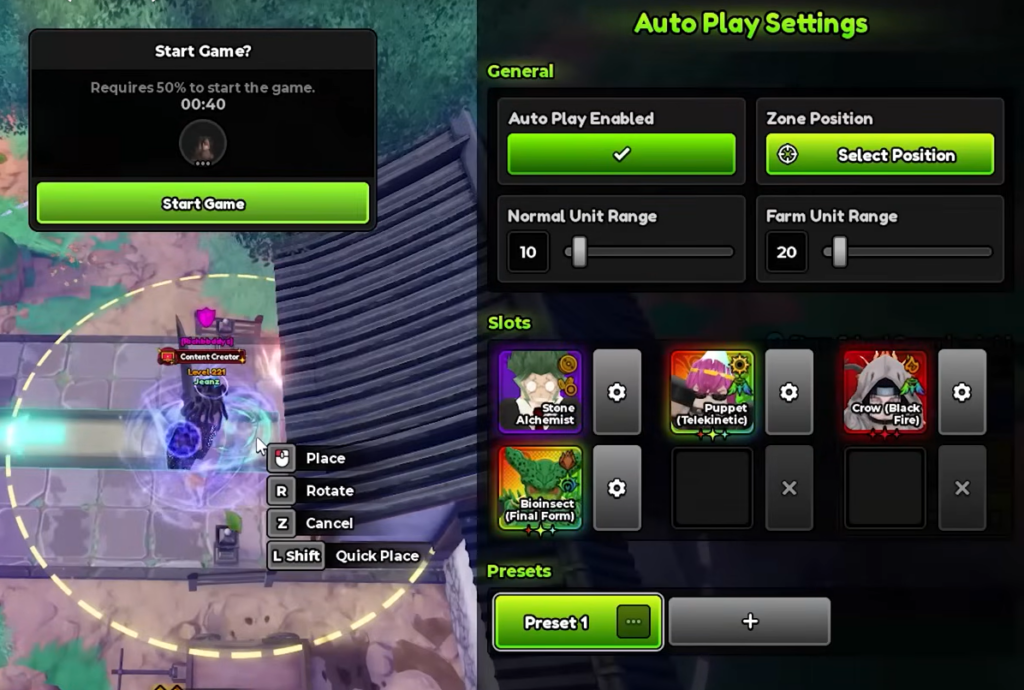
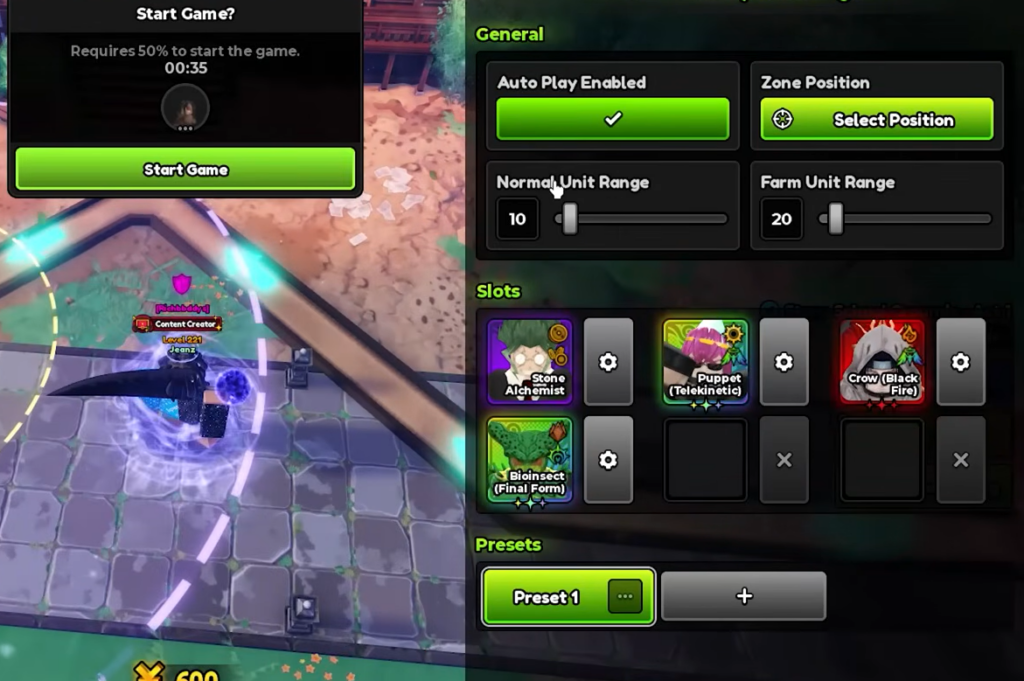
Quick answer: Enter the stage you want to farm, open the Auto Play menu, set a Zone Position, adjust the Normal Unit Range (yellow) and Farm Unit Range (purple), configure each slot, then enable Auto Play with the green checkmark. Turn on auto retry and auto vote start to keep the loop going between runs.
What Auto Play controls during a run
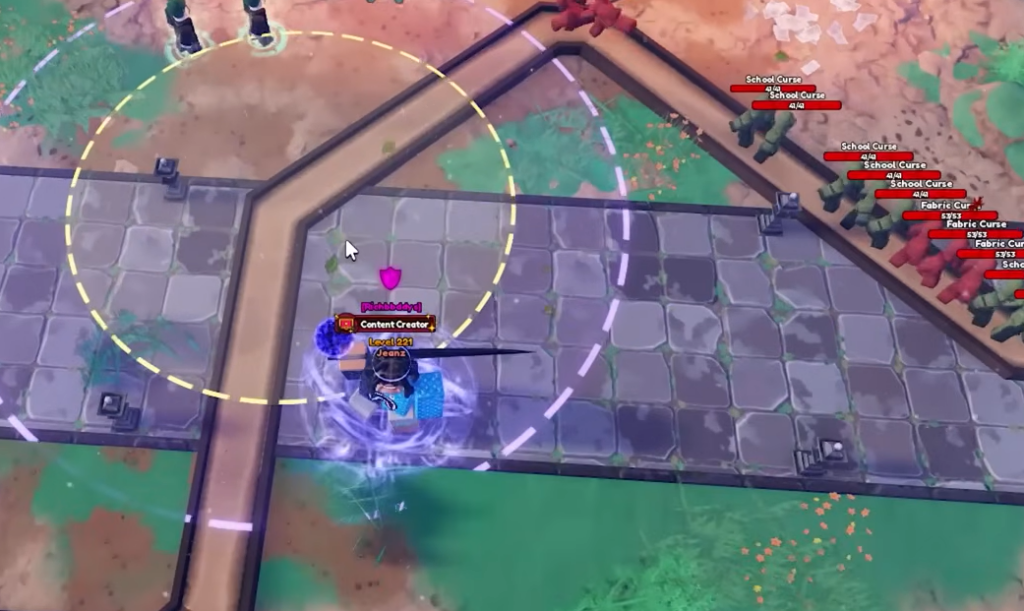
Auto Play works through your existing team, reading it from left to right in the same order you arranged your slots. It drops your damage units inside the normal range you draw and keeps your farm units in their own separate range, so money-generating units never crowd into your firepower zone.
This is not a single mystery button. You decide which slots are active, whether each unit auto-upgrades, whether it uses abilities, how many copies it places, and how far it upgrades before Auto Play moves on to the next unit. General Settings cover the shared placement zone and ranges, while Per-Slot Settings give each unit its own rules.
Before you start
Auto Play settings open inside a match, not in the lobby, so join the stage you plan to farm first. Load into Anime Expeditions, pick a fixed stage such as a Story act or Mastery run, and enter it before opening the menu. Arrange your team in the exact left-to-right order you want the system to use, since that order drives both placement and upgrade timing.
Set up Auto Play inside a match
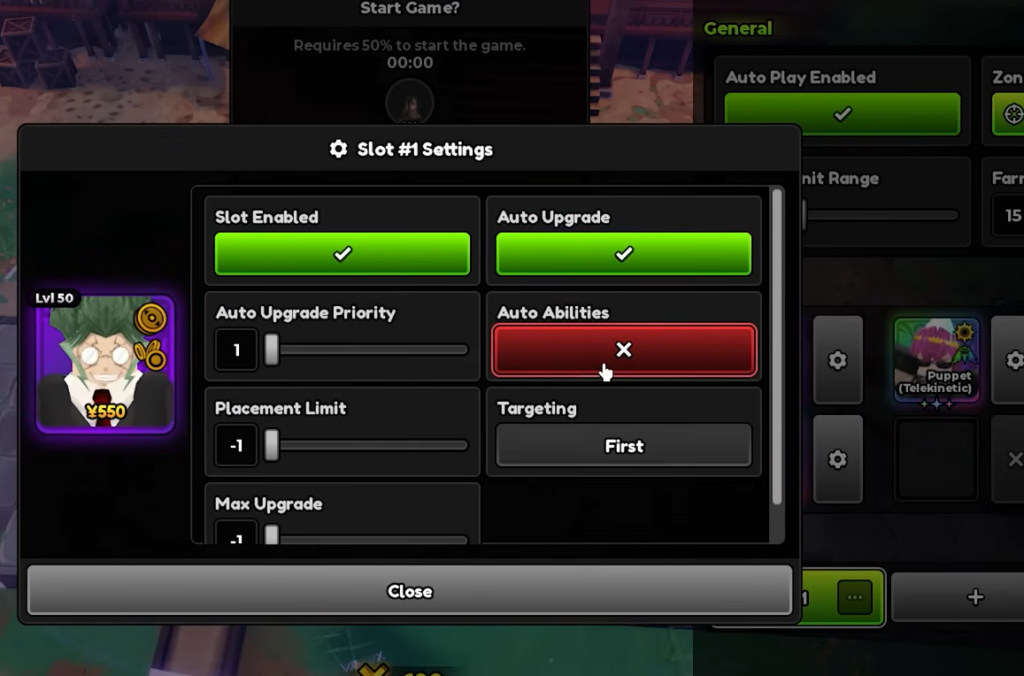
-1 to use the unit’s own natural placement limit or max upgrade ceiling instead of a custom cap.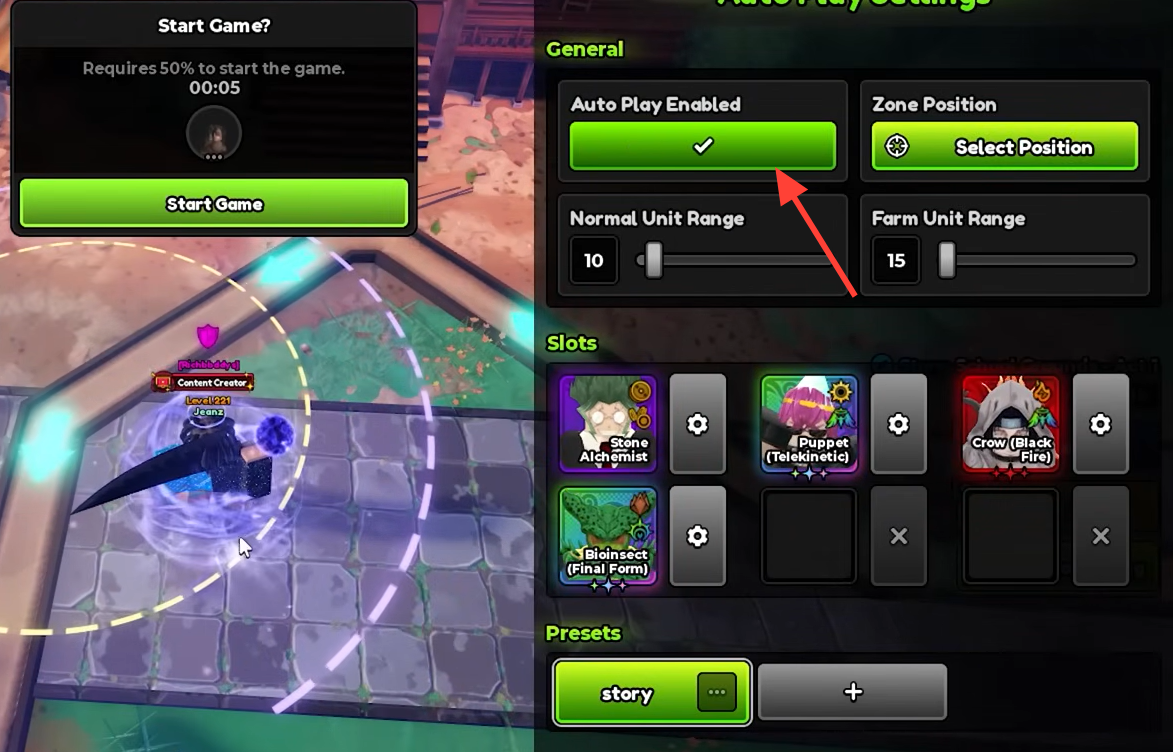
Auto Play settings reference
| Setting | What it does |
|---|---|
| Slot Enabled | Turns that unit slot on or off for Auto Play. |
| Auto Upgrade | Lets the system spend resources upgrading that unit. |
| Auto Upgrade Priority | Sets upgrade order; priority 1 is handled before priority 2. |
| Auto Abilities | Uses the unit’s abilities when they are ready. |
| Placement Limit | Caps how many copies are placed; -1 uses the unit’s normal limit. |
| Max Upgrade | Caps how far the unit is upgraded; -1 upgrades to its normal maximum. |
| Targeting | Controls how the placed unit chooses what to attack. |
| Zone Position | The shared deployment area selected with Select Position. |
| Normal Unit Range | Yellow circle for standard damage units. |
| Farm Unit Range | Purple outline for money-generating units. |
Treat the menu as a per-unit farming profile rather than one global toggle. Priority matters most when income is tight early, so line up each slot’s priority with the same left-to-right plan you used for your team order.
Keep the loop running for AFK farming
Auto Play handles a single run, but repeat farming needs two more toggles. Turn on auto retry and auto vote start so the restart menu does not stall between attempts. With Auto Repeat enabled, the Zone Position you selected carries over to the next match, which is what makes the same stage clear again and again without you rebuilding anything.
Watch a few full runs before walking away. Confirm units deploy, upgrade, and clear the stage every time, then let it cycle for a longer session.
How to confirm it is working
You know Auto Play is active when the checkmark under Auto Play Enabled is green and units start dropping on their own as the wave begins. Farm units should appear inside the purple range and damage units inside the yellow range, with upgrades ticking up in the priority order you set. If a slot never places, check that Slot Enabled is on and that its Placement Limit is not set to zero. If a unit places but never levels, its Auto Upgrade toggle is off or its Max Upgrade cap has already been reached.
This is the built-in feature, not a script
Everything here lives inside the game’s own match interface. Third-party script hubs, macro tools, and external automation that borrow words like auto-farm or autoplay are separate programs, not this feature, and they carry account risk. The legitimate controls are the Auto Play menu described above, which is enough to automate placement, upgrades, and repeat runs on a fixed stage.