Apex Legends crashes the moment it launches with an Engine Error reading “Error reading pak file” followed by the code 0x00000017. The message usually names a specific file such as common.rpak. That code means the game tried to open one of its packaged data files and the file is damaged or does not match what the game expects. It happens on PC during startup, before you ever reach a match.
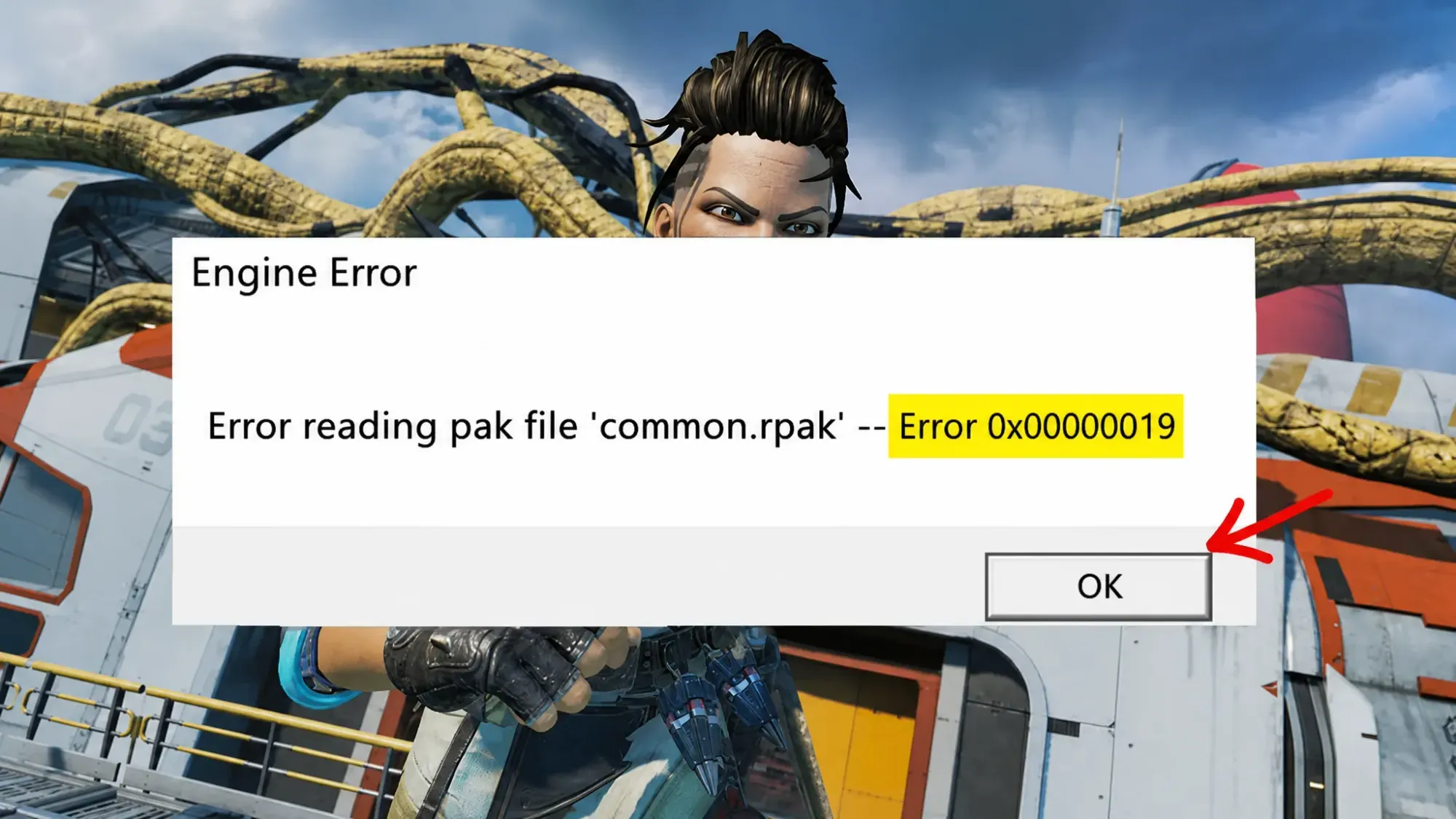
What causes Apex Legends Error 0x00000017 on PC
The error is almost always a file problem. When Apex Legends starts, it loads a large set of packaged data files, and if one of them is corrupted the engine stops cold. Corruption can come from an interrupted download, a disk or storage read error, or a bad write during an update or season changeover. A few non-file causes can also trigger or worsen it.
Players sometimes report the same crash after a season update where verifying the files shows one or two failed entries that keep failing to validate. Others see it only on one launcher, with the game running fine on a different client.
| Cause | What it means |
|---|---|
| Corrupted game files | A .pak/.rpak file is damaged or incomplete, so the engine cannot read it. |
| Outdated GPU drivers | Missing driver components can break loading right at launch, on both Nvidia and AMD cards. |
| Background program interference | Overlays and other apps can interfere with the game’s startup. |
| Outdated Windows | Apex Legends relies on recent Windows updates, especially on Windows 11. |
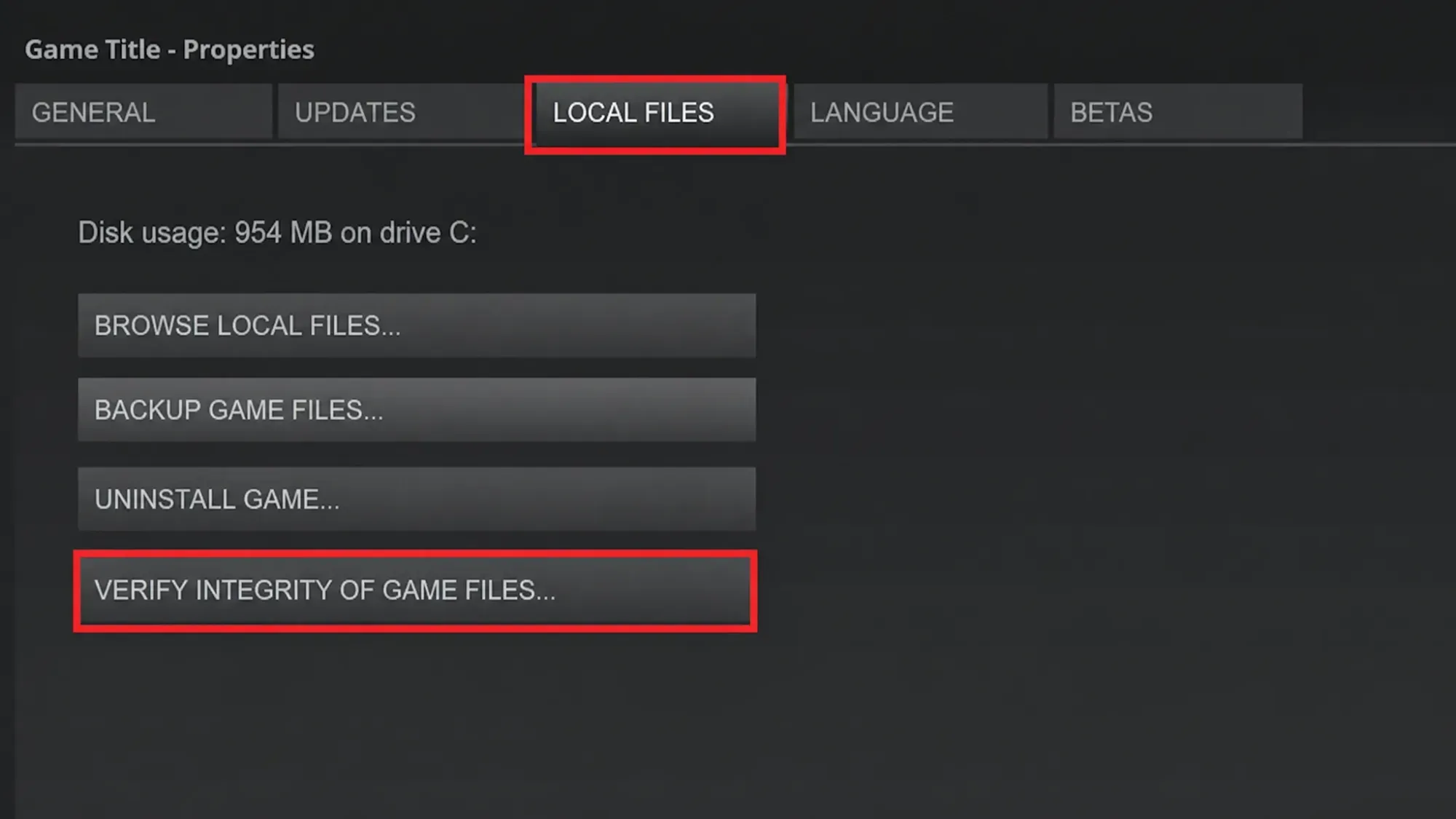
Delete the corrupted pak file and verify game files (Steam)
This is the fix confirmed to work for most Steam players. You remove the exact file the error names, remove the main executable data file, then let Steam restore both. Steam replaces only what is missing, so the download is usually small.
paks and vpk folders and find the file named in the error message, such as common.rpak. Delete it. Also delete the r5apex file in the main folder.Repair Apex Legends on the EA app or Origin
If you play through the EA app or Origin, you do the same thing with the launcher’s built-in repair, which checks every file and restores anything damaged or missing.
Close background programs and clean boot
Some startup crashes come from other software interfering with the game. Closing background apps frees system resources and removes possible conflicts. A clean boot takes this further by starting Windows with only essential services.
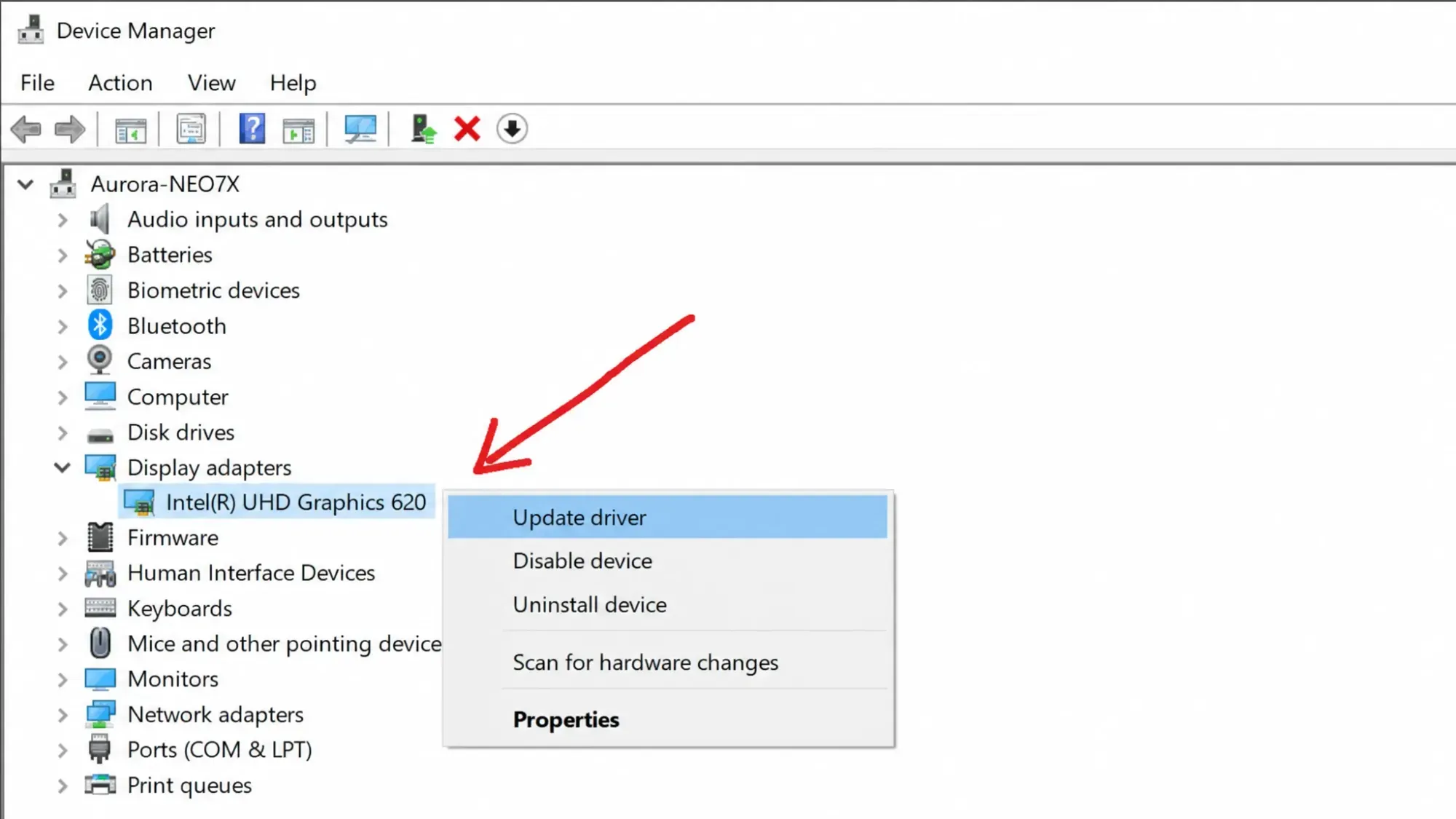
Update your GPU drivers
Out-of-date graphics drivers can cause the error right at launch because a needed driver component is missing. This applies to both Nvidia and AMD cards.
Update Windows
Missing Windows updates can also break the game, especially on Windows 11, since Apex Legends depends on recent infrastructure updates. Make sure all pending updates are installed.
Reinstall Apex Legends
If verifying, repairing, and driver updates all fail, a clean reinstall replaces every file. This clears corruption that a repair may have missed.
You know the fix worked when Apex Legends loads to the main menu and lobby without the Engine Error window appearing. If it still crashes, note the exact filename and the offset and count numbers in the message, since those can shift between launches even when the 0x00000017 code stays the same, and bring that detail to the official Apex Legends support channels.