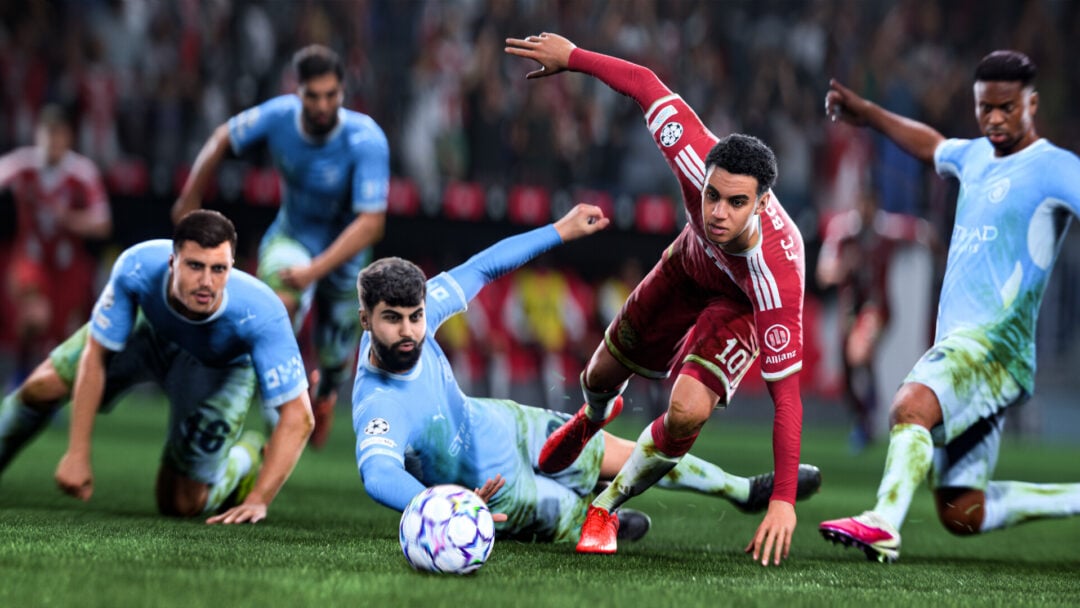
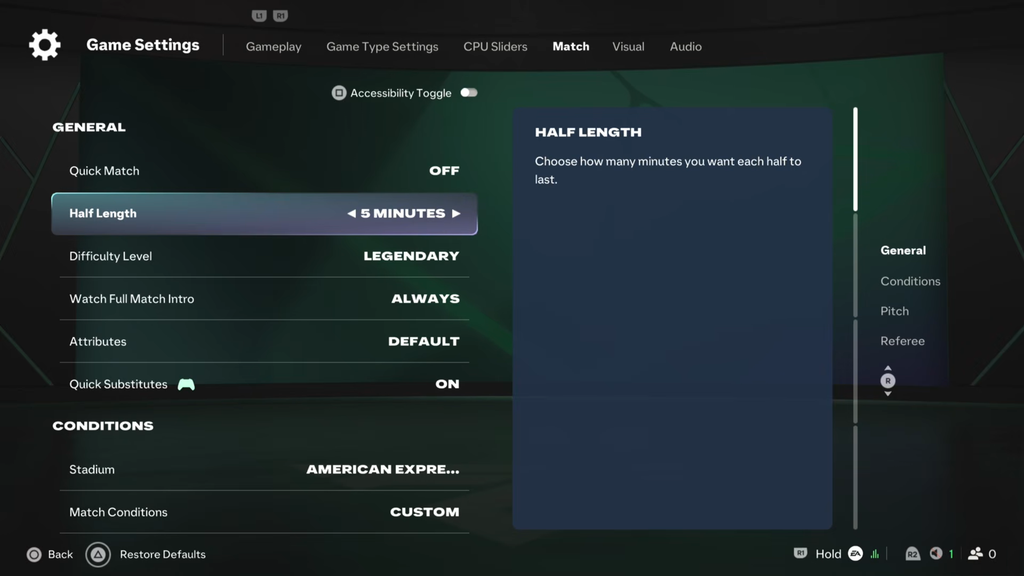
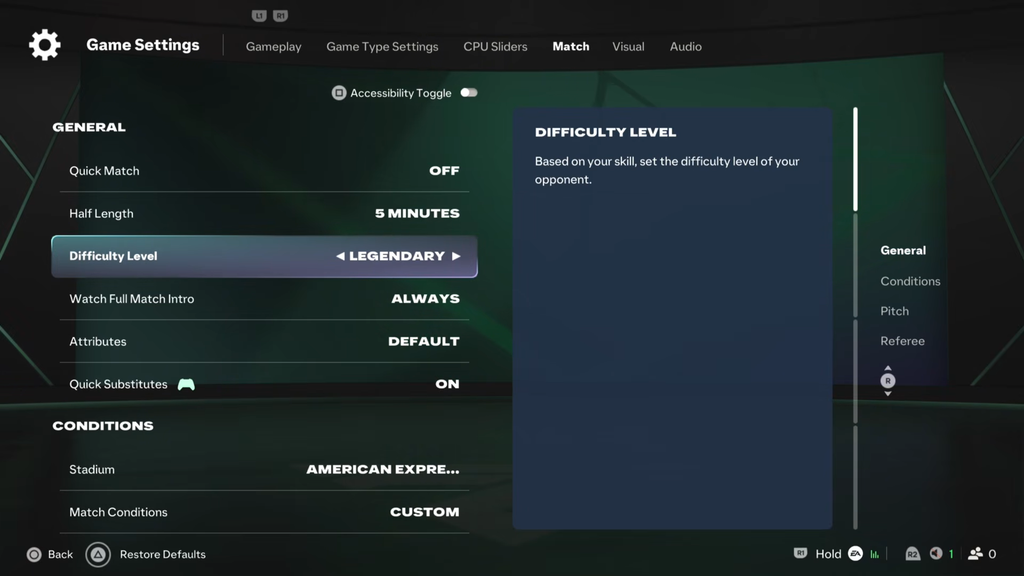
Authentic gameplay in EA Sports FC 27 Career Mode can feel heavy and slow when left on its default values. The slider set below keeps the weight and physics of Authentic play while speeding up passing, sharpening through balls, and making the AI a more aggressive, believable opponent. Every value is tuned for a fair challenge on Legendary difficulty, though the numbers work on any difficulty you prefer.
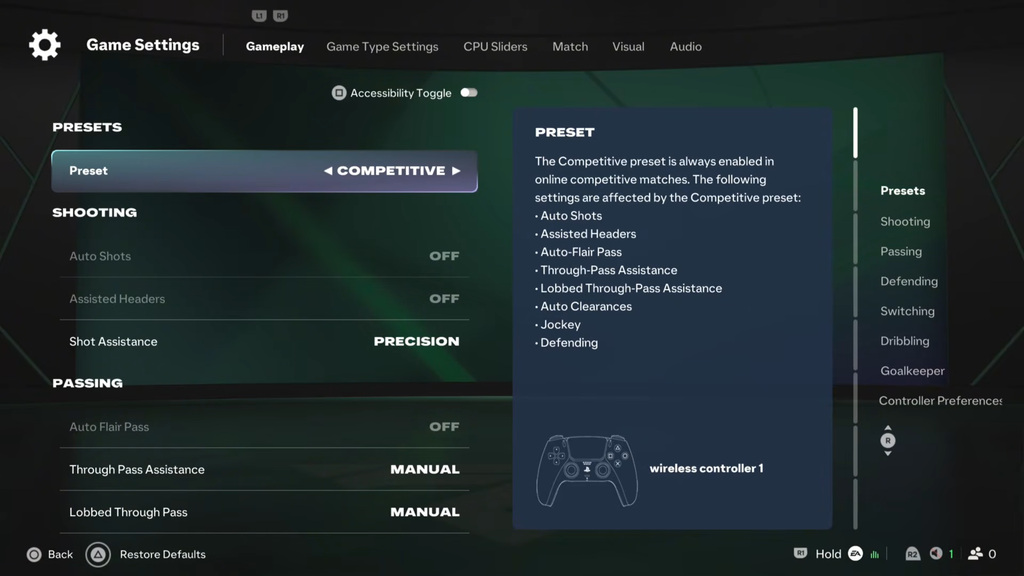
Quick answer: Set Gameplay Type to Custom, then apply the Game Type Settings and CPU Opponent values in the tables below. Custom is what saves your slider changes for every Career match.
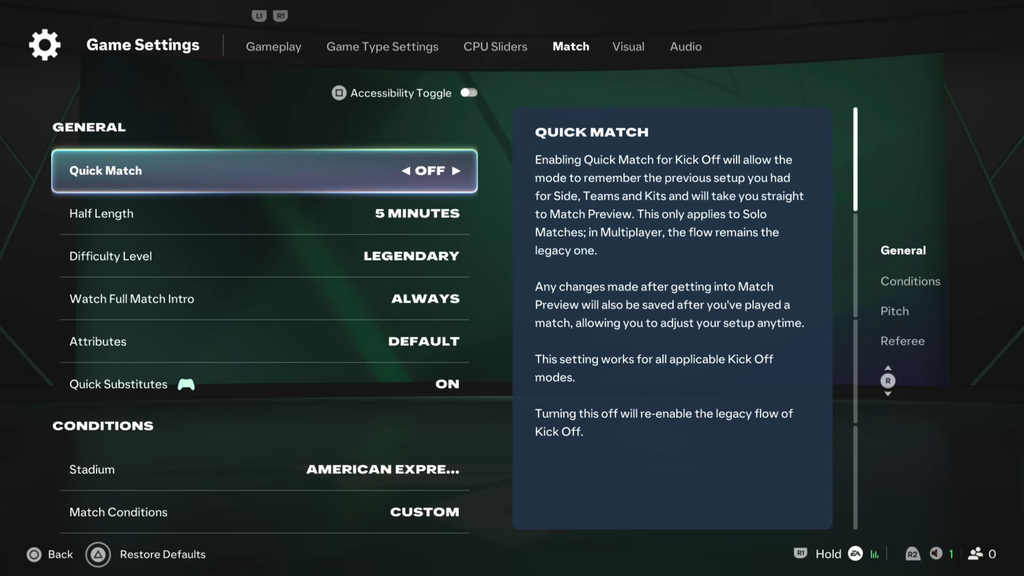
Open the slider menus in Career Mode
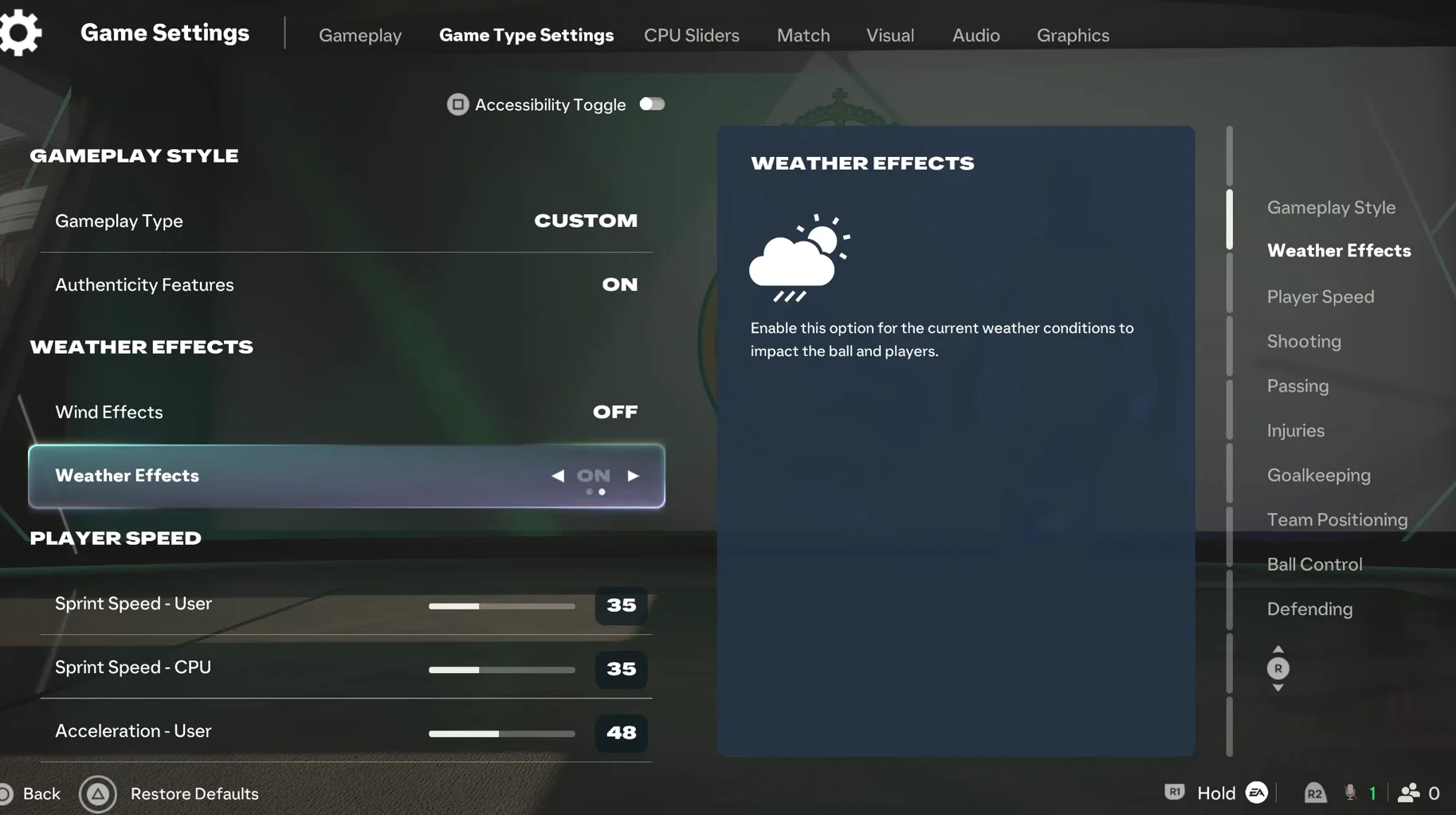
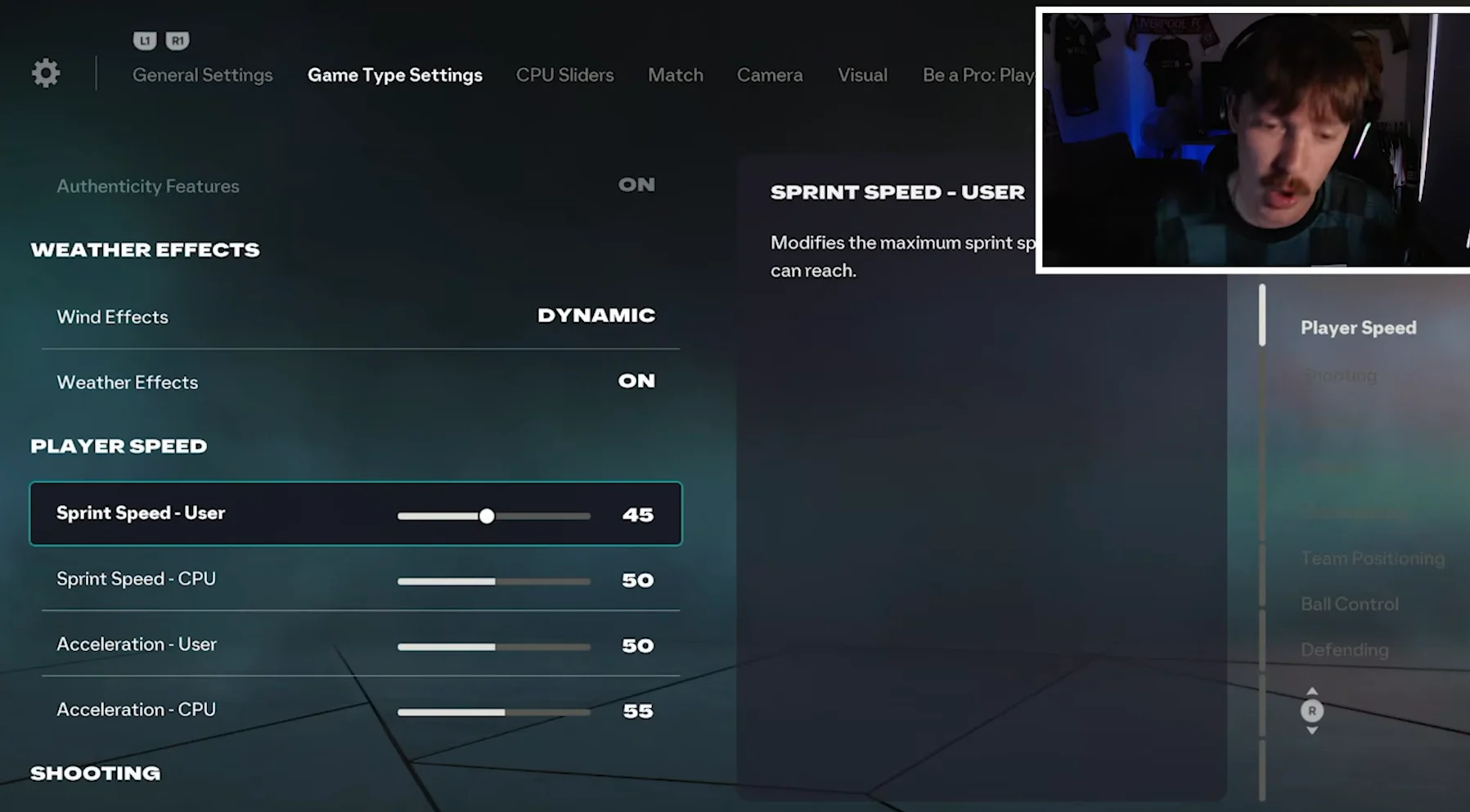
Gameplay style, weather, and player speed
- Gameplay Type: Custom
- Authenticity Features: On
- Wind Effects: Normal
- Weather Effects: On
| Player Speed | User | CPU |
|---|---|---|
| Sprint Speed | 45 | 45 |
| Acceleration | 55 | 55 |
The aim is not to turn the game into the fast-paced Competitive version, but also to stop players from taking forever to build momentum. A Sprint Speed of 45 looks like a small drop from the default, yet every single unit has a real effect on the pitch. At 45 the game feels noticeably slower and gives players a proper sense of weight.
Shooting sliders
Start by setting all shooting error sliders to 55 and all shooting speed and height sliders to 45, then fine-tune each shot type using the values below.
| Shooting | User | CPU |
|---|---|---|
| Regular Shot Error | 52 | 54 |
| Regular Shot Speed | 45 | 45 |
| Finesse Shot Error | 54 | 56 |
| Finesse Shot Speed | 45 | 45 |
| Chip Shot Error | 60 | 62 |
| Chip Shot Height | 45 | 45 |
| Low Driven Shot Error | 55 | 60 |
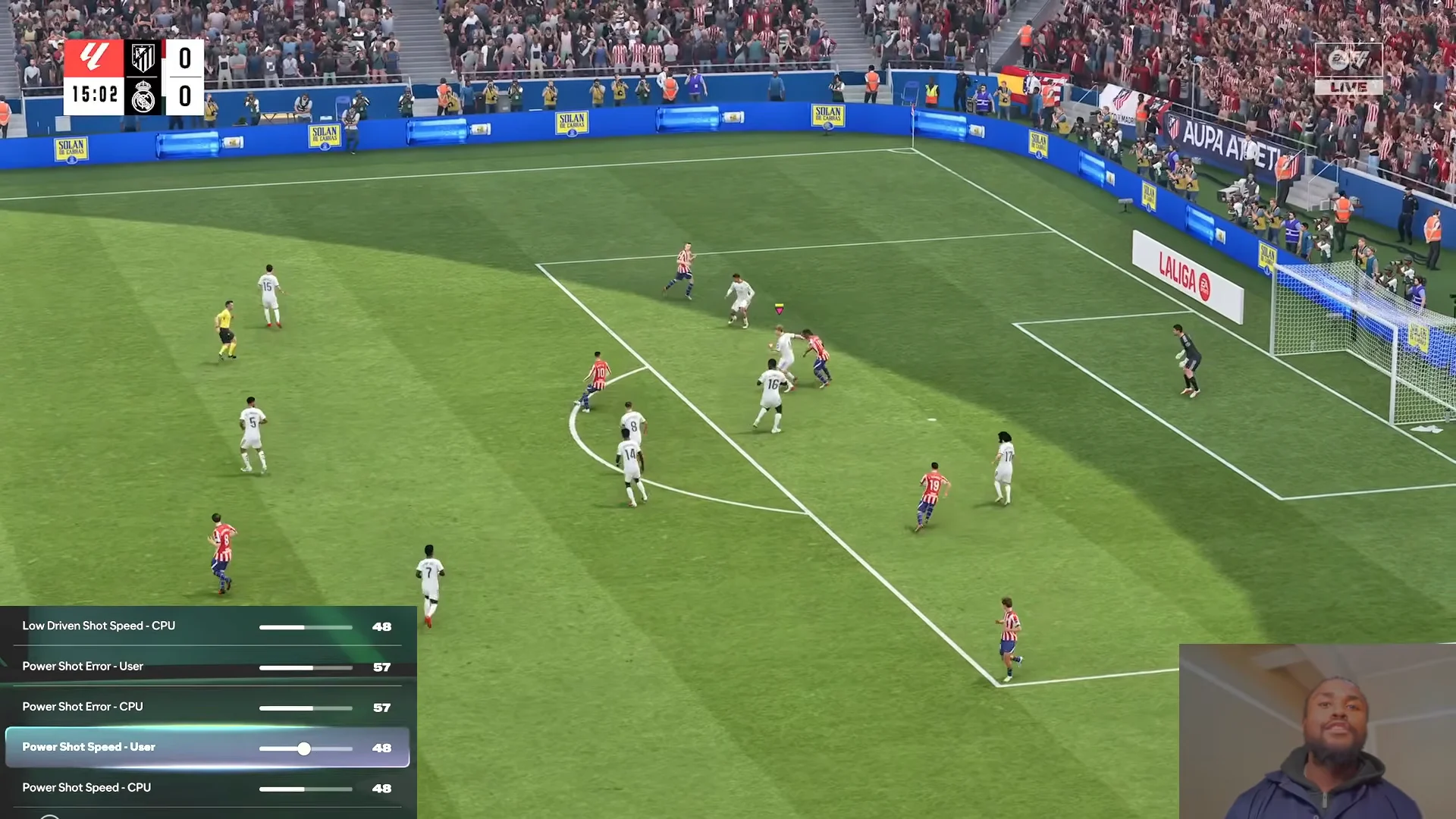
| Low Driven Shot Speed | 45 | 45 |
| Power Shot Error | 65 | 68 |
| Power Shot Speed | 55 | 55 |
| Header Shot Error | 68 | 71 |
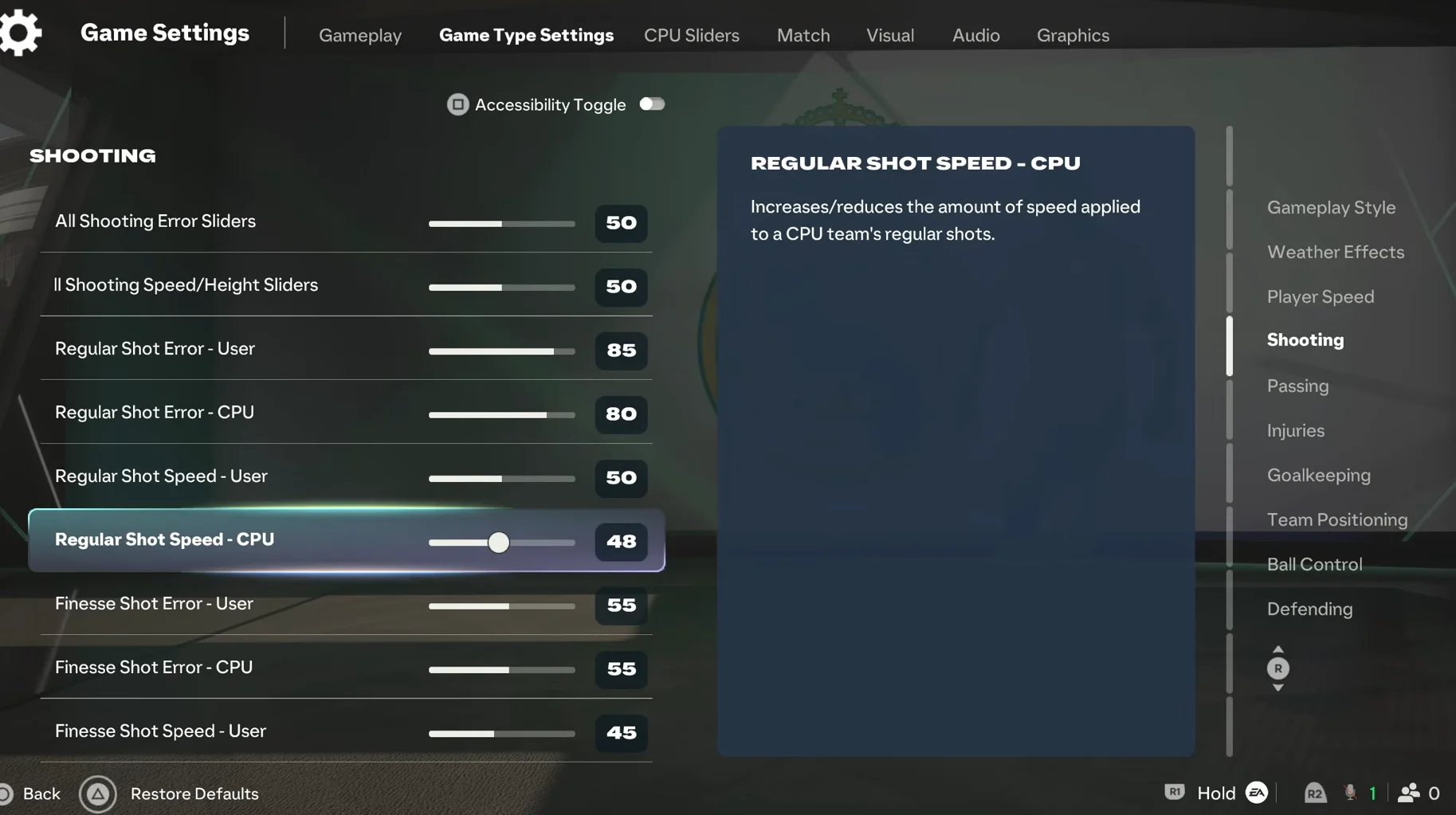
Every error value stays above 50 on purpose. Drop shooting error below 50 and almost every attempt turns into a goal, which is especially punishing when the AI shoots. Real strikers miss clear chances, and a higher error value makes that happen here too. Remember that error controls how far off-target a shot goes, and even an on-target shot still has a keeper to beat.
Regular Shot Error sits just over 50 because it is the most common shot in a match, and you do not want to miss those too often. The CPU error is a notch higher than the user’s in every category to account for human mistakes. Stick drift, misaiming, or not charging the shot bar enough are your problems, never the AI’s, so the CPU numbers are nudged up to balance that out.
Passing sliders
Set all passing error sliders and all passing speed and height sliders to 50 as a baseline, then apply the specific values below.
| Passing | User | CPU |
|---|---|---|
| Normal Ground Pass Error | 45 | 45 |
| Normal Ground Pass Speed | 55 | 55 |
| Header Pass Error | 60 | 60 |
| Through Ground Pass Error | 39 | 41 |
| Through Ground Pass Speed | 60 | 60 |
| Lobbed Through Pass Error | 38 | 40 |
| Lobbed Through Pass Height | 43 | 43 |
| Regular Lob Pass Error | 53 | 54 |
| Regular Lob Pass Height | 40 | 40 |
| Cross Error | 57 | 60 |
| Cross Height | 55 | 55 |
Normal ground passes are sped up to 55, and you can push them to 60 if they still feel sluggish. Through balls need the most attention, because landing a successful through pass in Authentic play is genuinely hard, even with Precision Passing. Lowering the through ground pass error to 39 and raising its speed to 60 helps the ball glide behind the line, and dropping lobbed through pass error to 38 with height at 43 does the same for lofted balls.
These passing values improve the through-ball game but do not fully fix it. Team positioning changes below finish the job.
Injuries and goalkeeping
| Slider | User | CPU |
|---|---|---|
| Injury Frequency | 37 | 37 |
| Injury Severity | 30 | 30 |
| Goalkeeper Ability | 50 | 50 |
| GK Deflection Error | 99 | 99 |
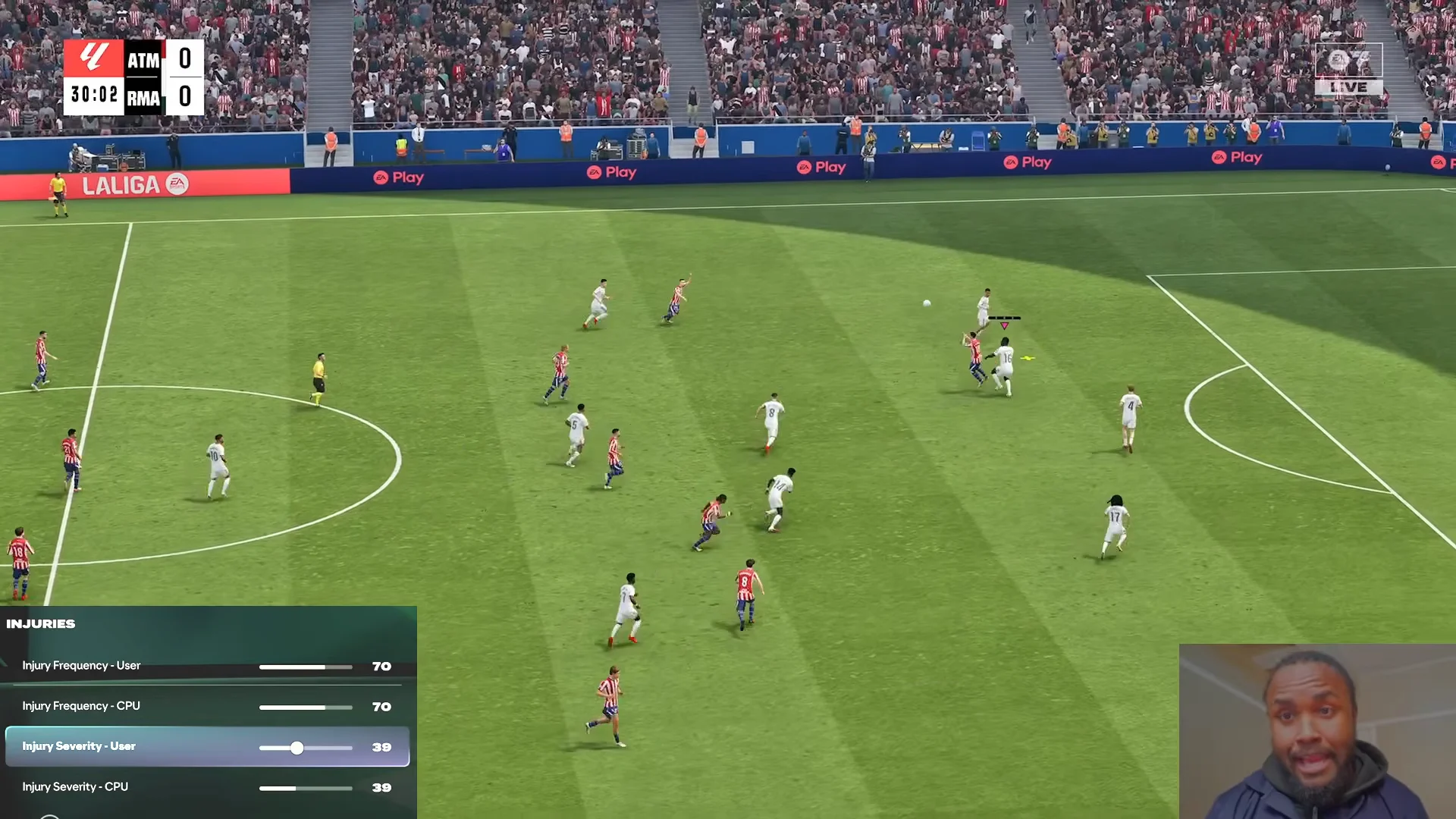
Lowering Injury Frequency to 37 is essential if you want to keep your squad healthy across a season. Leave it at the default 50 and you will almost certainly pick up several injuries inside the first 10 matches. Since the CPU tackle values are raised later, keeping the default frequency would push injuries even higher than normal.
Team positioning sliders
| Team Positioning | User | CPU |
|---|---|---|
| Marking | 65 | 65 |
| Run Frequency | 85 | 73 |
| Line Height | 65 | 65 |
| Line Length | 35 | 35 |
| Line Width | 50 | 50 |
| Fullback Positioning | 80 | 80 |
For the user, Run Frequency at 85 supplies the other part of the through-ball fix: attackers will sometimes dart beyond the defensive line. Unlike Competitive mode, this will not happen automatically, so use manual Triggered Runs often to create clear 1v1 opportunities.
Ball control and defending sliders
| Slider | User | CPU |
|---|---|---|
| Power Bar | 50 | — |
| First Touch Control Error | 53 | 53 |
| Intercept Error | 77 | 77 |
| Ball Deflection Error | 87 | 87 |
| Jog Dribbling | 40 | 40 |
| Sprint Dribbling | 35 | 35 |
| Controlled Sprint Dribbling | 36 | 36 |
| Tackle Assistance | 40 | 40 |
| Physicality Impact | 99 | 99 |
| Regular Jockey Speed | 50 | 50 |
| Sprint Jockey Speed | 50 | 50 |
Dribbling and Sprint Dribbling are intentionally kept under 50 to maintain the players’ weighted movement. This favors realistic balance over effortless gliding across the pitch while avoiding an overly heavy feel.
CPU Opponent and AI behavior sliders
Under AI Behavior, set the following before touching the CPU Opponent numbers.
- AI Behavior: Custom
- Competitor Mode – CPU Opponent: Off
- Competitor Mode – CPU Teammate: Off
- Player Based Difficulty – CPU Opponent: Off
- Player Based Difficulty – CPU Teammate: Off
| CPU Opponent | Value |
|---|---|
| Defending Aggression | 50 |
| Stand Tackle Frequency | 54 |
| Sliding Tackle Frequency | 60 |
| Professional Foul Frequency | 57 |
| Buildup Speed | 55 |
| Regular Shot Frequency | 57 |
| Chip Shot Frequency | 43 |
| Low Driven Shot Frequency | 47 |
| Finesse Shot Frequency | 57 |
| Long Shot Frequency | 53 |
| Power Shot Frequency | 56 |
| First Touch Pass Frequency | 45 |
| Regular Cross Frequency | 45 |
| Early Crossing Frequency | 47 |
| Dribble Frequency | 58 |
| Skill Move Frequency | 45 |
Raising the Stand Tackle and Sliding Tackle values makes the opponent commit to challenges and pick up fouls, instead of playing the overly cautious defense it defaults to. Long Shot Frequency at 53 pushes the AI to test the keeper from distance rather than only shooting inside the box. Dribble Frequency at 58 lets the opponent attack with individual runs instead of relying on perfect passing chains, while Skill Move Frequency is kept at 45 so PlayStyles do not disrupt the realistic flow with flashy moves.
Once Gameplay Type and AI Behavior are set to Custom, the game applies these numbers to every Career match automatically. Play a few fixtures and you should notice quicker ground passing, sharper through balls, fewer injuries, and an opponent that fouls and shoots from range far more often than the default Authentic setup. Adjust individual values up or down from here to match your own tempo.