Change the System Font and Accent Colors in macOS 15
Adjust system font size and select custom accent colors in macOS 15 Sequoia to improve visibility and personalize your Mac’s appearance.
Adjust system font size and select custom accent colors in macOS 15 Sequoia to improve visibility and personalize your Mac’s appearance.
by Pallav Pathak
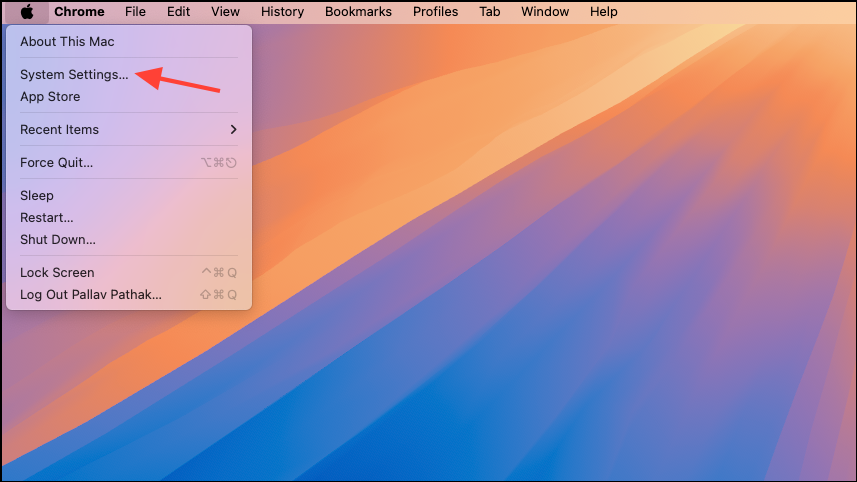
macOS 15 Sequoia introduces refined options for customizing the look and feel of your Mac. Adjusting the system font size and choosing accent colors not only personalizes your desktop but also addresses specific accessibility needs like eye strain or difficulty distinguishing interface elements. These settings are organized within the System Settings app, making them easy to locate and modify as your preferences change.
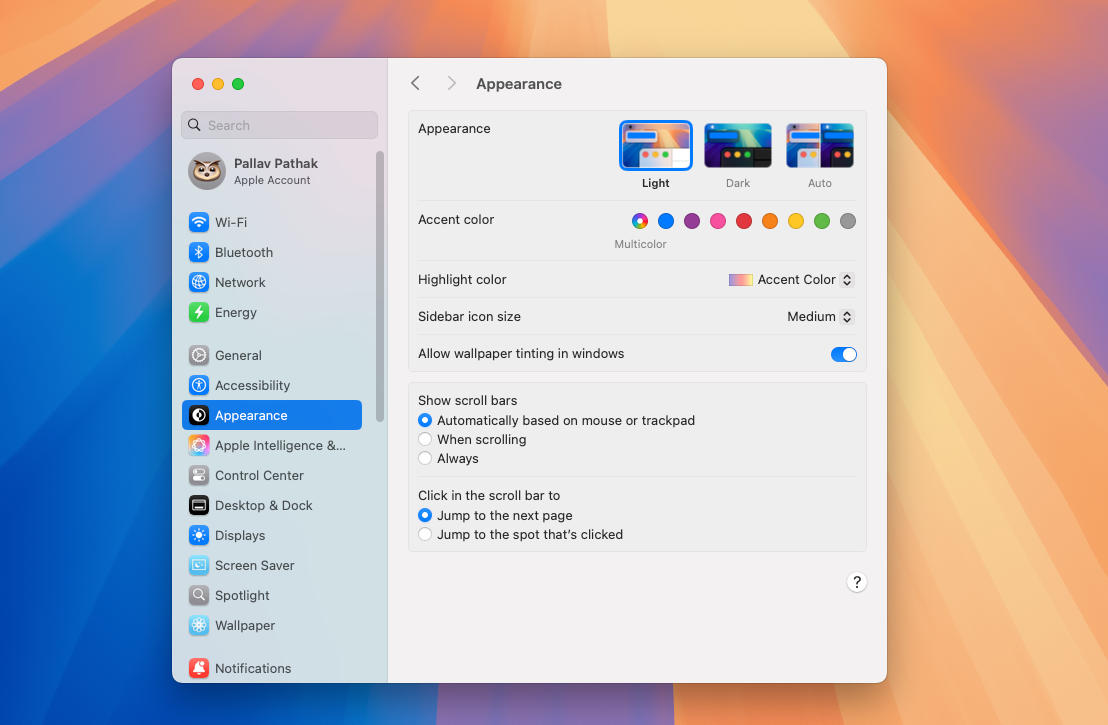
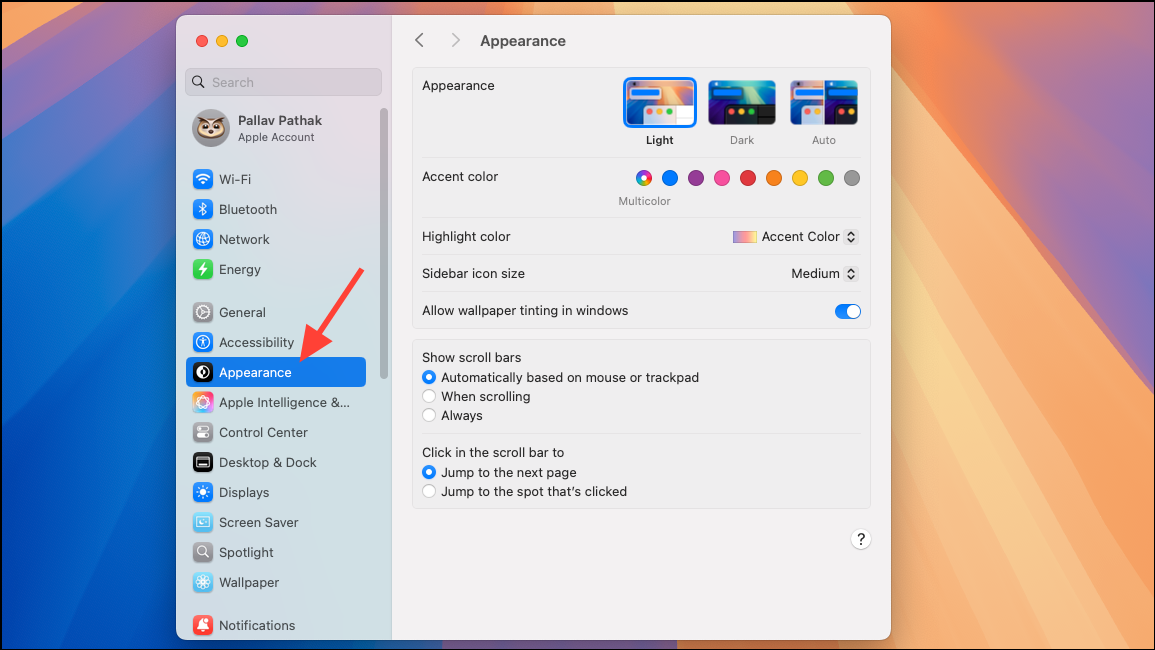
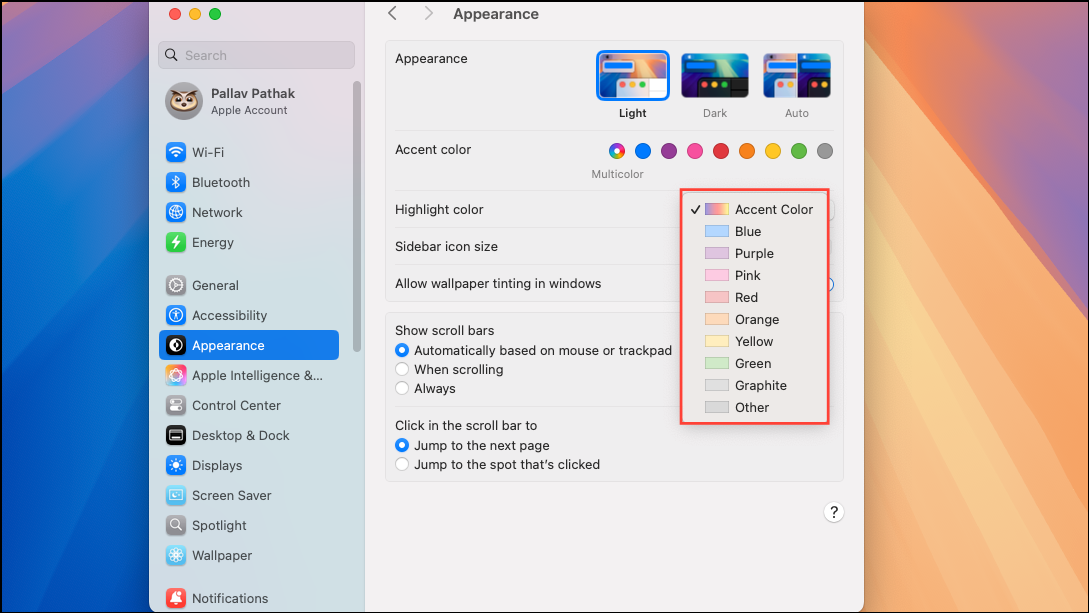
In the System Settings window, scroll through the sidebar and click Appearance. This section contains controls for the overall look of macOS, including color and theme options.
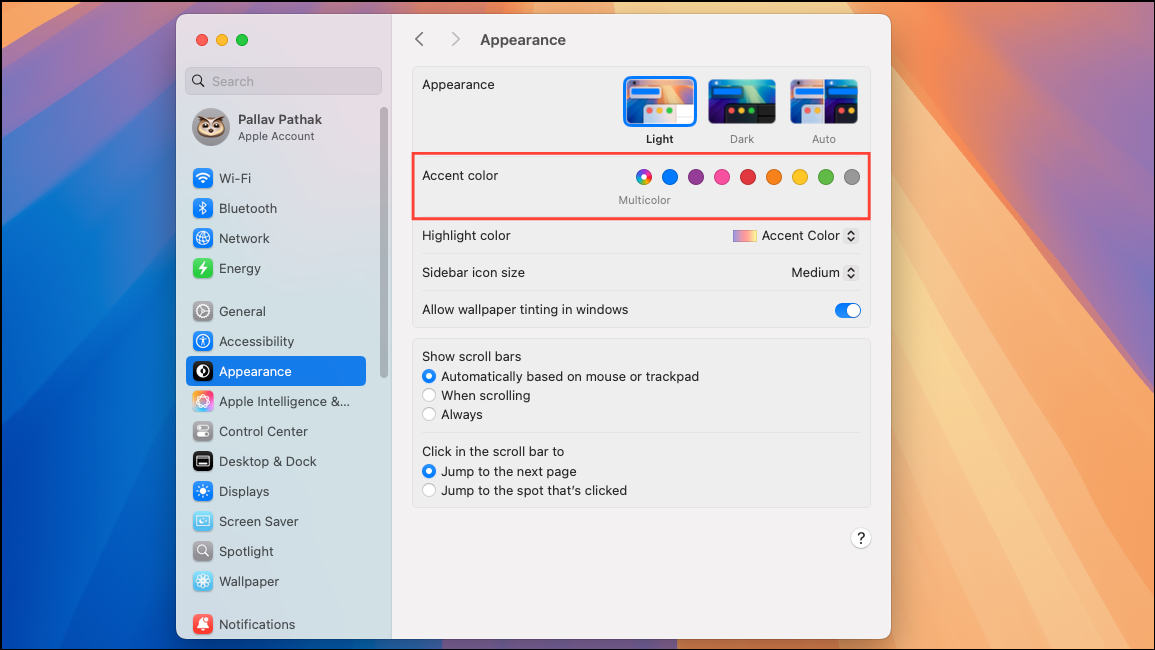
Under the Accent color section, select your preferred color from the available swatches. Options typically include Blue, Purple, Pink, Red, Orange, Yellow, Green, Graphite, and Multicolor. The accent color you choose will immediately update interface elements such as buttons, menus, and selection highlights across system apps.
By default, changing the accent color also adjusts the highlight color (used for selected text) to match. If you want to use a different highlight color, locate the Highlight color dropdown menu in the same Appearance section. Click the dropdown and pick a color that suits your needs. This setting improves text visibility, especially for users who require high contrast or have color vision deficiencies.
Once you’re satisfied with your selections, close the System Settings window by clicking the red close button or using the keyboard shortcut Cmd + W. The new colors take effect immediately and can be changed again at any time.
Adjust System Font Size (Display Scaling)
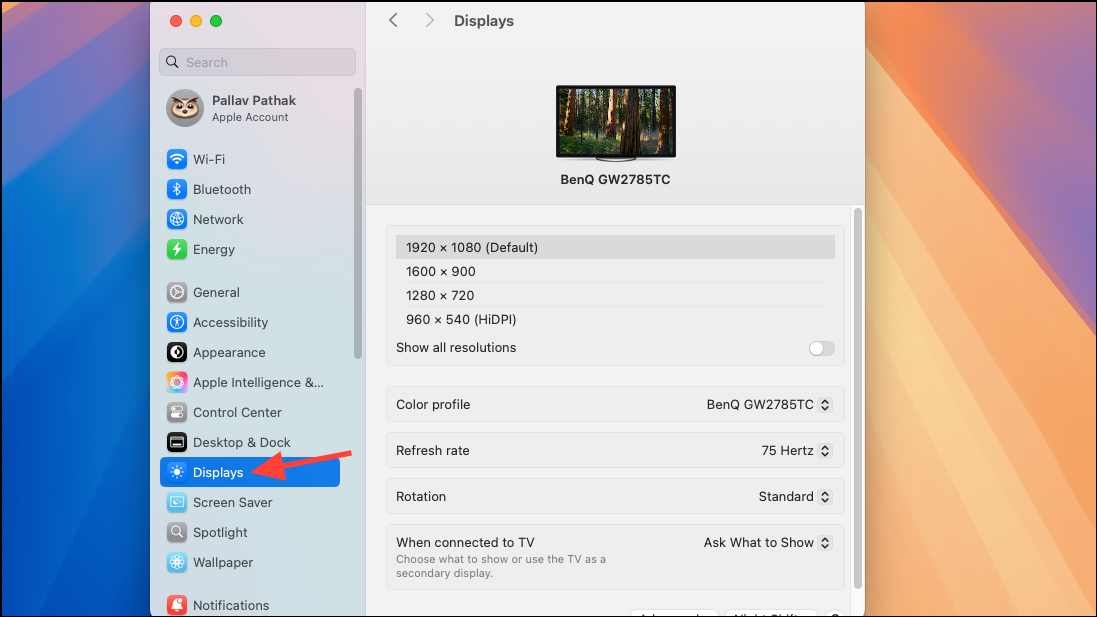
macOS 15 does not allow direct changes to the system font itself, but you can increase the size of text and interface elements using display scaling. This is especially helpful for users with vision challenges or those who prefer larger on-screen content.
Under the Resolution section, choose Scaled. You’ll see several options ranging from “Larger Text” to “More Space.” Selecting “Larger Text” increases the size of text and interface elements throughout macOS, making them easier to read and interact with.
After choosing your preferred scaling, the display will refresh to apply the new settings. If the result is not what you expected, you can return to this menu and select a different scaling option.
Note: Display scaling affects the entire system interface, including menus, windows, and supported apps. Some third-party apps may not fully respect these settings, but most modern applications will adjust accordingly.
Accessibility Considerations and Additional Tips
For users with specific vision requirements, macOS offers additional accessibility options under System Settings > Accessibility. Here, you can enable features like increased contrast, reduced transparency, and color filters tailored to various visual impairments. Adjusting these settings alongside accent and highlight colors can significantly improve comfort and usability.
If you ever want to restore default settings, simply return to the Appearance or Displays sections and select the original options (typically Blue for accent color, default highlight color, and “Default” for display scaling).
Customizing accent colors and adjusting display scaling in macOS 15 Sequoia streamlines your workflow and makes your Mac more comfortable to use, whether for accessibility or personal style. These changes are quick to apply and easy to revert, so you can experiment until you find the setup that works best for you.