
Smart Folders in macOS 15 provide a practical way to keep files organized without moving them from their original locations. By setting specific criteria, you can have your Mac automatically display groups of files—such as recent documents or files containing certain keywords—making retrieval and organization much faster. These folders continuously update as files are added, changed, or deleted, so your views always stay current.
Create a Smart Folder in macOS 15
File, then choose New Smart Folder. This action opens a new Finder window dedicated to setting up your Smart Folder’s rules.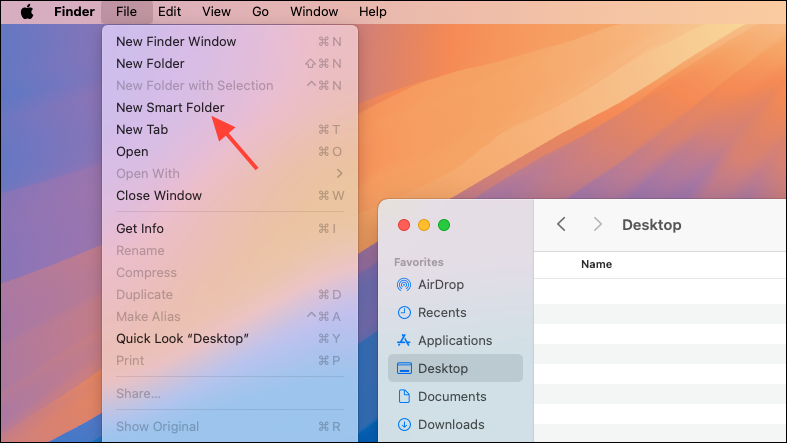
This Mac or the currently selected folder. Select This Mac if you want the Smart Folder to search your entire computer. If you want to limit the search to a specific folder, select that folder before creating the Smart Folder.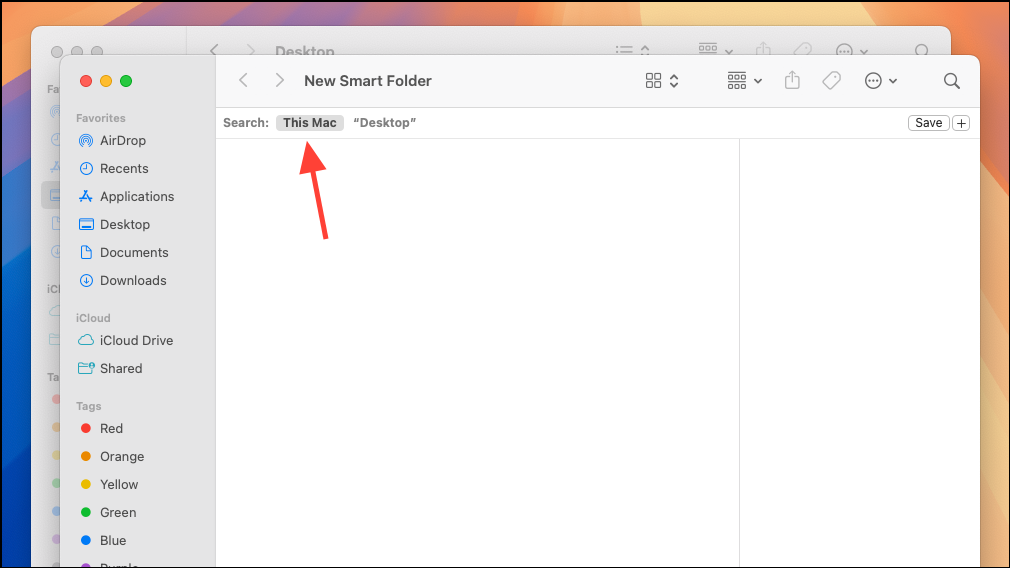
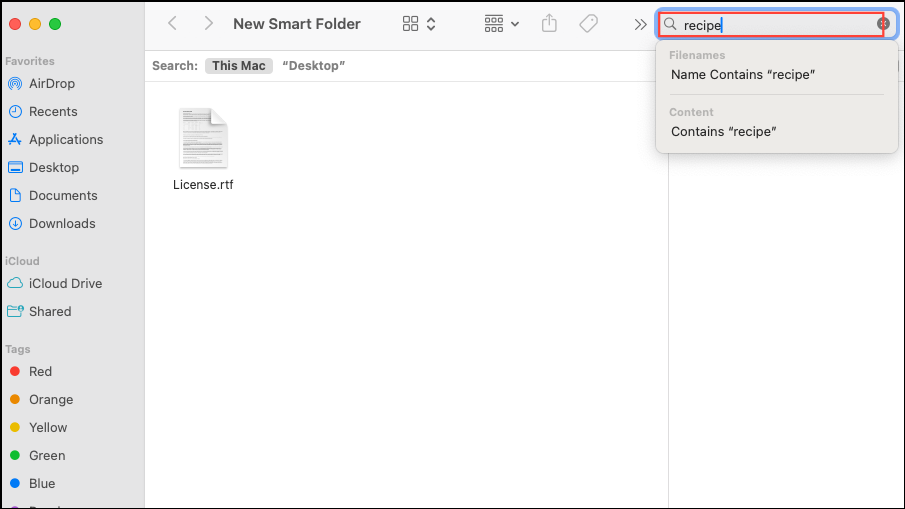
+ button to add search criteria. A new row appears, allowing you to set parameters such as Kind, Last modified date, Name, or Contents. You can keep adding rules to narrow down your results—each rule further refines which files appear in the Smart Folder.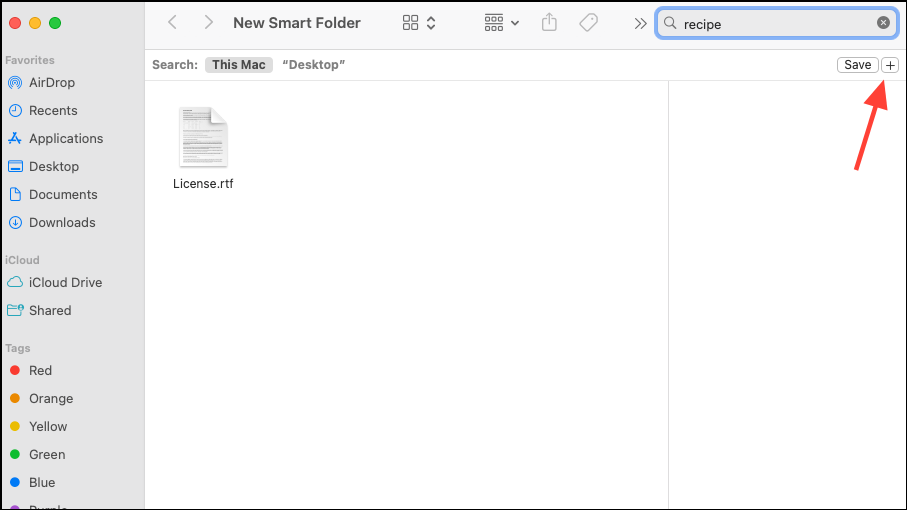
Last modified date and select within last 7 days. Add another criterion with Kind set to Document to exclude system files or logs.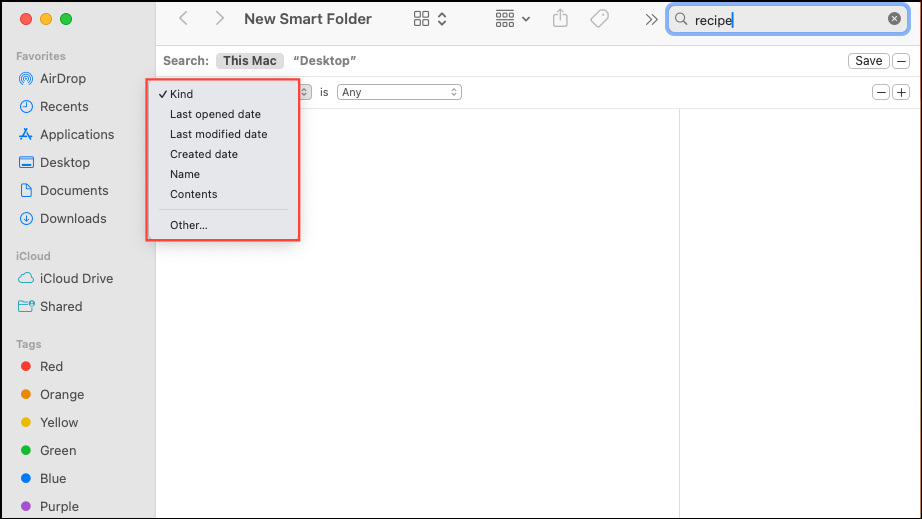
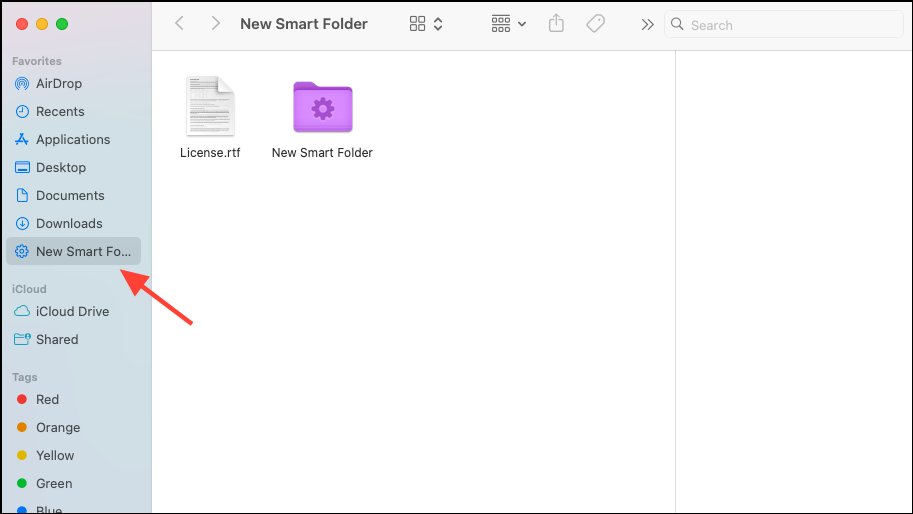
Save in the upper right. Enter a name for your Smart Folder and choose its location. By default, Smart Folders are stored in Saved Searches, but you can pick another location if desired. To make the folder easy to access, check the box for Add to Sidebar.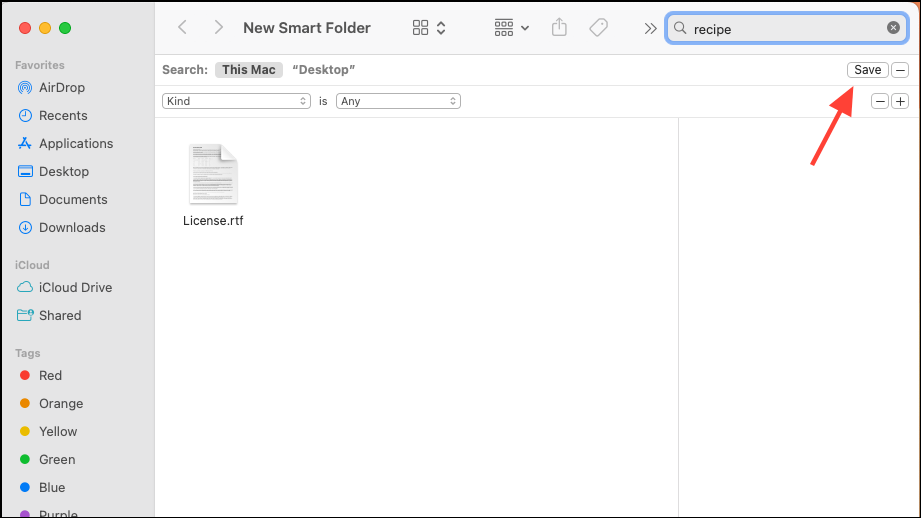
Save again to finish. The new Smart Folder now appears in your chosen location and, if selected, in your Finder sidebar for quick access.Edit or Refine an Existing Smart Folder
Action pop-up menu (it may appear as a gear icon or ellipsis, depending on your macOS version) and choose Show Search Criteria. This reveals the rules and filters you previously set.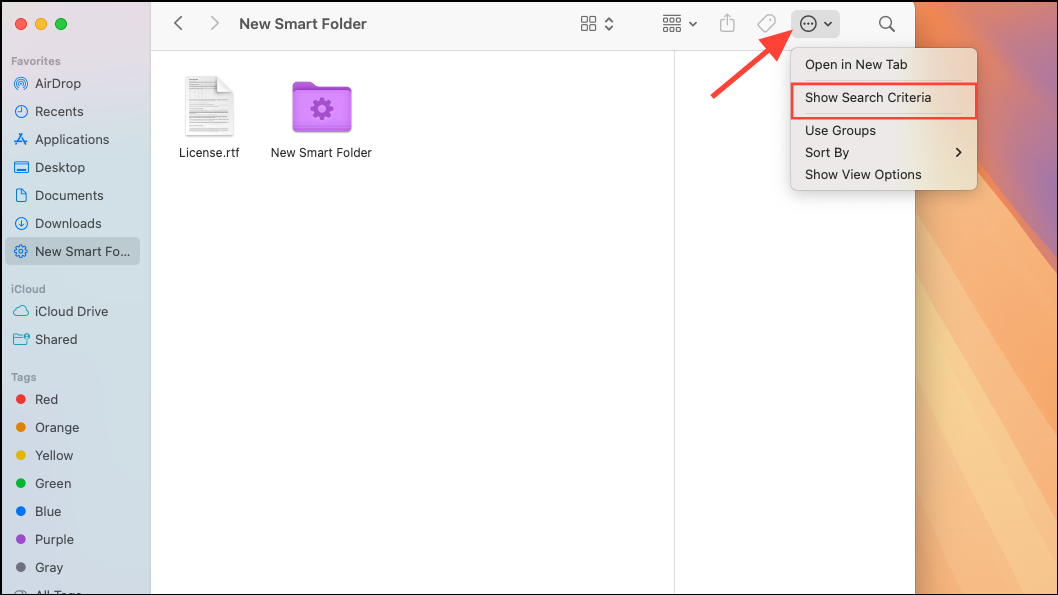
Save to apply the updates. The Smart Folder will now reflect your new criteria.Alternative Method: Save a Finder Search as a Smart Folder
macOS 15 also allows you to convert any Finder search into a Smart Folder, which can save time if you frequently search for the same types of files.
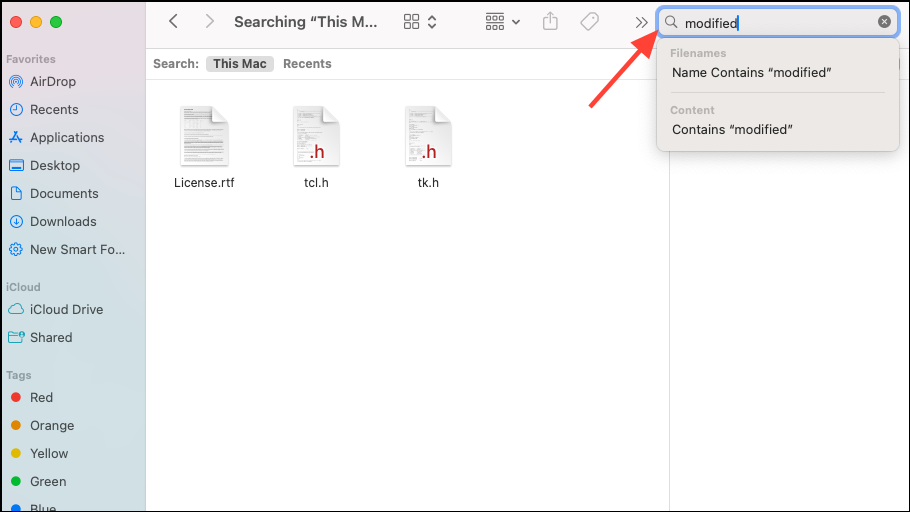
Save near the top right of the Finder window. You’ll be prompted to name the Smart Folder and choose its storage location. Optionally, add it to the Finder sidebar for easy access.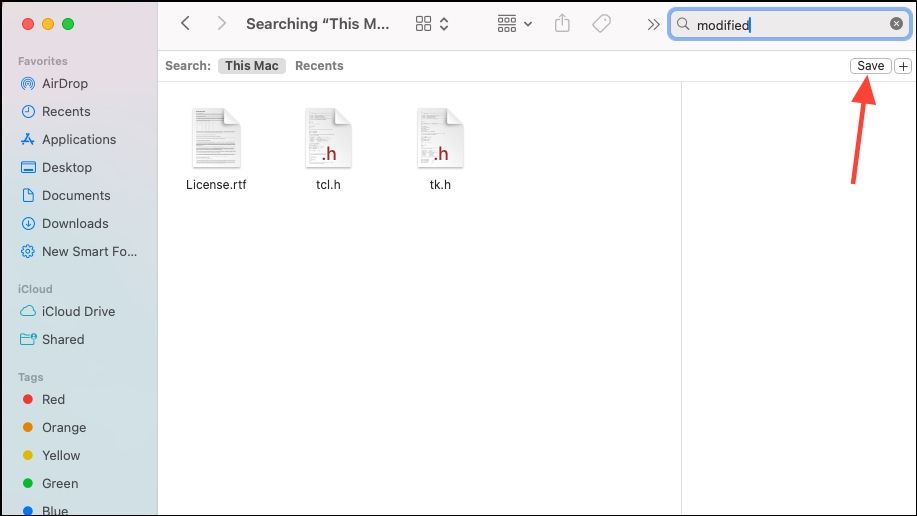
This method streamlines the process by letting you save any ad hoc search as a reusable Smart Folder.
Advanced Customization: Editing Smart Folder Search Locations
By default, Smart Folders search a single location (such as This Mac or a specific folder). If you want your Smart Folder to search multiple directories or drives, a manual workaround is available, though it requires editing system files:
- Create the Smart Folder as usual, specifying one directory.
- Locate the
.savedSearchfile for your Smart Folder in~/Library/Saved Searches. - Open this file with a text editor and add additional paths under the
FXScopeArrayOfPathsarray. - Save the file and force-restart Finder using
killall Finderin Terminal.
This approach is for advanced users comfortable editing system files. Always make a backup before making manual changes.
Tips for Using Smart Folders Effectively
- Use descriptive names for Smart Folders so you can identify their purpose at a glance.
- Combine multiple criteria for more precise results—for example, find all PDFs created last month that include “report” in the name.
- To avoid clutter, periodically review and adjust Smart Folder rules as your workflow changes.
- Remember that Smart Folders do not move or duplicate files; they simply display matches based on your criteria.
- If you need to search across multiple drives or external volumes, consider third-party tools like HoudahSpot for more advanced configuration.
Smart Folders in macOS 15 provide a flexible, automated way to organize and find files, saving you from repetitive manual searches. With a bit of setup, you can keep your workspace tidy and access important documents in seconds.