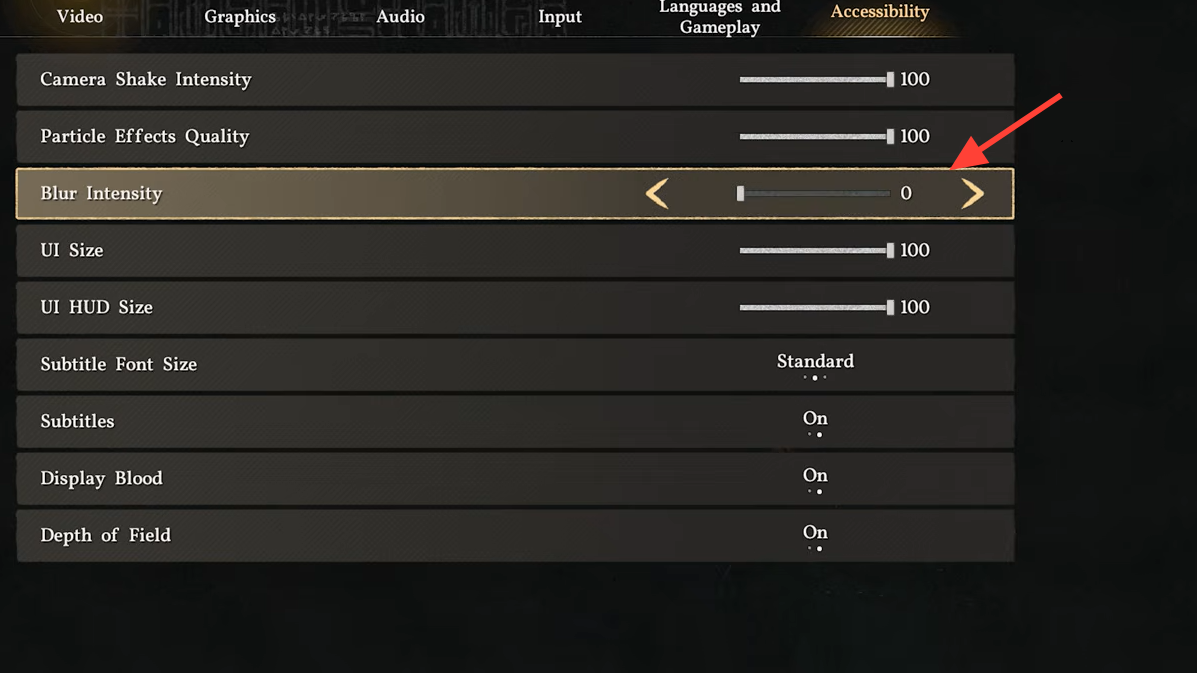
Crimson Desert’s launch has players scrambling to find the motion blur toggle, and for good reason — it’s not in the graphics settings where most games put it. Pearl Abyss tucked blur intensity, camera shake, and particle effect controls under the Accessibility tab instead, which has caused plenty of confusion on both PC and console.
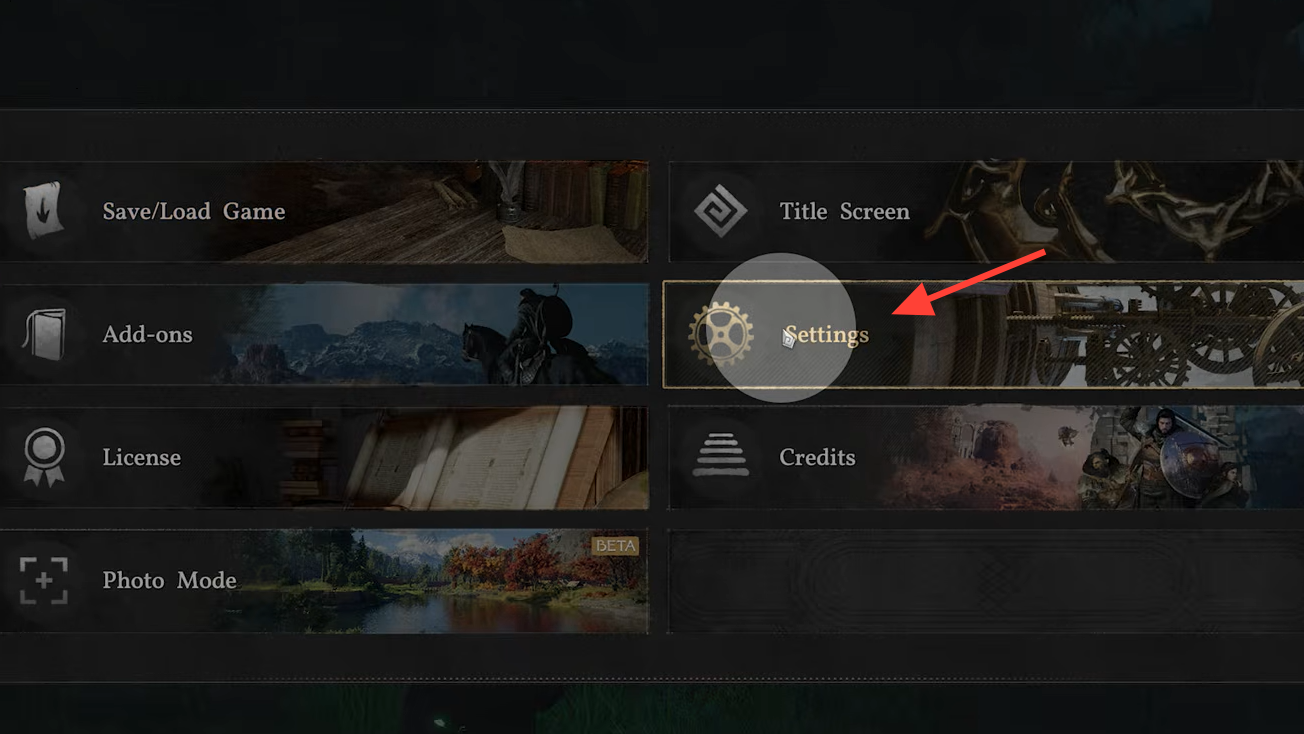
Quick answer: Open the Settings menu, navigate to the Accessibility tab, and set Blur Intensity to its lowest value (or zero) to disable motion blur. Camera Shake and Particle Effects are in the same section.
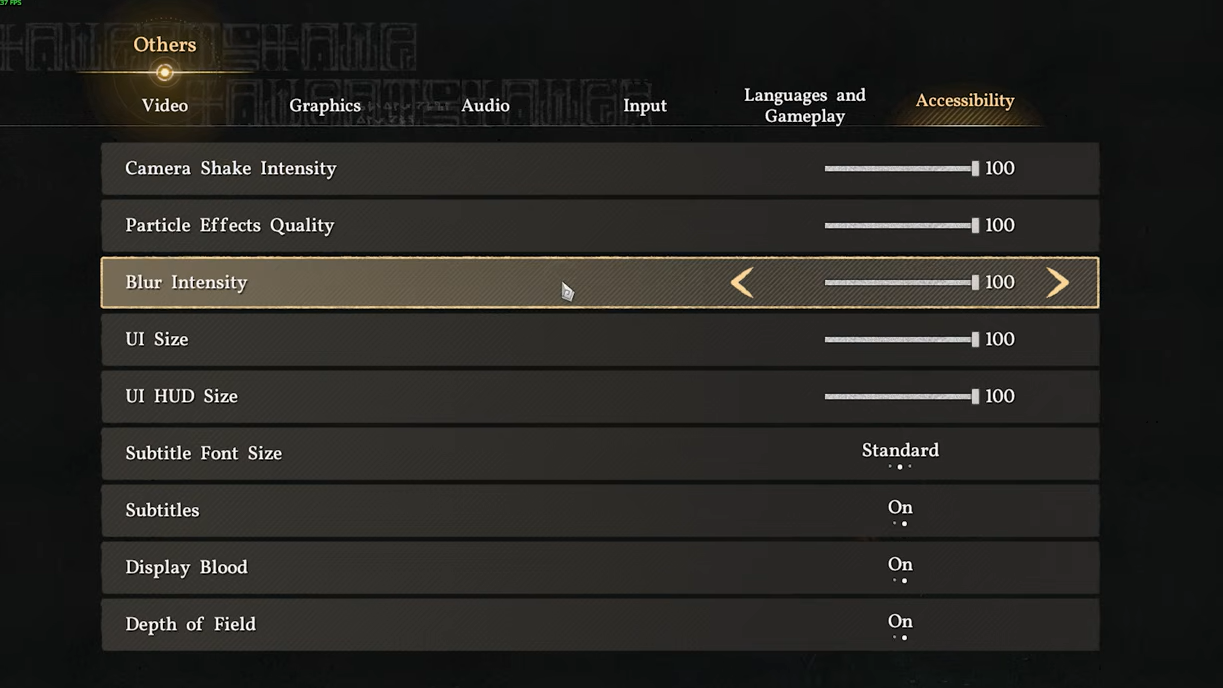
Disabling motion blur in Crimson Desert (PC and console)
Turning off camera shake and reducing particle effects
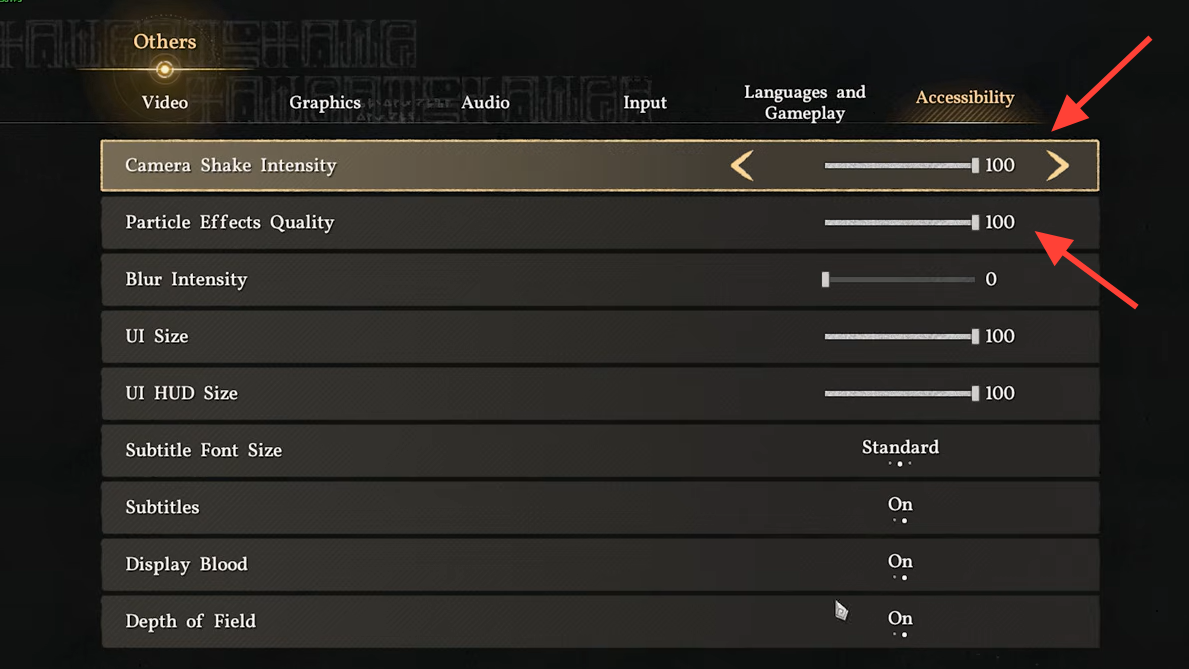
While you’re in the Accessibility tab, two other settings are worth adjusting. Camera Shake controls how much the screen jolts during combat hits, explosions, and environmental events. Setting it to zero eliminates the shaking entirely, which can reduce eye strain and motion sickness during extended play sessions.
Particle Effects offers multiple levels of intensity. Crimson Desert’s combat produces dense visual noise — sparks, dust clouds, energy bursts — and dialing this down can make fights easier to read. The Accessibility menu provides three options for particle density, so you can experiment to find a balance between visual flair and clarity.
| Setting | Location | What it controls |
|---|---|---|
| Blur Intensity | Settings → Accessibility | Motion blur during camera movement |
| Camera Shake | Settings → Accessibility | Screen shake on impacts and explosions |
| Particle Effects | Settings → Accessibility | Density of combat and environmental particles (3 levels) |
Console availability
The Accessibility tab exists on both PC and console versions of Crimson Desert. Some players initially worried the option might be PC-exclusive, since certain other games (like Avowed) have shipped with motion blur toggles on PC but not on PlayStation or Xbox. Crimson Desert does not have this limitation — the same Blur Intensity, Camera Shake, and Particle Effects controls appear regardless of platform.
Still seeing blur after disabling the setting?
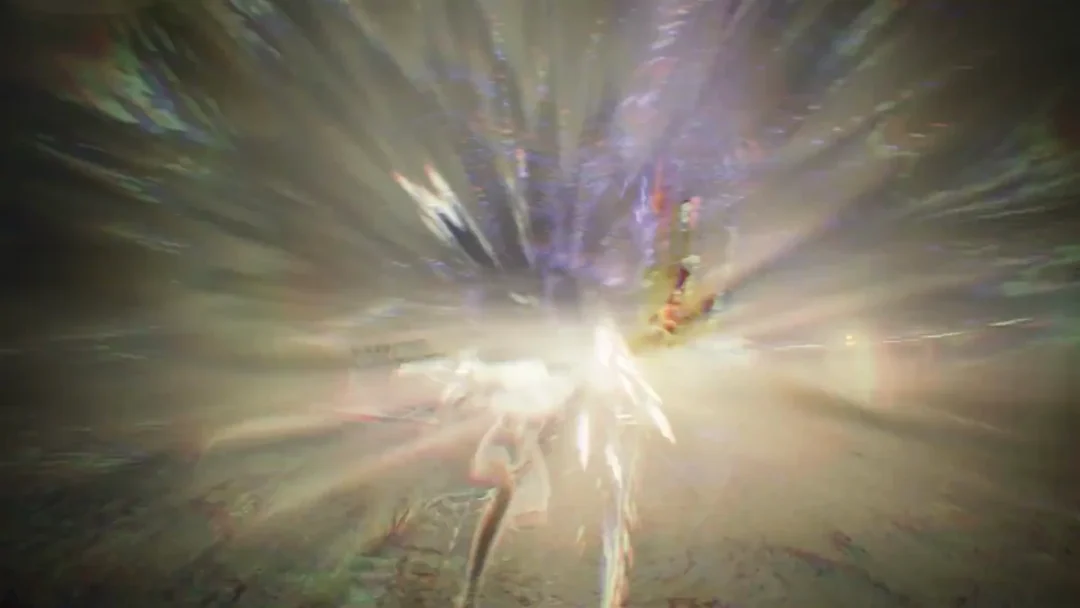
A small number of players have reported that the image still looks soft or smeared even after setting Blur Intensity to zero. This is usually caused by other post-processing effects rather than motion blur itself. Depth of field, chromatic aberration, and certain anti-aliasing methods like TAA can all introduce a blurry appearance, especially at lower resolutions or when upscaling is active. Check the Graphics settings for any depth-of-field toggle or anti-aliasing mode and try switching to a sharper option if one is available.
Target outlines on enemies can also create a halo-like blur around characters during combat. This is a separate rendering effect and is not controlled by the Blur Intensity slider. There is currently no dedicated toggle for target outline rendering.
Pearl Abyss made the right call, including these visual comfort options, even if burying them under Accessibility rather than Graphics was an unusual choice. If you’re sensitive to screen shake or motion blur, adjusting all three sliders in the Accessibility tab before diving into the open world will make for a noticeably more comfortable experience.