

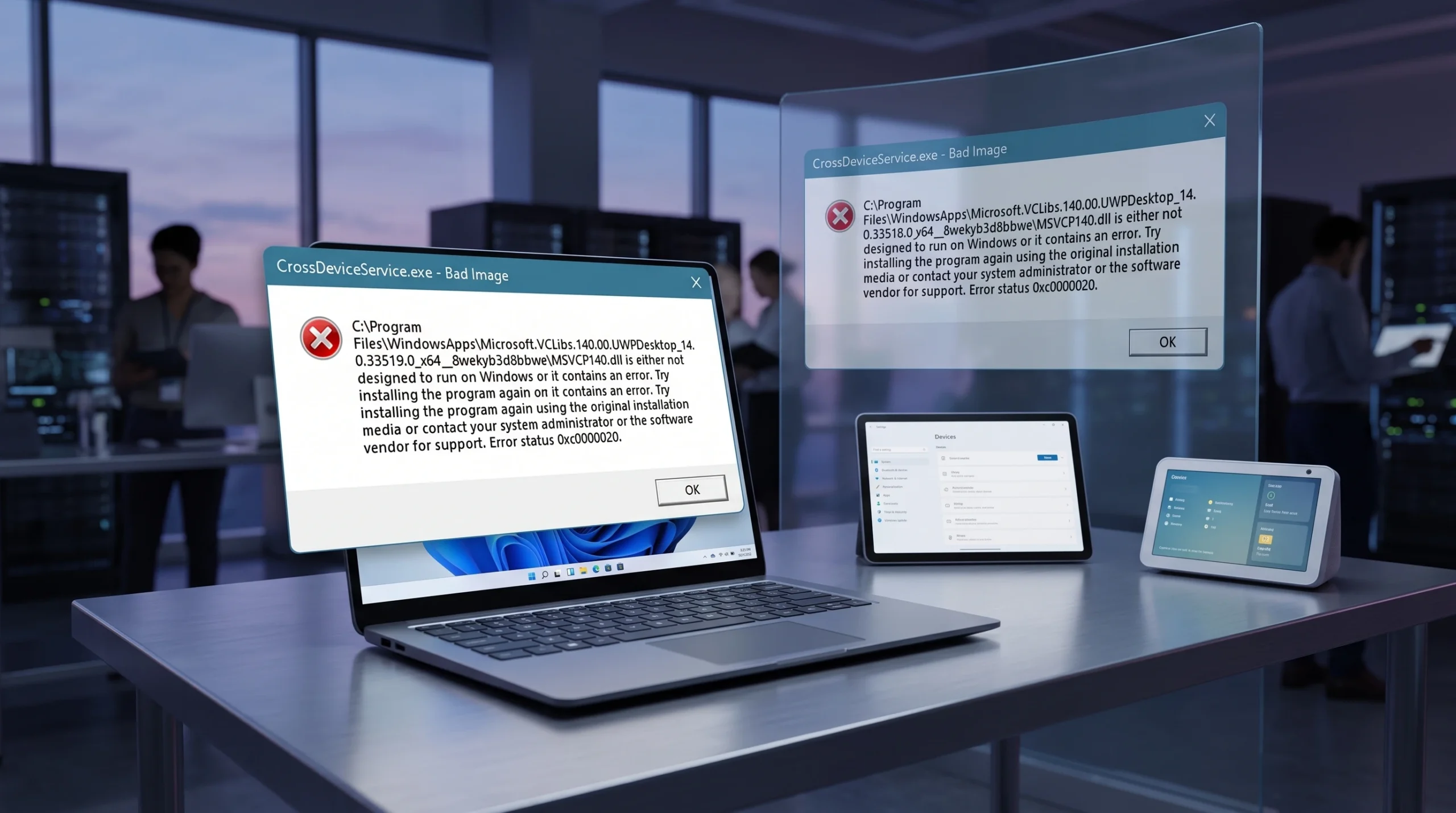
A pop-up reading CrossDeviceService.exe – Bad Image or CrossDeviceService.exe “The Parameter is incorrect” usually appears a few seconds after you log in to Windows 11. The message often points at a file such as MSVCP140.dll inside a Microsoft.VCLibs.140.00.UWPDesktop folder and may include a status like 0x0000020. It is tied to Windows’ cross-device features, which are driven by the Phone Link app and the Cross-Device Experience Host.
Quick answer: Open Task Manager, end every CrossDeviceService.exe process, then run sfc /scannow and DISM /Online /Cleanup-Image /RestoreHealth from an elevated Command Prompt and restart. If the error returns, disable Mobile Devices at startup or repair the Phone Link app.
What triggers the CrossDeviceService.exe error
CrossDeviceService.exe is a background service that handles cross-device syncing, such as sharing activity, photos, chats, and calls between your PC and phone. When it cannot load a shared runtime file, or when the Cross-Device Experience Host component is missing or out of date, Windows throws the Bad Image or Parameter is incorrect message on startup.
The most common cause is a corrupted or zero-byte Visual C++ runtime file. In several cases the DLLs inside the Microsoft.VCLibs.140.00.UWPDesktop folders were reported as 0 bytes, which stops the service from starting cleanly. The error can also follow a BIOS update, a Windows update, or a sync setting from an app that relies on cross-device functionality.
Stop the process and repair system files
Start here. Ending the process clears the immediate pop-up, and the repair scans fix the corrupted files that keep bringing it back.
Ctrl + Shift + Esc to open Task Manager. On the Processes tab, find CrossDeviceService.exe, right-click it, and choose End Task. End every instance you see.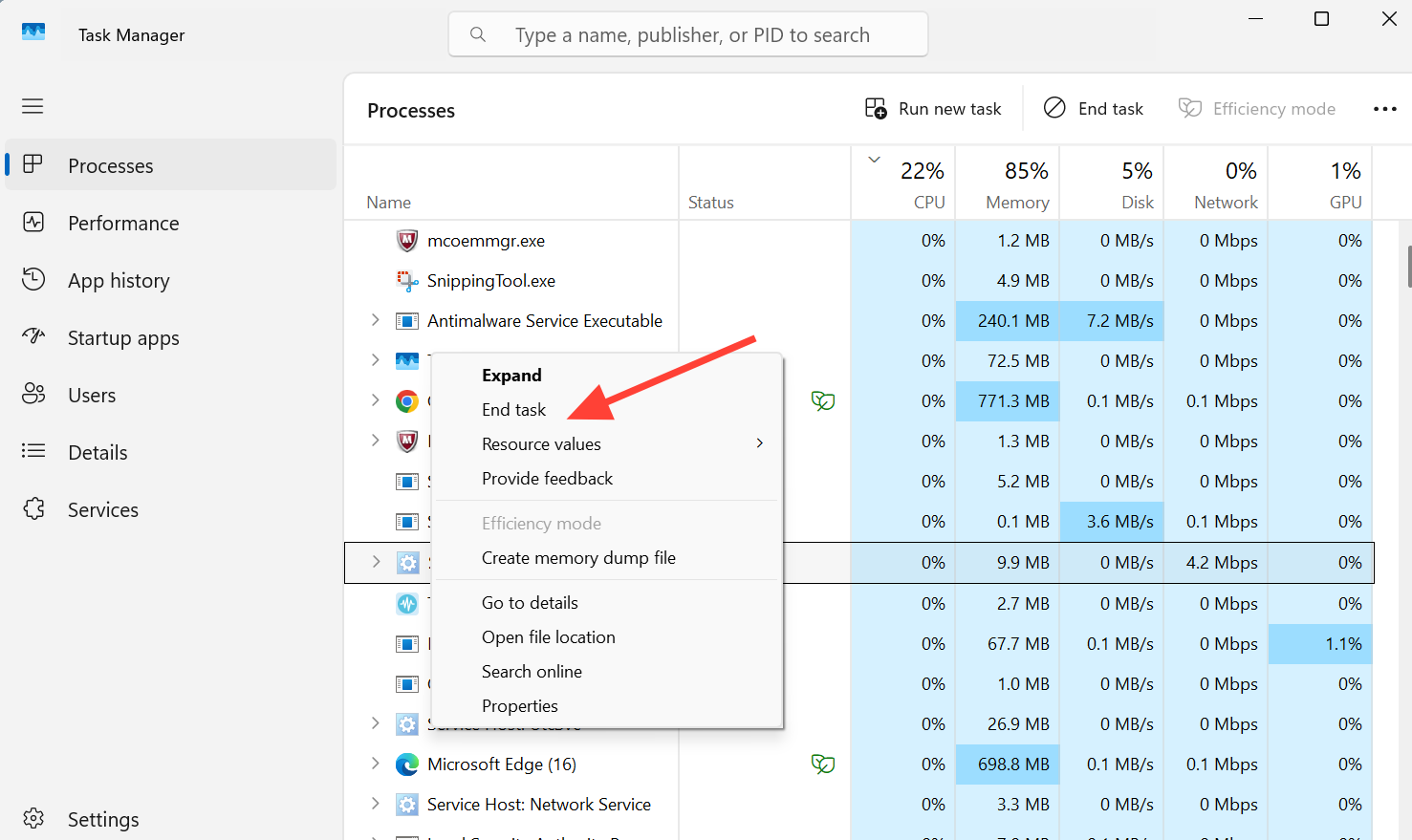
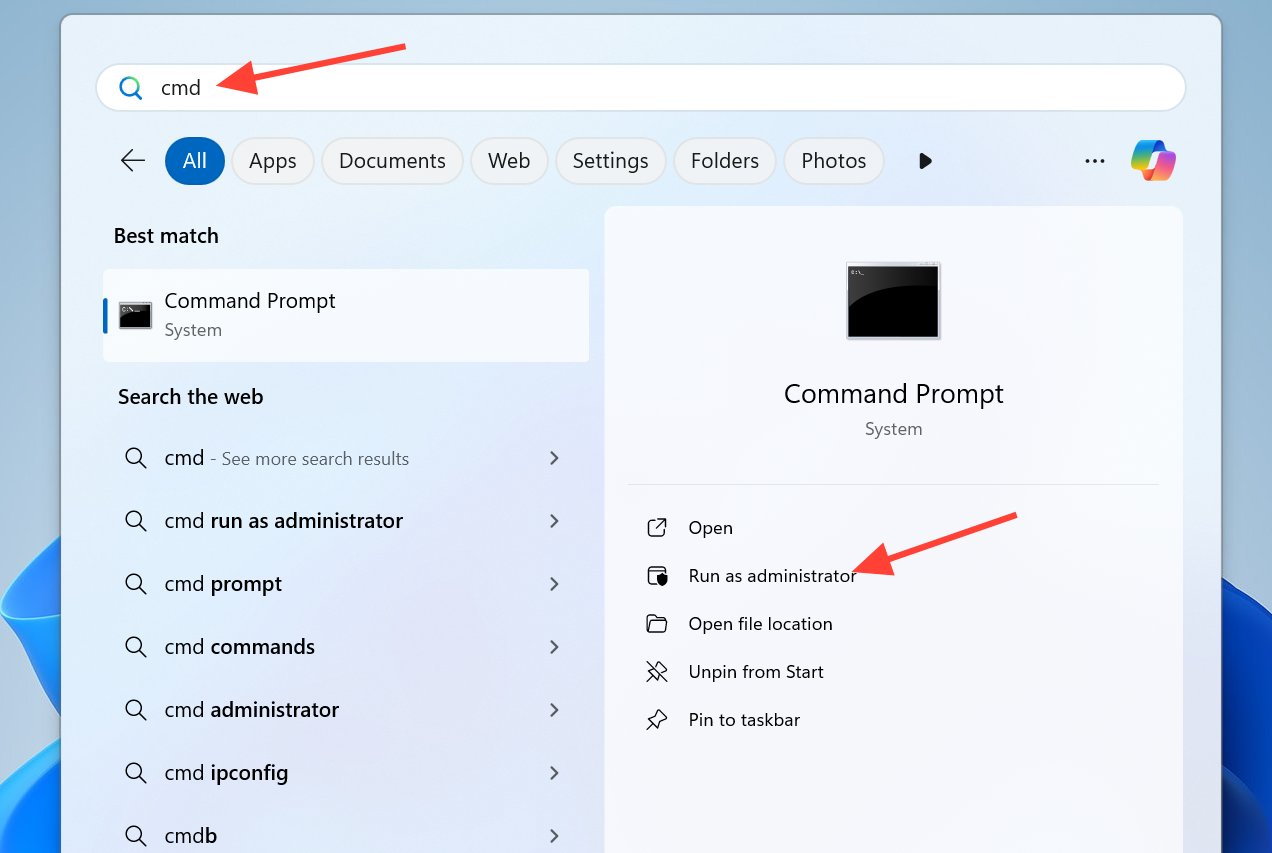
Dism /Online /Cleanup-Image /ScanHealth
Dism /Online /Cleanup-Image /CheckHealth
DISM /Online /Cleanup-Image /RestoreHealth
SFC /SCANNOW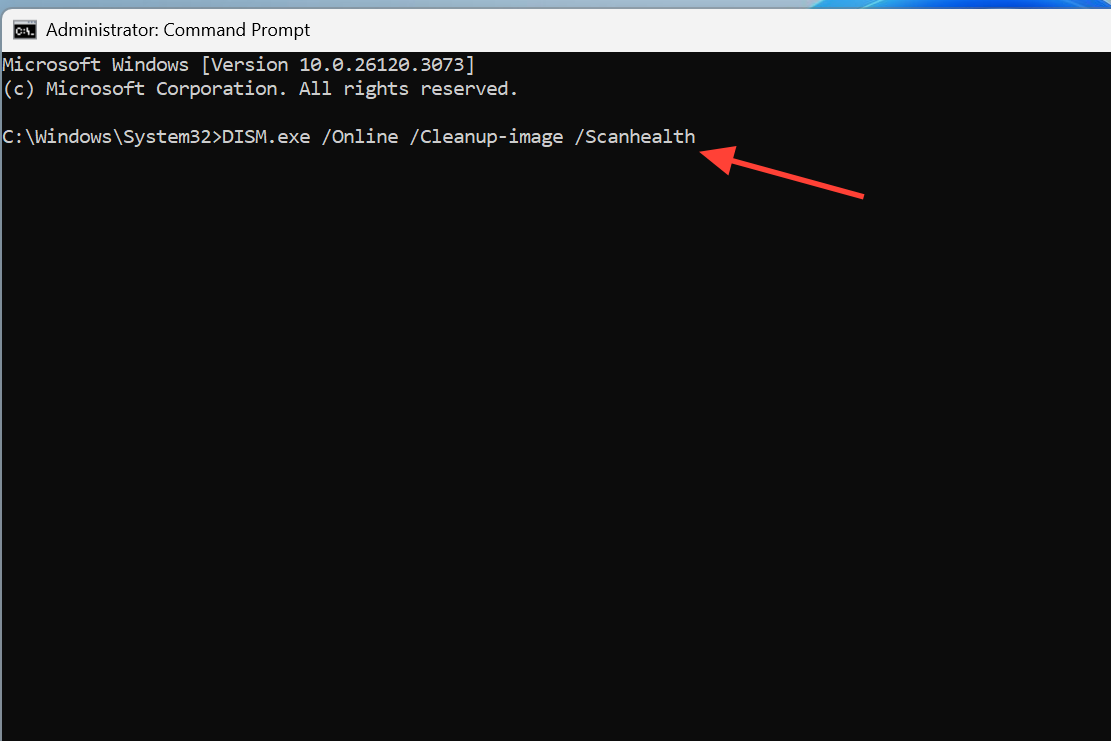
Fix corrupted or 0-byte VCLibs DLLs
If the message names a file inside a VCLibs folder, check those DLLs directly. When the runtime files show a size of 0 bytes, they cannot load, which is what produces the Bad Image warning.
| Runtime folder to check |
|---|
Microsoft.VCLibs.140.00.UWPDesktop_..._x64__8wekyb3d8bbwe |
Microsoft.VCLibs.140.00.UWPDesktop_..._x86__8wekyb3d8bbwe |
Find the startup app causing the error with a clean boot
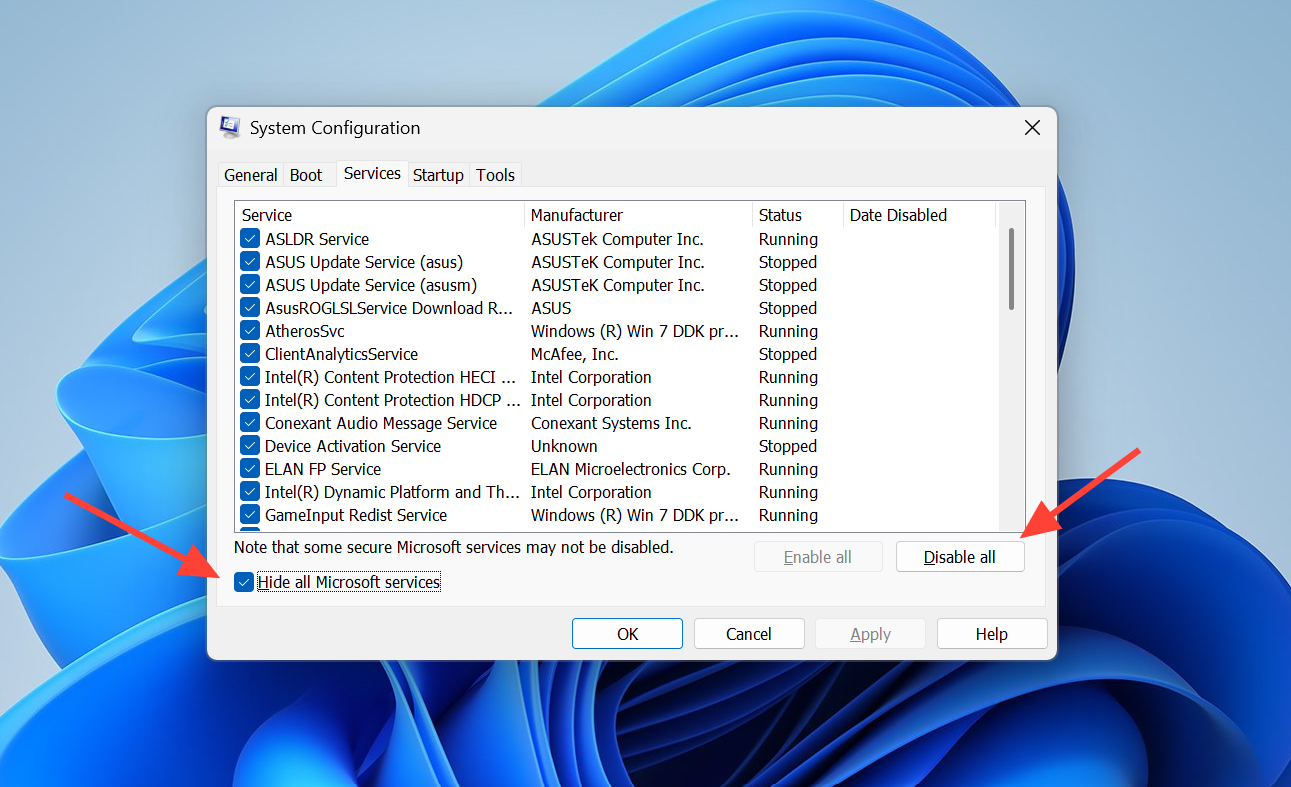
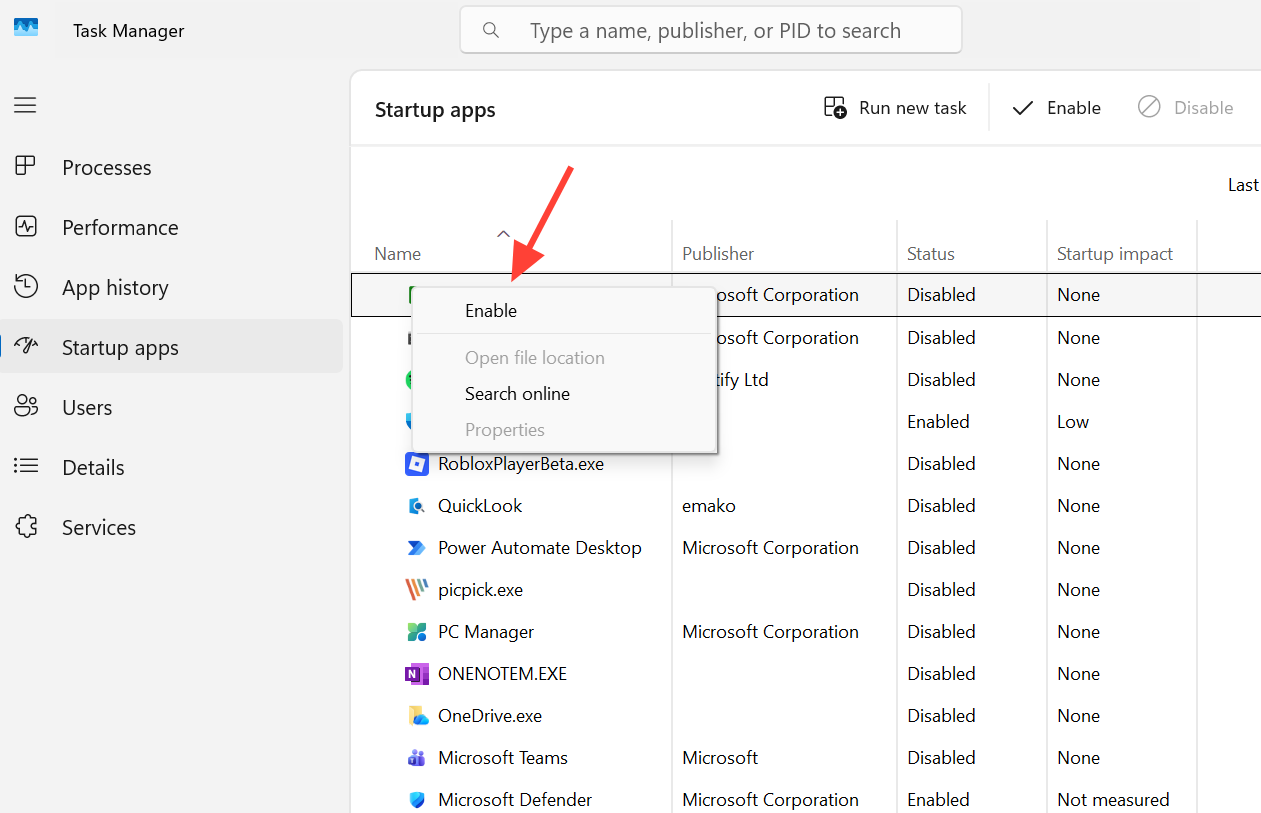
If the pop-up keeps returning, a startup entry is likely triggering it. A clean boot starts Windows with a minimal set of drivers and startup items so you can isolate the culprit. In practice, the Mobile Devices startup entry was identified as the trigger through this process.
Update the Cross-Device Experience Host
The Cross-Device Experience Host manages how devices connect to your PC for shared activities. If it is missing or outdated, the service can fail. Reinstalling it through winget refreshes the component.
winget install 9NTXGKQ8P7N0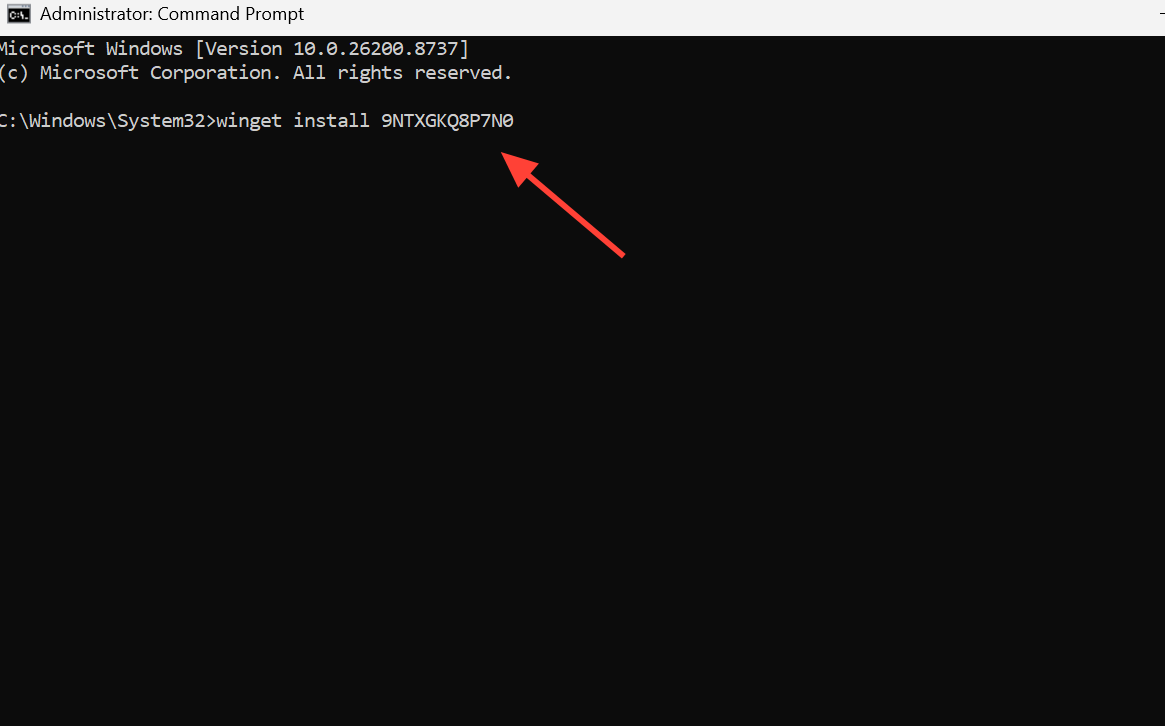
Get-AppxPackage *Microsoft.CrossDeviceExperienceHost* | Remove-AppxPackage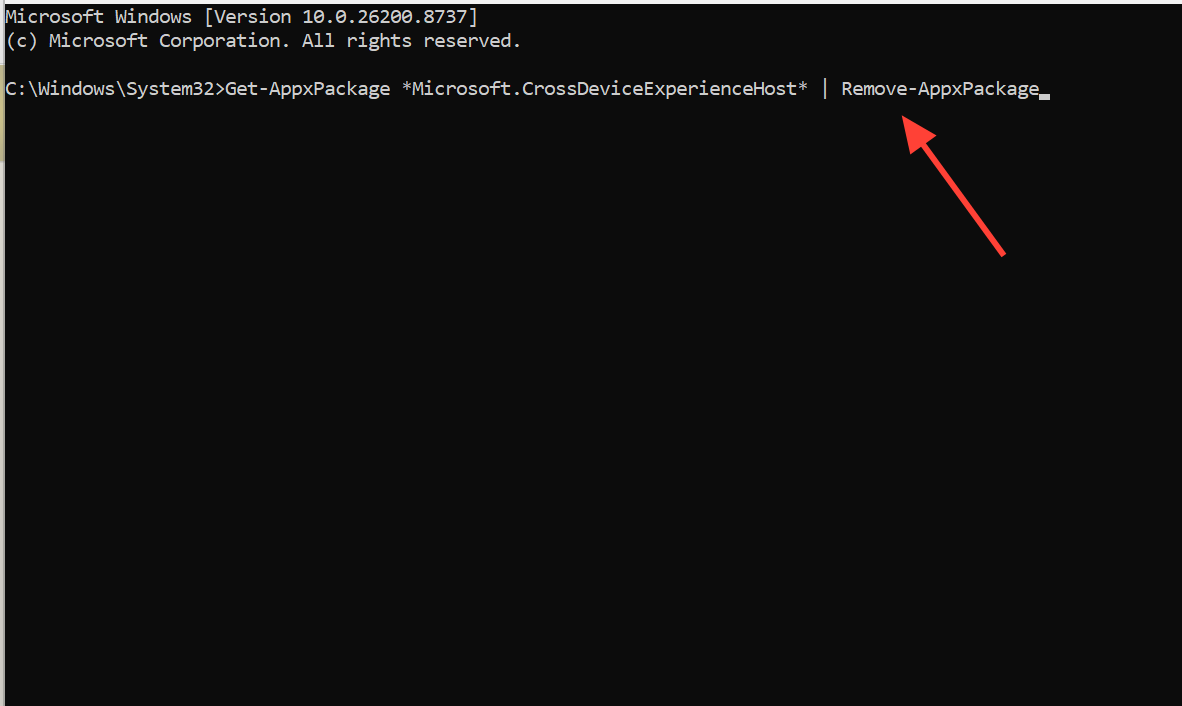
Repair, reset, or reinstall the Phone Link app
Because the error is tied to Phone Link, fixing the app itself often clears it. Repairing tries to fix corrupted app files without touching your data, while resetting wipes stored data such as sign-in credentials, settings, and cache.
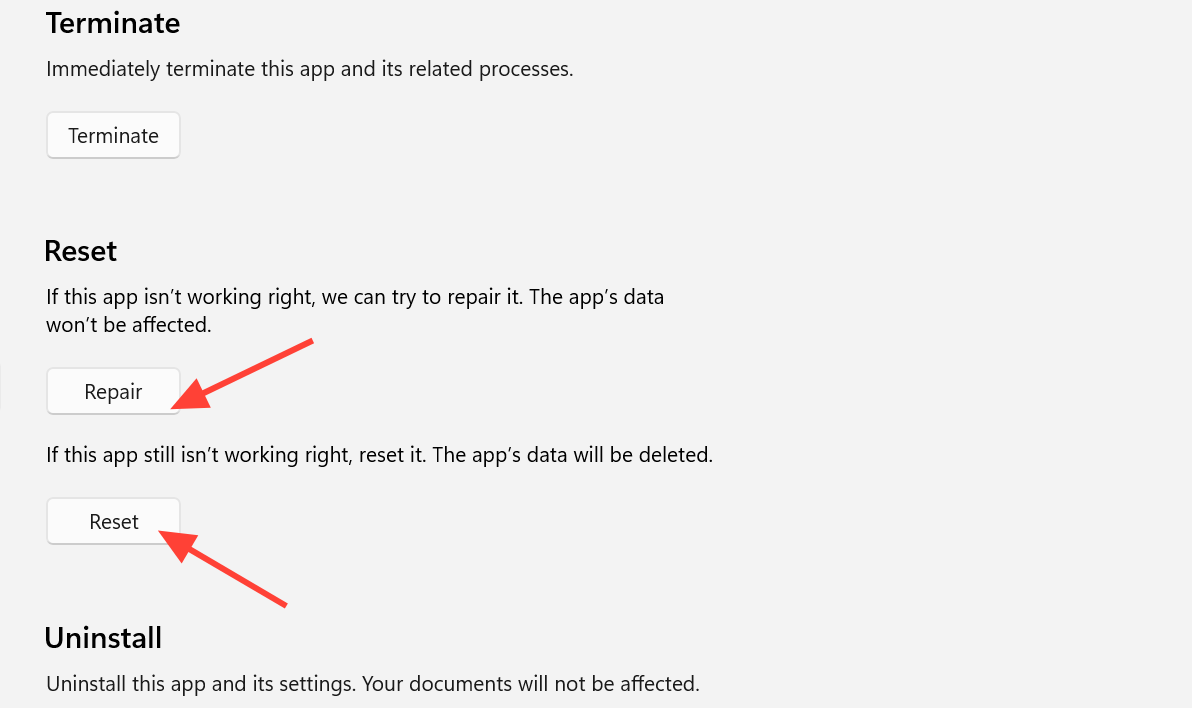
Get-AppXPackage -AllUsers | Foreach {Add-AppxPackage -DisableDevelopmentMode -Register "$($_.InstallLocation)\AppXManifest.xml"}Extra checks if the error still appears
| Check | What it does |
|---|---|
| Reinstall Visual C++ Redistributables | Uninstall them from Control Panel > Programs & Features, then reinstall from Microsoft’s official site to replace damaged runtime files. |
Run chkdsk /f /r | Scans the disk for errors that could corrupt system or app files; runs on the next restart. |
| Create a new user account | If the error is gone in a fresh account, the original user profile or its settings are the cause. |
| Windows update | Install pending updates; in some cases the error cleared itself after a later Windows update. |
You will know the fix worked when the Bad Image or Parameter is incorrect pop-up no longer appears in the first seconds after login, and the system health scans report no remaining corruption. If none of these steps resolve it, a system restore to a point before the error started, or a reset of Windows that keeps your files, will restore the affected service files.



