KB5101684 is the optional preview update that carries the changes headed to Windows 11 in August. It moves version 25H2 to build 26200.8973 and version 24H2 to build 26100.8973, and it is a non-security release, so it will not install by itself. You can pull it early to test the incoming fixes and features, or leave it and receive the same changes automatically with the August security update.
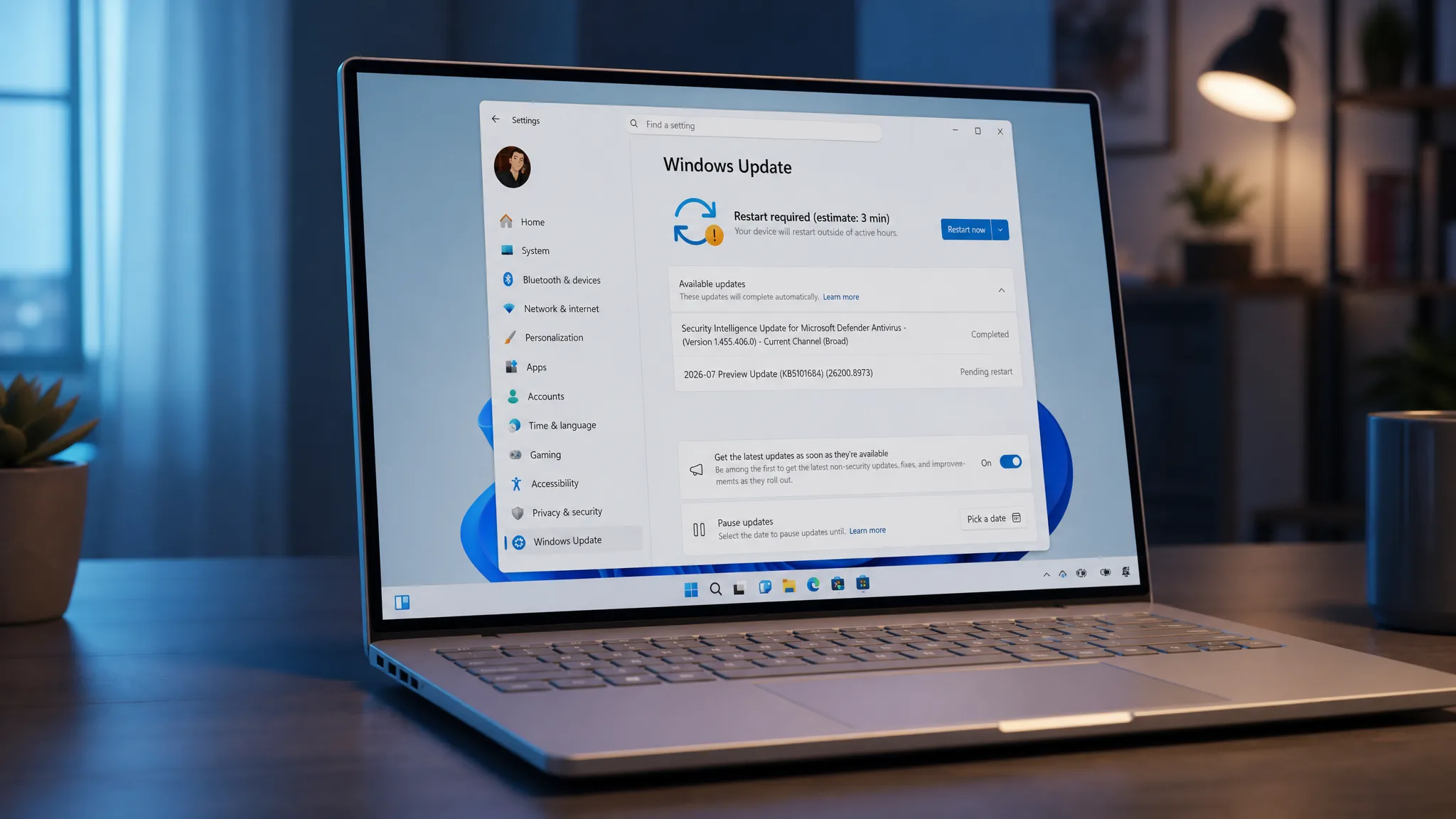
Quick answer: Open Settings > Windows Update, click Check for updates, then click Download and install under the “2026-07 Preview Update (KB5101684)” entry. To install offline or across several PCs, download the .msu package from the Microsoft Update Catalog and double-click it.
What KB5101684 installs on your PC
The update covers Windows 11 versions 25H2 and 24H2 across all editions. It bundles the latest servicing stack update (KB5101711, build 26100.8962) with the cumulative payload, so both apply together. After a restart, your build number changes to confirm it landed.
| Windows 11 version | New build |
|---|---|
| 25H2 | 26200.8973 |
| 24H2 | 26100.8973 |
Microsoft is not currently aware of any issues with this release. Because it is optional, there is no urgency to install it unless one of its fixes affects you or you want the incoming features before the wider rollout.
Install KB5101684 through Windows Update
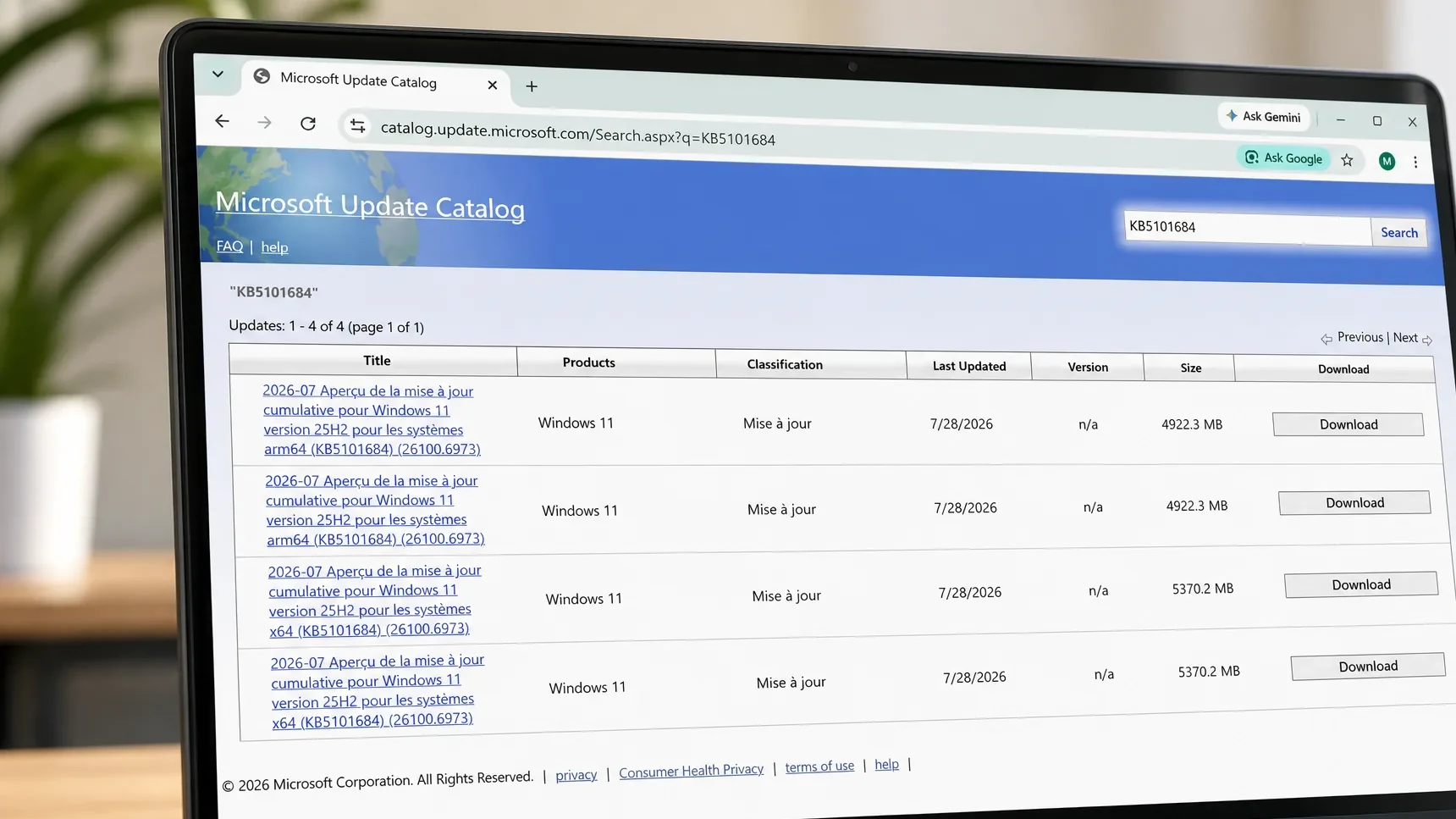
Download the KB5101684 offline installer (.msu)
If Windows Update stalls, or you need to patch several machines, the standalone package is the better route. The Microsoft Update Catalog lists all four builds for x64 and ARM64. Download the file that matches your version and architecture, then double-click it to apply.
| Build | Version | Architecture | Size |
|---|---|---|---|
| 26200.8973 | 25H2 | x64 | 5,370.2 MB |
| 26200.8973 | 25H2 | ARM64 | 4,922.3 MB |
| 26100.8973 | 24H2 | x64 | 5,370.2 MB |
| 26100.8973 | 24H2 | ARM64 | 4,922.3 MB |
The download is large because bundled AI models and recent changes to the update system push the package size up. Windows Update remains the recommended path for a single PC; the catalog file is mainly for offline or multi-device deployment.
Confirm the update installed
After the restart, open Settings > System > About and check the OS build. A 25H2 PC should read 26200.8973, and a 24H2 PC should read 26100.8973. You can also see KB5101684 listed under Windows Update > Update history. Keep in mind that the new features are held behind gradual rollout flags, so a correct build number does not mean every change is visible yet.
New features rolling out gradually
Most of the headline changes arrive through a phased rollout, so availability varies by device, region, and hardware. Some may not appear immediately even after the build number updates.
| Area | Change |
|---|---|
| File Explorer | Details view shows file sizes in KB, MB, or GB instead of KB only; middle-click opens folders in a new tab from the address bar and Home page; the grey flash and unexpected scroll-to-top on Home are fixed; Recommended thumbnails are sharper. |
| Windows Search | Better handling of typos and partial app names; more relevant Settings results ranked higher. |
| Voice Access | New Voice Isolation with three modes (Voice Isolation, remove background noise only, no filtering); Korean language support; more reliable startup. |
| Windows Hello | Enhanced Sign-in Security (ESS) now supports peripheral fingerprint readers on desktops and other PCs, including Copilot+ PCs. |
| Touchpad | New scroll and zoom speed control plus accelerated scrolling under Settings > Bluetooth & devices > Touchpad. |
| Widgets | Taskbar notification badges use your accent color instead of red; new users see only the Weather widget on the Lock screen by default. |
| Voice Typing | Fluid dictation is off by default for new users, with a first-use teaching tip. |
| Account Control | Redesigned Start menu account flyout with a subscription status badge for Microsoft accounts. |
| AI Component | Option to remove the Image Generation AI component on supported Copilot+ PCs. |
| Power and battery | Settings changes apply to all power plans; the Energy Saver percentage threshold returns under Settings > System > Power & Battery. |
| Accessibility | Magnifier touch panning bars are off by default so they no longer cover content; re-enable them under Settings > Accessibility > Magnifier. |
To enroll a peripheral fingerprint reader, plug it in, open Settings > Accounts > Sign-in options, and follow the prompts. To set up Voice Isolation, go to Voice Access settings > Improve speech recognition and choose Voice Isolation, which needs a one-time voice setup.
Fixes applied to every device right away
A separate set of reliability fixes reaches all eligible PCs on installation rather than through the phased flags.
- File History: automatic backups to SMB network shares no longer fail with a false “invalid credentials” error.
- Mobile device management: devices provisioned or recovered on builds from July 14, 2026 (KB5101650) no longer get stuck in an incorrect noncompliant state after Intune enrollment.
- File Explorer / DFS: files on a DFS mapped drive are no longer wrongly flagged as coming from the Internet after starting offline and reconnecting, which triggered Mark of the Web warnings.
- Office in virtual desktops: improved stability when working with and closing Office apps in virtualized environments.
- Secure Boot: broader device targeting so more PCs automatically receive updated Secure Boot certificates over the coming months.
Devices that expire their original Secure Boot certificates, which began in June 2026, keep starting and updating normally, so there is no need to act manually.
Installing early makes sense if you are hitting one of the resolved bugs or want the incoming features ahead of the crowd. If neither applies, holding off costs you nothing. The same fixes and improvements ship to everyone with the mandatory Patch Tuesday update on August 11, 2026, at which point there is no separate action to take. One scheduling note for 24H2 users: Home and Pro editions reach end of updates on October 13, 2026, so plan to move to a supported version to keep receiving monthly updates.