

Encrypting File System (EFS) allows users to encrypt files and folders on NTFS volumes, which can complicate data recovery and backup processes in enterprise environments. Disabling EFS encryption for all Active Directory users through Group Policy ensures consistent data management and reduces the risk of inaccessible files due to lost encryption keys.
Disable EFS Using Group Policy Management Console
Open the Group Policy Management Console on a domain controller or a system with administrative tools installed. Press
Win + R, type gpmc.msc, and press Enter to launch the console.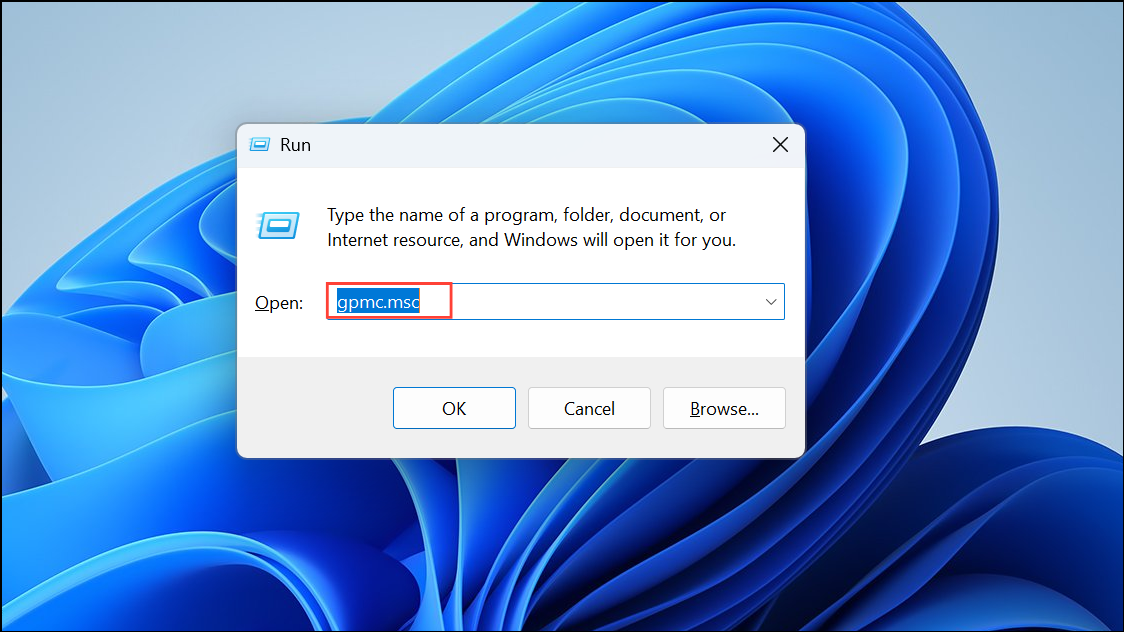
In the left panel, expand your forest and domain, then navigate to the Organizational Unit (OU) or domain where you want to apply the policy. Right-click the target OU or domain and select
Create a GPO in this domain, and Link it here…. Name the new Group Policy Object (GPO) such as “Disable EFS”.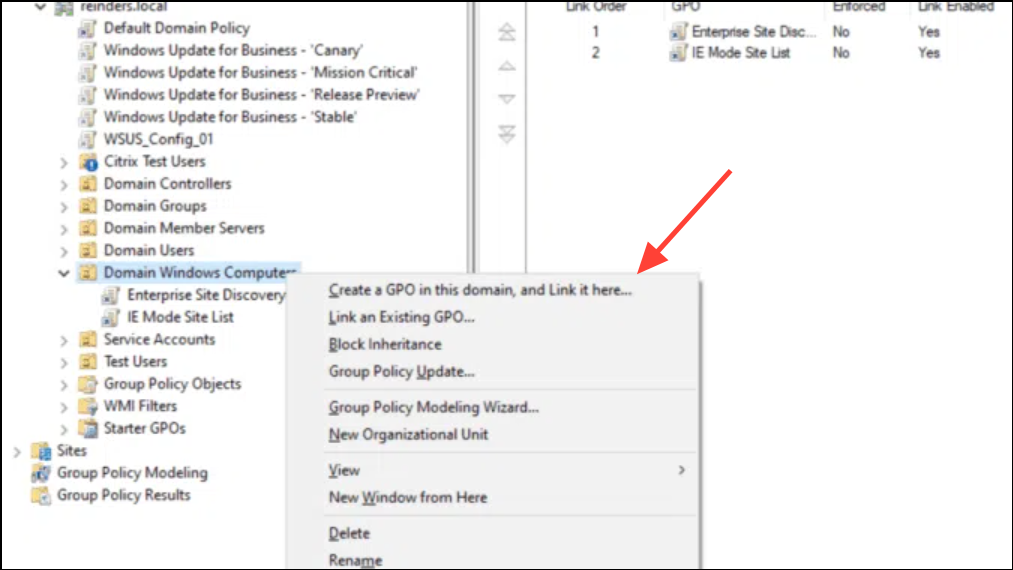
Right-click the new GPO and choose
Edit to open the Group Policy Management Editor. In the editor, navigate to Computer Configuration > Windows Settings > Security Settings > Public Key Policies > Encrypting File System.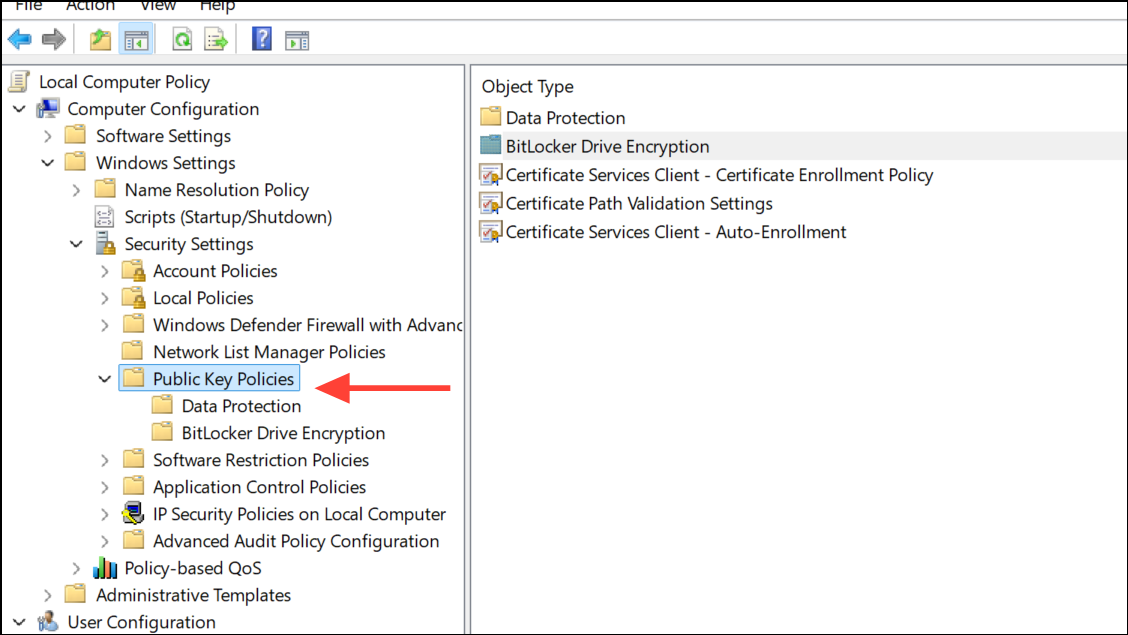
Double-click
Encrypting File System in the right pane. In the properties window, select Do not allow under the “Allow users to encrypt files using Encrypting File System (EFS)” setting. Click OK to save your changes.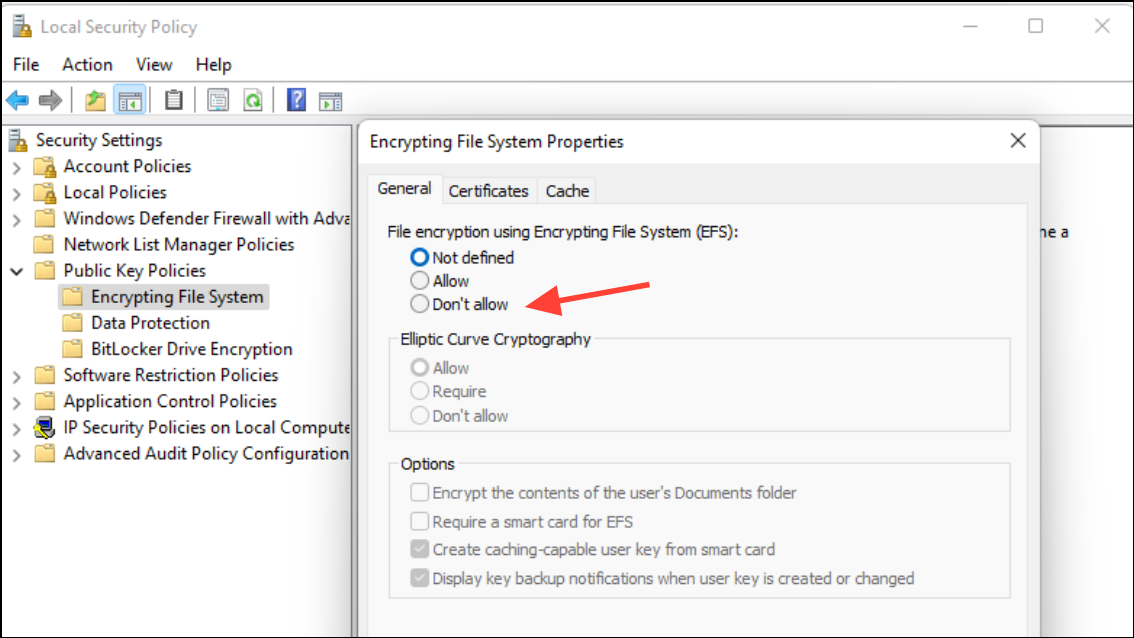
Close the Group Policy Management Editor. The new GPO is now linked to your chosen domain or OU. The policy will apply to all computers within the scope at the next Group Policy refresh, which occurs automatically or can be triggered by running
gpupdate /force from the command line on client systems.Verify that the policy is working by attempting to encrypt a file on a client computer within the targeted OU or domain. Right-click a file, select
Properties, go to the General tab, click Advanced, and confirm that the option to encrypt is unavailable or grayed out.Disable EFS Using Local Group Policy Editor (For Individual Systems)
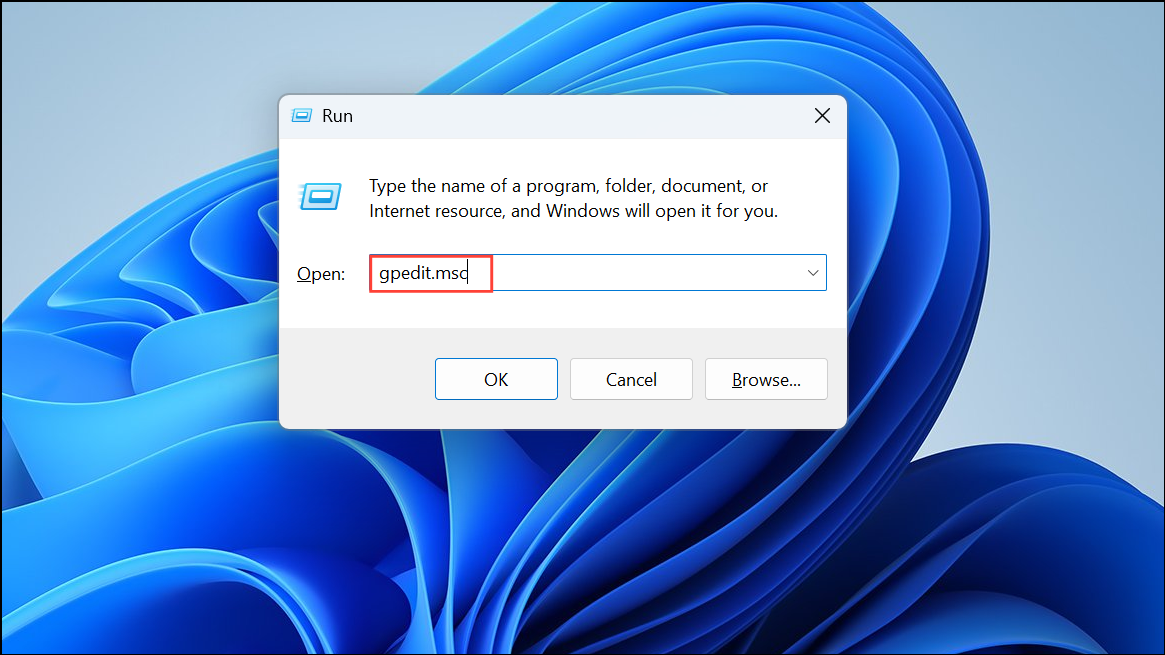
Navigate to
Computer Configuration > Windows Settings > Security Settings > Public Key Policies > Encrypting File System.Close the Local Group Policy Editor. The change will take effect after a policy refresh or system restart.
Disable EFS Using Registry Editor (Advanced)
Press
Win + R, type regedit, and press Enter to open the Registry Editor. If prompted by User Account Control, click Yes.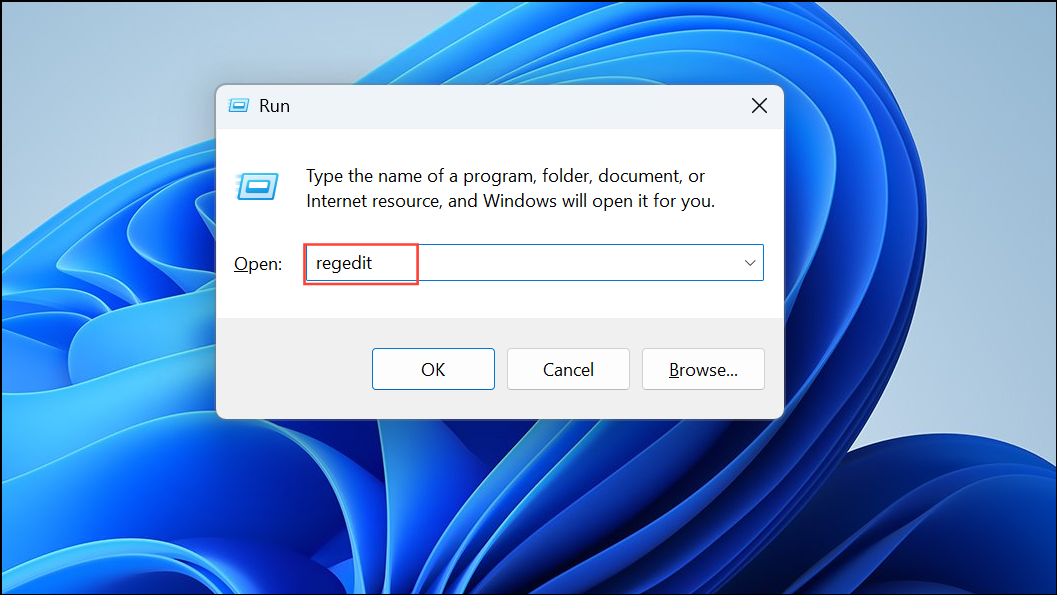
HKEY_LOCAL_MACHINE\SOFTWARE\Microsoft\Windows NT\CurrentVersion\EFSIn the right pane, right-click and select
New > DWORD (32-bit) Value. Name the new value EfsConfiguration.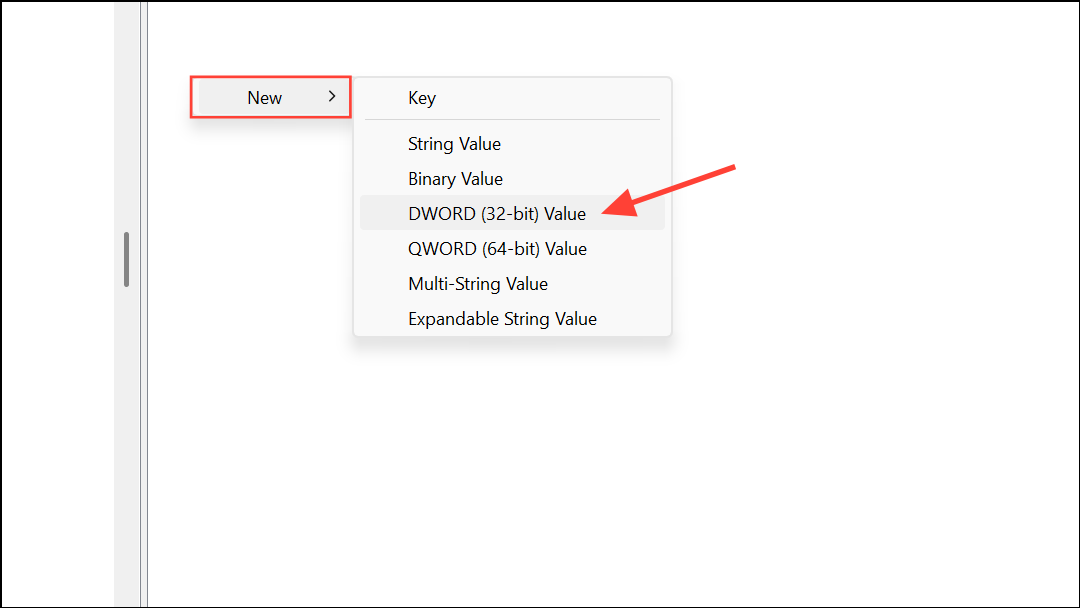
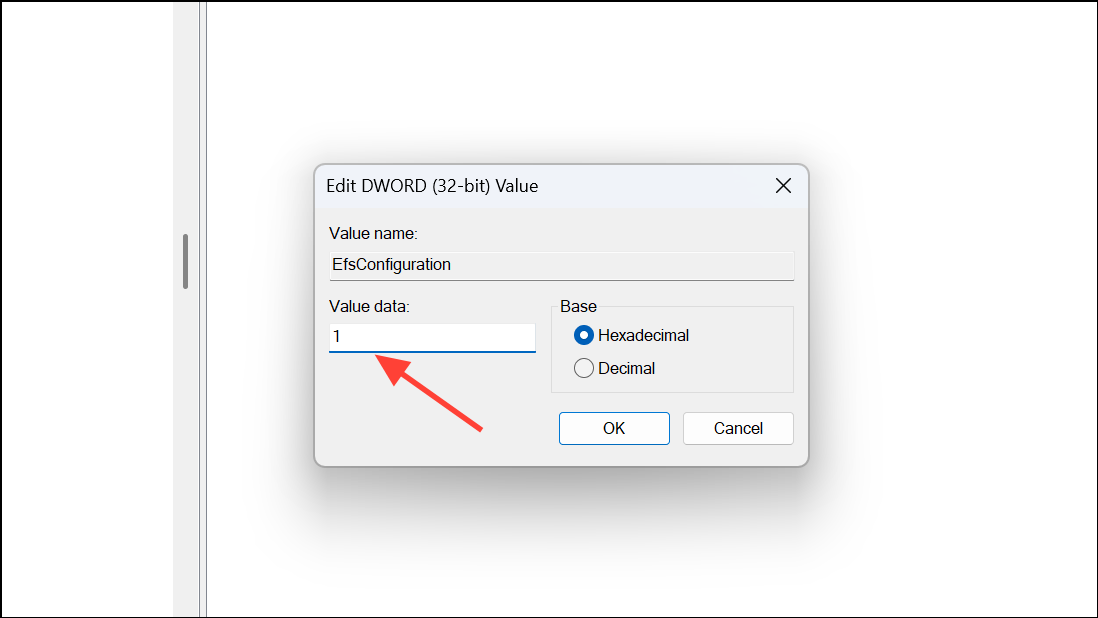
Restart the computer for the registry change to take effect. This method is best used for individual systems or as a scripted change for small groups of computers.
Caution: Editing the registry can cause system instability if not performed correctly. Always back up the registry before making changes.
Disabling EFS via Group Policy offers centralized control and reduces risk of data loss from encrypted files. Regularly review Group Policy settings to ensure compliance and security across your organization.





