Enable Live Translation on iOS 26 — iPhone and AirPods setup
Set up Live Translation for Messages, calls, FaceTime, and in‑person conversations with supported AirPods.
Set up Live Translation for Messages, calls, FaceTime, and in‑person conversations with supported AirPods.
by Shivam Malani
Apple Intelligence powers Live Translation across iPhone in iOS 26, covering Messages, FaceTime captions, phone call audio, and in‑person translation with AirPods. Start by confirming your device supports Apple Intelligence and that required language packs are downloaded; features won’t appear until these dependencies are in place.
Requirements and quick checks
Make sure these items are squared away before you try to use Live Translation:
iPhone with iOS 26 and Apple Intelligence available and turned on.
Apple’s Translate app installed (needed for setup and language downloads).
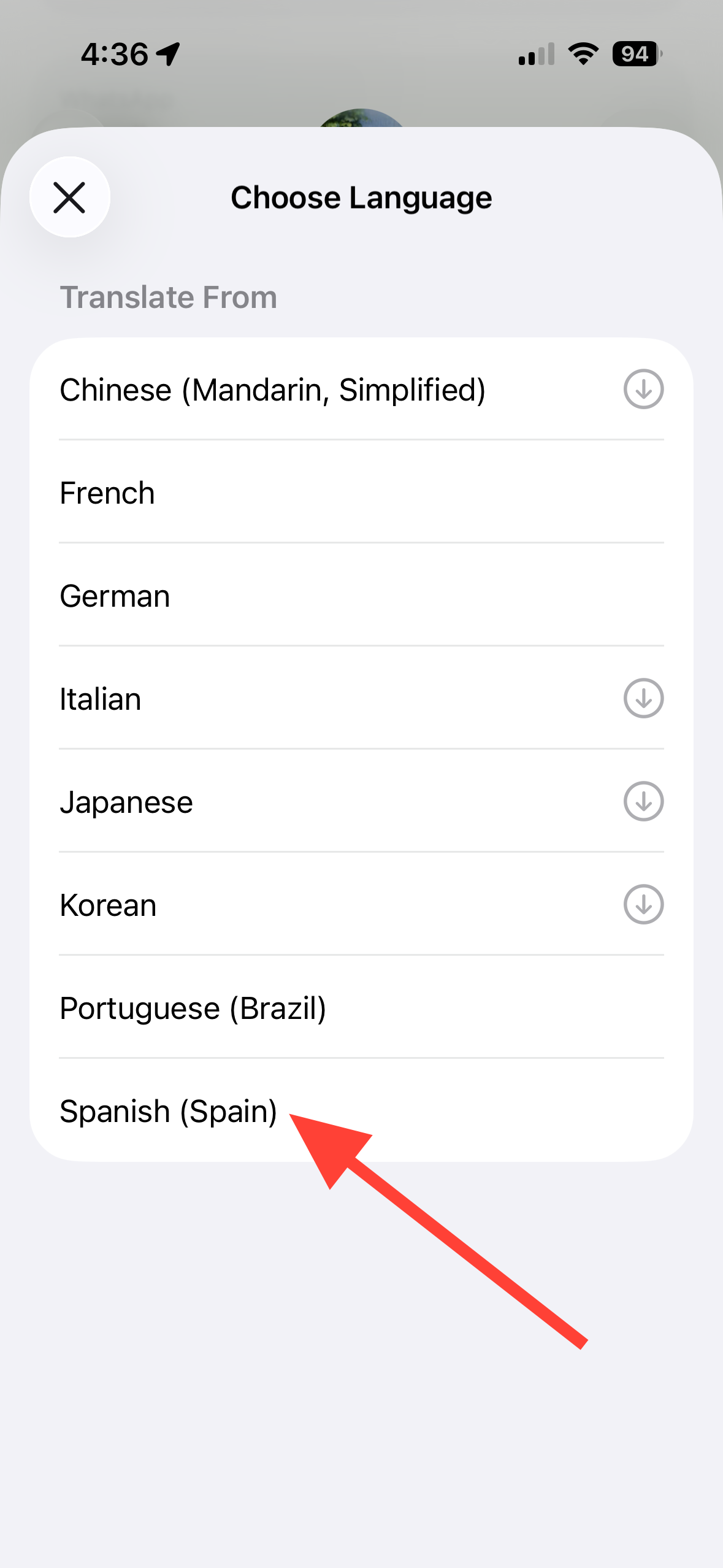
Downloaded language packs for both the language you’ll hear and the language you’ll speak.
For in‑person translation: AirPods Pro 2, AirPods Pro 3, or AirPods 4 (ANC) paired to an iPhone 15 Pro or later, with the latest firmware and Apple Intelligence turned on.
Availability varies by region and language. Check Apple’s iOS Feature Availability page if options are missing.
Download languages (Phone, FaceTime, Messages, and AirPods)
Live Translation runs on device. iPhone needs the source and target languages stored locally to work reliably and quickly.
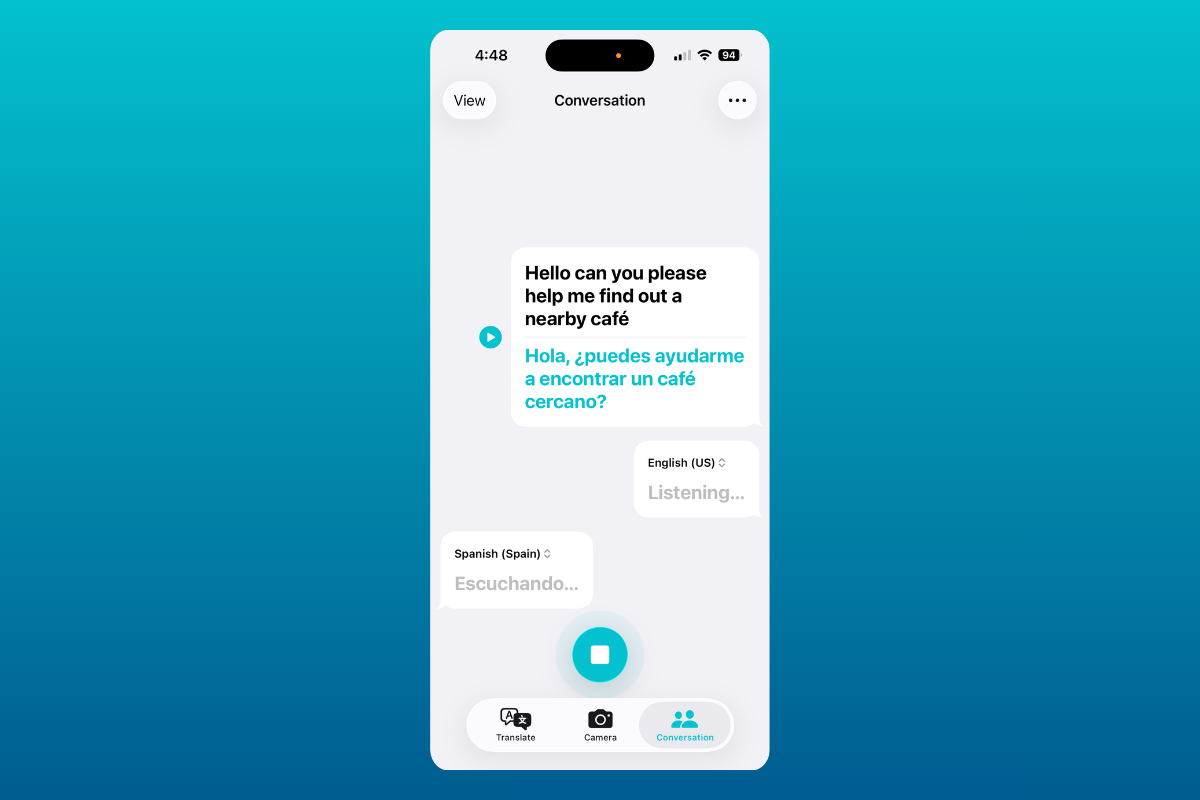
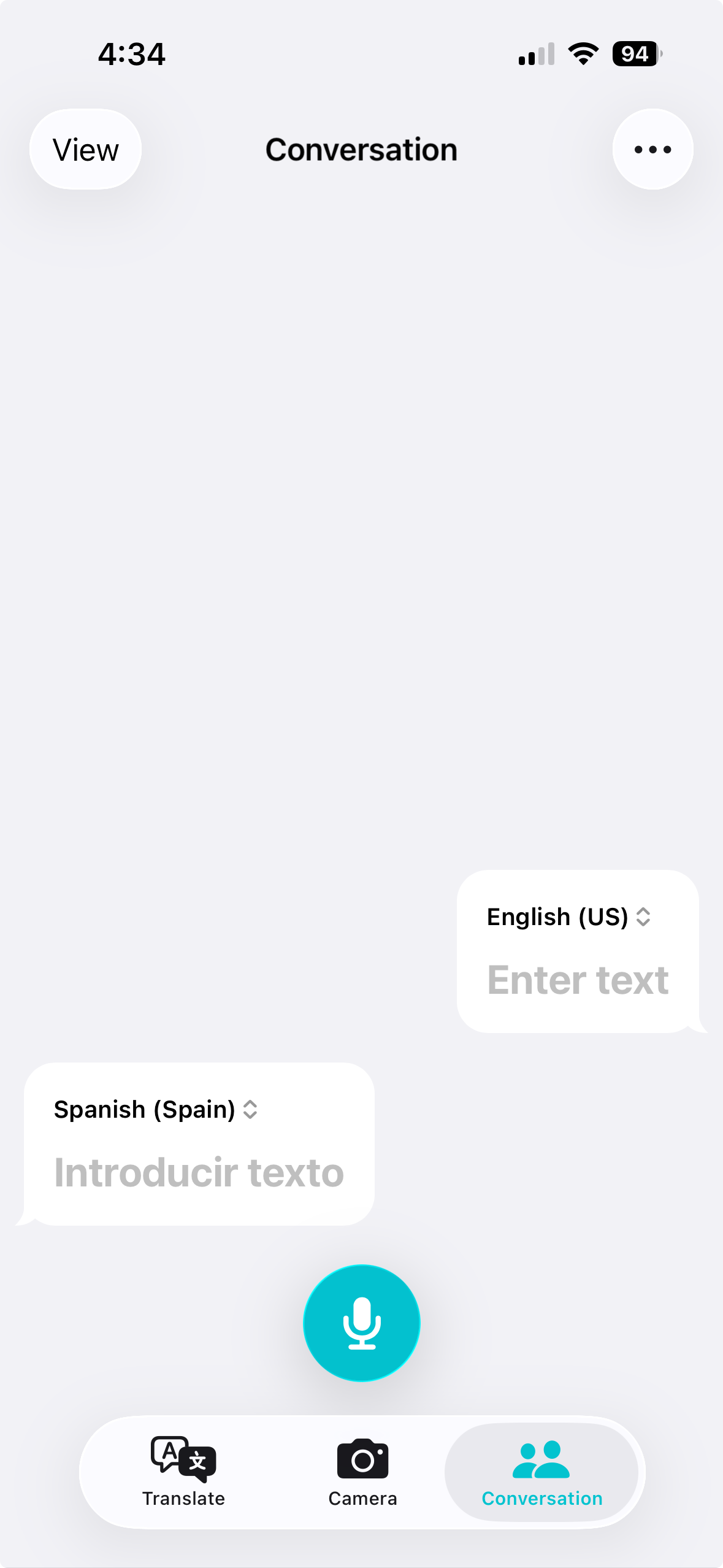
Open the Translate app on iPhone and go to the ‘Conversations’ tab. Review “Your language” and “Their language,” then download each language so it shows as available offline.
If you’re setting up AirPods in-person translation, also go to Settings > tap your AirPods > Translation > Languages and download the same pair of languages so they’re stored for your AirPods workflow.
If a language shows as queued or stuck, cancel the pending download and start it again. Stay on the screen until it completes to avoid partial downloads.
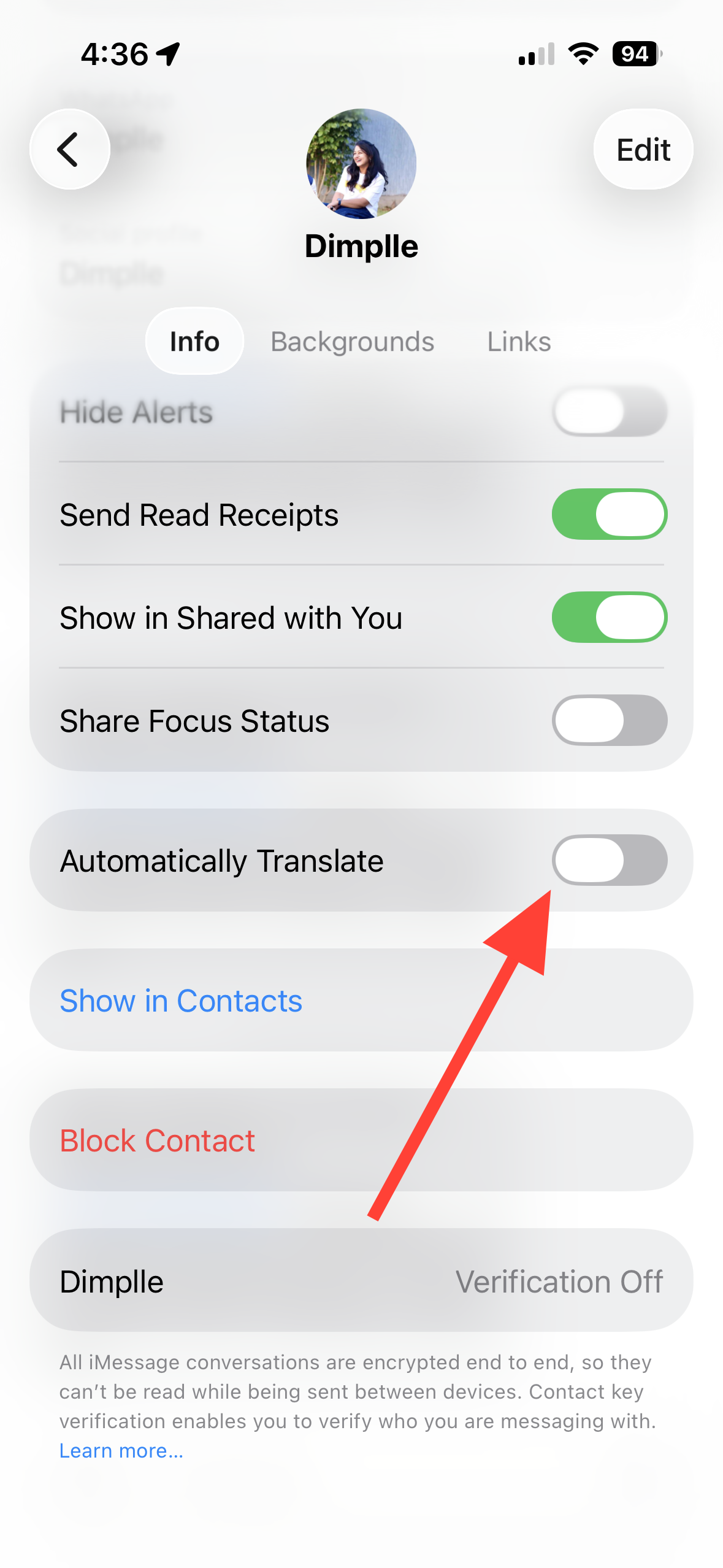
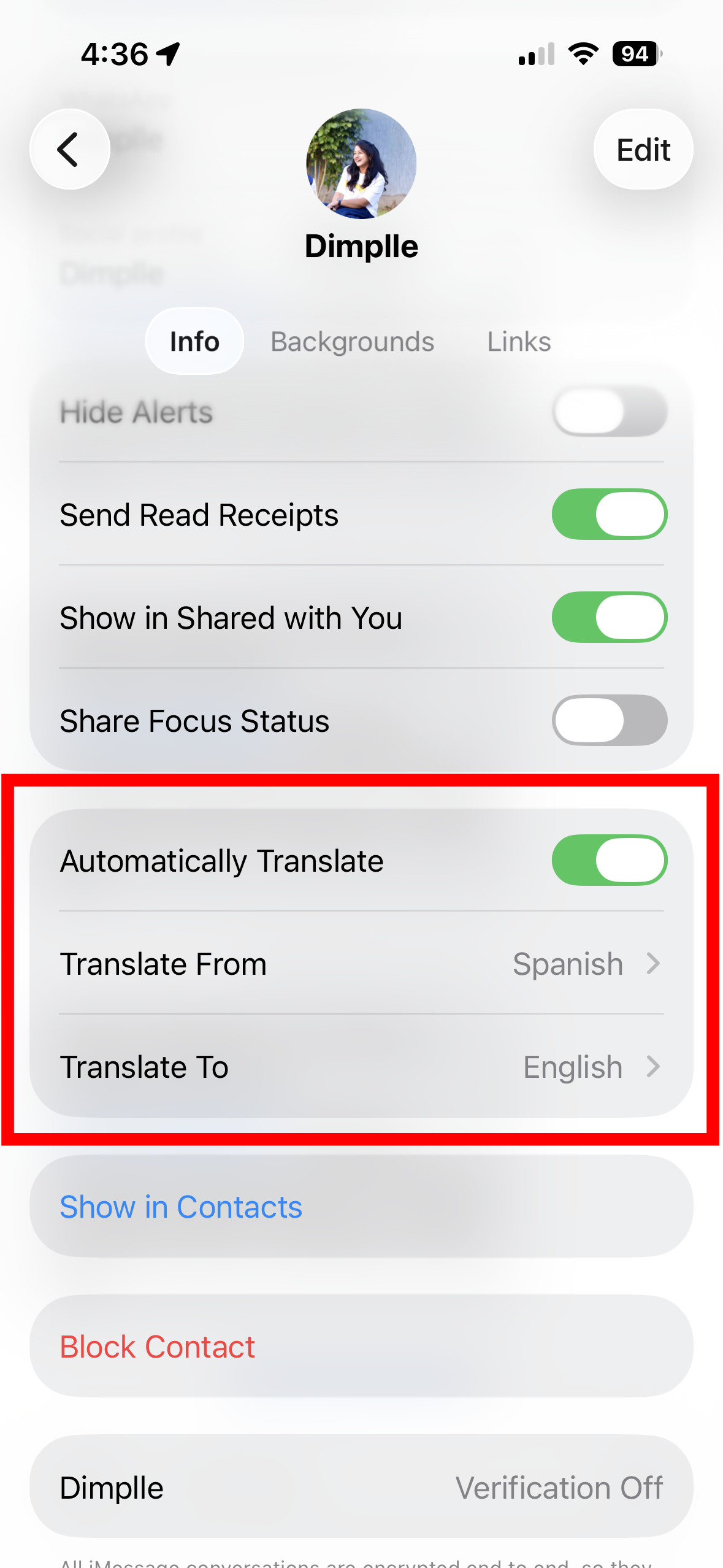
Turn on Live Translation in Messages
What you get: New messages in the selected conversation are shown in your language, and your replies are sent in theirs.
Return to the thread. New incoming texts appear translated; use the on‑screen option to show original text when needed.
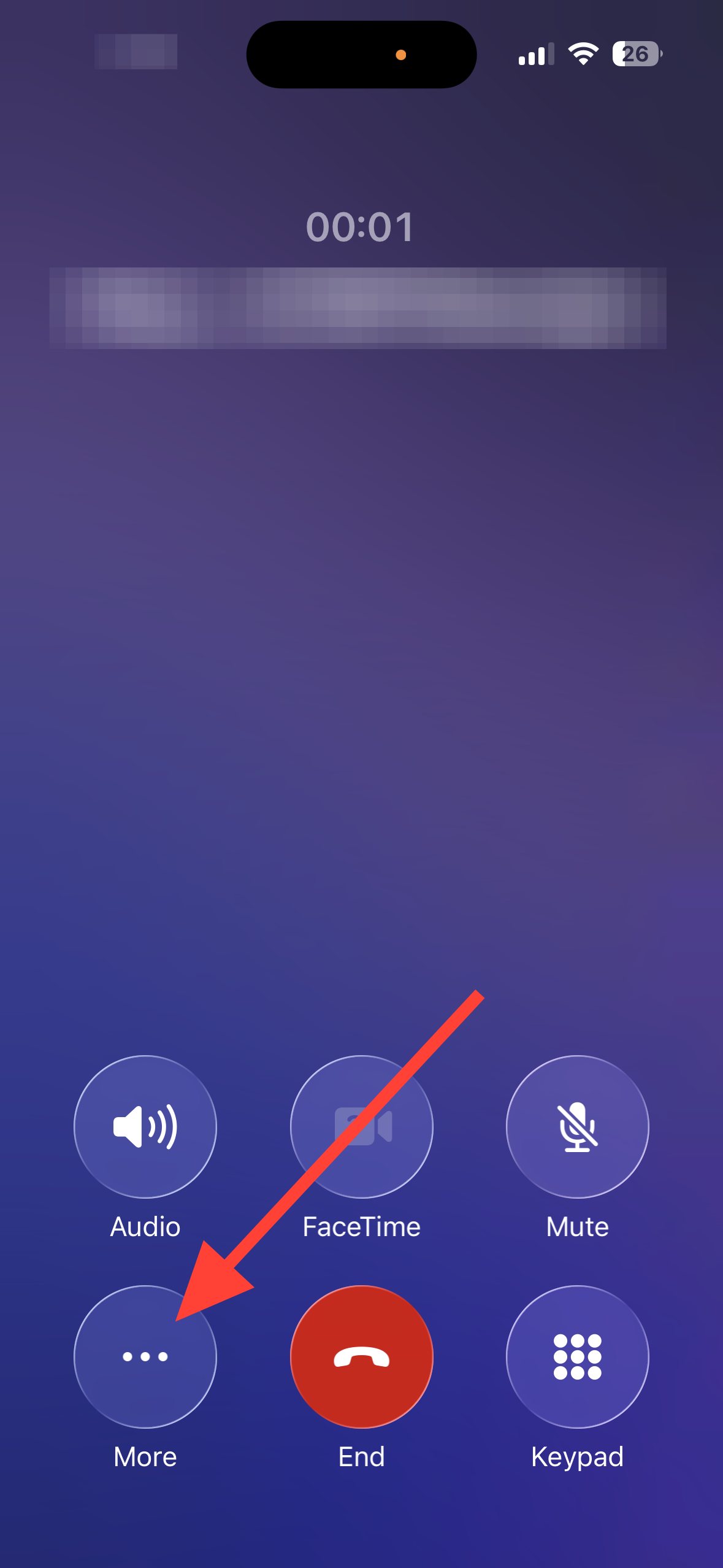
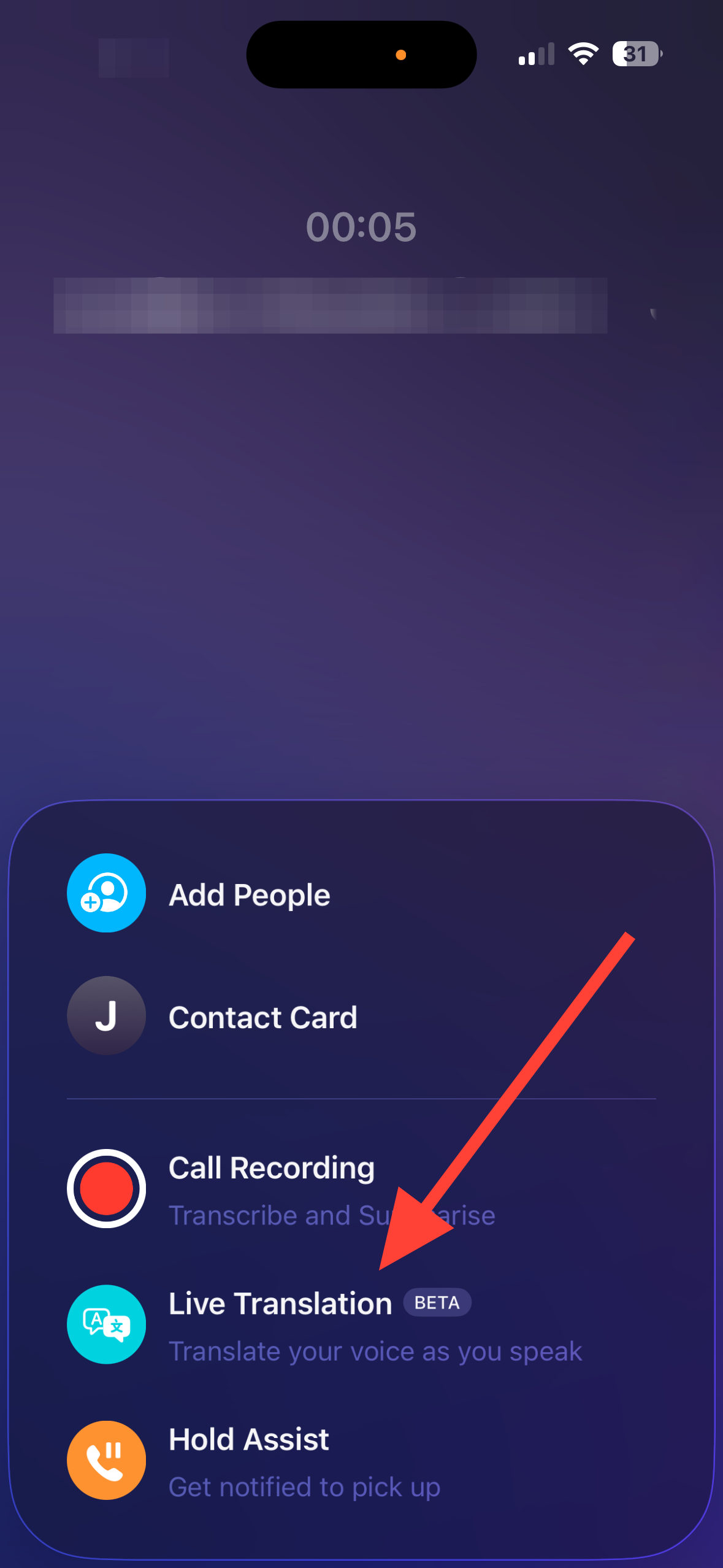
Use Live Translation on phone calls
What you get: iPhone can speak your translated words to the other caller and show translated text on your screen during one‑on‑one calls in supported languages.
Watch for translated captions to appear automatically during the call. Continue speaking in your own language—the captions display in the preferred language.
Start in‑person Live Translation with AirPods
What you get: Hear what someone nearby says, translated into your language through your AirPods. You can also show them your translated reply on your iPhone or play it aloud.
Start translation in one of three ways: press and hold both AirPods stems together; say, “Siri, start Live Translation”; or tap Start Translating in the Live tab.
Speak normally. You’ll hear the translation through AirPods after a brief delay. If it’s noisy, switch the input to iPhone’s microphone for clearer pickup (option noted in Apple’s guide).
To show or play your reply, use the Live tab on iPhone to display the transcript or play the translated audio through the phone speaker.
Notes from Apple: When Live Translation starts, Adaptive Audio turns on automatically. When both participants wear supported AirPods with the latest firmware, each can hear translations in their chosen language. Outputs may be inaccurate or unexpected; verify anything critical.
Troubleshooting — make Live Translation show up and work reliably
1) Complete the ‘Conversations’ setup in Apple’s Translate app
Open the case near iPhone to reconnect. If Live Translation still doesn’t appear, unpair, then reset the AirPods (hold the case button until the LED flashes amber, then white) and pair again.
3) Confirm Apple Intelligence is available and switched on
Open Settings and locate Apple Intelligence controls. If the toggle is missing, confirm your iPhone model and region support Apple Intelligence in Apple’s feature availability.
Seat the earbuds properly and use ANC to reduce distractions so the translated audio is easier to follow.
Supported languages and accuracy notes
Apple Intelligence (beta) supports Chinese (Simplified), English, French, German, Italian, Japanese, Korean, Portuguese (Brazil), and Spanish, with features not available in all languages or regions.
Keep iOS and AirPods firmware up to date and periodically review which languages are downloaded so Live Translation stays ready when you need it.