Enshrouded lets you rewrite most of its survival rules for each world. That means you can keep the exploration, building, and boss fights while removing the parts that eat a short play session, like corpse runs, hunger timers, and slow mining. The Custom difficulty menu works the same on PC and PS5. Achievements still unlock on a customized world, so you can turn the sliders without giving anything up.
Quick answer: Edit your save slot, choose Custom, then set Loot Loss On Death to Keep All, Player Stamina to 400%, Time in the Shroud to 200%, and Mining Damage to 200%. Leave the Enemies tab at 100%.
How to open Custom difficulty for an Enshrouded world
Custom difficulty is set per save world from the session menu. The path is identical on both platforms. Only the button prompts differ on PS5.
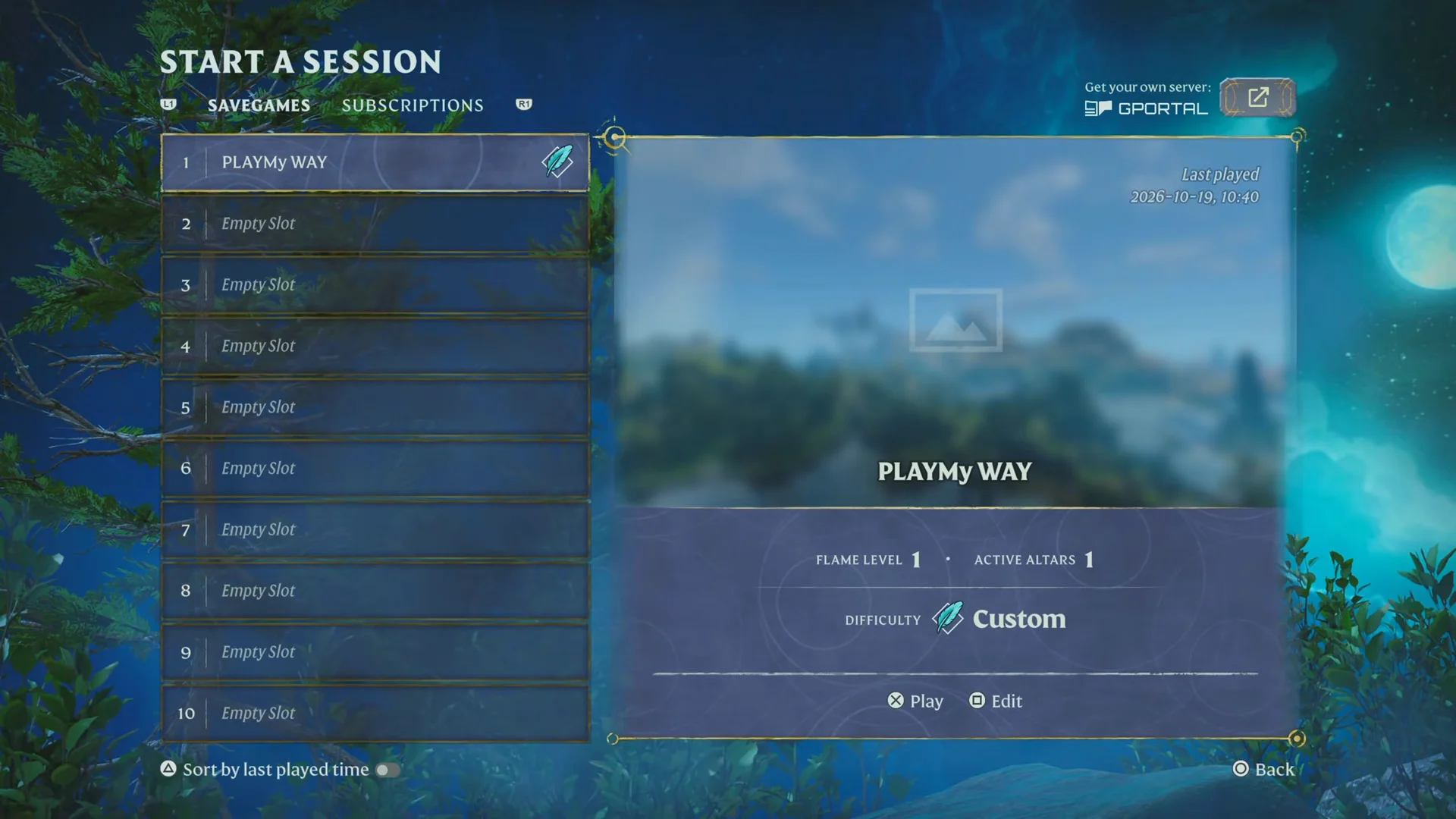
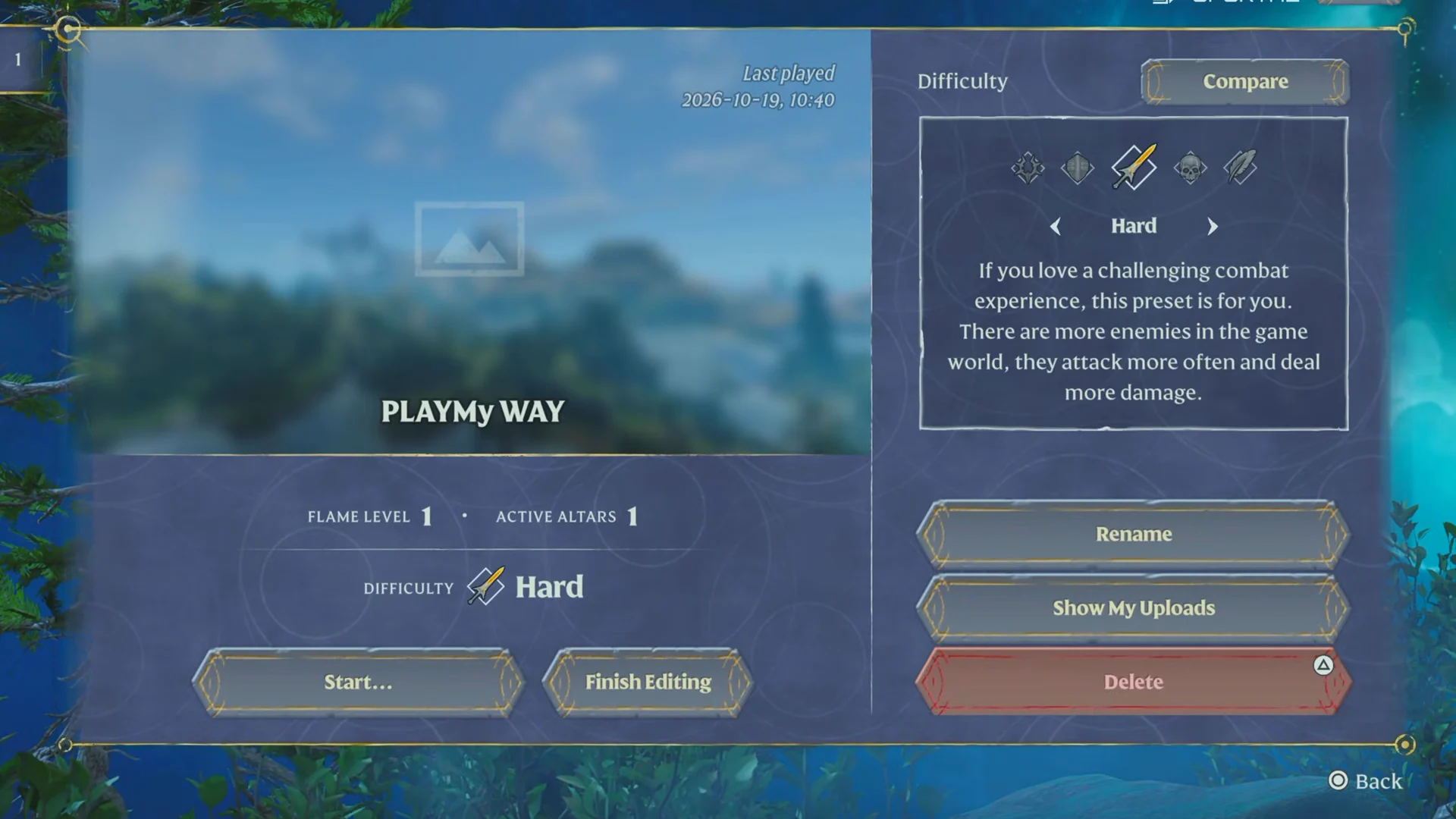
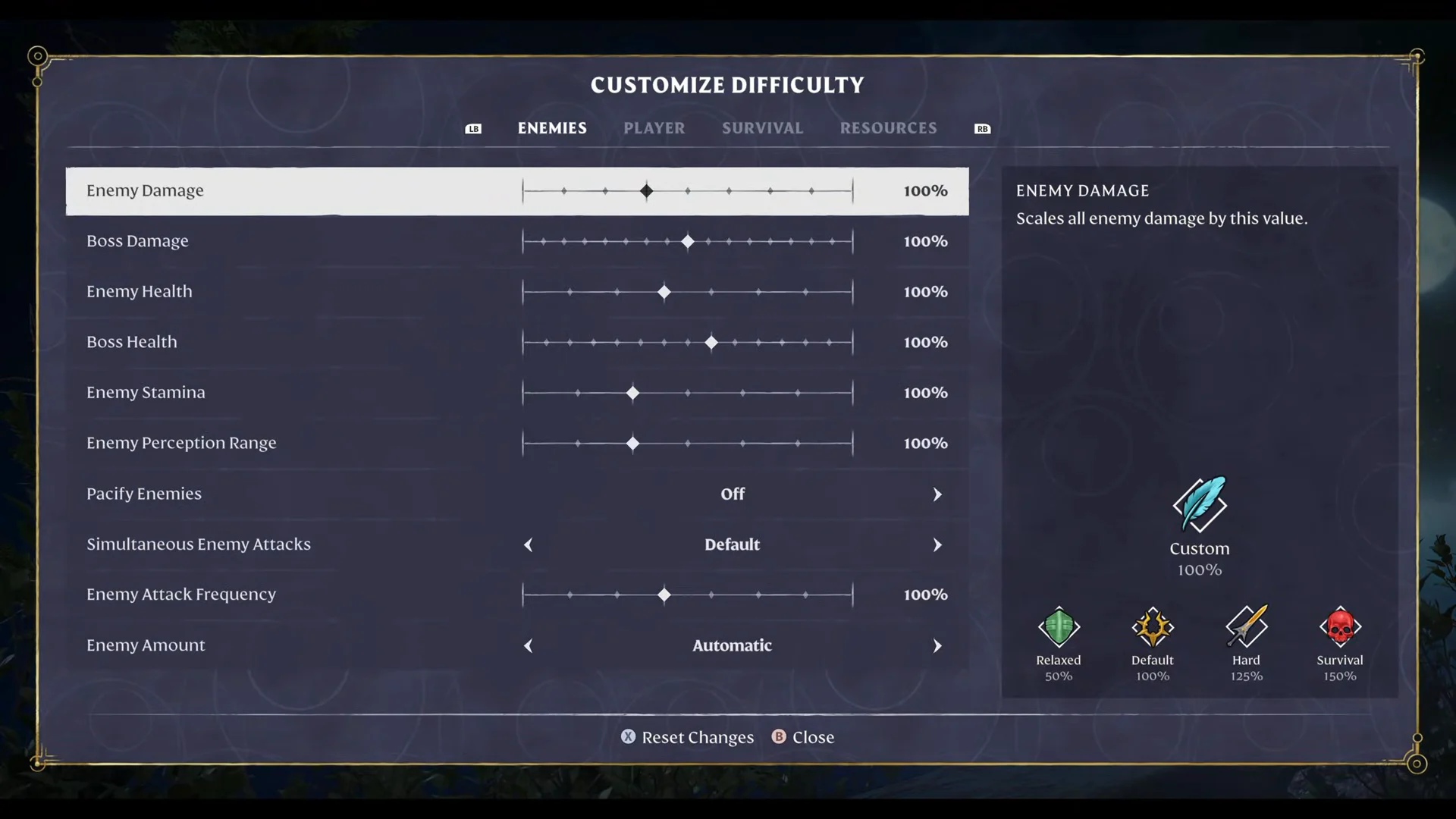
To check that the settings took, return to the session menu. The world’s slot shows Custom as its difficulty instead of a preset name.
Enemies tab: leave combat at default
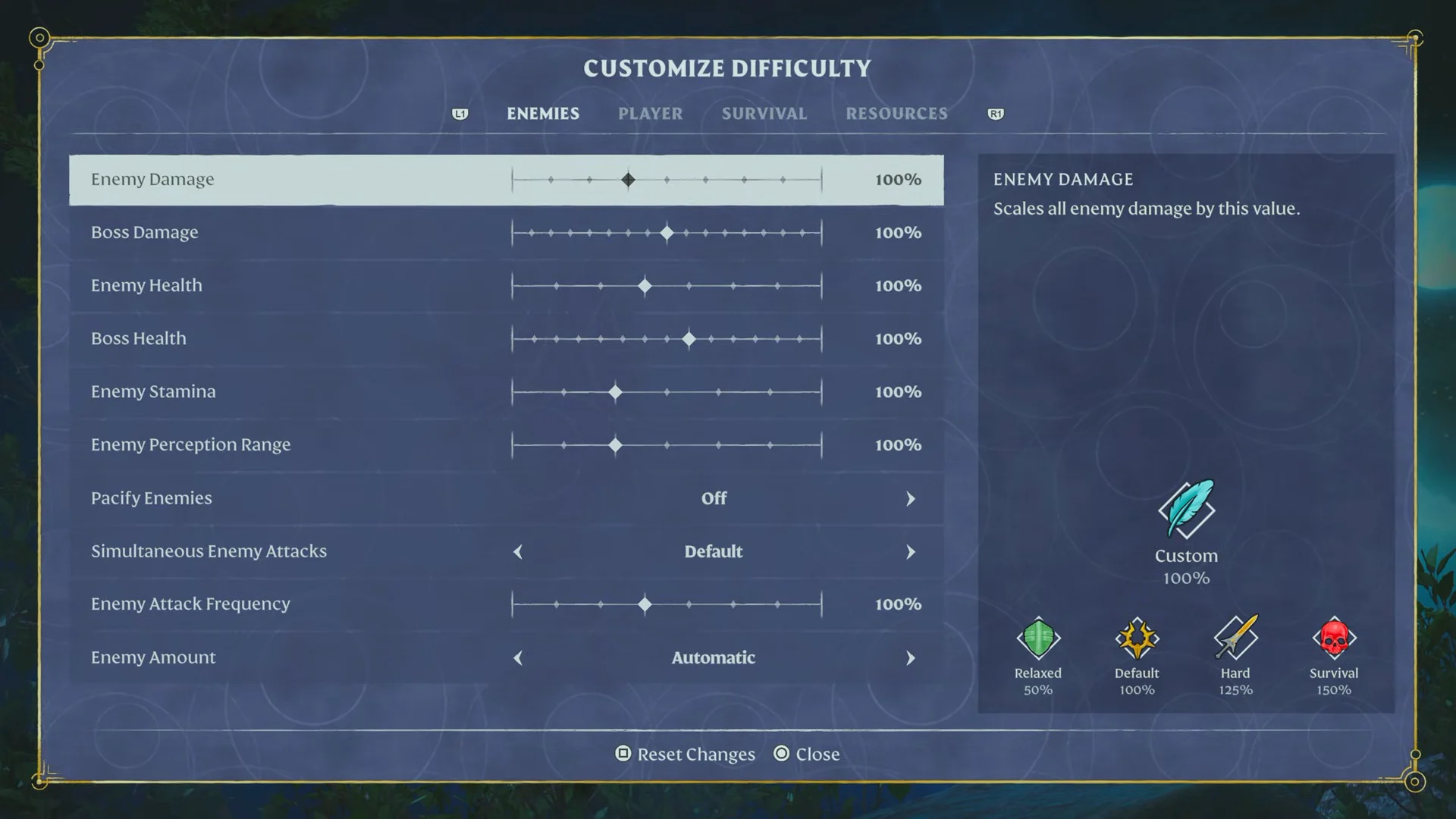
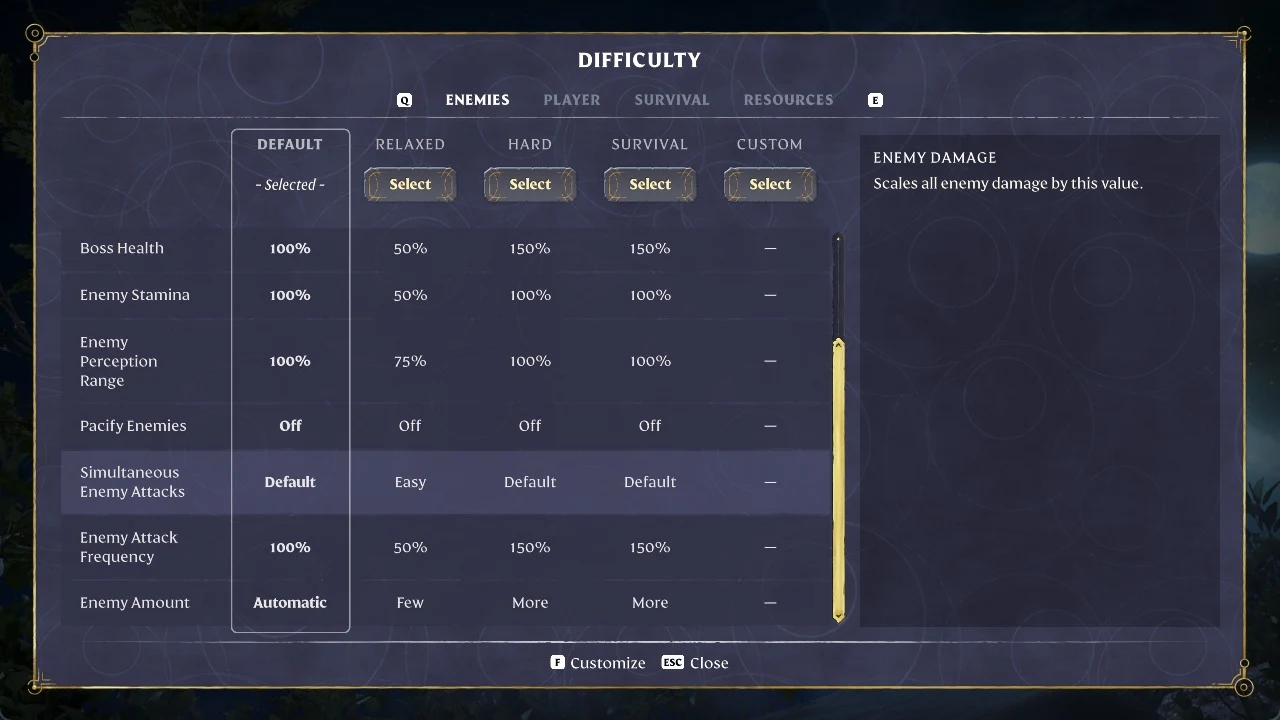
Everything on the Enemies tab stays at 100%. That covers Enemy Damage, Enemy Health, Enemy Stamina, Enemy Perception Range, and Enemy Attack Frequency, along with the boss and enemy amount sliders. The logic is simple. Fights stay as Keen Games tuned them, and the buffs on the Player tab give you the margin instead. If combat is what stops your sessions short, this is the tab to lower. Pacify Enemies also lives here.
Player tab values for Enshrouded
| Slider | Value |
|---|---|
| Player Health | 200% |
| Player Mana | 200% |
| Player Stamina | 400% |
| Frost Resistance Duration | 150% |
| Diving Time | 200% |
| Mining XP | 200% |
| Quest & Exploration XP | 200% |
| Combat XP | 200% |
Stamina gets the largest bump because it drives sprinting, climbing, and dodging, so running out of it slows down every trip across the map. Doubled health and mana let you stay in a fight longer without changing how enemies behave. The three XP sliders at 200% roughly halve the time it takes to level, which matters most when you only get an hour at a time.
Survival tab: death, hunger, and Shroud time
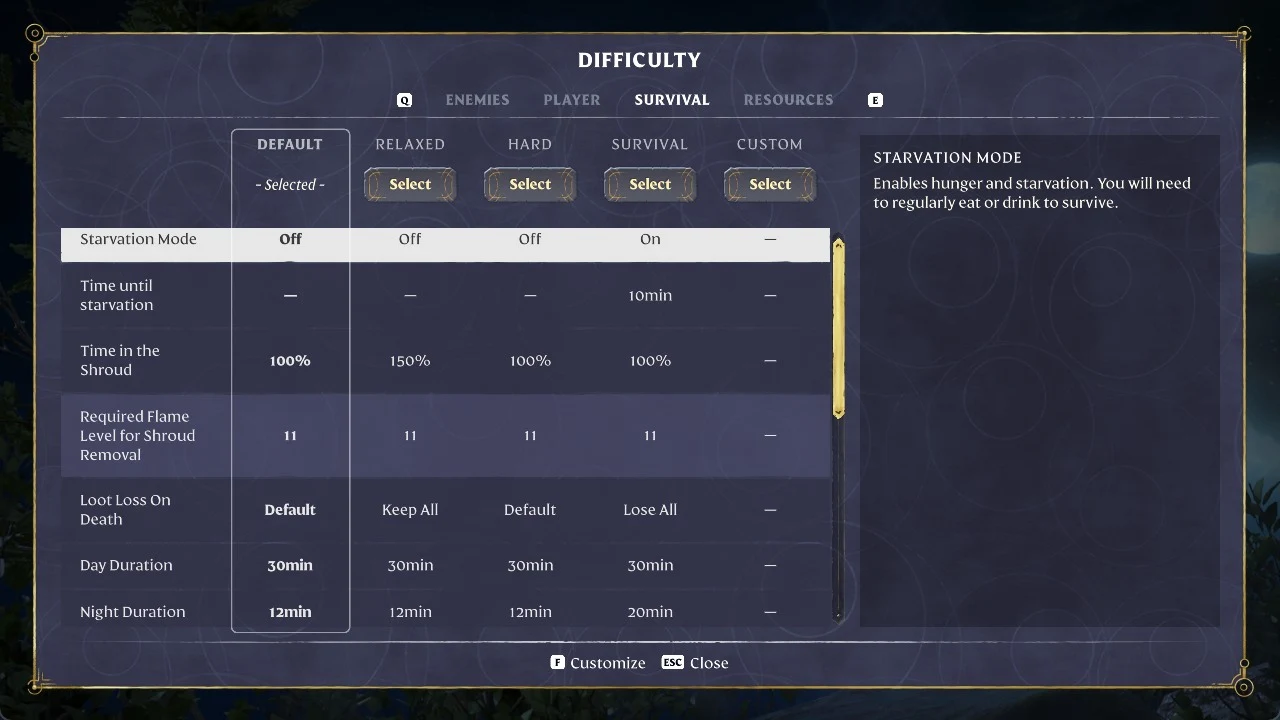
| Setting | Value |
|---|---|
| Starvation Mode | Off |
| Time until starvation | 20min |
| Time in the Shroud | 200% |
| Required Flame Level for Shroud Removal | 8 |
| Loot Loss On Death | Keep All |
| Day Duration | 45min |
| Night Duration | 12min |
| Food Buff Duration | 150% |
| Weapon Durability | On |
| Harsh Weather Occurrences | Rare |
| Glider Turbulences | On |
| Taming Startle Repercussion | Keep Progress |
| Fishing Difficulty | Easy |
| Curse Chance | Default |
Loot Loss On Death does the most for short sessions. By default, dying in Enshrouded keeps your equipped gear and crafted items but drops every raw resource you were carrying. Keep All removes that penalty completely, so a death on the way home does not wipe an evening of gathering.
The Shroud is the fog that covers dangerous parts of Embervale. You can only stay inside it for a limited time before your character dies. At 200%, the timer at the top of the screen runs twice as long, which gives you room to loot chests without rushing out. A longer day of 45 minutes and a shorter 12-minute night keep more of your playtime in daylight. Food buffs last 150% as long, so you eat less often.
If you would rather keep hunger in play, leave Starvation Mode on and stretch Time until starvation to 20min instead of switching it off.
Resources tab: faster gathering and crafting
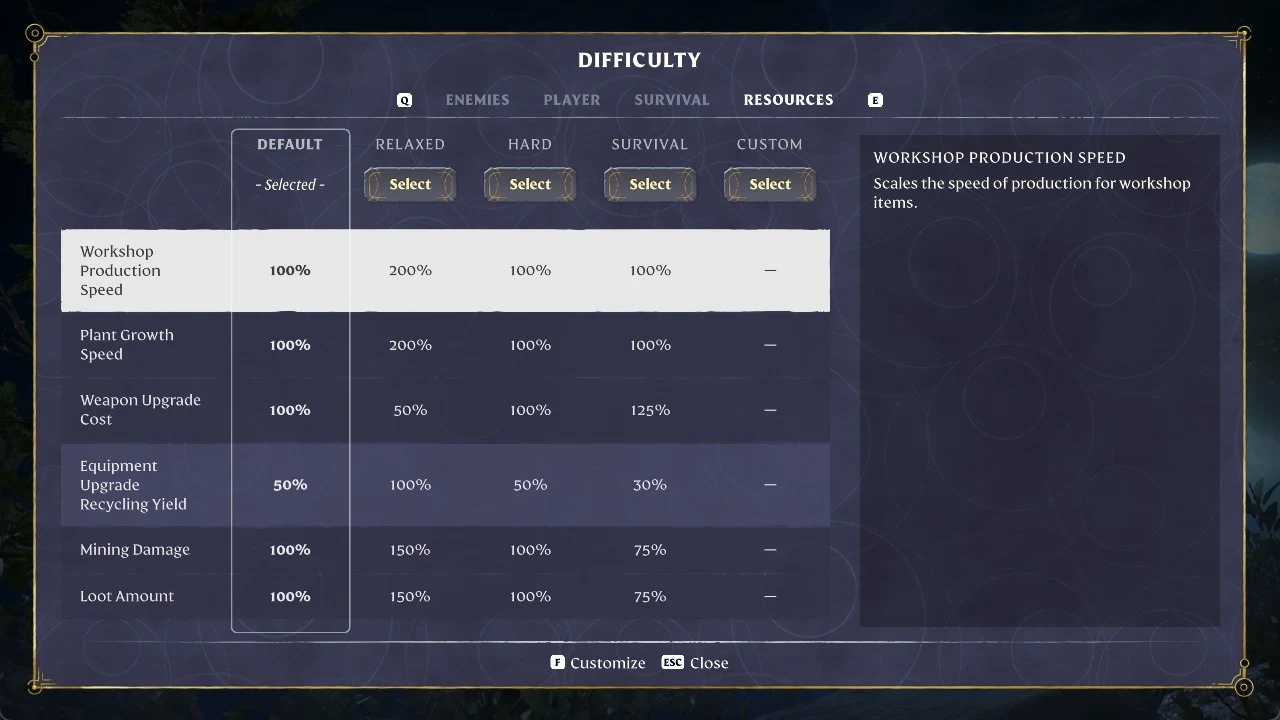
| Slider | Value |
|---|---|
| Workshop Production Speed | 175% |
| Plant Growth Speed | 175% |
| Weapon Upgrade Cost | 30% |
| Equipment Upgrade Recycling Yield | 90% |
| Mining Damage | 200% |
| Loot Amount | 150% |
Mining Damage at 200% means trees fall and rocks break in about half the swings. Loot Amount at 150% stacks on top of that, so each trip brings back more. Workshop and plant speeds at 175% shorten the wait on crafting stations and farm plots. Dropping Weapon Upgrade Cost to 30% makes upgrades much cheaper. A 90% recycling yield returns most of the materials when you break down upgraded gear.
Enshrouded system settings on PS5 and PC
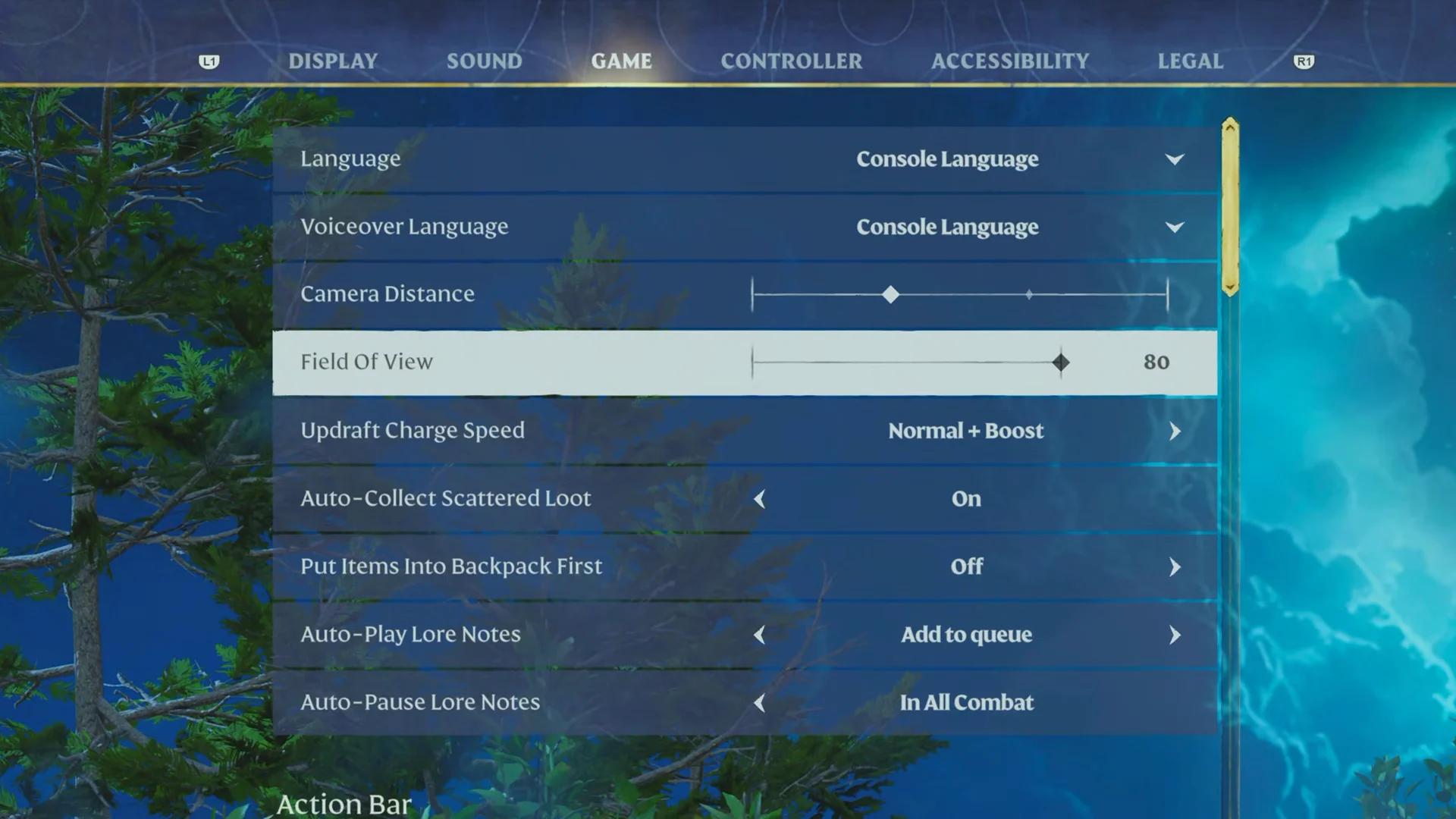
World sliders change the rules. The system Settings menu changes how the game feels to play, and it has the same Display, Sound, Game, Controller, and Accessibility sections on both platforms. PC also adds a Keyboard & Mouse section. In the Game section, raise Field of View to its maximum of 80. Turn Auto-Collect Scattered Loot on early in a playthrough so items fly into your bag, then switch it off later once junk starts clogging your inventory. Updraft Charge Speed, backpack priorities, and lore note audio playback sit on the same screen.
The rest are comfort changes that take seconds:
- Controller Speaker volume from 100% to 50% on PS5, which saves DualSense battery.
- Vibration Intensity at 0% in Controller settings.
- Screen Shake Strength at 0% in Accessibility.
- HUD elements switched between contextual and permanent, depending on how much on-screen info you want.
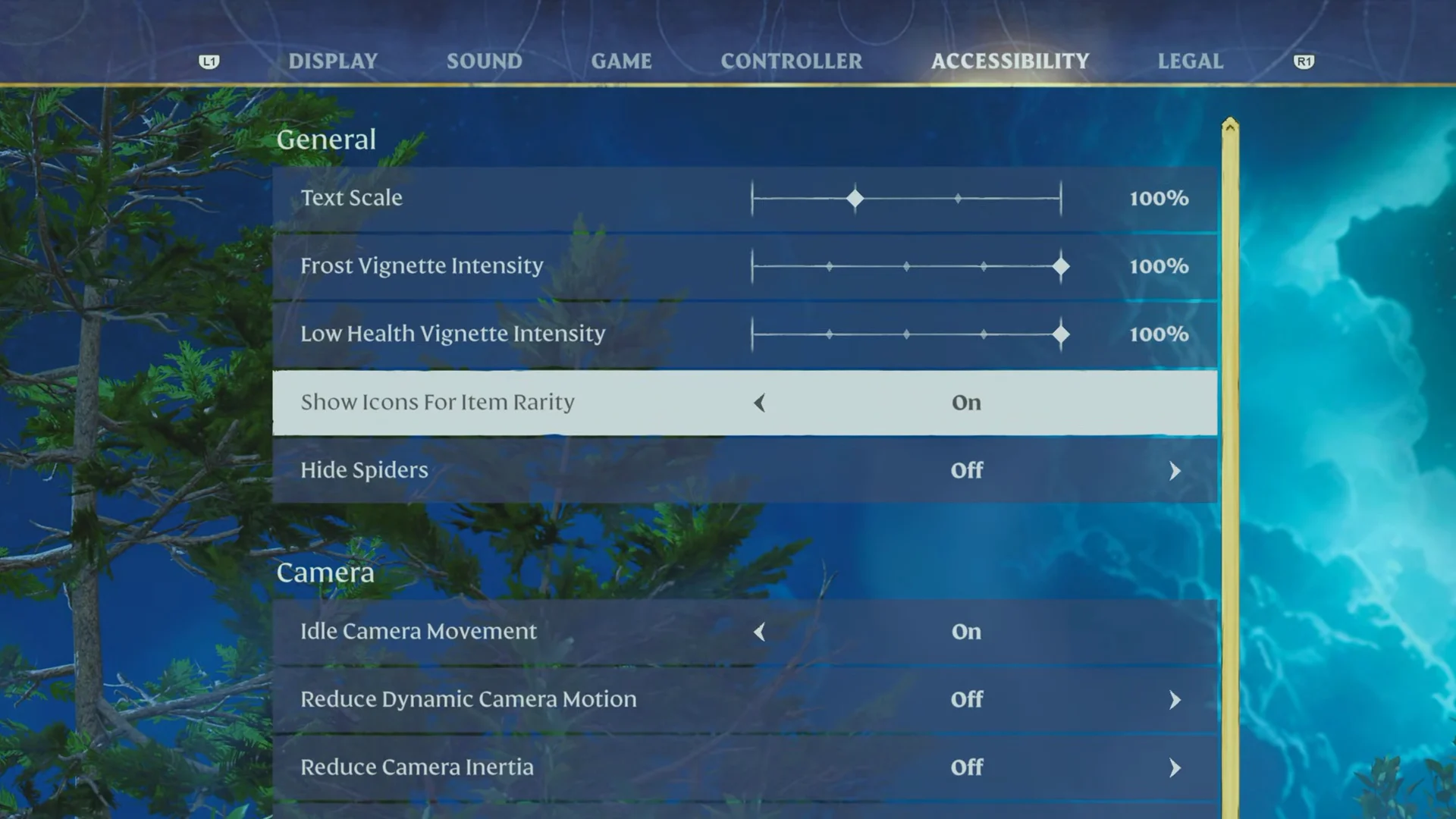
- Show Icons for Item Rarity turned on, which puts diamond markers on loot and helps colorblind players read rarity.
Game values behind the Shroud, crafting, and updraft settings
Several of these settings act on specific things in the world. The Flame Altar anchors your base and sets your Flame level. Workshop Production Speed changes how quickly stations like the Forge produce items. Updraft Charge Speed tunes the Ranger skill of the same name. These are their in-game values in build b25988036.
| Entry | Type | Key values |
|---|---|---|
 Flame Altar Flame Altar | Building, Common | Comfort – Flame 1, 1 recipe |
 Forge Forge | Station, Blacksmith | 1 recipe, needs a roof |
 Updraft Updraft | Ranger skill, Active | Cost 4, value 100 |
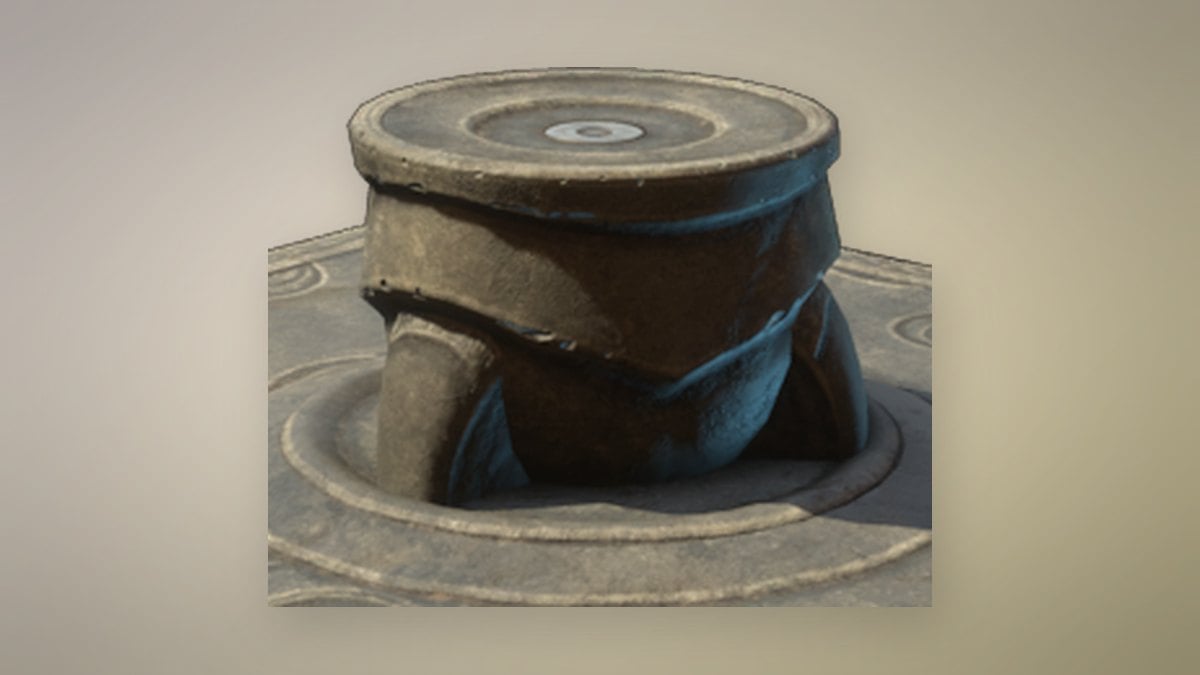
Flame Altar
Use the Level 1 Flame Altar to establish your home, placing it above the Shroud; building can only take place nearby. You receive it through several quests: Claim A Spot For Your Base, Crown Of Sorrow, Flame Altar And Base Improvements, Increasing Your Follower Amount And Flame Level, and Veilwater Basin Flame Upgrade.
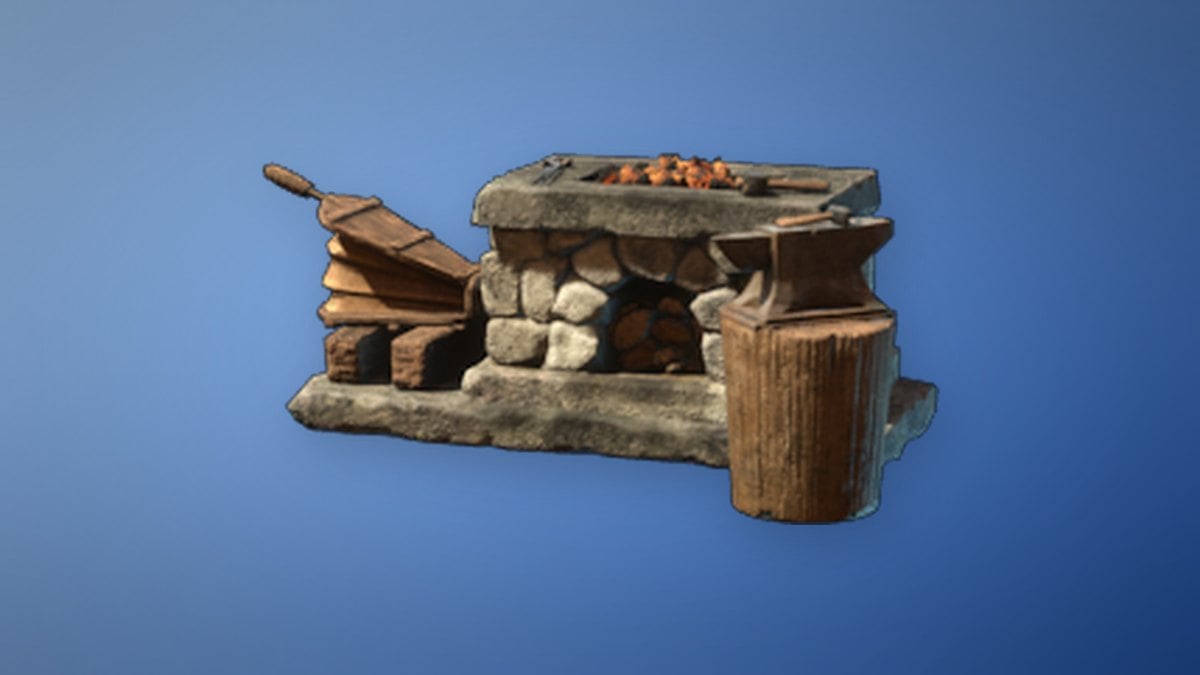
Forge
The Forge opens up new crafting for the Blacksmith. You learn it when you pick up Metal Scraps, and it has to be crafted under a roof. It serves as an upgrade for the Alchemist, Blacksmith, and Carpenter.
Updraft
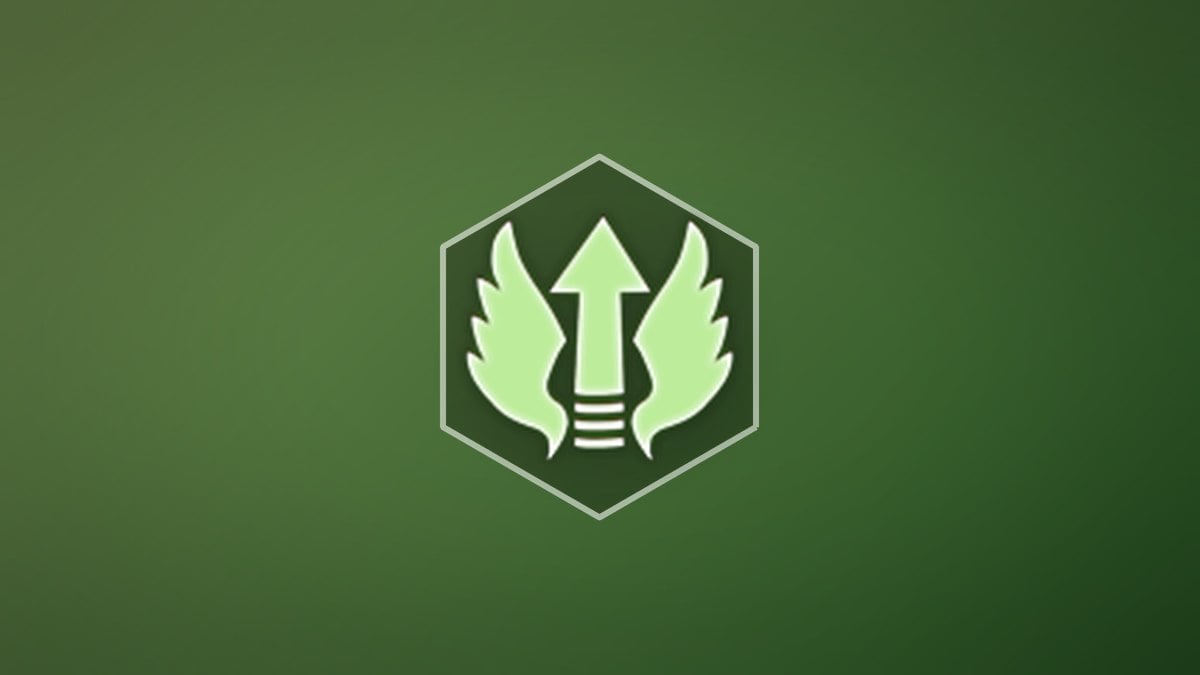
Updraft is an active Ranger skill that costs 4 points. Jump while gliding and it pushes you upward, but only once per flight. It charges before it fires, and a longer charge gives more lift. A full charge adds an extra boost on top, which is why the charge speed setting changes how responsive it feels.
None of these sliders are locked in. You can return to the same save slot, choose Edit again, and push any value up or down as your schedule or skill changes. The Xbox Series X and Series S version is planned for early 2027, and it is expected to use the same Custom difficulty menu.