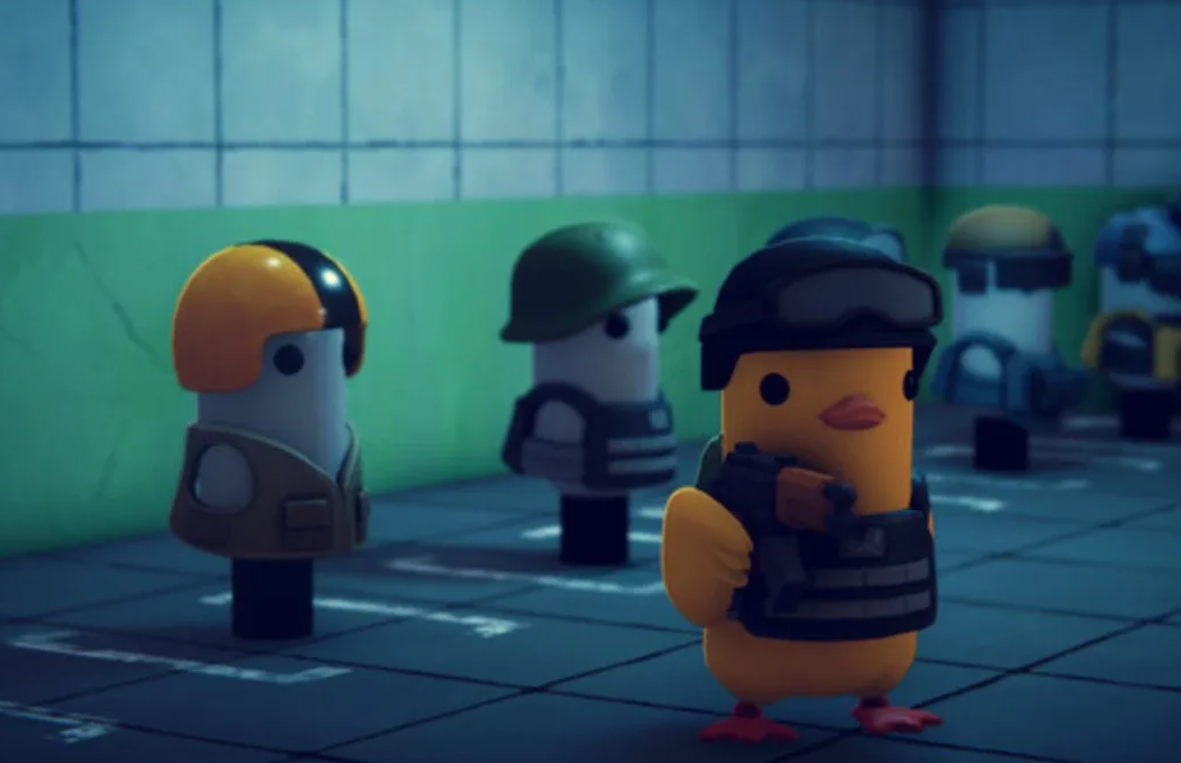
Escape from Duckov ships as a single‑player, PvE experience. If you want to raid with friends, a community mod enables co‑op sessions using either a local network or a VPN relay. It’s experimental, but it works when you set it up correctly.
Escape from Duckov co‑op status
- Official game: single‑player only; no built‑in co‑op or PvP.
- Community option: a Steam Workshop co‑op mod that adds online play.
- Expectations: this is a work‑in‑progress. Stability varies, and you will encounter bugs.
Install the co‑op mod (Steam Workshop)
You’ll install the co‑op package and its prerequisites from Steam Workshop, then set the correct load order in‑game.
- Subscribe to the co‑op package on Steam Workshop at its collection page and use “Subscribe to All” to grab required dependencies.
- Launch the game and open the “Mods” menu.
- Set the load order to:
- HarmonyLib
- LiteNetLib
- Debug CMD Mod
- Co‑Op Mod
- Restart the game.
- Create a new save. Co‑op controls are bound to the
Homekey.

Host or join over VPN (Radmin)
If you’re not on the same local network, use a lightweight VPN to simulate a LAN. Radmin VPN is the path the mod supports today.
- Download and install Radmin VPN from radmin-vpn.com.
- In Radmin, create a new private network and set a strong password. Share the network name and password with your friend.
- Have your friend join that network in Radmin.
- In Escape from Duckov, the host goes to the bunker, presses
Home, and starts a server session. - The joining player goes to their own bunker, presses
Home, and selects the option to connect via IP. - Use the host’s IPv4 address as shown in the Radmin client.
- Connect. Once successful, you’ll load into a shared session.
Play on a local network (no VPN)
If both players are on the same LAN, you can skip the VPN step.
- Connect both PCs to the same router or wired switch.
- Follow the same host/join steps using the host’s local IP address instead of a VPN address.
How progression and death work in the co‑op mod
Current builds handle inventories, crafting, and combat in specific ways during online play:
- Inventories: each player keeps their own stash/warehouse.
- Workbench: crafting/progression is tied to the host’s base.
- World state: maps and containers are synchronized for all players during a raid.
- Downed players: there’s no revive. If you die, you switch to spectator until the team extracts.
- Looting: teammates can loot a dead player’s gear.
- Friendly fire: weapons don’t damage teammates in the current build, but explosives do.
These rules are specific to the mod and may change as the developers iterate.
Known limitations and support
- Stability: expect desyncs and occasional crashes. This is adding online play to a single‑player game.
- Language: mod discussion threads are heavily Chinese‑speaking, so English troubleshooting may take longer.
- Bug reporting: use the Steam Workshop discussions for the co‑op package you installed.
Quick setup reference (host vs. joiner)
| Role | Steps |
|---|---|
| Host |
|
| Joiner |
|
If it doesn’t work
- Verify every dependency is installed from the Workshop collection and appears in the Mods list.
- Double‑check the load order: HarmonyLib, LiteNetLib, Debug CMD Mod, Co‑Op Mod.
- Make sure both players started new saves after enabling mods.
- Confirm you’re using the host’s IPv4 address (from Radmin or your local adapter), not IPv6.
If you continue to hit errors, try recreating the VPN network or switching to a local LAN test to isolate networking issues from mod problems.
Co‑op transforms Duckov’s loop, but remember you’re stacking a network layer on top of a single‑player foundation. Keep expectations in check, stick to the required load order, and use LAN or Radmin for the cleanest path into shared raids.