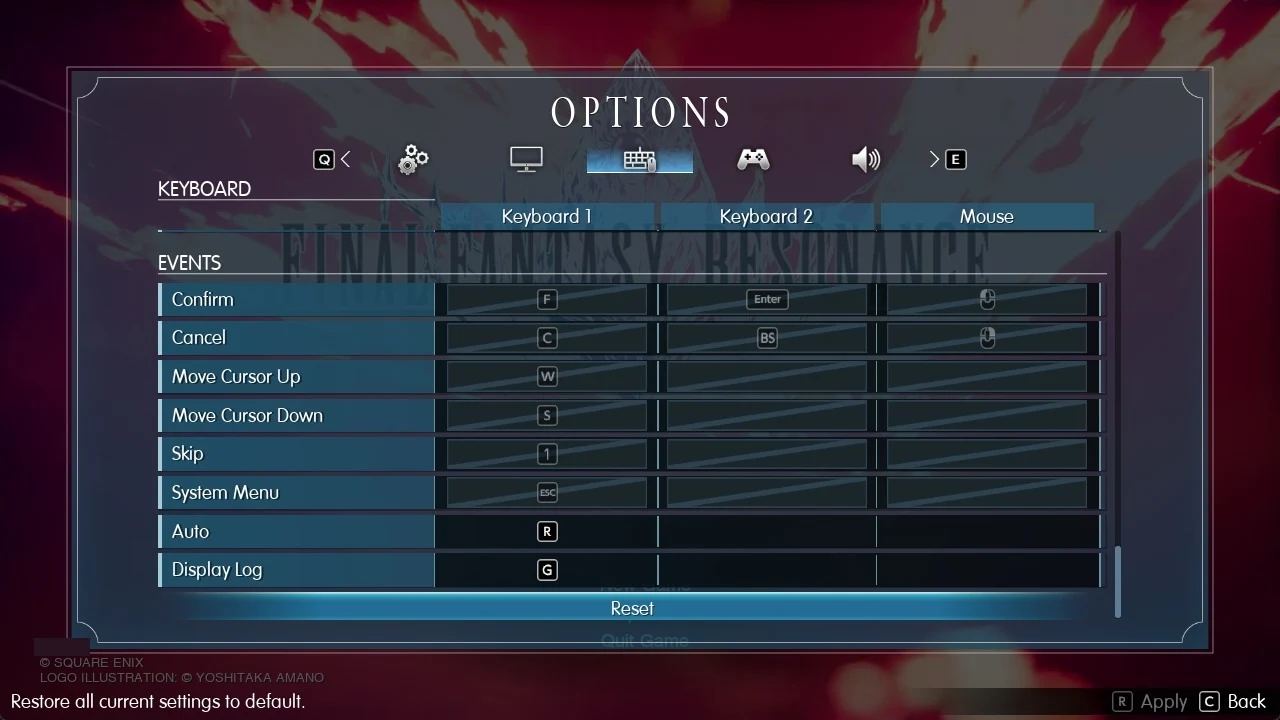
Final Fantasy Resonance on PC uses WASD to move, F to confirm and C to cancel. A controller confirms with A and cancels with B, and you can rebind both layouts in the Options menu.
Quick answer: In the field, press Tab for the Main Menu and Esc for the System Menu. Controller users can press Y to bring up the Main Menu. Change bindings under Options in the Keyboard and Gamepad tabs.
Final Fantasy Resonance keyboard and mouse controls
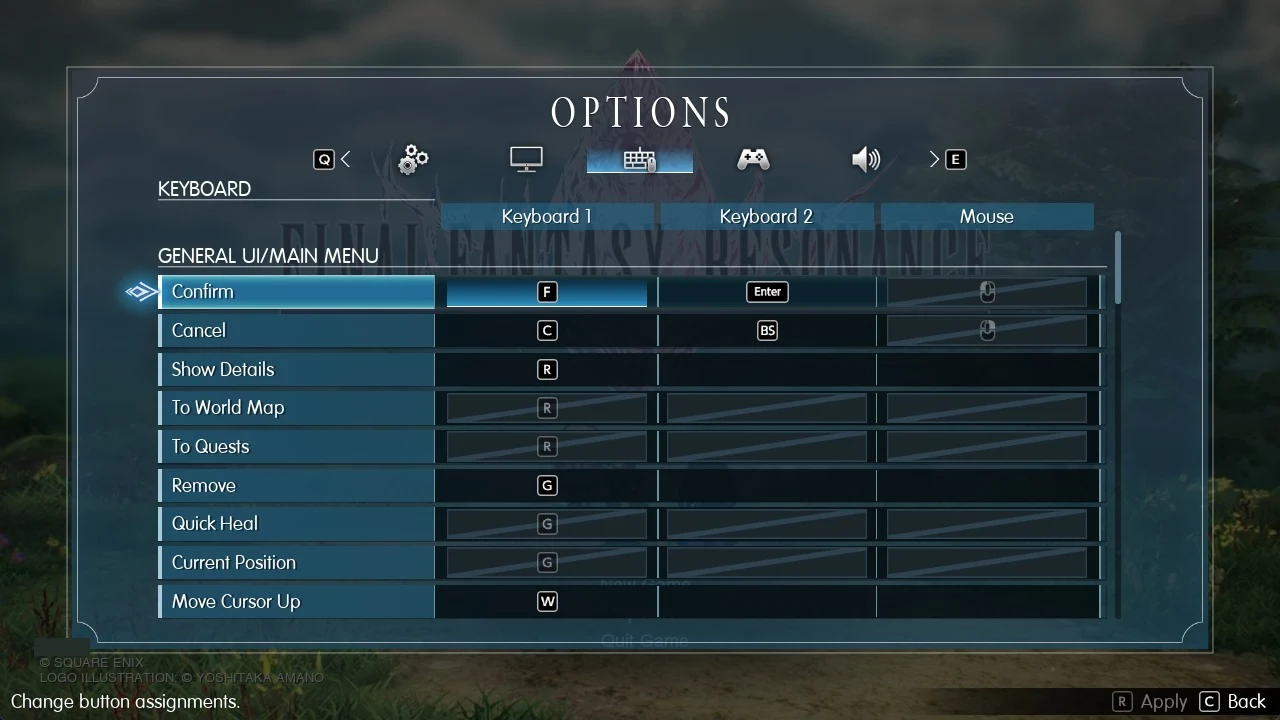
Three columns are available on the Keyboard tab: Keyboard 1, Keyboard 2 and Mouse. This allows a single action to be assigned two keys and a mouse button. If an action has multiple bindings, the tables show each one, with slashes between them.
General UI and menus
| Action | Key |
|---|---|
| Confirm | F / Enter / Left click |
| Cancel | C / Backspace / Right click |
| Show Details | R |
| To World Map | R |
| To Quests | R |
| Remove | G |
| Quick Heal | G |
| Current Position | G |
| Move Cursor Up | W |
| Move Cursor Down | S |
| Move Cursor Left | A |
| Move Cursor Right | D |
| Scroll Page Up | Page Up |
| Scroll Page Down | Page Down |
| Switch Tabs Left | Q |
| Switch Tabs Right | E |
| Show Tips | 4 |
| Skip | 1 |
| Destination List | 1 |
| System Menu | Esc |
By default, the menu cursor is controlled with W, S, A and D, not the arrow keys.
Battle
| Action | Key |
|---|---|
| Confirm | F / Enter / Left click |
| Cancel | C / Backspace / Right click |
| Move Cursor | W, S, A, D |
| Scroll Page | Page Up / Page Down |
| Show Tips | 4 |
| Skip | 1 |
| System Menu | Esc |
| Limit Bursts | R |
| Multicasting | Q |
| Libra Details | B |
| Display Unit Info | V |
| Change Battle Speed | Tab |
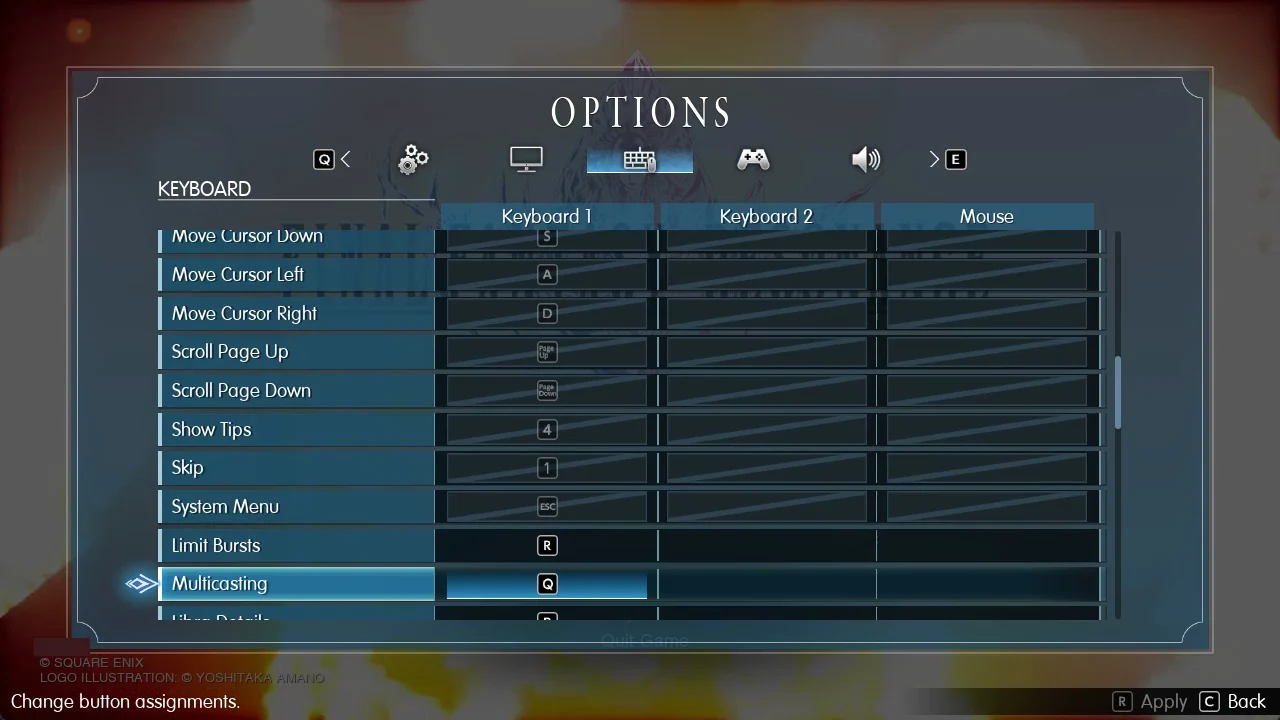
Tab does two jobs depending on where you are. In the field it opens the Main Menu, and in battle it changes Battle Speed.
Field
| Action | Key |
|---|---|
| Confirm | F / Enter / Left click |
| Examine/Land Airship | F / Enter / Left click |
| Cancel | C / Backspace / Right click |
| System Menu | Esc |
| Move Character | W (up), S (down), A (left), D (right) |
| Sprint | Left Shift |
| Chocobo/To Airship Interior | R |
| Main Menu | Tab |
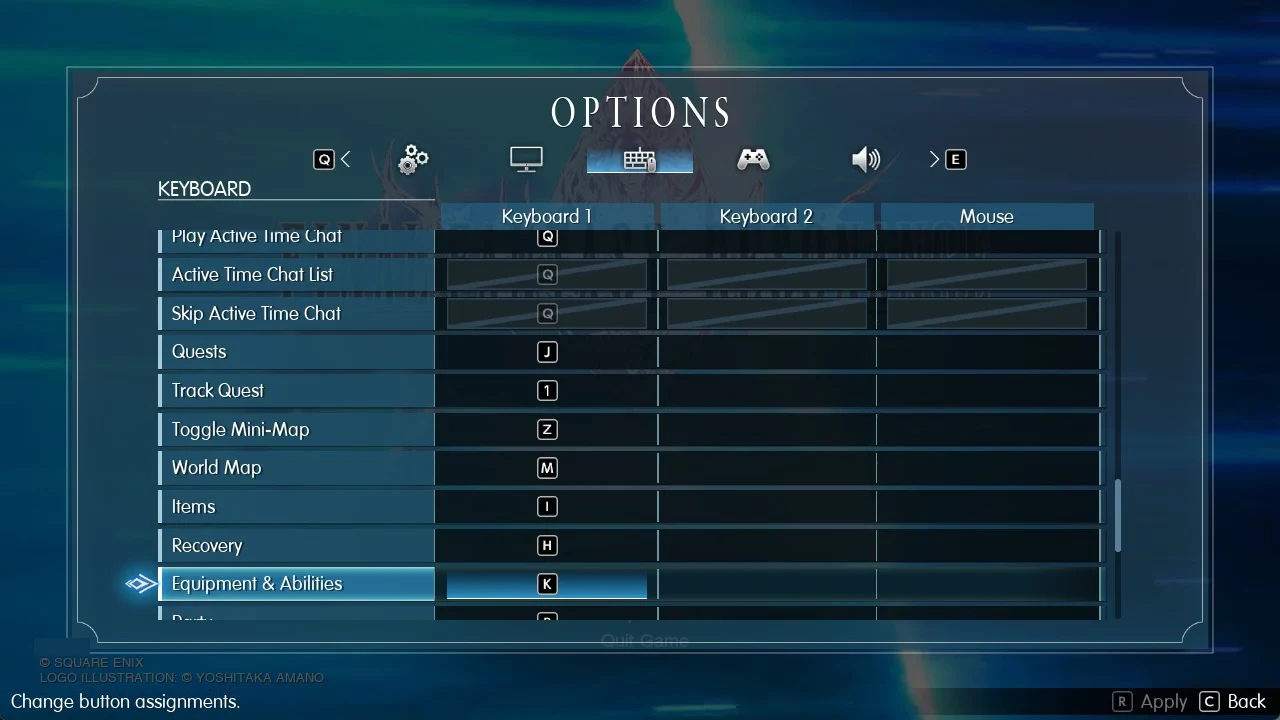
| Play Active Time Chat | Q |
| Active Time Chat List | Q |
| Skip Active Time Chat | Q |
| Quests | J |
| Track Quest | 1 |
| Toggle Mini-Map | Z |
| World Map | M |
| Items | I |
| Recovery | H |
| Equipment & Abilities | K |
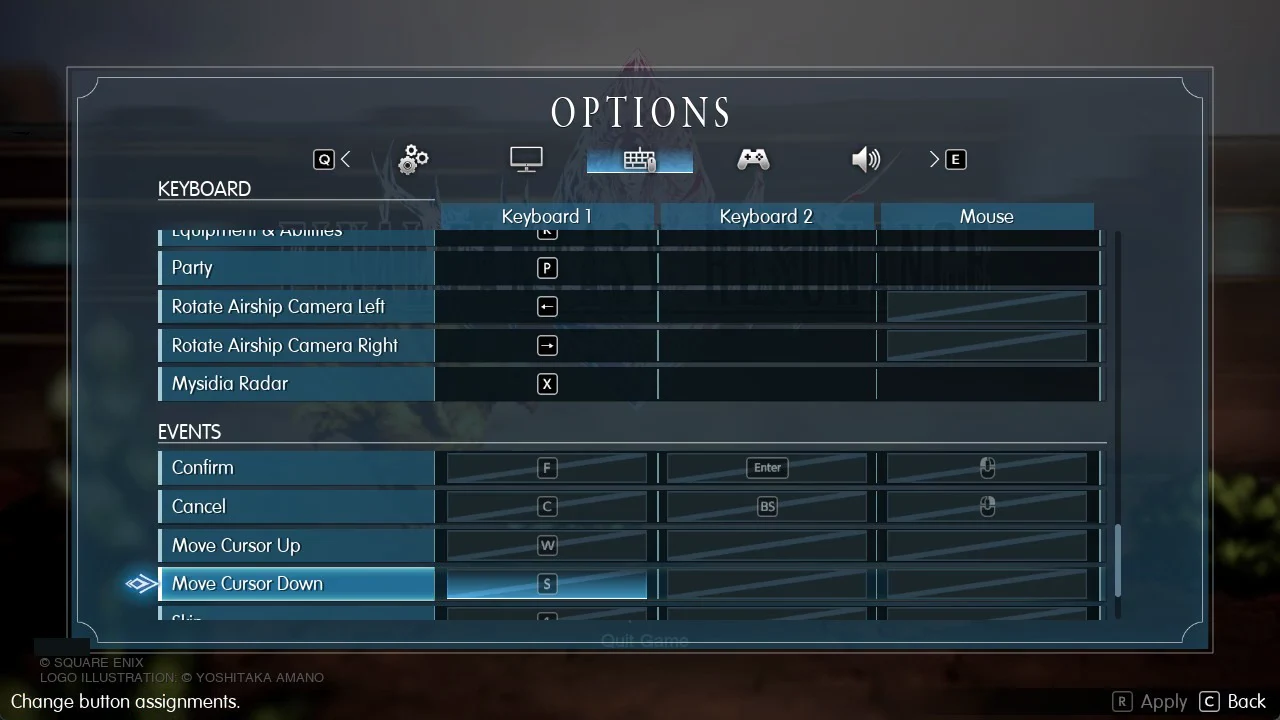
| Party | P |
| Rotate Airship Camera Left | Left arrow |
| Rotate Airship Camera Right | Right arrow |
| Mysidia Radar | X |
Q handles all three Active Time Chat actions in the field (play, list and skip), then switches to Multicasting once a battle starts. Items (I), Recovery (H), Equipment & Abilities (K) and Party (P) each get a dedicated keyboard shortcut.
The airship camera rotates with the Left and Right arrow keys. These are the only default field binds that use the arrows.
Sprint behaviour is not set here. Choose Hold, Invert Sprint or Toggle under Sprint Type on the Gameplay tab.
Events
The Events section covers cutscenes and story scenes.
| Action | Key |
|---|---|
| Confirm | F / Enter / Left click |
| Cancel | C / Backspace / Right click |
| Move Cursor Up | W |
| Move Cursor Down | S |
| Skip | 1 |
| System Menu | Esc |
| Auto | R |
| Display Log | G |
Final Fantasy Resonance controller controls
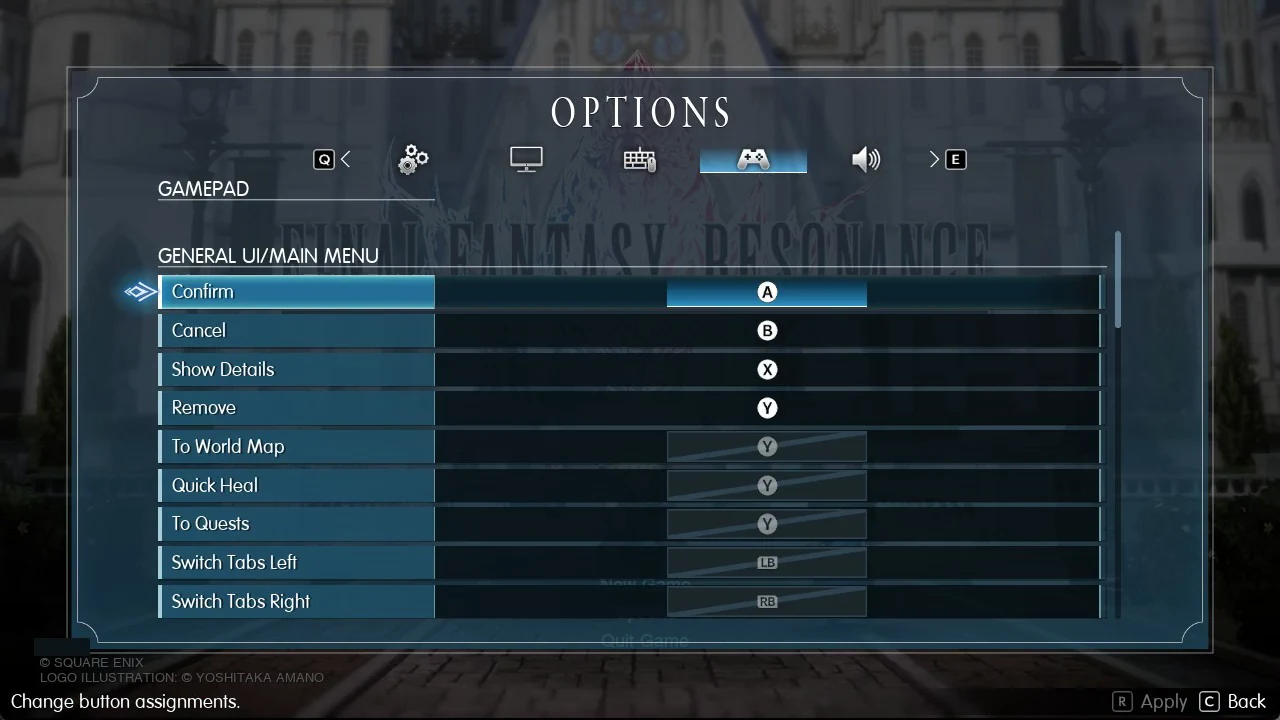
The Gamepad tab has a single column, so each action takes one button. Button names below follow the Xbox layout: A, B, X, Y, LB, RB, LT, RT, LS, RS, View and Menu.
General UI and menus
| Action | Button |
|---|---|
| Confirm | A |
| Cancel | B |
| Show Details | X |
| Remove | Y |
| To World Map | Y |
| Quick Heal | Y |
| To Quests | Y |
| Switch Tabs Left | LB |
| Switch Tabs Right | RB |
| Show Tips | RS (press) |
| Skip | View |
| Current Position | LS (press) |
| Destination List | LT |
| System Menu | Menu |
Battle
| Action | Button |
|---|---|
| Confirm | A |
| Cancel | B |
| Show Tips | RS (press) |
| Display Unit Info | RS (press) |
| Skip | View |
| System Menu | Menu |
| Limit Bursts | X |
| Multicasting | LT |
| Libra Details | RB |
| Change Battle Speed | Y |
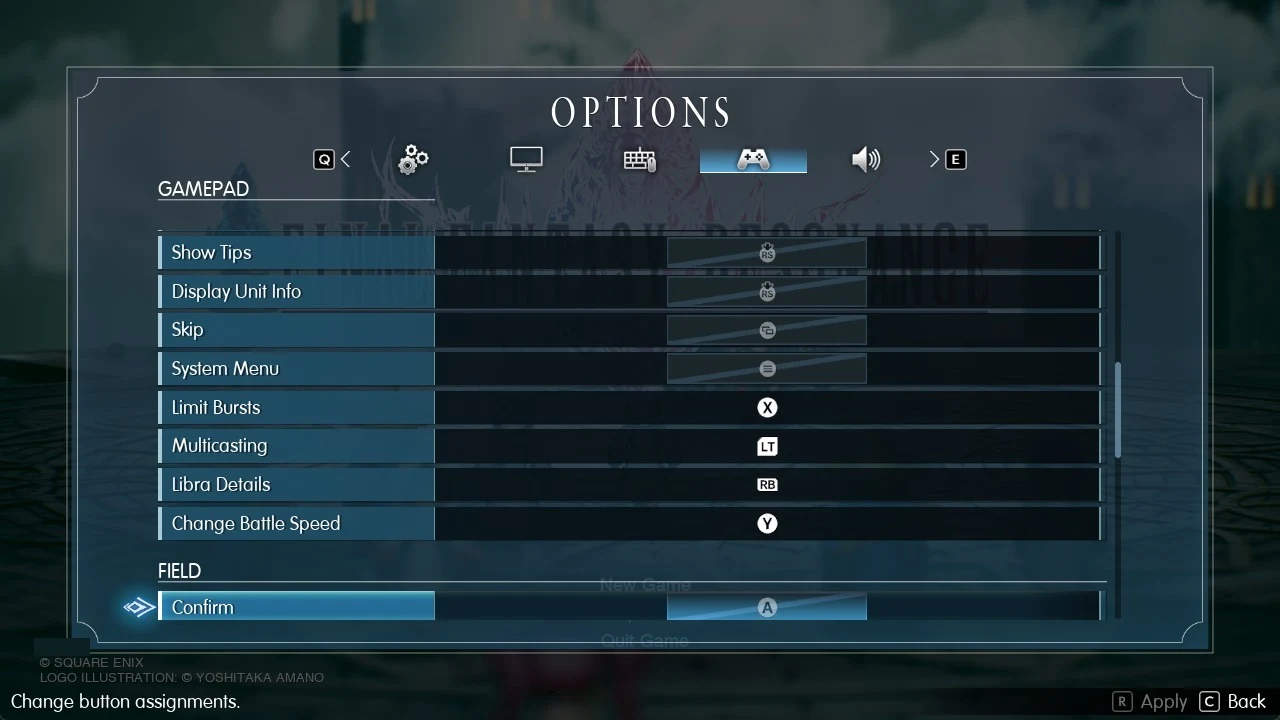
Unlike the keyboard, which splits Main Menu and Battle Speed across Tab, the controller puts both on Y.
Field
| Action | Button |
|---|---|
| Confirm | A |
| Examine/Land Airship | A |
| Cancel | B |
| Sprint | B |
| System Menu | Menu |
| Chocobo/To Airship Interior | X |
| Main Menu | Y |
| Play Active Time Chat | LB |
| Active Time Chat List | LB |
| Skip Active Time Chat | LB |
| Quests | RB |
| Track Quest | LT |
| Toggle Mini-Map | RS (press) |
| World Map | View |
| Mysidia Radar | RT |
Active Time Chat lives on LB in the field, while Multicasting moves to LT in battle.
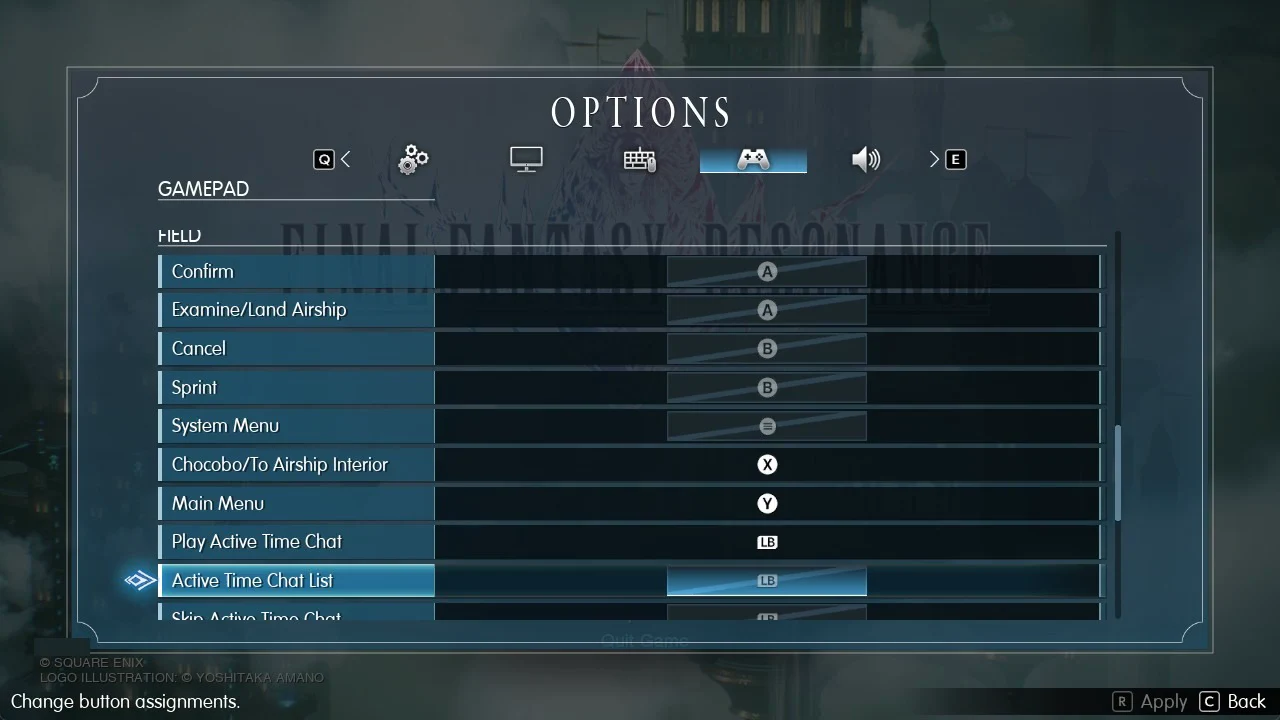
The Gamepad tab’s Field section has no rows for Items, Recovery, Equipment & Abilities, Party or the airship camera. Those shortcuts exist only on the Keyboard tab.
Events
| Action | Button |
|---|---|
| Confirm | A |
| Cancel | B |
| Skip | View |
| System Menu | Menu |
| Auto | X |
| Display Log | RS (press) |
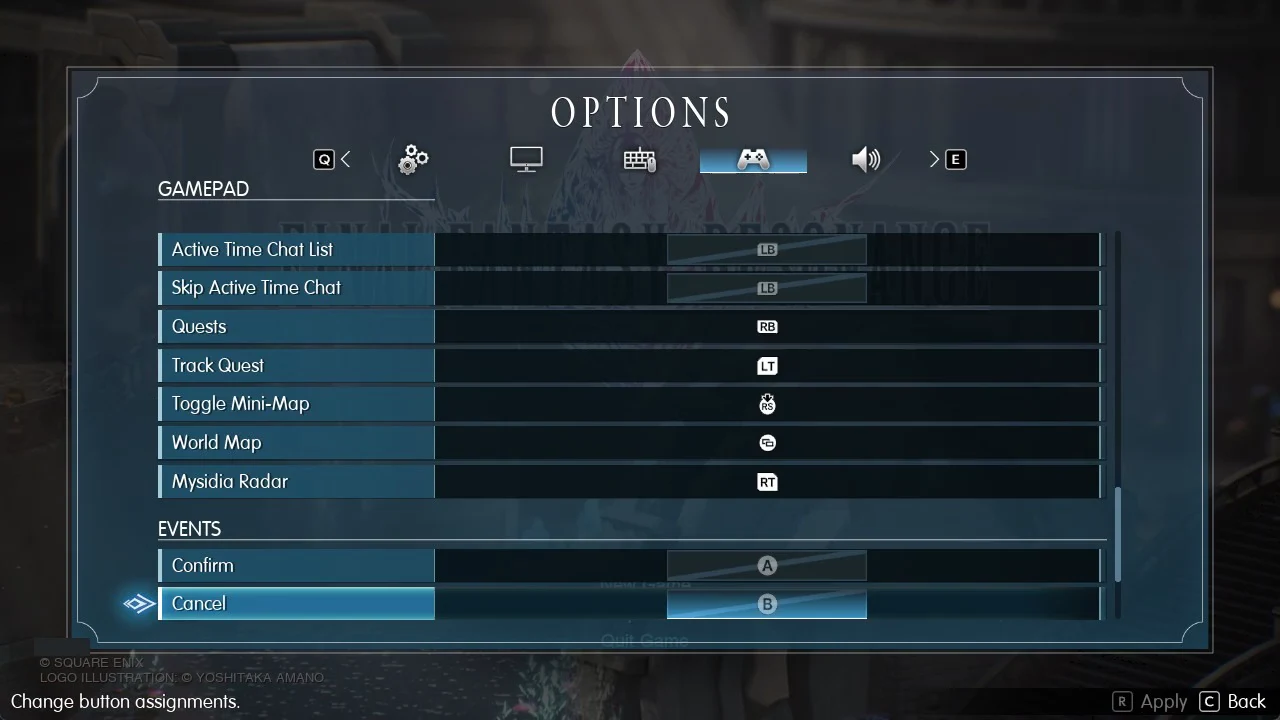
How to rebind keys and buttons in Final Fantasy Resonance
Both tabs follow the same layout. Each is split into four sections (GENERAL UI/MAIN MENU, BATTLE, FIELD and EVENTS), and every action row carries the description “Change button assignments.”
To start over, use the Reset row at the bottom of either tab. Its description reads “Restore all current settings to default.”
Several entries are dimmed: Confirm, Cancel and System Menu in BATTLE, FIELD and EVENTS, along with all entries under Mouse. Their bindings are duplicated elsewhere in the list.