Final Fantasy Resonance on PC defaults to Max on all four quality rows, and most players should leave them there and set the frame cap to match their monitor. If the game can’t hold that cap, lower Shadows and Post-Processing first and leave Anti-Aliasing until last.
| Setting | Pick |
|---|---|
| Screen Mode | Borderless Windowed |
| Resolution | Native |
| FPS | Your refresh rate (60/120/144) |
| Vsync | On |
| Textures | Max |
| Post-Processing | Max |
| Anti-Aliasing | Max |
| Shadows | Max |
| Brightness | To taste (default 5) |
| Text Speed | Fast |
| Command Cursor Position | Remember |
| Additional Landing Marker | On |
| Autosave | On |
Where to find the settings in Final Fantasy Resonance
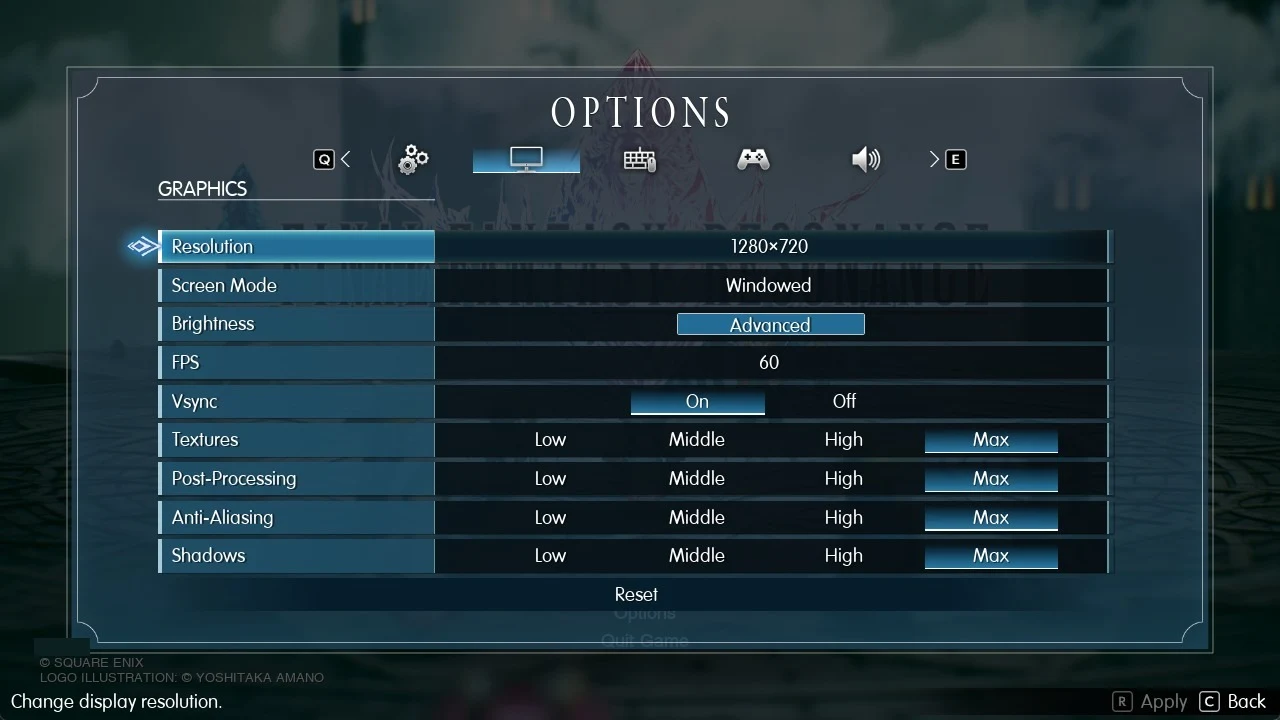
Whatever row is highlighted, a one-line description of it appears in the bottom-left corner of the screen. The last row on every tab is Reset, which puts that tab back to its defaults without touching the others.
Final Fantasy Resonance graphics settings explained
The Graphics tab is short. It has nine rows plus Reset: Resolution, Screen Mode, Brightness, FPS, Vsync, Textures, Post-Processing, Anti-Aliasing and Shadows. At launch there’s no one-click quality preset, no DLSS, FSR or XeSS upscaler, no render or resolution scale, no field-of-view slider, no HDR switch and no separate motion blur toggle in this menu. The Options screen also has no accessibility tab.
| Setting | Choices | Default | Recommended |
|---|---|---|---|
| Resolution | List (depends on display) | Desktop resolution | Native |
| Screen Mode | Fullscreen, Windowed, Borderless Windowed | Borderless Windowed | Borderless Windowed |
| Brightness | Slider 0–10 | 5 | To taste |
| FPS | 30, 60, 120, 144, Unlimited | 60 | Your refresh rate |
| Vsync | On, Off | On | On |
| Textures | Low, Middle, High, Max | Max | Max |
| Post-Processing | Low, Middle, High, Max | Max | Max |
| Anti-Aliasing | Low, Middle, High, Max | Max | Max or High |
| Shadows | Low, Middle, High, Max | Max | Max |
Screen Mode and Resolution
Screen Mode (“Change screen mode.”) starts on Borderless Windowed, which is the right pick for most people because you can jump to another window quickly. Switch to Fullscreen only if you want to run below your desktop resolution.
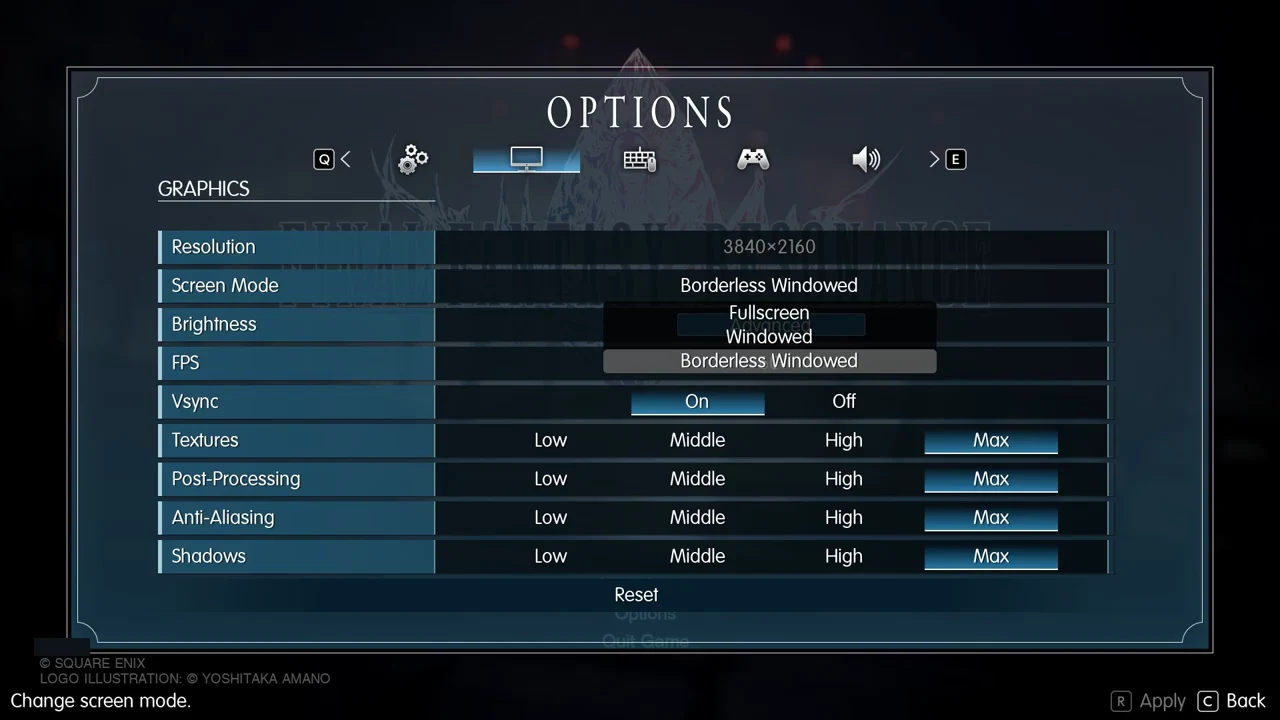
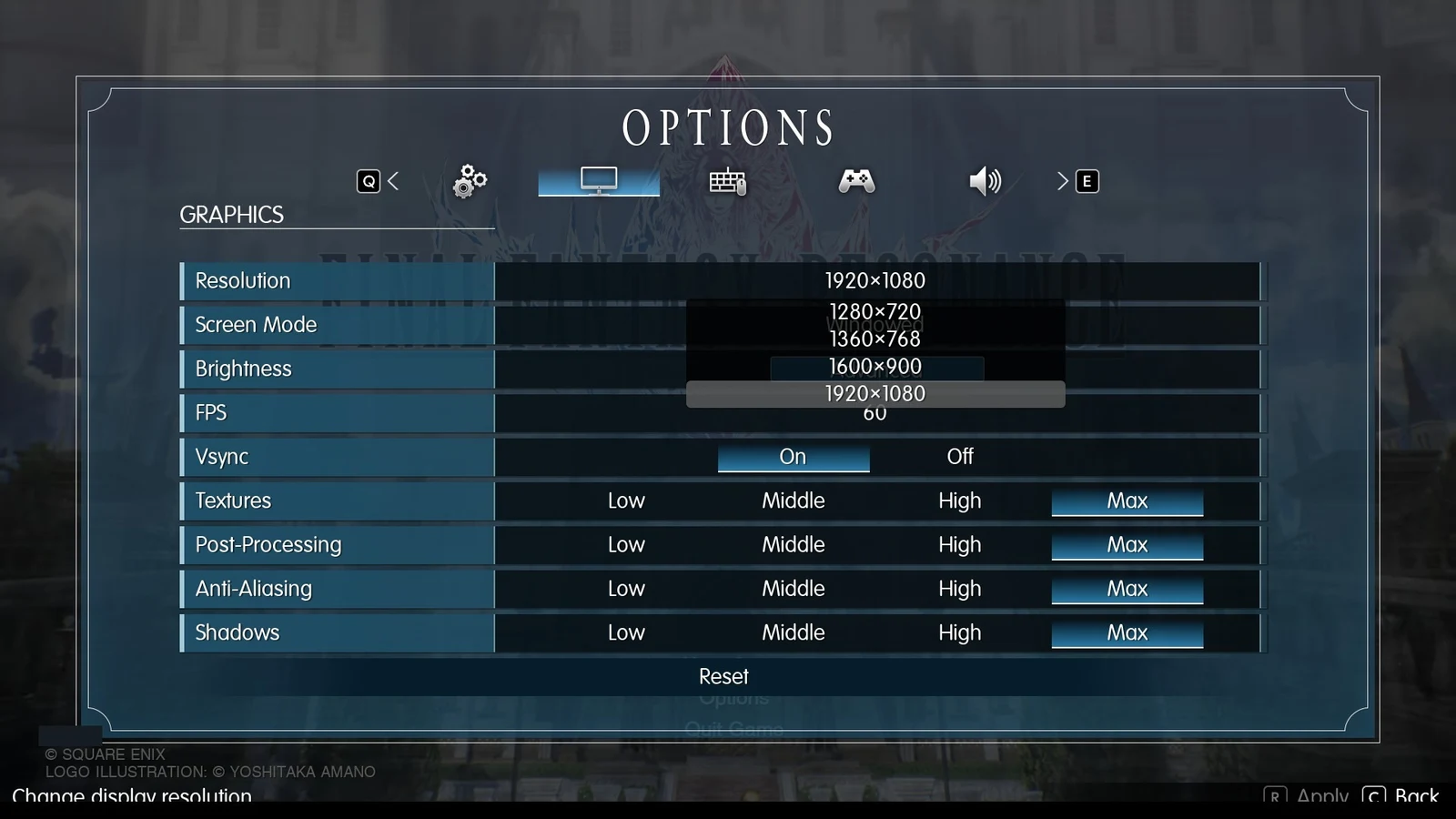
Resolution (“Change display resolution.”) depends on the selected Screen Mode. Choose Borderless Windowed and the resolution control becomes unavailable, using your desktop setting instead—for instance, 3840×2160 on a 4K desktop. Windowed and Fullscreen let you select from resolutions supported by your display. In Windowed, the options are 1280×720, 1360×768, 1600×900 and 1920×1080. Stick with your monitor’s native resolution unless you have a specific reason to change it.
Brightness, FPS and Vsync
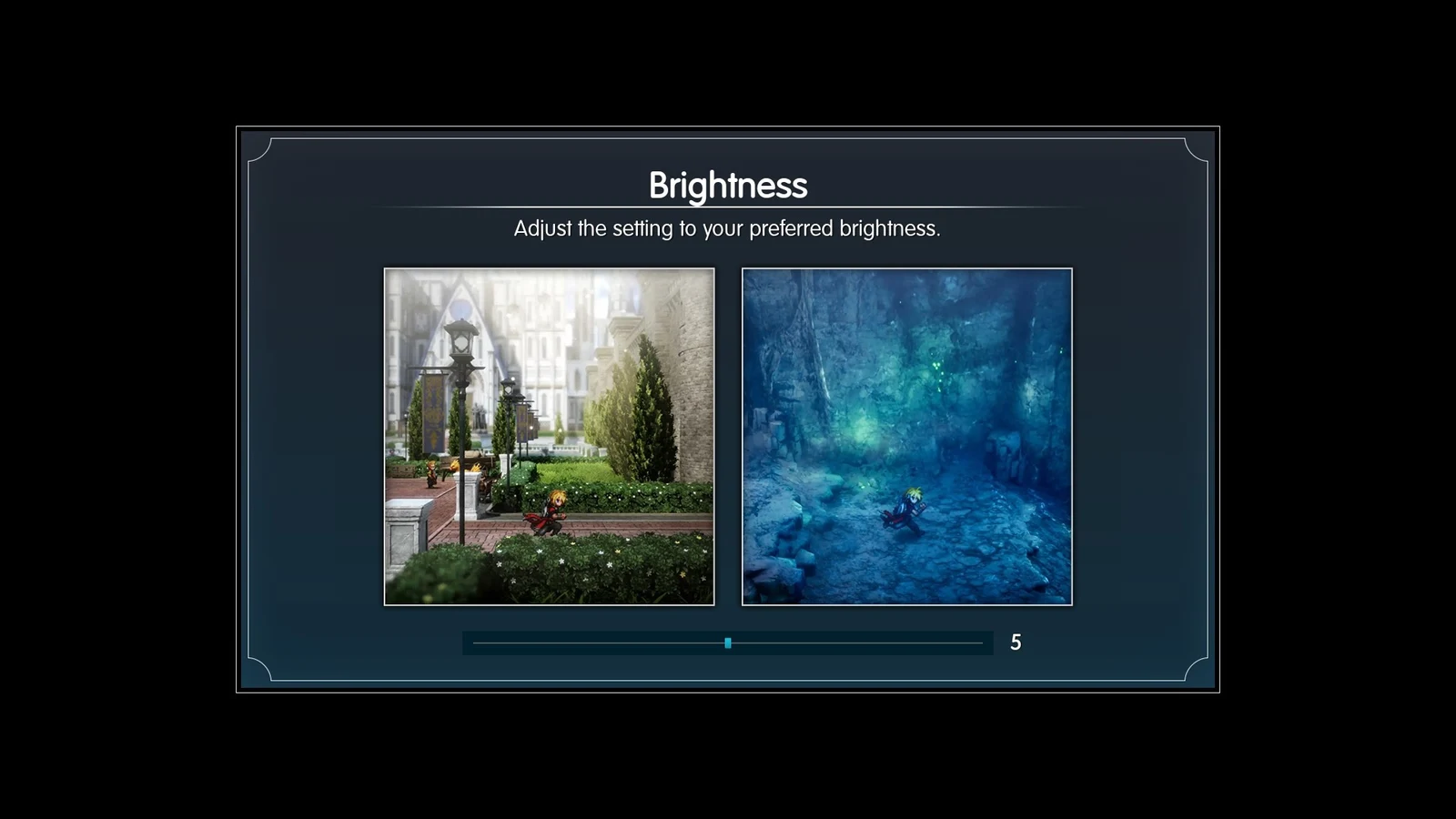
Brightness isn’t a slider on the main list. The row holds an Advanced button that opens a separate Brightness screen (“Adjust the setting to your preferred brightness.”) with a bright town scene and a dark cave scene side by side, plus a slider from 0 to 10. It defaults to 5, and it’s the same screen you see the first time you start the game. Raise it until the cave shows detail without the town washing out.
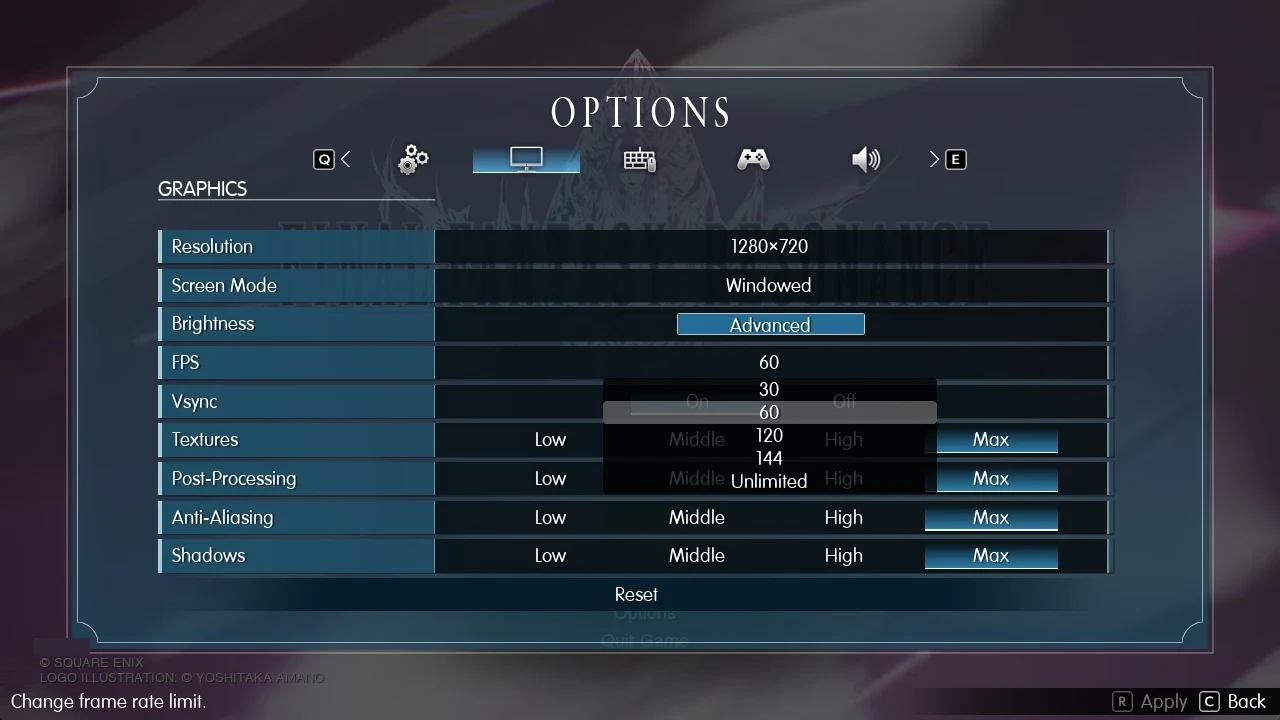
FPS (“Change frame rate limit.”) defaults to 60. Set it to your monitor’s refresh rate, whether that’s 60, 120 or 144, and use 30 only if your PC can’t hold 60. Leave Vsync On, which is the default. Battles are menu-driven, so turning it off gains you little, and keeping it on stops screen tearing.
Textures, Post-Processing, Anti-Aliasing and Shadows
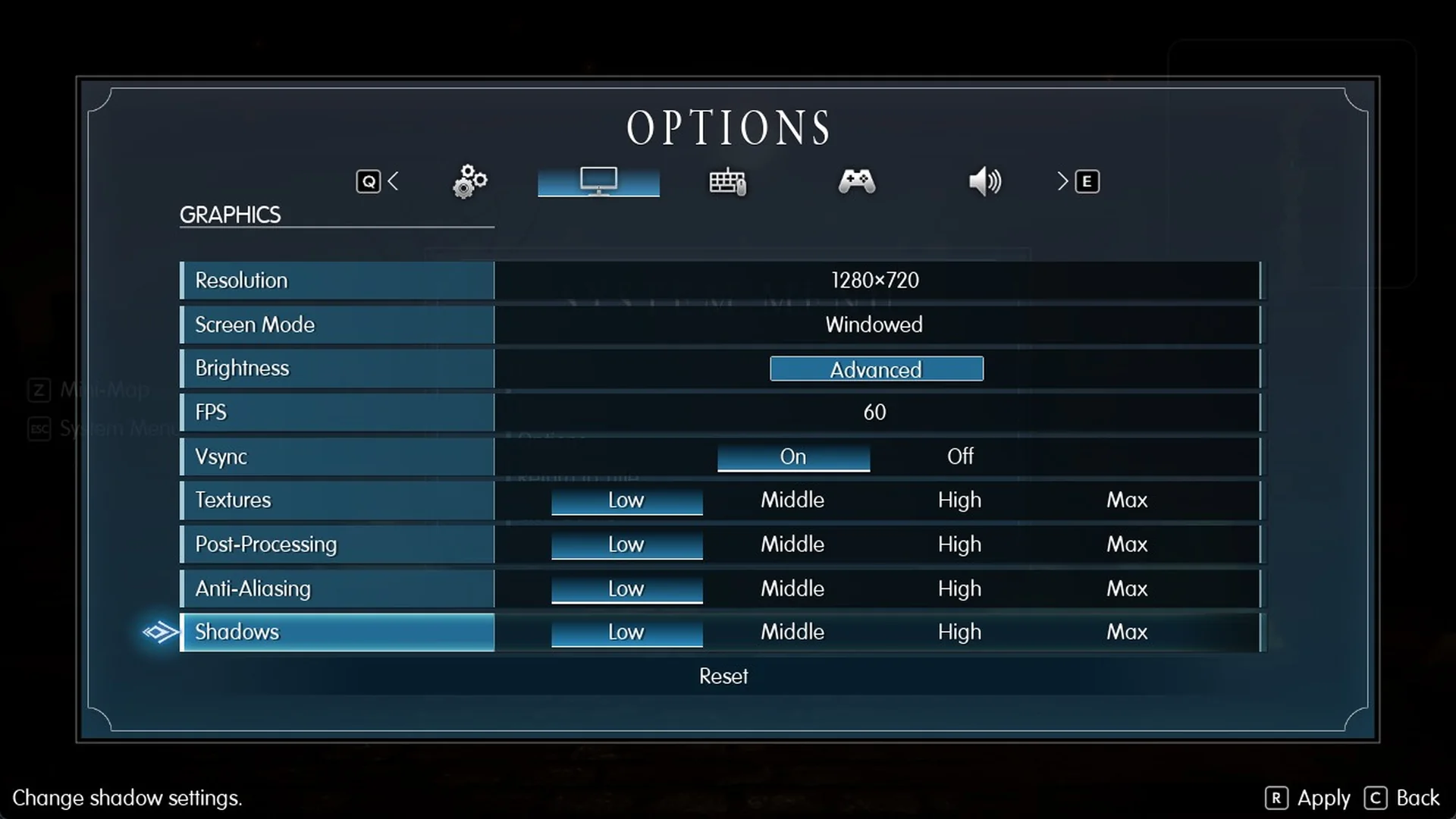
Each of the four quality controls has Low, Middle, High, and Max levels; all four start at Max. With a graphics card short on video memory, set Textures to High. To gain frames, reduce Shadows and Post-Processing before other settings. Anti-Aliasing smooths jagged edges, so keep it at Max or High and change it only after adjusting the others.
The performance gain from each setting varies with your hardware. Change just one at a time, then check the result before adjusting another.
Low vs Max graphics compared
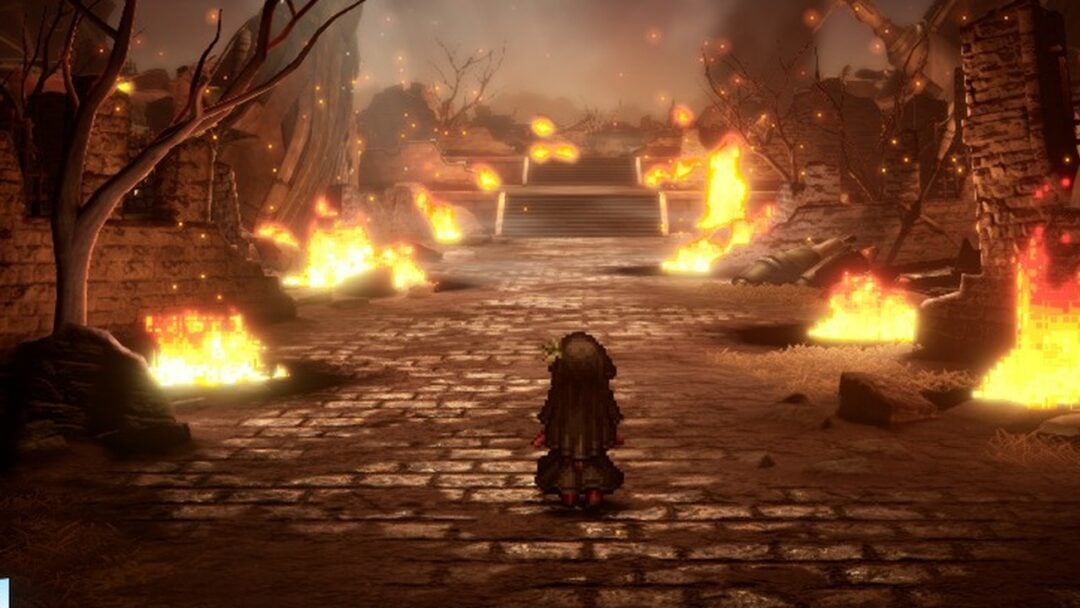
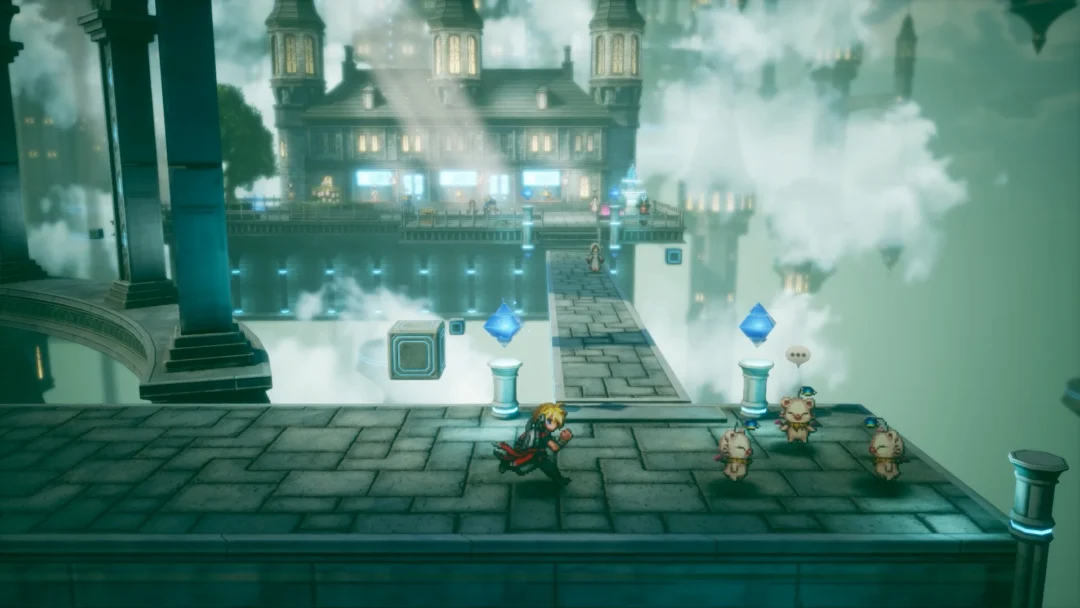
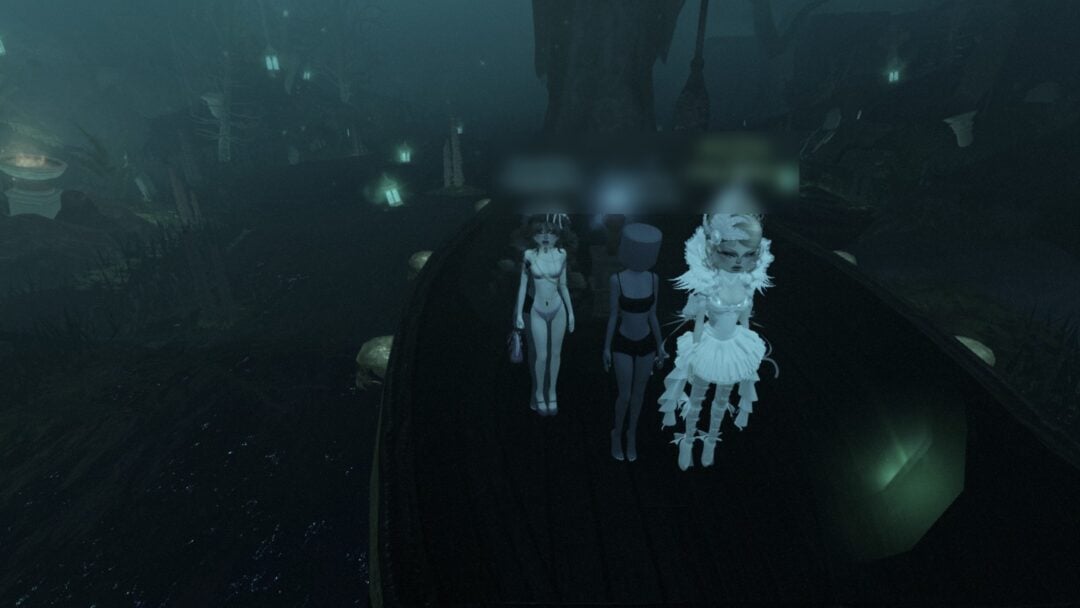
The comparison sets all four quality rows on the Graphics tab (Textures, Post-Processing, Anti-Aliasing and Shadows) to Low and then to Max, the default. Both views are framed from the same spot with the camera unchanged, at the top of a stone stairway in the burning ruins of the Battlefield, the prologue area, at night, and Resolution, Screen Mode, FPS and Vsync stay identical. To match it, open the Graphics tab and move each of those four rows to Low; each row has a short description, such as “Change shadow settings.” for Shadows.
With Low selected, the image grows slightly brighter and less rich. The night haze looks paler, wall and cobblestone shading softens, and the dark falloff and depth seen at Max are reduced. Edges appear a little more jagged. The scene arrangement, player character, fires, and moon all remain visible; no part of the scene vanishes.
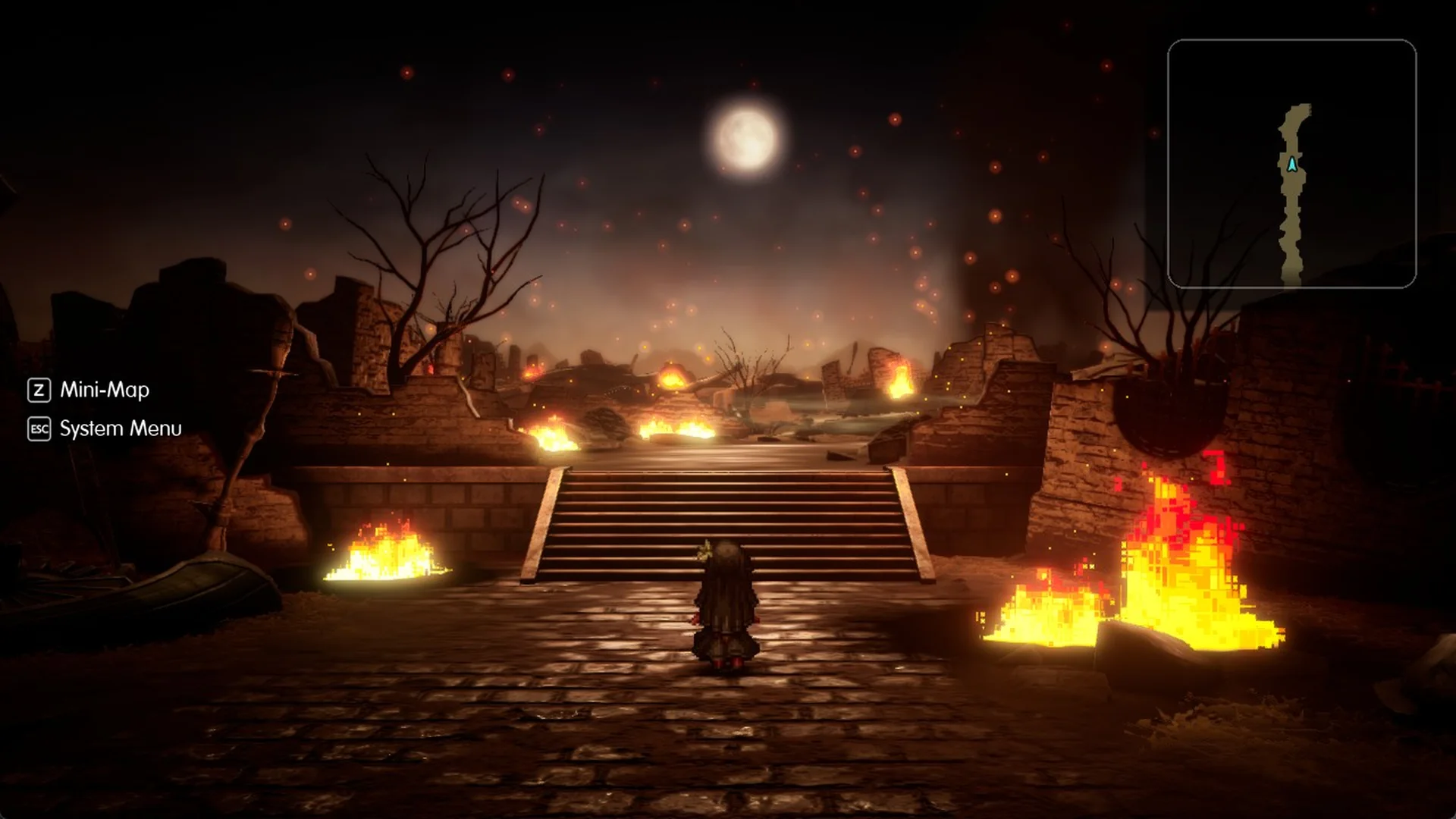
At the default Max setting, the picture is darker and more atmospheric, with stronger contrast. Shadow gathers around the frame’s edges, the fires carry a gentle halo, and cobblestones beside the flames catch brighter highlights. The pixel-art flame sprites remain identical at either setting; only the lighting and shading around them differ.
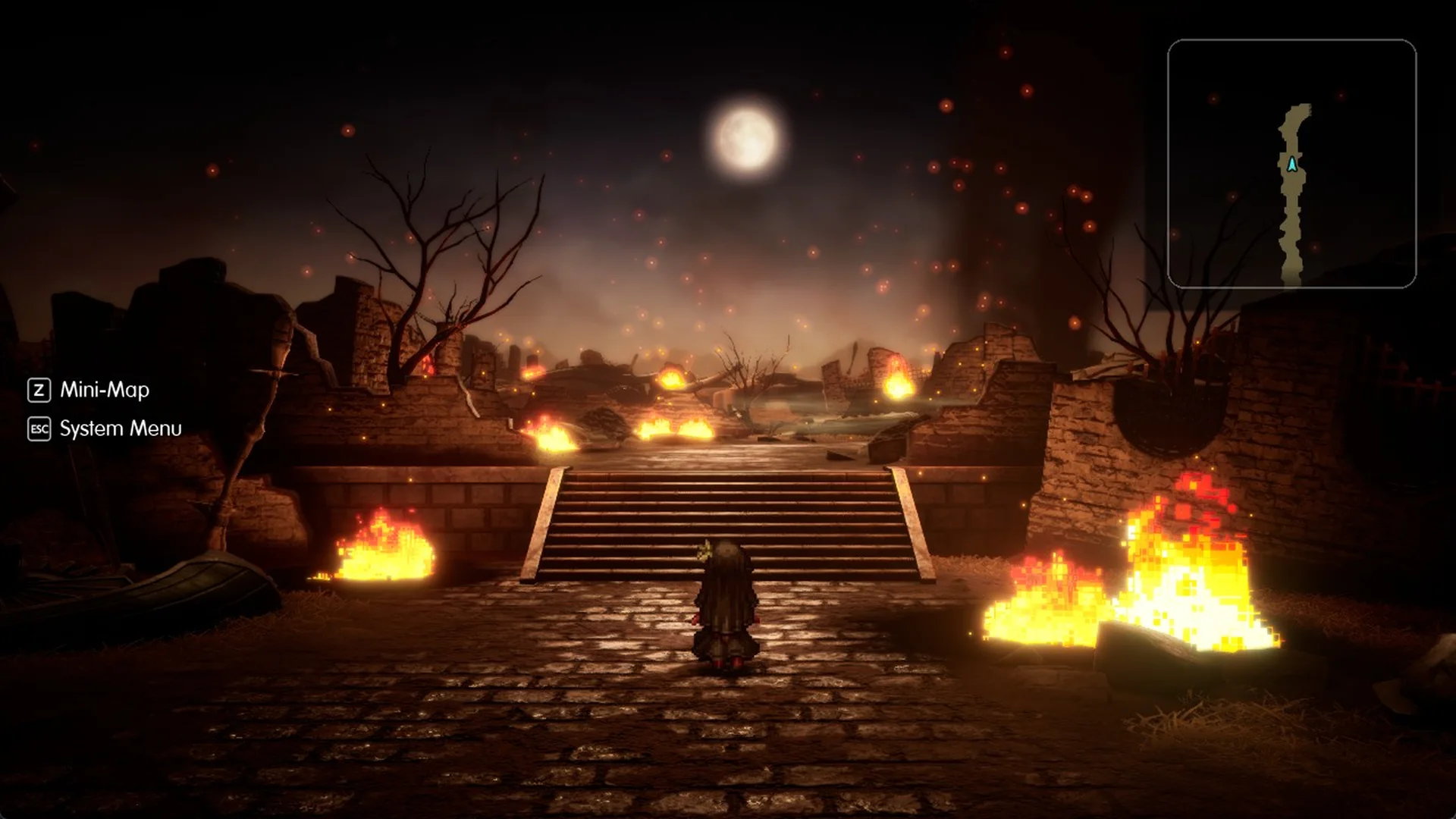
Reducing these quality options affects mood—contrast, glow, and shadow depth—more than the scene or its pixel-art effects. If settings must come down, lower them individually in the order listed below; the game retains its identity, and you can stop once the frame cap is sustained.
Square Enix’s PC targets
Square Enix’s Steam store page sets the minimum spec at 1920 x 1080 and 30 FPS on low settings, and the recommended spec at 1920 x 1080 and 60 FPS on the highest settings. The minimum graphics cards are the AMD Radeon RX 6400, Intel Arc A580 or NVIDIA GeForce GTX 1650. The recommended cards are the AMD Radeon RX 5500 XT, Intel Arc A580 or NVIDIA GeForce GTX 1650. Both tiers list 8 GB of RAM, DirectX 12, Windows 11 and 15 GB of storage.
Settings for a weaker PC
If the game won’t hold your frame cap, work down this list in order:
- Shadows to High or Middle
- Post-Processing to High or Middle
- Textures to High
- FPS to 30 if 60 still drops
Keep Anti-Aliasing on High or above throughout.
Final Fantasy Resonance gameplay settings
The Gameplay tab contains the quality-of-life options. Text Language (“Change text language.”) brings up a list beginning with Japanese, English, German, French, Spanish and Korean, with more choices further down. English is selected by default when the system is set to English.
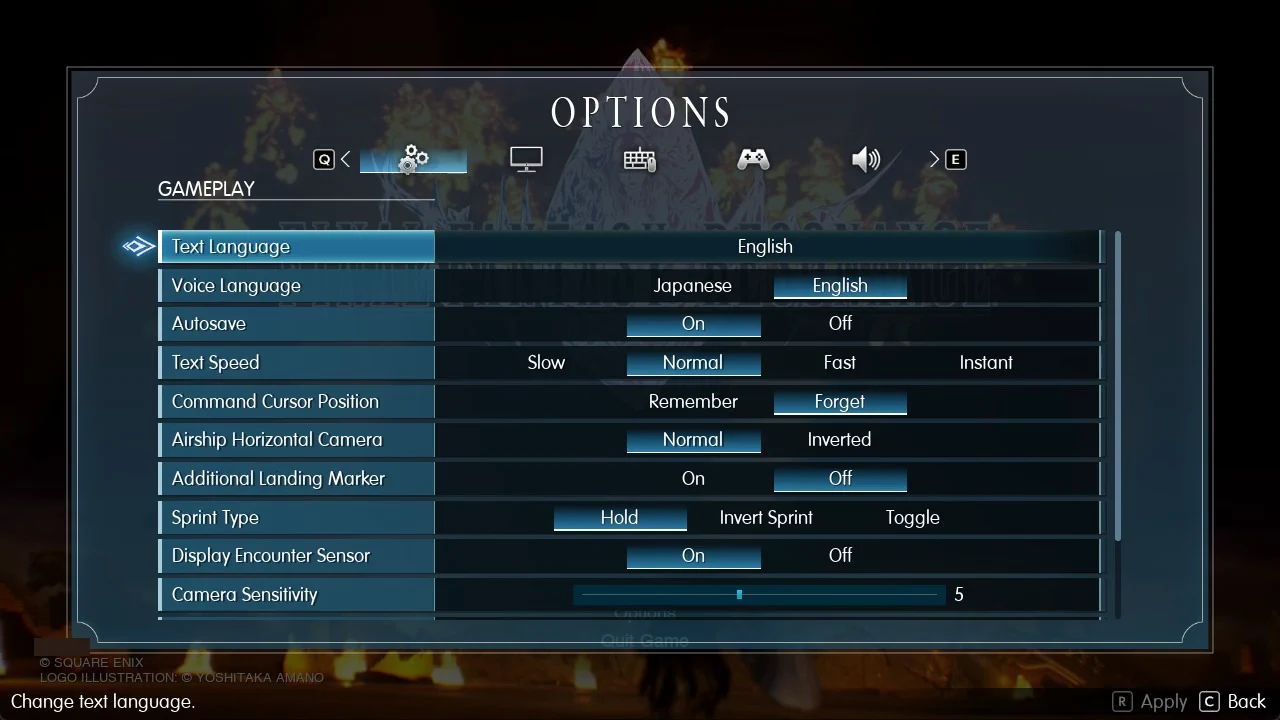
| Setting | Choices | Default | Recommended |
|---|---|---|---|
| Text Language | Japanese, English, German, French, Spanish, Korean and more | English | Your preference |
| Voice Language | Japanese, English | English | Your preference |
| Autosave | On, Off | On | On |
| Text Speed | Slow, Normal, Fast, Instant | Normal | Fast |
| Command Cursor Position | Remember, Forget | Forget | Remember |
| Airship Horizontal Camera | Normal, Inverted | Normal | Your preference |
| Additional Landing Marker | On, Off | Off | On |
| Sprint Type | Hold, Invert Sprint, Toggle | Hold | Toggle if Hold tires you |
| Display Encounter Sensor | On, Off | On | On (the mini-map sensor turns red when an encounter is imminent) |
| Camera Sensitivity | Slider | 5 | Your preference |
| Mouse Sensitivity | Slider | 5 | Your preference |
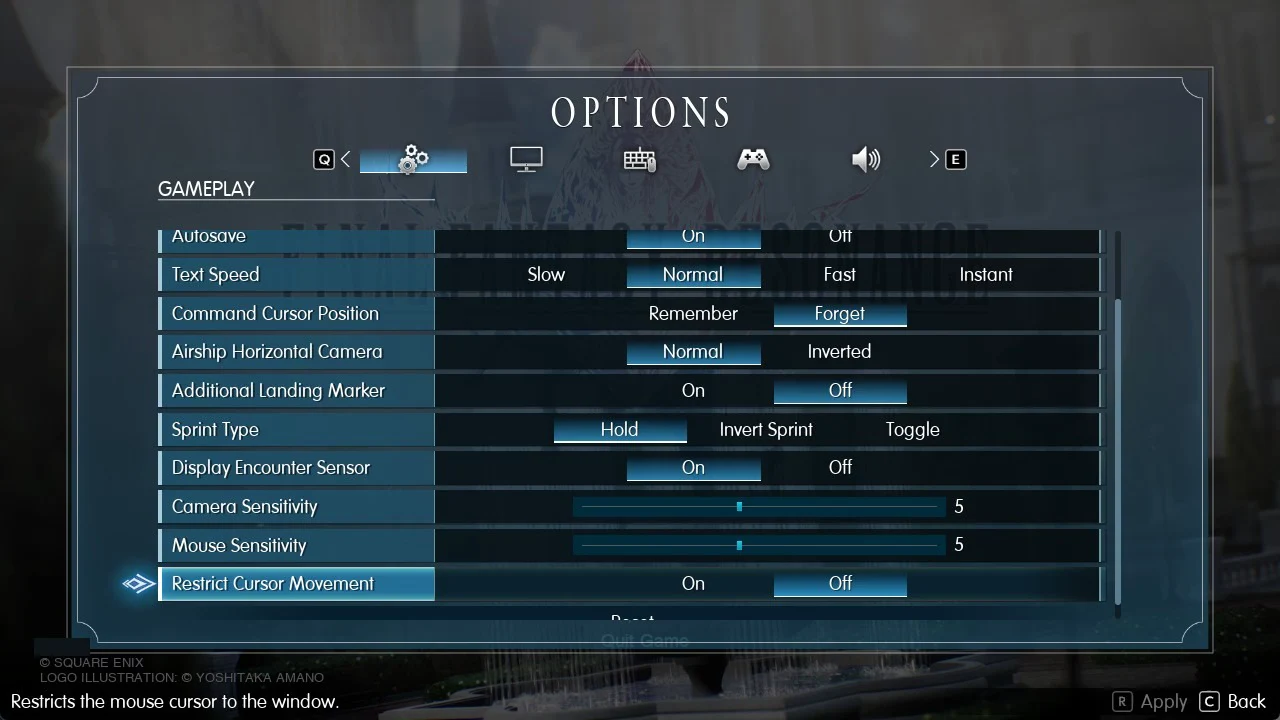
| Restrict Cursor Movement | On, Off | Off | On for windowed multi-monitor |
For battles and dialogue, two settings make the biggest difference. Set Command Cursor Position to Remember; the game retains the battle command cursor’s location, letting you reuse a command without moving back to it. Fast advances dialogue quickly, while Instant suits quick readers.
Additional Landing Marker marks places where the airship can’t land, which is worth turning On. Toggle on Sprint Type saves you from holding the sprint key down. Restrict Cursor Movement (“Restricts the mouse cursor to the window.”) is Off by default. Turn it On if you play in a window on a multi-monitor setup, so the mouse doesn’t slip onto another screen.
Difficulty isn’t one of these rows on the title screen. In game, the Gameplay tab starts with a Difficulty row instead of Text Language and Voice Language. You choose Casual, Normal or Expert when you start a New Game, and the confirmation prompt reads “This setting can be changed at any time from the Options menu.”
Sound, keyboard and gamepad settings
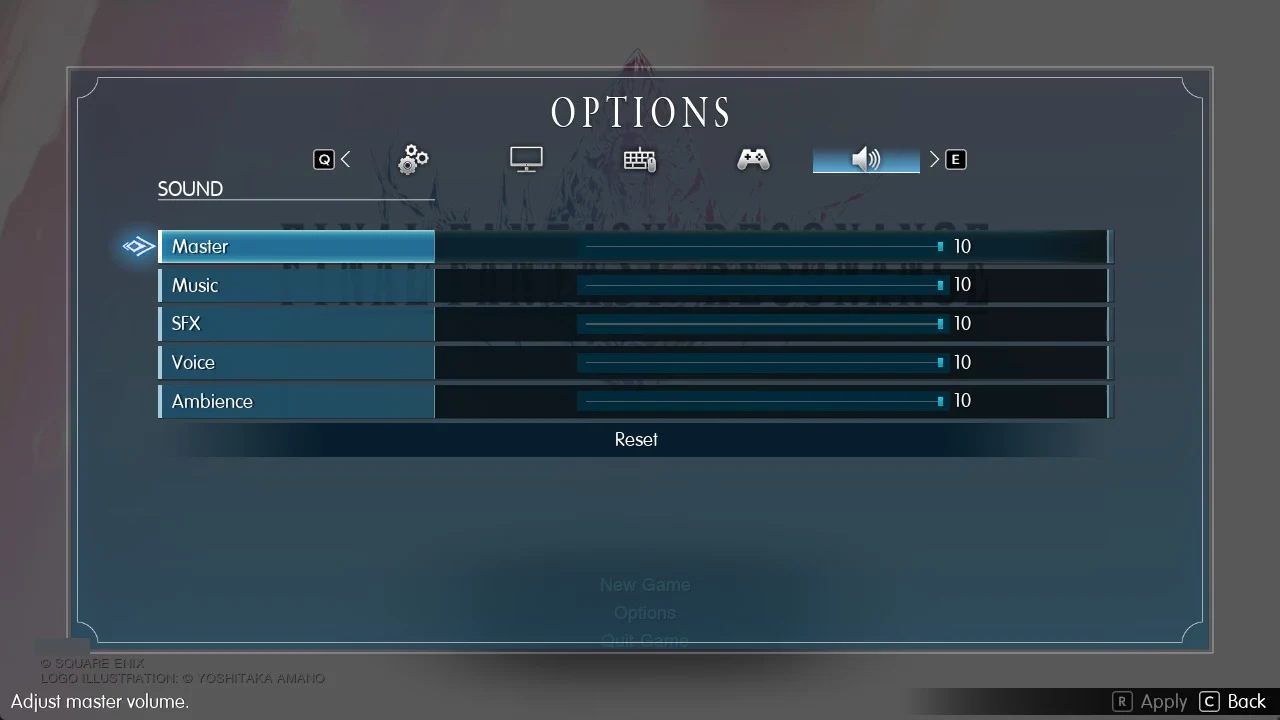
Five sliders are available on the Sound tab: Master, Music, SFX, Voice and Ambience. Each ranges from 0 to 10, and all start at 10. The description for Master is “Adjust master volume.”
The Keyboard and Gamepad tabs show each action alongside its default key or button; most bindings can be changed.