“Something went wrong. Try again.”—this error message in Google Play Store disrupts app downloads, updates, and in-app purchases across many Android devices. The issue often appears after system updates, account changes, or connectivity problems, and can persist despite repeated attempts to retry. Addressing the root causes quickly restores full access to Play Store features and prevents repeated interruptions.
Uninstall Play Store Updates and Re-Login
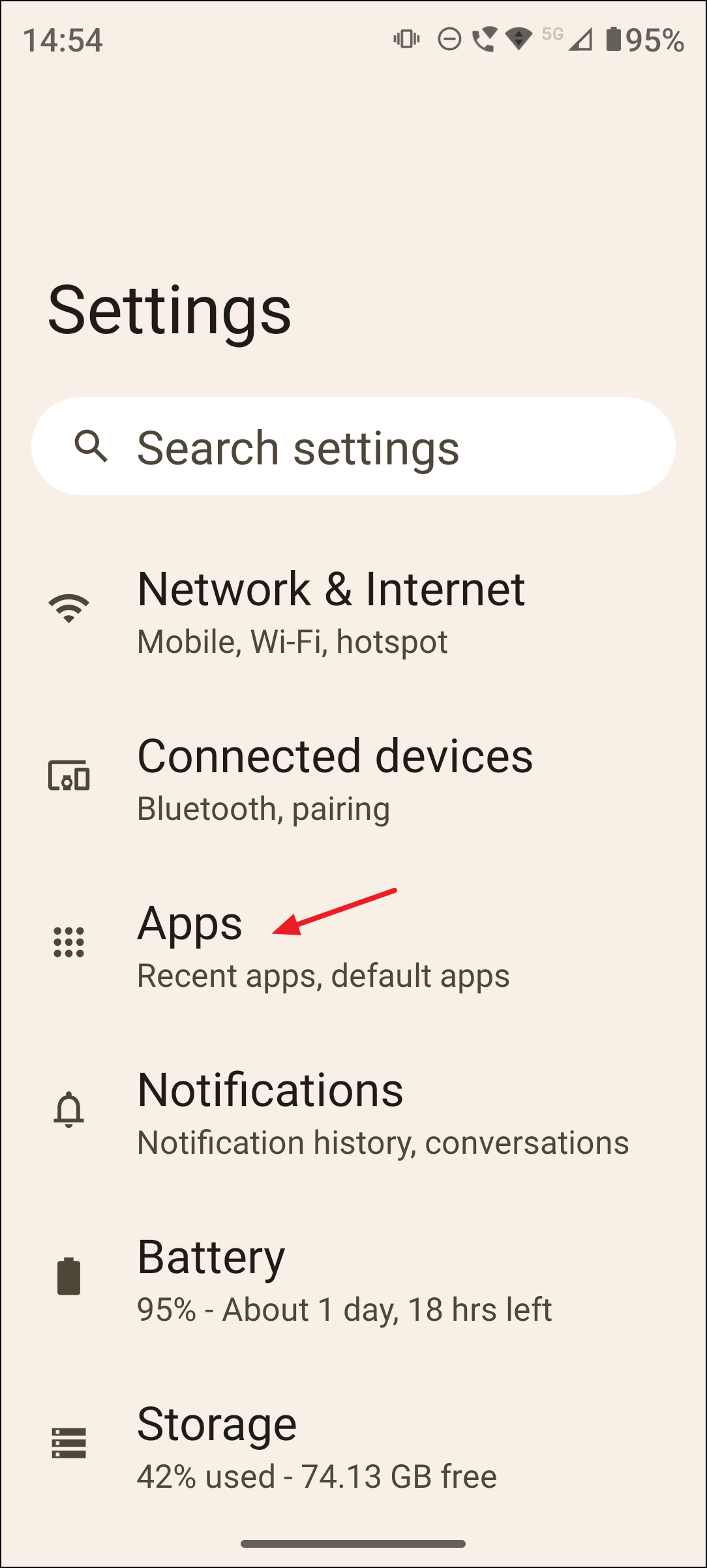
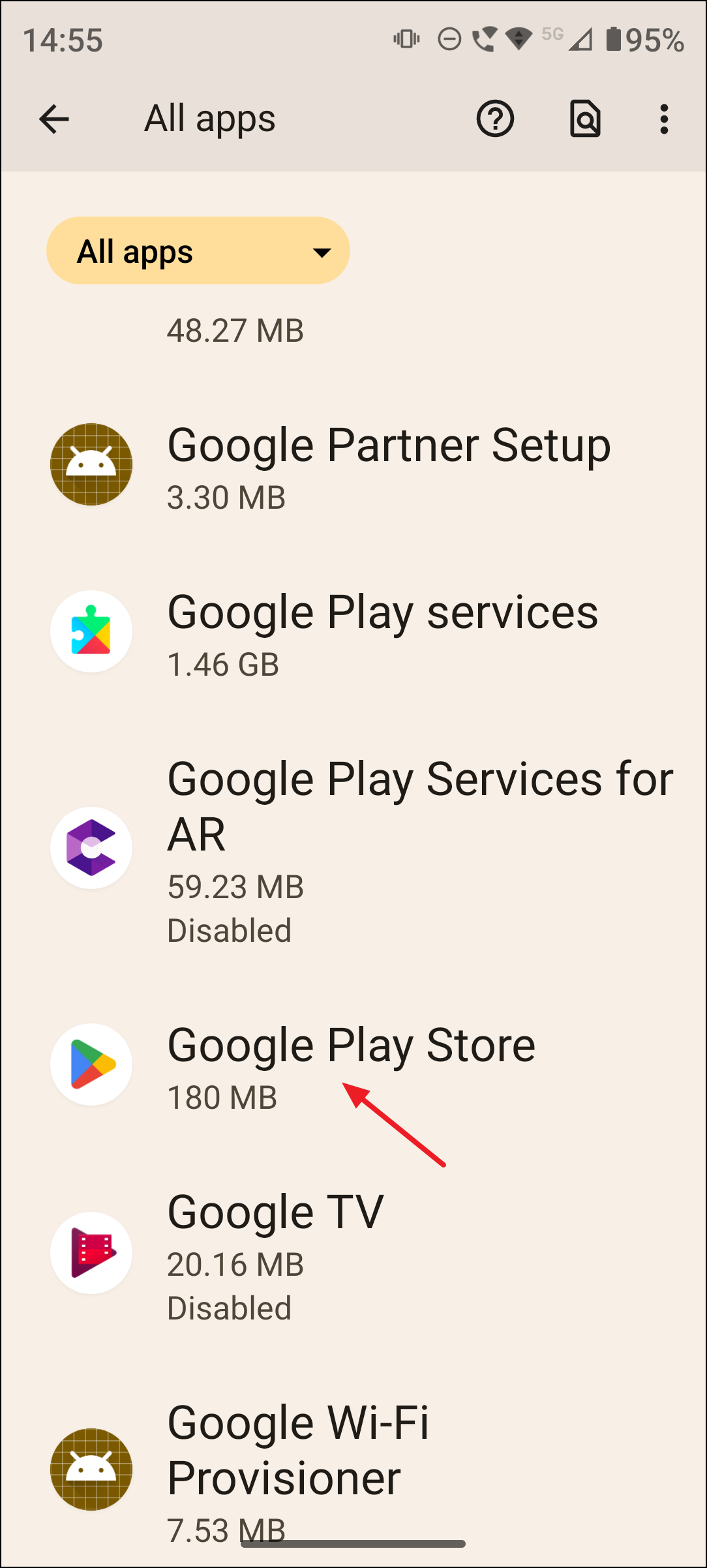
Uninstall updates. Confirm the action. This reverts Play Store to its factory version, often resolving glitches caused by recent updates.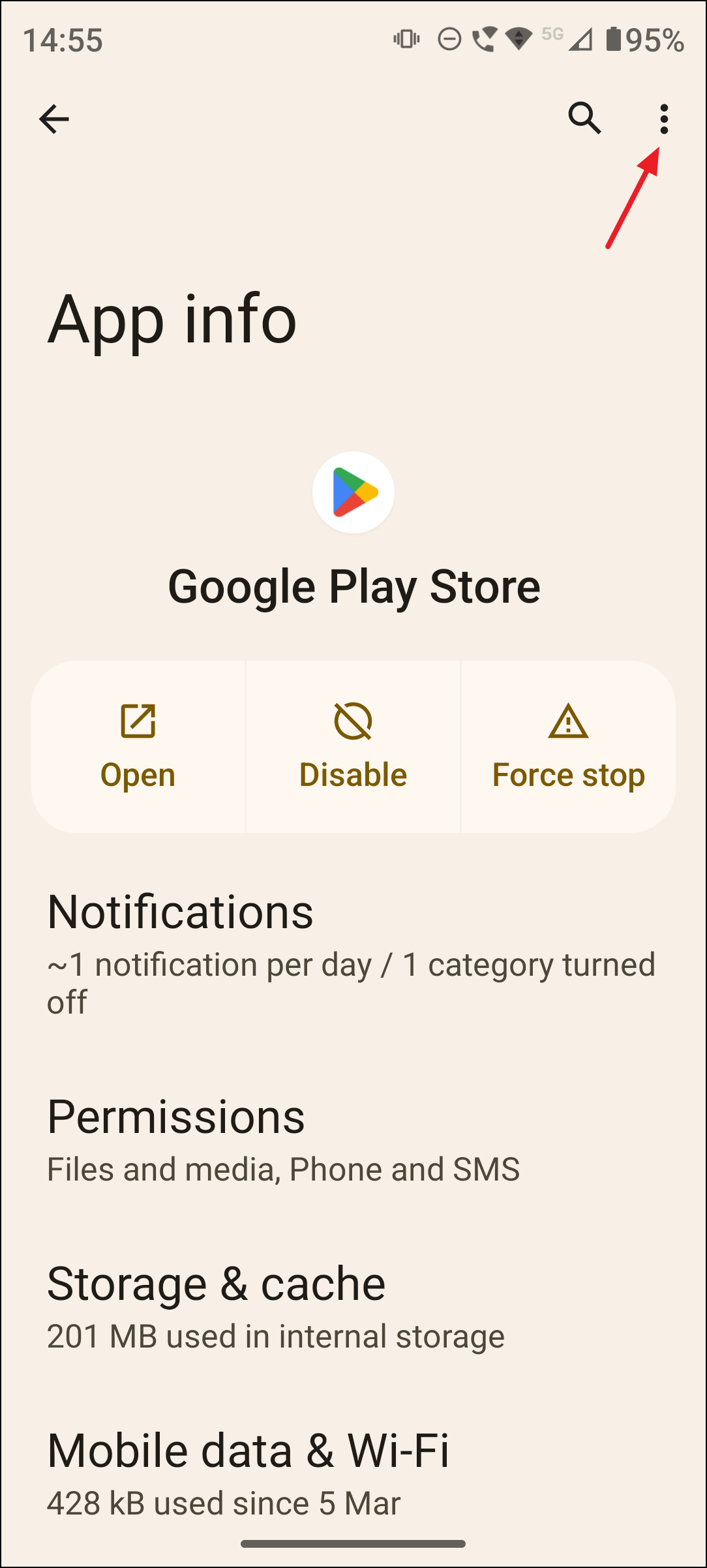
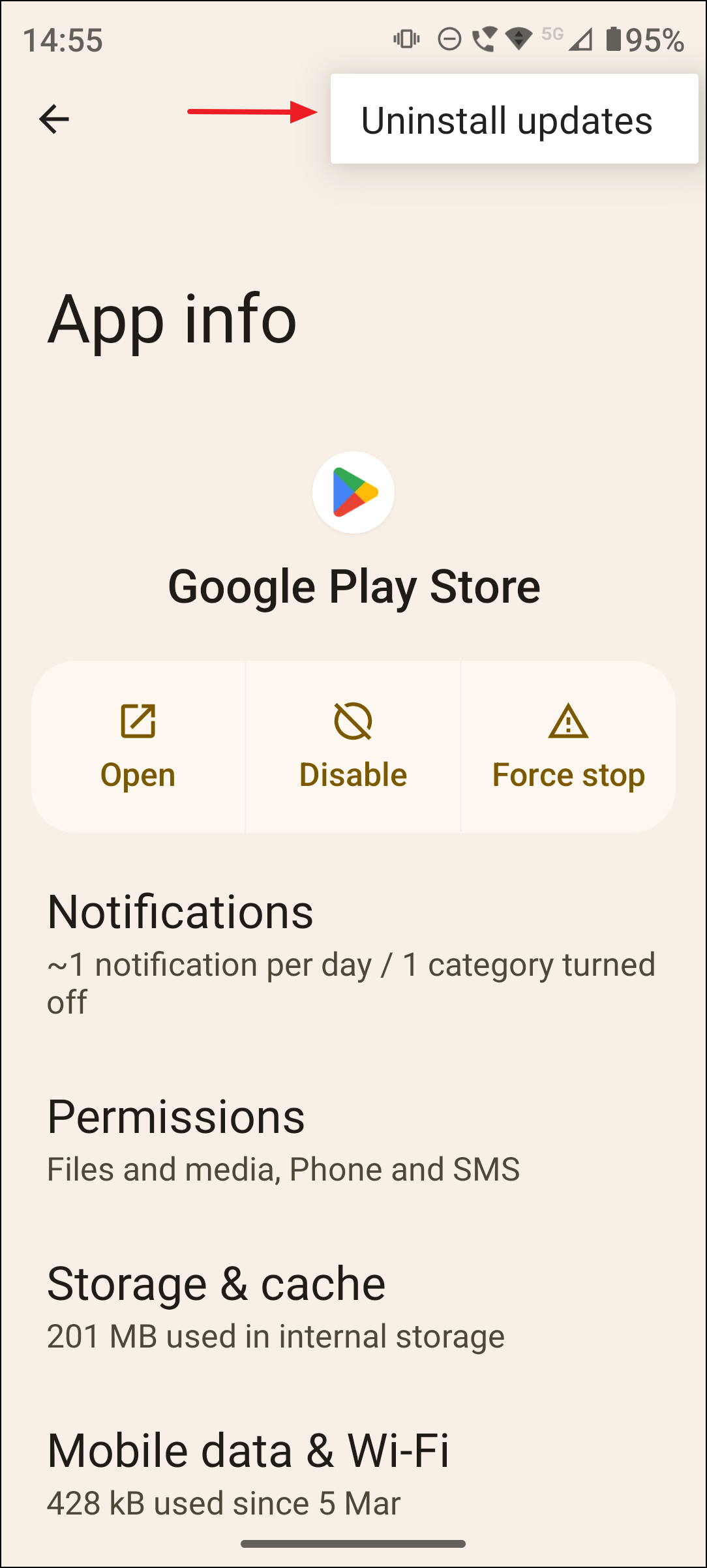
Uninstalling updates removes temporary bugs and compatibility issues introduced by recent Play Store versions. Re-logging in refreshes your session and resolves account authentication errors that may block downloads or purchases.
Clear Cache and Storage for Play Store and Google Play Services
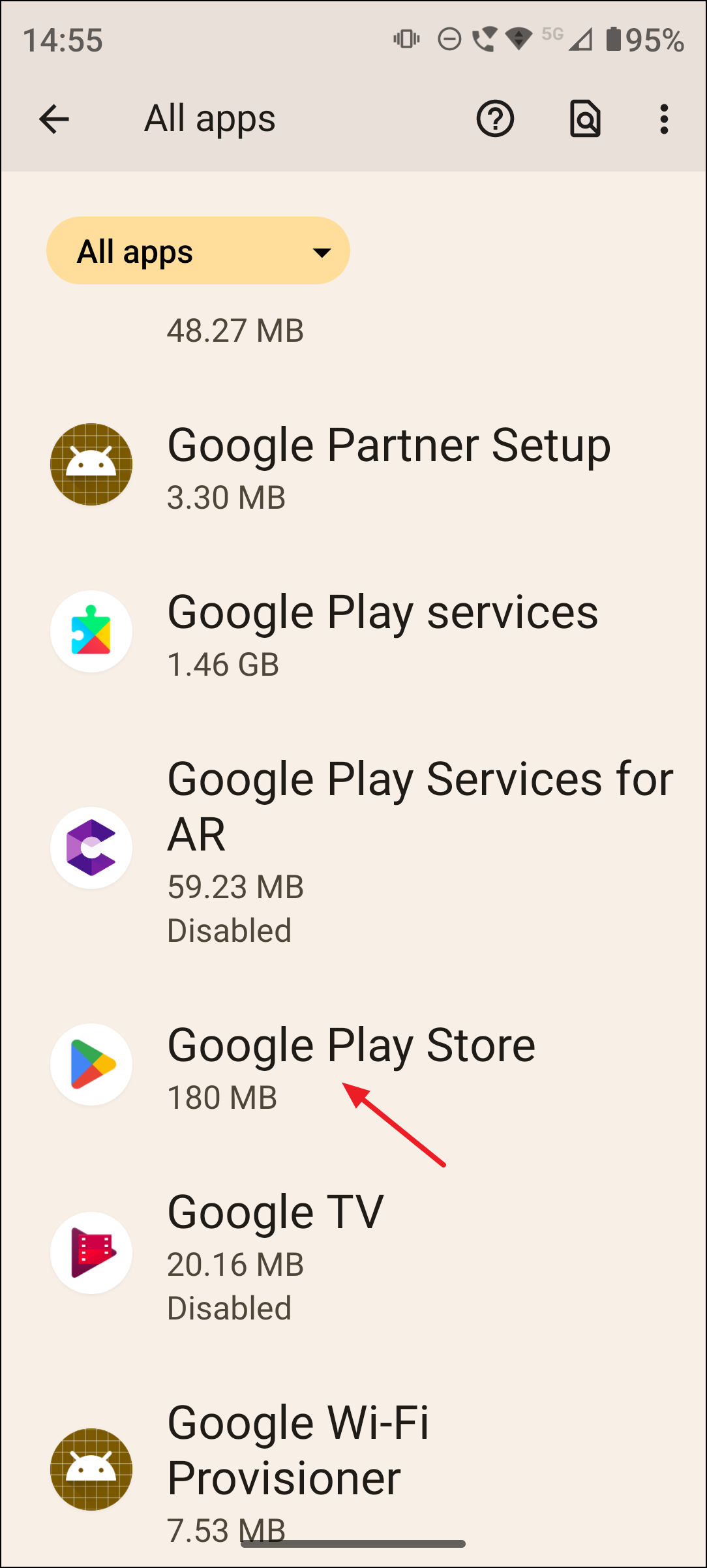
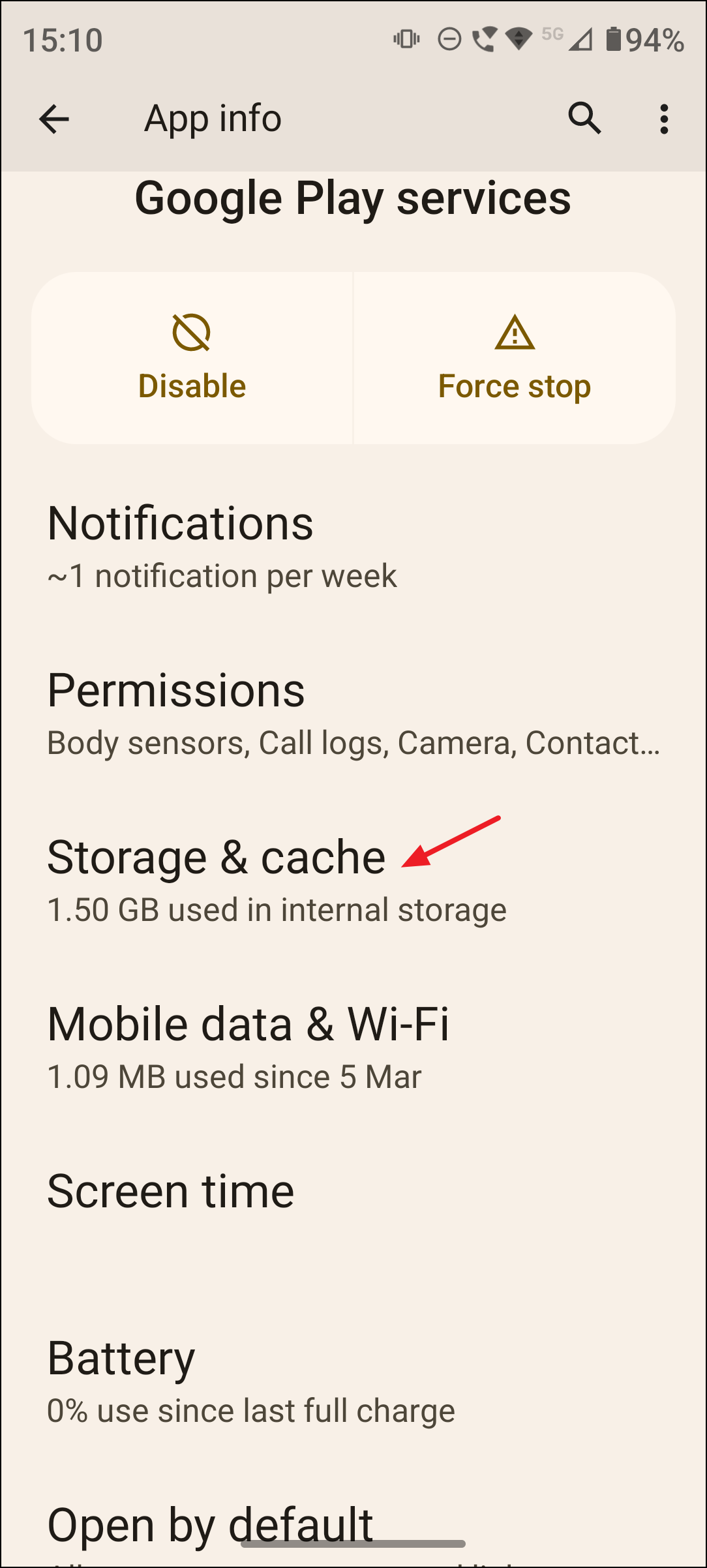
Google Play Services (found in the same app list). Clear its cache and storage as well.Clearing cache and storage removes corrupted files and resets temporary data that may prevent the Play Store from loading properly or completing transactions. After clearing, you may need to sign in again.
Remove and Re-Add Your Google Account
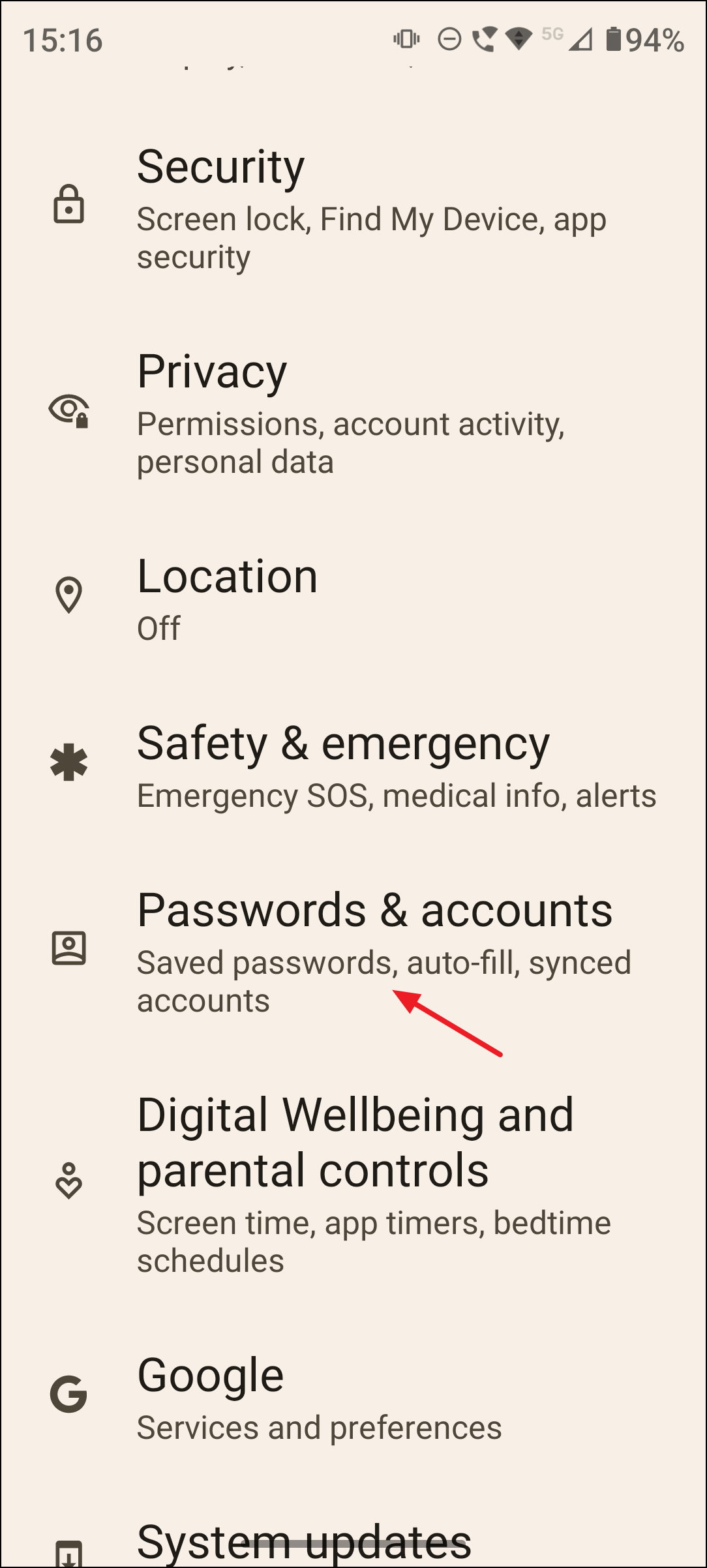
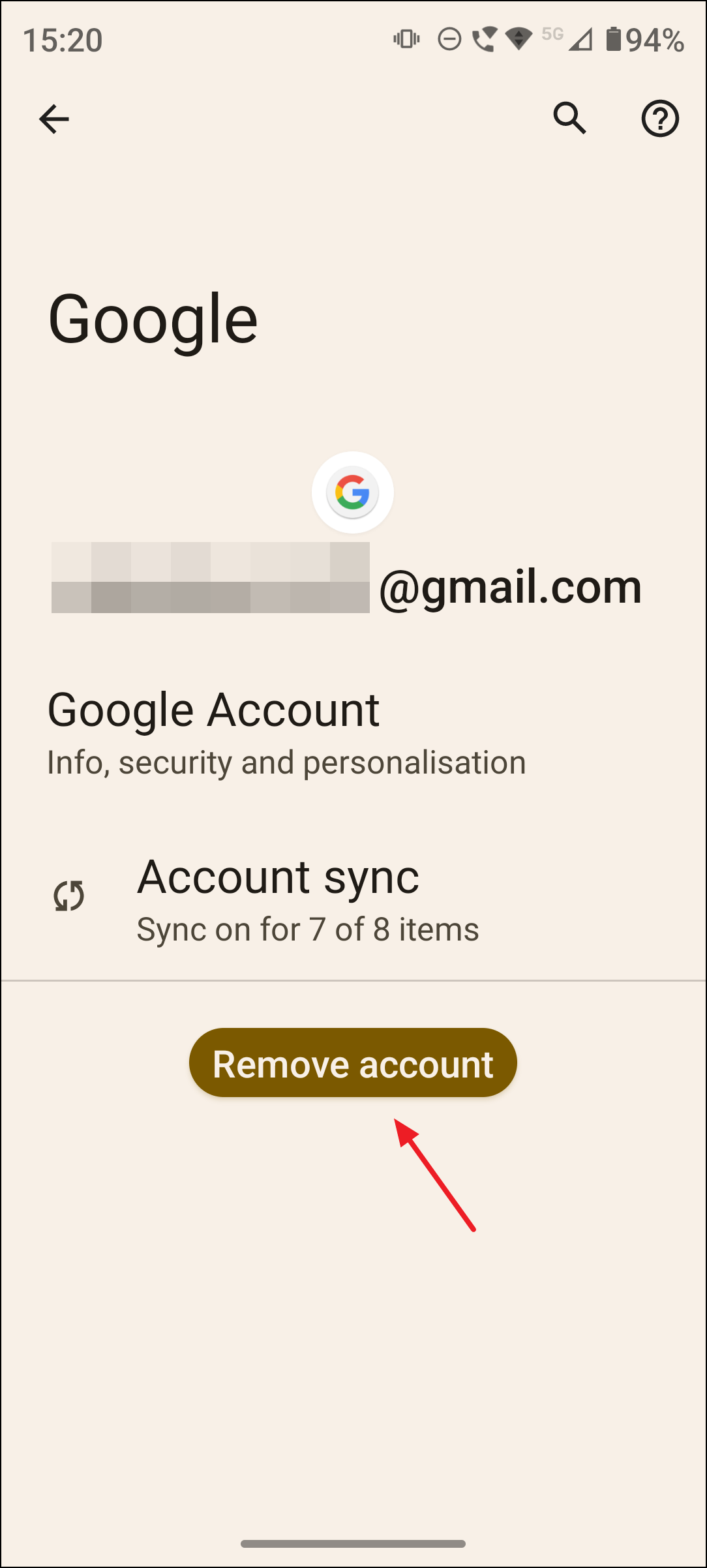
Settings > Accounts and select Add account. Choose Google and sign in with your credentials.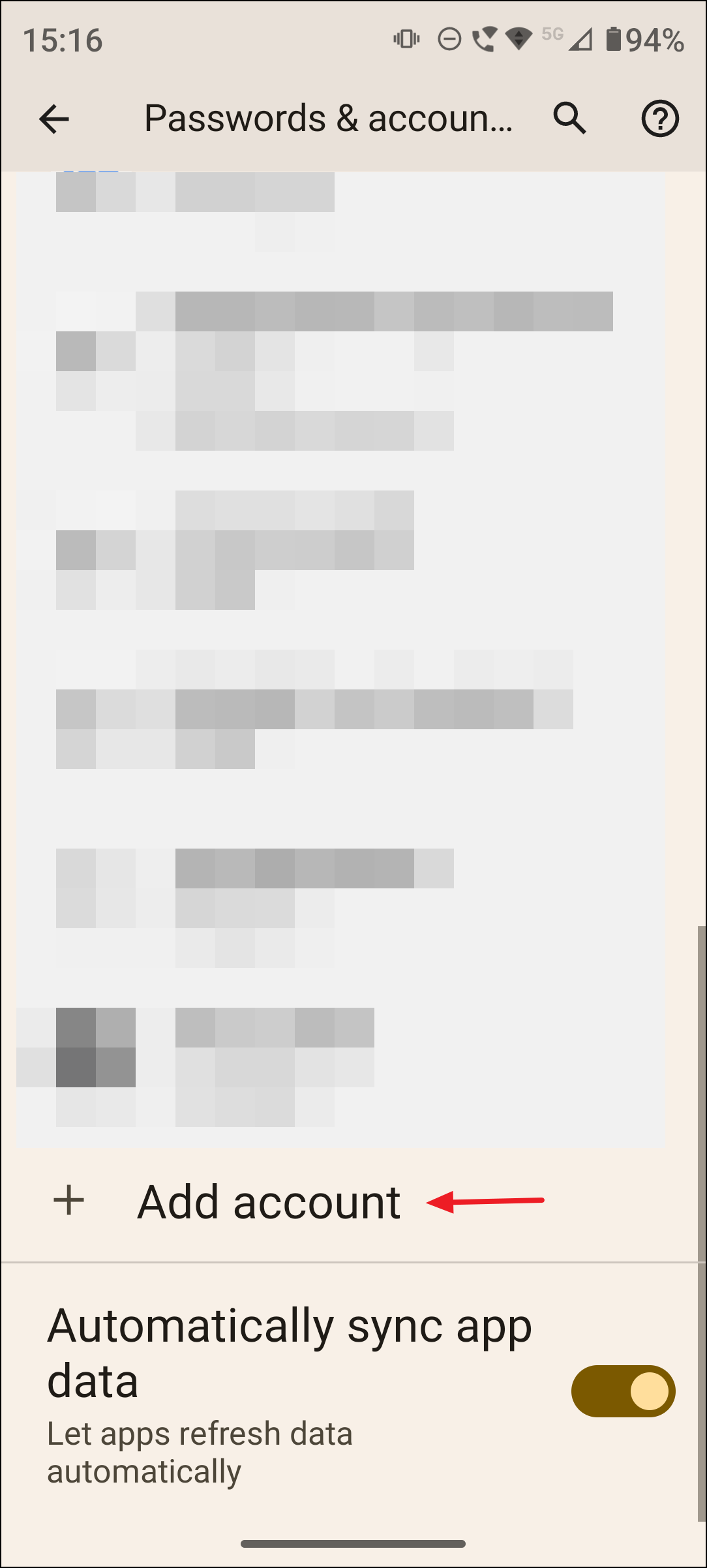
Account removal and re-adding refreshes authentication, resolves sync issues, and fixes problems caused by password changes or incomplete account setup. This method is particularly effective if the error appears only for a specific Google account or after a password update.
Check Date and Time Settings
Set time automatically and Set time zone automatically. If your device is set to manual time or the wrong time zone, adjust it to match your current location.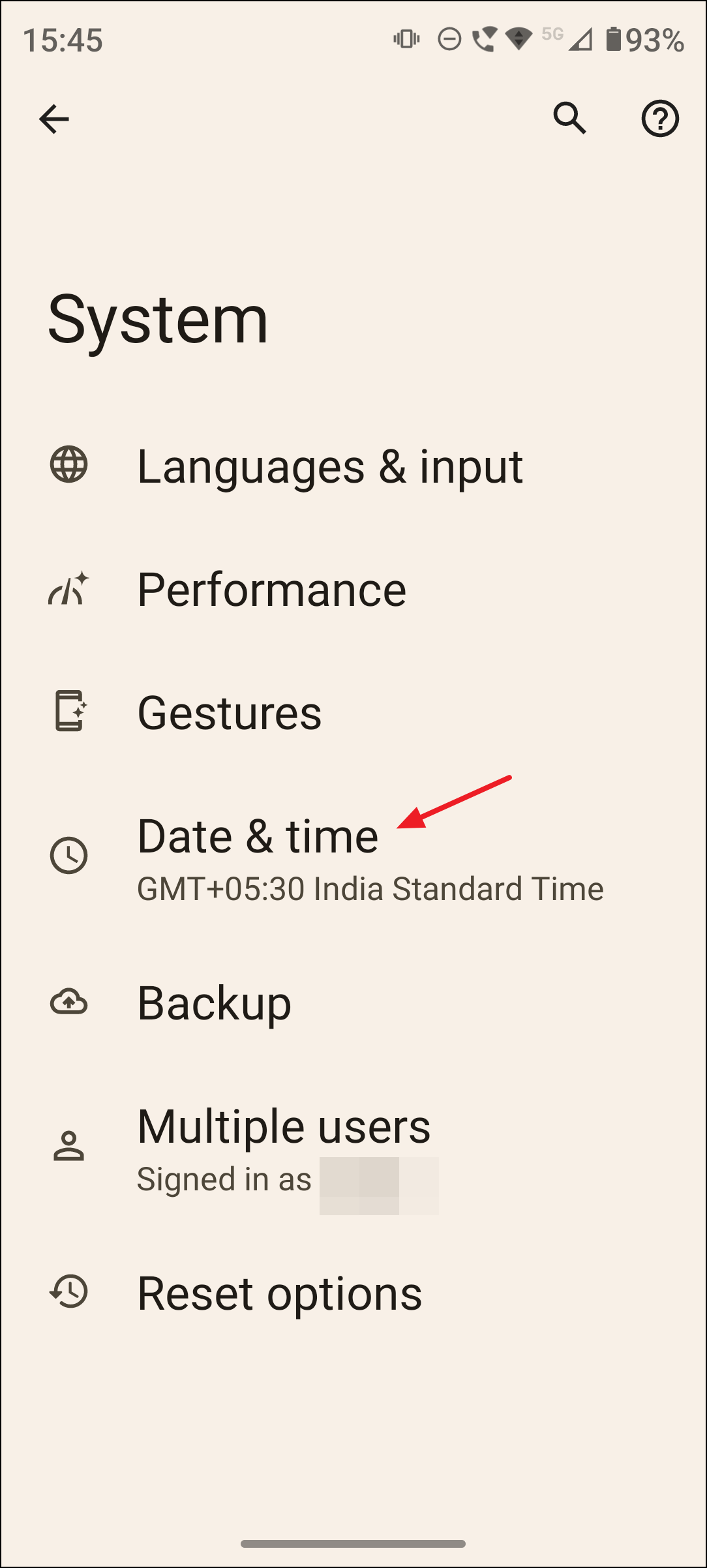
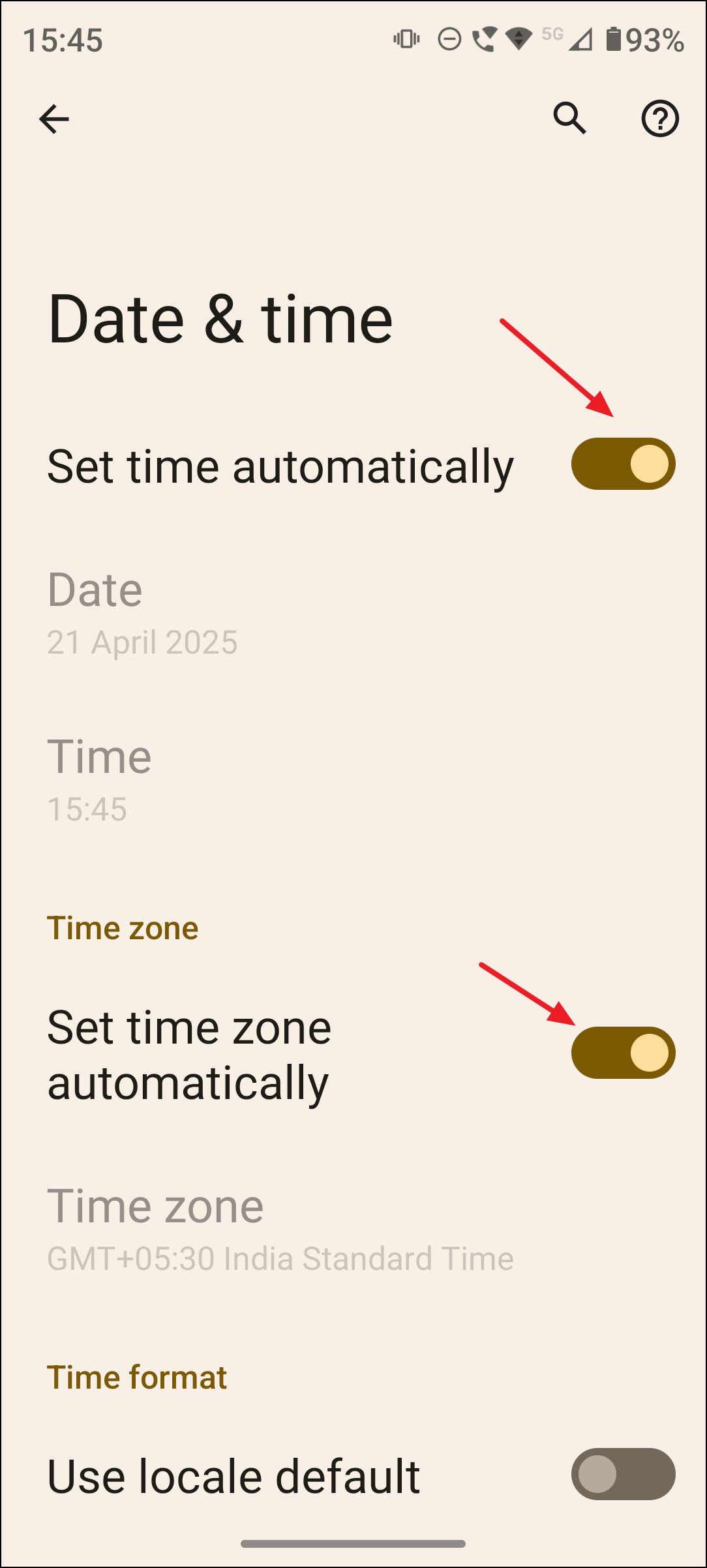
Correct date and time settings are required for secure server communication. Mismatches can cause authentication failures and block Play Store access.
Restart Your Device and Network Connection
Restart or Reboot. This clears minor glitches that may affect app performance.Restarting your device and refreshing your network connection addresses temporary connectivity issues that can interrupt Play Store communication with Google servers.
Update Android System and Google Play Store
Settings > System > System update and check for any available software updates. Install updates and restart your device if prompted.Settings > About, and tap Update Play Store if available.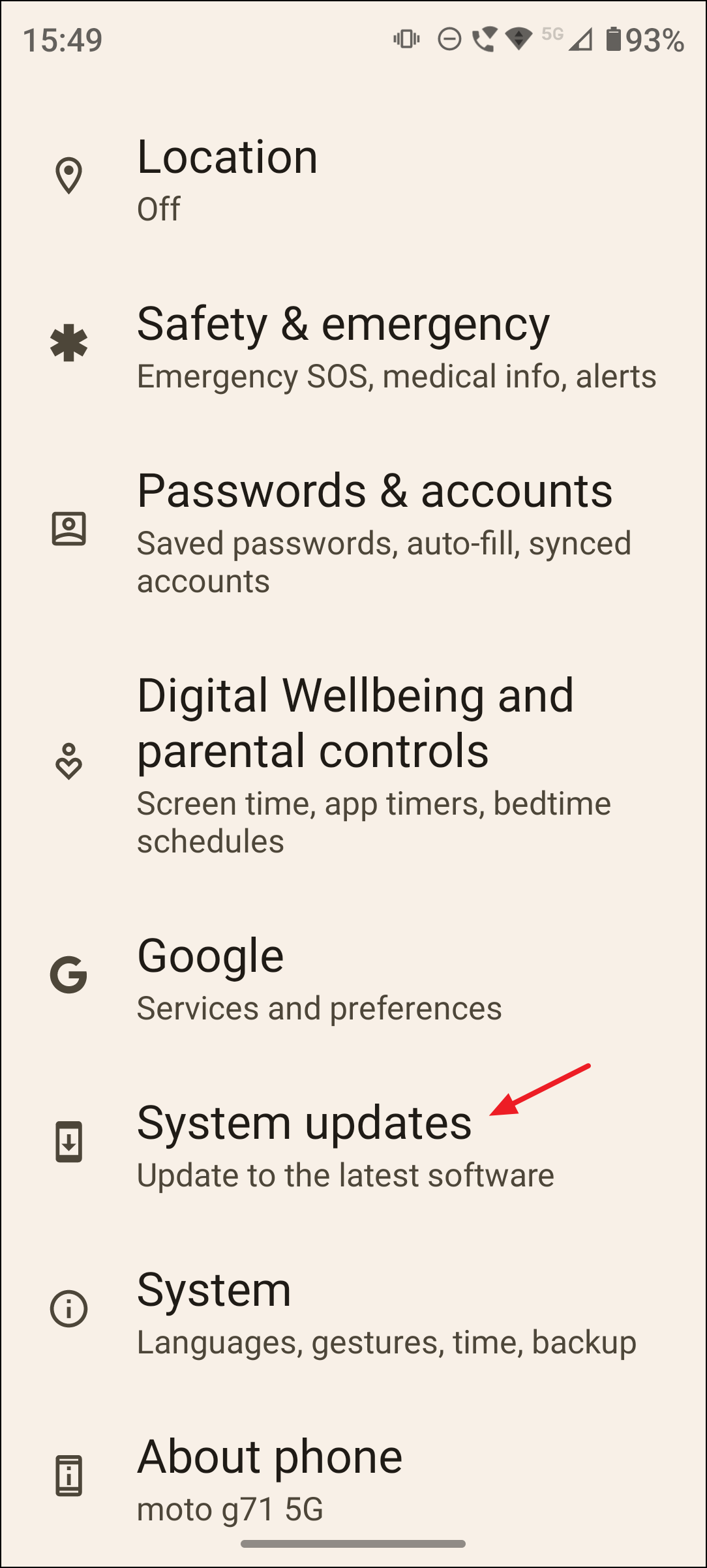
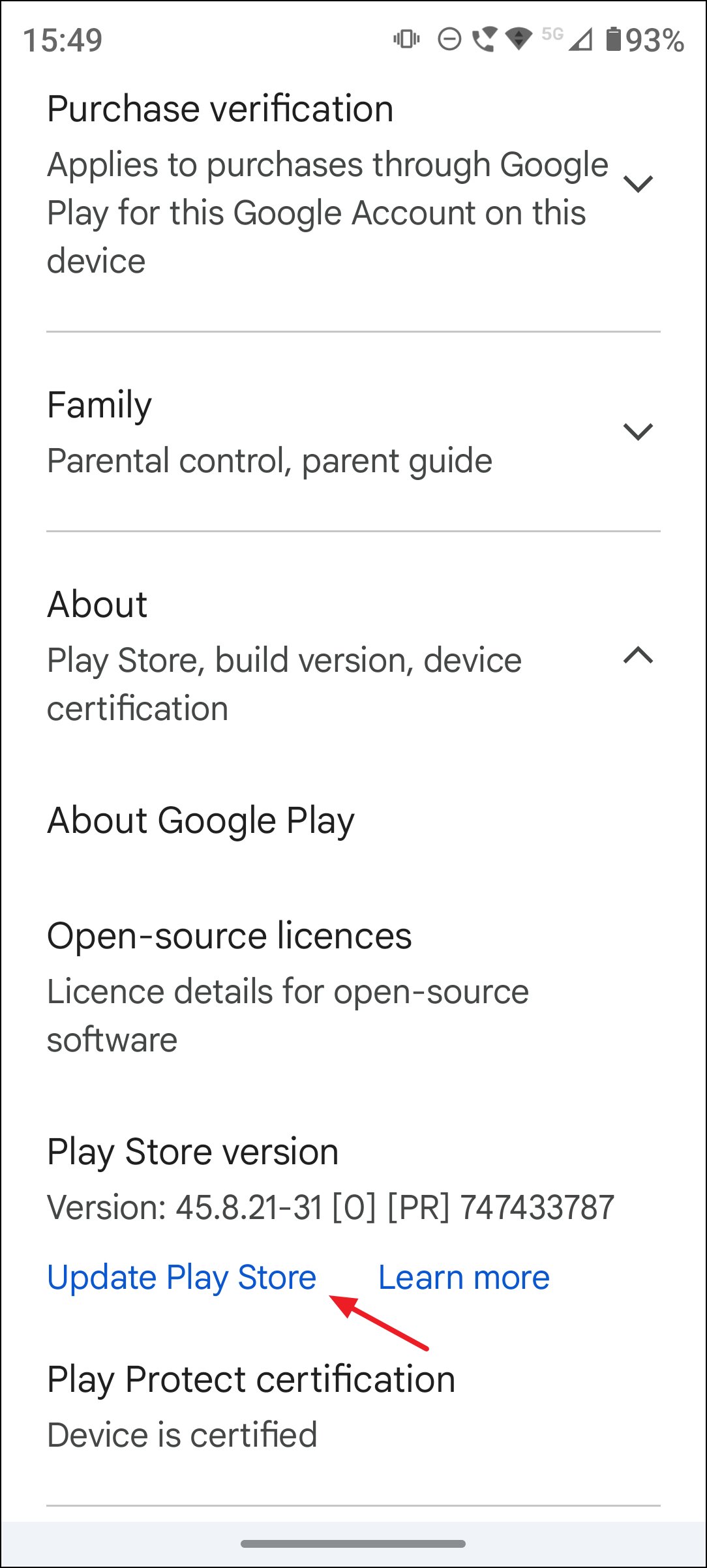
System and app updates often include bug fixes that resolve compatibility and performance issues causing the “Something Went Wrong” error.
Try a Different Google Account or Device Profile
Settings > Accounts > Add account. Open Play Store and switch to the new account to see if the error persists.Using a different account or device profile isolates whether the issue is tied to your primary account or device settings.
Check Storage Space and App Permissions
Settings > Storage, verify that your device has sufficient free space. Low storage can block app updates and installations.Settings > Apps > Google Play Store > Permissions and ensure all necessary permissions (such as Storage and Network access) are allowed.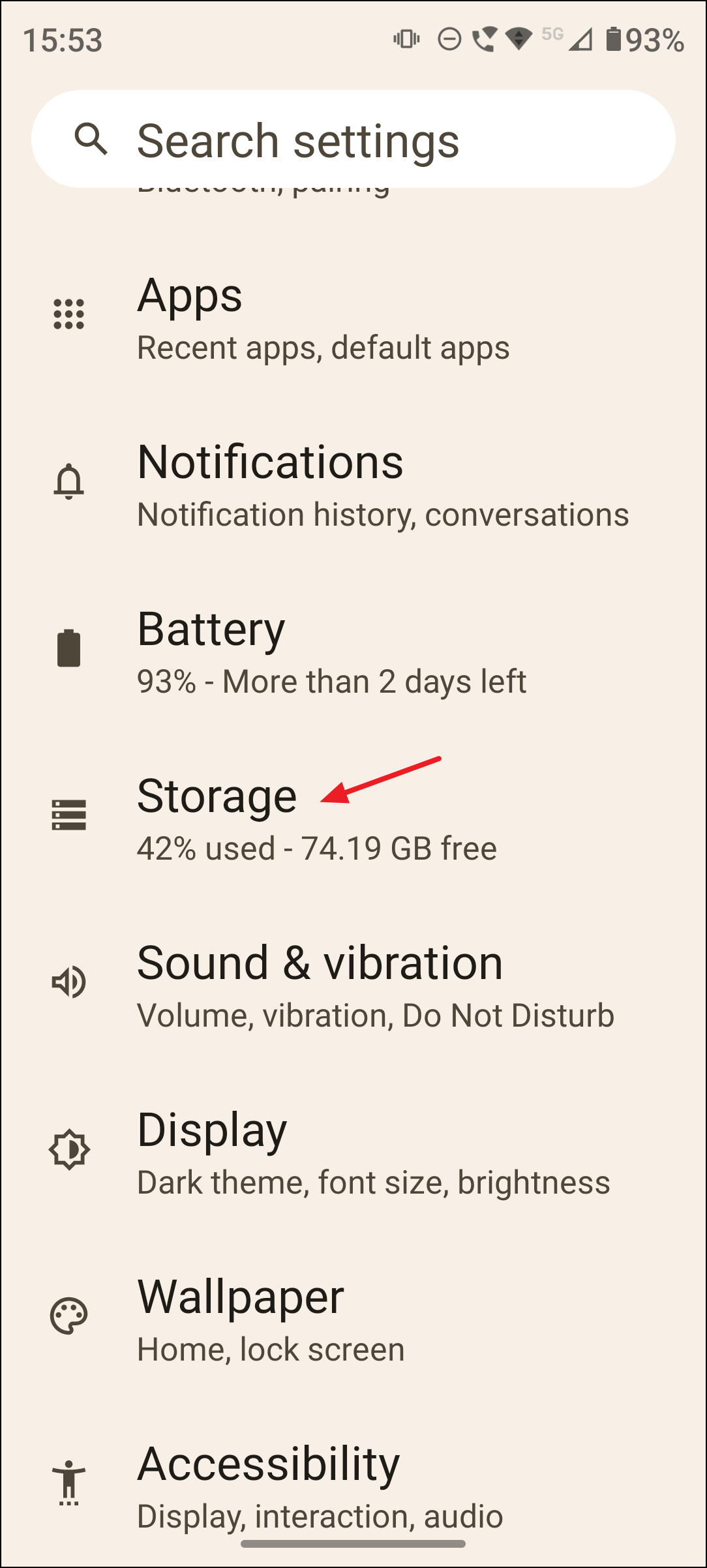
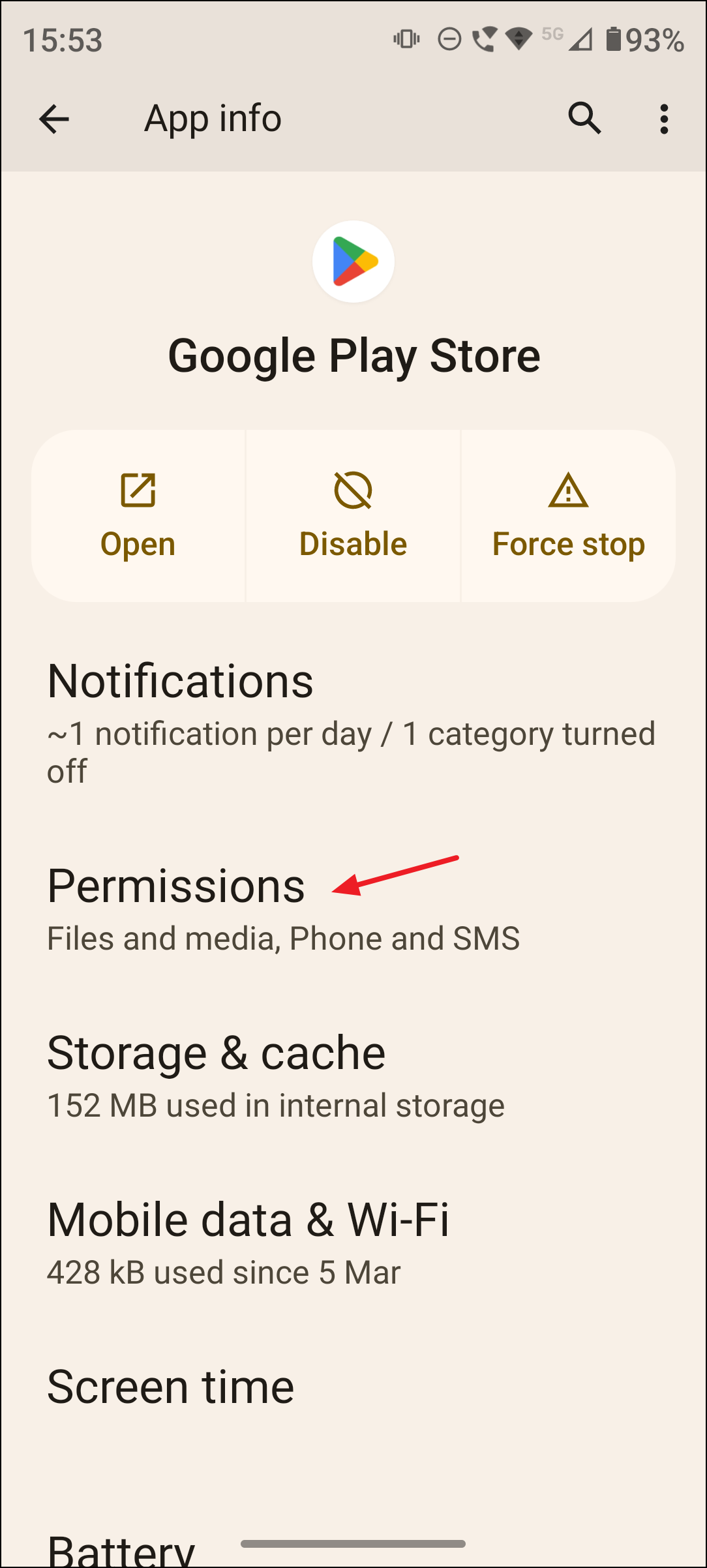
Insufficient storage or missing permissions can prevent the Play Store from functioning correctly.
Alternative Methods and Last Resorts
- Install apps via the Play Store website on a desktop browser, selecting your device for remote installation.
- Try a VPN if regional restrictions or network issues are suspected. Some users report temporary relief using a VPN connection.
- Factory reset your device if all other methods fail. Back up all important data first, as this will erase everything and restore the device to its original state.
These alternatives provide workarounds when standard troubleshooting doesn’t resolve the error, but should be used with caution.
Resolving the “Something Went Wrong” error in Google Play Store restores reliable app downloads and purchases. Regularly updating your device and clearing app cache helps prevent similar issues in the future.