

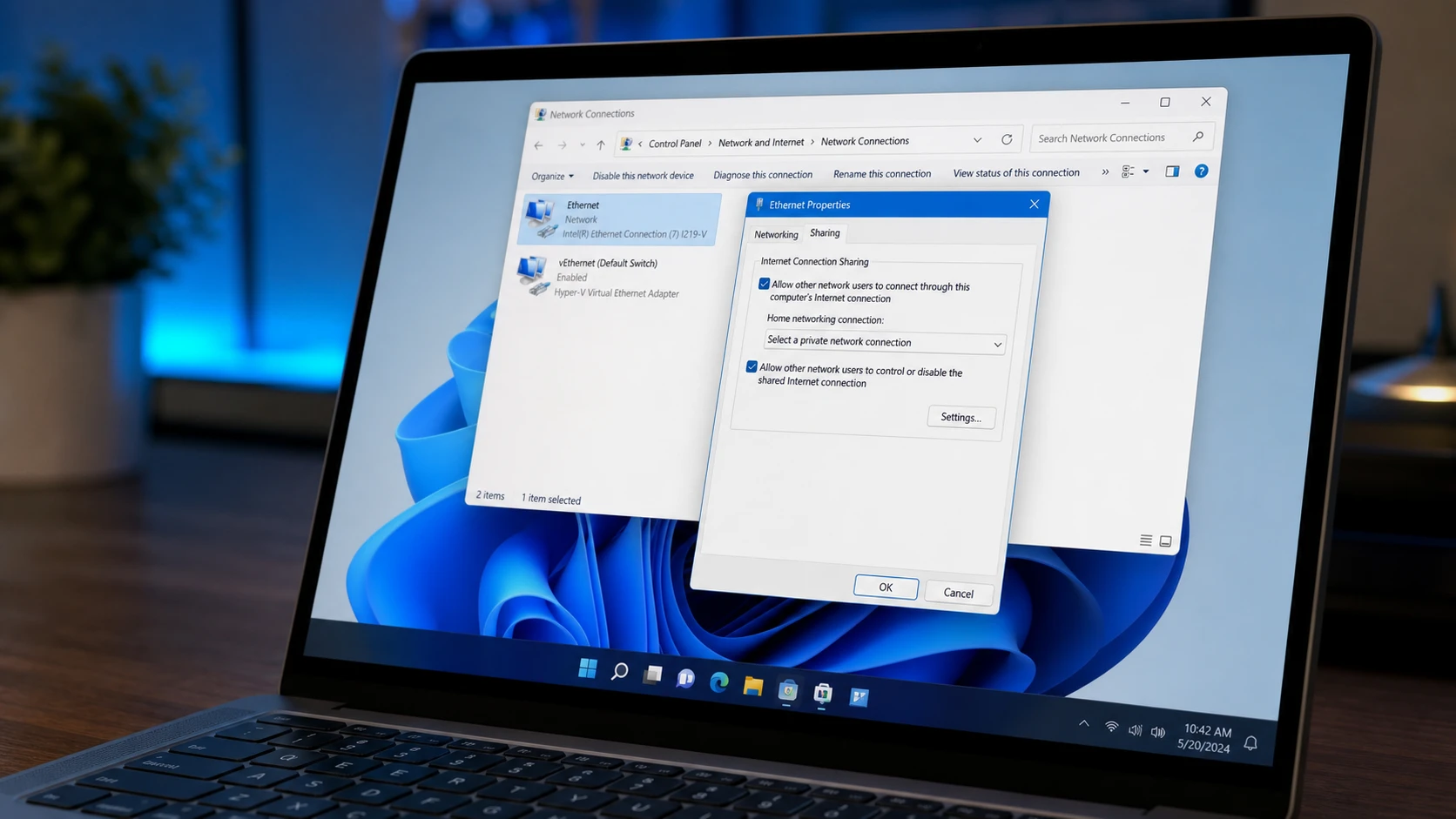
Internet Connection Sharing lets one Windows 11 PC pass its internet connection to other devices on a local network through a single connection and IP address. The host machine handles network address translation (NAT) and runs a small DHCP server, so a console, smart TV, Raspberry Pi, or another PC plugged into the shared adapter can reach the internet. The problem most people hit is simple. Sharing works fine until the PC reboots or the ICS service restarts, and then every connected device loses access.
Quick answer: Create a DWORD named EnableRebootPersistConnection with value 1 under HKEY_LOCAL_MACHINE\Software\Microsoft\Windows\CurrentVersion\SharedAccess, then set the Internet Connection Sharing (ICS) service startup type to Automatic and restart the PC.
Why ICS stops working after a restart
The behavior comes from how modern Windows 11 and Windows 10 builds manage the sharing service. If no traffic passes through the shared connection for about 4 minutes, the service shuts itself down and does not start again on its own. The same thing happens across a reboot or a manual service restart. The sharing settings you configured are effectively dropped, so the adapter stops handing out addresses and routing traffic.
Without the fix, the only way to bring sharing back is to open the network adapter properties and toggle the sharing checkbox off and on again. That is fine once, but it is not practical if the host PC reboots regularly or runs unattended. The registry value below changes that by telling Windows to keep the shared connection persistent across restarts.
Add the EnableRebootPersistConnection registry value
This change edits the Windows registry, so back up the registry or create a system restore point first. A mistake here can cause serious problems, so make the precaution before you start.
HKEY_LOCAL_MACHINE\Software\Microsoft\Windows\CurrentVersion\SharedAccessEnableRebootPersistConnection.1, and click OK. You can now close Registry Editor.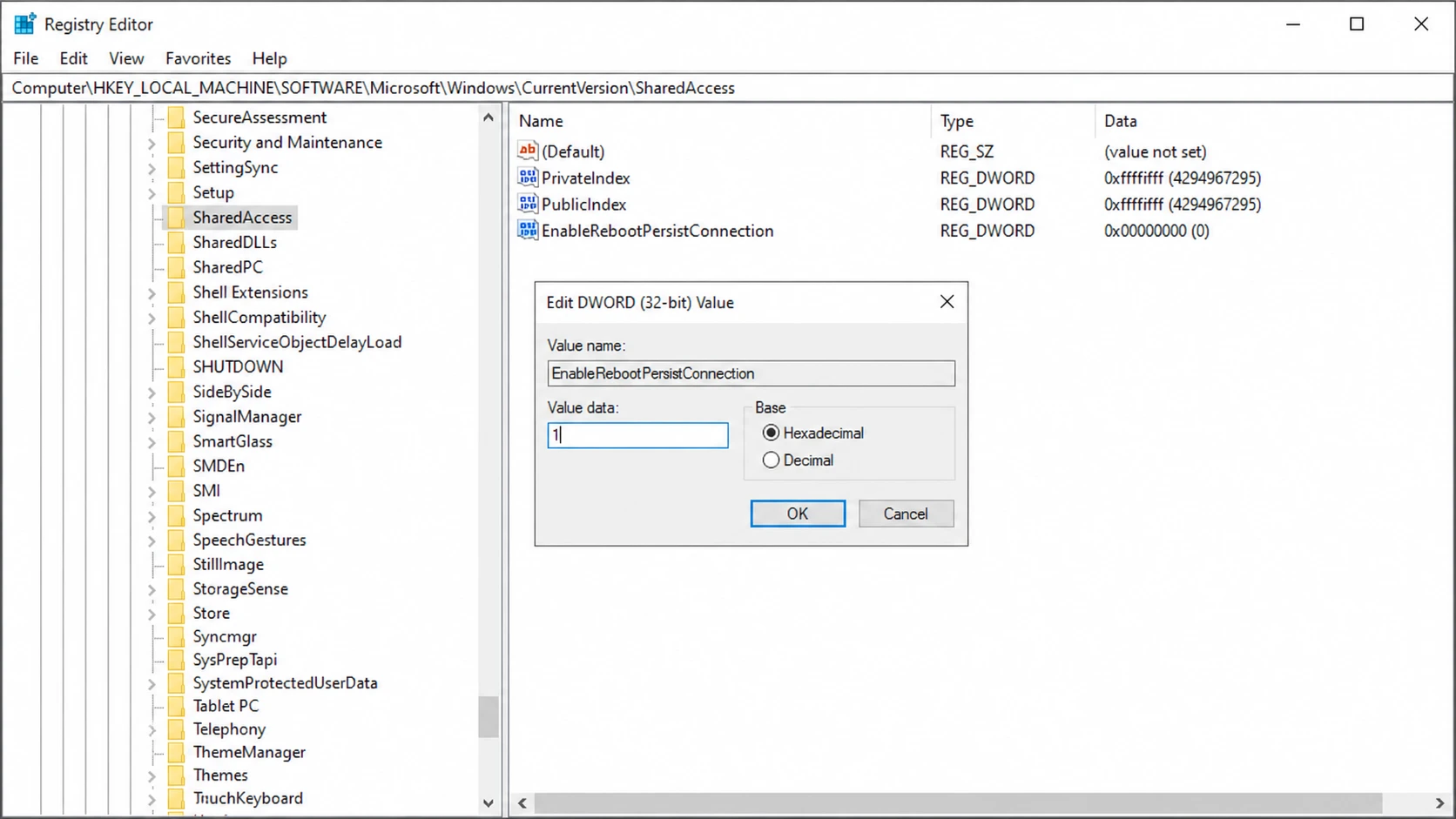
If you prefer the command line, the same value can be created in one line of PowerShell running as administrator.
New-ItemProperty -Path HKLM:\Software\Microsoft\Windows\CurrentVersion\SharedAccess -Name EnableRebootPersistConnection -Value 1 -PropertyType dwordSet the Internet Connection Sharing (ICS) service to Automatic
The registry value only persists the connection. You also need the service itself to start with Windows so sharing comes back without manual steps. The service name is SharedAccess.
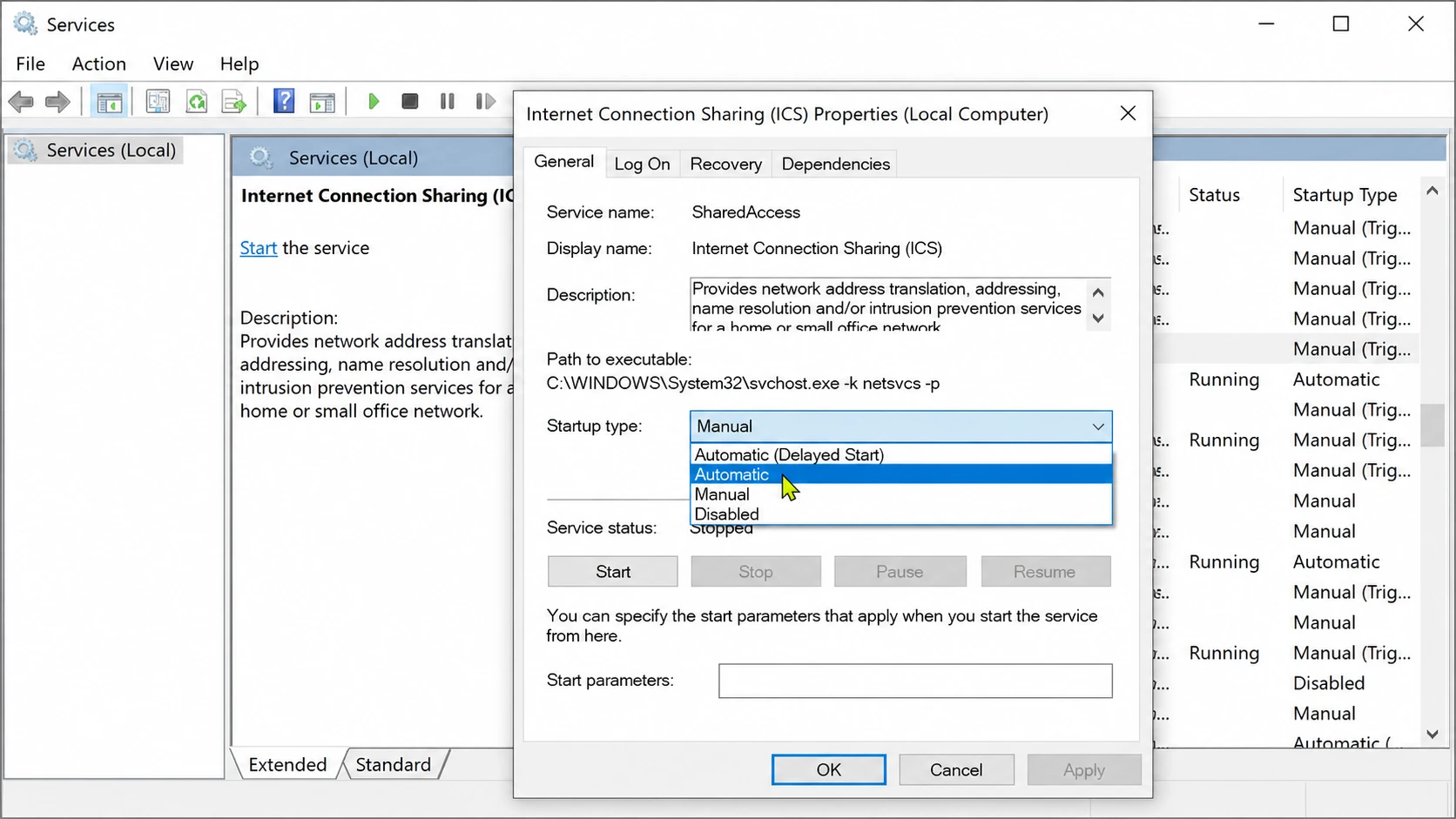
You can do both actions from an elevated PowerShell window instead.
Set-Service SharedAccess -startuptype automatic -passthru
Start-Service SharedAccess
Note: If the Sharing tab is missing from your adapter properties, the ICS service may be disabled or blocked by Group Policy. Confirm the service is present and not set to Disabled before enabling sharing again.
Confirm sharing survives a restart
Restart the PC after applying both changes. Once Windows is back, open Network Connections by pressing Windows + R and typing ncpa.cpl. The internet-source adapter should still show as Shared, and the connected client device should regain internet access on its own. On the client, an Ethernet adapter set to obtain its address automatically should pull an IP in the 192.168.137.x range with 192.168.137.1 as the gateway, which is the fixed address ICS assigns to the sharing adapter.
If the client comes back online without you toggling anything in the adapter properties, the fix is working as intended.
Common reasons ICS still fails
If sharing still breaks after the changes above, the cause is usually one of a few specific conditions rather than the persistence setting.
| Cause | What to check |
|---|---|
| IP subnet conflict | ICS always uses the fixed 192.168.137.x range. If your internet-source network also uses that range, sharing fails or becomes unstable. This subnet cannot be changed easily. |
| Firewall blocking traffic | Windows Defender Firewall or third-party security software must allow ICS traffic on the 192.168.137.x subnet. |
| Client not using DHCP | The connected device must be set to obtain its IP and DNS automatically, unless it is manually configured for the 192.168.137.x subnet with 192.168.137.1 as the gateway. |
| Outdated network drivers | Corrupted or old drivers on either the public or private adapter can interfere with sharing. |
| Wrong sharing adapter selected | In the source adapter’s Sharing tab, the Home networking connection dropdown must point to the adapter you share out, not the one already connected to the internet. |
One more caution worth keeping in mind. ICS is tied into other Windows features, so disabling it can break Windows Subsystem for Linux and Microsoft Defender Application Guard. If you rely on either of those, leave the service enabled rather than turning it off to troubleshoot.
With the persistence value in place and the service set to Automatic, the host PC restores shared internet access on its own after every reboot, so the devices behind it stay connected without manual intervention.



