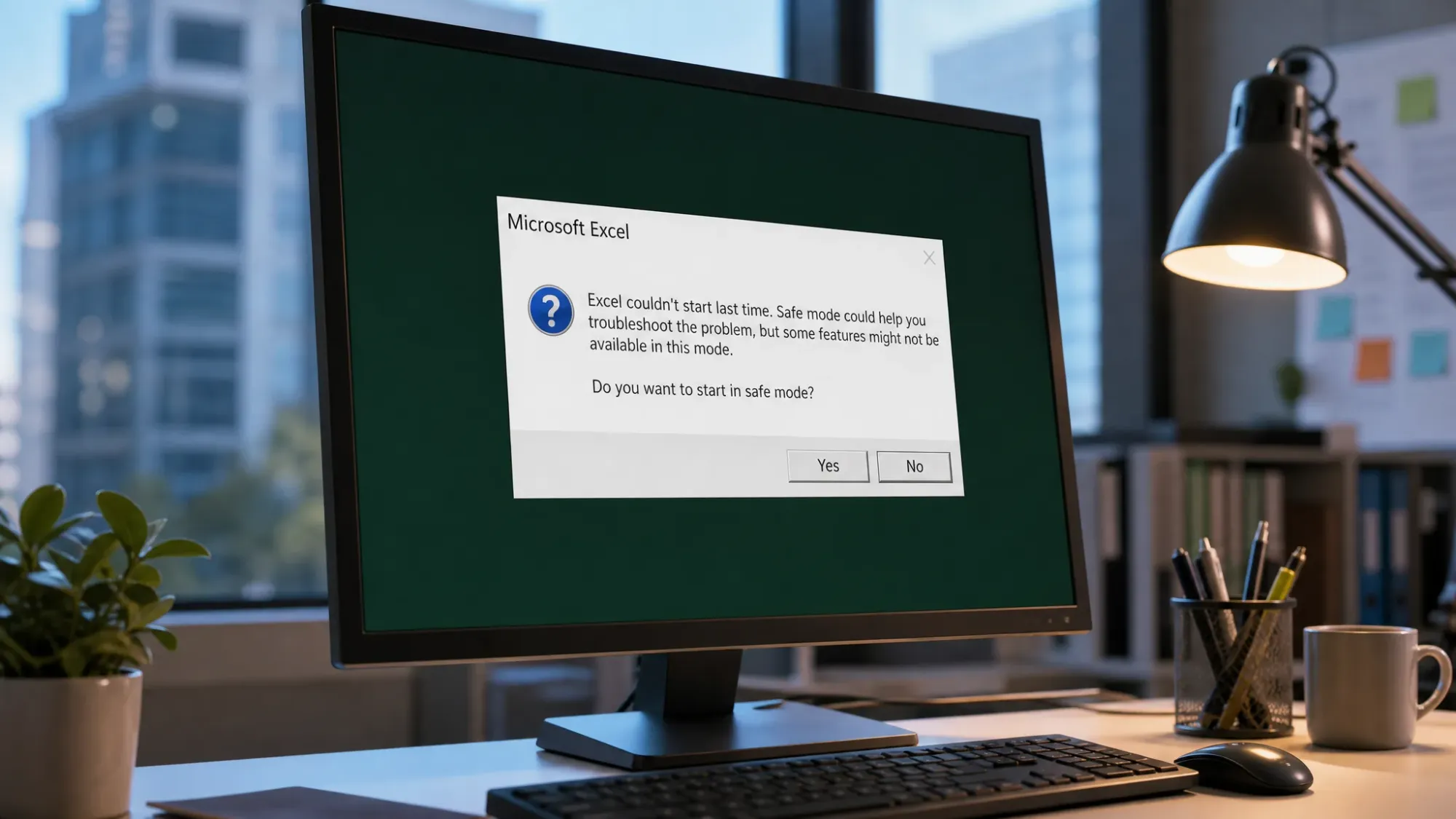
When Excel, Word, or PowerPoint shows the message that it couldn’t start last time and offers to open in Safe Mode, it means something interrupted a normal launch. With Office programs, the culprit is almost always a misbehaving add-in, a corrupted startup file, or damaged program files. The prompt itself is a recovery feature, not the problem.
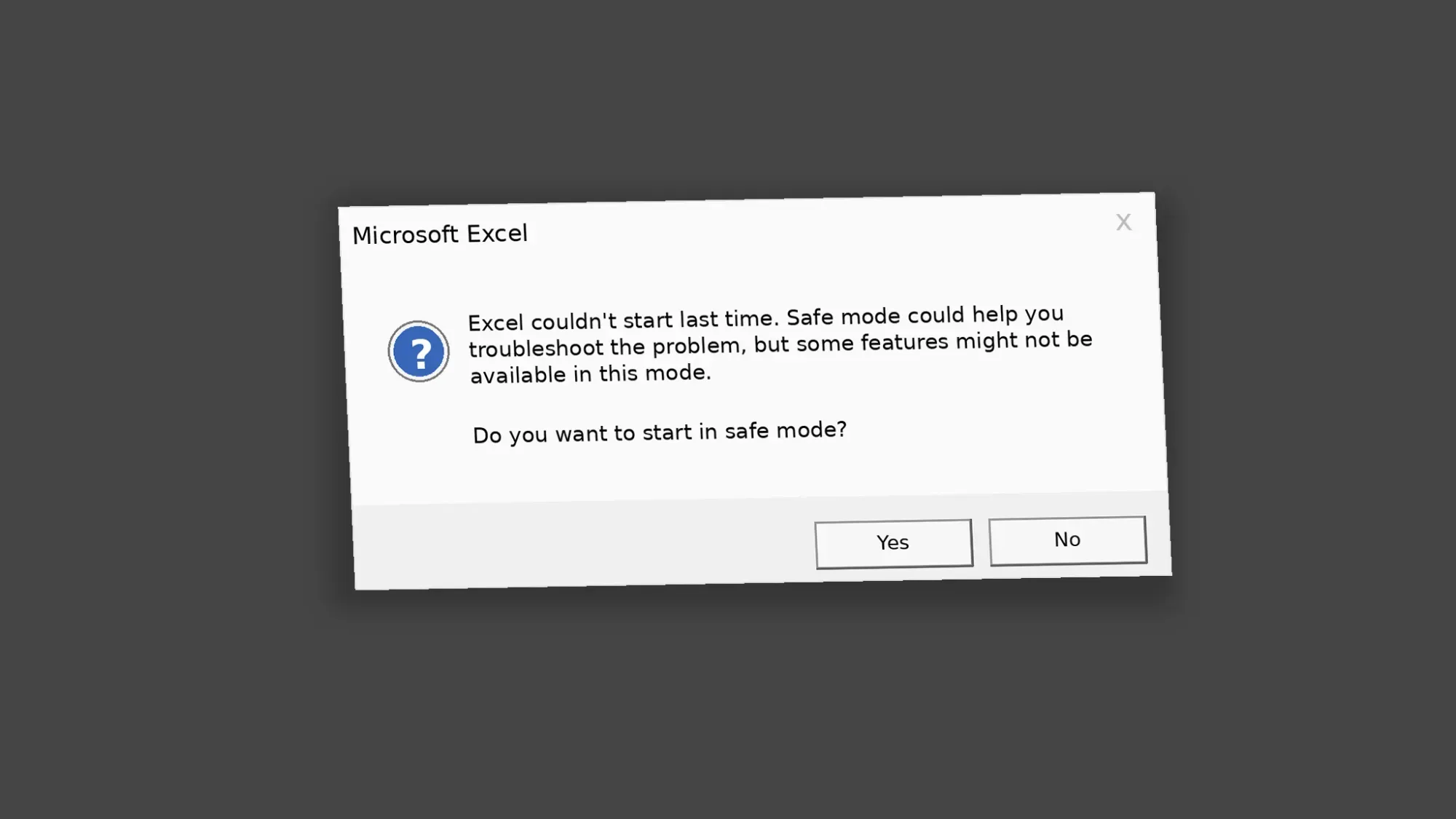
What triggers the Safe Mode prompt in Office
At startup, Office checks whether the previous session failed. If it detects an add-in that didn’t load, a corrupted template, a damaged registry key, or a broken file, it offers Safe Mode so the program can still open with core features only. In Safe Mode, add-ins, custom toolbars, AutoCorrect lists, and startup files are skipped.
The message can be intermittent. It may appear once, then stay quiet for days or weeks before returning on the first launch of the day. Declining Safe Mode and continuing often makes the prompt disappear for a while, but that does not remove the underlying cause.
If you skipped the prompt and want to force Safe Mode yourself, hold the CTRL key, double-click the app icon, and keep holding until you are asked to confirm Safe Mode. You can also use the Run box with the /safe switch.
| Application | Run command for Safe Mode |
|---|---|
| Word | winword /safe |
| Excel | excel /safe |
| PowerPoint | powerpnt /safe |
| Outlook | outlook /safe |
| Publisher | mspub /safe |
| Visio | visio /safe |
Fix 1: Disable add-ins to find the faulty extension
If the app runs fine in Safe Mode but breaks in normal mode, an add-in is the most likely cause. Disable every add-in, then re-enable them one at a time to isolate the bad one.
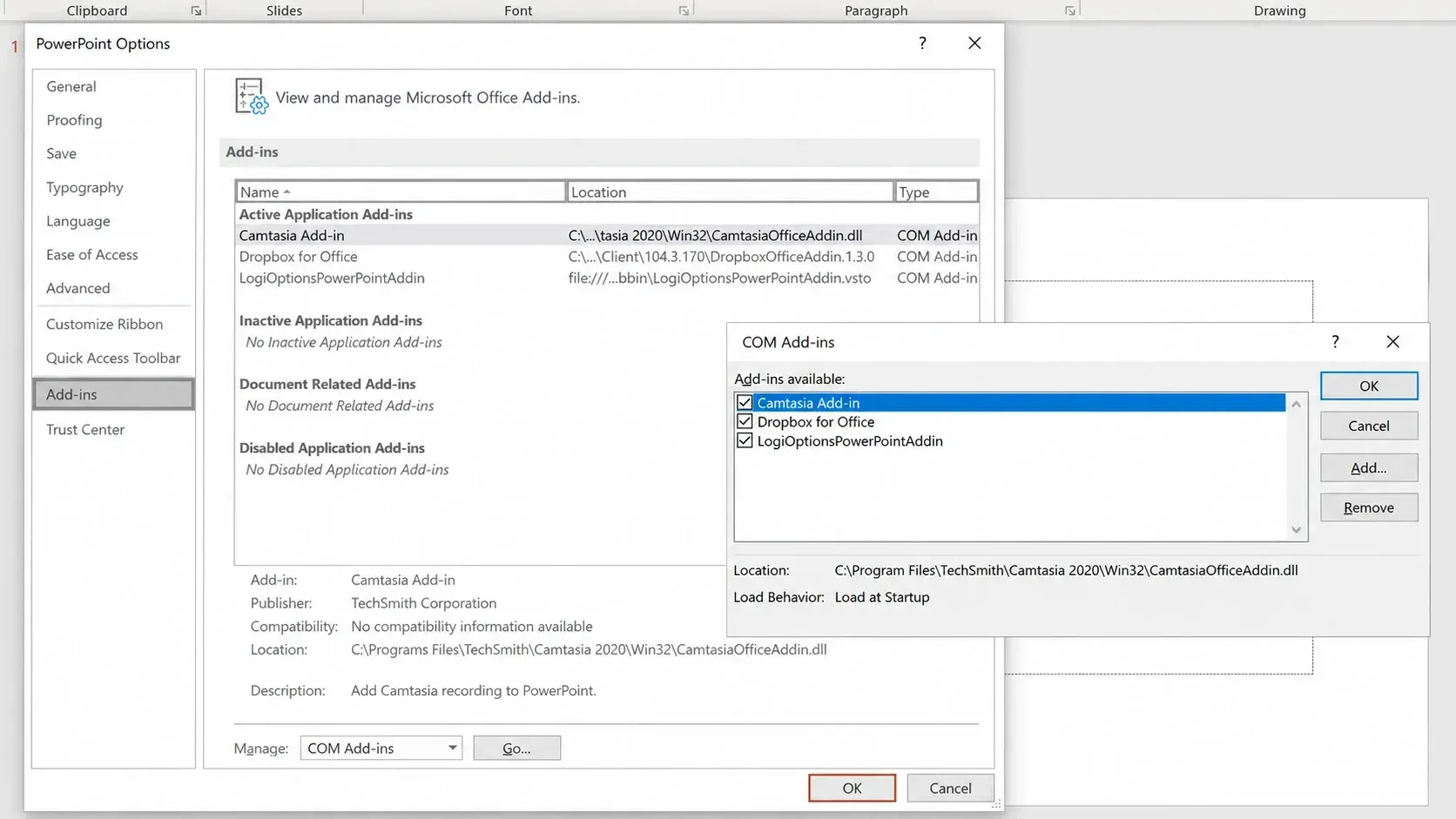
The same path applies to every Office app that supports add-ins, so repeat it in Word, Excel, and PowerPoint if the problem spans more than one.
Fix 2: Repair the Office installation
If the prompt shows up across multiple apps and there is no shared add-in, the program files themselves are likely damaged. A repair replaces corrupted core files with fresh copies without touching your documents. You may need administrator permission to run it.
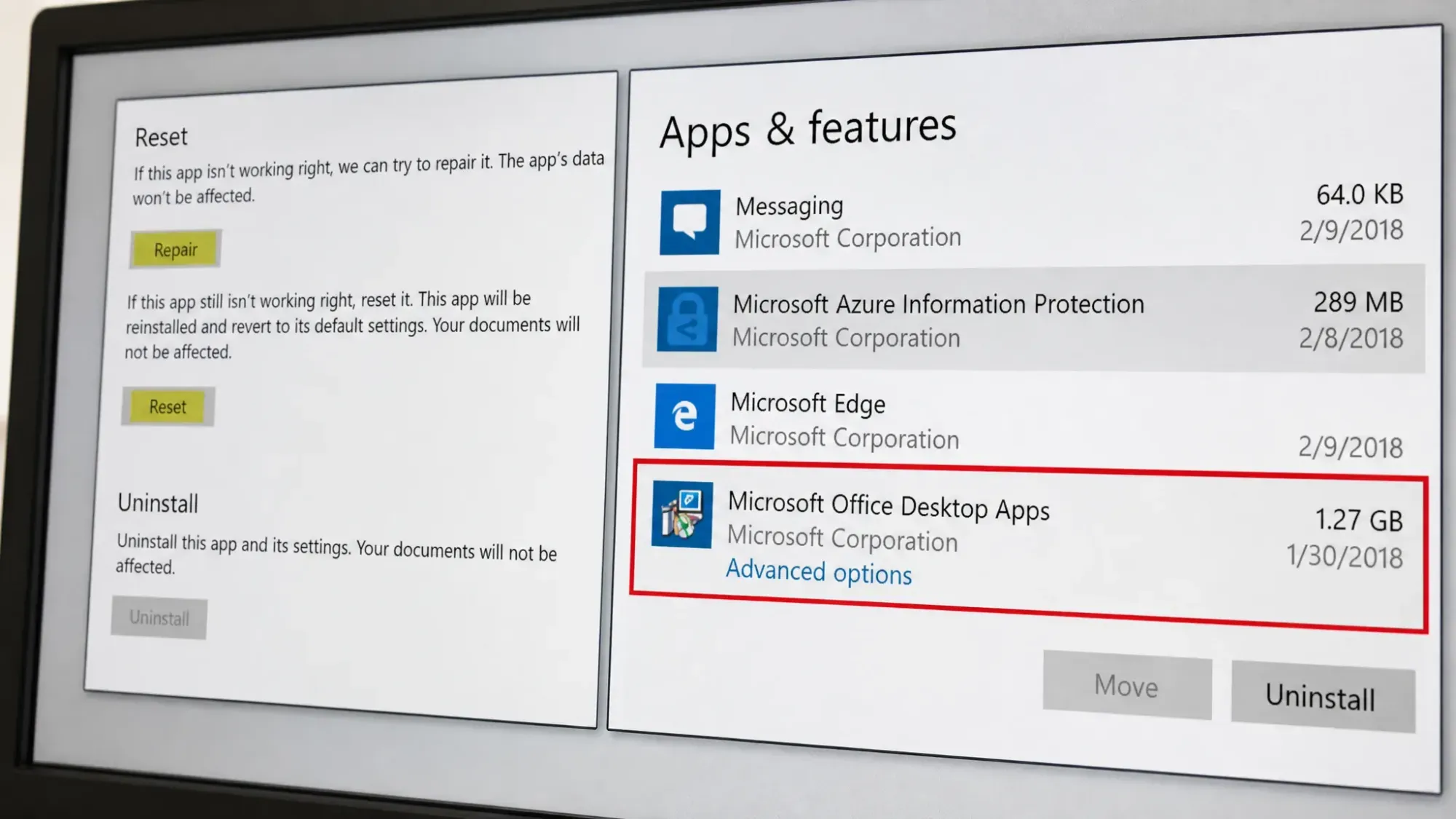
If a repair still leaves the issue, the Microsoft Support and Recovery Assistant can diagnose and fix common Office launch problems automatically. The tool is available from the official Microsoft download page.
Fix 3: Clear the application startup folders
A corrupted template or stray macro in the startup folder can break a clean launch. Emptying that folder forces Office to rebuild its default startup state. Close the relevant Office app before deleting anything.
Open the Run box with Windows + R and paste the matching path. For Excel the folder is XLSTART, and for Word and PowerPoint it is Startup.
| Application | Startup folder path |
|---|---|
| Excel | %appdata%\Microsoft\Excel (XLSTART) |
| Word | %appdata%\Microsoft\Word (Startup) |
| PowerPoint | %appdata%\Microsoft\PowerPoint (Startup) |
Delete everything inside the startup folder, then relaunch the app and check whether the prompt returns.
When the prompt keeps coming back
If the message still appears after disabling add-ins, repairing, and clearing startup folders, the problem may be tied to your Windows user profile rather than Office. Switch to a different Windows account, or create a new one, and run the apps there. If the message never appears in the other profile, your original profile holds the corrupted setting.
For a clean slate, completely remove and reinstall Office. The Microsoft 365 uninstall support tool wipes the installation and clears cached files before you reinstall, which removes leftover settings a normal uninstall can miss. The full uninstall and reinstall cycle usually takes 30 to 60 minutes.
How to confirm the fix worked
You know the problem is resolved when the app opens directly into normal mode on the first launch of the day, with no Safe Mode prompt and no Safe Mode label in the title bar. Re-enabled add-ins and your custom settings should load as usual. If a single add-in was the cause, leaving it disabled or updated keeps the launch clean going forward.