Pressing Windows key + . or Windows key + ; on Windows 10 and 11 instantly brings up the emoji picker, allowing you to insert emojis into Microsoft Office apps such as Word, Outlook, and PowerPoint. This shortcut works in any text field where emojis are supported, making it the fastest way to access the full emoji set without leaving your workflow.
Windows key and press either the . (period) or ; (semicolon) key. The emoji picker window will appear directly at your cursor location.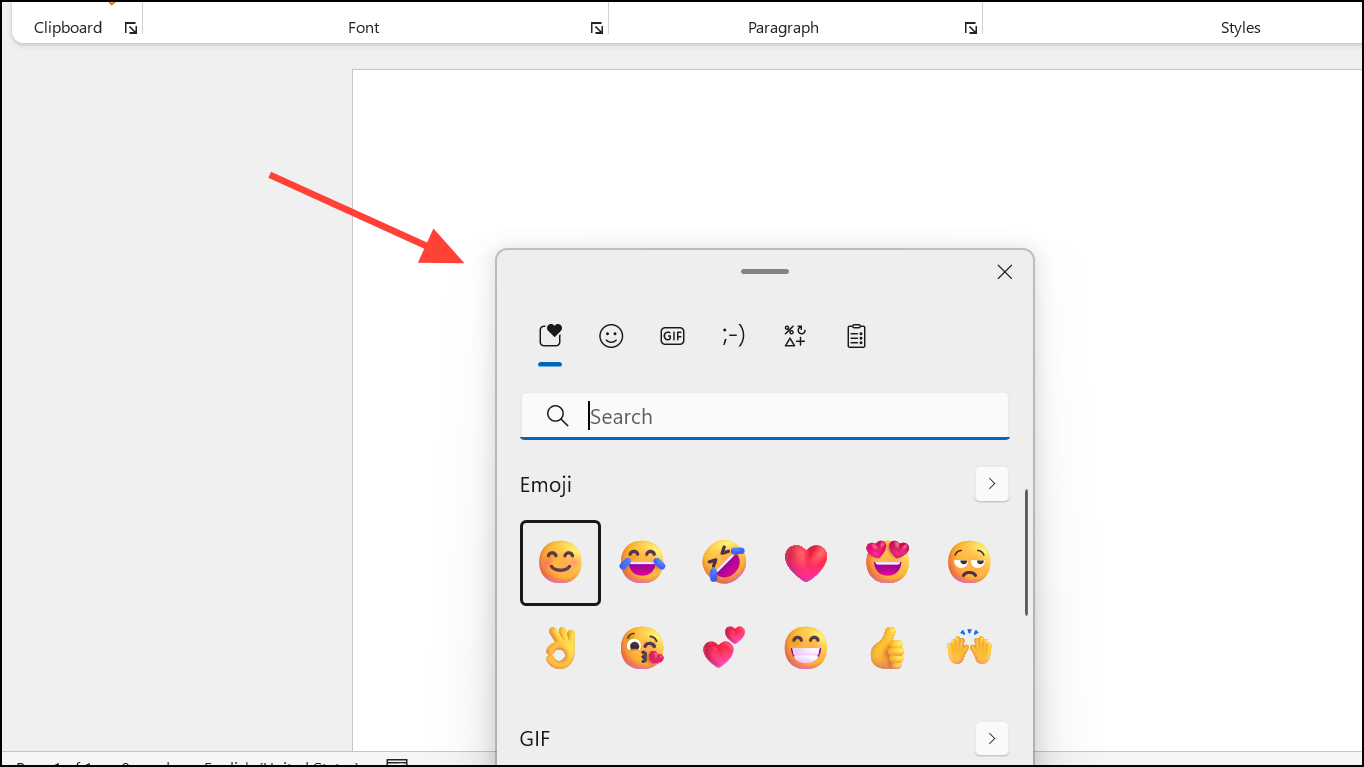
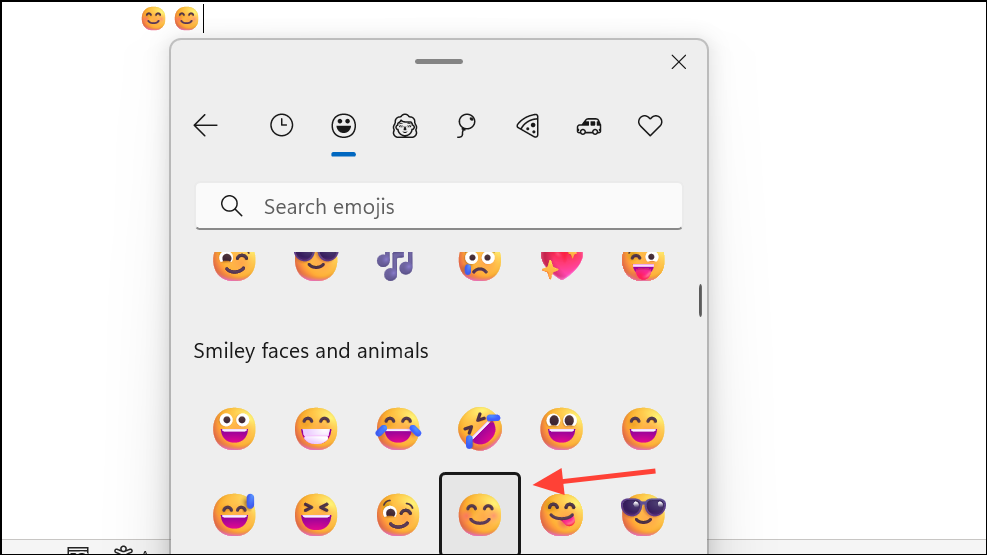
This method relies on the Windows emoji picker, which is available when using the English language pack in Windows 10 or 11. If the emoji picker does not appear, check that your system language is set to English and that your Windows version is up to date. If you encounter issues where emojis do not insert properly, restarting the “Touch Keyboard and Handwriting Panel Service” in Windows Services can resolve the problem. Set this service to “Manual” and restart your system to restore emoji functionality.
Using Built-In Text Shortcuts for Emoji Conversion
Microsoft Office apps like Word, Outlook, and PowerPoint recognize certain text emoticons and automatically convert them into basic emojis as you type. This feature provides a quick way to insert common smileys and expressions without opening the emoji picker.
For example, typing :-) will automatically convert to a smiley face, and ;-) will become a winking face. This works in most recent versions of Office, including Microsoft 365 apps.
Common text shortcuts include:
:-)or:)for a smiley face.;-)or;)for a winking face.:-Dor:Dfor a laughing face.:-Por:Pfor a playful face.:(or:- (for a sad face.
This approach is ideal for inserting simple, familiar emojis without breaking your typing flow. However, the selection is limited to a small set of classic emoticons and does not include the full range of modern emojis.
Inserting Emojis Using the Symbol Dialog
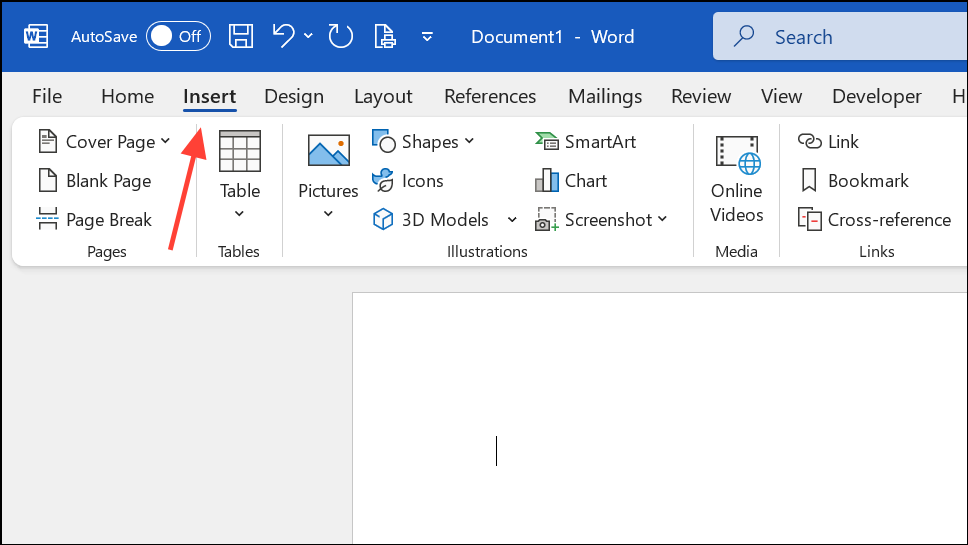
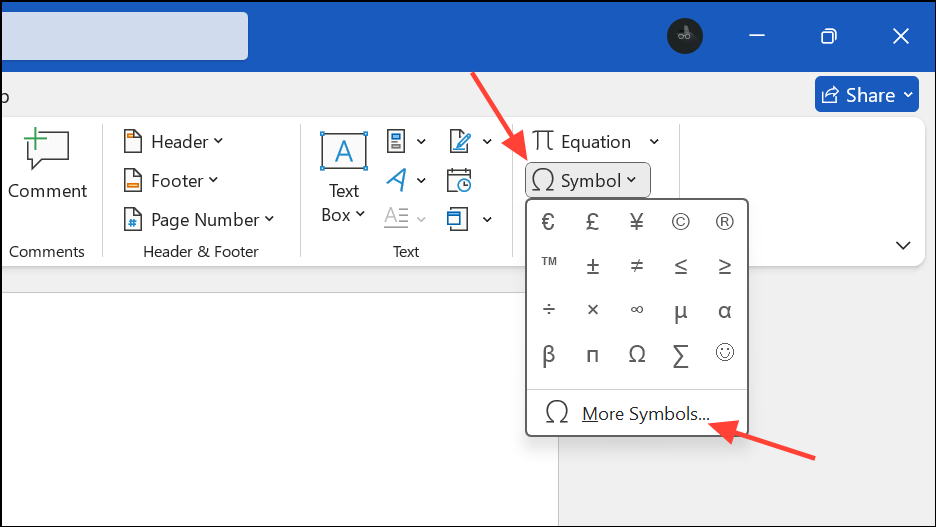
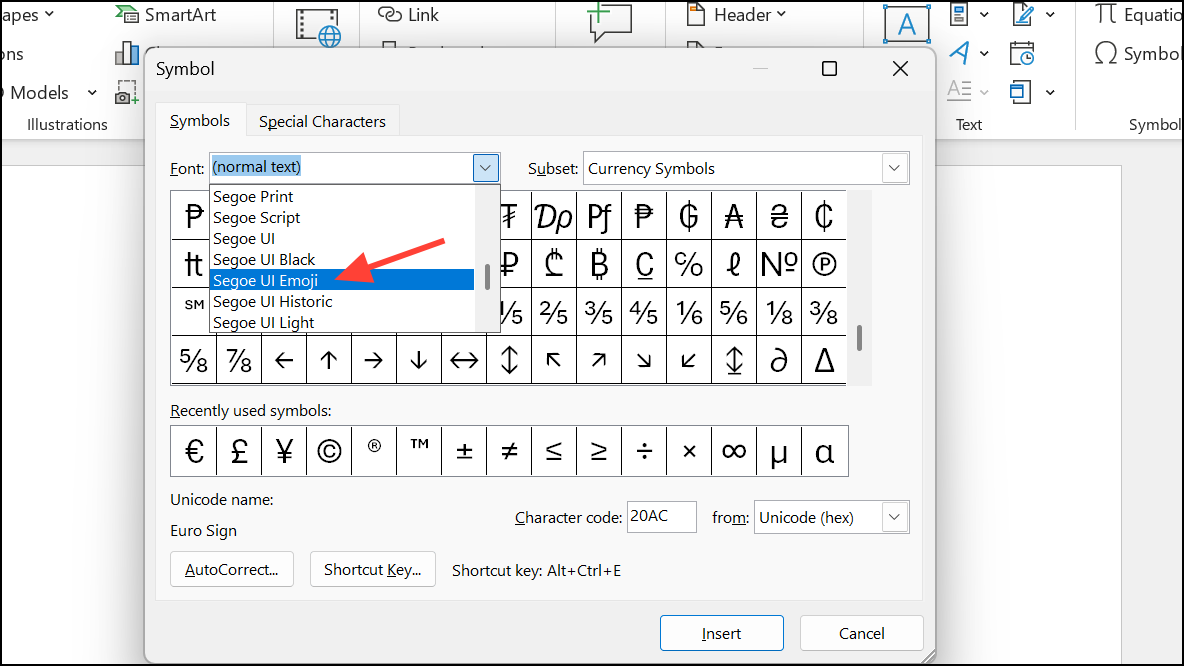
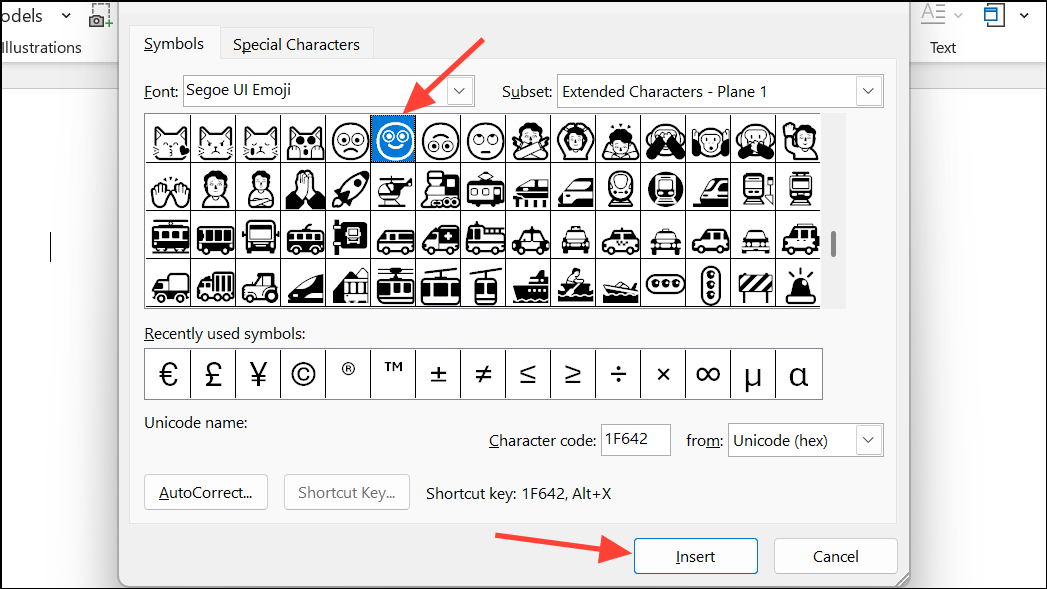
For users who prefer selecting emojis from a visual list, Microsoft Office apps offer a Symbol dialog. This method provides access to a broader set of emojis, especially if you need to insert less common symbols.
Adding Emojis via Office Add-Ins and Icon Libraries
Some users may want access to a larger or customized collection of emojis and icons. Microsoft Office supports add-ins that expand emoji options or provide icon libraries tailored to your needs.
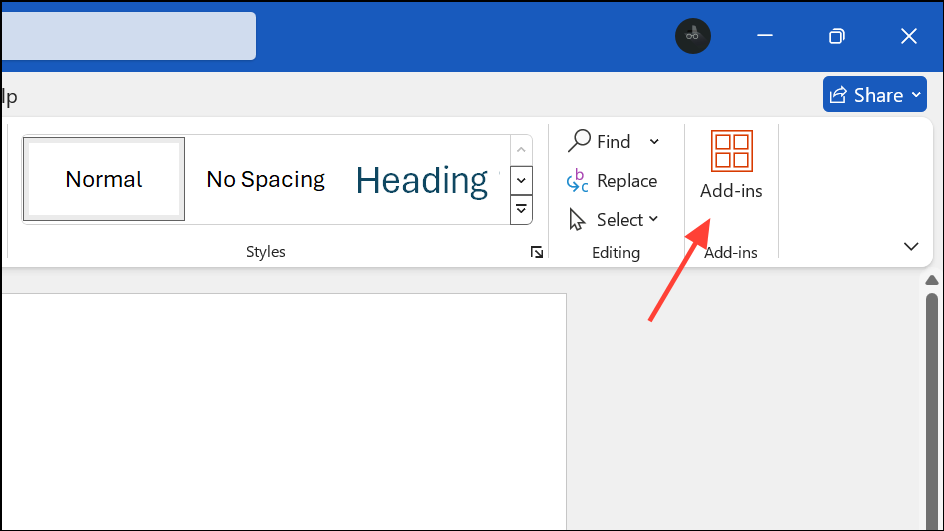
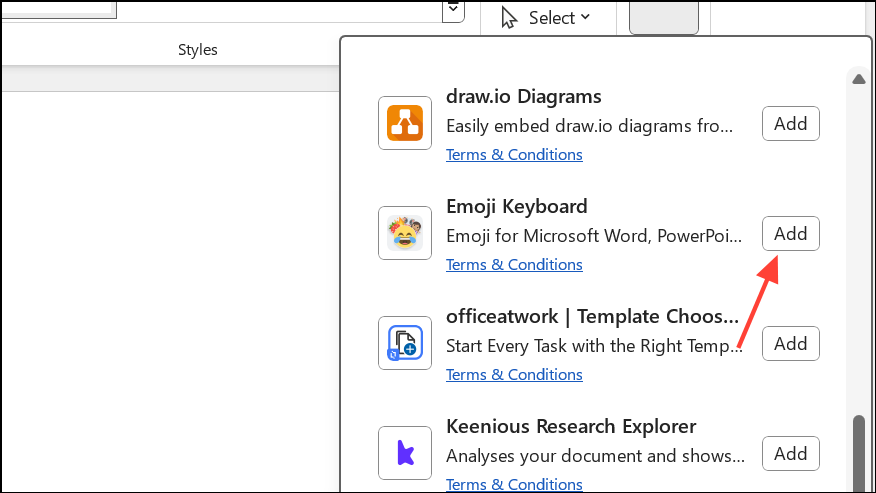
This method is ideal for business users who need consistent emoji styles or access to a wider range of symbols across all Office applications.
Using keyboard shortcuts like Windows key + . or Windows key + ; streamlines emoji insertion in Microsoft Office apps, while built-in text shortcuts, the Symbol dialog, and add-ins provide additional flexibility for different workflows.