The “An error occurred while connecting to Epic servers” message stops Fortnite and the Epic Games Launcher from authenticating your session. It often appears with a code such as ESP-DIST-001 or ESP-BUIMET-003, and it can leave the item shop blank, block V-Bucks and Battle Pass purchases, or prevent matchmaking entirely. The cause is almost always one of two things: a problem on Epic’s side, or something local blocking the connection between your device and Epic’s servers.
Quick answer: Fully close the game, restart your device, clear the system cache, then reopen Fortnite. If the error returns, confirm Epic isn’t reporting an outage before changing any network settings.
What triggers the Epic servers connection error
A connection error is anything that prevents you from reaching the Epic Games Launcher or another Epic product. The same underlying failure can show up as a login error code, a blank item shop, failed matchmaking, the inability to join parties, or packet loss and high latency in Fortnite.
| Symptom | Most likely cause |
|---|---|
| Login fails on console but works on phone | Local cache or device-side glitch |
| Item shop blank, purchases blocked (ESP-BUIMET-003) | Outdated game/system version or corrupted cache |
| Error on launch with ESP-DIST-001 | Connection blocked between device and Epic servers |
| Matchmaking or party joins fail | Server outage or network instability |
Confirm whether Epic’s servers are down first
Before changing settings, rule out a server-side problem. Scheduled maintenance, sudden outages, high traffic during major events, and DDoS attacks can all take services offline regardless of your setup. Maintenance is usually announced ahead of time, but unexpected outages are not, so a quick check saves you from troubleshooting a problem you cannot fix.
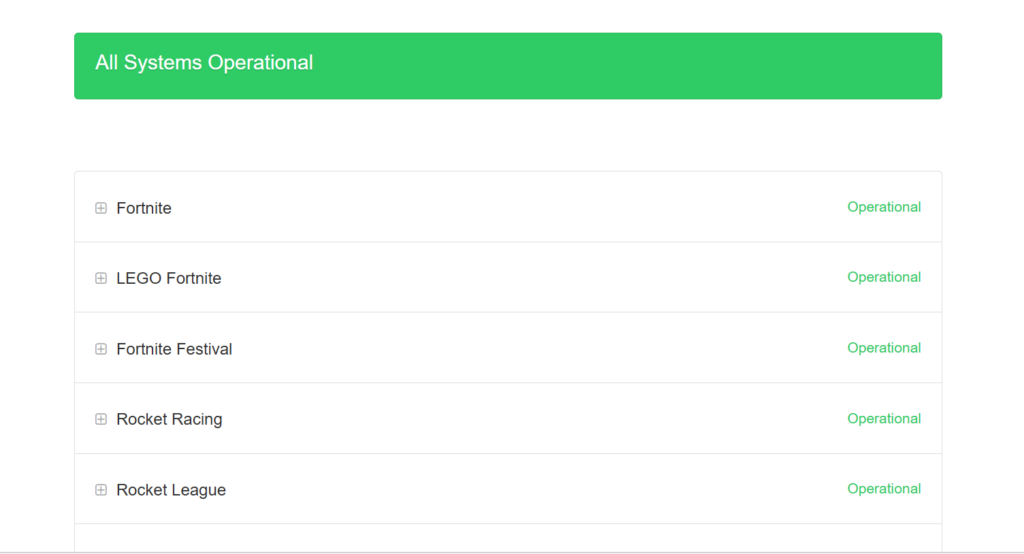
Check Epic’s status updates and the @EpicGames account for any active incident. If an outage is reported, the only step is to wait for service to be restored. If everything reads as operational, the cause is local, and the fixes below apply.
Fix the error on Nintendo Switch and consoles
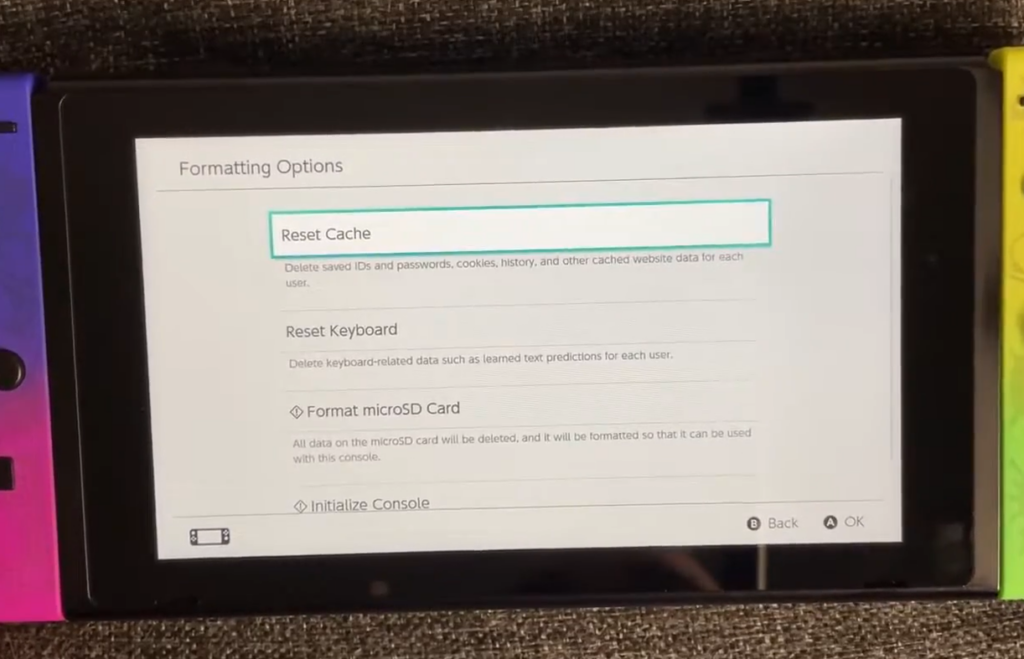
On console, the ESP-BUIMET-003 variant is most often resolved by clearing temporary data and updating. Work through these steps in order and test the game after each one.
Reinstalling Fortnite should be a last resort. It takes a long time and rarely helps when the real problem is cached data or an outdated version.
Fix the error on PC and the Epic Games Launcher
On Windows, the error usually points to something blocking the route between your machine and Epic’s servers. The following measures address the common culprits, from your home network to local settings.
- Restart your modem or router to clear a stale network state, and use a wired Ethernet connection where possible.
- Switch to a public DNS and flush your DNS to refresh how your device resolves Epic’s addresses.
- Sync your device clock, since an incorrect time breaks secure connections.
- Whitelist the required Epic domains in any firewall or security software.
- Reset your device cache and the Epic Games Launcher files.
- Identify and disable any proxy server that intercepts traffic.
- Disable background applications that compete for bandwidth.
Two extra steps tend to resolve stubborn cases. Make sure Windows itself is current using the Update Windows tool, and reset your Windows Hosts file to its default if an old entry is redirecting Epic traffic. Detailed walkthroughs for each network step are available in Epic’s technical support pages.
Xbox: “Error Connecting to Epic Services Queue”
Xbox players who see the “Error Connecting to Epic Services Queue” message should contact Microsoft Support directly. This particular queue error is handled on the Xbox side rather than through Epic’s launcher fixes.
How to confirm the fix worked
You will know the connection is restored when Fortnite loads past the login screen without the error code, the item shop populates instead of staying blank, and matchmaking or party joins succeed. The Epic Games Launcher should sign in and allow downloads and purchases again.
If the message keeps returning after restarting, clearing the cache, updating, and checking your network, the problem may sit with your hardware. At that point, contacting your modem or router manufacturer is the recommended next step.