
Quick answer: FM27 training runs on a weekly schedule of three sessions a day. You pick a Schedule Focus, swap sessions from five categories, and set intensity by player condition.
How training works in FM27
Everything starts from the Training menu. It has seven tabs: Overview, Tactical Effectiveness, Individual Training, Mentoring, Training Intensity, Coach Assignments and Medical Center. Tactical Effectiveness won’t work until you have at least one active tactic, so set one up first with how tactics work in FM27.
You’ll probably use Overview more than any other tab. Advice, Primary Trained Tactic, Training Performances and Responsibilities appear in tiles across the top. Under those is the weekly Training Schedule: each day has three sessions, S1, S2 and S3, plus an intensity bar. Next Opposition Report, Tactical Effectiveness and Coaching Team panels are on this screen too.
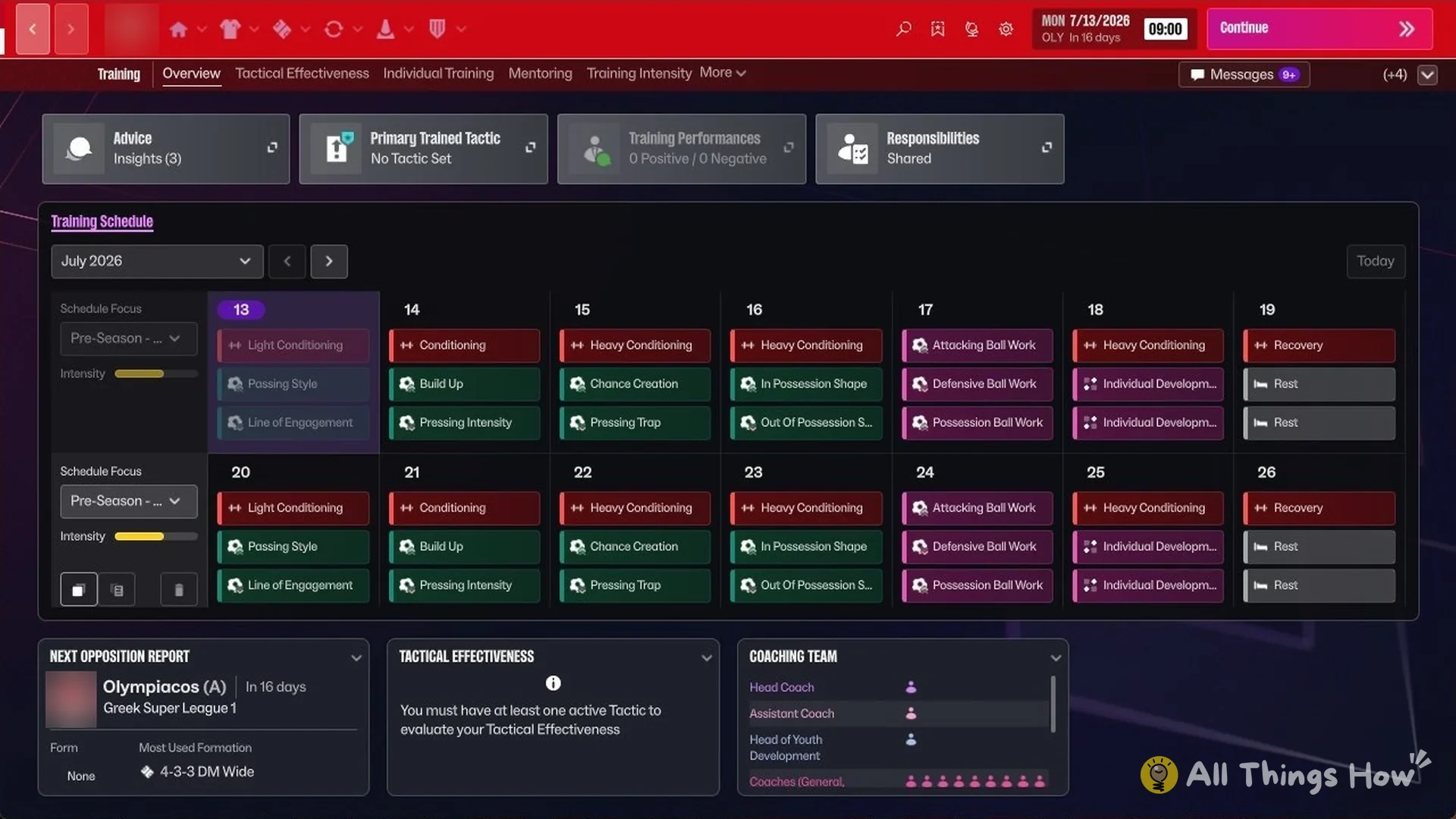
The Responsibilities tile decides who runs things. You can lead General Training and Individual Training yourself, take control of everything with Take Control of All, or pass it all to staff with Delegate All to Recommended.
Training schedule focus options
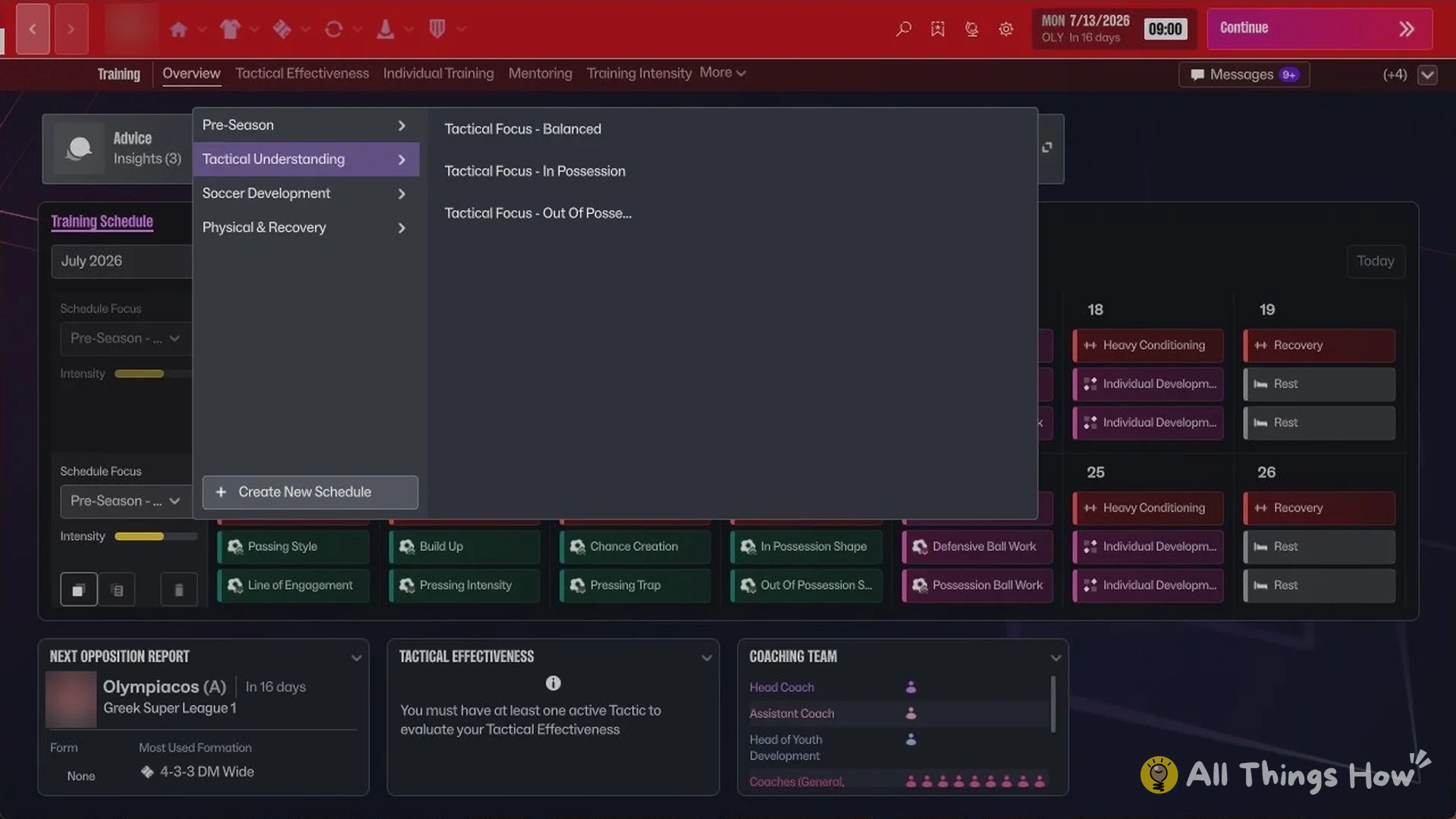
To change what a whole week is built around, click Schedule Focus on the left of that week in the Training Schedule. The list is grouped into four sets of ready-made schedules:
- Pre-Season: Pre-Season – Early, Pre-Season – Mid, Pre-Season – Late
- Tactical Understanding: Tactical Focus – Balanced, Tactical Focus – In Possession, Tactical Focus – Out Of Possession
- Soccer Development: Development Focus – Balanced, Development Focus – In Possession, Development Focus – Out Of Possession
- Physical & Recovery: Full Week of Rest
When you begin a save, Pre-Season – Early has the Recommended tag. Use Create New Schedule if you want to make a schedule instead of choosing a preset.
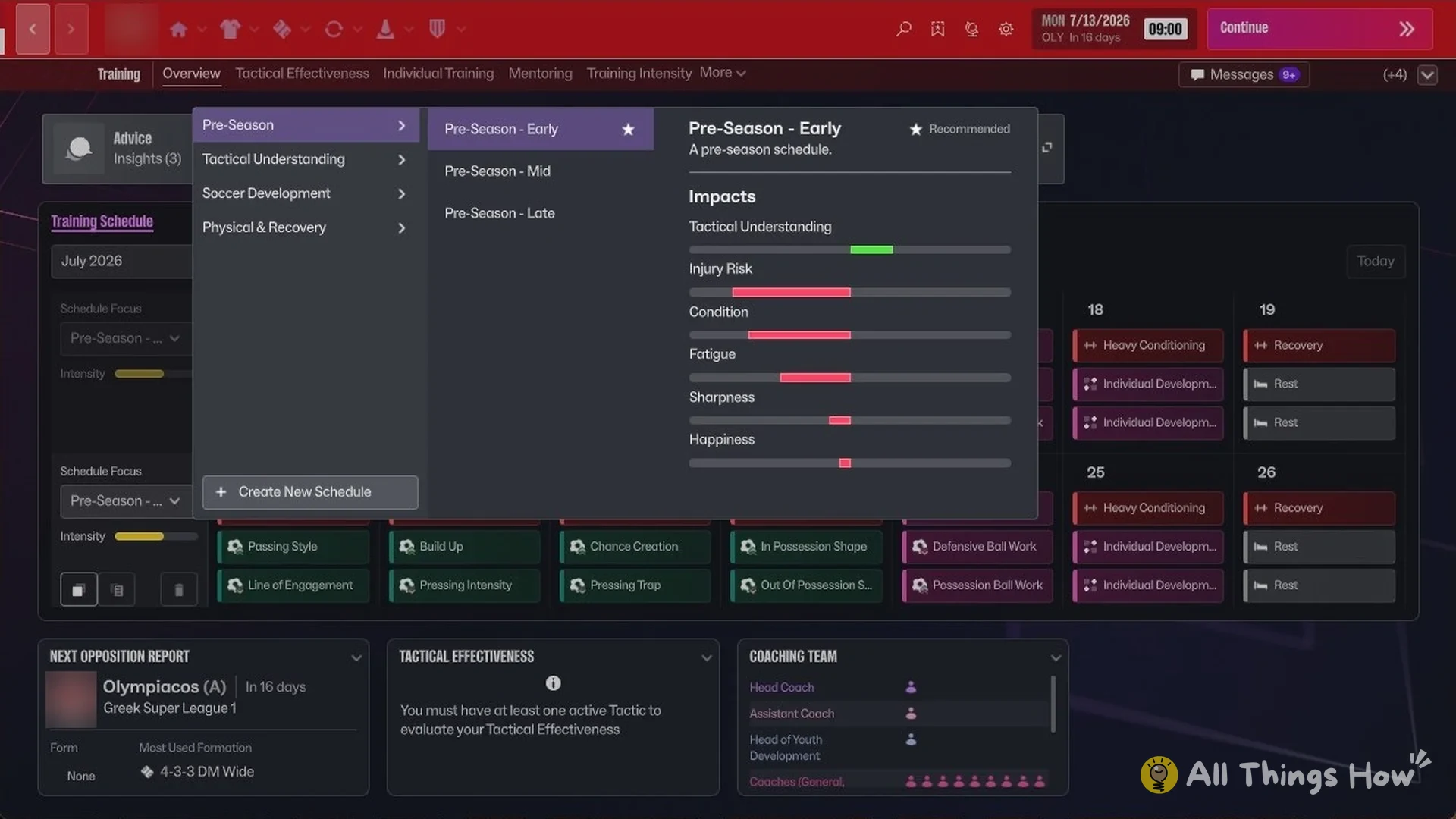
Each schedule lists its Impacts on Tactical Understanding, Injury Risk, Condition, Fatigue, Sharpness and Happiness, so you can check what a week will do to your squad before you commit to it.
Training session categories
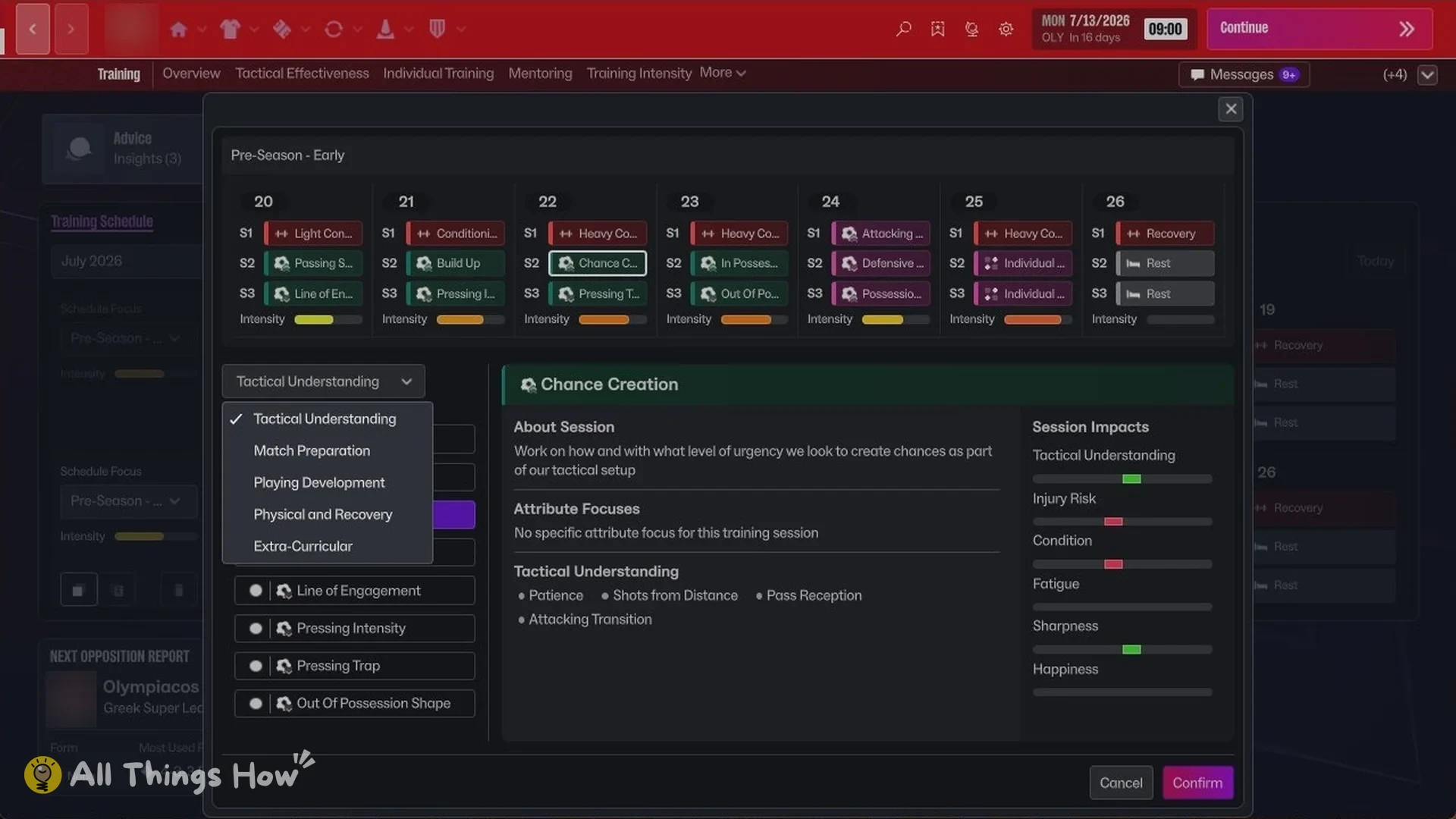
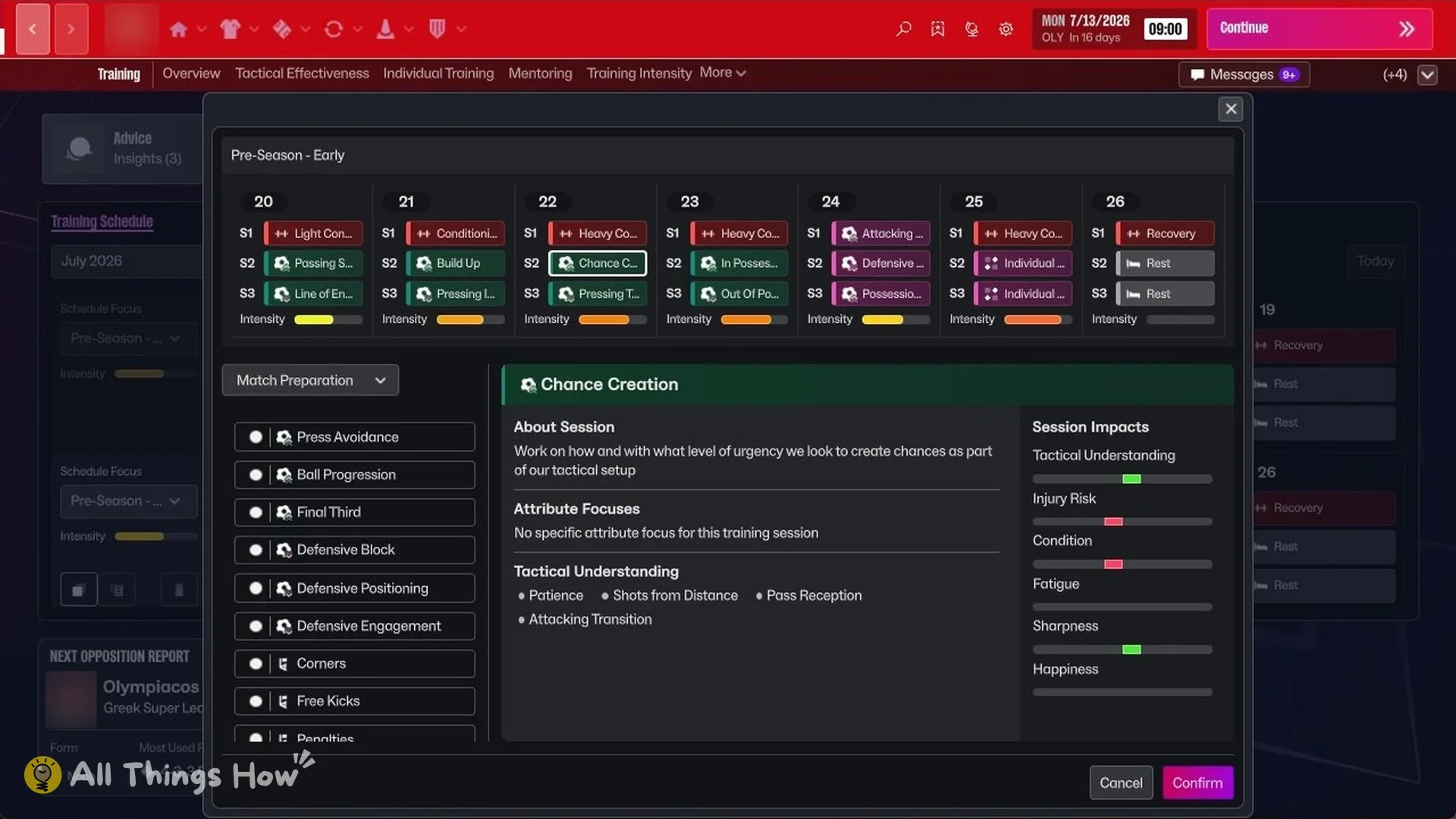
You can swap any single session in the week for another one. Clicking a session slot opens a picker with a category dropdown on the left, and the sessions are split across five categories:
| Category | Sessions |
|---|---|
| Tactical Understanding | Passing Style, Build Up, Chance Creation, In Possession Shape, Line of Engagement, Pressing Intensity, Pressing Trap, Out Of Possession Shape |
| Match Preparation | Press Avoidance, Ball Progression, Final Third, Defensive Block, Defensive Positioning, Defensive Engagement, Corners, Free Kicks, Penalties |
| Playing Development | Individual Development, Attacking Ball Work, Defensive Ball Work, Possession Ball Work |
| Physical and Recovery | Rest, Recovery, Light Conditioning, Conditioning, Heavy Conditioning |
| Extra-Curricular | Team Bonding, Community Outreach |
Choose a session and its details appear on the picker’s right side: About Session, Attribute Focuses, and the Tactical Understanding instructions it covers. Session Impacts lists Tactical Understanding, along with Injury Risk, Condition, Fatigue, Sharpness and Happiness.
Chance Creation is a good example of how that reads. Its description is “Work on how and with what level of urgency we look to create chances as part of our tactical setup”, and it works on Patience, Shots from Distance, Pass Reception and Attacking Transition.
How to add set piece training
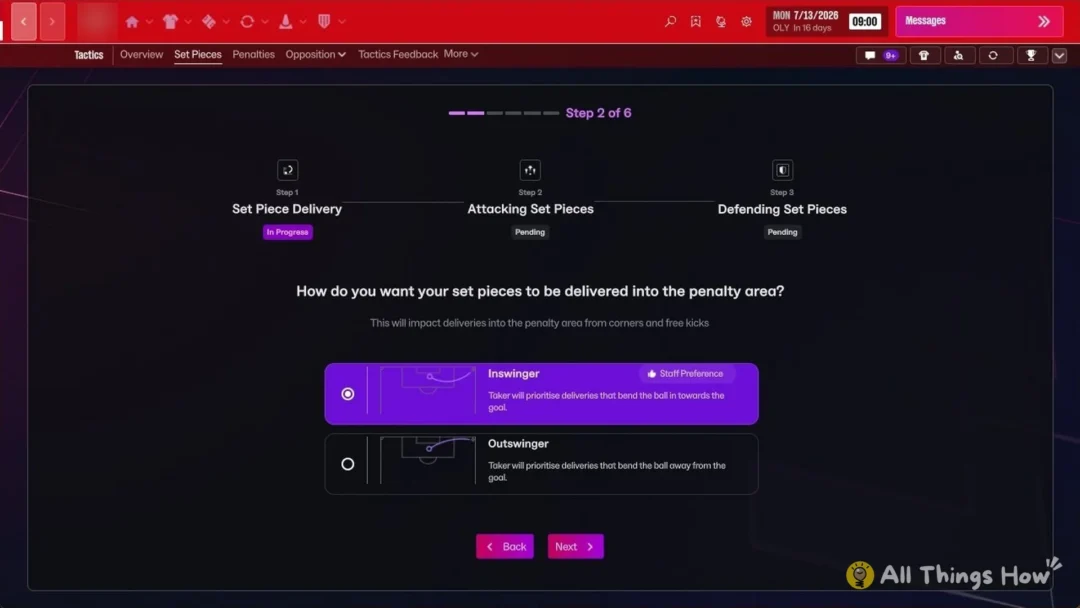
Set piece work isn’t its own category. Corners, Free Kicks and Penalties all sit inside Match Preparation, and you add them the same way you’d swap any other session. To set up the routines those sessions work on, see the FM27 set piece tactics.
- Open the Training menu and go to the Overview tab.
- In the Training Schedule, click the session slot you want to replace. This opens the session picker.
- Switch the category dropdown on the left to Match Preparation.
- Choose Corners, Free Kicks or Penalties, then click Confirm. The slot you picked now holds that session in the weekly schedule.
Training intensity
Go to Training > Training Intensity to set Team Intensity. Rather than one setting for the whole squad, you choose an intensity for each condition band, so tired players and fresh ones train differently. These are the defaults:
| Player condition | Default Team Intensity |
|---|---|
| Very poor | No pitch or gym work |
| Poor | Half Intensity |
| Fair | Normal Intensity |
| Good | Normal Intensity |
| Excellent | Normal Intensity |
Set any band to No pitch or gym work, or pick Half Intensity, Normal Intensity or Double Intensity.
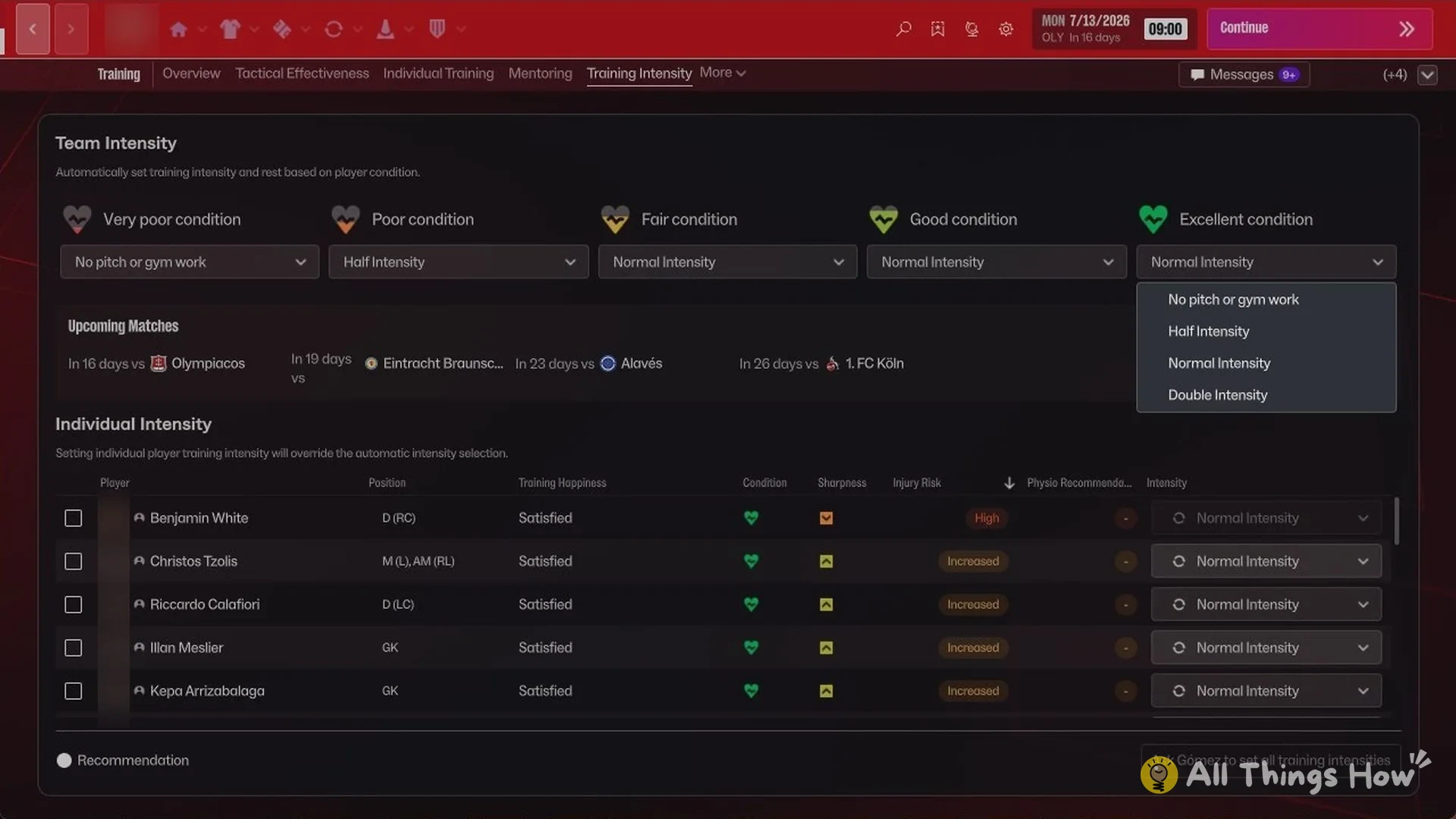
Individual Intensity overrides the team setting for one player. Next to each player it shows his position, training happiness, condition, sharpness and injury risk, which is what you’ll want to look at before pushing or resting him. If you’d rather not manage any of it, the assistant can set all training intensities for you.
Individual training
Each player has a card on the Individual Training tab, showing his IP Role and OOP Role, Individual Training Focus, and Training Intensity. Open the player’s Actions menu to change any of them:
- Position/Role
- Individual Training
- Start Developing Weaker Foot
- Individual Out of Possession Training
- Training Intensity
There’s also a button that asks a coach to assign individual training for the whole squad in one go.
Mentoring has its own tab. Use Create New Mentoring Group to set one up by hand, or let a coach assign the mentoring groups for you.