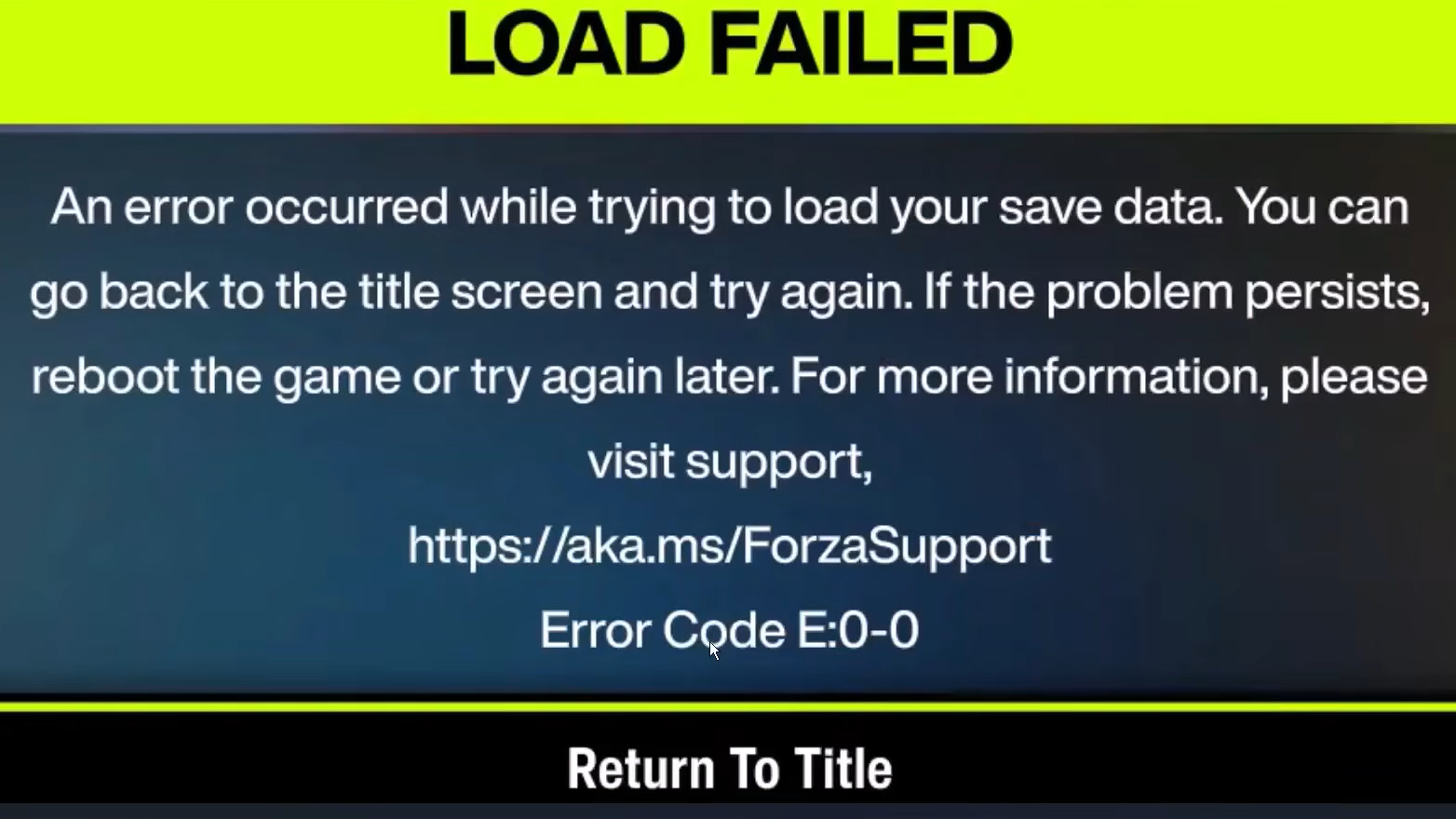
Error E:0-0 (and its close relative E0-C0) hits Forza Horizon 6 on PC when the game cannot read, write, or sync your save profile. The launcher opens, the intro plays, and then the game stalls with a “Load Failed” screen before you ever touch the festival. The cause sits in the Windows-Xbox plumbing rather than the game itself, which is why simple reinstalls rarely help.
What the E:0-0 and E0-C0 errors actually mean
Both codes belong to the E:0-xx family, which Playground Games uses for save and profile load failures. The game finishes its boot sequence, then trips when it tries to authenticate your Xbox identity or pull save data from the cloud. E:0-0 typically points to a profile sync break. E0-C0 is the same family with a slightly different failure point inside the save-load handshake.
The triggers are almost always one of these:
| Code | Most common cause |
|---|---|
| E:0-0 | Stalled Windows Gaming Services or duplicated Xbox app install path |
| E0-C0 | Save sync failure, often tied to Xbox Live services not running |
| E:0-E9 | Save-load failure, frequently a corrupted Gaming Services registration |
| E:0-17 | Local profile out of sync with the cloud state |
| E:0-19 | App storage lockout on Xbox app or Microsoft Store installs |
None of these is a hardware fault. Your GPU, CPU, and RAM are not the problem. The breakdown is in how Windows talks to Xbox services.
Fix the Xbox app install path
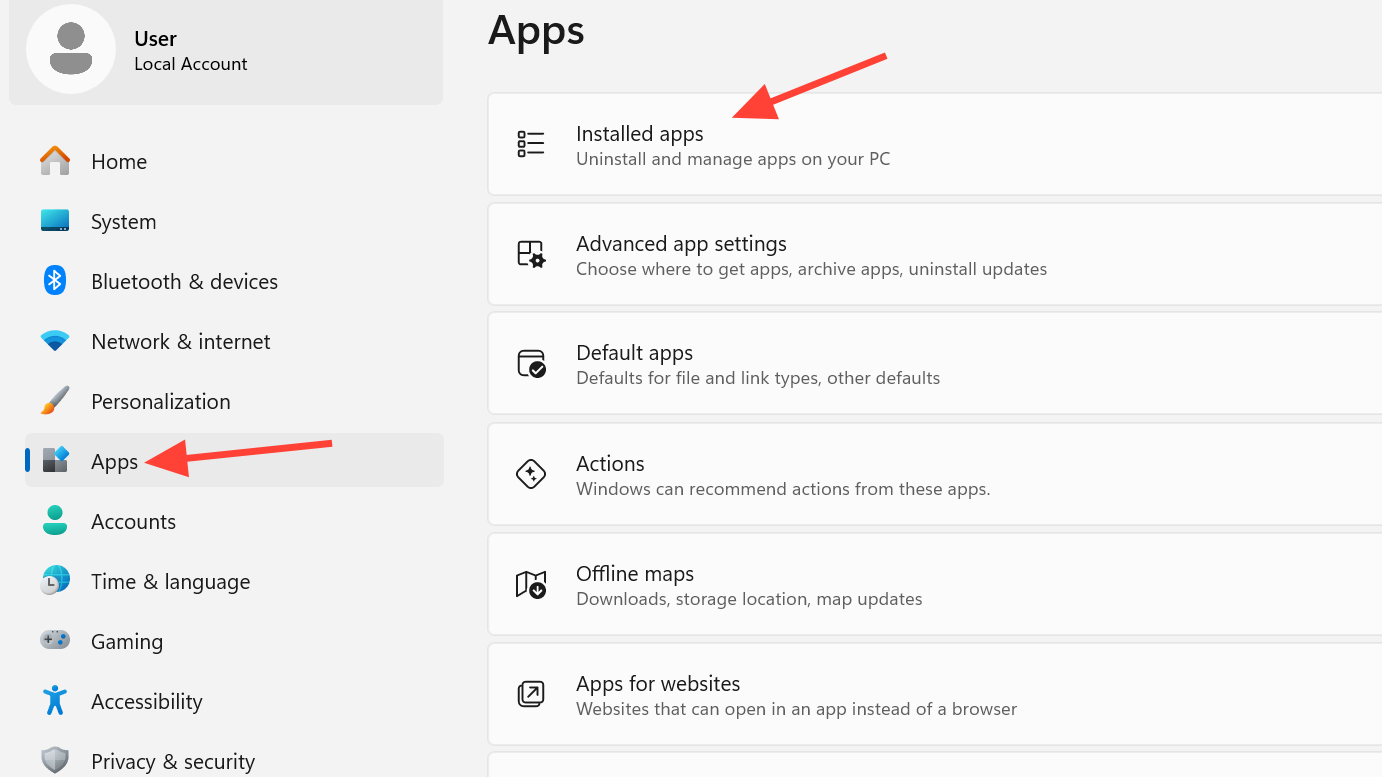
This single fix has resolved the error for a large number of Steam and Game Pass players. A bug in the Windows registry can stamp the Xbox app’s install folder as something malformed like C:\C:\XboxGames. Windows then refuses write permissions, and Forza Horizon 6 cannot save or sync.
XboxGames. If the folder already exists with game data inside, leave it alone and use it as-is. If Windows blocks the rename with “Access Denied,” create one called MyXboxGames instead.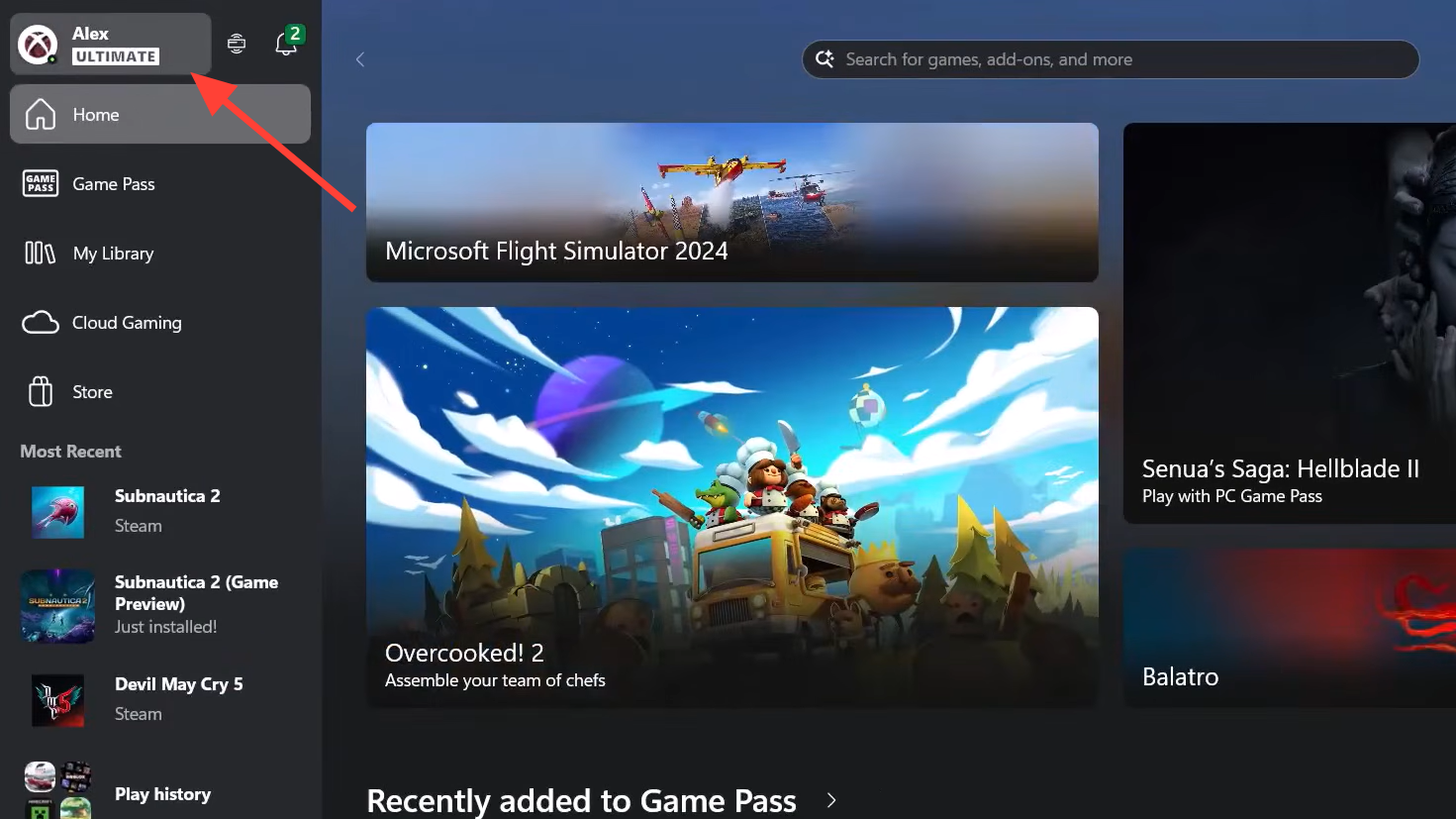
Repair or reinstall Gaming Services
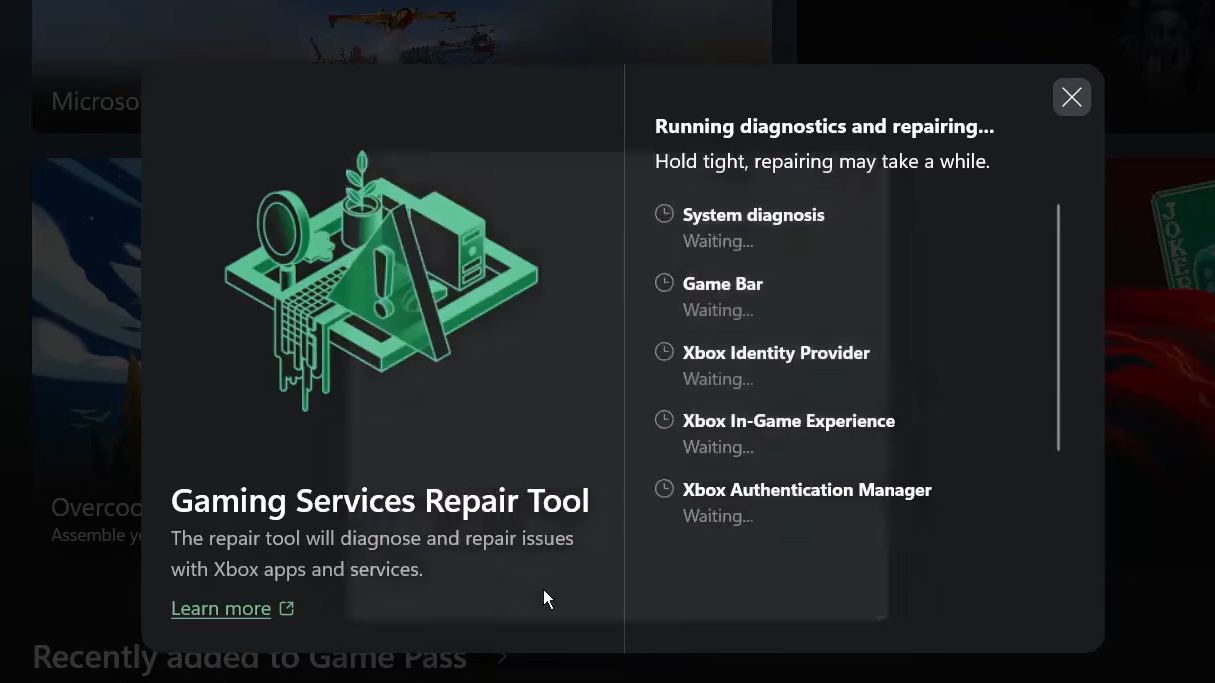
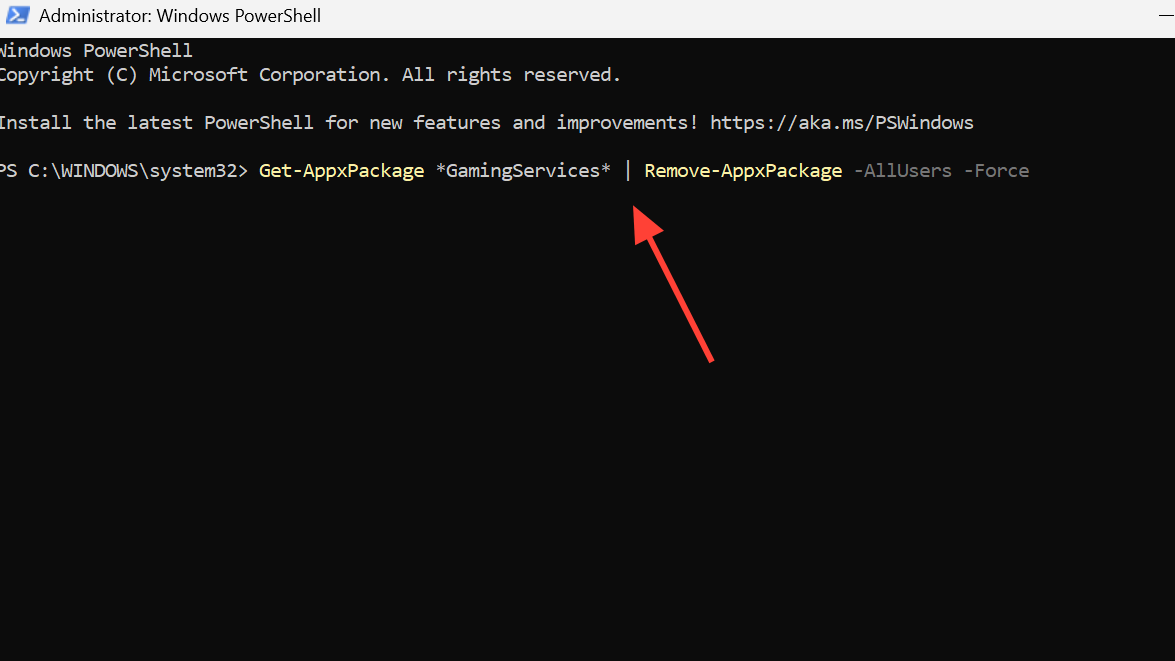
Microsoft Gaming Services is the Windows component that handles ownership checks, save sync, and Xbox identity. When it’s outdated or improperly registered, Forza Horizon 6 throws E:0-0 immediately. Start with the lighter repair before going nuclear.
Get-AppxPackage *GamingServices* | Remove-AppxPackage -AllUsers -Force
If you’d rather use Microsoft’s guided tool, the Gaming Services Repair Tool walks through the same cleanup without PowerShell.
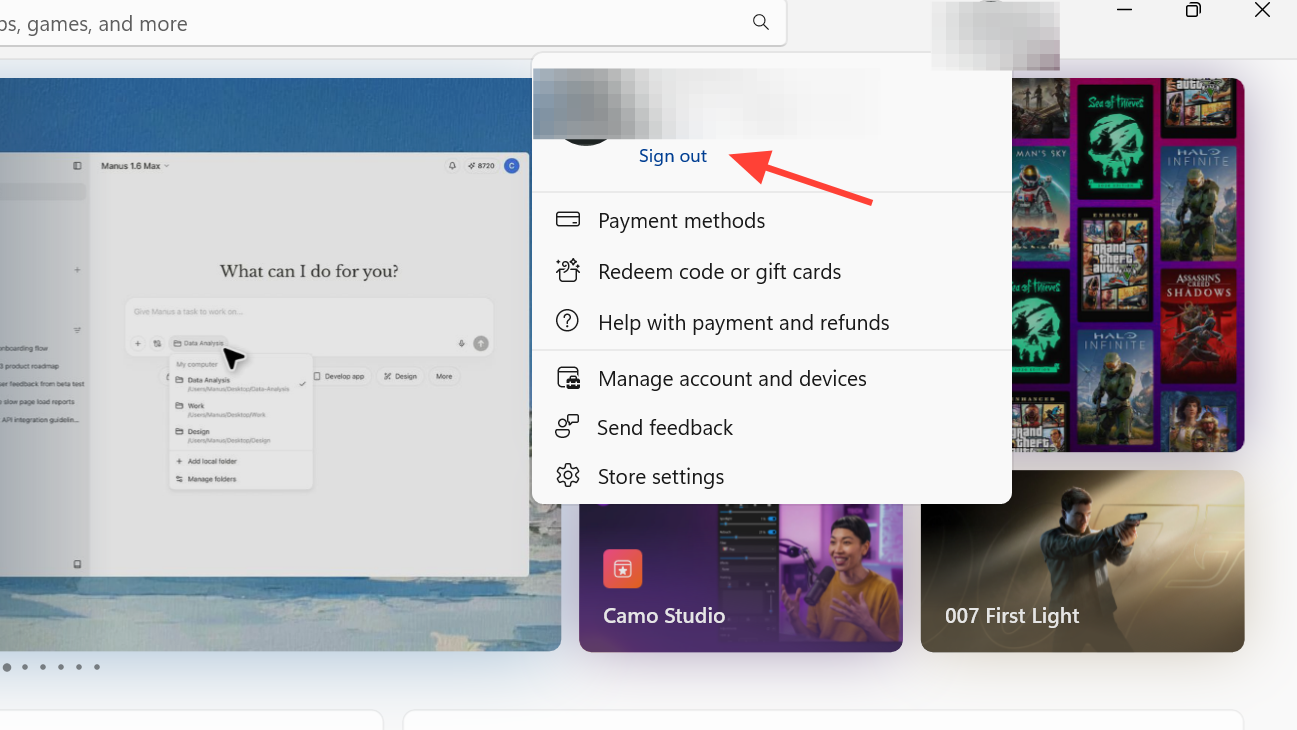
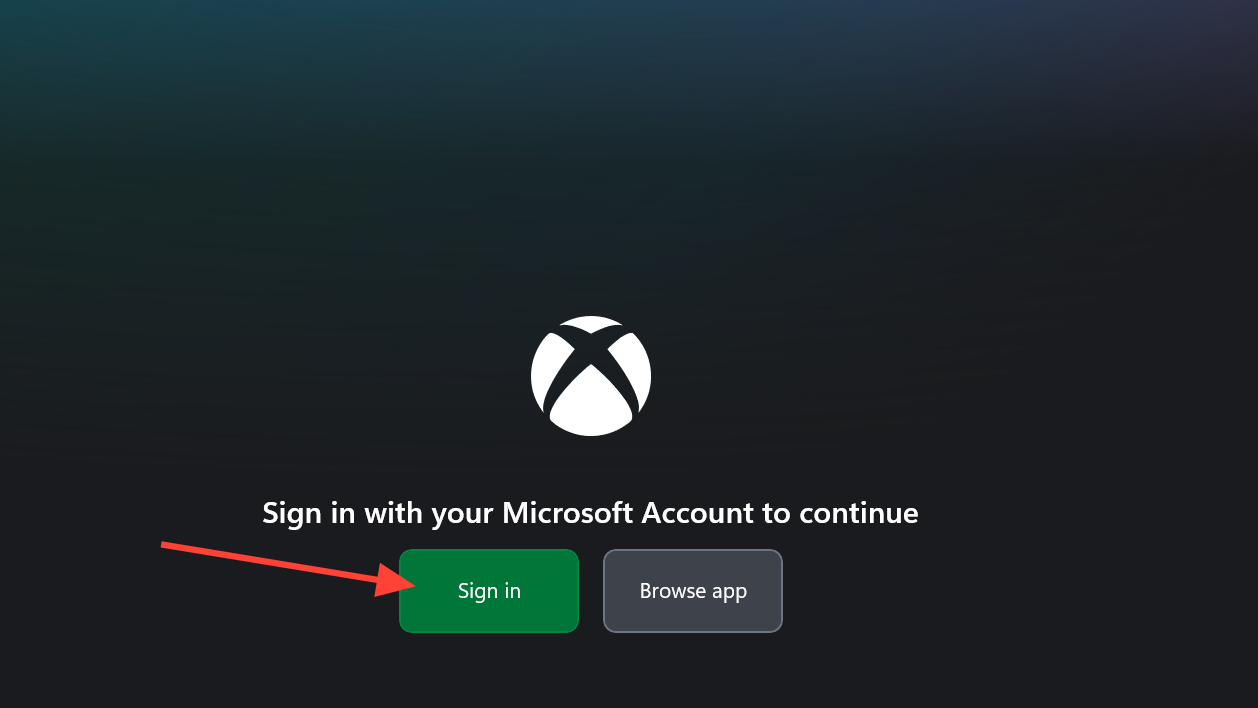
Sign out and back in on the Xbox app
Forza Horizon 6 depends on the Xbox app for identity verification even when you launch the game from Steam. A token mismatch between the Microsoft Store and the Xbox app will break save authentication every time.
Verify the Windows services Xbox needs
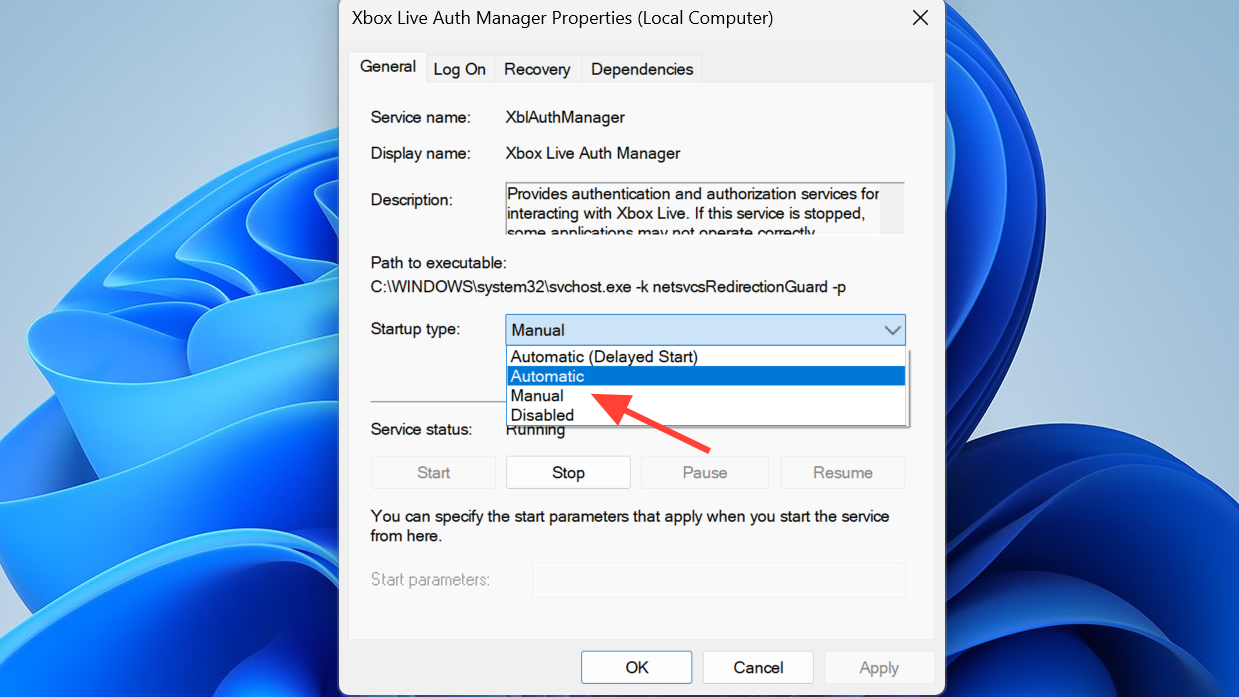
Windows sometimes disables Xbox background services to save resources, especially after a major update. Without them running, save sync cannot complete and you get E0-C0 on launch.
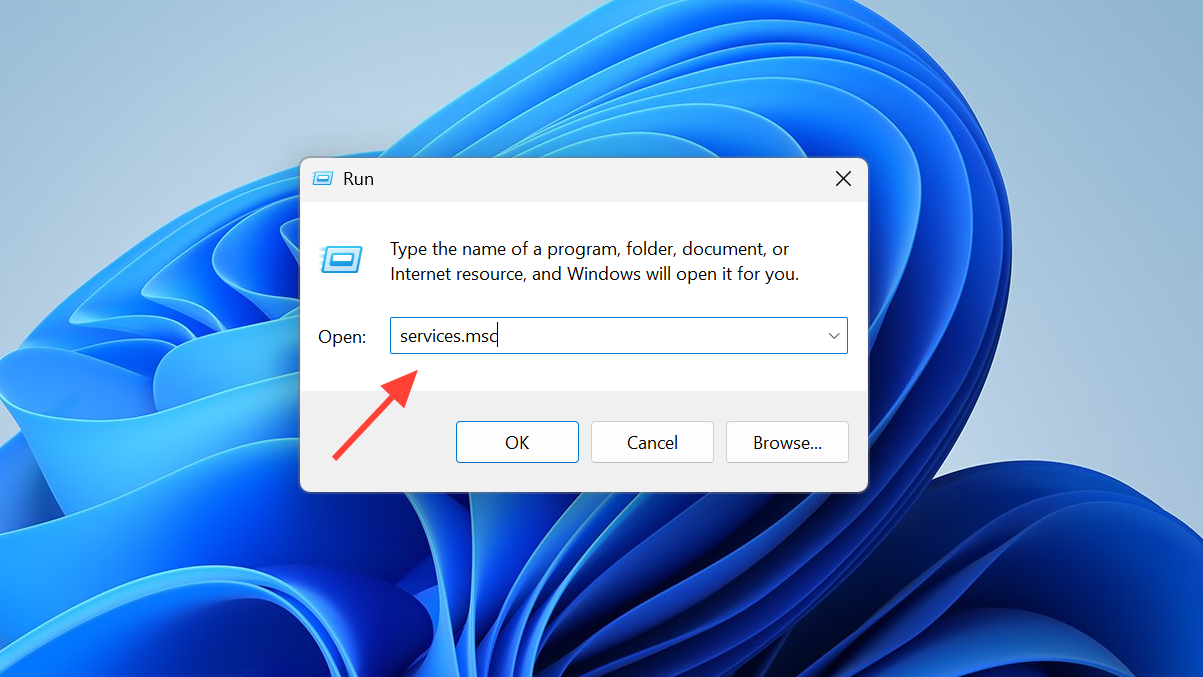
- Xbox Live Auth Manager
- Xbox Live Game Save
- Xbox Live Networking Service
- Gaming Services
Run Forza Horizon 6 as administrator
Standard user permissions occasionally block the game from writing to its save directory. Running it elevated bypasses that.
For Steam: Open your Steam library, right-click Forza Horizon 6, pick Manage, then Browse local files. Right-click the game executable, choose Properties, switch to the Compatibility tab, tick “Run this program as an administrator,” and click Apply.
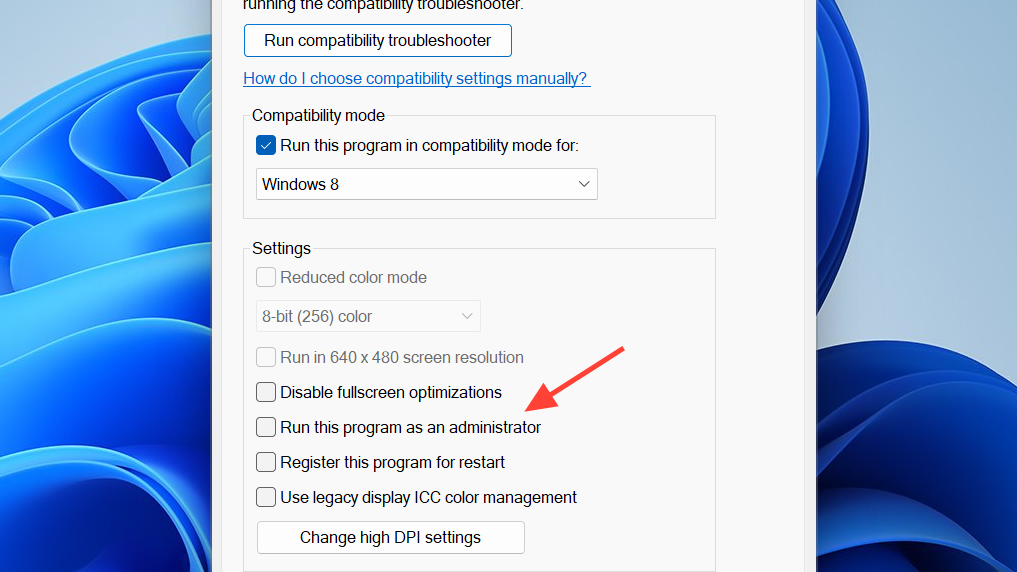
For Xbox app and Game Pass: Press Win + R, type shell:AppsFolder, and press Enter. Locate Forza Horizon 6, right-click it, and pick Create shortcut. Right-click the new desktop shortcut and choose Run as administrator each time you launch.
Verify game files if the error survived everything else
A corrupted file in the save indexing layer can produce the same error. File verification is fast and harmless.
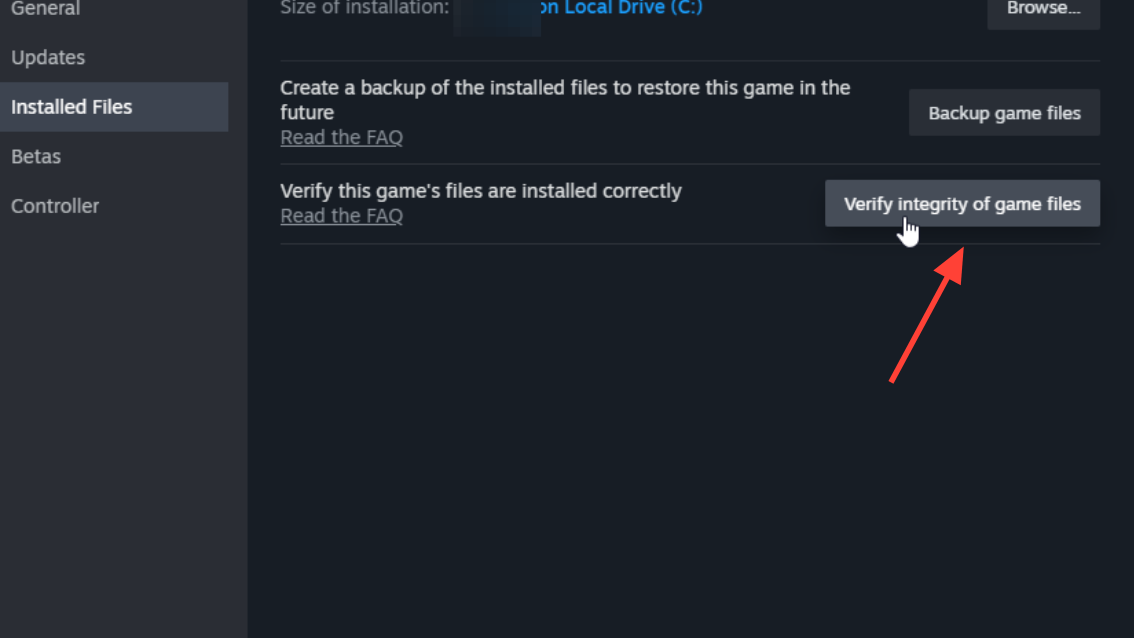
Steam users: Right-click Forza Horizon 6 in your library, pick Properties, open the Installed Files tab, and click Verify integrity of game files. Wait for it to hit 100% before launching.
Xbox app users: Open the game’s page in the Xbox app, click the three dots, pick Manage, then go to the Files tab. Choose Verify and Repair. If that finishes and the error continues, hit Reset to clear the cached app data. Your career progress is bound to your gamertag in the cloud, so a reset does not wipe your garage or credits.
How to confirm the fix worked
You’ll know the error is resolved when the game gets past the initial “Load Failed” screen and reaches the main menu or driver selection. To be sure save sync is fully working, change the paint color on any car in your garage, return to the main menu, and exit. Relaunch the game. If the color change persists, save writes are functioning. If the loading wheel hangs indefinitely on the next launch, save sync is still broken, and you’ll need to revisit the Gaming Services reinstall step.
When the error is not on your end
If you’ve worked through every step and E:0-0 still appears, check whether Xbox Live or Forza’s backend is having an outage. The Forza Support portal posts known issues and service status during major incidents. Launch-window traffic spikes around updates and new seasons can produce identical-looking errors that resolve themselves once the servers stabilize. In that case, waiting an hour and trying again is more effective than continuing to reinstall components.