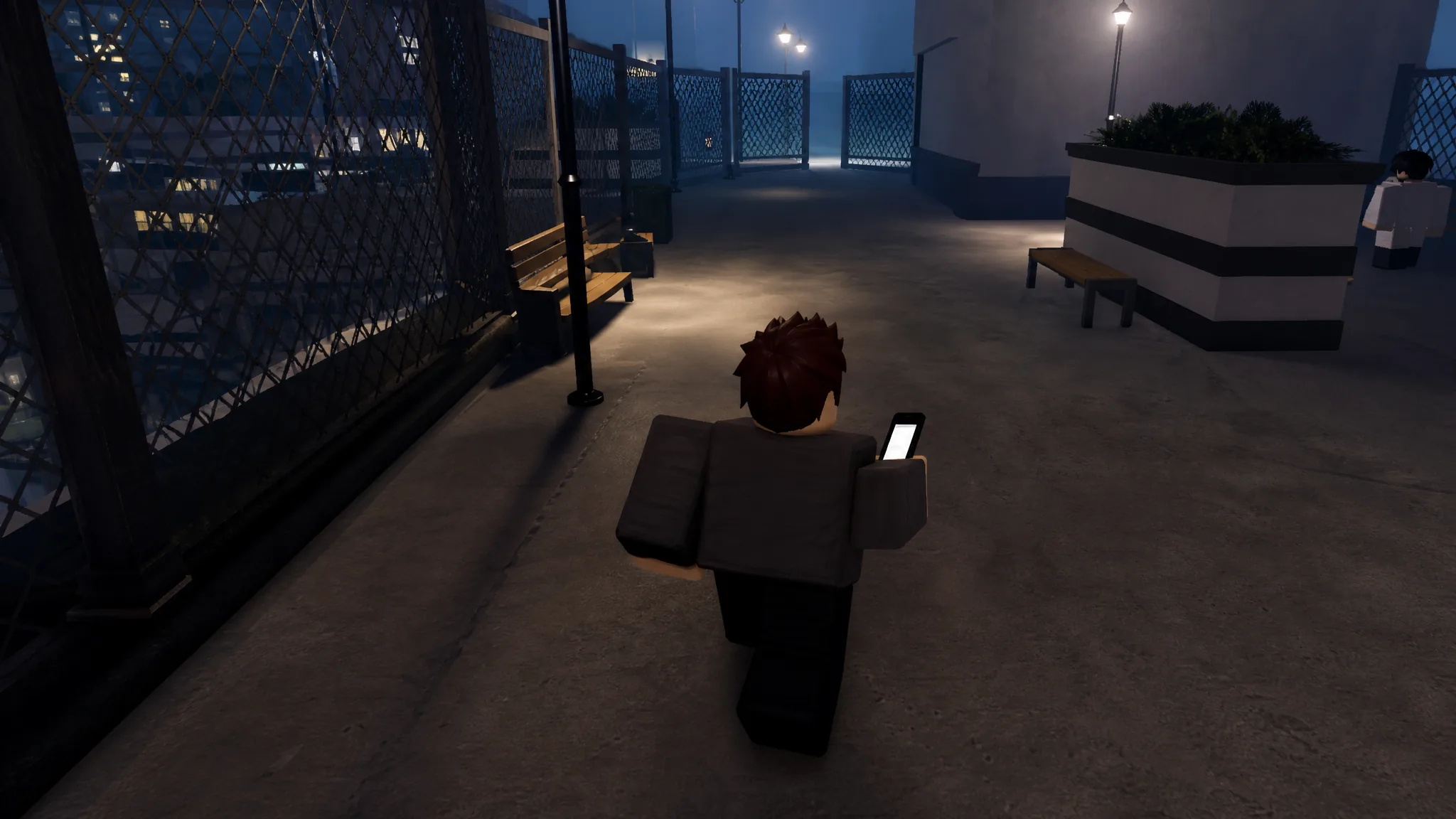
The phone in Gakuran is a working in-game device, not a cosmetic prop. Once it is out, you can add contacts, send private messages, play mini-games, post publicly, snap photos, track your money, and call your gang for backup. The catch is that almost everything runs through keyboard inputs, so learning the toggle key and the menu controls first keeps you from fumbling while your character stands exposed.
Quick answer: Press Left Alt on PC to pull out the phone, use the arrow keys and Enter to move through the menu and open apps, then press Left Alt again to put it away before you move or fight.
Phone controls in Gakuran (PC keys)
The phone is controlled through the keyboard once it is open. If you try to summon it with a combat key, nothing happens. Left Alt is the toggle. In these builds, the fighting stance key is separate, so pressing it readies your fists instead of the handset.
| Key | Action |
|---|---|
Left Alt | Open or close the phone |
Arrow keys | Move between menu options |
Enter | Select or confirm |
Backspace | Go back one step |
M | Jump to the main menu |
1–9 | Pick numbered options |
You must join the official Roblox group before Play unlocks, then launch from the Gakuran experience page. Once you are in the world, the phone is a permanent tool you can pull out at any time with the toggle.
Add a contact and send a private message
Messaging is the phone’s most practical feature, but it only works after you trade numbers. There are two ways to do this. You can exchange numbers manually through Information and Dial, or you can stand near another player and use Socialink to scan for their contact.
The faster method skips number-sharing entirely. Both players open Socialink while standing close together, and the app scans nearby students to swap contacts automatically. You know it worked when the other player shows up in your Contacts list ready to message. If Contacts still reads empty, have the other person open Socialink too, since the scan needs both phones out.
Every phone app and what it does
Open the phone menu to reach every app from one screen. Some are built for social play and roleplay, others help you coordinate fights and get around the Nishikata district. None of them grant combat buffs.
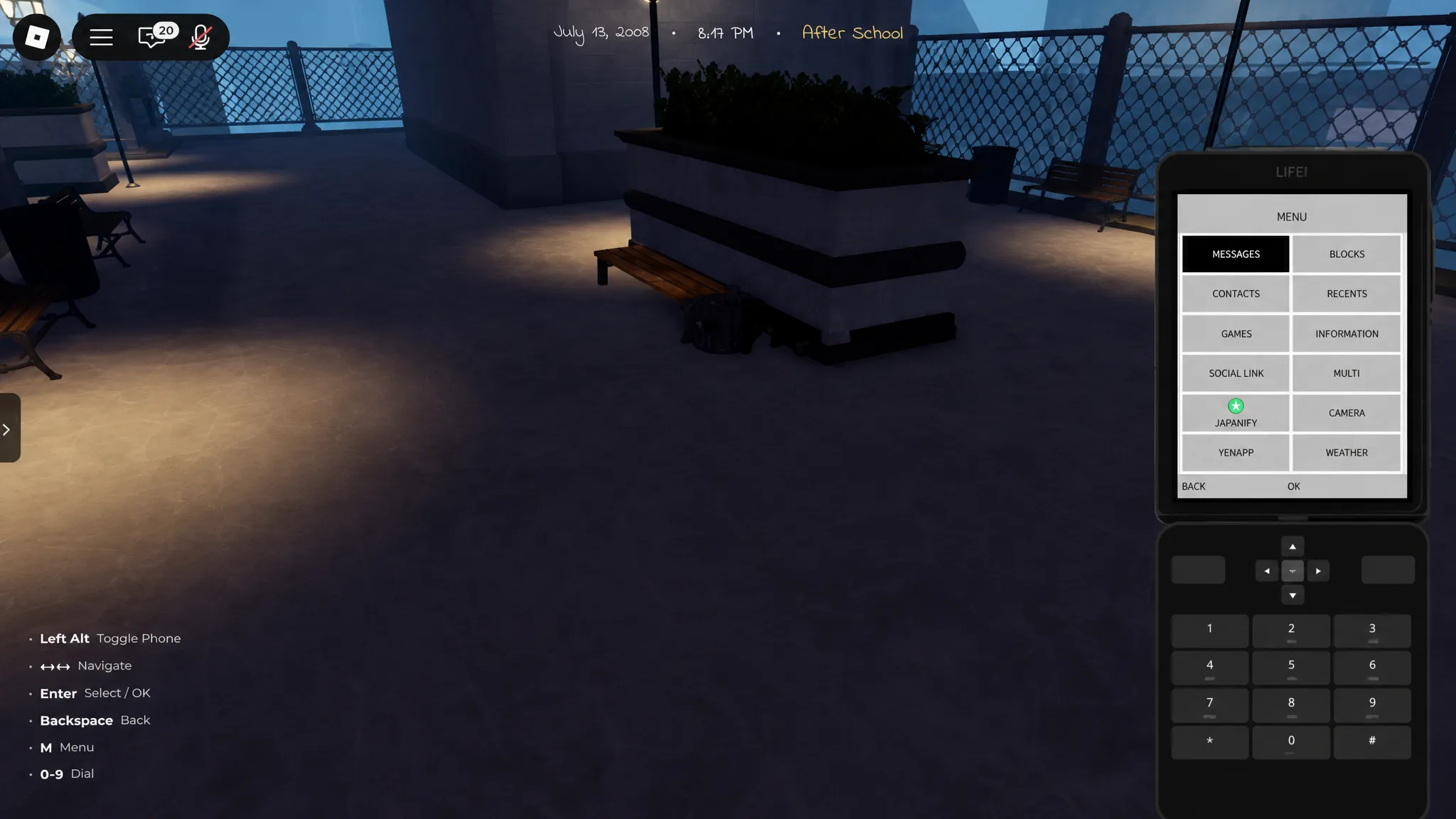
| App | What it does |
|---|---|
| Information | Shows your own phone number |
| Dial | Enter another player’s number to add them |
| Contacts | Message saved players privately |
| Socialink | Scan nearby players to swap contacts, then message them |
| Recents | View recent and missed calls |
| Games | Play Snake, Flappybird, 2048, Ponk, Space Shooter, and Breakout |
| Mixi | Make public in-game posts and comment on others |
| Japanify | Play songs and playlists |
| Music | Play tracks and pair with Headphones while walking |
| Camera | Take an in-game photo of your character |
| Yen | Set up and view your money display |
| Weather | Check current in-game weather and temperature |
| Map | Mini-map with player pings |
| Gang Call | Send a distress call to gang members |
Mixi is the public feed. Anything you post there is visible to other players in-game, which is the opposite of the private Contacts messages. The Games section is pure downtime, and the Camera saves screenshots for social use. Yen sets up a money display tied to your username, and Weather simply reports the current conditions on the map.
Gang Call: how the call-in works
Gang Call is the highest-impact app for fights. When you confirm it, every online member of your gang on the same server gets a location ping showing where you are and that you are under attack. Enemies do not see the ping, only your allies. Open the phone, select Gang Call, and confirm the two-step prompt to fire it.
| Parameter | Value |
|---|---|
| Activation | Phone → Gang Call → Confirm (two steps) |
| Cooldown | 120 seconds |
| Range | Server-wide, all gang members |
| Alert duration | Ping stays visible for 15 seconds |
| Location | Exact minimap ping, allies only |
Timing matters because of the two-minute cooldown. The best moment to call is when a fair 1v1 is turning into a 1v2 but you are still standing, which gives allies roughly 15 to 30 seconds to reach you while you buy time. On high-ping servers the alert can arrive several seconds late, so calling a little earlier than you think you need to helps it land in time.
Close the phone before you fight
The phone UI locks your character in place. While it is open, you cannot block, attack, or move properly, which makes it very risky to leave up during a brawl. Press Left Alt to stow it before you start running, blocking, or striking.
If the phone will not open at all, check that you are pressing Left Alt and not a combat key. There is no clickable icon to hunt for first, since the handset appears only after the toggle. If the menu feels unresponsive, fall back to keyboard control, using the arrow keys to move, Enter to select, Backspace to go back, and the number keys for numbered options.
Phone access on mobile
There is no Alt key on touchscreens, so mobile players tap the Phone button on the touch overlay instead. Open Settings before your first scene and resize or move that button so it does not overlap the dodge, stance, or attack controls. The same warning applies here, only more so, because the phone overlay blocks your view during combat. Keep it stowed unless you have created distance, and open it only in safe moments.