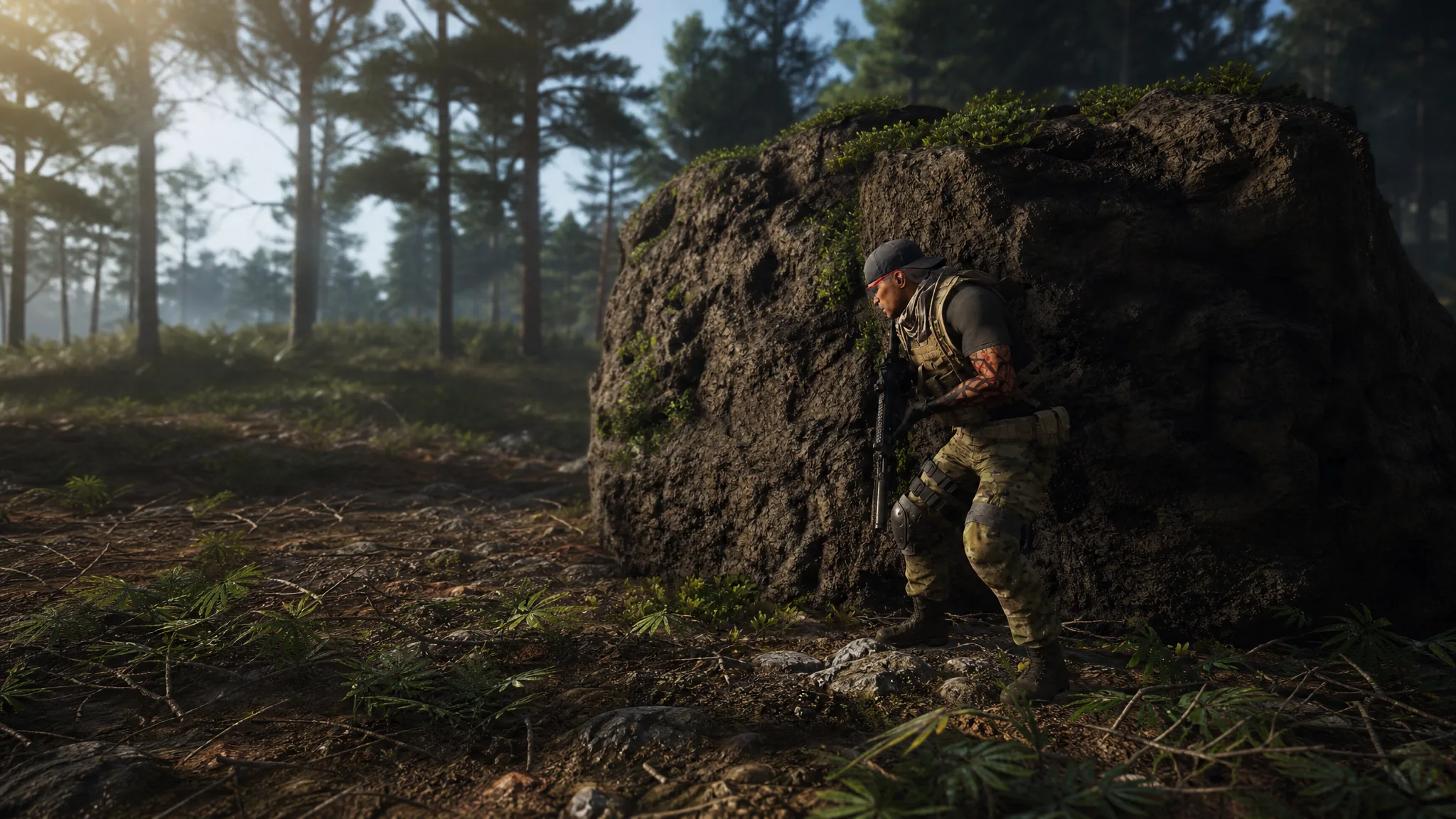
Third-person aiming in Ghost Recon Breakpoint sits your camera over the left shoulder by default, which can hide targets on your right side during a firefight. The Shoulder Switch control flips that view instantly so you can see and shoot from whichever side has the better angle.
Quick answer: Press R1 on PlayStation, RB on Xbox, or the Middle Mouse Button on PC to switch shoulders. Press the same button again to switch back.
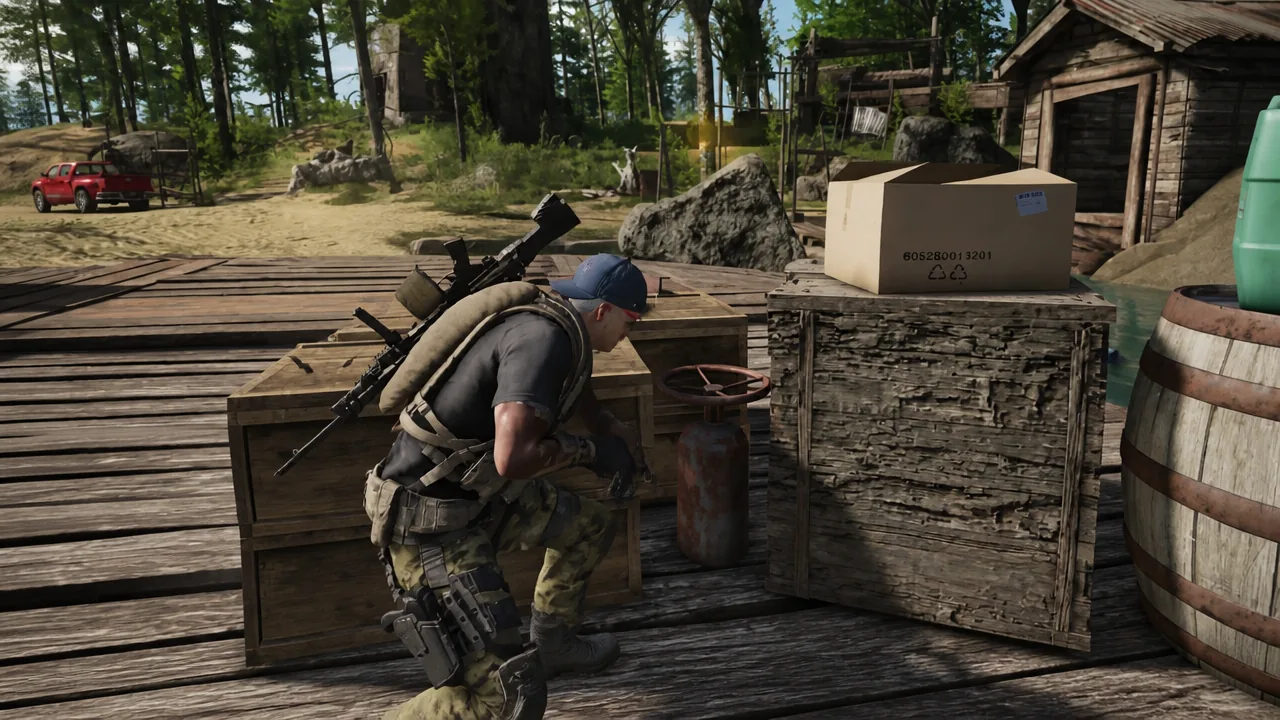
Default shoulder button on each platform
The control is a single-button toggle. You tap it once, not hold it, and the camera moves to the opposite shoulder. Tap it again and the view returns to the previous side. This lets you change your character’s angle without walking around to reposition.
| Platform | Button |
|---|---|
| PlayStation | R1 |
| Xbox | RB |
| PC | Middle Mouse Button |
You know it worked when the camera slides from one shoulder to the other and your reticle now has open space on the opposite side. The switch is instant, so it is most useful in tight indoor fights where a wall or doorway blocks part of your view.
Rebind the Shoulder Switch control
If you want that button free for something else, you can move Shoulder Switch to a different key or button through the game’s settings.
Note: On controller you can page through the settings menus using RT or R2 to reach the Controls and Customize Controls screens.
Why the shoulder sometimes changes on its own
The camera can flip sides automatically when you leave cover. When that happens, the game keeps the view on whichever shoulder matched the direction you exited from, which can feel disorienting mid-fight. Tapping the Shoulder Switch button corrects the view back to the side you want.
You can also set a preferred default for leaving cover. Pause the game, open the Gameplay Settings, and look for the Reset Camera Side (Leaving Cover) option. Check either the left or right box to lock your over-the-shoulder view to that side whenever you break from cover.
Keep in mind the switch only applies to the third-person over-the-shoulder camera. If you are aiming down sights in first person you will only see the scope, so put the camera behind your character’s shoulder first, then use the toggle to pick a side.
Once you have the toggle mapped to a button that feels comfortable, switching shoulders becomes second nature during combat. It costs nothing to press, reacts instantly, and gives you a clear line of sight in the cramped hallways and cover-heavy fights where visibility decides the exchange.