
Grand Theft Auto VI launched on November 19, 2026. Some PS5 players are seeing error CE-108255-1, while others can’t get downloads to start or finish. Rockstar’s troubleshooting page for GTA VI offers no fixes tailored to the game; instead, it directs PS5 players to PlayStation’s help for error codes and downloads. A check of Rockstar’s GTA VI support pages on November 23, 2026, found no patch notes or specific fix for CE-108255-1.
Quick answer: Highlight Grand Theft Auto VI, press Options, and select Check for Update. If the download is the problem, open Downloads/Uploads in the control center and try Pause and Resume first.
CE-108255-1 crash on PS5: Update the game and console
CE-108255-1 comes with the message “An error occurred with the game/application.” It’s a general PS5 application error that shows up across lots of games, not something unique to GTA 6. PlayStation’s only listed step for it is to update the game, and if that doesn’t help, it points you to PlayStation Repairs.
None of these steps is guaranteed to clear CE-108255-1. If it keeps showing up after updating, skip ahead to the support section and have the error code ready.
GTA 6 download won’t start on PS5
Grand Theft Auto VI needs up to 212 GB of free space, depending on your device, so it’s worth knowing how much room you have before you work through PlayStation’s steps. Go through them in this order.
You’ll know it’s working when the download appears in Downloads/Uploads and its progress keeps moving.
GTA 6 download stuck part way
A download that started fine but stopped moving gets a shorter list from PlayStation, focused on the network.
GTA 6 locked with a padlock or missing from your library
A padlock icon on the game means the PS5 isn’t seeing your license. Work through these in order.
If you bought the game and it doesn’t show up at all, PlayStation suggests checking a slightly different set of things:
- Your transaction history, to confirm the purchase went through
- Whether GTA 6 is hidden in your Game Library
- That Console Sharing and Offline Play is turned on
- Restore licenses for the account
The boxed version of GTA 6 doesn’t have a disc. It comes with a download code. If that code or a gifted digital code won’t activate, Rockstar sends PS5 players to PlayStation’s support page for redeeming a PS Store voucher code. The padlock disappearing or the game showing up in your library is the sign the license is working.
Contact PlayStation Support or Rockstar Games Customer Support
When you contact PlayStation Support, have these ready:
- The error code, such as CE-108255-1
- A description of the steps you’ve already tried
- The time you tried them
- A screenshot or video of the problem
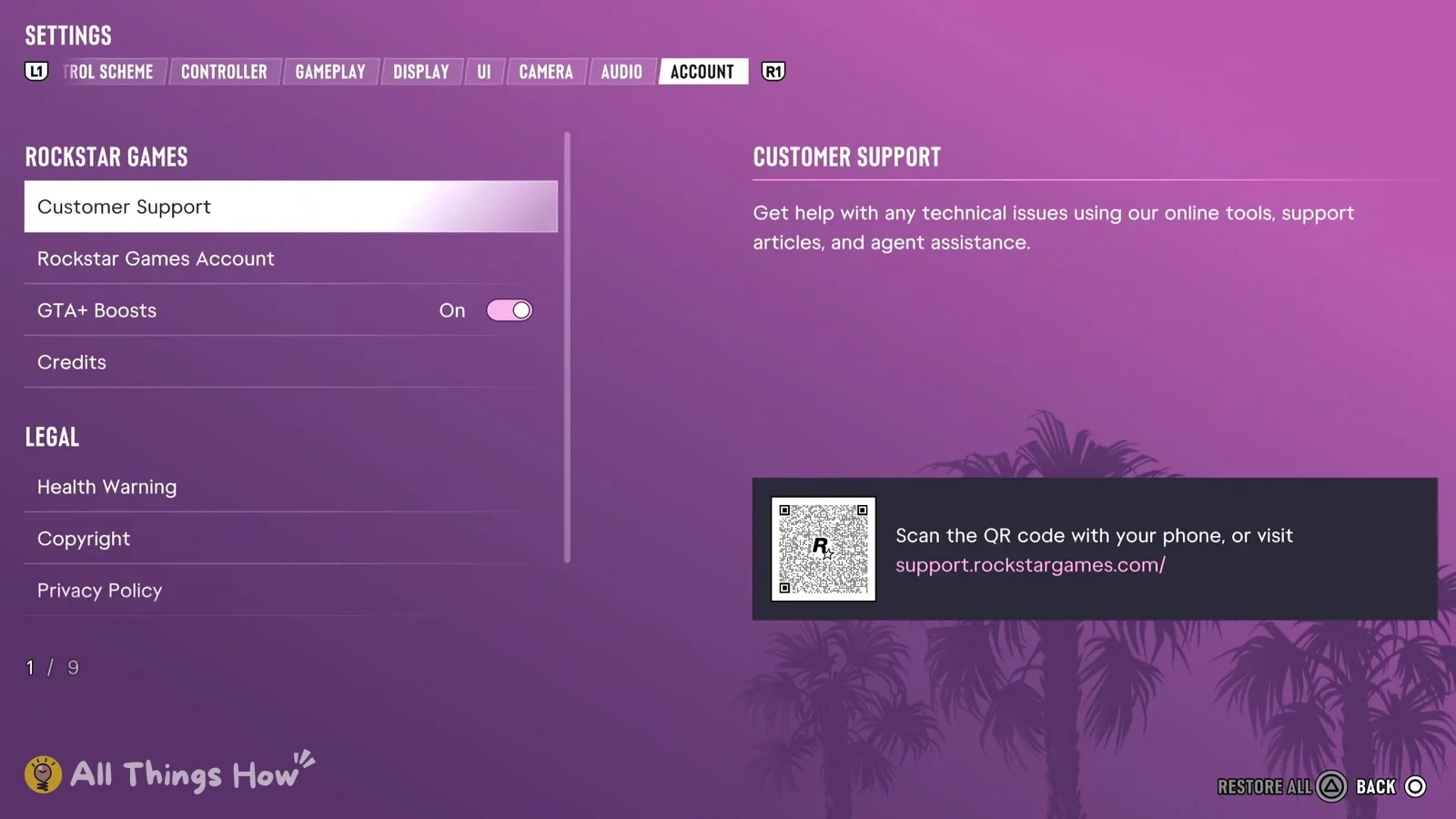
For issues on Rockstar’s end, visit Rockstar Games Customer Support and choose Submit a Request; you can do this 24/7. If you can open the game, go to Settings > Account > Customer Support to scan a QR code that leads to the same address.