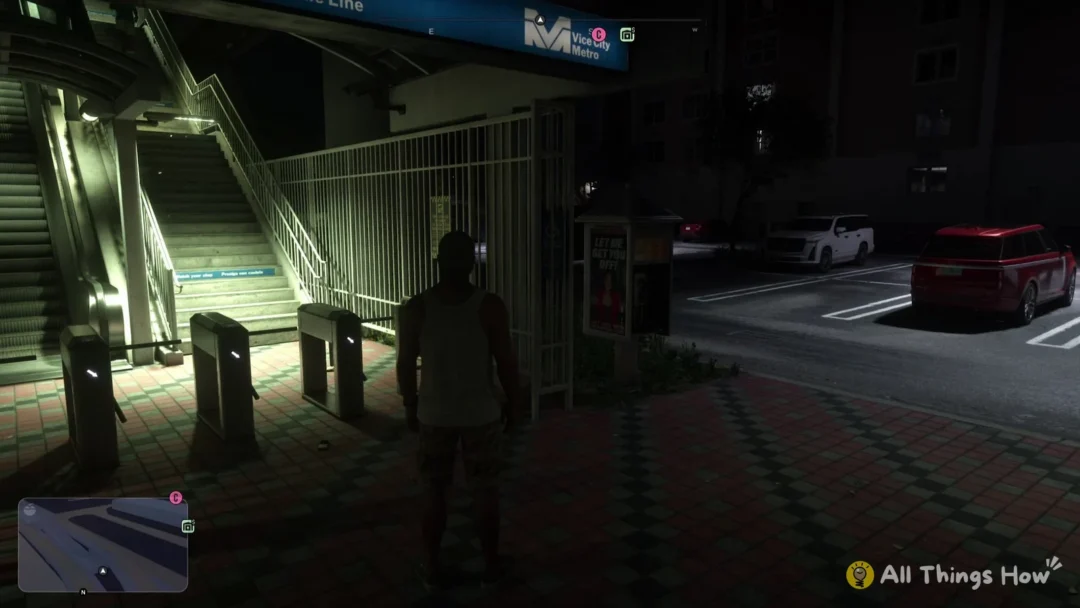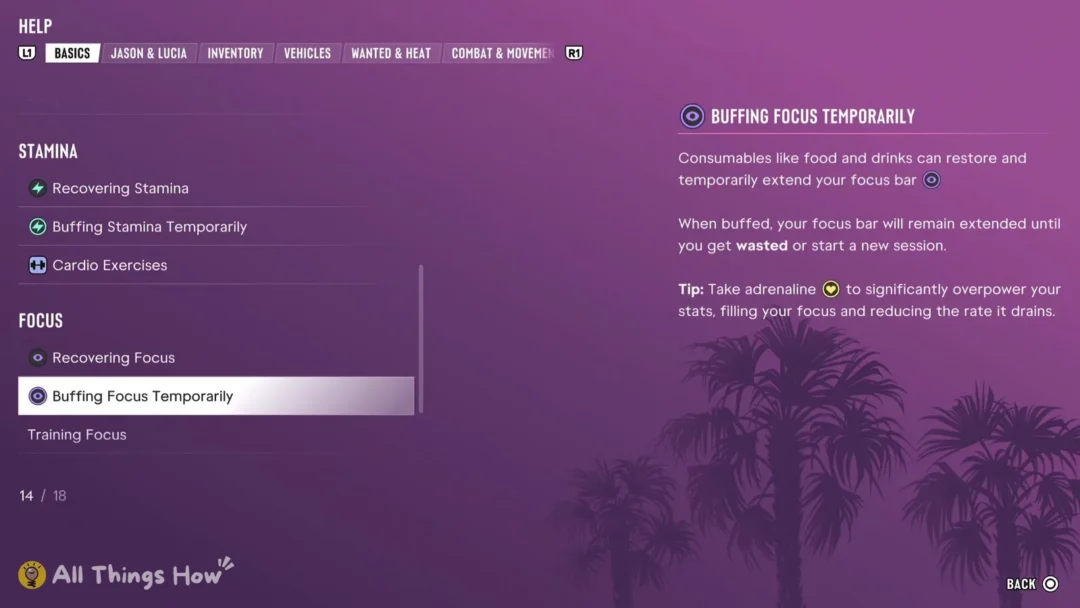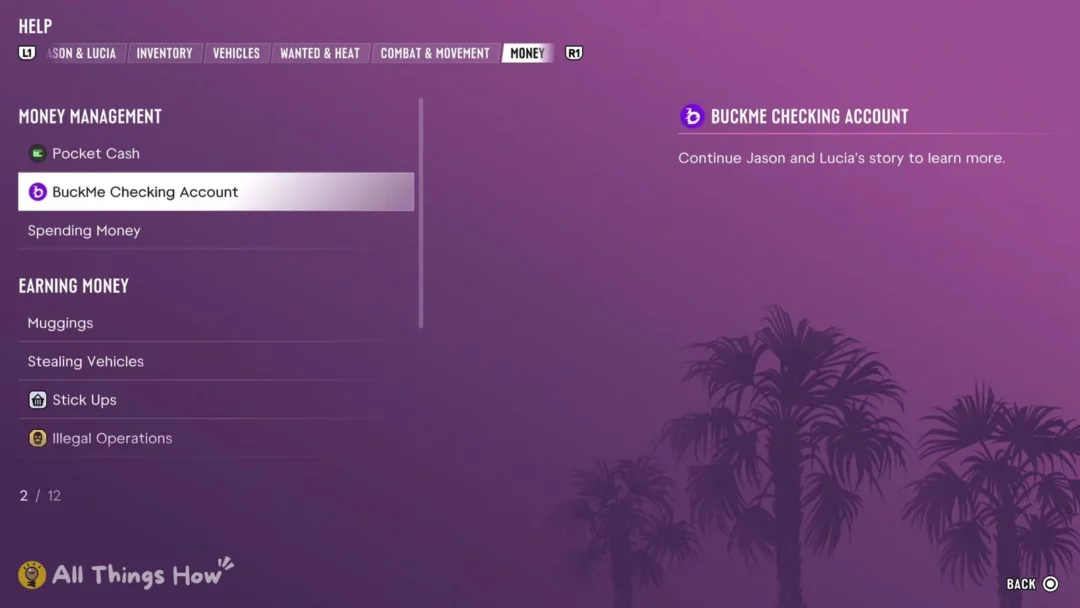

GTA 6 doesn’t make you scroll around the pause map hunting for icons. Its map has an index, a sorted list of every task and location you’ve discovered. You can jump straight to a barber, a gas station or a convenience store and set it as your destination with one button.
Quick answer: To set a destination, bring up the map while paused and hit D-pad right for the index. Choose a section from the icon column, then pick a category and a place. Press Cross for SET DESTINATION.
How to open the map index in GTA 6
The game explains this on its own Help page, under Pause > Help > BASICS > Navigation, in an entry called “Viewing Tasks & Locations”:
“Open the map in the Pause menu [Options] then press [D-pad right] to view the index.” “The index shows all the tasks and locations you’ve discovered. Explore the different sections and hover over a task or location to learn more about it.”
The same page adds a shortcut for when you only care about what’s close: “You can also hold [D-pad down] to view tasks or locations nearby.”
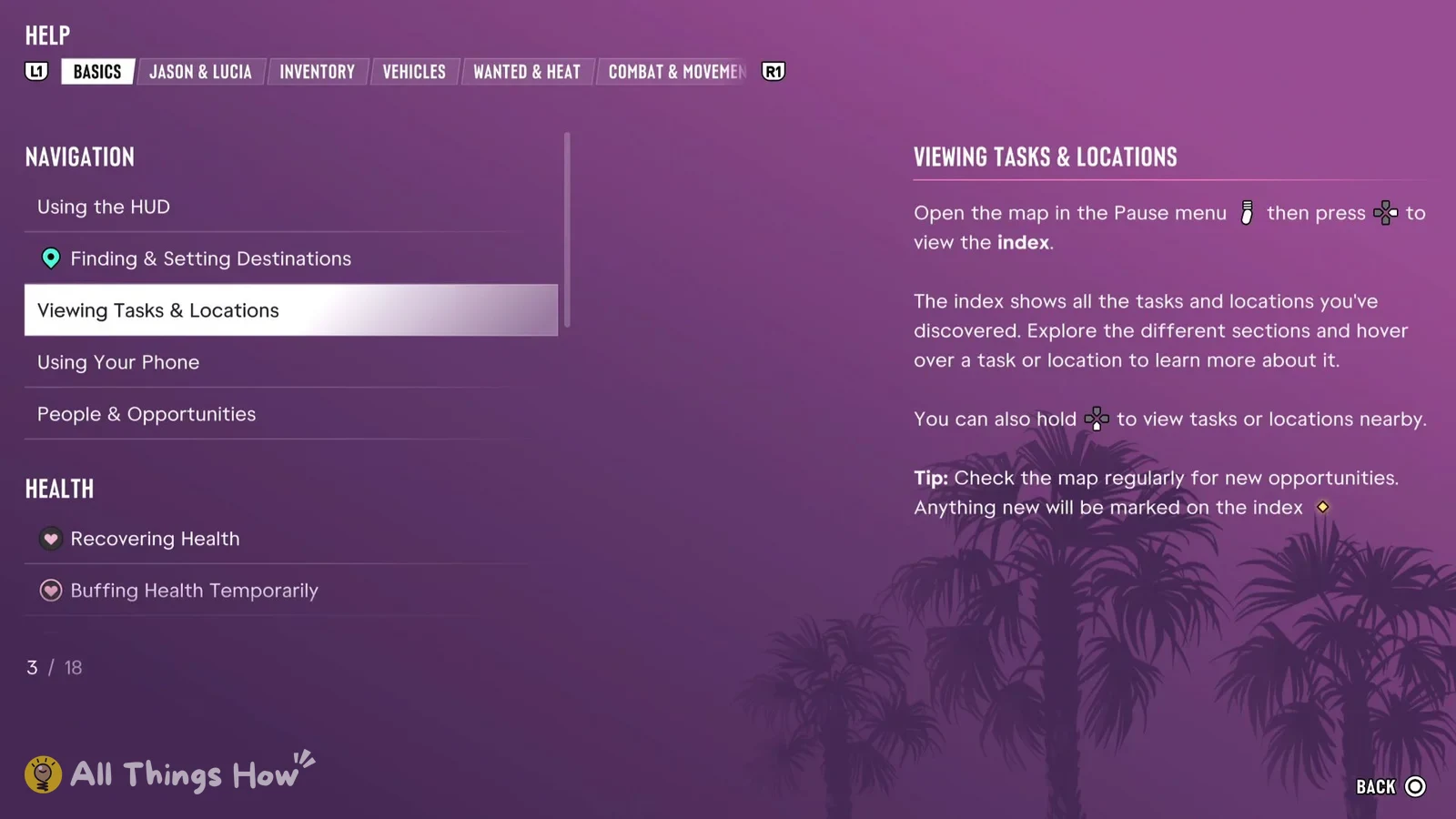
The index only lists places you’ve already discovered, so a store or gym you haven’t come across yet won’t show up in its section.
Every map index section and what’s in it
The table runs top to bottom, in the order the icons appear, with examples of what turns up in each one while playing as Jason in free roam early in the story.
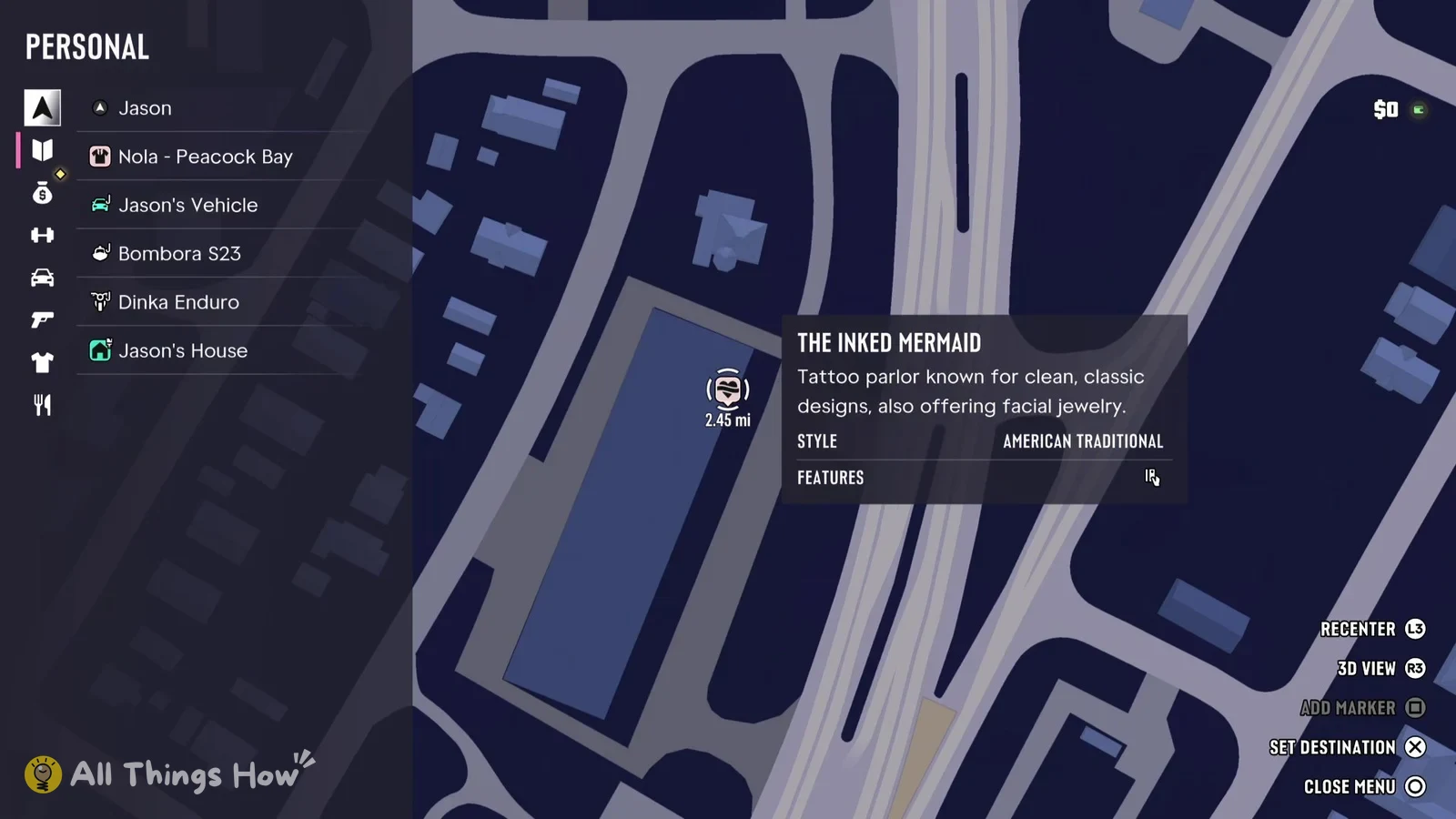
| Icon | Section | What’s in it |
|---|---|---|
| Arrow | PERSONAL | Jason, your current destination, Jason’s Vehicle, Bombora S23 boat, Dinka Enduro bike, Jason’s House |
| Money bag | ROBBERIES | “ILLEGAL OPERATIONS”, drop-offs such as Brian’s Lockup |
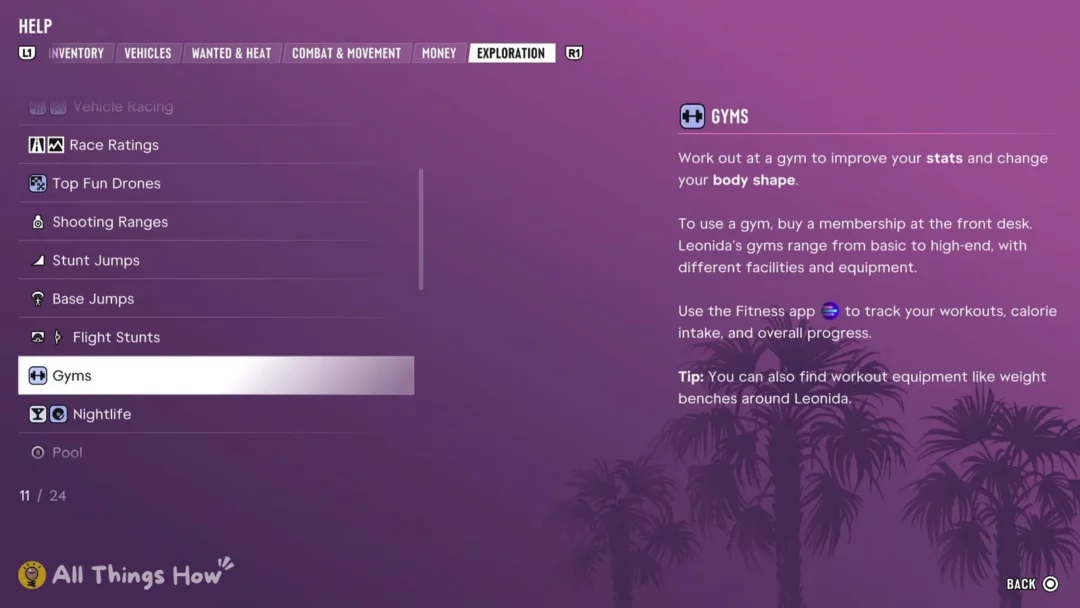
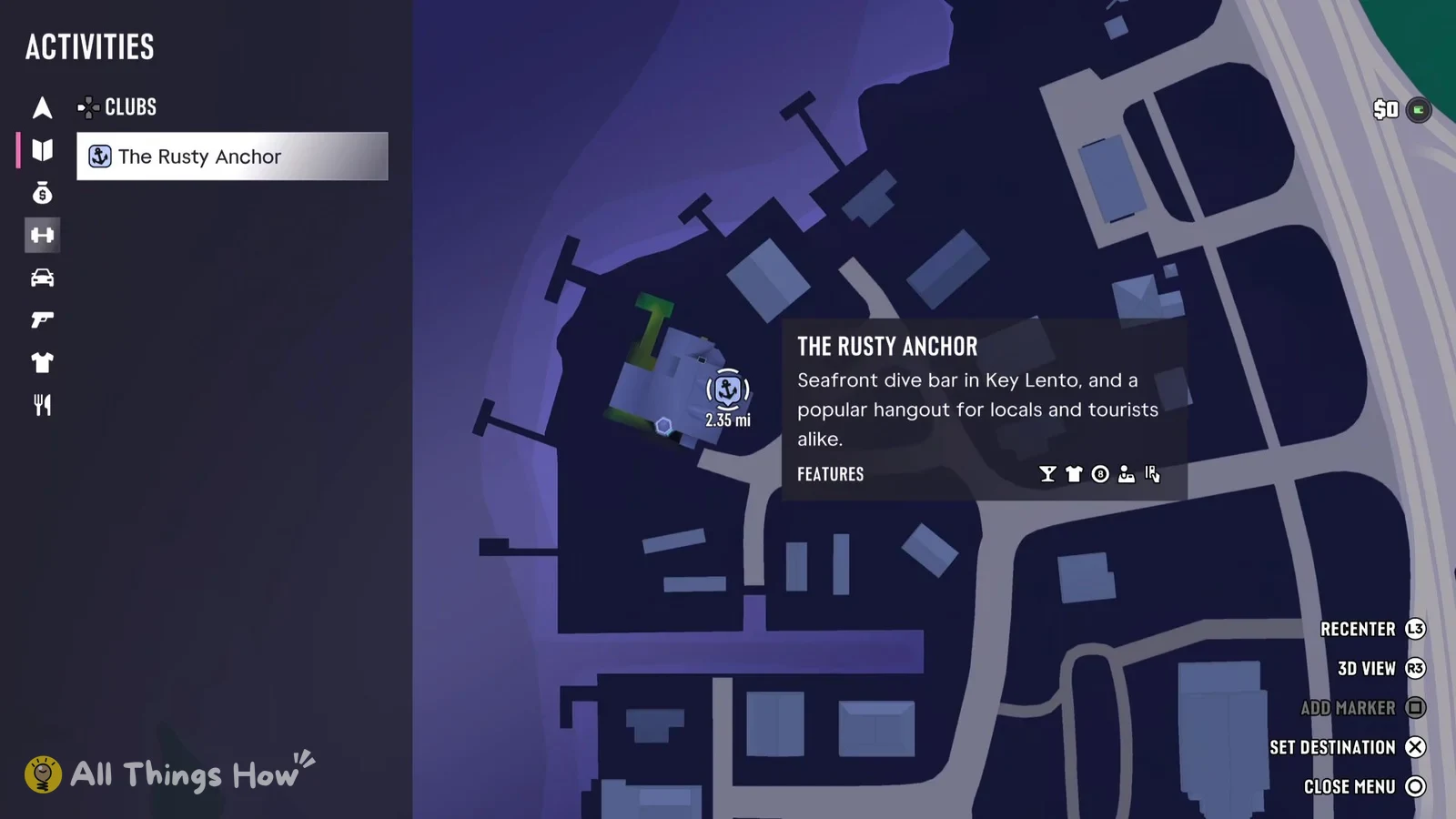
| Dumbbell | ACTIVITIES | “GYMS” and “CLUBS” |
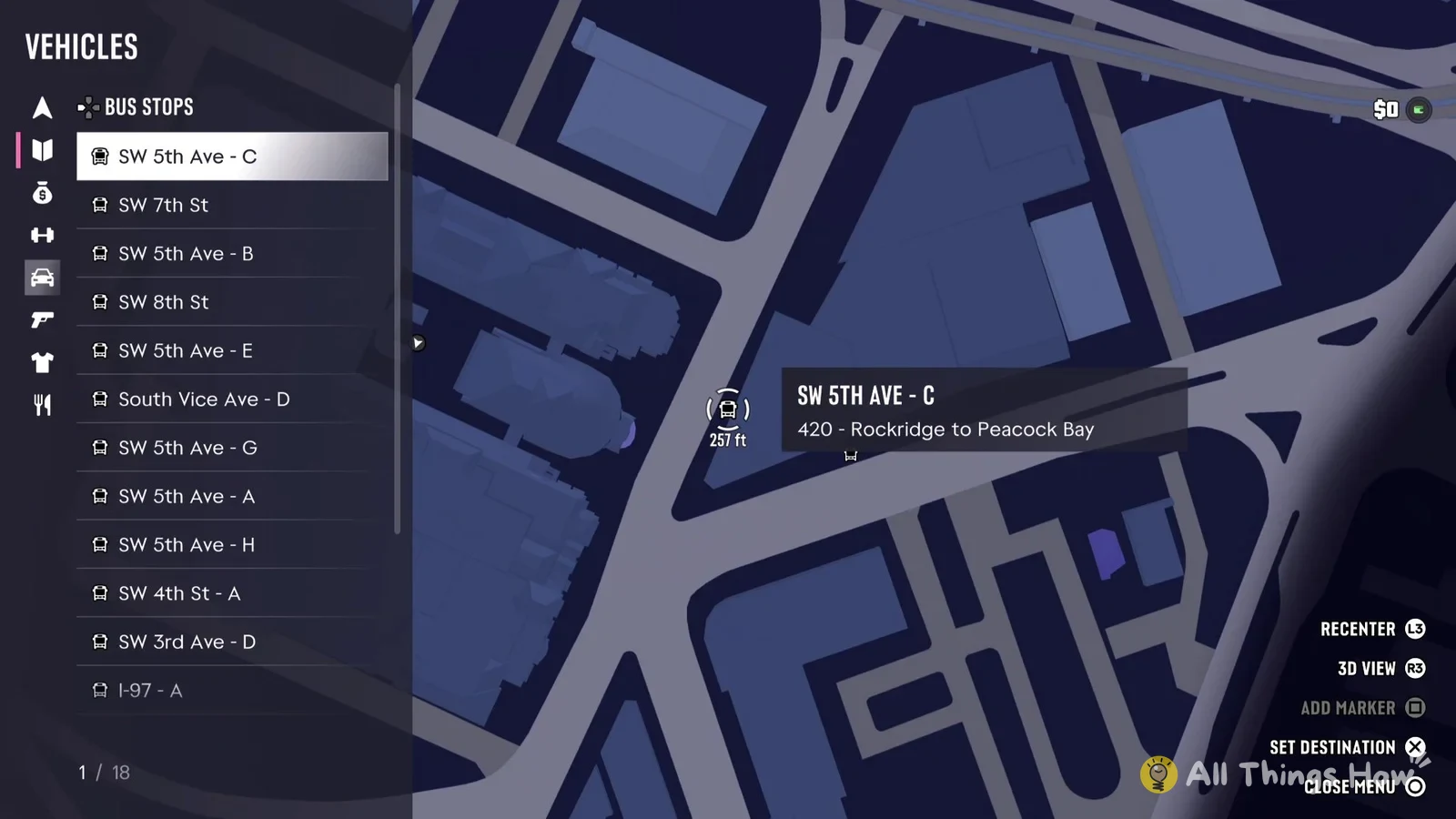
| Car | VEHICLES | Mod shops, gas stations, electric chargers, “BUS STOPS”, “TRAIN STATIONS” |
| Gun | AMMU-NATIONS | All, Everyday, Premium |
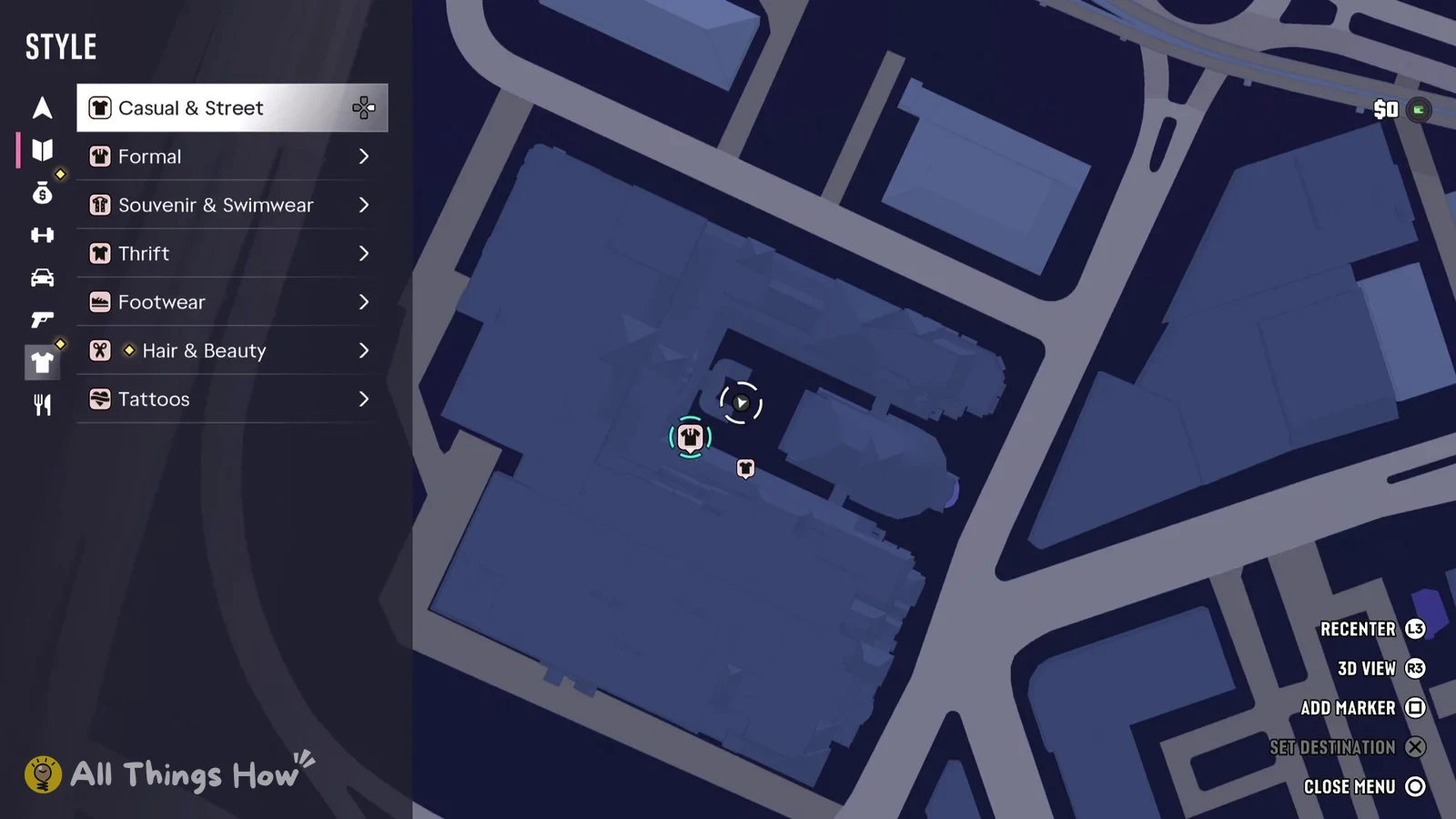
| T-shirt | STYLE | Casual & Street, Formal, Souvenir & Swimwear, Thrift, Footwear, Hair & Beauty, Tattoos |
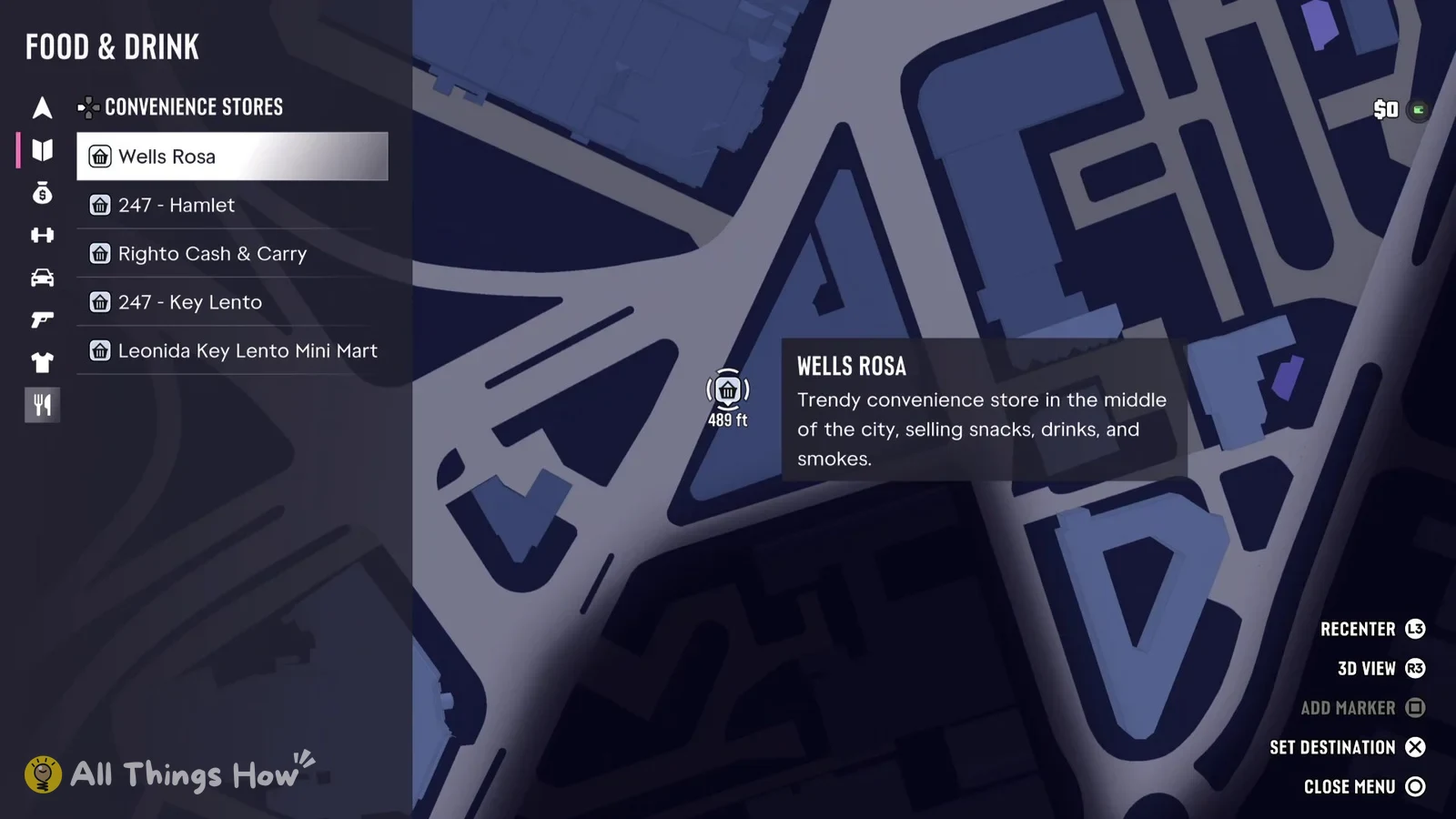
| Knife and fork | FOOD & DRINK | “CONVENIENCE STORES”, fast food, cafes, liquor stores, bars, street food |
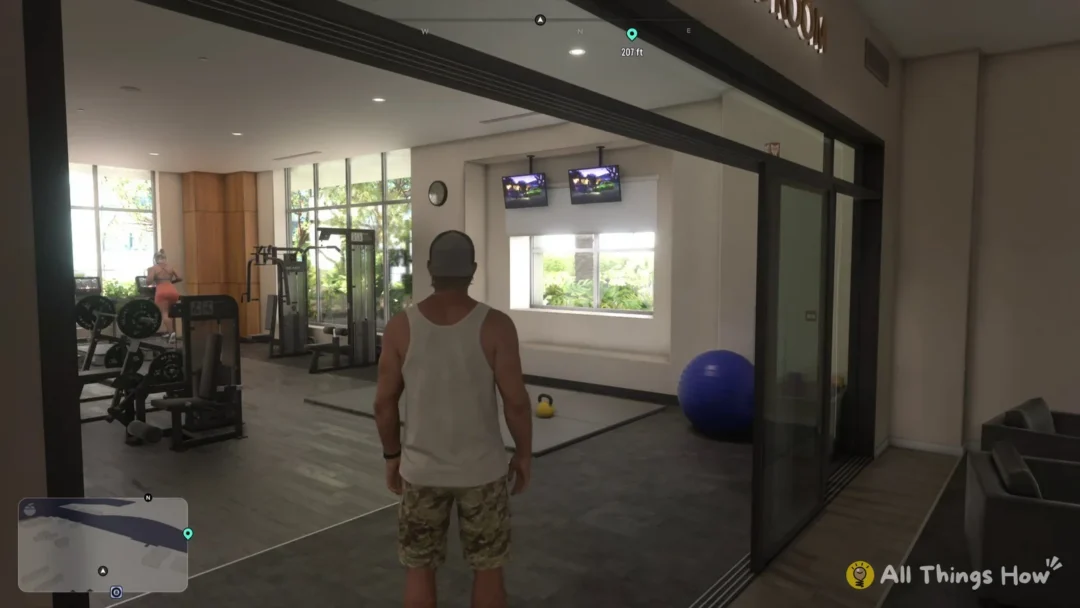
The gyms under ACTIVITIES include Zenith, Vice Seven Condominiums Gym and Grand Majestic Gym. If you’re looking for somewhere to grab a snack, the “CONVENIENCE STORES” list in FOOD & DRINK has spots like Wells Rosa, 247 – Hamlet, Righto Cash & Carry, 247 – Key Lento and Leonida Key Lento Mini Mart. Bars sit in their own category in the same section.
Bus stops are worth a closer look if you’re getting around without a car. Each stop’s card names the route it serves, so the SW 5th Ave – C stop reads “420 – Rockridge to Peacock Bay”. Long lists like this one show a counter, such as “1 / 18”, so you know where you are in the list.
How to set a destination from the GTA 6 map index
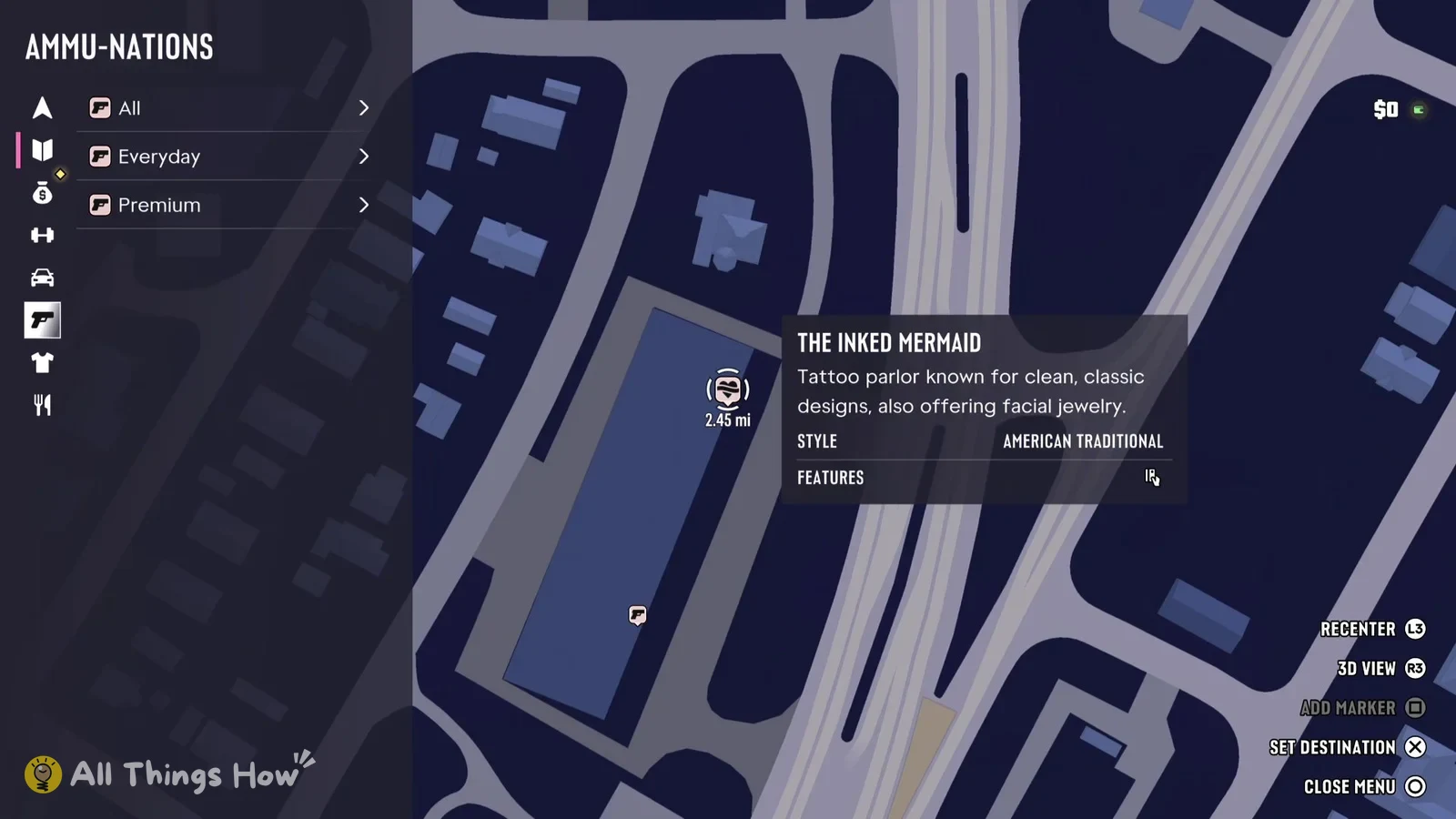
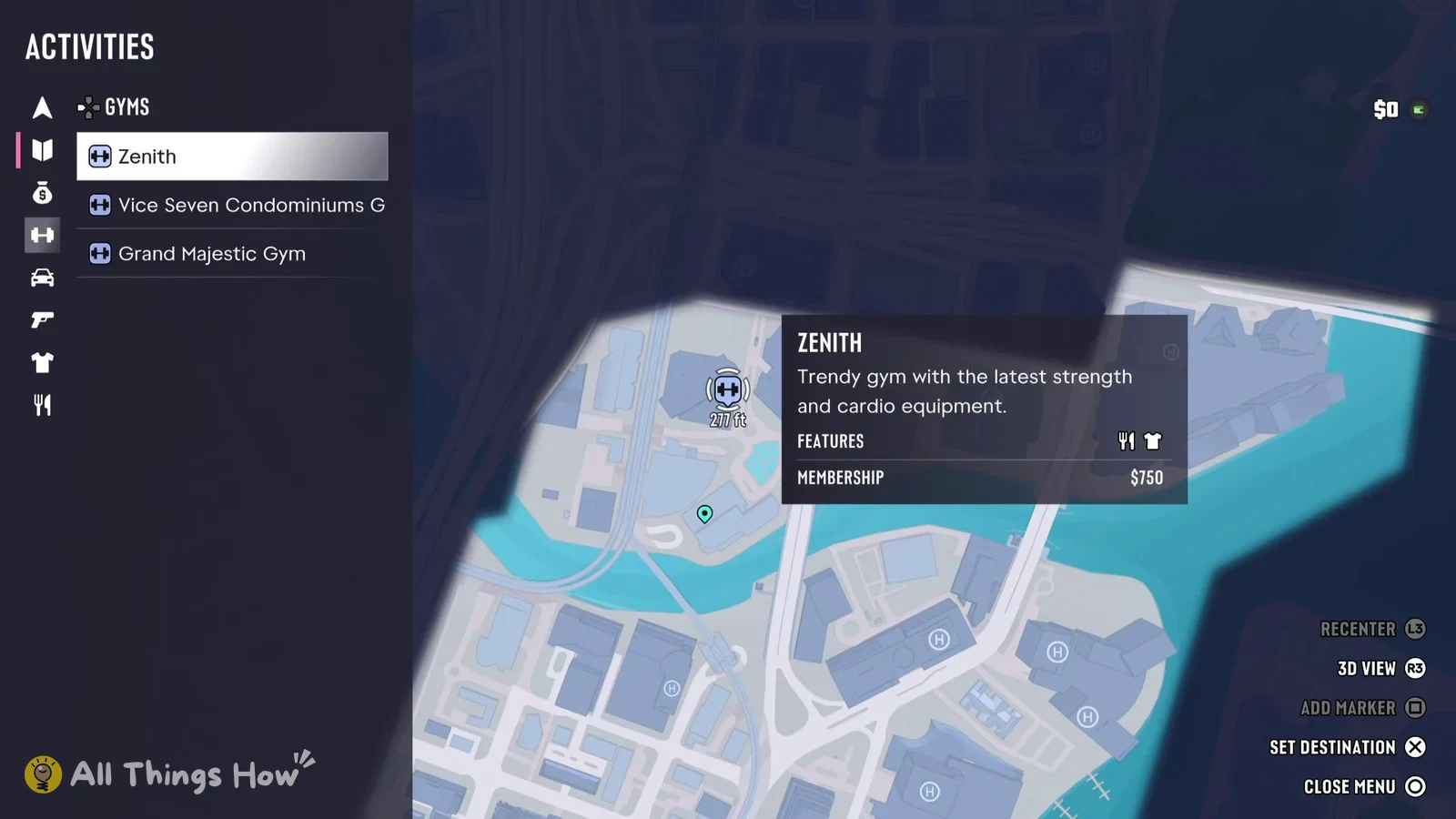
The card’s extra rows depend on what kind of place it is, and you’ll see things like STYLE, FEATURES, INVENTORY or MEMBERSHIP. Highlighting KURT’S BARBER SHOP brings up the description “Basic barbershop offering no-fuss grooming.” with a STYLE: BARBER row underneath.
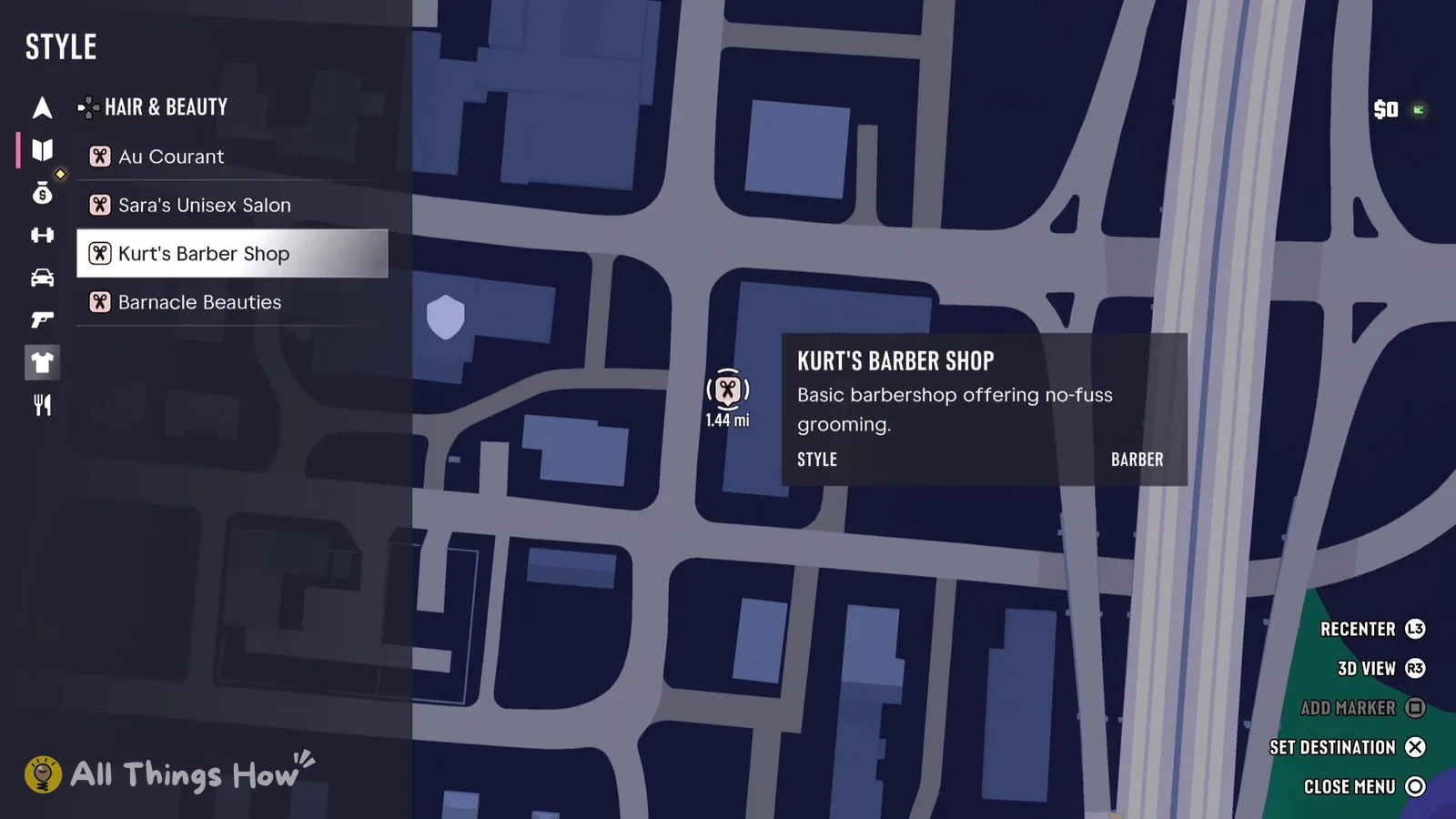
The other buttons are listed at the bottom right of the screen:
- RECENTER (L3)
- 3D VIEW (R3)
- ADD MARKER (Square)
- CLOSE MENU (Circle)
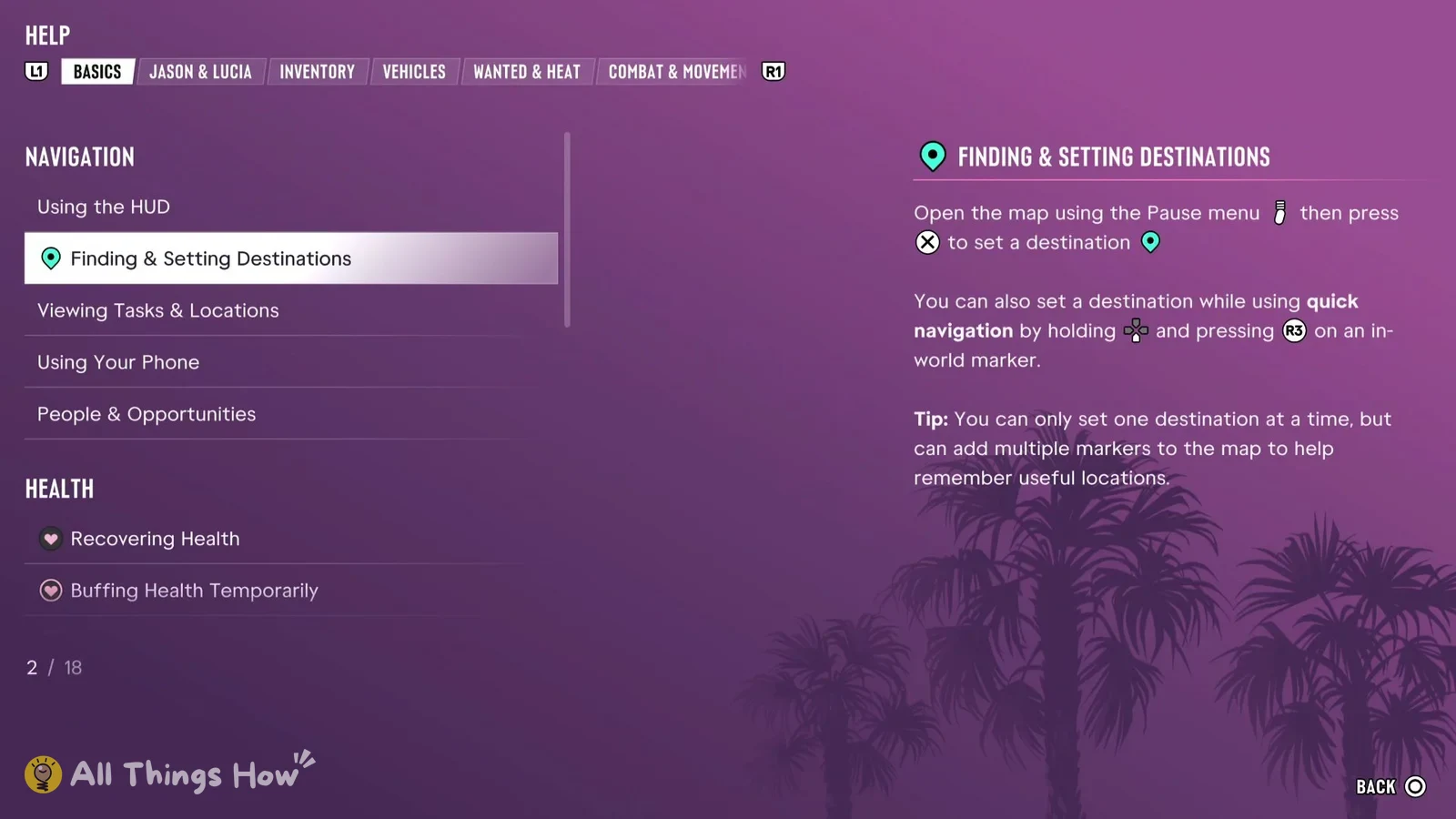
You can only have one destination at a time, which the Help page spells out in its “Finding & Setting Destinations” entry: “Tip: You can only set one destination at a time, but can add multiple markers to the map to help remember useful locations.” So if you want to keep a gym and an Ammu-Nation handy, set one as your destination and drop a marker on the other with Square. The same page notes you don’t always need the index to do this: “You can also set a destination while using quick navigation by holding [D-pad down] and pressing [R3] on an in-world marker.”
What the yellow diamond means in the map index
A small yellow diamond next to a section icon or a single entry means something new has been added there. The game’s Help page says as much: “Tip: Check the map regularly for new opportunities. Anything new will be marked on the index”. When a diamond shows up on an icon in the left column, open that section and look for the entry carrying the same diamond to find the new place.