Crashes in Hell Let Loose: Vietnam tend to hit at the worst moments. You load a match, open the map, or step off a boat, and the game throws a LowLevelFatalError or fires up the UE-HLL Vietnam Crash Reporter before dumping you to the desktop. The problem shows up on both AMD and NVIDIA hardware, and the developers at Expression Games acknowledged stability issues on certain AMD GPUs during pre-release testing. The fixes below are ordered from the fastest to the most involved, so work down the list until the crashing stops.
Quick answer: Set EasyAntiCheat_EOS_Setup.exe to run as administrator with fullscreen optimizations disabled, verify your game files in Steam, and update or roll back your GPU driver. Those three steps clear the vast majority of crashes.
Easy Anti-Cheat compatibility fix (best track record)
This tweak has the strongest results of anything reported so far. One player went from crashing on roughly 90 percent of spawns to zero crashes across a full hour of play after applying it, and several others confirmed the same result. It is quick to test and easy to reverse, so it is worth doing first.
EasyAntiCheat_EOS_Setup.exe. Right-click it and select Properties.It is not universal, so if crashes continue, keep this setting enabled and move through the fixes below alongside it.
Verify game files in Steam
Corrupted or missing files are the most common cause of startup and match-loading crashes. Steam can check every installed file against the original and re-download anything broken, which fixes a lot of instability on its own.
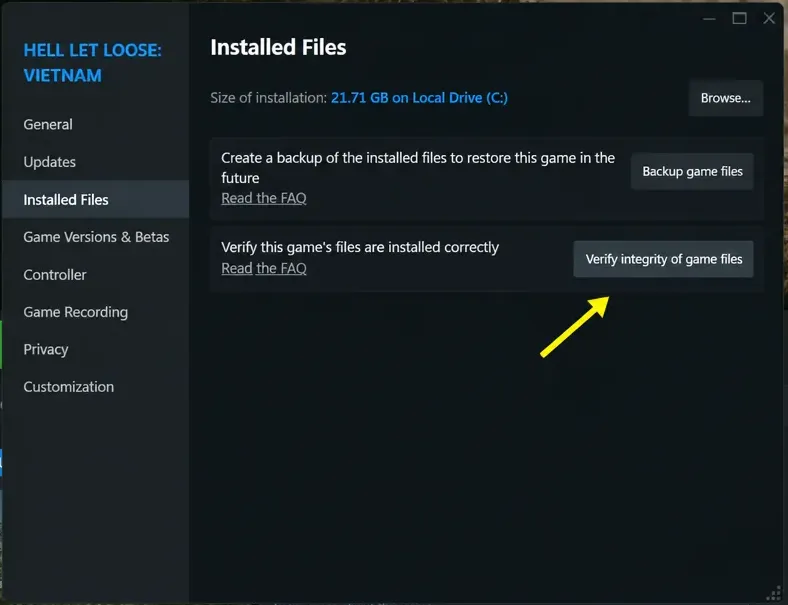
Verifying only checks and repairs game files. It does not touch your saves or settings, so you can run it as often as you like.
Update or roll back your GPU driver
A bad or outdated graphics driver is a frequent trigger for these Unreal Engine crashes. Start by installing the newest driver, then go the other direction if that does not help.
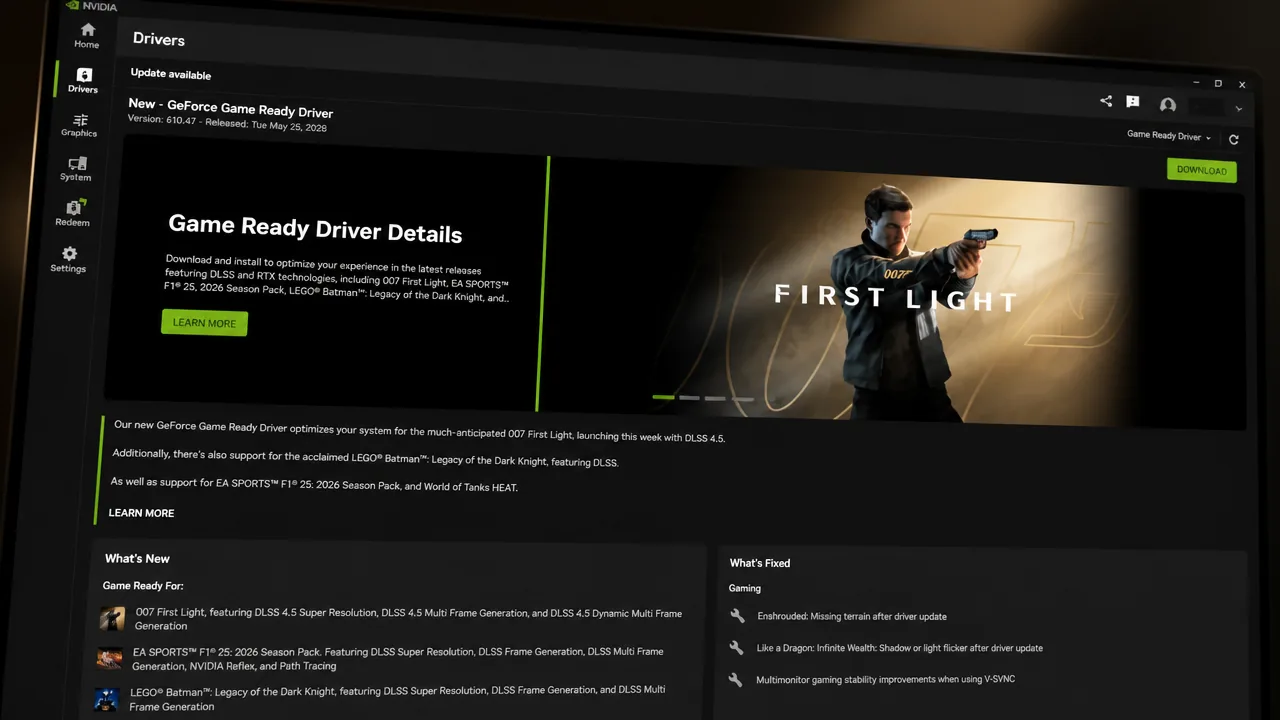
The newest driver is not always the most stable one for this game, and some setups run better on an older build.
AMD users: turn off Radeon Anti-Lag
AMD players report more crashes than NVIDIA users in this game, and one setting keeps coming up. Radeon Anti-Lag has been traced to a white flickering on the ground, and switching it off stopped that flickering for several players.
Open AMD Adrenalin, go to Gaming, select Hell Let Loose: Vietnam or the global profile, and toggle Radeon Anti-Lag off. It rarely fixes every AMD crash alone, so pair it with the Easy Anti-Cheat tweak above if you are still struggling.
Force DirectX 11 or 12 through launch options
Switching the rendering API can tell you whether the crash is tied to DirectX 12. Treat this as a diagnostic step rather than a permanent fix.
-dx11 to the launch options. Start the game and see whether it still crashes.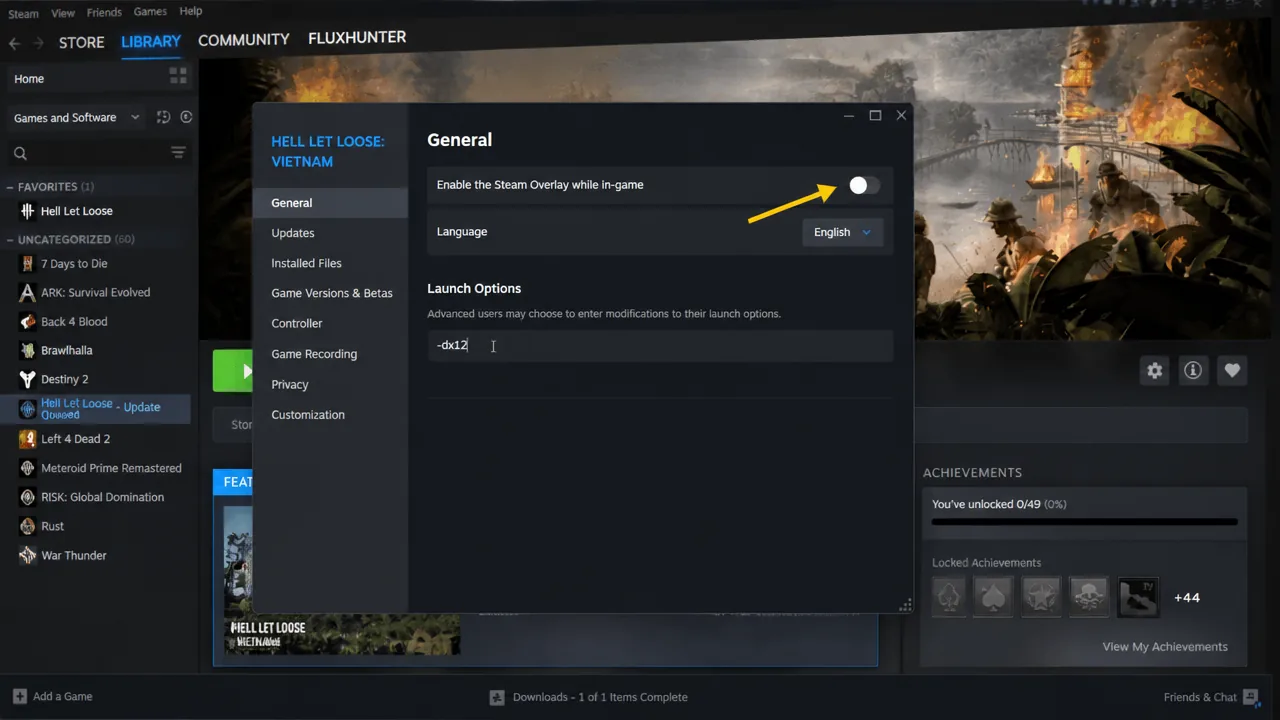
There is a real trade-off here. One player on a 7900XTX said -dx11 stopped the crashes entirely but dropped their frame rate to 20 or lower near buildings. That makes it a poor long-term choice, so use it to narrow down the cause, not to live with.
Turn off overlays and monitoring tools
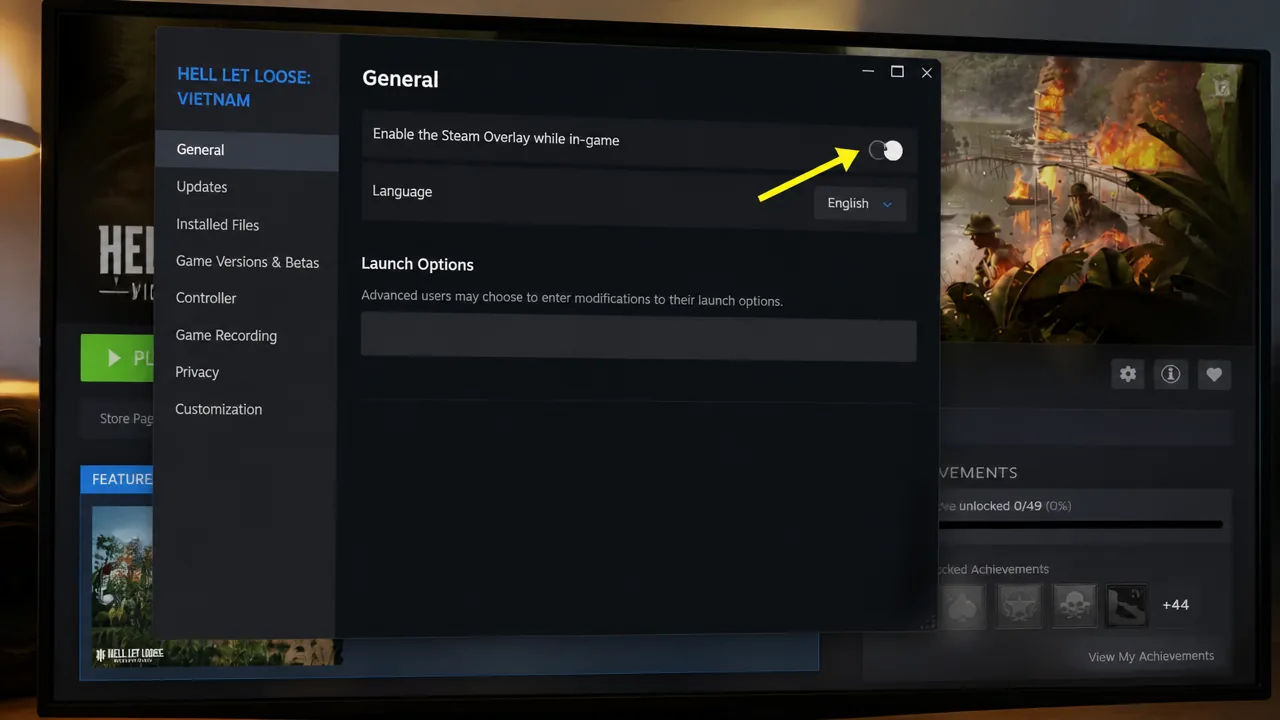
Overlays clash with Unreal Engine games more than people expect, and this one is no exception. Start with Steam’s own overlay before closing everything else layered on top of the game.
Clear the DirectX shader cache and NVIDIA cache
A corrupted shader cache causes crashes even when nothing about your setup looks wrong. Clearing it forces the game to rebuild shaders cleanly on the next launch.
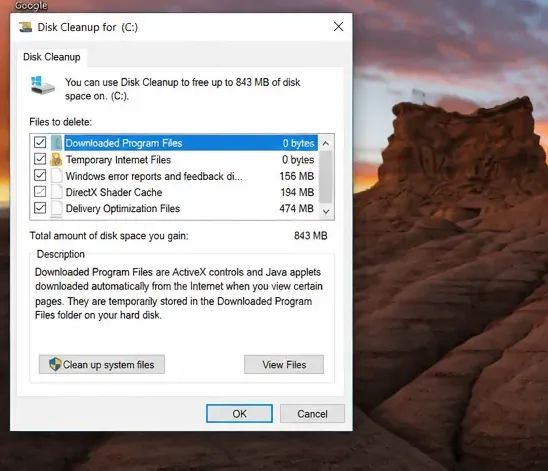
C:\Users\[your username]\AppData\Local\NVIDIA and AppData\LocalLow\NVIDIA.Note: AppData is hidden by default. In File Explorer’s View menu, enable “Hidden items” to see it. Restart your PC once you are done.
Allow the game through antivirus and firewall
Security software sometimes blocks the game’s executables silently, and Easy Anti-Cheat’s setup file is a common target. Adding the files as exceptions stops that interference.
Binaries\Win64 path, and the Easy Anti-Cheat setup file.Reinstall DirectX and Visual C++ redistributables
Missing or outdated redistributables cause exactly the kind of low-level crashes players are hitting, and reinstalling them has fixed launch crashes on its own for some setups.
More fixes to try if crashes continue
If you have worked through everything above and still crash, these are worth a shot. A couple of them wipe settings or saves, so note the warnings before you commit.
| Fix | How | Warning |
|---|---|---|
| Rename the config folder | Rename the folder at AppData\Local\Vietnam\Saved\Config | Wipes your saved settings |
| Rename the saved game folder | Back up the Vietnam folder first, then rename it | Wipes your save progress |
| Disable integrated graphics | Device Manager, Display adapters, disable the integrated GPU | Re-enable it after playing |
| Disconnect extra monitors | Run on a single display; also try dropping refresh rate to 60–120Hz | — |
| Turn off hardware-accelerated GPU scheduling | Windows Settings, Graphics settings, Advanced | Requires a restart |
| Switch to Power Saver mode | Control Panel, Power Options | Tests whether High Performance mode is the trigger |
| Unplug external devices | HOTAS, wheels, pedals, extra controllers, USB adapters | Rules out a peripheral conflict |
| Reinstall to a different drive | Move the install to C: or a different SSD | Last resort |
Long or infinite loading screens usually point to storage or network rather than a crash. Moving the game to an NVMe SSD sharply cuts load times, and a wired Ethernet connection avoids the timeouts that can leave you stuck while map data streams in from the server.
Why the game still crashes on a high-end PC
A powerful rig does not guarantee stability right now. Players on an RTX 5090 and a 7900XTX have both reported repeated crashes, sometimes within minutes of launching, which points to an engine-level optimization issue rather than a hardware limit. This kind of Unreal Engine crash has a long history in the series, and error codes like EXCEPTION_ACCESS_VIOLATION reading address 0xffffffff can stem from a wide range of causes, which is why working through the list matters more than any single tweak.
Team17 support has not released a confirmed patch for the crashing yet, and is currently asking affected players to send in DxDiag reports so it can investigate. Until an official fix lands, the Easy Anti-Cheat compatibility tweak combined with a clean driver install and verified game files gives you the best odds of a stable session. You will know it worked when you can load a match, open the map, and step off a boat without the crash reporter appearing.