

Switching document theme colors in Microsoft Office apps like Word, Excel, and PowerPoint directly controls the look of text, shapes, charts, and tables. Customizing these colors not only aligns documents with branding requirements but also streamlines formatting for future projects. Modifying theme colors is a straightforward process, but knowing where to find these settings and how to apply them can save time and reduce inconsistencies.
Change Theme Colors Using Built-In Options
Design tab. In Excel, go to the Page Layout tab. These tabs provide access to theme and color controls.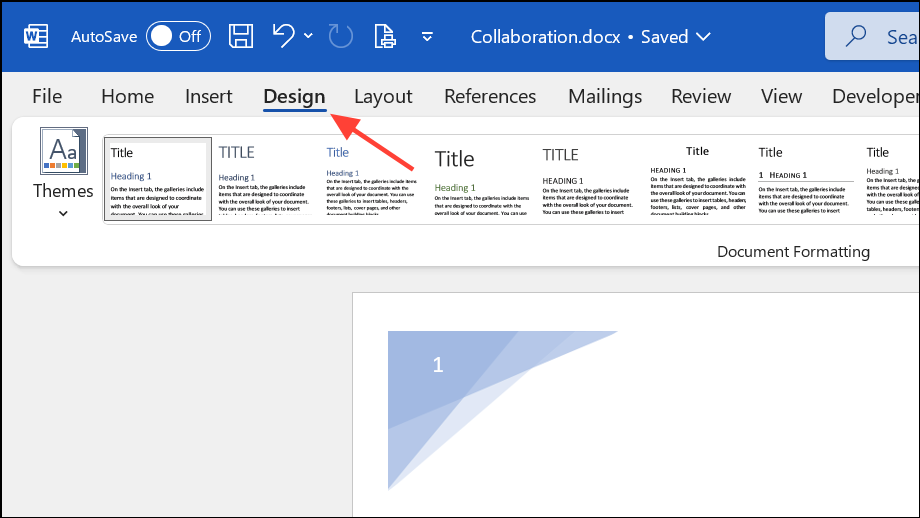
Colors dropdown in the Document Formatting group (Word/PowerPoint) or Themes group (Excel). Click the dropdown to view available color themes.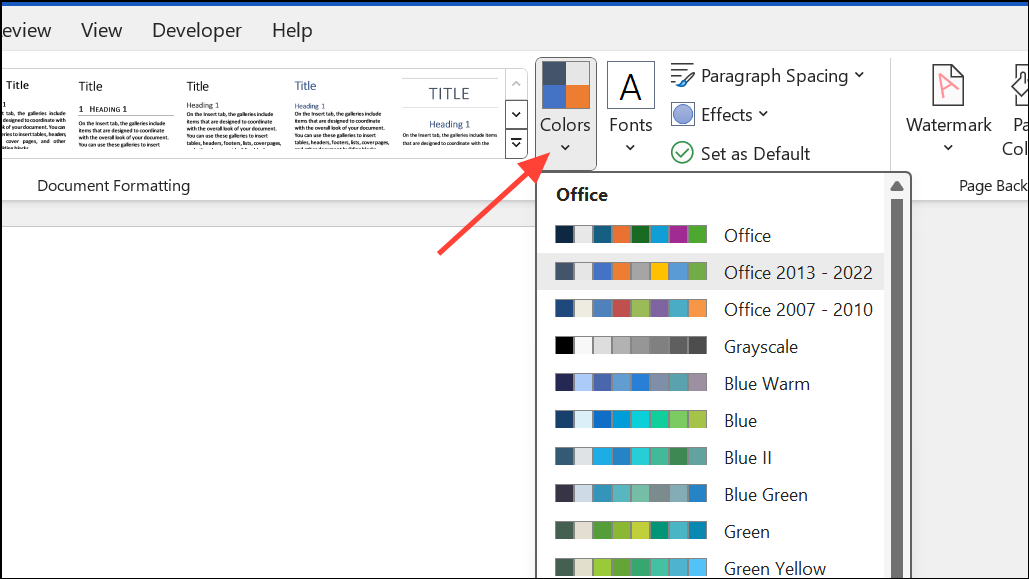

Create and Apply a Custom Color Theme
For situations where none of the default palettes fit your needs, creating a custom color theme allows precise control over every accent and background color.
Customize Colors at the bottom of the color palette menu. A dialog box will appear, listing all theme color slots (such as Accent 1, Accent 2, Hyperlink, etc.).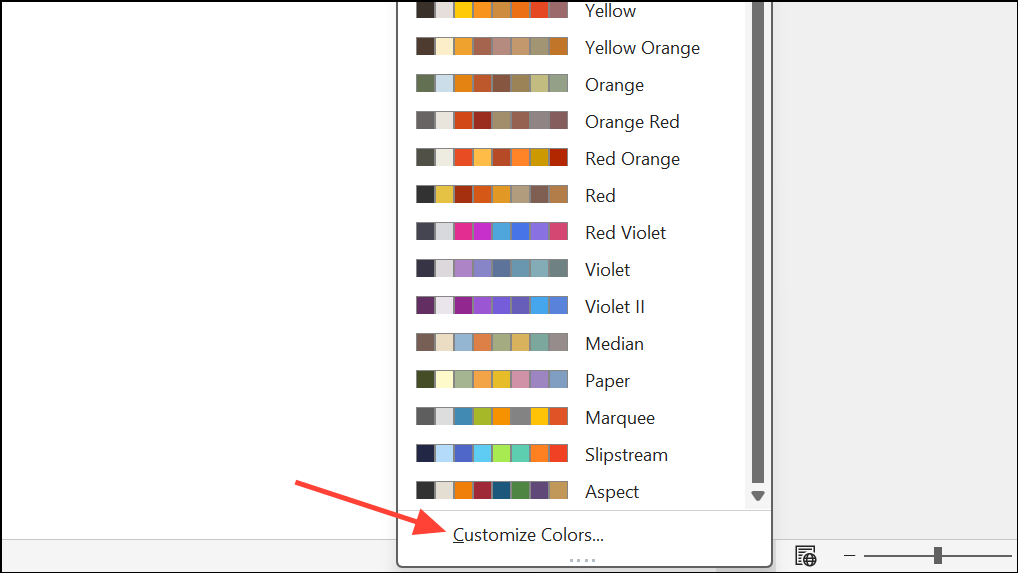
More Colors to enter specific RGB values for custom shades. This is especially useful if your organization uses precise brand colors.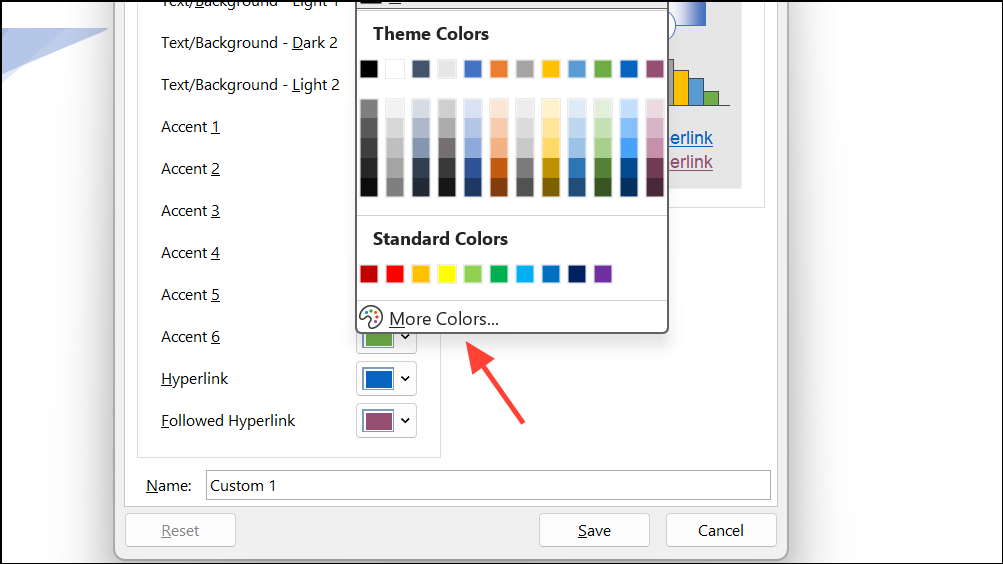
Name field, then click Save. The new theme will now be available in the Colors dropdown for future use in any document on your computer.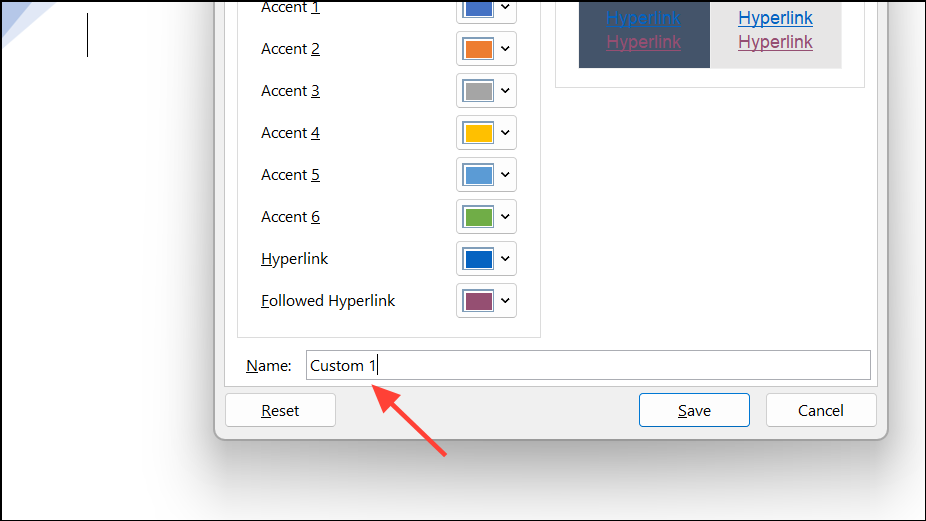
Set a Custom Theme as the Default for New Documents
To avoid repetitive formatting, you can make your custom theme the default for all new documents.
Design tab.Set as Default (in Word) or right-click your theme in the Themes gallery and choose Set as Default Theme (in PowerPoint). In Excel, save a workbook template with your theme applied as book.xltx in the XLStart folder to use it as the basis for all new workbooks.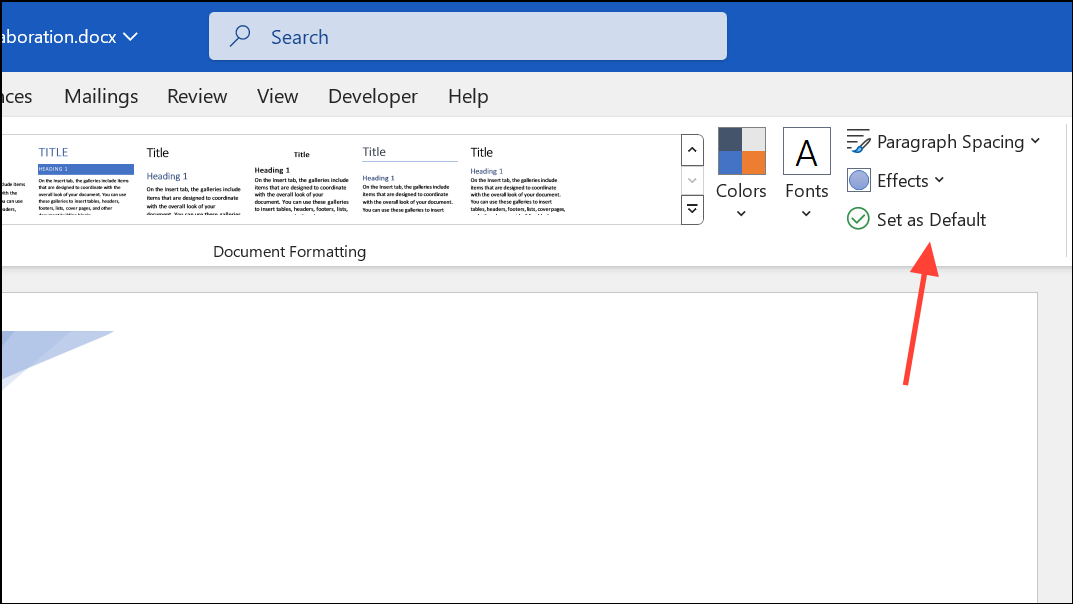
Replace Individual Palette Colors Using RGB Codes
If you need a specific color not available in the standard palette, you can add it using its RGB (Red, Green, Blue) values.
Custom tab in the More Colors dialog.More Colors, and entering the RGB values on the Custom tab. This makes the exact color available throughout the document.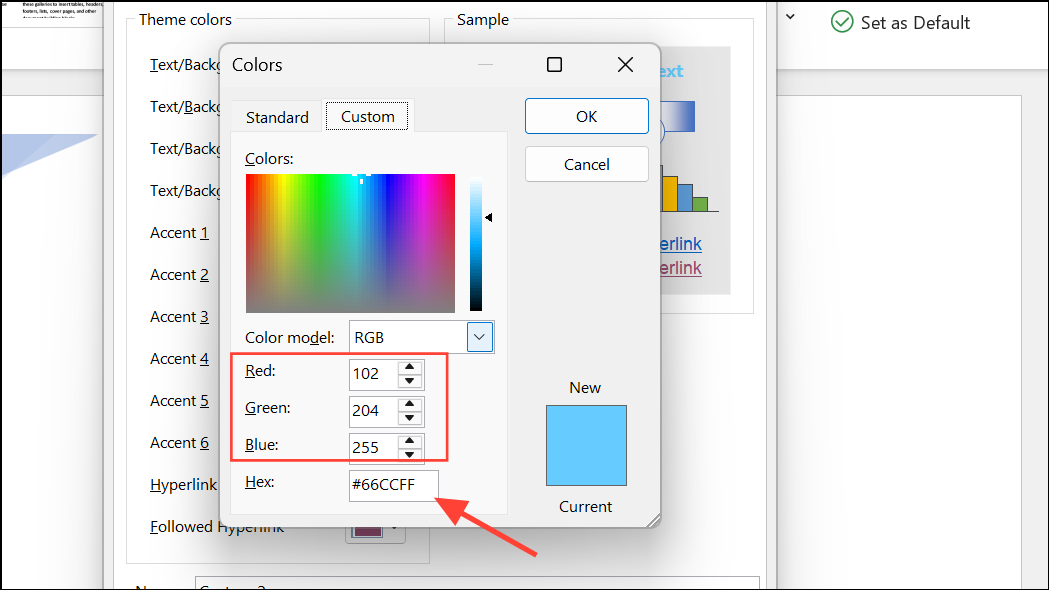
Distribute Custom Color Themes Across Your Organization
For organizations aiming for brand consistency, administrators can distribute custom themes through Microsoft 365 admin settings. This ensures every user has access to approved color palettes, streamlining team-wide formatting and reducing manual adjustments.
To deploy a theme organization-wide, an admin can upload the custom theme in the Microsoft 365 Admin Center under organization branding options. This makes the theme available by default to all users within the organization.
Customizing document theme colors in Microsoft Office apps speeds up formatting, aligns files with branding, and keeps your work visually consistent. Adjust your color themes as needed and consider saving templates for projects that require frequent reuse.